# Your Audio Is Louder Than It Sounds
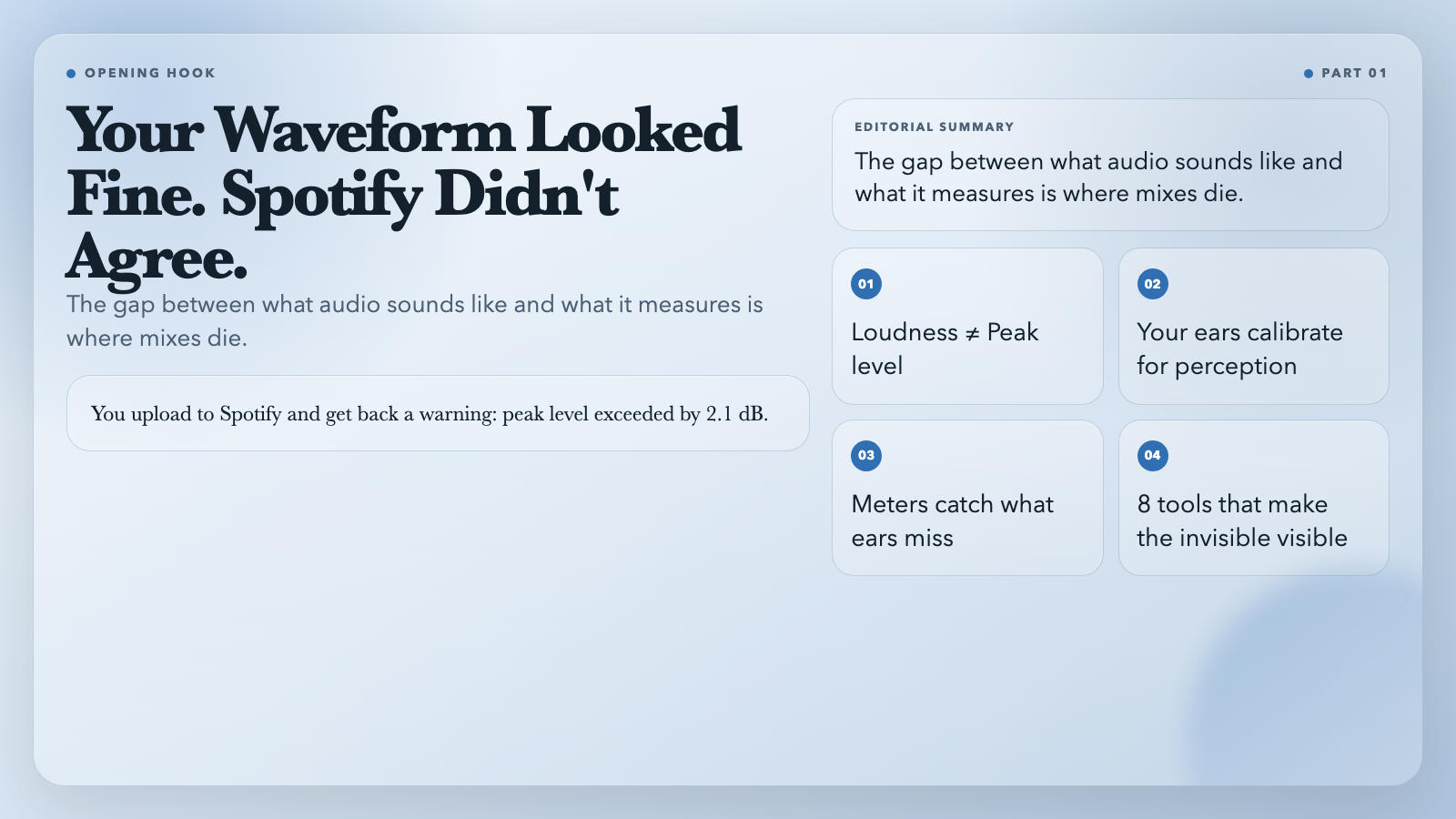
You just mastered your track. It sounds clean on your monitors, the levels feel right, the dynamics breathe. You upload it to Spotify and get back a warning: peak level exceeded by 2.1 dB. Your waveform looked fine.
This is the gap between what audio sounds like and what it measures like. The mismatch trips up almost every producer who hasn’t had to prep files for broadcast or streaming compliance. Your ears are calibrated for loudness perception. Your meters are calibrated for things your ears can’t fully hear — inter-sample peaks, phase correlation, LUFS integration, crest factor.
The fix isn’t more experience. It’s using the right meters. Here are 8 free tools that make the invisible visible.
Audio LUFS Meter
LUFS (Loudness Units relative to Full Scale) is the standard unit for measuring perceived loudness. Streaming platforms don’t ask for peak levels — they specify LUFS targets. Spotify wants -14 LUFS integrated. YouTube hovers around -14 to -16. Broadcast TV is often -24.
FFmpeg’s ebur128 filter powers to report three readings: integrated loudness (the full-mix average), short-term loudness (the last 3 seconds), and momentary loudness (the last 400ms). Three numbers, one pass. The short-term and momentary readings show you where your mix spikes and breathes — not just where it averages out.
A practical example: you set your limiter to catch peaks at -1 dBTP, and your integrated LUFS reads -16. Looks good on paper. But your short-term spikes hit -8 LUFS during the chorus. Your listeners’ phones can’t track that, so it sounds quiet in quiet environments and harsh in loud ones. The three-meter view tells you this in seconds.
Use it for: Mixing to platform-specific LUFS targets before export.
Audio True Peak Meter
Sample-peak meters miss something. Digital-to-analog conversion can create inter-sample peaks that exceed the highest sample value in your file. That’s why Spotify, Apple Music, and broadcast chains specify True Peak — measured after upsampling, catching distortion that lives between samples.
FFmpeg’s loudnorm filter powers in double-pass mode. You set a ceiling (typically -1 dBTP for streaming) and it tells you whether your file passes. For content targeting multiple platforms, this is the difference between one successful upload and three rejection emails.
One thing this makes visible: how close your apparent loudness sits to your ceiling.
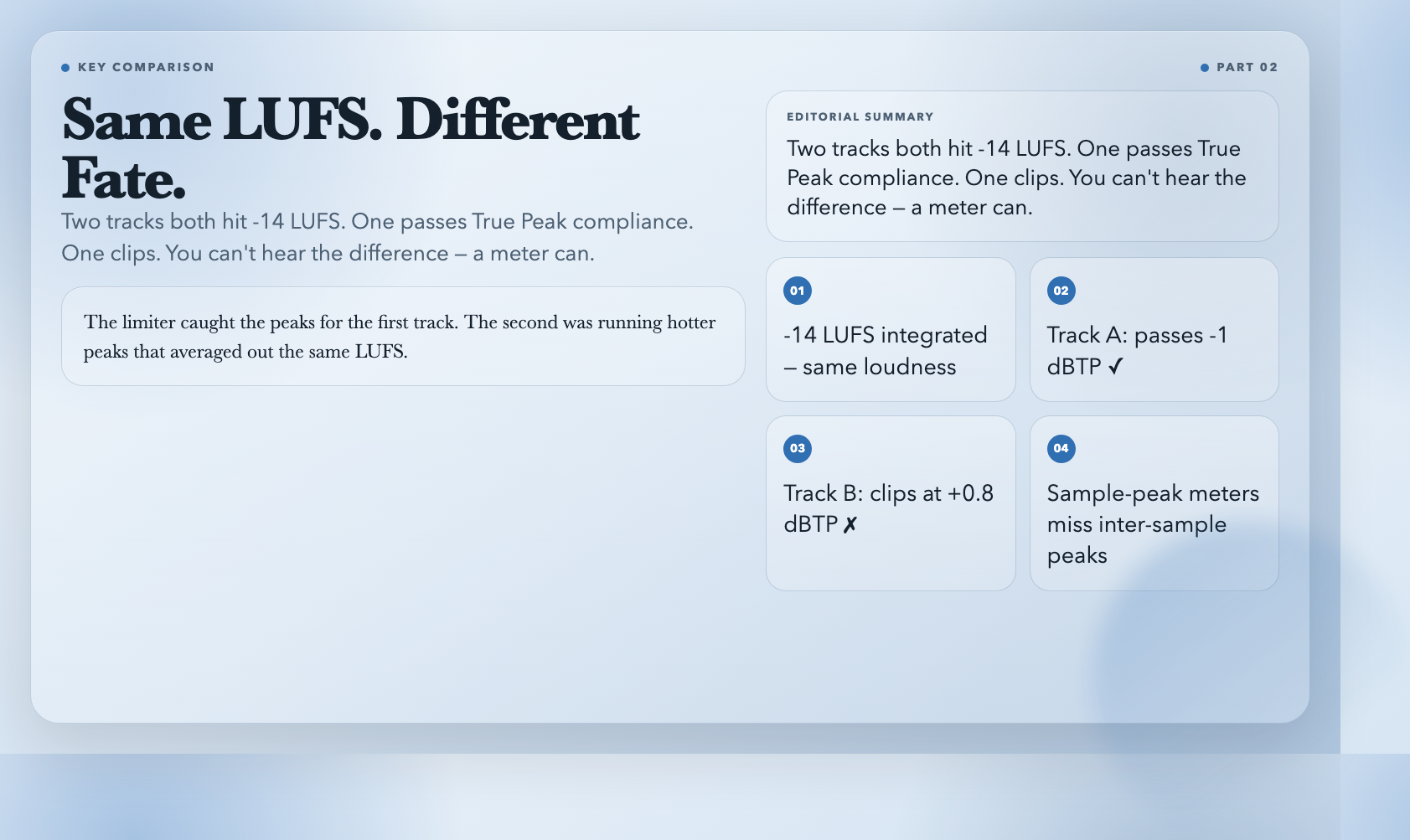
Two tracks can measure at -14 LUFS integrated. One passes -1 dBTP. The other clips at +0.8 dBTP. The limiter caught the peaks for the first track; the second was running hotter peaks that averaged out the same LUFS. You can’t hear this difference. You need a meter.
Use it for: Pre-checking files before upload, or diagnosing why a “quiet enough” track is getting rejected by Spotify.
Audio Stereo Correlation Meter
Mono compatibility is a test of discipline. When the left and right channels play nearly identical content, your mix collapses on mono speakers — phones, laptops, Bluetooth speakers — and sounds thin. When they’re negatively correlated (out of phase), the channels cancel each other out, turning your bass into a null.
It renders a Lissajous goniometer display showing your stereo image in real time. It also outputs a correlation coefficient from -1 to +1. A healthy mix sits around +0.3 to +0.7. Above +0.9 is danger territory — mono collapse waiting to happen. Below 0 means phase problems are already audible.
Use it for: Checking bass-heavy mixes, side-chained elements, and stereo-widened stems for mono compatibility before you ship.
Audio Dynamic Range Meter
Dynamic range is the distance between your loudest and quietest moments. Too much compression and everything sounds flat and fatiguing. Too little and your mix disappears in a noisy environment.
It computes crest factor — the ratio of peak to RMS — and outputs a dynamic range estimate in dB. A crest factor above 20 dB indicates high dynamic range (classical, acoustic music). Below 10 dB means heavy compression (modern pop, EDM, trailers). For mastering, knowing your crest factor lets you compare your mix against the dynamic range your genre expects.
Use it for: Checking whether your mastered mix has the dynamic range your genre expects, or comparing two mastering passes.
Audio Peak Detector
The simplest tool in this list: find the highest peak level in an audio file and report exactly when it occurs.
It matters more than it sounds. Sometimes a track clips not because of the overall level, but because a specific transient — a snare hit, a piano chord, a room tone artifact — lives 40 seconds in and pushes the peak over the edge. A fast peak detector tells you where to look, so you don’t spend an hour rebuilding a mix only to find the problem was one bad sample at the end of the song.
Use it for: Debugging unexpected clipping, pre-scanning sample libraries, checking stems before mixing.
Audio Dynamic Range Report
This is the full diagnostic. It produces a report with integrated loudness, true peak, loudness range (LRA), and dynamic range — all the metrics in one pass.
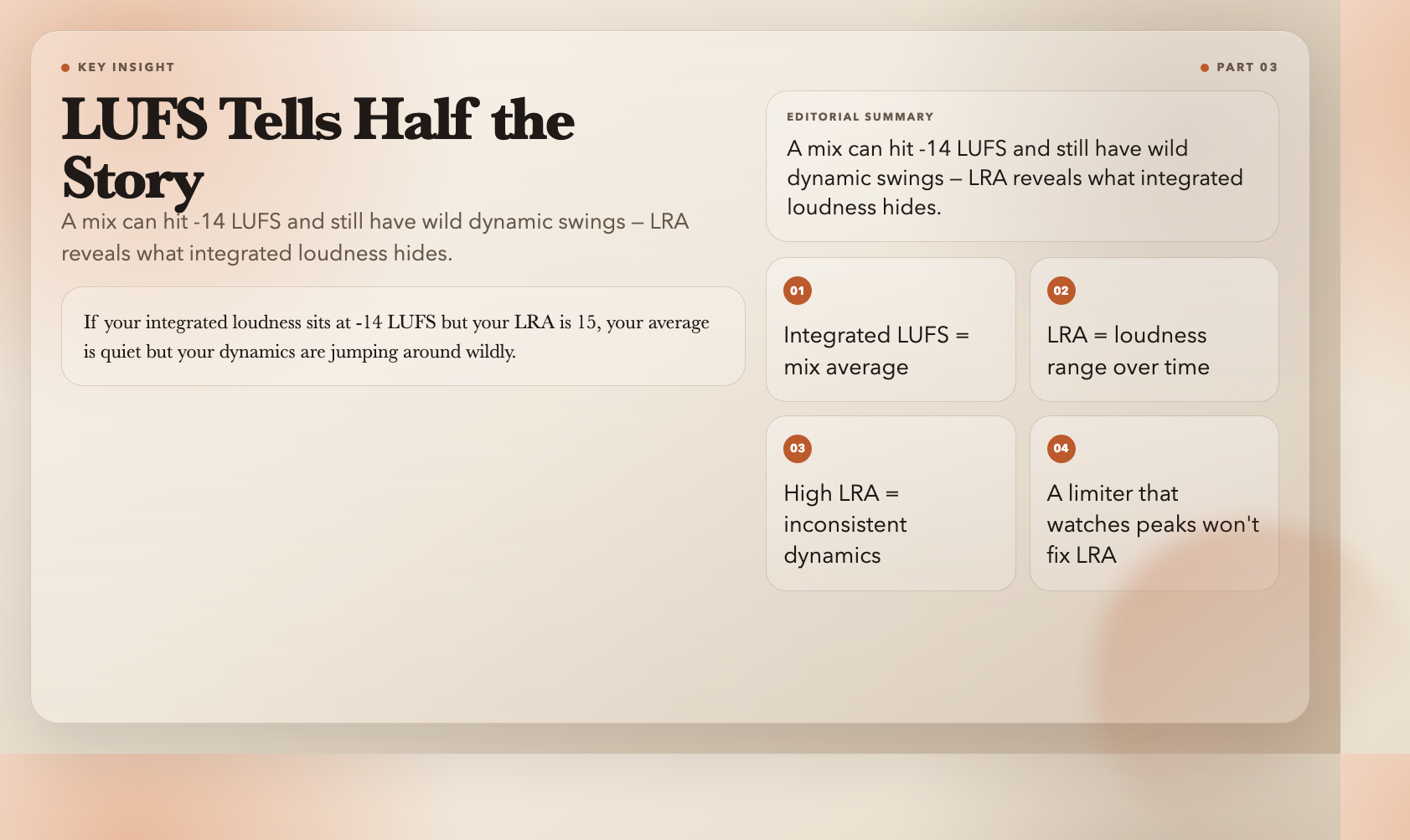
LRA (Loudness Range) deserves special attention. It measures how much your mix’s loudness varies over time. If your integrated loudness sits at -14 LUFS but your LRA is 15, your average is quiet but your dynamics are jumping around wildly. A mastering limiter that only watches peaks won’t fix LRA problems — you need to see the full picture first.
Use it for: Full pre-mastering analysis, or comparing the dynamic character of two mastering approaches.
Audio BPM Detector
BPM detection breaks down the moment you import a live recording and realize it’s not 120 BPM — it’s 60 BPM with every other beat detected as a downbeat. Off by 0.1% and your tempo-synced delays start drifting, your quantized MIDI sounds stiff, your loops don’t sync to the grid.
This tool runs FFmpeg’s tempo detection and reports the BPM with beat timestamps. For chopping samples, setting up DAW grids, or DJing with acoustic recordings, accurate tempo matters.
Use it for: Preparing loops for DAW import, checking DJ sets for tempo drift, or working with live recordings.
Audio Key Detector
A chord progression resolves — or it keeps searching for home. This tool tells you which. This tool analyzes your audio and reports the detected key (C major, A minor, F# Dorian, etc.) and a confidence score.
It won’t replace your ears on complex harmonic content — but when you’re dropping stems into a project, preparing samples, checking whether two stems are harmonically compatible, or quickly keying into a project, it gives you an objective answer instead of a minute of head-scratching.
Use it for: Sample key-checking, harmonic mixing, pre-production compatibility verification.
—
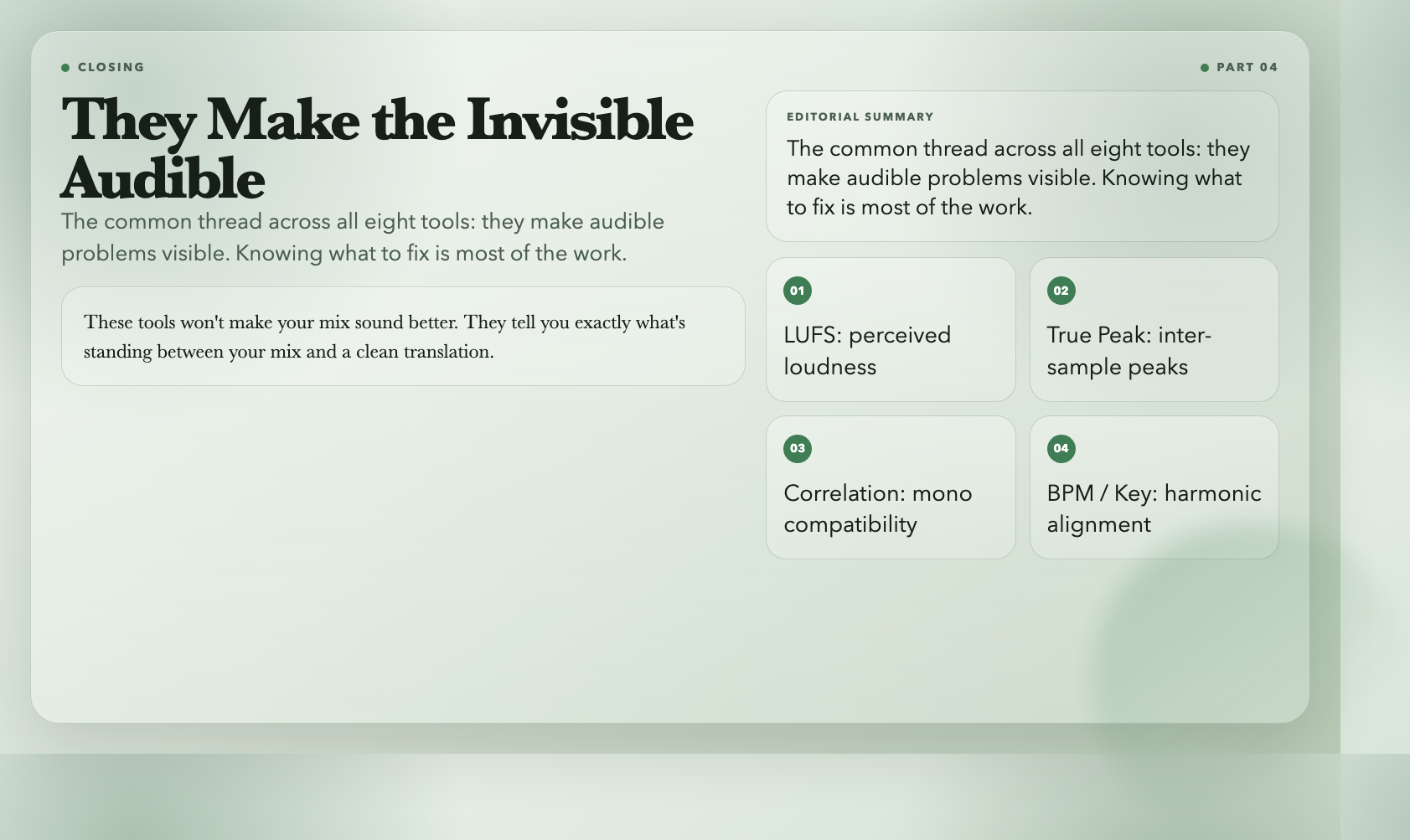
The common thread across all eight tools is this: they make audible problems visible. Loudness is invisible to your ears until you measure LUFS. Phase problems don’t announce themselves until your mix plays on a mono speaker. Key and tempo feel intuitive until they’re off by a semitone and everything sounds wrong.
These tools won’t make your mix sound better. What they will do is tell you exactly what’s standing between your mix and a clean translation — and in mixing, knowing what to fix is most of the work.
If you’re still eyeballing peaks with a generic meter, start with the Audio True Peak Meter. Everything else follows from there.