Open your current project. Find your error state color. Now ask yourself: what does this look like to someone who can’t see red?
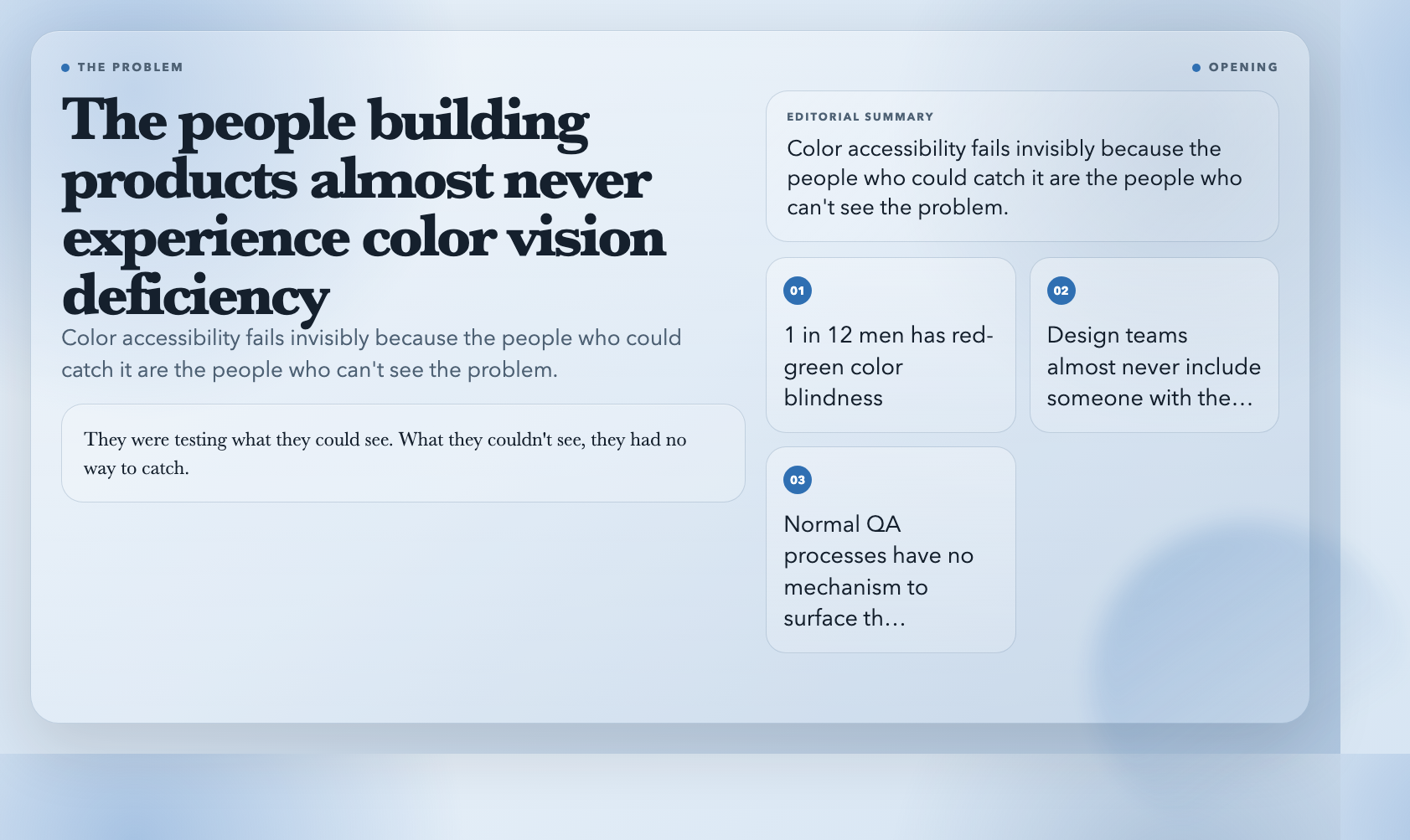
Most designers can’t answer that question. Not because they’re careless — because the people building products are almost never the people who experience color vision deficiency. A few years ago, a bank released a mobile app with a color-coded investment graph. Green meant gains. Red meant losses. The bank’s own team tested it. It looked fine. The problem was that a significant percentage of their users couldn’t tell the difference — and none of the people who built and tested the product had the condition. They were testing what they could see. What they couldn’t see, they had no way to catch.
That gap — between the visual experience of the builder and the visual experience of the user — is the entire problem with color accessibility. And it’s almost entirely invisible to the teams creating it.
The Scale of the Problem
Color vision deficiency affects roughly 1 in 12 men and 1 in 200 women. Red-green color blindness — the most common form, covering protanopia and deuteranopia — accounts for the vast majority of cases.
To put that in product terms: if your app has 100,000 male users, about 6,700 of them see your error states, status indicators, and chart colors differently than you designed them. Most of them won’t say anything. They’ll just work around it, misinterpret a status, or leave. You won’t know.
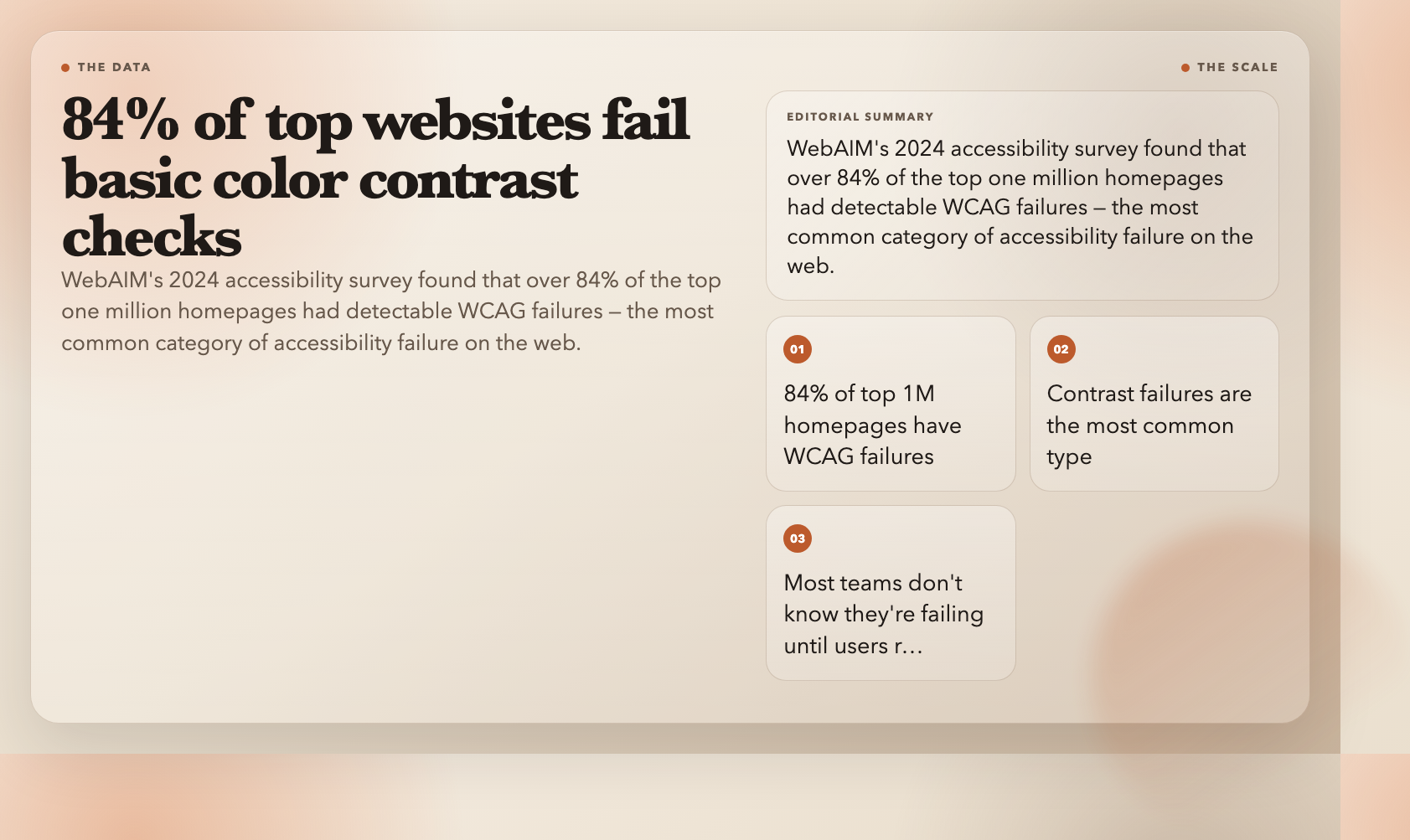
This isn’t hypothetical. WebAIM’s 2024 accessibility analysis found that over 84% of the top one million homepages had at least one WCAG contrast failure. Contrast failures are the most common category of accessibility failure on the web. Most of these aren’t intentional design choices — they’re oversights by teams that didn’t have a reliable way to check.
The reason is structural. Design reviews happen in rooms full of people with typical color vision. QA testers confirm what they can see. The problem has no mechanism to surface itself through a normal product development process. You can’t see what you can’t see.
The Two Problems You’re Actually Solving
Most color accessibility discussions collapse two distinct problems into one:
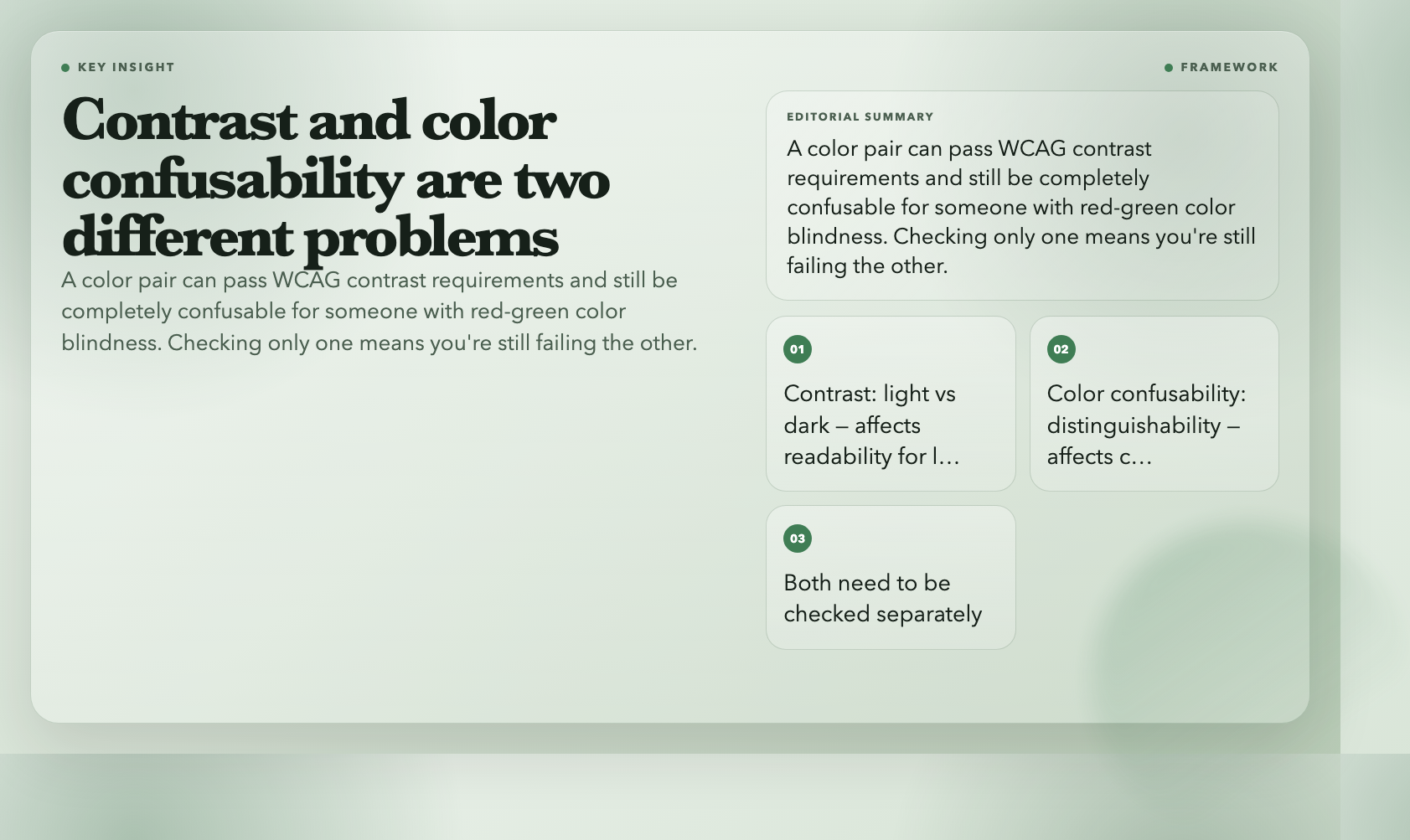
Contrast is about how light or dark a color is relative to its background. Low contrast makes text hard to read for anyone — people with low vision, aging users, people on phone screens in sunlight. WCAG sets specific numerical thresholds for this: 4.5:1 for normal text, 7:1 for enhanced.
Color confusability is about whether two colors are distinguishable to people with color vision deficiency. A red and green that both pass contrast requirements can still be completely indistinguishable for someone with deuteranopia. They’re different problems, and checking only one means you’re still failing the other.
Both are solvable. Both are often missed. Here’s how to check for both.
The Tools Worth Knowing
Color Blindness Simulator is the tool I reach for first when auditing a new color system. Drop in any color and see how it renders under eight types of color vision deficiency — protanopia, deuteranopia, tritanopia, and their milder variants. What looks like a clear green-on-red status indicator to you might collapse into two identical grays for someone with red-green color blindness. You can’t un-see this once you’ve seen it.
Accessible Color Palette Contrast Checker takes your full palette — every foreground/background combination you’ve defined — and runs all of them through WCAG 2.1 AA and AAA thresholds at once. It flags every failing pair and, where possible, suggests adjusted colors. The reason this matters: most teams don’t check their palettes systematically. They check a few combinations that feel risky and assume the rest are fine. The WebAIM data suggests that assumption is wrong most of the time.
Accessible Color Palette Contrast Checker
Color Vision Accessibility Checker combines contrast checking and color blindness simulation in a single interface. Upload a screenshot or enter a color pair and it reports both the contrast ratio and how that pair renders under color vision deficiency. The practical value: when you’re auditing a specific component — a button, a form validation state, a chart series — you want both answers in one place. This is that place.
Color Vision Accessibility Checker
Color Contrast Checker is the single-pair version: enter any two colors and get an instant WCAG AA/AAA pass or fail. No forms, no uploads. I keep this open in a browser tab while designing. When I’m choosing a text color for a new component, I check it in real time before committing. You’d be surprised how many “brand-approved” color combinations fail this check cold.
Image Color Palette Extractor takes an image — a brand photograph, a UI screenshot, a competitor’s site — and extracts its dominant color palette. Export it as CSS custom properties, Tailwind tokens, or design swatch files. It also runs contrast checks on extracted pairs. The workflow I use: client sends a product photo, I need a UI color system from it. Upload, extract, check contrast, export tokens. What used to take a day now takes ten minutes.
Color Scheme Generator takes a single base color and generates a complete, harmonized color scheme — complementary, analogous, triadic, or split-complementary — along with a full tint and shade palette for each. Starting from a mathematically derived scheme and then validating it for accessibility tends to produce better results than building a palette by eye and checking it after. This gives you the math-derived starting point.
Color Inverter inverts colors using RGB, HSL, or brightness methods, showing the result side-by-side with the original. Beyond dark mode — where it’s genuinely useful as a starting point — it’s a perspective tool. Inverting your palette forces a different structural view. Colors that felt balanced suddenly look wrong. That’s useful feedback even when you don’t need dark mode.
What This Actually Requires
Here’s the honest version: you don’t need special expertise to use these tools. You don’t need an accessibility consultant or a dedicated QA process. You need about fifteen minutes and a willingness to look at your current color system through a different lens.
The tools surface the problem. What they can’t do is make you care about it. That’s the part that has to come from you.
The argument I sometimes hear is that color accessibility affects a small percentage of users, and the effort to fix it isn’t worth it for such a small audience. I’d push back on that framing. First, 8% of men is not a small audience — it’s hundreds of millions of people globally. Second, every tool on this list also catches contrast failures that affect far more users: people with low vision, aging users, anyone squinting at their phone in bright sunlight. You’re not just fixing for one group. You’re raising the baseline quality of your product for everyone.
The bank graph was an easy fix. They needed different colors. That’s all. The cost of the fix was trivial. The cost of not catching it was shipping a product that excluded a portion of their users from understanding their own financial data.
The bank needed different colors. That’s all. They shipped a product that excluded a portion of their users from understanding their own financial data.
Is your current project actually fine, or have you just not checked yet?
*All tools mentioned are free at ElysiaTools.*