5 Free Design Tools That Do the Work You Keep Putting Off
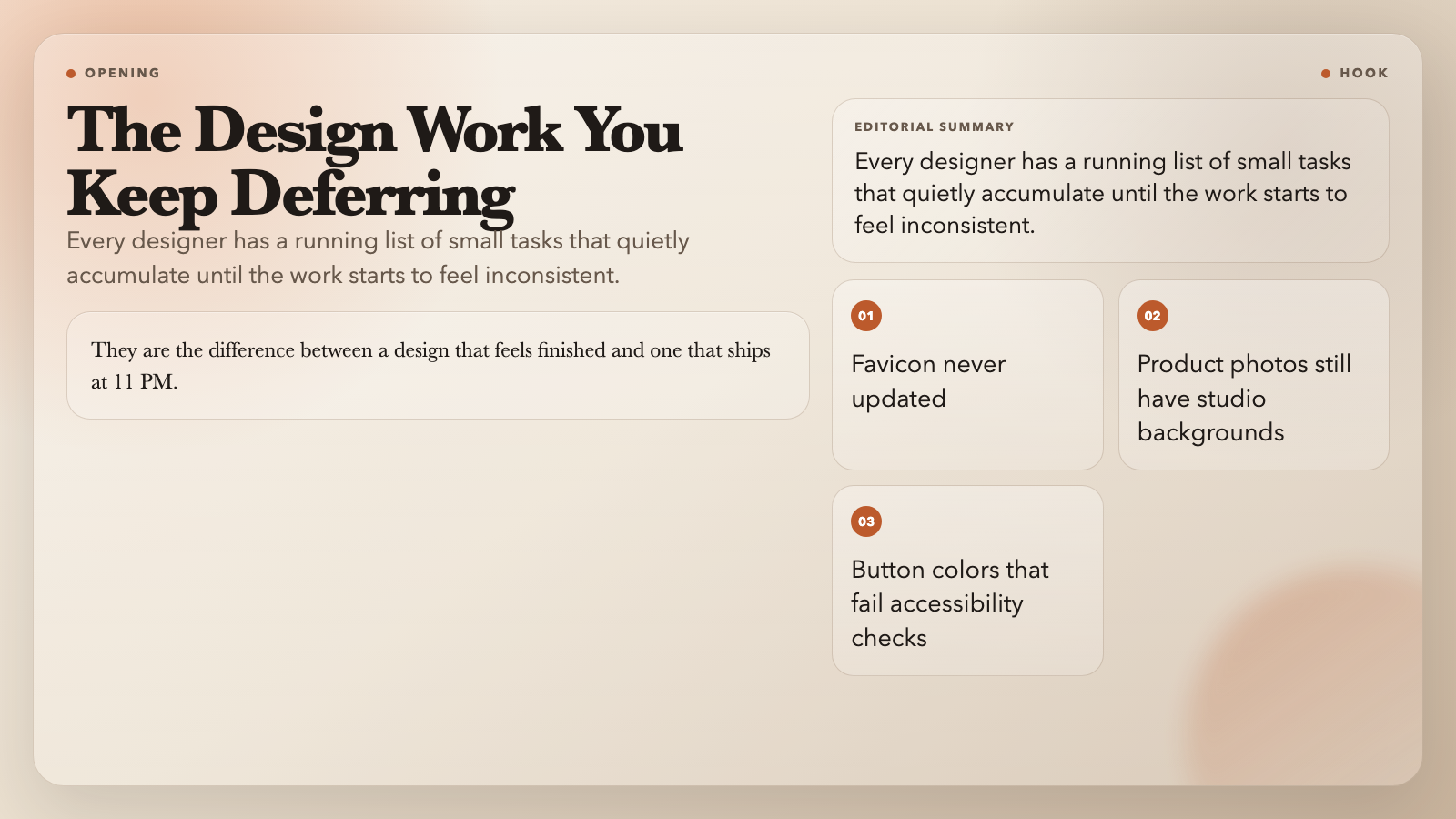
Every designer’s to-do list looks the same: finish the hero section, revisit the color system, finally update that favicon. But between the bigger projects, the small tasks quietly pile up until your brand assets are a patchwork of inconsistencies.
These aren’t glamorous problems. They don’t show up in portfolio case studies. But they are the difference between a design that feels finished and one that ships at 11 PM.
Here are five free tools that handle the work designers keep deferring — and they do it in seconds.
#
1. Remove Image Background — One Click, Not Photoshop
Product photography almost always comes with a background. A white studio backdrop. A cluttered desk. Whatever was behind the subject when the photo was taken. Removing it manually in Photoshop takes 10 minutes and a steady hand. The AI-powered background remover on ElysiaTools does it in seconds.
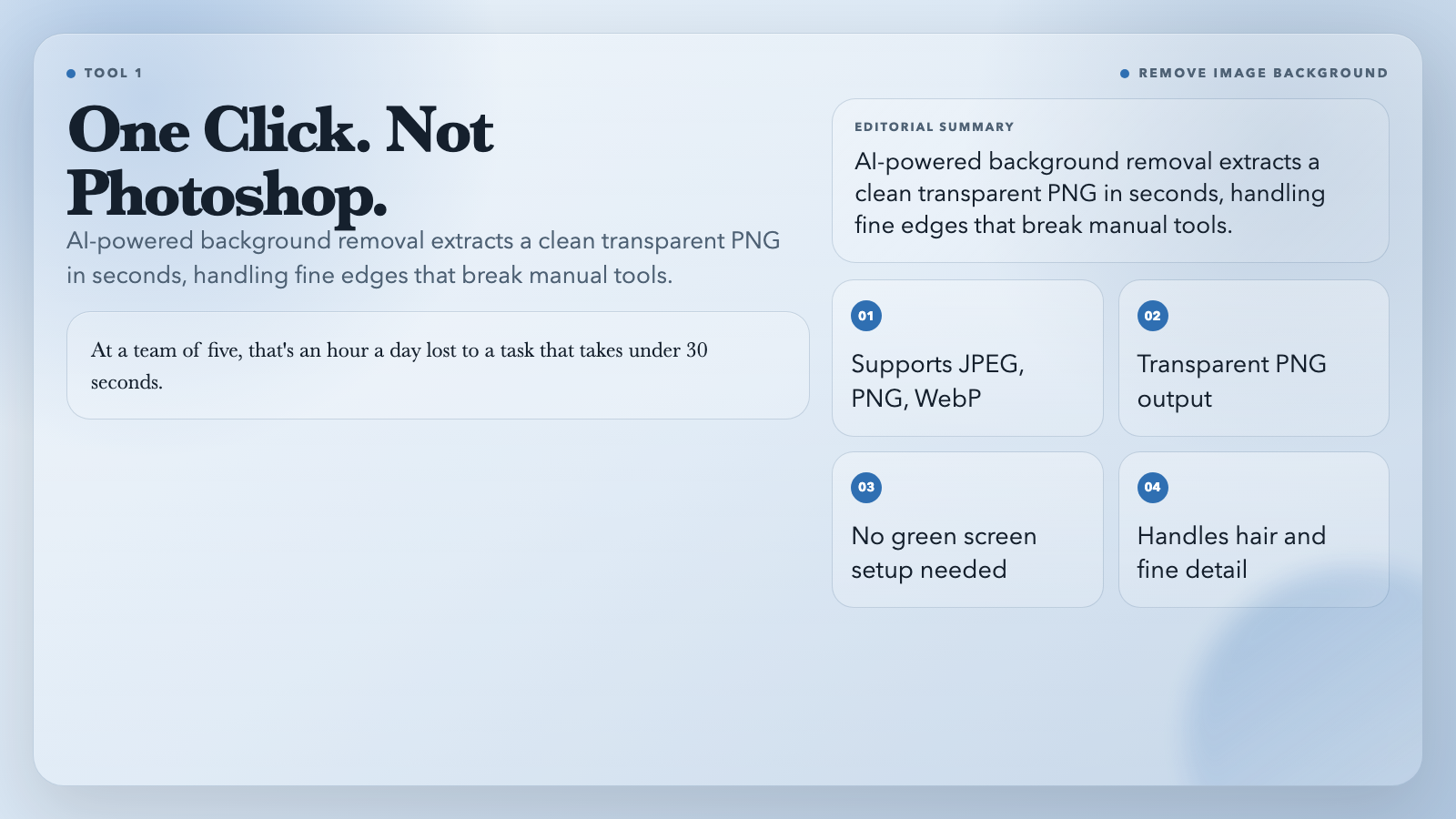
Upload any image — JPEG, PNG, WebP — and the tool extracts the foreground subject and saves it as a transparent PNG. It handles edges cleanly, including hair and fine detail that normally trips up automated tools. The result is ready for your design workflow immediately.
This means your product mockups no longer need a green screen setup. Your team photos stop having weirdly cut-off edges. Your hero imagery works on any background color without manual masking.
One design agency reported spending an average of 12 minutes per image on manual background removal in Photoshop. At a team of five, that’s an hour a day lost to a task that takes under 30 seconds with this tool.
Use it when: You need product photography with transparent backgrounds, composite images, or isolated subject shots for presentations and proposals.
Remove Image Background
#
2. Image Color Palette Extractor — Your Brand Colors, Code-Ready
You’ve seen a website, a poster, or a photograph with a color scheme that just works. Now you want those colors for your own project. Traditionally, you’d sample each one by hand using a color picker, note down the hex codes, and type them into your design file.
The Image Color Palette Extractor automates this entirely. Upload any image and it samples the dominant colors, names each one (Primary, Secondary, Accent), and calculates contrast ratios against both white and black backgrounds. Then it exports everything in one package: CSS variables, a Tailwind config snippet, JSON, Adobe ASE swatches, and ACO files compatible with Photoshop.
This is useful for brand audits — extract a palette from a competitor’s landing page to understand their color strategy. Or when a client hands you a photograph and says “use these colors for the new site” — you can deliver a full design token set in under a minute.
Use it when: You’re starting a new brand and have imagery but no color guide, or you’re auditing an existing design for consistency.
Image Color Palette Extractor
#
3. Accessible Color Palette Contrast Checker — WCAG Compliance Without the Math
Web accessibility isn’t optional anymore. If your button text doesn’t meet WCAG contrast requirements, you’re excluding users with low vision — and in many jurisdictions, you’re also exposed to legal risk.
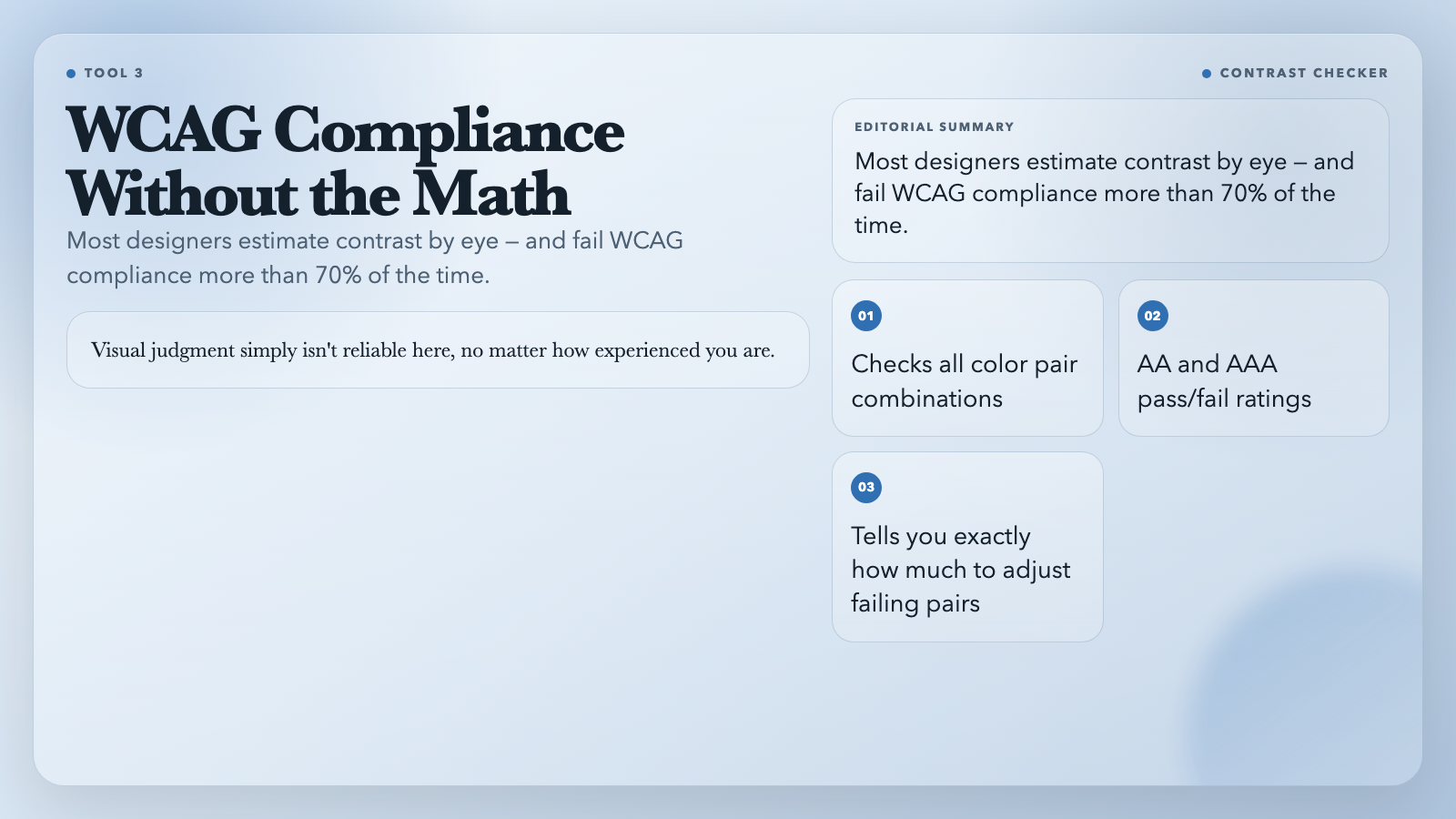
The contrast checker takes any palette of colors — paste them in as `brand-primary: #2563EB` format — and calculates every foreground/background combination. It shows you AA and AAA pass/fail ratings for each pair, and when a combination fails, it tells you exactly how much to lighten or darken the foreground color to reach compliance.
Run your full palette through it once at the start of a project and you’ve solved the accessibility conversation for the entire design system. Studies show that designers who estimate contrast by eye fail WCAG compliance tests more than 70% of the time — visual judgment simply isn’t reliable here, no matter how experienced you are.
Use it when: Auditing a brand palette before design system implementation, checking button and label color pairs, or preparing a design for procurement review.
Accessible Color Palette Contrast Checker
#
4. SVG Favicon Generator — The Pack You Actually Need
Most favicon guides tell you to “create a 32×32 version of your logo.” That’s not enough anymore. Modern browsers need ICO files, multiple PNG sizes, an Apple Touch icon, an SVG for vector scalability, and a web app manifest with theme colors.
The SVG Favicon Generator handles all of it in one step. Upload your logo — SVG, PNG, JPEG, or WebP — choose your background color, fit mode (contain or cover), padding percentage, and site name. The tool generates a ZIP file with: favicon.ico, three PNG sizes (16×16, 32×32, 48×48), an Apple Touch icon (180×180), Android Chrome icons (192×192 and 512×512), a normalized SVG favicon, a site.webmanifest file, and an HTML snippet with all the correct link tags.
No hunting for converter tools. No guessing whether your ICO file is actually valid. The output is production-ready.
Use it when: Launching a new site, refreshing a brand’s digital presence, or inheriting a project whose favicon is still the default browser icon.
SVG Favicon Generator
#
5. Color Vision Accessibility Checker — See Your Design Through Different Eyes
Roughly 8% of men and 0.5% of women have some form of color vision deficiency. Red-green color blindness (protanopia and deuteranopia) is the most common. Tritanopia affects blue-yellow perception. Achromatopsia, the rarest, removes all color perception entirely.
What looks like a clear green-on-red status indicator in your dashboard might be invisible to a significant portion of your users. The Color Vision Accessibility Checker simulates how any foreground/background color pair appears under each of these conditions. You enter two hex colors, select your WCAG target level, and immediately see the simulated result alongside the calculated contrast ratio for each vision type.
For UI mockups, you can also upload a screenshot and the tool flags every region that falls below the selected WCAG threshold, overlaid directly on the image. This turns a manual accessibility audit into a 30-second visual check.
Use it when: Designing any interface with color-dependent information (status indicators, charts, error states), running pre-launch accessibility QA, or building dashboards for enterprise audiences.
Color Vision Accessibility Checker
#
The Pattern
These five tools share something: they handle the work that’s too small to prioritize but too consequential to ignore. A missing favicon. An inaccessible button color. A product photo with a studio backdrop that doesn’t belong.
Most designers have a running list of these — the “I’ll fix it later” items that accumulate across projects until the work starts to feel inconsistent. The cost isn’t the individual task. It’s the slow erosion of craft that happens when the small things never get addressed.
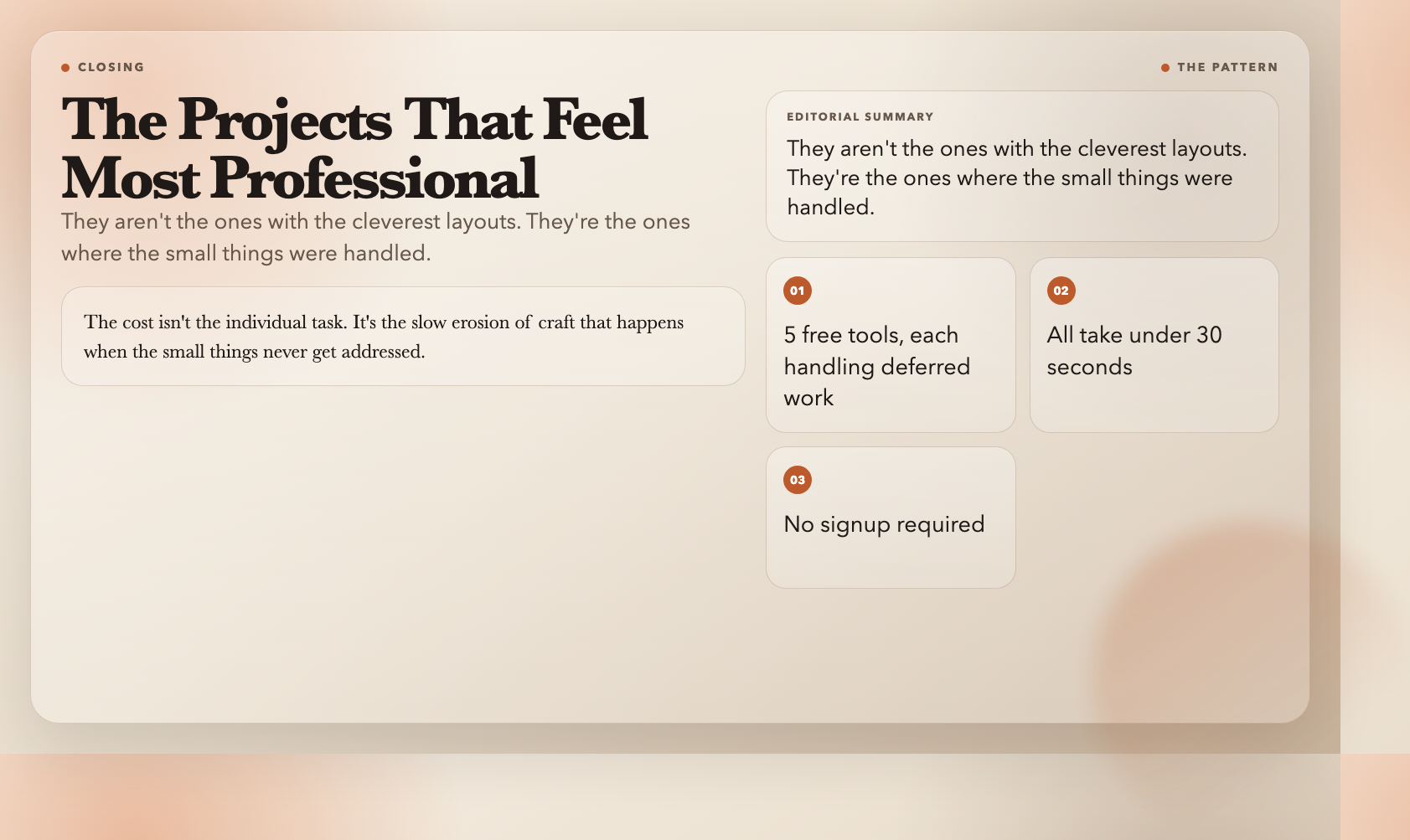
Here’s what nobody tells you: the projects that feel most professional aren’t the ones with the cleverest layouts. They’re the ones where the small things were handled. All five tools above do exactly that. Use them.