
Sales forgot to ask which month
I once watched a regional sales manager stare at a spreadsheet for twenty minutes. She had four columns: rep name, region, month, revenue. She wanted to know which rep in which region was behind quota in March. The answer was in there — but the data was sorted by date, and her eyes kept sliding past March. Eventually she filtered, sorted, and built a small table by hand.
That hand-built table is what statisticians call a crosstab, and the question she was asking is what a crosstab answers better than any other shape. “Break revenue down by region and month.” Two dimensions crossing, with a number sitting at the intersection. The crosstab is the most compressed answer to a two-dimensional question that spreadsheet software has ever invented, and most business data — sales, support tickets, survey responses, fraud alerts, hospital admissions — is already two-dimensional. People just don’t see it because the data arrives in long form, one row per event.
The Data Crosstab Generator turns a long-form CSV into that matrix in one pass. You pick a row dimension, a column dimension, a value column, and an aggregation function. It builds the pivot table for you, computes totals, percentages, and grand totals, and spits out a formatted table ready to paste into a slide or a report. No clicking through pivot-table wizards. No dragging fields into the “Rows” box. Just paste, choose, copy.
What a crosstab actually is
A crosstab — short for cross-tabulation — is a table where each cell shows the aggregated value of one column, broken down by the unique values of two other columns. The rows are the values of one categorical variable, the columns are the values of another, and the body cells are aggregates of the third.
The structure has been around for over a century. Sociologists and epidemiologists used it in the early 1900s to study how disease rates varied by age and occupation. The format is so natural for two-dimensional questions that it survived the move from printed journals to spreadsheets to databases to BI dashboards essentially unchanged. The Excel pivot table, the SQL GROUP BY with two keys, the pandas pivot_table function, the data warehouse cube — all of them are doing crosstabs under different names.
The reason the format keeps coming back is that it answers one specific shape of question very well: “how does X vary across Y and Z?” How does revenue vary across region and quarter? How does defect rate vary across factory and shift? How does churn vary across plan tier and signup cohort? Each question is naturally two-dimensional, and the crosstab is the most compact way to display the answer.
If you only had one dimension — say, revenue per region — you’d use a simple bar chart. If you had three dimensions, a crosstab becomes awkward and you’d switch to small multiples or a faceted plot. Two dimensions is the sweet spot, and it’s where most operational questions live.
Why long-form data hides the answer
The data most people work with arrives in long form — one row per event, with every attribute as its own column. This is the natural output of databases, the natural format for CSV exports, and the natural shape of event logs. A row might look like this:
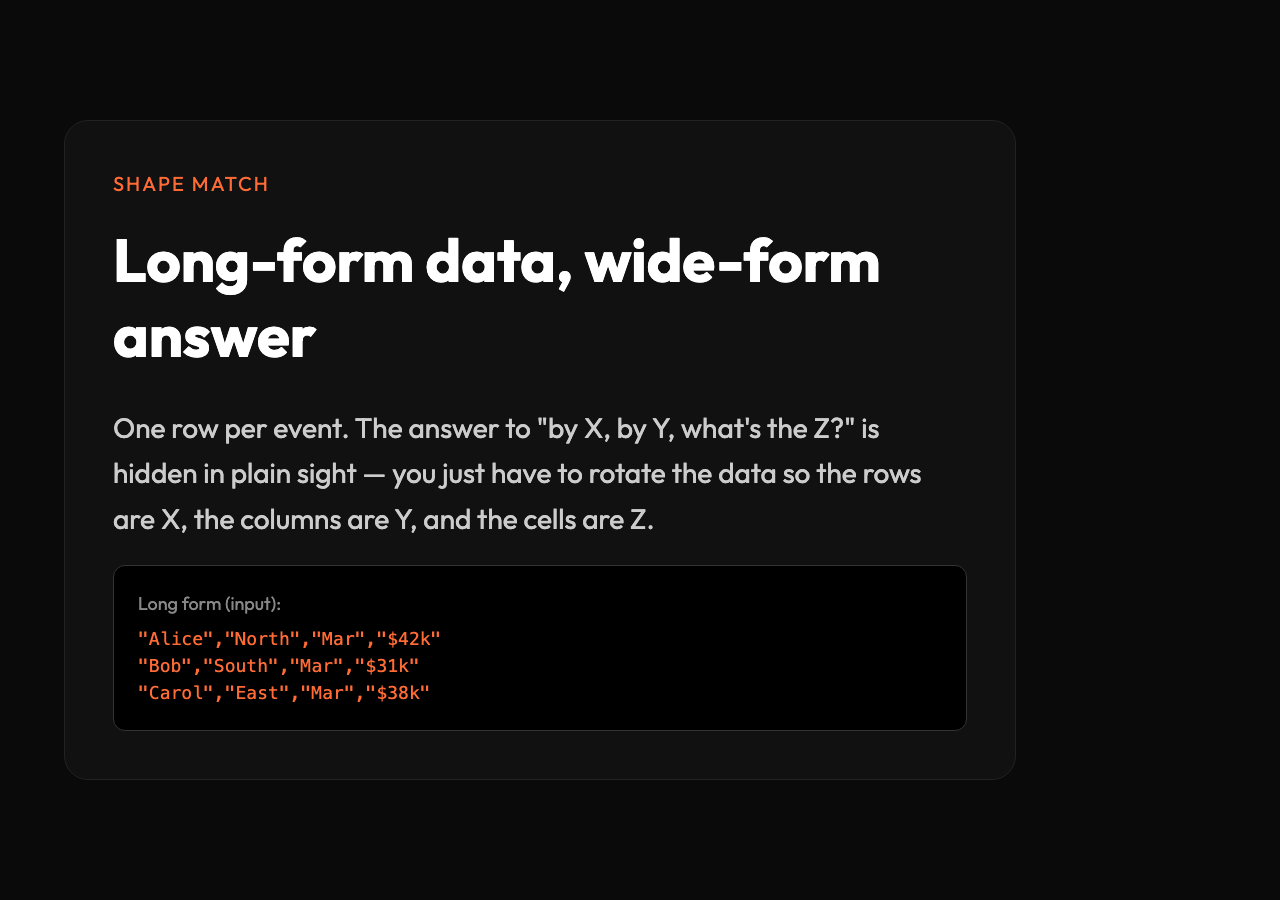
"Alice","North","2026-03","$42,000"

"Bob","South","2026-03","$31,500" "Carol","North","2026-03","$38,200"
Three columns, one fact per row. The information is complete, but the answer to “what’s the total revenue per region in March?” requires the reader to mentally group rows by region and sum. Most people can’t do that reliably across more than five or six rows, which is why they reach for Excel filters or pivot tables.
A crosstab reshapes that long-form data into wide form: one row per region, one column per month, the cells filled with the aggregated values.
| Region | 2026-01 | 2026-02 | 2026-03 |
|---|---|---|---|
| North | 78,400 | 81,200 | 80,200 |
| South | 64,300 | 67,900 | 65,500 |
| East | 71,100 | 73,800 | 74,200 |
Now the question “which region is behind in March?” has a one-glance answer: South at 65,500. The shape of the data matches the shape of the question.
Picking the right aggregation
The cell values in a crosstab aren’t always sums. They can be counts, averages, medians, minimums, maximums, or percentages. The choice matters more than most people realize, because the same data can tell two completely different stories depending on which aggregate you pick.
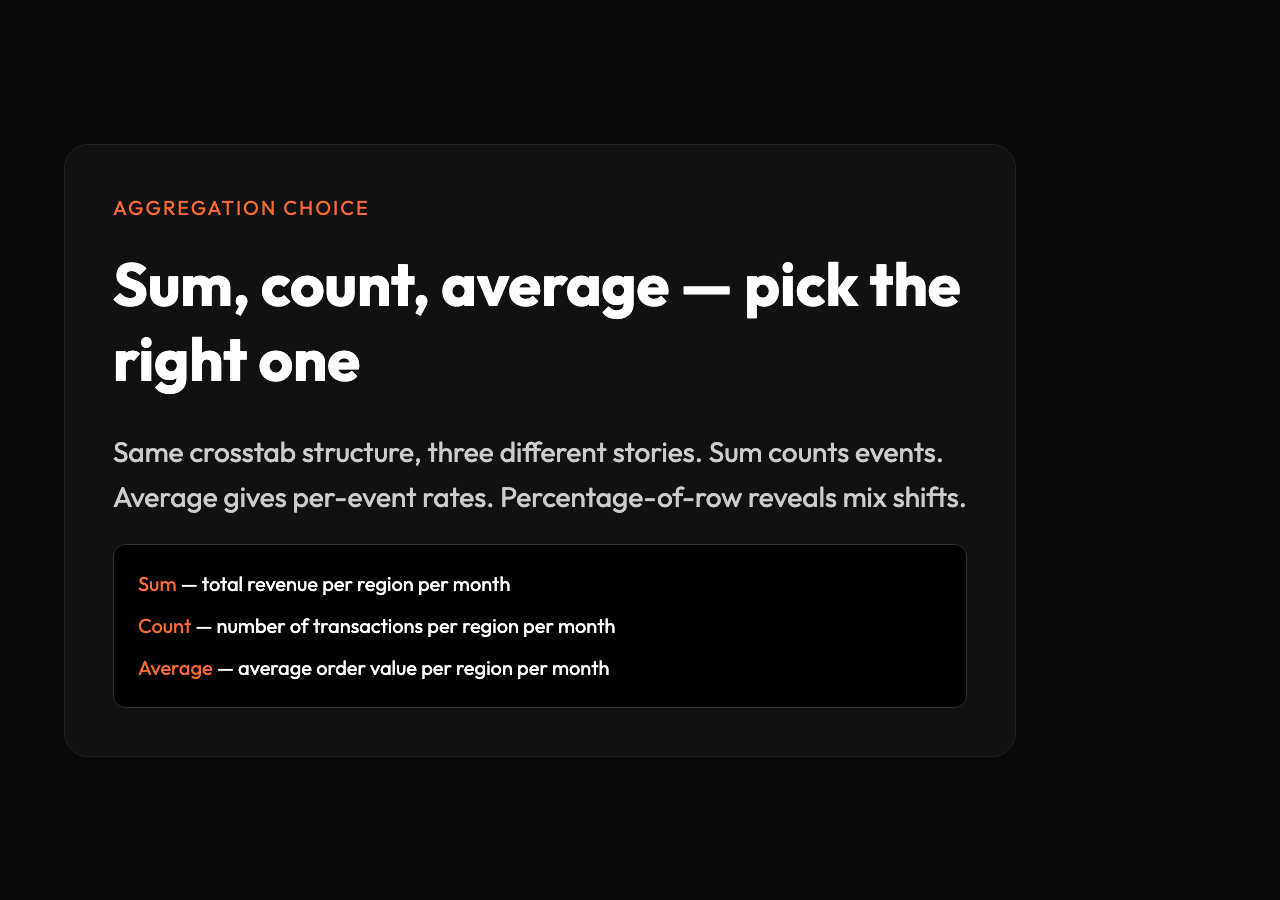
Consider a customer support dataset: one row per ticket, with columns for agent, priority, and resolution_time_minutes. If you want to know “how busy is each agent?”, you’d crosstab agent vs priority with a count — how many tickets of each priority did each agent handle. If you want to know “who’s fastest?”, you’d crosstab agent vs priority with an average — how quickly did each agent resolve tickets of each priority. The two questions use the same underlying data and the same crosstab structure, but the aggregation function changes the meaning of every cell.
A common mistake is to use sum for everything. If the value column has rates or durations — like “revenue per customer” or “minutes to resolve” — summing them produces nonsense (a customer who bought twice would be counted twice in the total revenue). The fix is to switch to average or median for those columns, or to pre-aggregate the data so each row represents a meaningful unit (one customer, one ticket, one transaction) before crosstabbing.
The Data Crosstab Generator supports sum, count, average, min, max, and median as built-in aggregations, plus optional row totals, column totals, and a grand total. For surveys and demographic data, the percentage view (each cell as a percentage of row, column, or grand total) often reveals patterns that raw counts hide — like the fact that 62% of under-30 customers in the survey chose plan A, while only 34% of over-50 customers did.
Reading a crosstab for the story
A good crosstab answers more than the original question, because the cells adjacent to the answer are usually interesting too. Once you have the matrix in front of you, the patterns that fall out include:

- Diagonal effects: when a value changes smoothly across both dimensions, like a gradient from low to high as you move from top-left to bottom-right. Common in time-vs-region data where growth is uniform.
- Hot spots: a single cell or small block that’s much higher or lower than its neighbors. These are usually where the real story lives — one product that failed in one region, one factory with a defect spike in one week.
- Empty corners: a region-column combination with no data at all. Often more interesting than the populated cells, because it tells you something is missing — a product that wasn’t sold there, a feature that wasn’t launched in that market.
- Margin effects: when the row totals are stable but the per-cell values vary a lot, the story is about mix. When the row totals vary but the per-cell ratios are stable, the story is about volume.
The instinct most people have is to read the totals row first. That’s usually wrong — the totals hide exactly the patterns the crosstab was built to reveal. The interesting cells are the off-diagonal ones, the cells that don’t match the average or the trend. A crosstab is a tool for finding exceptions, not confirming averages.
Where crosstabs break down
The crosstab format has limits. When one dimension has many unique values — say, 50 products crossed with 12 regions, that’s a 600-cell matrix — the table becomes hard to read and most cells are sparse. In that case, you’d switch to filtering the long-form data to the top-K categories before crosstabbing, or use a heatmap instead of a printed table.
It also assumes the two dimensions are independent enough to cross. If “region” and “month” are correlated — say, your company only operates in the southern hemisphere and the December column is structurally small — the crosstab will show that, but it won’t tell you why. The matrix is descriptive, not causal. You still need domain knowledge to interpret it.
Finally, crosstabs are static. They show one snapshot. For trends over time, a small-multiples approach (one crosstab per quarter, side by side) or a line chart per region tells the story better. The crosstab is for the moment when you want to compare categories at a single point in time.
A working example
Suppose you have survey data with three columns: age_group, plan, and count (number of respondents). You want to see how plan preference varies by age group.
Input data (long form):
age_group,plan,count

18-24,Free,1842 18-24,Pro,612 18-24,Business,93 25-34,Free,2105 25-34,Pro,1450 25-34,Business,322 35-44,Free,1620 35-44,Pro,1893 35-44,Business,587 45-54,Free,1180 45-54,Pro,1640 45-54,Business,720 55+,Free,890 55+,Pro,1310 55+,Business,803
With age_group as the row dimension, plan as the column dimension, count as the value column, and sum as the aggregation, you get:
| Age group | Free | Pro | Business | Total |
|---|---|---|---|---|
| 18-24 | 1842 | 612 | 93 | 2547 |
| 25-34 | 2105 | 1450 | 322 | 3877 |
| 35-44 | 1620 | 1893 | 587 | 4100 |
| 45-54 | 1180 | 1640 | 720 | 3540 |
| 55+ | 890 | 1310 | 803 | 3003 |
The story jumps out: Free plan adoption drops monotonically with age, Pro peaks at 35-44, Business climbs steadily with age. None of that was visible in the long-form list. Switching the aggregation to “percentage of row” would make the trend even clearer — the share of Business customers among 55+ respondents is nearly three times the share among 18-24.
Paste the same input into the Data Crosstab Generator, choose percentage-of-row, and the formatted table comes back ready to drop into a slide.
The deeper idea
A crosstab is what happens when you stop reading data as a stream of events and start reading it as a question. The matrix shape matches the question shape, and once the two align, the answer appears faster than any other analysis method. Every time you’ve watched someone in a meeting filter a spreadsheet three times and copy-paste into a slide, you’ve watched them reinvent the crosstab by hand. The Data Crosstab Generator does it in one step.
The next time you find yourself asking a two-dimensional question — “by X, by Y, what’s the Z?” — paste the long-form data into the tool before you start clicking through filters. The matrix will arrive before the question changes, and you’ll spend the time you saved on the follow-up: which cell is the outlier, and what caused it.
Explore more tools at elysiatools.com.