What this article covers
Most accessibility audits catch the obvious problems — missing alt text, unlabeled form fields, broken keyboard focus. The harder ones are quieter: a button whose text reads “Click here” in the screen-reader announcement, a heading that looks like an <h2> but is actually a styled <div>, a contrast ratio that passes the math at 4.49:1 and fails every user who reads in bright sunlight. This post walks through four common WCAG 2.1 issues that survive most manual reviews, and shows how a structured checker like Elysia Tools’ Accessibility Checker surfaces them in seconds.
The audit that always starts with contrast
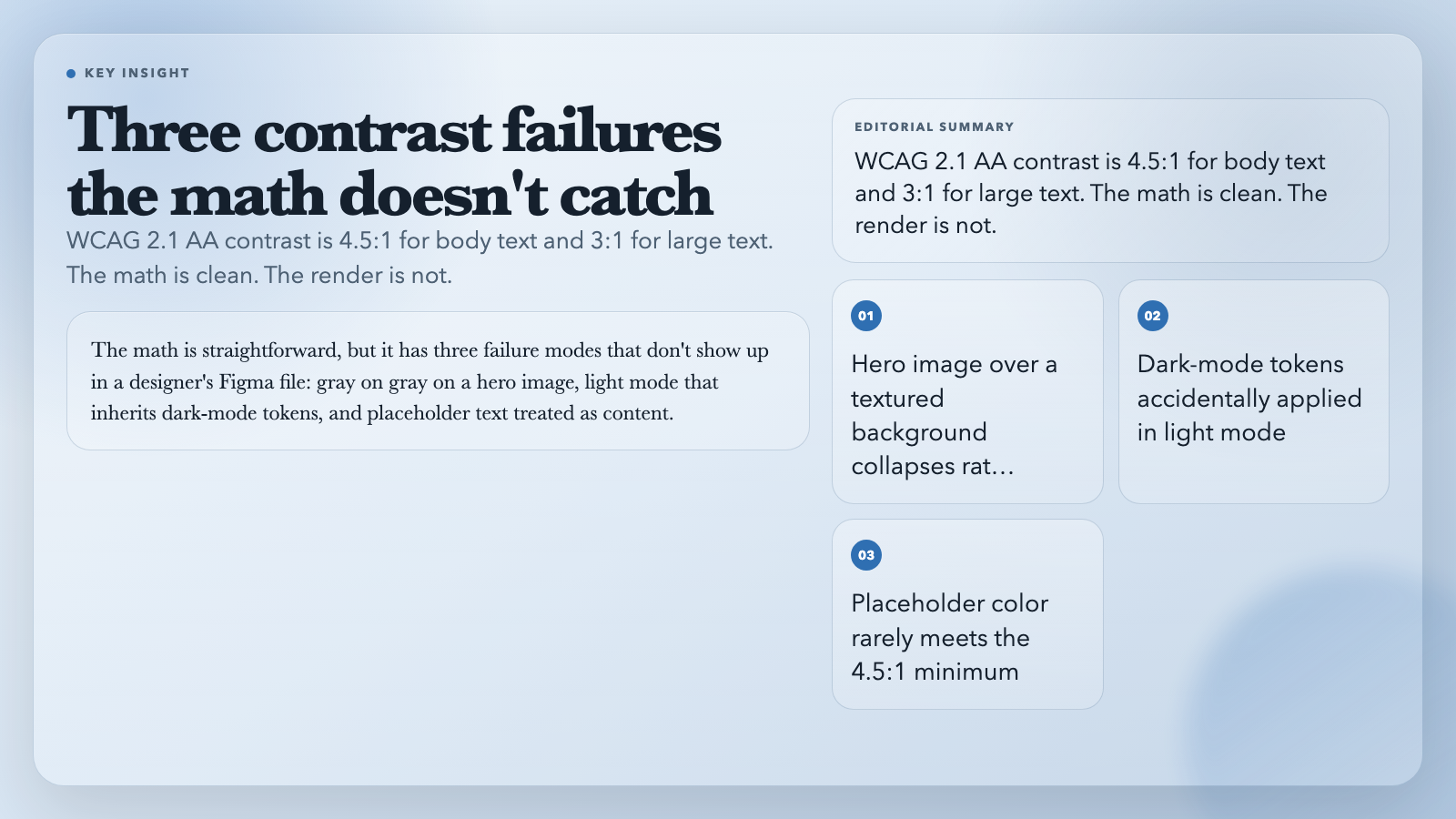
Contrast is the easiest WCAG rule to state and the easiest one to ship wrong. WCAG 2.1 AA requires a contrast ratio of 4.5:1 for normal text and 3:1 for large text (18pt regular or 14pt bold). The math is straightforward, but it has three failure modes that don’t show up in a designer’s Figma file:
– Gray on gray on a hero image. A 1.8:1 ratio between a paragraph and the section background reads fine in the design tool. Drop the same paragraph over a textured hero or a colored footer, and the ratio collapses below 3:1.
– Light mode that inherits dark-mode tokens. A prefers-color-scheme: dark rule accidentally applied in light mode flips the foreground but not the background, producing a 2.9:1 button label on a near-white surface.
Alt text is not “description”
– Placeholder text treated as content. Placeholder color is almost never high-enough contrast — and screen readers treat it as a hint, not as a value, so users miss it entirely.
Each of these is visible in the rendered page and invisible in the source code. A checker that runs against the live DOM, not the static markup, catches all three.
The WCAG criterion for non-text content (1.1.1) is satisfied by an alt attribute that serves the equivalent purpose. For a product photo, that’s a brief, specific description. For a chart, it’s the data point the chart is making, not a literal rendering of every line.
The failures that survive most reviews:
Heading order is not a suggestion
– alt="" on decorative images that turn out to be informative. A spacer PNG on the homepage is decorative. The same spacer PNG used as a section divider carrying the section’s title text is informative, and alt="" makes that title invisible to screen-reader users.
– Alt text that duplicates the caption. Repeating “Quarterly revenue chart” in both the alt and the visible <figcaption> forces screen readers to announce the same string twice.
– Alt text that describes the file format. “Image of a JPEG icon” tells a screen-reader user nothing about the link destination.
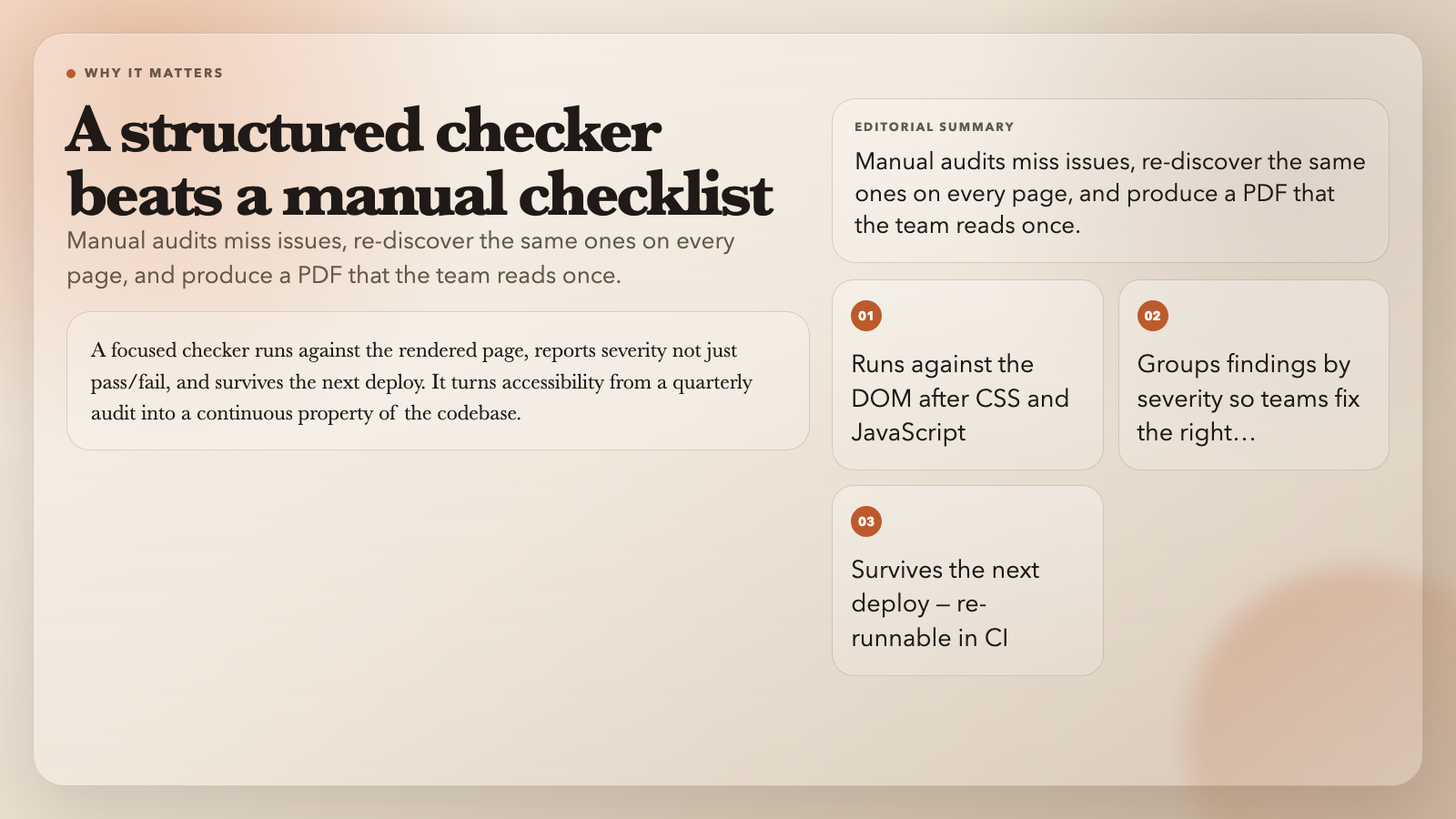
A good checker distinguishes decorative from informative by inspecting the role, the image’s dimensions, and whether the image carries link text. Decorative images with informative roles are flagged. Informative images with empty alt are flagged. Everything else is left alone.
Focus order and the keyboard trap nobody mentions
Heading levels form a contract with assistive technology. A user navigating by headings expects the page to outline the content: <h1> for the title, <h2> for the major sections, <h3> for subsections. Skipping a level — jumping from <h1> to <h3> — is a Level A failure (1.3.1, Info and Relationships).
What trips teams up:
– Styled <div>s that look like headings. Designers love big bold section openers. If those are <div class="title"> rather than <h2>, the visual hierarchy is intact but the semantic one is broken. Every screen-reader user sees an unannounced section break.
– Multiple <h1>s. SEO tools used to recommend one per page; modern search engines are fine with multiple <h1>s as long as they’re semantically appropriate. But within a single landmark region, multiple <h1>s are usually a sign that the page has two competing titles.
Why a structured checker beats a checklist
– Heading level chosen by visual size, not structure. A page with five <h2>s in a row, then a single <h4>, reads as flat to a sighted user. A screen reader user navigating by heading gets the same flat outline but with one mid-list detour that breaks the mental model.
A live-DOM heading audit reports both skipped levels and multiple-h1-in-same-landmark. It doesn’t try to “fix” the heading by guessing; it points at the line and lets the developer decide.
WCAG 2.4.3 (Focus Order) says the navigation order must preserve meaning and operability. In practice this means: when a user tabs through a form, the focus ring should move through the inputs in the order a sighted user reads them, not in DOM order.
The quiet failures:
The takeaway
– CSS that reorders visual layout. A grid that puts the “Submit” button above the “Cancel” button visually but keeps them in source order is fine for mouse users and broken for keyboard users. Tab order follows the DOM.
– Custom widgets that swallow focus. A modal that opens, traps focus inside, and then leaks focus back to the trigger on close is a well-known pattern. A modal that opens, traps focus, and then leaves focus stranded on <body> is a focus-trap-without-escape. Users on screen readers get stranded too.