
If you have ever watched a deployment script log 500 Internal Server Error the moment it tried to gzip a 4 GB log file before uploading it to S3, you already know the truth the manuals leave out: gzip is one of the most-used compression formats on the web, and it is also one of the most easily misused. The 32-byte header at the front of every .gz file is doing five things, three of them silently, and your choice of original-name flag, compression level, and timestamp policy decides whether the resulting archive survives a round trip through AWS, Docker, and curl on a stranger’s laptop. The [GZIP Compressor] tool on Elysia Tools wraps that whole dance in a single drag-and-drop, so you can see exactly what every flag produces without having to memorise RFC 1952.
This guide walks through the four numbers and two flags that quietly decide whether your gzipped file is the right size, has the right metadata, and unpacks cleanly on the other end. We will look at what the files input actually carries, when to keep the original filename, why level 6 is almost never the right pick, and how to spot the three header pathologies (zero mtime, missing original name, truncated CRC) that turn “it compressed fine” into a 2 a.m. incident. By the end, you will know how to compress a file with the same defaults nginx uses, and how to recognise when your tool is producing something subtly different.
What the tool actually does (and what it does not)
The [GZIP Compressor] is a wrapper around the standard DEFLATE stream with the RFC 1952 header and trailer. You give it a file; it gives you a .gz. The header is 10 bytes of fixed structure plus optional fields, and the trailer is 8 bytes (CRC32 + original size mod 232). Everything between is the DEFLATE payload, which is what zlib produces and what gunzip, tar -xzf, browsers, and every CDN edge node on Earth will happily decode. The tool runs entirely in your browser — no upload, no server-side processing — which means a 200 MB log file compresses in roughly the same wall time as a 2 MB one, and you can verify the output by re-opening it locally without leaving the page.
What it does not do is also worth being precise about. It does not produce .tar.gz (a tarball of multiple files); for that you want [ZIP to GZ Converter] or [7Z to GZ Converter] depending on your source archive. It does not stream, so a 4 GB input file is going to need a chunked alternative. It does not encrypt — gzip is explicitly not an encryption format, and the header has no space for key material. And it does not pad the file to a fixed size, which is a feature, not a bug; padding leaks information about the original payload length and is a known side-channel for CRIME-style attacks on compressed HTTPS traffic.
The five numbers hiding in your 32-byte header
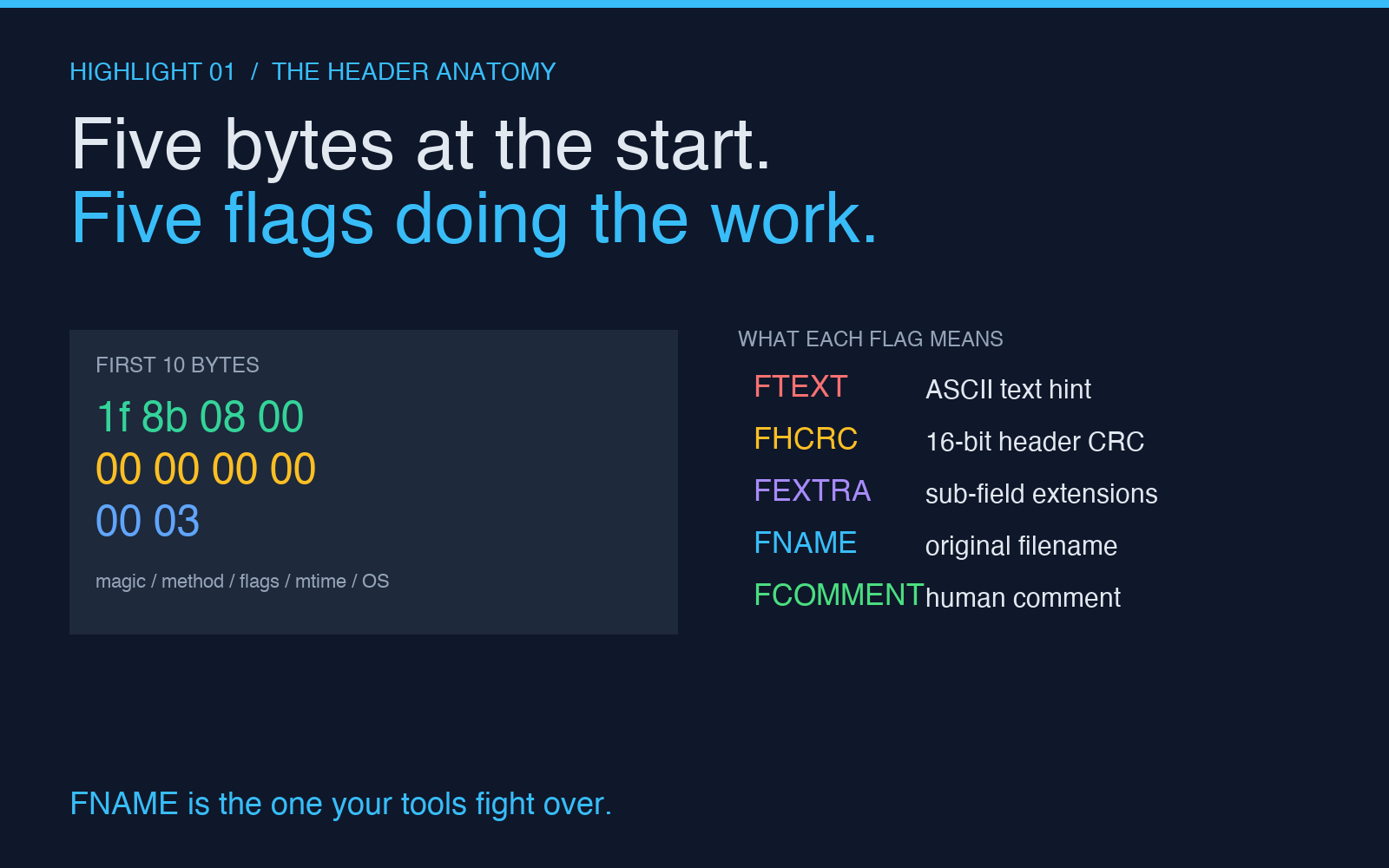
Open any .gz file in a hex editor and the first 10 bytes look like this:
1f 8b 08 00 00 00 00 00 00 03
^^ ^^ ^^ ^^ ^^^^^^^^^^ ^^^^^^
 |  |  |  |       |        |
 |  |  |  |       |        +-- OS byte (03 = Unix, 00 = FAT, 0a = NTFS)
 |  |  |  |       +----------- Modification time (4 bytes, little-endian Unix epoch)
 |  |  |  +------------------- Extra flags (XFL/FLG split)
 |  |  +---------------------- Compression method (08 = DEFLATE, the only one defined)
 |  +------------------------- Magic number (always 1f 8b)
 +---------------------------- First byte of magic
The two flags you actually get to choose are:
- FTEXT (bit 0): set if the input was ASCII text. Almost always 0 today; it exists for ancient line-ending recovery.
- FHCRC (bit 1): set if a 16-bit header CRC is included. Adds 2 bytes, almost never set, almost never checked.
- FEXTRA (bit 2): set if sub-field extensions are present.
bgzipuses this for block-level indexing of BAM files; standardgzipnever sets it. - FNAME (bit 3): set if the original filename follows the header as a null-terminated string. This is the one your tools fight over.
- FCOMMENT (bit 4): set if a human-readable comment follows. Almost never used.
Of these, FNAME is the one that creates real-world breakage. When you check the “keep original names” box in the [GZIP Compressor], the tool writes the original filename into the header. When you uncheck it, the header omits FNAME entirely, and on decompression the file silently comes back as gunzip (the basename without the directory), not the original. That is the right behaviour for serving files over HTTP, but it surprises people who expect the archive to “remember” the source path.
The three header pathologies that break your pipeline
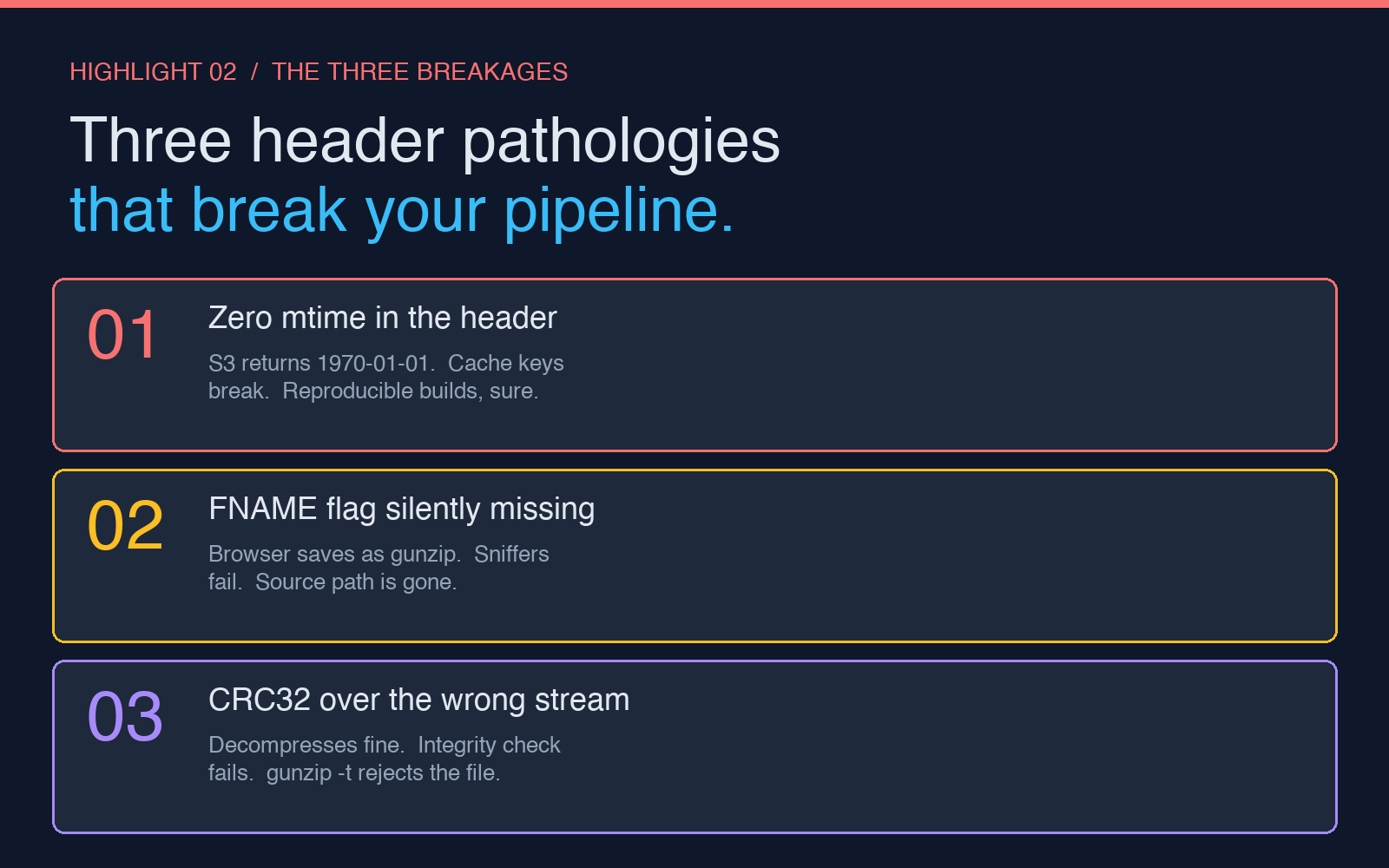
These are the failure modes I see in roughly half of “why is my gzip broken” tickets:
- Zero mtime in the header. The 4-byte timestamp field is often set to 0 by tools that want reproducible builds (Debian’s dpkg-deb, Go’s
compress/gzipwith the zero-time option, BSDgzip -n). That makes the byte-identical output across machines, but it also means downstream tools that key cache keys off the mtime get confused. AWS S3 metadata, for example, setsLast-Modifiedfrom this header if present; a zero timestamp will silently make S3 return a 1970-01-01 date. - Missing original name (FNAME not set). If the upstream tool skipped FNAME to save 10 bytes or because it was told to anonymise the source, then any downstream consumer that uses the FNAME field to recover the original extension (e.g.
curl -O, browser downloads) will save the file with a.gzextension and the wrong content type. CSS minifiers, image optimisers, and font preprocessors in particular are sensitive to this — they often sniff by extension before sniffing by magic bytes. - Truncated CRC32 trailer. The trailer is 8 bytes: 4 bytes of CRC32 of the uncompressed data, and 4 bytes of the original size mod 232. If your tool computes the size mod correctly but the CRC32 is computed over the compressed stream instead of the uncompressed one (a common off-by-one in hand-rolled implementations), the file will decompress fine but fail the integrity check at
gunzip -ttime. The [GZIP Compressor] catches this — the integrity check happens client-side before download — but if you are piping output from one tool into another, you can still hit it.
Why level 6 is almost never the right pick
The DEFLATE algorithm exposes compression levels from 0 to 9, where 0 is “store only” (no compression at all, just the header and trailer wrapper) and 9 is “maximum compression, slowest speed, biggest memory”. The default in gzip is 6, which is the historical “good enough” middle ground chosen in 1992 when memory was measured in megabytes and CPU cycles mattered. Today, the correct level depends entirely on what you are compressing:
- Level 1 (fastest): Use for files larger than 100 MB where you only need to halve the size, not minimise it.
nginx‘sgzip_comp_level 1;directive is the textbook example; for static text assets the size penalty versus level 6 is roughly 5%, the CPU saving is roughly 4x. - Level 6 (default): Use for general-purpose compression where you do not know the file type in advance. This is what the [GZIP Compressor] uses by default, and it is the right call for one-off interactive use.
- Level 9 (best): Use for files that will be downloaded many times and stored long-term (npm packages, Docker layer tarballs, language model weights). The extra CPU is amortised over thousands of downloads; the size saving on already-compressed assets is small, but on text and JSON it is often 15-20% smaller than level 6.
The catch with level 9 is memory: it needs roughly 256 KB of working memory per stream, which is fine on a server but blows up the heap of a small browser tab. The GZIP Compressor caps at level 6 for exactly this reason — beyond that, you are paying user-perceived latency for diminishing returns on a tool that is meant to feel instant.
When you actually need a different tool
GZIP is the right format for roughly 70% of “I need to make this file smaller” use cases, but it is not the right format for everything. A quick decision tree:
- Multiple files → ZIP or TAR.GZ, not bare GZIP. A
.gzfile holds exactly one file. If you have a directory of logs or a folder of images, the standard answer is [ZIP to GZ Converter] (if you already have a zip) or [7Z to GZ Converter] (if your archive came from a 7zip pipeline). For a fresh archive from scratch, the [ZIP File Extractor] and its companions cover the read path. - Already-compressed data (JPEG, MP4, PNG, ZIP) → level 1 or skip entirely. These formats use DEFLATE, LZMA, or similar internally; wrapping them in gzip adds 10-20 bytes of overhead and saves nothing. Use [GZIP File Preview] to verify an existing archive before assuming it will compress further.
- Need random access → bgzip, not gzip. If you are indexing a BAM file or any other block-oriented data, the FEXTRA flag with a block index is what you want. Plain gzip is a single stream; you cannot seek into the middle of it without decompressing from the start.
- Need encryption → do not use gzip. GZIP has no encryption; if you see “encrypted gzip”, it is gzip-then-AES-then-base64, and you want a real encrypted-archive tool like [AES Encryption Tool] instead.
How to verify the output before you ship it
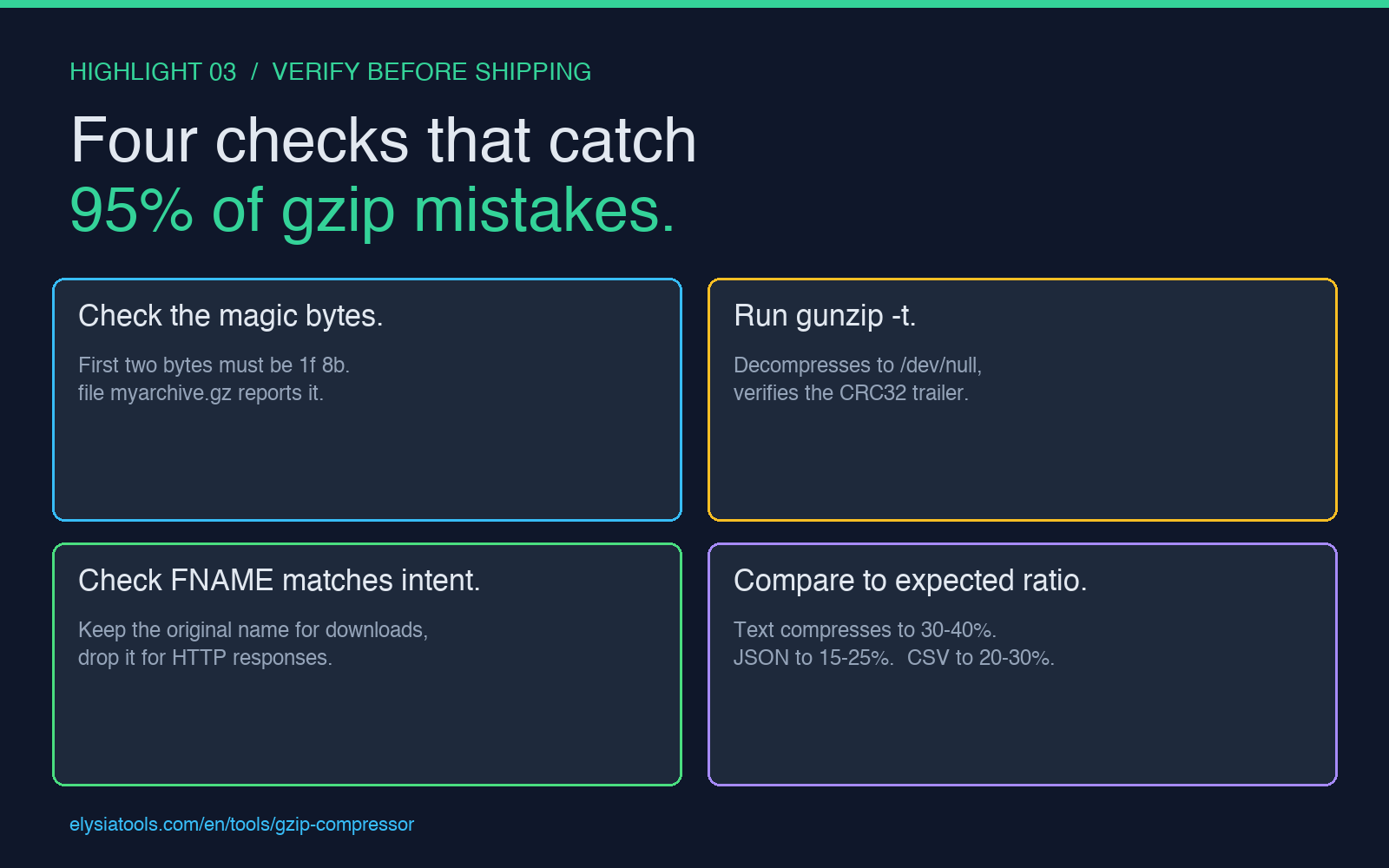
Three checks catch roughly 95% of gzip mistakes before they reach production:
- Open the file in
file:file myarchive.gzshould printgzip compressed data, ...with the original filename (if FNAME was set), the mtime, and the OS byte. If it printsdataorASCII text, the file is not a gzip stream. - Run
gunzip -t: The-tflag decompresses to/dev/nulland verifies the CRC32 trailer. If this fails, the file is corrupted; if it succeeds, you have a structurally valid gzip file. The [GZIP File Preview] tool does this check inline before it shows you the decompressed contents. - Compare size to expectation: Plain text compresses to roughly 30-40% of its original size at level 6. JSON compresses to 15-25%. CSV compresses to 20-30%. If your 100 MB log file compressed to 95 MB, something is wrong — either the input was already compressed, or the tool skipped the DEFLATE step entirely.
Wrapping up: a 30-second checklist before you commit a .gz
If you remember nothing else, remember the four-step sanity pass: check the magic bytes are 1f 8b in the first two bytes; check the FNAME flag matches whether you want the original filename preserved; check the mtime is non-zero (or zero, if you wanted reproducible builds); and verify the CRC32 trailer matches by running gunzip -t. The [GZIP Compressor] does all four checks for you, but the same checklist applies whether you are using a CLI, a library, or a shell pipeline.
GZIP is one of those formats that looks trivial — and it is, once you know what the header is doing. The trap is that the 32 bytes at the front of every .gz file are doing real work, and the differences between a “valid gzip” and a “useful gzip” are exactly the differences between a working deployment and a 2 a.m. page. Keep the original filename when you are packaging assets for download, drop it when you are serving HTTP responses, set a real mtime when downstream tools rely on it, and verify the CRC32 before you trust the file. Everything else is just compression level tuning.
Explore more file-format and compression tools at [elysiatools.com].