Data Range Limiter: The Three Strategies That Decide Whether Your Data Cleansing Script Is Honest
If you have ever opened a CSV from a sensor, an IoT gateway, or a hand-keyed spreadsheet and seen a value of -9.99, 999, or 999999 sitting next to a column of real numbers, you already know why a data range limiter exists. Those values are not measurements. They are placeholders. The Python script, the SQL view, the dashboard, and the ML model downstream all see the same number and treat it as a measurement, so the placeholder quietly skews your mean, your percentile, your threshold, and your forecast.
The fix is not a one-line WHERE col > 0. The fix is choosing a strategy, declaring a range, and writing the result down so the next person looking at the data knows what changed and why.
The Data Range Limiter tool gives you a way to do that without writing code. You paste a CSV, you declare the ranges as JSON, and you pick one of three handling strategies: clip, filter, or mark. Each one produces a different output CSV, a different modification report, and a different contract with the rest of your pipeline. Pick the wrong one and you will either lose rows you needed, or you will keep rows that you said you cleaned.
Why a single value can poison an entire dataset
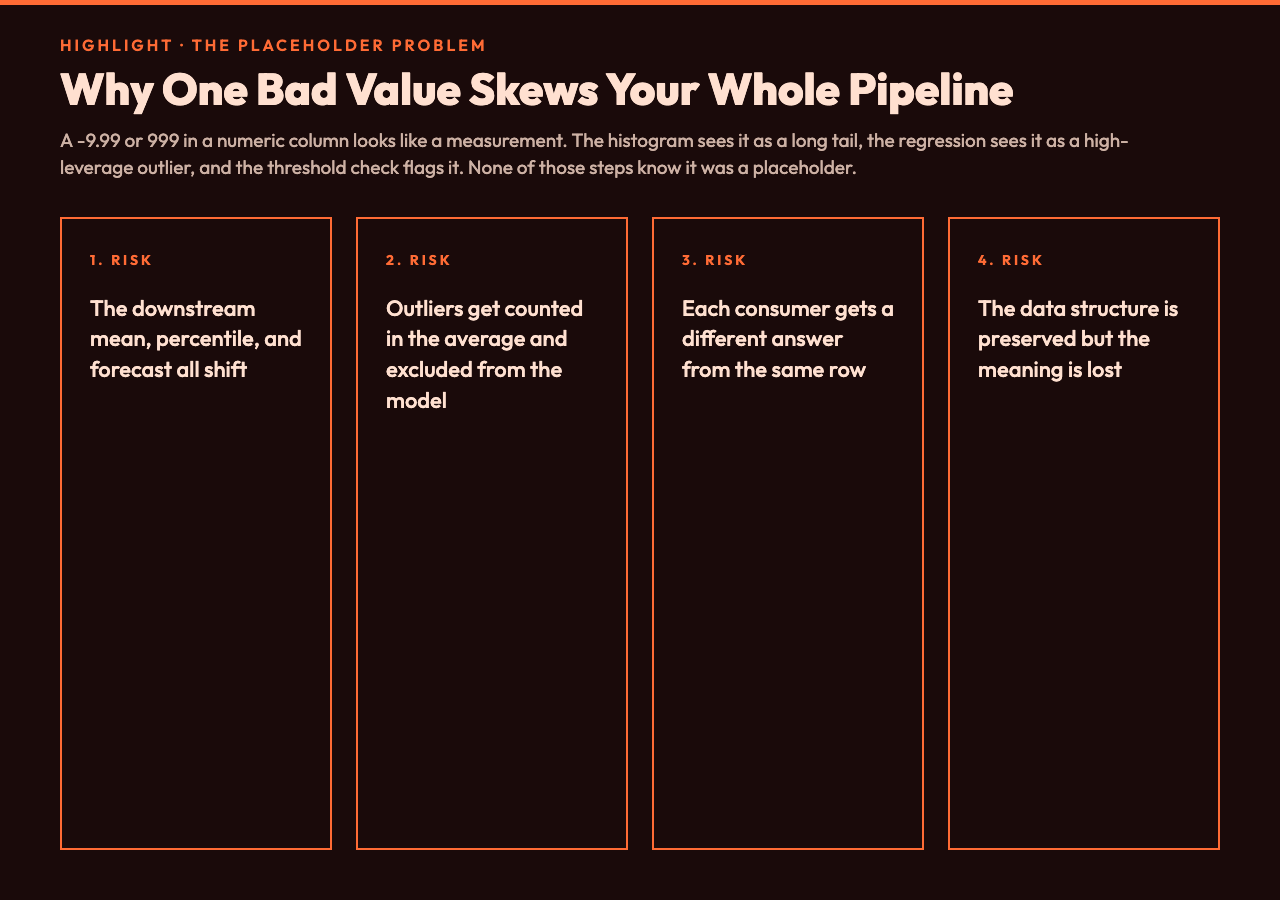
The reason out-of-bounds values are so dangerous is that they look real. A 999 next to a column of temperature readings in Celsius is not visibly different from a 98.6 or a 99.5. The histogram sees it as a long tail, the regression sees it as an outlier with high leverage, and the threshold check sees it as a row that should be flagged. None of those downstream steps know that the value was typed by a tired operator at 2 a.m. or returned by a sensor that had been unplugged for six hours.
This is why a range check belongs in the cleaning step, not in the analysis step. If you clean in the analysis step, the same 999 is counted in the mean, excluded from the regression, and then included again in the report. Every downstream consumer gets a different answer. If you clean at the boundary — the moment the CSV enters your pipeline — every consumer gets the same answer and you can defend it in a code review.
The Data Range Limiter is built for that boundary. It expects CSV in, produces CSV out, and writes a modification report that you can save alongside the file so the audit trail is intact.
The three handling strategies, in plain English
The tool exposes three strategies and the difference matters more than the labels suggest.
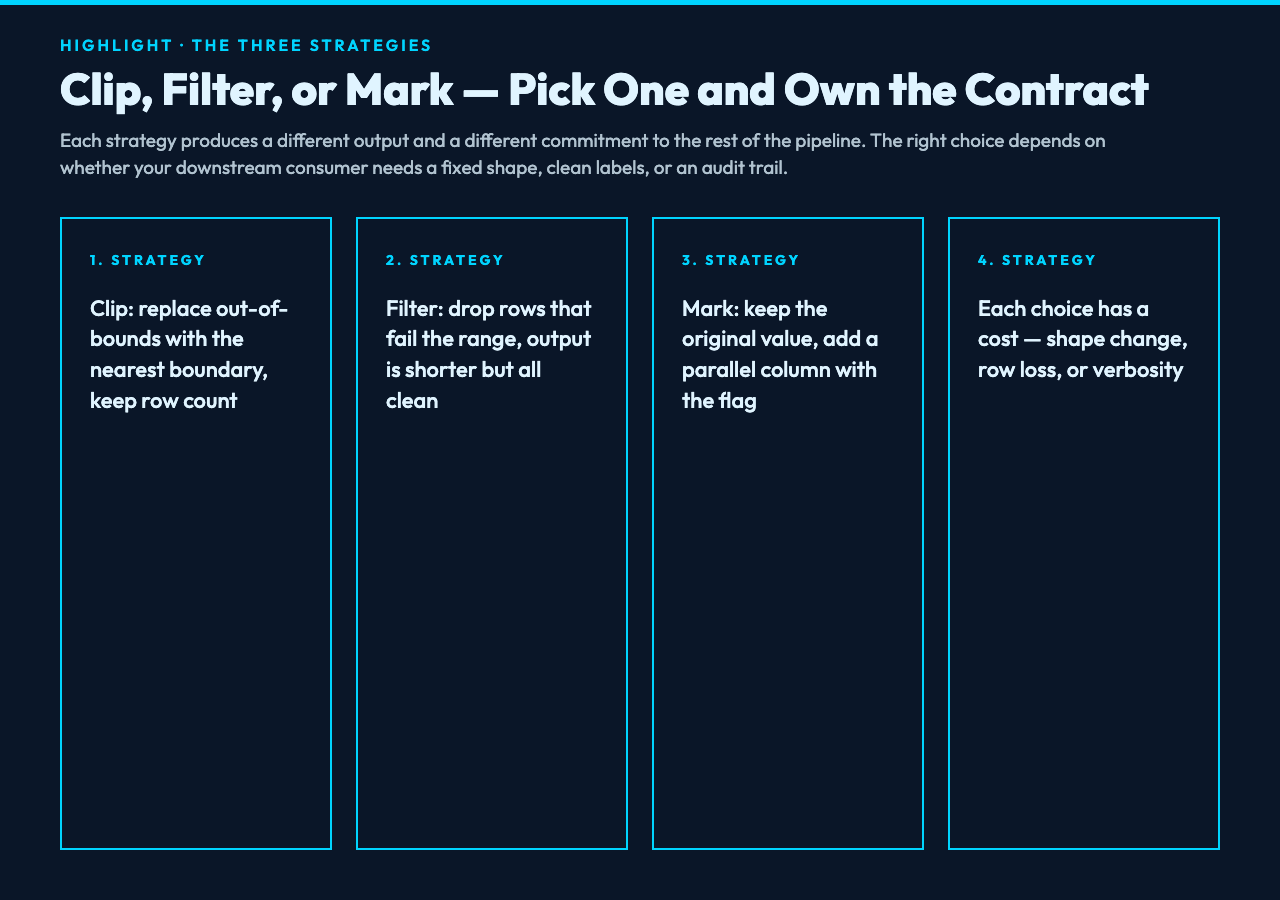
clip replaces any out-of-bounds value with the nearest boundary. A 999 in a column declared as [0, 100] becomes 100. A -5 becomes 0. The row count stays the same, every value stays numeric, and the data structure is preserved. This is the right choice when you are feeding a chart, a model, or a SQL aggregate that needs a fixed shape. The cost is honesty: a clipped 100 is no longer a measurement, it is a cap. You owe the downstream consumer a note that says so.
filter removes any row that contains at least one out-of-bounds value in a target column. The output CSV is shorter, the surviving rows are all in range, and the modification report tells you exactly which rows were dropped. This is the right choice when you are building a training set and a row with a bad label is worse than a smaller dataset. The cost is shape: the file you hand off has fewer rows than the file you received, and any downstream step that assumed row count is a proxy for sample size will now be wrong.
mark keeps the original value but adds a parallel column whose value is true if the row was modified and false if it was not. The output CSV is the same shape as the input, plus one extra column per target. This is the right choice when you are auditing a pipeline and you need to know which rows the script touched. The cost is verbosity: the output file is wider, and any consumer that does not know about the marker column will read the original values as if nothing happened.
The strategy you pick is a contract. Once you pick it, the rest of the article is just how to configure the tool to honor that contract.
How to declare ranges without writing a schema
The tool takes the ranges as a JSON object whose keys are column names and whose values are {min, max} pairs. For a temperature column named temp_c, the entry is {"temp_c": {"min": -20, "max": 60}}. For a percentage column named success_rate, the entry is {"success_rate": {"min": 0, "max": 100}}. The JSON is the schema, but it lives in the tool input, not in a separate file, which means you can paste it from a notebook, a runbook, or a Slack message without changing the tool.
If you do not want to write the ranges by hand, the tool offers an Auto-detect Reasonable Ranges toggle. When enabled, the tool inspects each numeric column, computes the interquartile range, and proposes a [Q1 - 1.5 IQR, Q3 + 1.5 IQR] window. This is the same rule a box plot uses for outliers, and it is a reasonable starting point for a first pass on a column you do not yet understand. It is not a substitute for domain knowledge — a heart rate column with a 220 ceiling will get the same range as a power consumption column with a 5 kW ceiling — but it will catch the obvious placeholders on a dataset you have never seen before.
The target columns field is optional. If you leave it empty, the tool scans every column, picks the ones whose values parse as numbers, and applies the ranges only to those. If you list columns explicitly, the tool applies the ranges to those columns and ignores the rest. The two modes are useful in different stages of a pipeline: the empty mode is for triage on a new file, and the explicit mode is for the production runbook where the column names are known.
What the modification report actually tells you
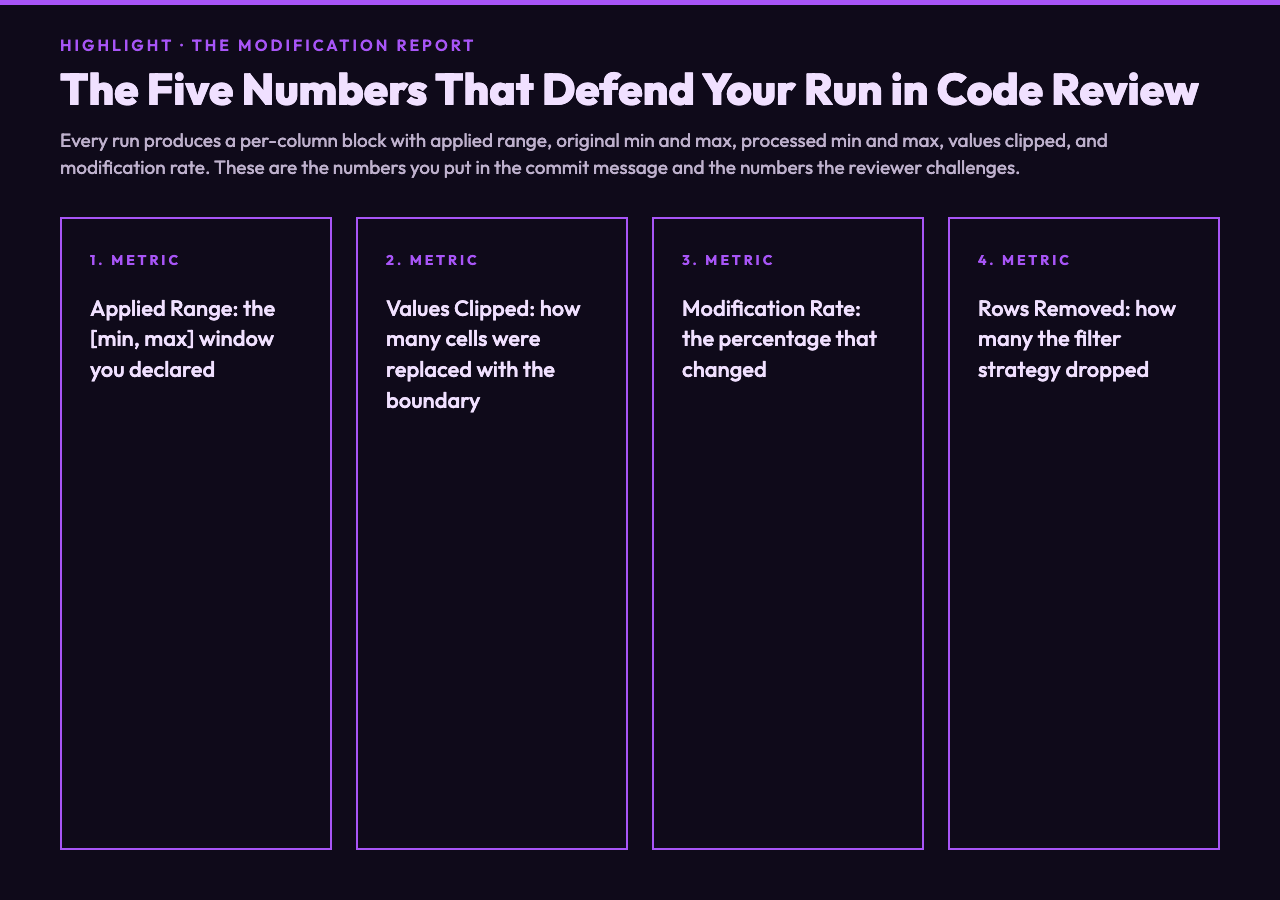
Every run produces a per-column block with five numbers: the applied range, the original min and max, the processed min and max, the number of values clipped, and the modification rate as a percentage. For a clip run on a 10,000-row temperature column with a [15, 40] range, you will see something like Values Clipped: 47 and Modification Rate: 0.47%. That number is the contract: 47 cells in 10,000 were replaced with the boundary, and you can defend the choice because the report says so.
For a filter run, the same column would show Records Removed: 12 and a processedRecords of 9,988 instead of 10,000. The summary block at the bottom of the report adds the totals: Total Values Processed, Total Values Modified, Overall Modification Rate, and Rows Removed by Filtering. These four numbers are the only ones you need to put in a commit message or a pull request description, and they are the only numbers the reviewer needs to challenge the run.
The tool also supports a Preserve Original Columns toggle that renames the original column to <name>_original and writes the processed values into a new column at the same name. This is useful when you want the chart and the audit at the same time, and it is the right setting for the first run on a column whose range you are not sure about yet. Once the range is locked, you can drop the toggle and run clip directly to get a single clean column.
When the Data Range Limiter is the wrong tool
The tool is for tabular CSV data and known column names. It is not for time series where the right range depends on the time of day, it is not for free-text columns, and it is not for cases where the valid range is conditional on another column (for example, a temperature reading whose valid range depends on whether the device was indoor or outdoor). For those cases you want a conditional range check, a separate model, or a hand-written script.
It is also not a replacement for understanding the data. The auto-detect ranges mode is a starting point, not an answer. If you accept the IQR-based range as the final answer, you have replaced one form of blind trust (trusting the raw value) with another (trusting the box plot). The tool gives you the mechanism; the choice of range is still yours.
For the cases the tool does cover — sensor CSVs, exported dashboards, hand-keyed spreadsheets, training-set preparation — it is faster than a one-off Python script, more auditable than a SQL WHERE clause, and more honest than silently letting the bad value through. Paste the CSV, declare the range, pick the strategy, and save the report. The next person in the pipeline will know exactly what changed and why.
Try it on your next dirty CSV at Elysia Tools and see what falls out. Explore more tools at elysiatools.com.