You load a square photo into an image composite matrix tool, set scaleX to 0.5, angle to 30 degrees, and shearX to 0.2. You click apply, and the resulting image looks almost like what you expected, but something is off in a way you can’t quite name. The rotation looks tilted in the wrong direction. The squashed side isn’t the side you mentally picked. The whole composition sits lower-left of where you placed it. Every individual setting was correct. The bug is the order they were combined in. Matrix multiplication is not commutative. A × B ≠ B × A, and the difference shows up as visible geometry on the rendered image.
Three transforms, applied in the wrong order, can move a rectangle from the top-right of your canvas to the bottom-left without changing any of the values you typed. If you have ever wondered why an image composite matrix output looks subtly wrong despite every individual slider being reasonable, this is the article that explains it, with the same tool the article links to so you can reproduce each example.
What a composite matrix actually does to your pixels
An image composite matrix combines multiple basic transformations (scaling, rotation, shearing) into a single 3×3 matrix that gets applied to every pixel coordinate. Each transform has its own matrix, and the composite matrix is the product of those individual matrices. When you set scaleX = 0.5, angle = 30, and shearX = 0.2 in that order, the tool multiplies scale × rotate × shear and applies the result. The order of multiplication determines which transform operates on the already-transformed coordinate system of the previous step.
This matters because each transform operates in the coordinate frame established by the previous one. Scale-then-rotate scales the original axes and then rotates the scaled axes around the origin. Rotate-then-scale rotates first, then scales the rotated axes. The visible result on a rectangle is two completely different shapes. The first produces a scaled rectangle tilted by 30 degrees. The second produces a rectangle that was rotated and then stretched along the rotated x-axis, which leaves the visible bottom-left corner much further from the origin than the top-right.
Why transform order matters more than the values themselves
The single biggest source of confusion with image composite matrices is assuming that because each transform value looks reasonable, the result will look reasonable. Three small, sensible values combined in the wrong order can produce an output that looks like a completely different transform was applied. The math is deterministic and the tool is doing exactly what you asked. The bug is in the question, not the answer.
- Scale then rotate: the rectangle is uniformly scaled to half size, then rotated 30 degrees around the origin. The resulting shape is a small tilted rectangle centered on the origin.
- Rotate then scale: the rectangle is rotated 30 degrees first, then scaled by 0.5 along the rotated x-axis. The non-uniform scaling along a tilted axis produces a parallelogram where the apparent size differs between top and bottom.
- Shear then rotate: the rectangle leans right by 0.2, then the leaned shape rotates 30 degrees. The visible tilt direction of the final shape depends on whether shear ran before or after rotation.
- Rotate then shear: the rectangle rotates cleanly, then the rotated shape leans. The lean direction is now along the rotated x-axis, which visually points 30 degrees off from the original horizontal.
If you have tried the tool at Elysia Tools with sensible values and gotten a surprising output, the order you set the transforms in is the most likely cause. The composite matrix tool exposes the transform order as a visible dropdown for exactly this reason.
How to read the transform order dropdown
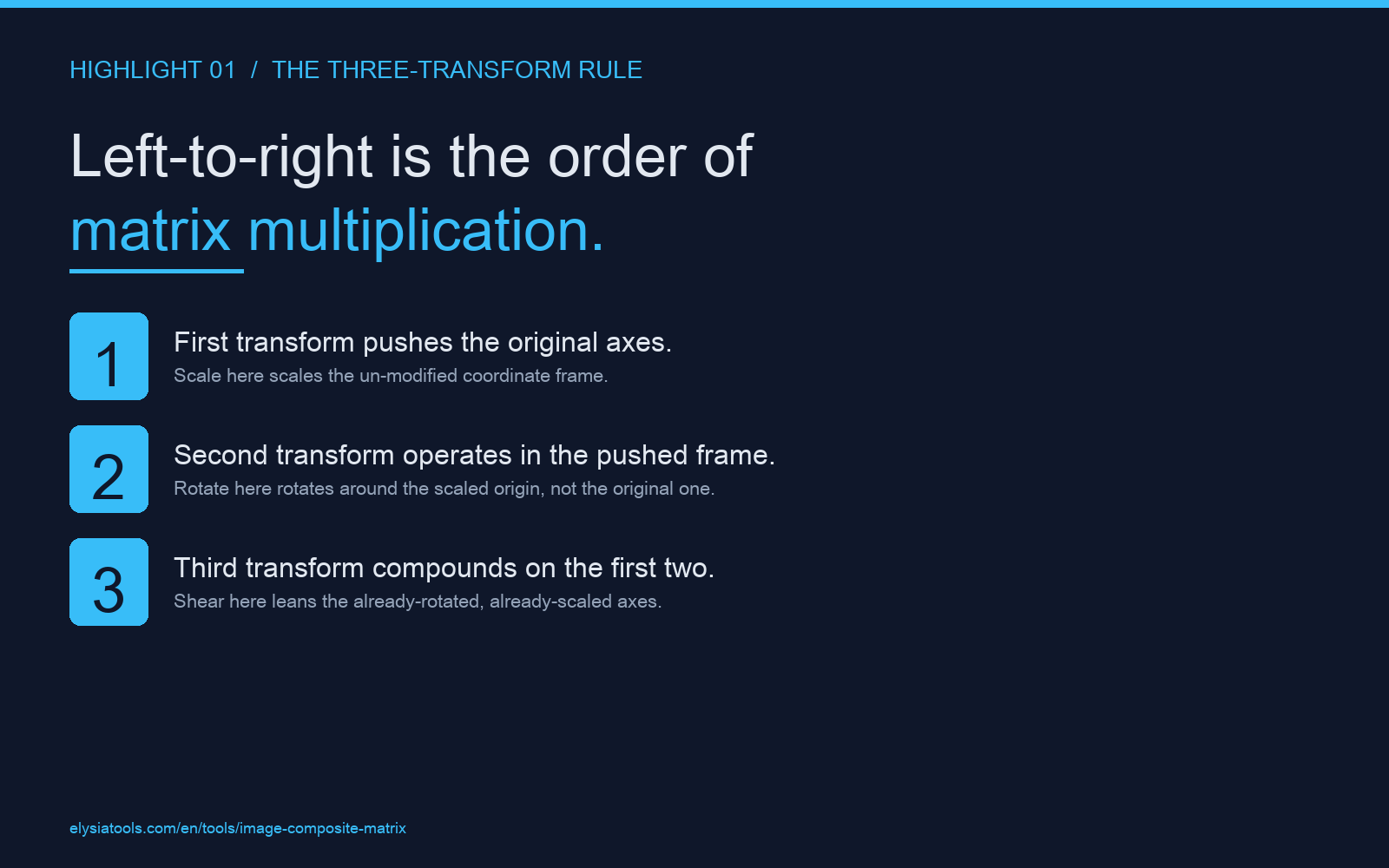
Most image composite matrix tools, including the one linked above, expose the order as a named dropdown with options like scale-rotate-shear, rotate-scale-shear, or shear-rotate-scale. The dropdown reads left-to-right as the order of matrix multiplication. The leftmost transform is applied first to the original coordinates. The rightmost transform is applied last, operating on the already-transformed coordinate system.
A useful mental model is to think of each transform as pushing the coordinate system, not the shape. The first transform pushes the axes in some direction. The second transform operates in the pushed coordinate system, so its “horizontal” is now tilted. By the third transform, the original horizontal is barely recognizable. The visible result is the cumulative effect of three pushes, applied left-to-right, and reversing any two of them produces a different shape even with identical values.
The three failure modes worth memorizing
If you only learn three things about composite matrices, learn these three failure modes. They cover roughly 80 percent of the “why does my composite look weird” cases in practice.
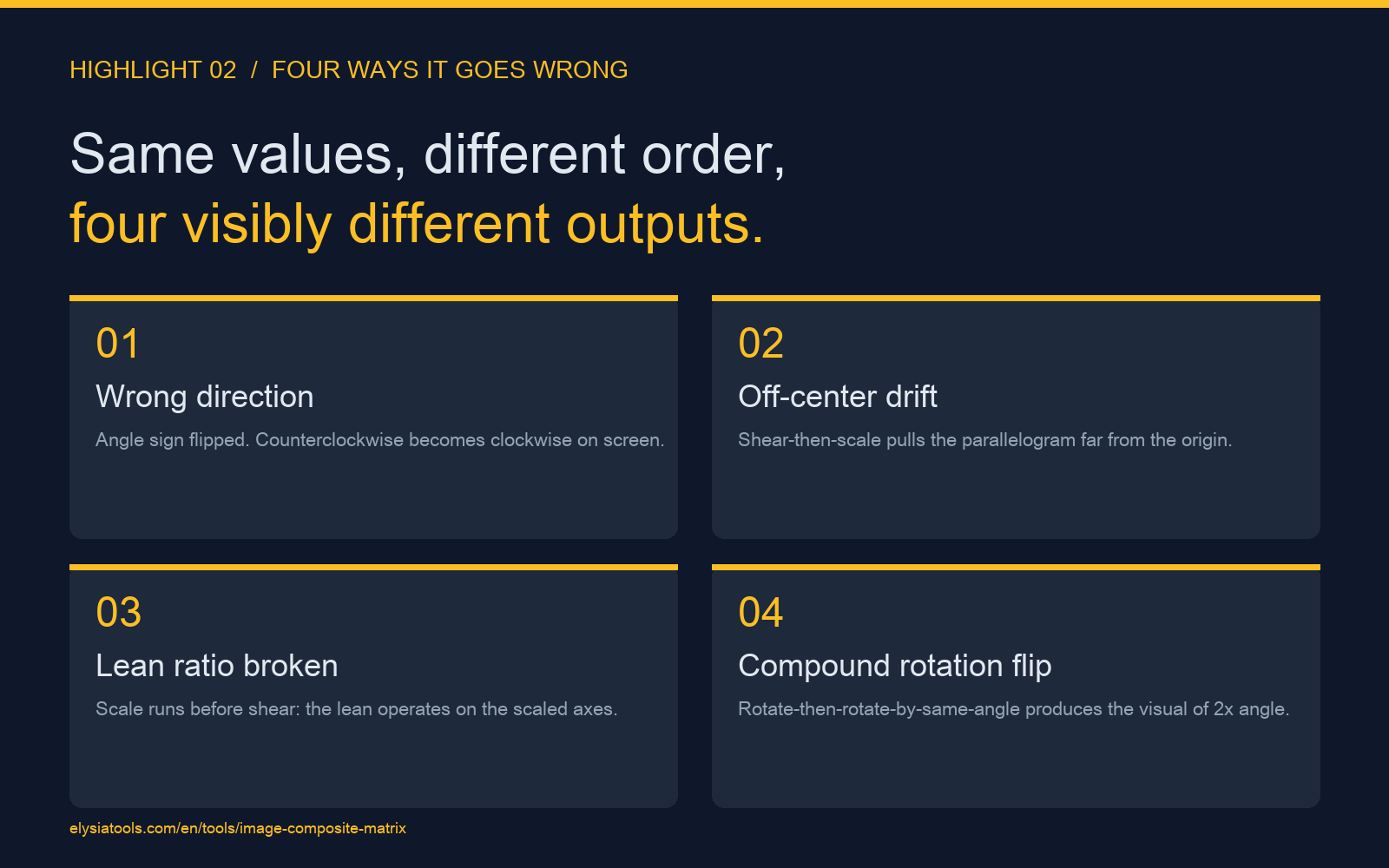
- Wrong-direction rotation: you expected clockwise rotation but got counterclockwise, or vice versa. The angle sign convention differs between image-space and math-space. Most tools default to image-space, where positive angles rotate counterclockwise on screen. Set the angle sign wrong and the visible rotation flips.
- Off-center composite: the resulting shape sits in a corner of the canvas far from where you mentally placed it. Shear-then-scale produces a parallelogram that drifts away from the origin faster than uniform scaling would. The shape is correct, it’s just anchored to the original origin point instead of the shape’s center.
- Compound lean that fights itself: you set shearX = 0.2 to lean the rectangle right, then scaleX = 0.5 to shrink the width. If scale runs before shear, the lean ratio changes because the scale operates on the original axes. If shear runs first, the lean is applied to the scaled shape. Both are valid composites, but they produce visibly different outputs.
Each of these failure modes is reproducible on the tool page by setting three values that look reasonable and toggling the transform order dropdown. The composite matrix output will change visibly without any value changing, which is the clearest demonstration that order, not values, is what determines the result.
When composite matrices are worth the trouble
Composite matrices are not the right tool for casual image editing. If you want to scale a photo, rotate it by a few degrees, or apply a uniform crop, a regular image editor is faster and more predictable. Composite matrices earn their complexity when you need to combine non-uniform transforms (different scale on x and y, shear, rotation by non-cardinal angles) into a single transform that can be applied repeatedly to a batch of images.
The practical use cases include generating consistent geometric distortions across a sprite sheet (so every character uses the same lean), creating batch text effects where every letter needs the same skew, and producing tutorial diagrams where the same composite needs to be applied to many sub-images with predictable results. The composite matrix form is also useful for debugging graphics code where you need to confirm whether a math library applies transforms in the order your pipeline expects.

Reproducing the examples yourself
Every example in this article uses the image composite matrix tool at elysiatools.com/en/tools/image-composite-matrix. Load a small square test image (a 200×200 PNG with a clear corner marker works best), set the three transform values described in each section, toggle the transform order between options, and confirm the visible output changes as described. The tool renders each composite immediately, so iteration is fast.
If you want a quick visual sanity check, the same tool exposes a coordinate overlay mode that draws the transformed axes on top of the rendered image. This is the fastest way to see which way each transform pushes the coordinate system, and it makes the order dependency visible at a glance. For more tools in the image-processing category, the full collection is available at elysiatools.com/en/tools.