Most .tar.gz extractors pull every file in the archive before you get what you actually came for. The TAR.GZ File Extractor from Elysia Tools flips that pattern: you paste an exact internal path, and only that one file comes back. Under the hood it shells out to the system 7z binary, streams the extracted bytes through memory, and returns a base64 payload ready for download. That makes it a clean answer to the recurring “I just need one config file out of a 2 GB image” problem, with no temp files and no full-archive decompression. The rest of this article walks through the four decisions that make selective extraction either effortless or accidentally expensive.
If you have ever watched a CI pipeline tar-unt an entire container image just to read a single VERSION file, this is the workflow your future self keeps reaching for. Selective extraction belongs to the same family as the JSON Schema to Zod Schema converter and the Phone Validator — elysiatools.com leans hard into “do the one thing well” utilities where most platforms ship a kitchen sink.
The four decisions that decide whether selective extraction actually saves you time
Decision 1: Do you know the exact internal path?
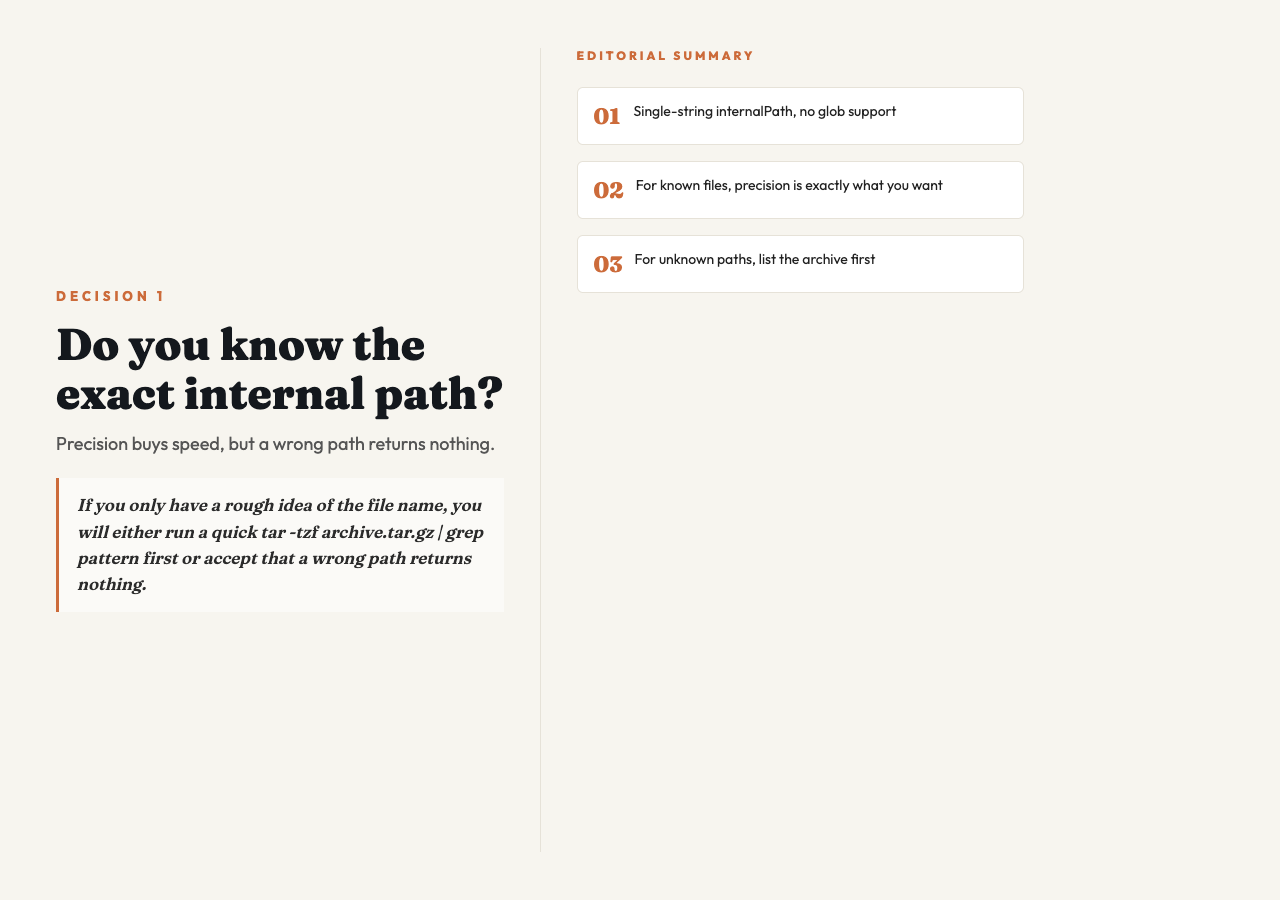
The tool takes a single string, internalPath, and matches it against entries inside the archive — no glob support, no fuzzy find. If you have ever opened a 4 GB tarball in tar -tvf just to remember that ./usr/share/doc/openssl/copyright is the file you actually wanted, that whole listing step is what selective extraction is designed to skip.
The trade-off is honest: precision buys speed. If you only have a rough idea of the file name, you will either run a quick tar -tzf archive.tar.gz | grep pattern first or accept that a wrong path returns nothing. For release-engineering workflows — pulling version.json out of a published artifact, or grabbing a single LICENSE file from a vendor bundle — the path is usually known, and the precision is exactly what you want. Try the TAR.GZ File Extractor on a small archive first to feel how the response shape behaves when the path is right versus silently wrong.
Decision 2: Is your archive under the 500 MB upload ceiling?
The tool’s fileLimit is hard-capped at 524,288,000 bytes (exactly 500 MiB). Anything larger will be rejected at upload before the extractor even runs. For most config files, READMEs, and credential bundles this is wildly more than enough — the very point of selective extraction is that you rarely need the whole archive to be on the wire. The limit really only bites when you are pulling a large binary (a model checkpoint, a video asset) and have not pre-staged it locally.
For files that exceed the ceiling, the workaround is straightforward: split the tarball with split -b 400M and run extraction against each part, or use a streaming extractor that can process from disk rather than from a multipart upload. If you regularly hit the ceiling, that is a signal the workflow is more about large-binary recovery than selective extraction, and the right next step is a dedicated restore pipeline rather than a browser tool.
Decision 3: Is the system 7z binary available where this runs?
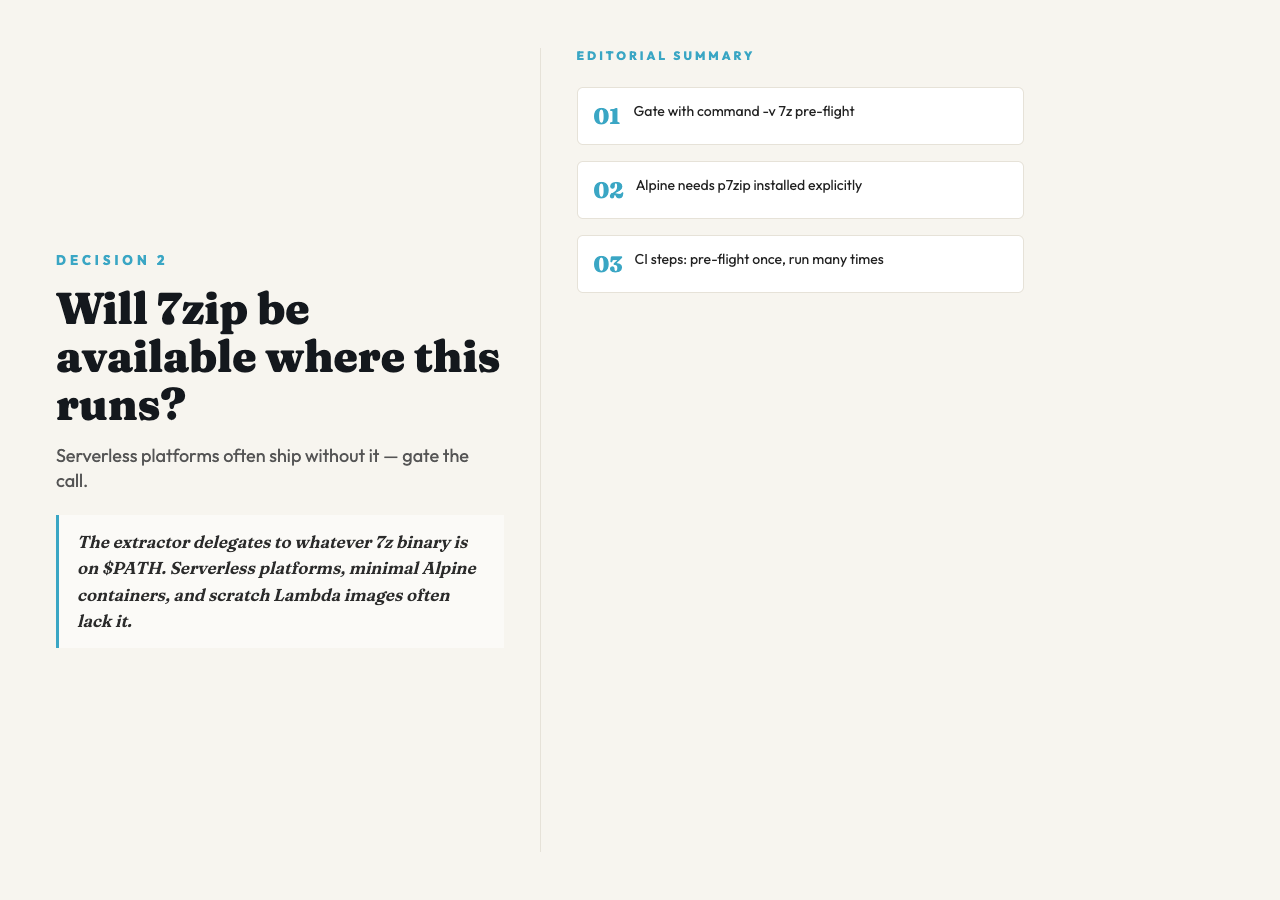
The extractor delegates to whatever 7z binary is on $PATH. Serverless platforms (Cloudflare Workers, Vercel Edge Functions, AWS Lambda scratch images) often lack it, and so do minimal Alpine-based Docker containers unless p7zip is explicitly installed. The tool surfaces this honestly in its description — “(requires 7zip command)” — but it is worth re-reading that constraint before you wire the extractor into a CI step.
A safe pattern is to gate the call on the binary’s existence:
command -v 7z >/dev/null || { echo "7z not installed"; exit 1; }After that pre-flight check, the extractor itself runs as a thin shell-around-process wrapper that translates your internalPath into an 7z e archive.tar.gz -so <path> command and base64-encodes the stdout. Build the right check into your pipeline once and you can keep all subsequent runs predictable.
Decision 4: What format do you actually get back?
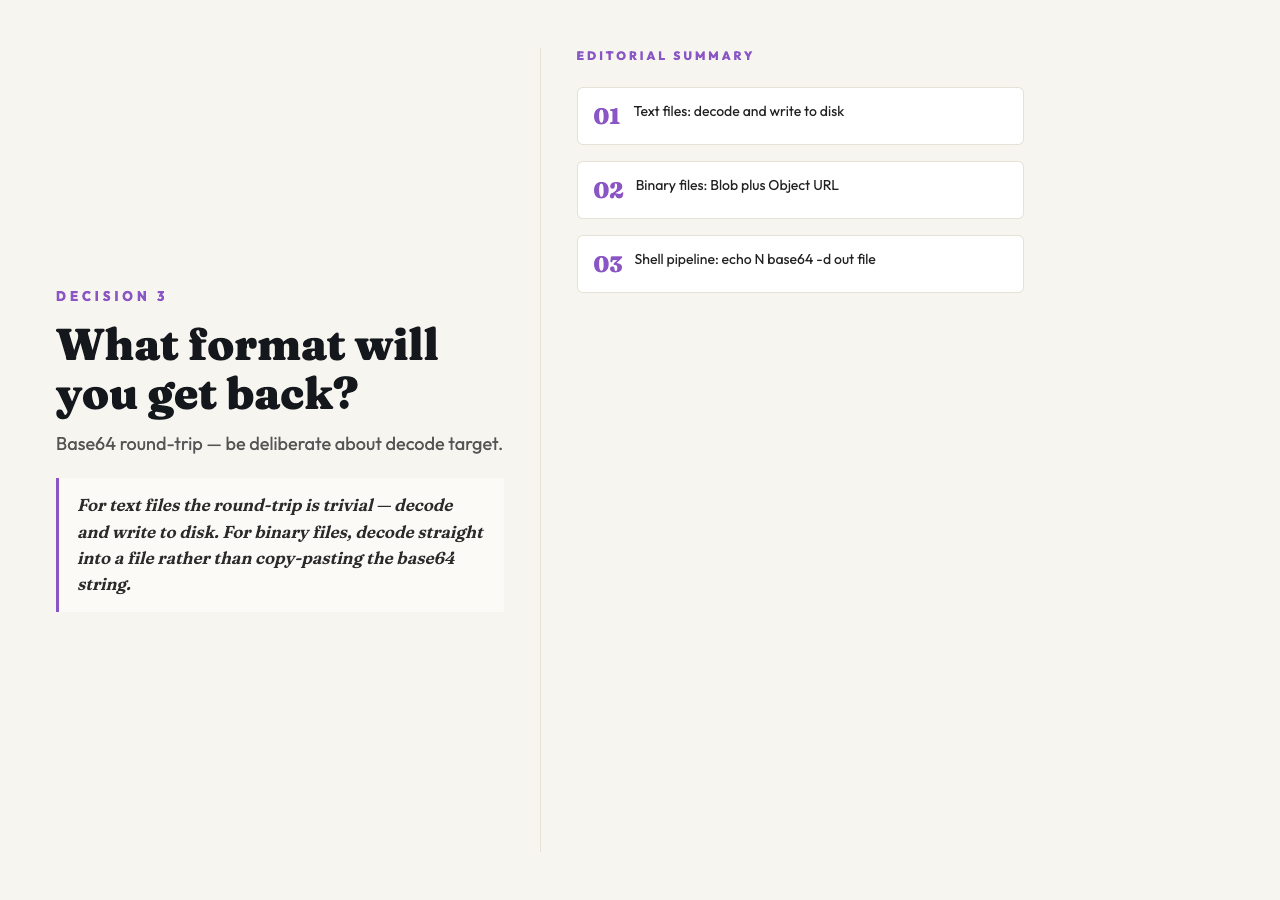
The result payload is a base64-encoded string of the extracted file’s raw bytes, wrapped in a JSON envelope. For text files (config, JSON, YAML, HTML) the round-trip is trivial — decode and write to disk. For binary files (images, PDFs, audio) you want to decode straight into a file rather than copy-pasting the base64 string through a terminal, because long base64 blocks get mangled by terminal line wrapping and shell escaping in ways that are tedious to debug.
If your downstream step is browser-side, decode with atob() into a Uint8Array, wrap it in a Blob, and hand it to URL.createObjectURL(). If your downstream step is a shell pipeline, write the decoded bytes directly:
echo "$BASE64" | base64 -d > extracted-fileFor repeated pipelines, save the decoded file to a deterministic name keyed on the archive hash plus the internal path so re-runs are idempotent.
When selective extraction is the wrong tool
Selective extraction is overkill when you really do want every file. In that case, a plain tar -xzf on the command line or a generic tar.gz unpacker will be faster end-to-end. It is also the wrong tool when your archive is encrypted — 7z will prompt for a password interactively, and a non-interactive extractor needs to be told the password up front, which the current implementation does not expose. For password-protected bundles, the safer path is to decrypt into a temporary .tar.gz first and then run this tool against the decrypted result.
Putting it together
The sweet spot for the TAR.GZ File Extractor is narrow on purpose: known path, known small-to-medium archive size, plain password or no password, and a downstream that is happy with a base64 round-trip. Inside that envelope it is genuinely useful — it skips the full decompression step entirely, ships no temp files, and the result lands in the browser ready for a copy or a download. Try it once on a small archive with a path you can verify by eye, and the failure modes become obvious quickly. Explore more single-purpose elysiatools.com utilities if you keep running into these “I just need one file from this thing” problems — they usually have a dedicated tool for the format you are wrestling with.