Your merchandising team maintains the product catalog in a spreadsheet, marketing wants each SKU to land in a Google product snippet, and the only thing standing between a row in column A and a structured-data rich result is a payload that the validator actually accepts. Paste the catalog into the JSON-LD Generator from CSV, pick the schema.org type, hand it the public page URL, and the generator emits both the JSON-LD block and a direct link to Google’s Rich Results test. The output either passes in ten seconds or tells you which required field is missing, and that feedback loop is what makes the tool worth more than any hand-written schema.org snippet block.
The headline fact about spreadsheet-driven JSON-LD that every SEO team eventually relearns the hard way is this: the generator only knows as much about your data as the column names you give it. A column literally called price without a paired currency produces Product JSON-LD that fails Google’s required-field check. A column called date instead of startDate produces Event JSON-LD that the validator silently drops. The three decisions below are the ones that decide whether the row you pasted actually surfaces as a structured-data snippet on the search results page.
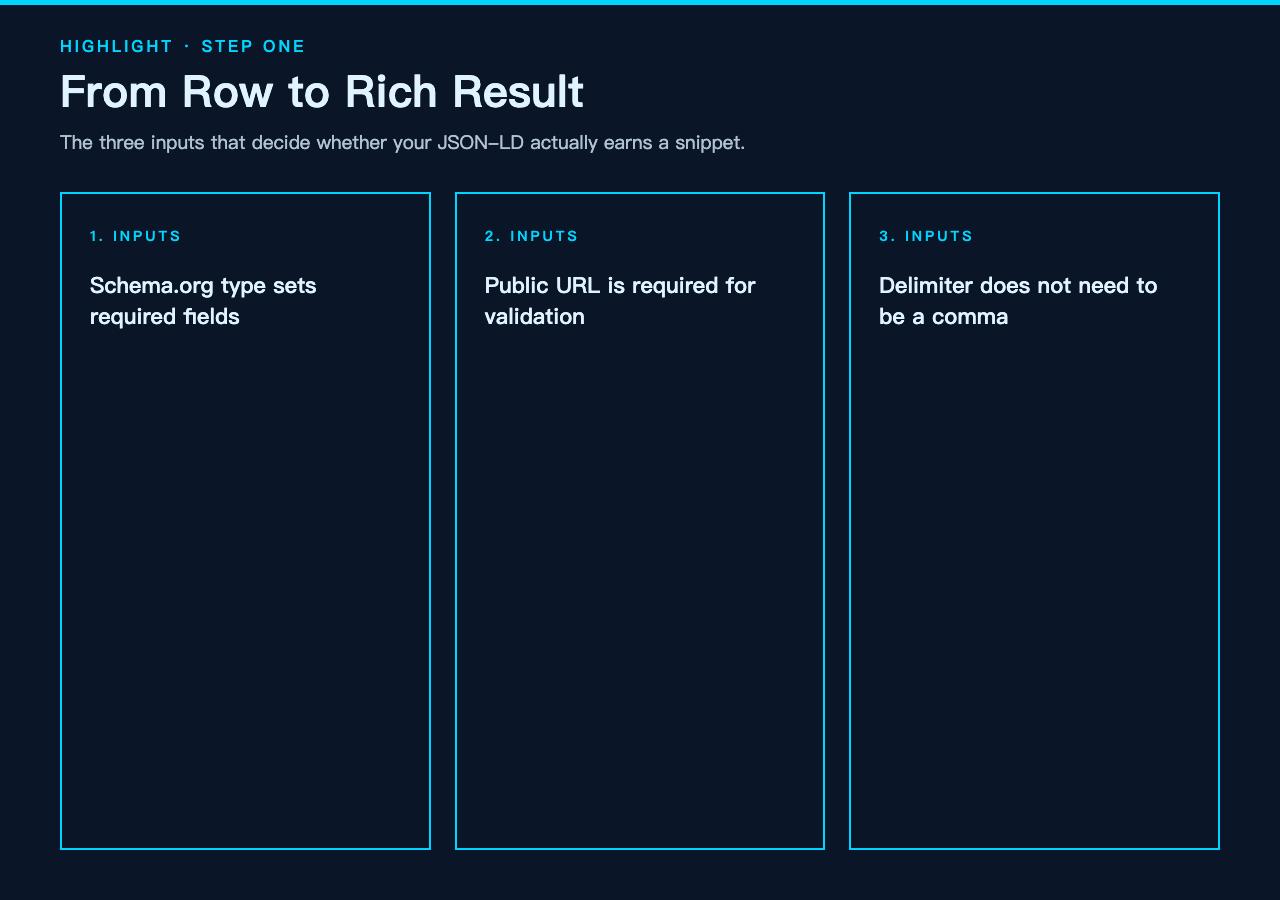
The Three Decisions That Decide Whether the Validator Accepts the Output
Every other parameter on the generator is cosmetic. These three decisions determine whether the output JSON-LD is a valid structured-data block or a wall of nested objects that no search engine will render.
Decision 1: Pick the Schema.org Type Before You Touch the Spreadsheet
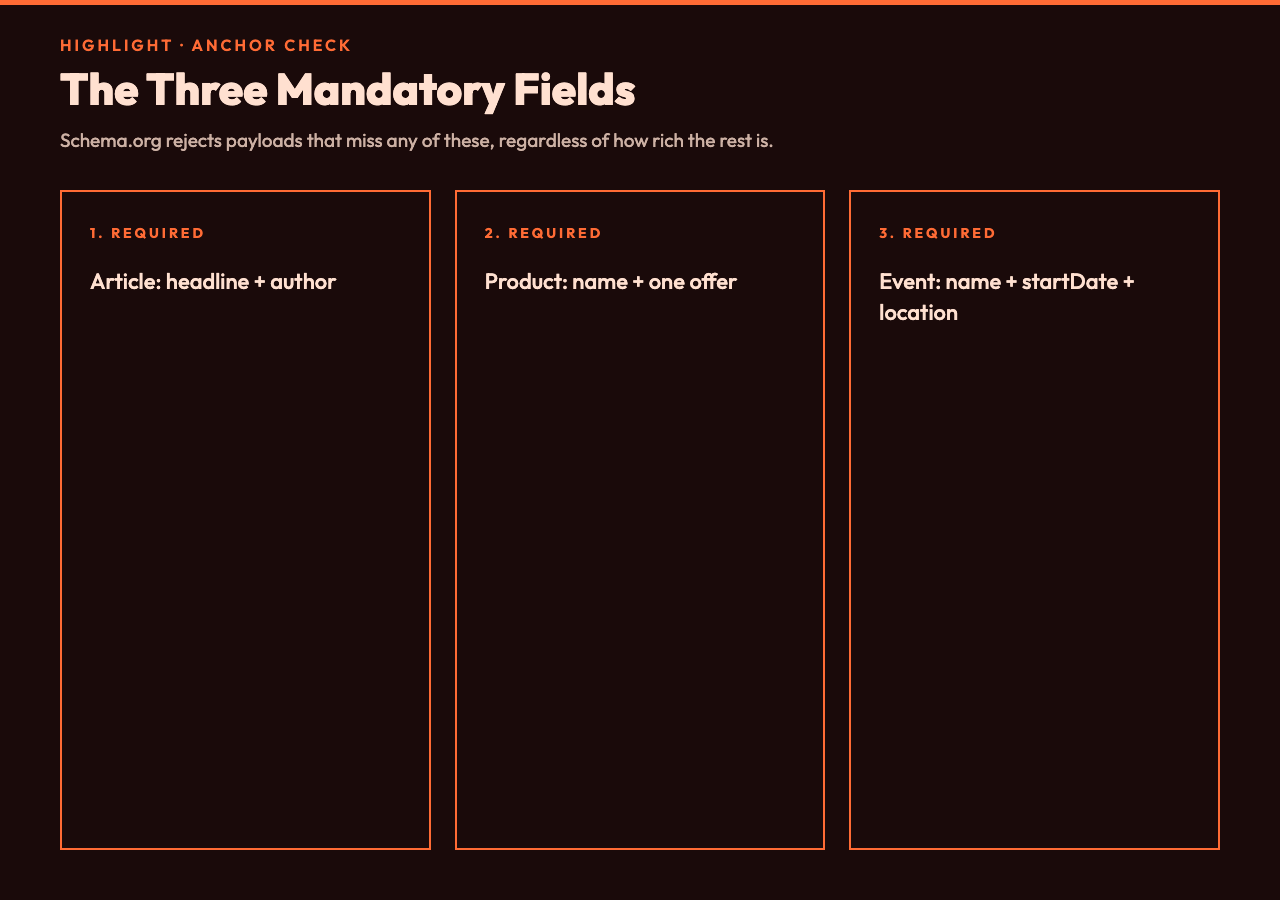
The schema.org type selector at the top of the form — Article, Product, or Event — sets the entire shape of the generated JSON-LD. The generator does not infer the type from the column names. If you paste a product catalog and leave the selector on article, the output will be Article JSON-LD with headline mapped from your product name, which is technically valid JSON-LD but useless for product rich results. The fix is to commit to the type before you write the spreadsheet column headers, because the column names you pick for Product (sku, brand, price, currency) are not the column names Article or Event expect (headline, author, startDate).
The practical way to make this decision: ask which rich-result format your team actually needs. If your product spreadsheet is what feeds your ecommerce site, the answer is Product. If you publish a regular content calendar and your CMS writes event pages from a spreadsheet, the answer is Event. If you maintain a publishing log of articles with author and date columns, the answer is Article. Once the type is set, the rest of the form follows.
Decision 2: Hand the Public Page URL Even When You Do Not Have It Yet
The Public Page URL field looks optional but it is not optional for the actual purpose of JSON-LD. Structured data without a corresponding live page is a hint to the search engine, not a claim. Google’s Rich Results test runs against the live URL, not against the JSON-LD blob you pasted. The generator takes whatever URL you put in this field and emits a ready-to-paste link into Google’s validator, so the URL has to be a real, crawlable page that serves the JSON-LD in a <script type="application/ld+json"> tag.
When the URL field is empty, the generator still emits valid JSON-LD but the richResultsTestUrl it returns is broken. The simplest fix is to stage the product or event page first, even as a draft with no styling, give the generator the staging URL, and then once the page is live just re-run the generator with the production URL. Two minutes of staging saves a back-and-forth where the validator silently fails because the JSON-LD references a URL that returns 404. If you need to test the JSON-LD shape itself before you have any URL, paste a placeholder URL like https://example.com/products/widget-pro, generate, copy the JSON-LD shape, and then come back with the real URL once the page exists.
Decision 3: Make the Spreadsheet Column Names Match the Schema.org Field Names
The generator does its best to map common column names to schema.org properties — name to name, sku to sku, price to price — but the mapping is not magic. A column called product_name is not the same as name, and the generator will treat your product_name column as an unknown extra property. Schema.org accepts unknown properties without erroring, so the JSON-LD will validate, but the property that actually carries the product display name will be empty and the rich result will not render the product card.
The cleanest fix is to set up a small header row with the canonical schema.org names: name, description, sku, brand, price, currency, image, url for Product; title, description, startDate, endDate, venue, address, price, currency for Event; title, description, author, datePublished for Article. When the spreadsheet you inherited has its own idiosyncratic column names, spend the two minutes to either rename the columns or build a one-row mapping sheet in front of the data. Trying to coax a generator into understanding ProductDisplayName_v2 as name is a losing game; renaming the column is faster.
Why a Spreadsheet Becomes the Right Input Format
JSON-LD as a single block of nested objects is fine when one developer writes it once for one page. The moment the data is a list of products, a calendar of events, or a backlog of articles, the format that wins is the one your team already maintains, which is the spreadsheet. A spreadsheet gives you row-level identity, free-form columns, and a CSV export that every tool in the SEO pipeline can ingest. The cost is that spreadsheets drift: someone renames a column, someone adds a new optional field, someone leaves a row half-filled. The generator absorbs all of that and emits valid JSON-LD as long as the three decisions above are made up front.
The alternative — building JSON-LD by hand for each row in a list — does not scale past five items. The other alternative — having a developer write a one-off script to turn each spreadsheet export into JSON-LD — works but turns every catalog update into a ticket. The JSON-LD Generator from CSV sits in between: it takes the spreadsheet output you already have, applies a fixed mapping, and emits JSON-LD that you can paste into the CMS template or commit to a static site. The generator does not write to your CMS; it gives you a JSON-LD blob per row that you decide where to put.
The Rich Results Test Loop That Makes the Output Verifiable
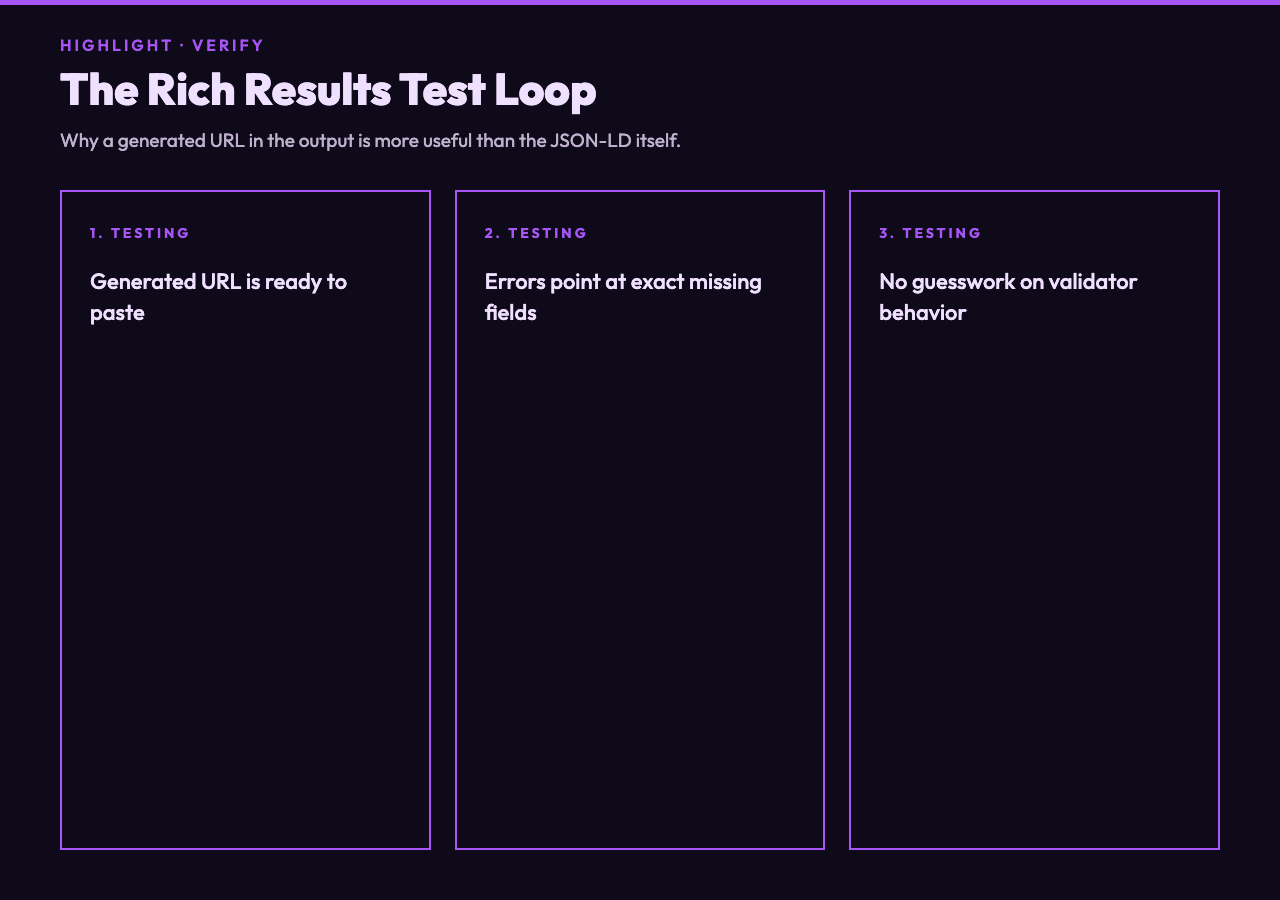
The single most useful thing the generator emits is not the JSON-LD itself — it is the richResultsTestUrl field. That field contains a URL of the form https://search.google.com/test/rich-results?url=... with the public page URL you supplied already URL-encoded as the query parameter. Click it, wait ten seconds, and Google’s validator tells you one of three things: the structured data is detected and the page is eligible for rich results, the structured data is detected but a field is missing or invalid, or the structured data is not detected at all (which is usually a CMS issue, not a generator issue).
This is the loop the generator is designed for. Paste the spreadsheet, pick the type, supply the URL, generate, copy the rich-results test URL, open it in a new tab, and look at the validator output. If the validator complains about a missing field, fix the spreadsheet and regenerate. If the validator complains about the URL itself, fix the staging environment. If the validator says the structured data is valid, you have a passing JSON-LD block ready to ship to production. The cycle is short enough to run on every catalog change, which means the validator passing today does not have to be re-checked by hand next week.
When to Reach for the Generator vs. When to Hand-Write
The generator is the right choice for any structured-data block that comes from a list. Product catalogs, event calendars, article publishing logs, recipe collections, FAQ lists, and review rollups are all generator territory. The pattern is the same: a spreadsheet or CSV that someone on the team already maintains, a schema.org type that matches the data, a public URL for each row, and a validator link to confirm the output is real. Hand-writing JSON-LD is the right choice only when the data is genuinely one-off — a single homepage about page, a single contact page with custom fields that do not fit any schema.org type, an Organization block with social profiles that change rarely. For these one-page cases the generator is overkill; for anything that comes out of a spreadsheet the generator saves real time.
The other case where hand-writing wins is when the JSON-LD needs to be embedded with computed properties that are not in the source data — for example, an aggregateRating derived from a separate review system, or a shippingDetails block that pulls from a shipping API. The generator does not call external services; it maps columns to properties. If the JSON-LD needs to read from a runtime service, hand-write or script the block, but use the generator to scaffold the columns that do come straight from the spreadsheet. When the SEO review also asks for clean URL slugs on every page that hosts the JSON-LD, the URL Slug samples are a quick reference for what the validator considers a safe permalink.
Run the validator link once before you commit the JSON-LD to the production page. If the validator passes, ship the block. If it does not, the validator error message will name the missing or invalid field, and you can fix the spreadsheet and regenerate in under a minute. That feedback loop is what separates a JSON-LD block that earns a rich result on the search results page from one that the search engine silently ignores. For teams that already maintain their data in a spreadsheet, the JSON-LD Generator from CSV turns the validator loop into a one-step process and keeps the structured data in sync with the spreadsheet instead of drifting behind it.
Explore more schema.org and SEO tooling at elysiatools.com.