A 47-minute screen recording lands in the review folder at 5:38 p.m. Nobody wants to watch it. The first minute looks fine, but the broken part may be a black frame at minute 19, a portrait clip squeezed into landscape at minute 31, or a silent section after the speaker switched microphones. The expensive mistake is not missing the whole video. It is trusting the first ten seconds.
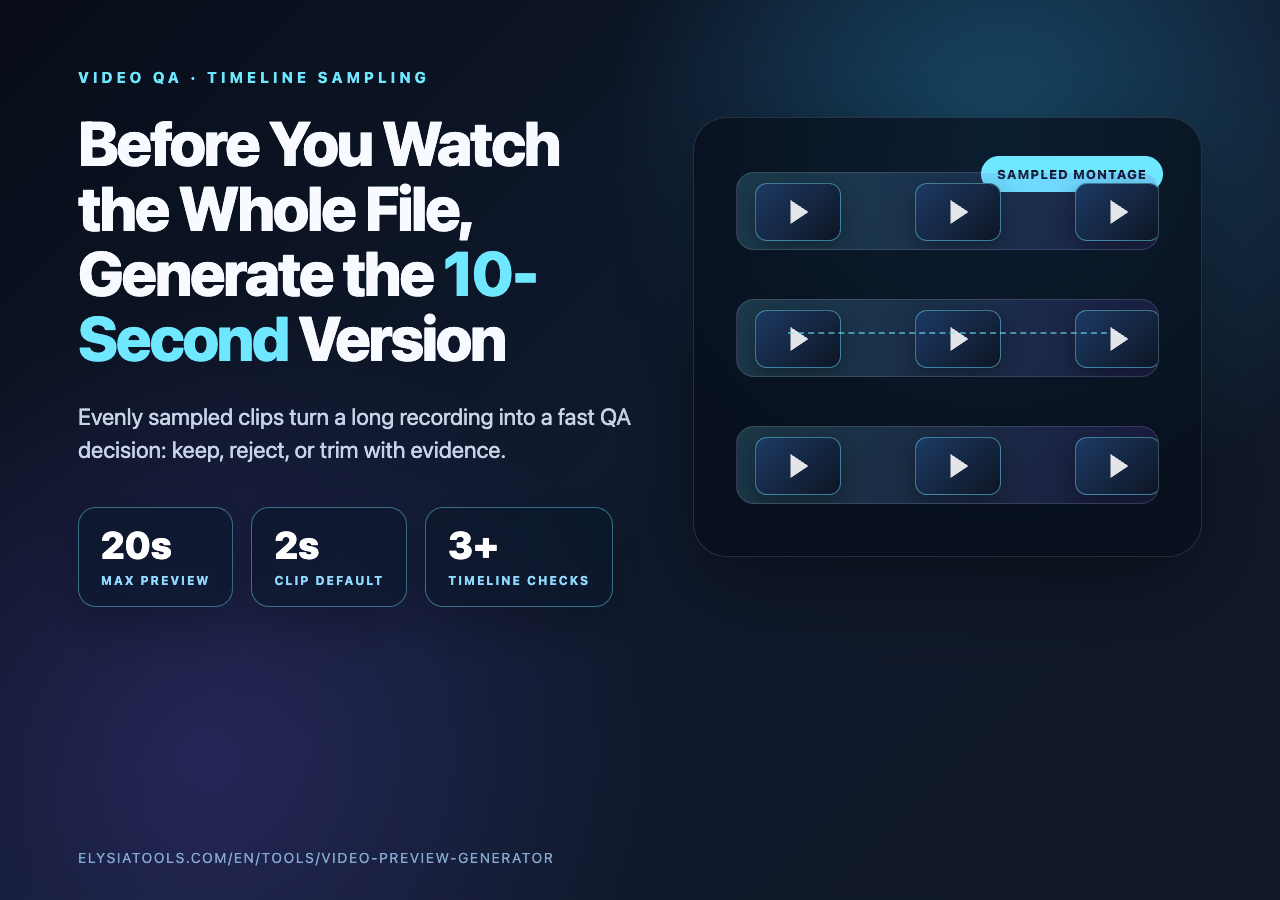
The better habit is to make a tiny version of the whole file first. A preview montage is not a marketing trailer. It is a diagnostic artifact: six, ten, or twenty seconds that samples the timeline widely enough to tell you whether the file deserves a full review. That is why I like treating Elysia Tools’ Video Preview Generator as a first-pass QA step rather than a last-mile editing tool.
The preview is not the first ten seconds
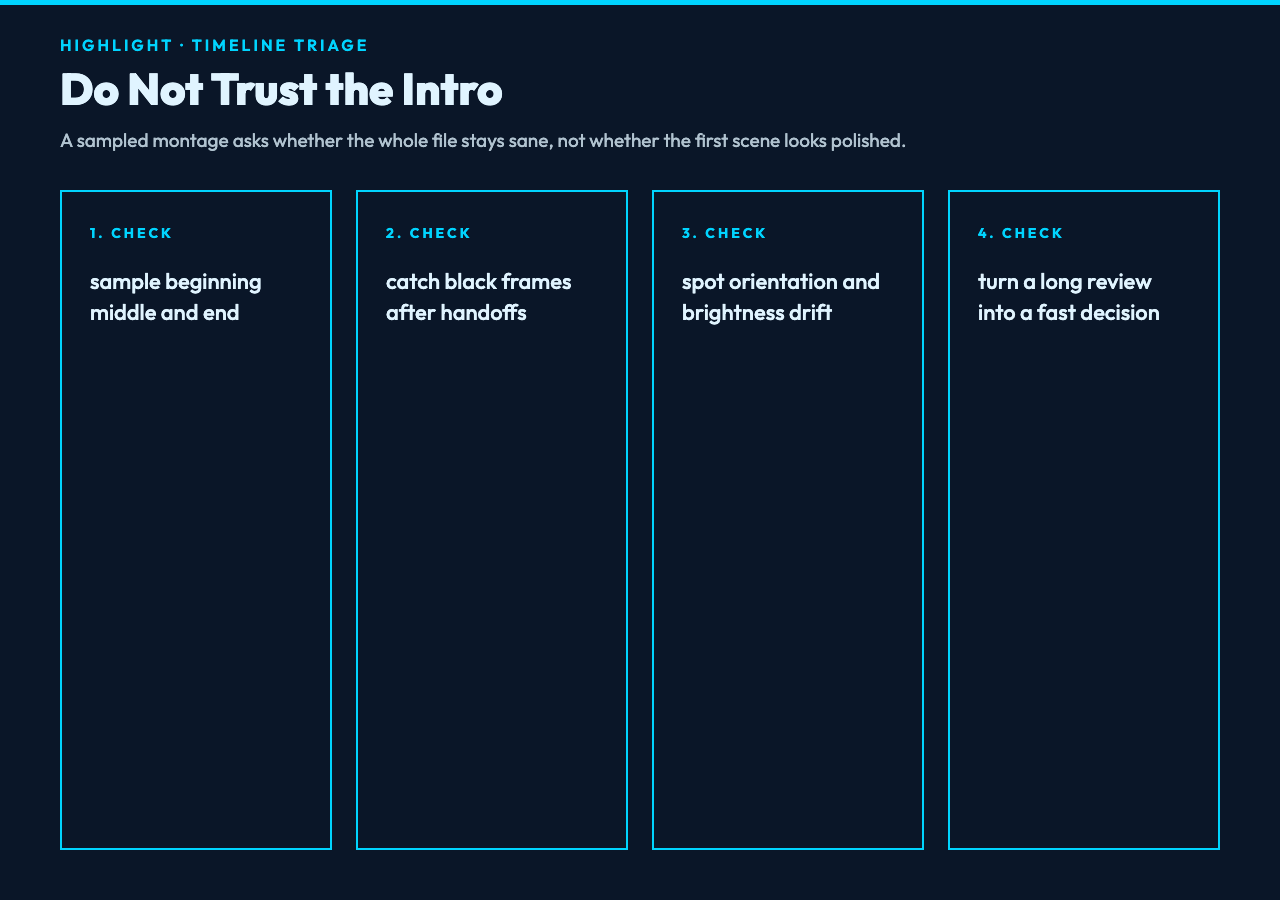
The most common shortcut in video review is also the weakest one: open the file, watch the beginning, scrub once near the middle, and assume the rest behaves. That works only when failures are evenly distributed. Video failures are not evenly distributed. They cluster around scene changes, exported chapter boundaries, audio handoffs, orientation changes, and the exact point where the encoder ran out of clean input.
A useful preview should therefore be sampled, not sliced. The Video Preview Generator takes a source video, chooses evenly spaced clips across the timeline, and concatenates them into one short output. A 6-second preview made from three 2-second clips can show the beginning, middle, and end of a recording in a single glance. A 12-second preview made from six clips gives you a faster sense of pacing, scene variety, and export health than a manual scrub ever does.
That difference matters because the output changes the reviewer’s posture. A first-ten-seconds clip asks, “Does the intro work?” An evenly sampled montage asks, “Does the file stay sane?” Those are different questions, and only the second one catches the failures that normally escape until someone uploads the asset to production.
Even sampling catches the failures intros hide
If you work with long demos, lectures, webinars, surveillance clips, gameplay recordings, product walkthroughs, or training videos, the intro is often the cleanest part of the file. It was recorded first, exported with the most attention, and often contains a static title screen. The problems show up later: a dropped audio track, a browser tab resized mid-recording, a camera feed frozen after a USB reconnect, a caption track drifting out of sync, or a screen share that goes black after the host changes windows.
That is where a montage earns its keep. Even sampling forces the file to reveal more than its opening polish. You see whether the aspect ratio remains stable, whether brightness changes wildly, whether motion becomes too compressed, and whether the end still contains usable content. For example, a webinar that looks perfect at minute one can show a frozen speaker window at minute 42. A game capture can hold 60 fps in the menu and then smear during the action sequence. A product demo can begin in landscape and end as a cropped mobile screen.
The point is not that a short preview proves the video is perfect. It does not. The point is that it converts a vague review task into a fast triage decision. Keep the file, reject it, or send it to a deeper edit with a specific reason.
Use samples to test the edge cases before the real upload
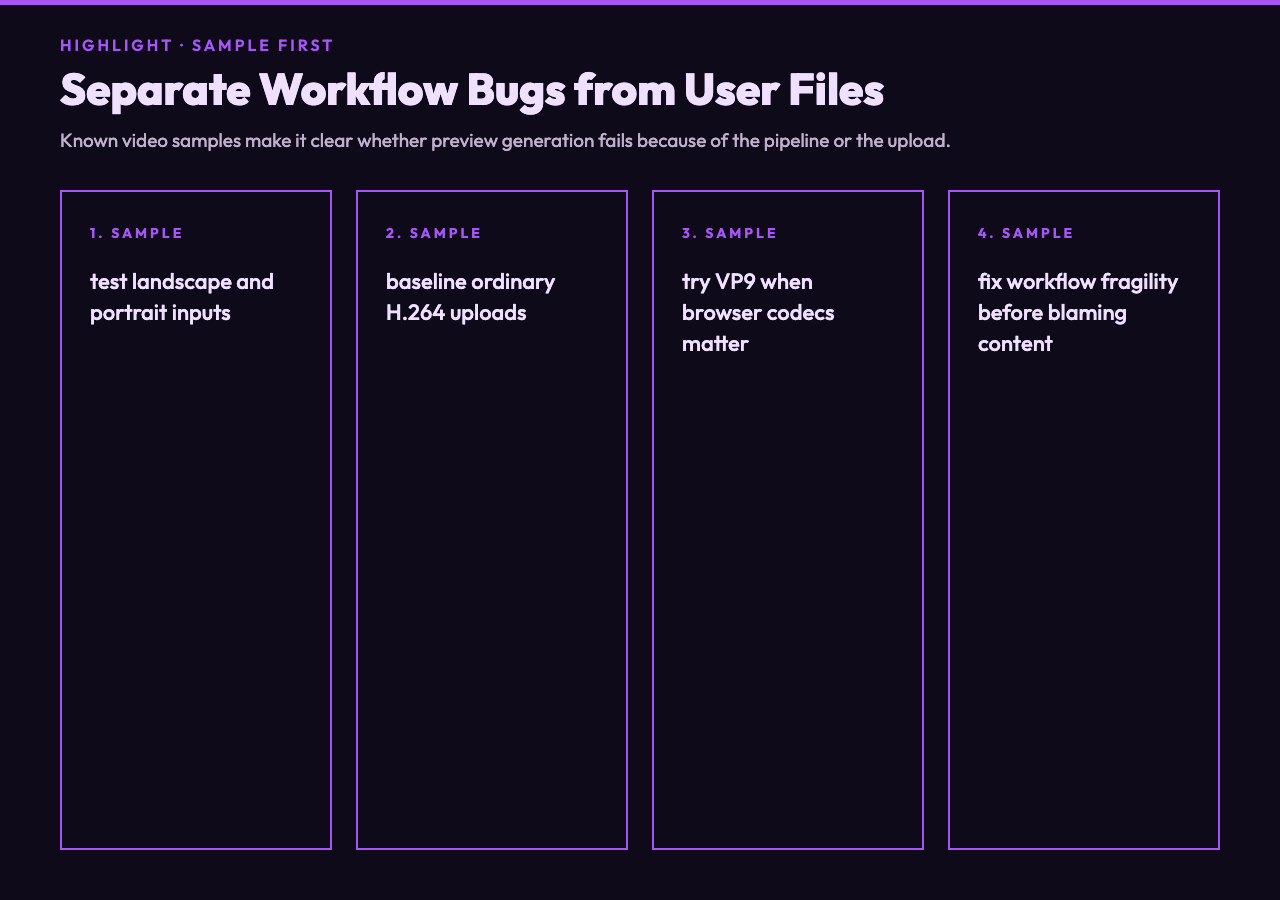
Before running a customer file through any media workflow, it helps to test the workflow with known inputs. The general video sample set is useful for checking orientation and resolution behavior because it includes landscape and portrait clips at common sizes. If your pipeline mostly handles ordinary MP4 uploads, the H.264 samples give you a realistic baseline for the format most teams still receive. If your web delivery path leans on modern browser codecs, the VP9 samples are a quick way to check whether the preview step behaves differently on WebM-style inputs.
This sample-first habit prevents a subtle category of bug: blaming the user’s file when the workflow itself is brittle. If previews fail on a clean H.264 sample, the issue is not the customer upload. If portrait samples come out cropped, the montage logic needs an aspect-ratio check. If VP9 inputs produce timing drift, the output should not move into a batch job yet. Synthetic examples are not a substitute for production files, but they give you a controlled starting line.
For teams that ship video-heavy documentation, the controlled starting line is valuable. It means the reviewer can separate format support from content judgment. First ask, “Can the workflow make a valid preview from known-good files?” Then ask, “Does this particular recording communicate what it should?”
The settings that decide whether a preview helps
The Video Preview Generator exposes only a few decisions, which is good. Too many media tools bury the operator under encoding settings when the first question is simpler: how much of the timeline should a reviewer see?
Total preview length is the first decision. The tool caps the preview at 20 seconds, which is enough for a broad scan without turning the preview into another thing that must be reviewed. A 6-second preview works for quick upload checks. A 10-second preview is the comfortable default for most long recordings. A 20-second preview is useful when the source has many chapters, scenes, or speaker transitions.
Per-clip duration is the second decision. Short clips increase coverage because the montage can sample more positions. Longer clips give the reviewer enough time to judge motion, captions, and audio continuity. A practical starting point is two seconds per clip. It is long enough to recognize a scene and short enough to cover a long source file with several samples.
The audio toggle is the third decision. If the preview is meant to check visual integrity, remove audio and keep the file light. If the review depends on microphone continuity, keep audio and listen for dropouts. The key is to decide what question the preview is supposed to answer before generating it. A tiny file with a clear purpose beats a longer file that tries to be everything.
Pair the preview with stream inspection and trimming
A preview montage is strongest when it sits between two other checks. Before you generate the preview, inspect the streams. The Stream Probe Report can tell you whether the file has the expected video, audio, subtitle, attachment, duration, codec, and bitrate streams. That prevents a reviewer from diagnosing a missing audio track by ear after the workflow already had enough metadata to flag it.
After the preview, decide what kind of follow-up the file needs. If the montage reveals a useful middle section and the rest of the file is dead air, a Stream Passthrough Trimmer can cut by timestamp without re-encoding whenever keyframes allow it. If the montage shows a problem that belongs to the source file, send the creator a precise note: black frame near the last third, portrait segment cropped, audio gone after chapter two, captions out of sync after the screen-share switch.
This is the real productivity win. The preview is not only a small asset. It is a shared reference. Instead of “something is wrong with the video,” the team can say, “the third sampled clip shows the failure.” That sentence shortens the debugging loop.
Where this fits in a review workflow
The best place to use the Video Preview Generator is early enough that it changes the next action. Run it when a long file arrives, when a batch export finishes, when a client sends multiple candidate takes, or when a CMS upload needs a quick human check before scheduling. Do not wait until the final render meeting. By then, the preview becomes a miniature version of a decision you already made.
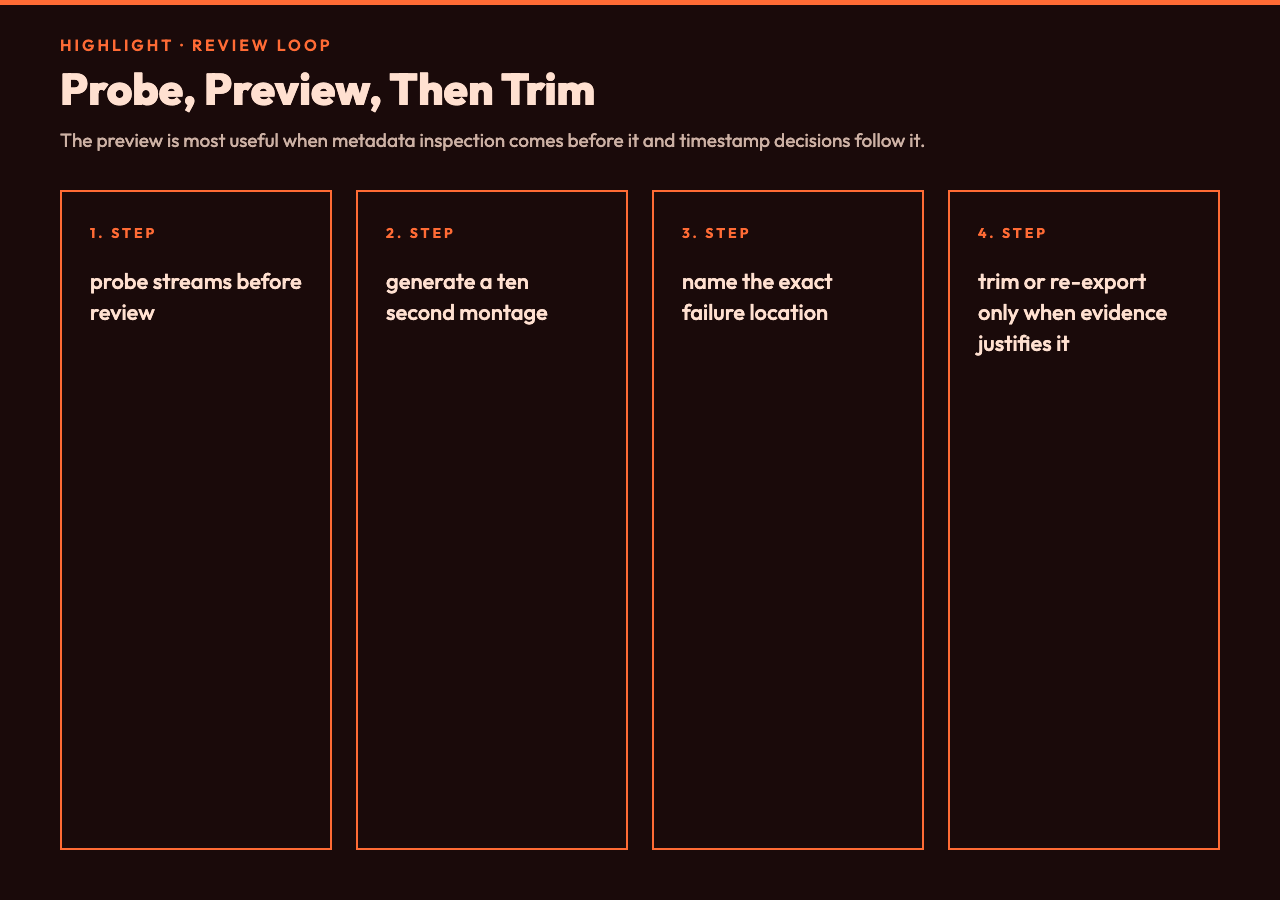
A simple workflow looks like this: probe the file, generate the montage, make a triage call, then trim or re-export only when the montage justifies it. The tool is especially helpful for teams that handle many medium-stakes videos: internal training, help-center clips, course modules, launch demos, webinar recordings, and social cuts that begin as long source files.
There is also a psychological benefit. A ten-second montage makes review feel possible. That matters more than it sounds. When a queue contains twenty long videos, reviewers delay the work because each file feels like a commitment. A preview reduces the first commitment to a glance, and a glance is enough to catch many of the mistakes that would otherwise become rework.
The short file should answer one question
The most useful preview has a job written into it. “Show me whether the export survived.” “Show me whether the orientation changes.” “Show me whether the final third still has usable content.” “Show me whether the audio track disappears.” If the question is clear, the settings become easier: choose enough clips to cover the risk, choose clip length to make the risk visible, and keep or remove audio based on what you need to verify.
That is the best reason to open the Video Preview Generator before opening the full file. A full review asks for attention before it has earned it. A sampled preview earns the next minute by spending the first ten seconds wisely. Ultimately, the question is not whether every video needs a trailer. It is whether your team can afford to discover timeline-wide failures only after someone has already watched, uploaded, or published the whole thing.