A Markdown preview can look perfect, but the PDF is where 4 hidden failures become permanent: clipped code, orphaned headings, dead links, and fonts that silently change. We have all trusted the browser view and shipped a broken document. The problem is not Markdown itself; it is the extra rendering system between source and paper. What should you check before that system turns a clean README into a damaged handoff?
A PDF is not a screenshot of your Markdown
Markdown describes structure. It says that a line is a heading, a span is code, or a group of lines is a list. It does not define a page size, margin, font metric, or page-break rule. A PDF renderer must invent or configure those decisions.
That distinction matters because two renderers can read the same source and produce different pagination. A heading that fits at the bottom of one page may become an orphan in another. A long URL may wrap cleanly in a browser but push beyond a fixed PDF width.
The Markdown to PDF Converter on Elysia Tools turns Markdown files into styled PDF documents with formatting and syntax highlighting. Treat the result as a print artifact, not merely a visual preview.
Failure 1: code blocks exceed the printable width
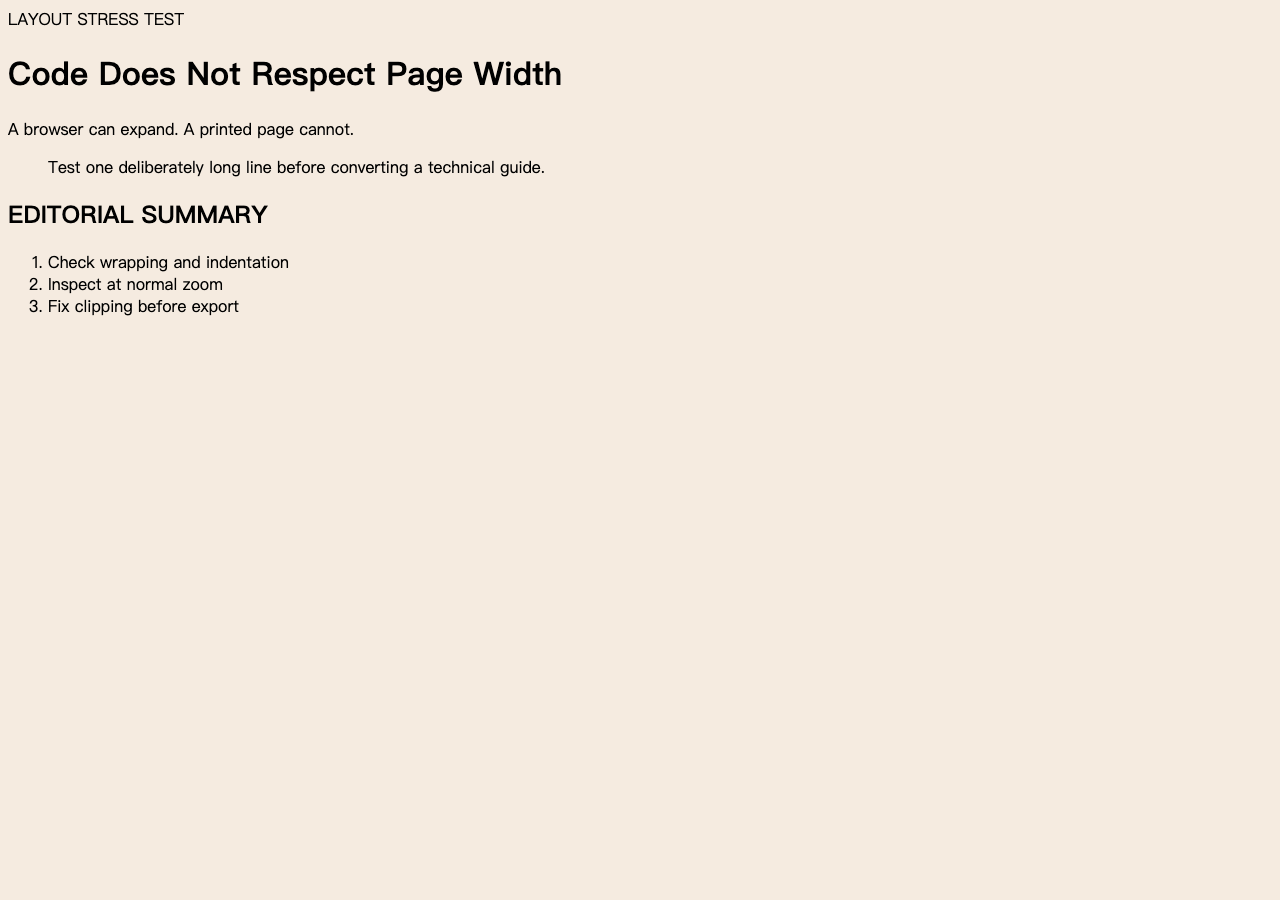
Code is the first stress test because it resists normal prose wrapping. A 120-character command, JSON line, or table row can cross the page boundary. Some renderers wrap it; others clip it; a few shrink the entire block until it becomes unreadable.
For example, test one deliberately long line before converting a technical guide. If the line wraps, verify that indentation still communicates the code structure. If it clips, reduce the code font, enable wrapping, or rewrite the example across logical lines. This single test can prevent the most visible PDF defect.
The key is to design for the narrower medium. Browser windows can expand. Printed pages cannot.
Failure 2: headings detach from the paragraph they introduce
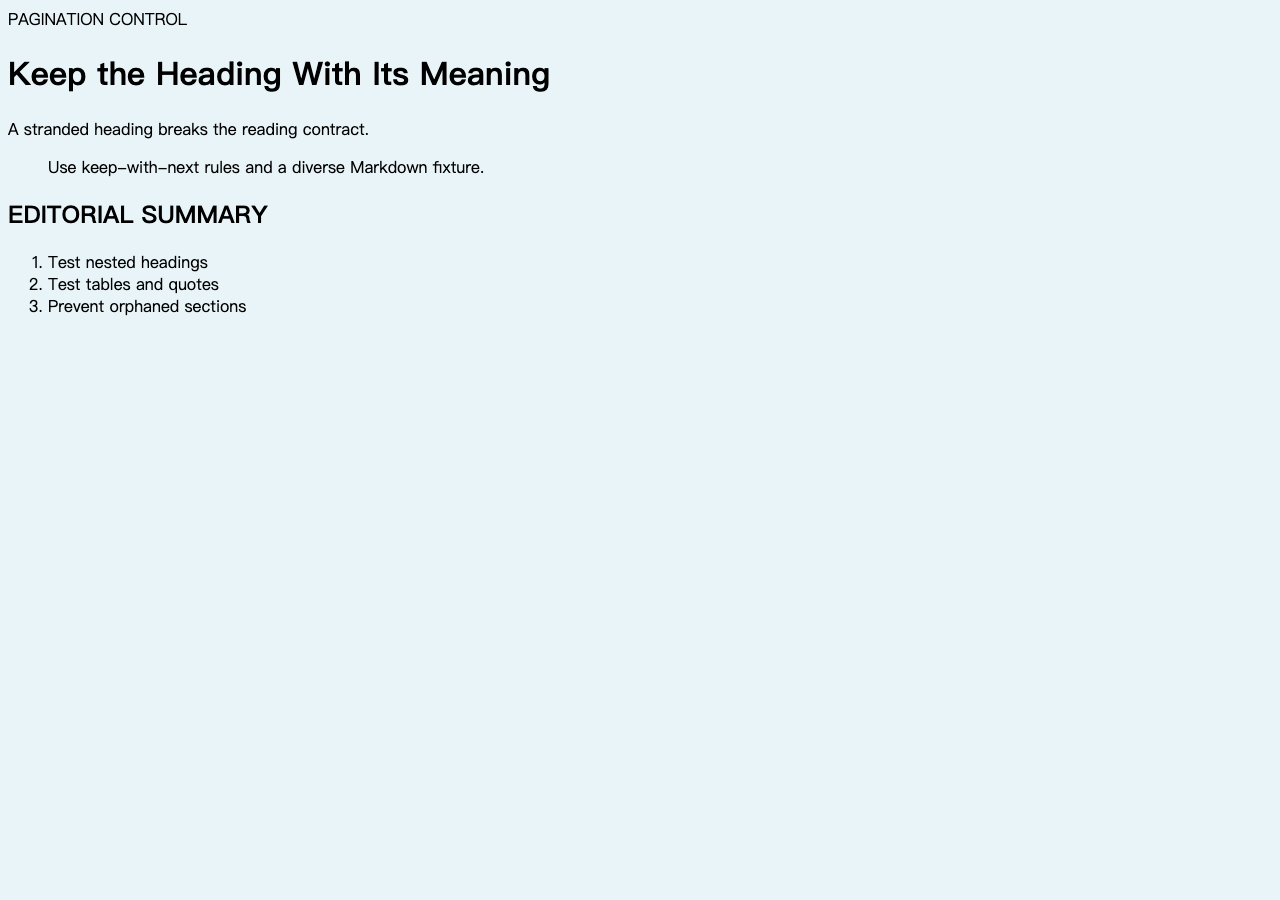
Pagination can place a heading on the final line of a page and its paragraph on the next. The document remains technically complete, but the reading flow breaks. A heading promises context and then makes the reader turn a page to find it.
Good print styles use keep-with-next behavior or page-break rules around headings. They also avoid starting a new page with one stranded line from the previous paragraph. These controls are rarely visible in Markdown, so they must come from the conversion stylesheet.
Use Markdown Samples to assemble a compact stress document with nested headings, lists, blockquotes, tables, and code. One diverse test file proves more than converting 10 simple notes.
Failure 3: links survive visually but fail functionally
Blue underlined text is not proof of a working PDF link. The renderer must preserve the destination as an annotation in the PDF. Relative links create another problem: a reference that works beside the source file may have no meaningful destination after the document is emailed.
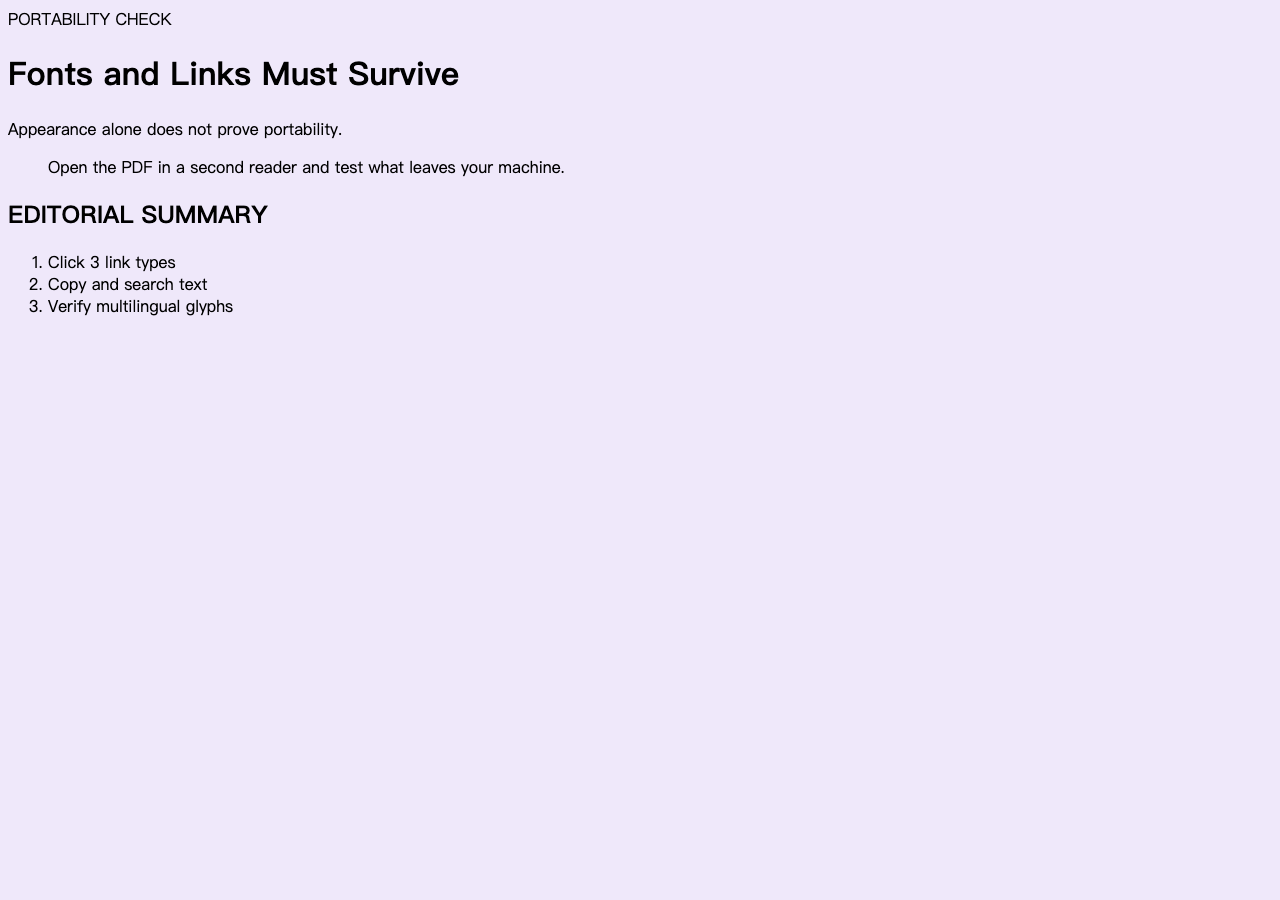
According to the practical rule we use, every PDF handoff needs 3 link checks: one external HTTPS link, one internal anchor, and one intentionally long URL. Open the exported file in a separate PDF reader and click each one. Do not validate links only inside the application that created the PDF.
If a document may be printed, expose essential destinations in readable text or a references section. A hidden hyperlink disappears on paper.
Failure 4: font substitution changes the layout
A missing font does more than change the visual personality. Different glyph widths reshape line breaks, table widths, and page count. A document that used 8 pages on your machine may use 9 on another system if the font was not embedded.
Choose common fonts or embed the required font when the PDF pipeline supports it. Then inspect characters outside basic English: smart punctuation, accented names, mathematical symbols, and CJK text. The real tool name itself, “Markdown to PDF Converter – Markdown转PDF转换器,” is a useful multilingual test because it reveals whether the chosen font covers both Latin and Chinese glyphs.
This matters because a missing-glyph box is not a cosmetic flaw. It removes information.
Build one repeatable conversion check
A reliable workflow does not depend on remembering every risk. Create a small fixture that contains a long code line, a page-edge heading, an external link, an internal anchor, a table, and multilingual text. Convert that fixture whenever the stylesheet, browser engine, or font package changes.
Then compare the output in 3 ways: inspect it at normal zoom, search and copy text to confirm it remains selectable, and open it in a second PDF reader. These checks show whether the pipeline preserved appearance, semantics, and portability.
The converter can create and improve the artifact, but your fixture proves the contract. That is why repeatability beats a final visual glance.
The export button is the start of review
A PDF freezes decisions that a browser can keep negotiating. Ultimately, the point is not whether Markdown can become a PDF; it clearly can. The next question is whether the exported file will survive a different reader, printer, font environment, and page size without losing meaning. Build one hostile test document, check those 4 failure points, and let every future conversion prove itself against the same contract. What happens if the document leaves your machine today?