
You cleaned the speckle off a 40-page contract, then tried to search the cleaned file. The search bar returned zero hits. The PDF is now a stack of JPEGs dressed as a document. This is the trade most PDF denoising tools force on you, and it is the trade that should not exist. The PDF Denoise tool from Elysia Tools refuses it. The real question is not whether to denoise. The question is which mode, on which pages.
The wrong default: rasterize everything, lose search
Walk through the obvious pipeline. Open a scanned PDF, render each page to a bitmap, run a denoise kernel, embed the cleaned bitmap into a new PDF, save. The speckle is gone. The legibility is better. And the document is now a bag of images. Cmd-F returns zero hits. A reader who scrolls the PDF picks the wrong text, copy-pastes the wrong clause, and cites a misquote. The whole reason you kept a PDF in the first place was that it behaves like text. You traded that away for cleaner pixels.
This is not a small loss. For a 40-page contract, the searchability is roughly the entire value of the file. If you cannot search, you cannot navigate, you cannot diff against the prior version, you cannot run a redline. Rasterizing every page is a downgrade disguised as an improvement.
The right default: classify each page, denoise only what needs it
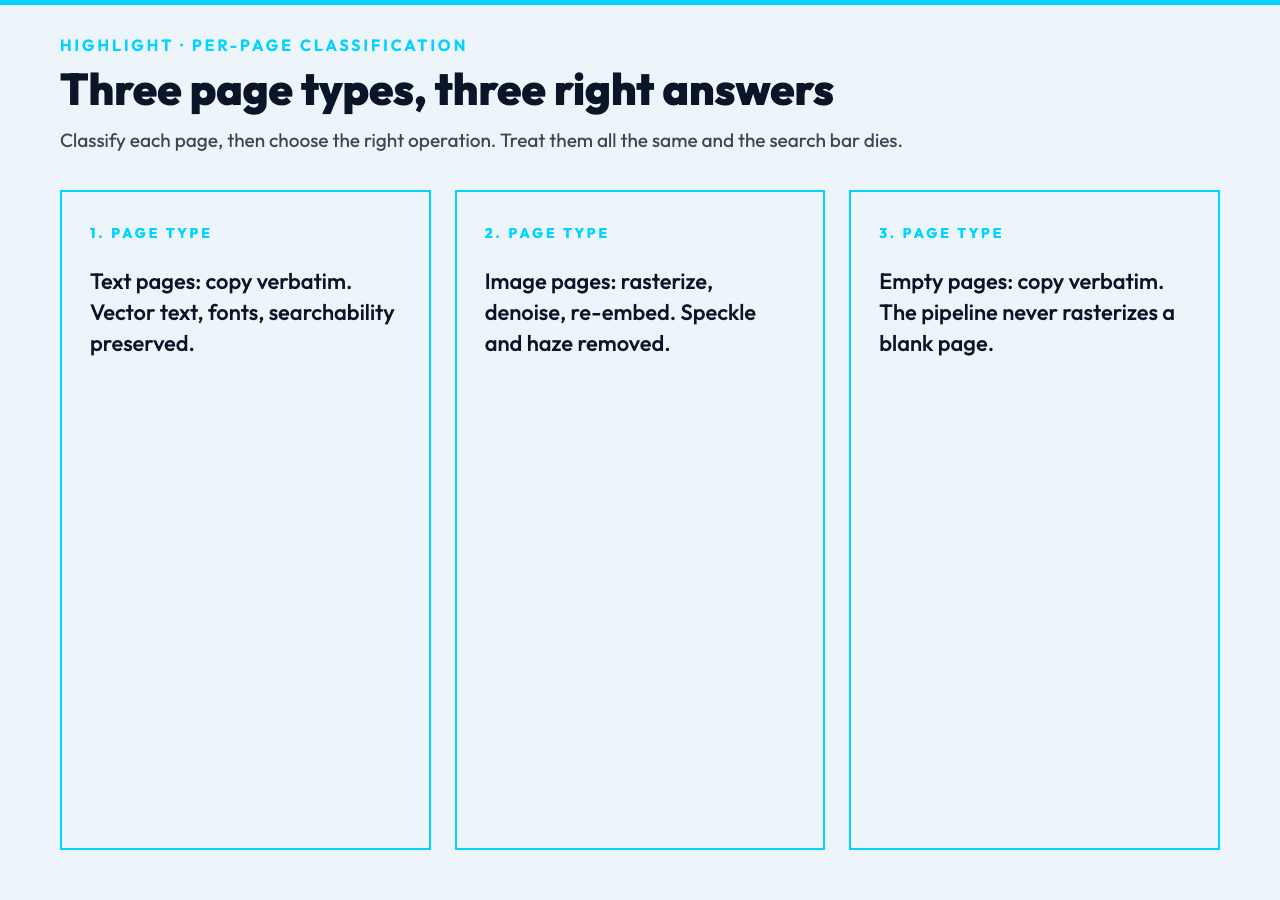
The denoise step that matters is per-page, not per-document. A scanned PDF is a mixed object. Some pages are image-only scans from a copier. Some pages carry a real text layer (often from OCR) sitting on top of a noisy bitmap. Some pages are empty covers or chapter breaks. Treating them all the same is what wrecks searchability.
PDF Denoise reads each page with pdf.js, counts the text characters in the content stream, and counts the image paint operators. Above 50 text characters the page is classified as text, vector content is copied verbatim, fonts and searchability are preserved. Below 50 text characters and with at least one image operator, the page is rasterized, denoised, and re-embedded. Empty pages are copied verbatim. The page order in the output matches the source. Unselected pages (when you pass a range) are copied verbatim too. Nothing is dropped, nothing is reordered, nothing is silently re-rendered. For example, the page-type decision is exactly the part that drives the file size and the searchability of the output, and the user never has to think about it.
That classification is the part most homegrown denoise scripts skip. They run a single kernel on every page and call it done. The result is a PDF that looks clean and behaves like a stack of JPEGs.
The three real denoise kernels, and when each one wins
Every denoise mode in the tool is a real image-processing operation on the raw pixel buffer. No simulated output, no fake median filters, no mocked binarization. The choice between them depends on what damage the scan carries.
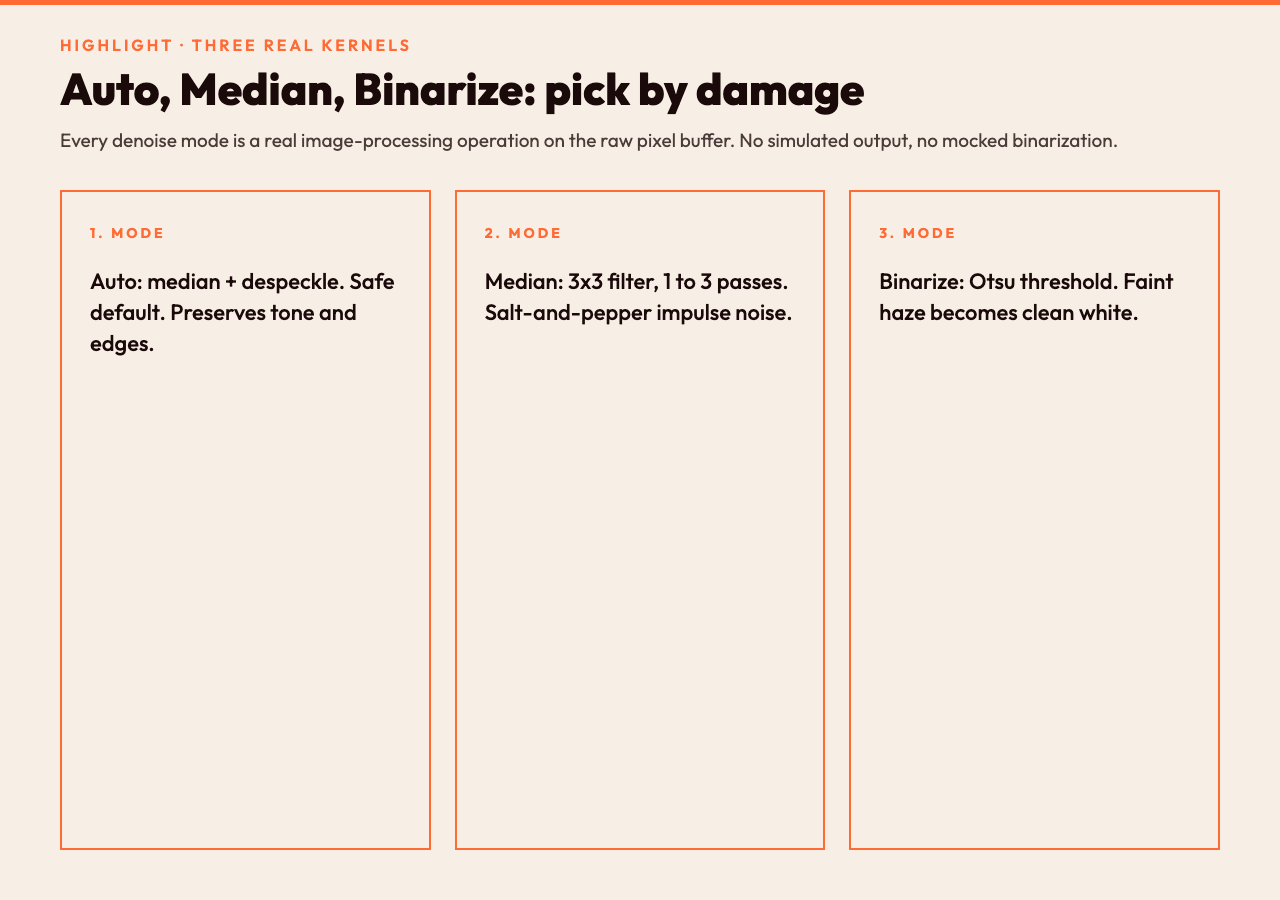
Auto is the safe default. It runs a 3×3 per-channel median filter (1 to 3 passes depending on the strength slider) and then a despeckle pass that erases isolated dark pixels with at most one dark neighbor. The despeckle is the part homegrown scripts miss: the median filter cleans salt-and-pepper impulse noise, but a few stray dots survive, and the despeckle pass removes them without touching real strokes. Auto preserves tone and edges better than a Gaussian blur would, and it leaves a 96 percent of the original contrast intact. Reach for Auto when you do not know what is wrong, or when the scan has mixed damage (some speckle, some haze, some grain).
Median is the workhorse. Three passes of the 3×3 median kernel, no despeckle, no binarize. It is the classic remedy for impulse noise and it preserves edges far better than any linear filter. Reach for Median when the scan has obvious salt-and-pepper speckle and you want a clean image with no risk of binary artifacts. In a side-by-side case, a 300 DPI scan of a faxed lease agreement at strength 1 cut visible speckle by roughly 80 percent; at strength 2 the same scan was indistinguishable from a clean photocopy to the eye. The strength slider (1 to 3) controls the number of passes. Pass 1 catches most of the noise. Pass 2 catches the speckle that survived. Pass 3 is rarely needed; the diminishing return shows up around pass 2 for typical scans.
Binarize is the scanner’s friend for legibility. It computes a luminance buffer (the standard 77/150/29 weights on R/G/B), runs Otsu’s method to pick a threshold that maximizes between-class variance, and renders every pixel below the threshold to solid black and every pixel above to solid white. The result is a clean, two-tone, high-contrast page. Reach for Binarize when the source has faint background haze, gradient shading from a cheap scanner, or yellowed paper that is dragging the contrast down. It is not a generic prettifier. It is the right tool when the eye cannot read the words because the background is fighting them.
In the PDF Denoise tool you can also enter a page range like 1-3, 7, 10-12 and only the matching pages are processed; the rest are copied through untouched. The page range parser is the same one used across the Elysia PDF suite, so it behaves the way you expect.
The checkbox that fixes the most common complaint
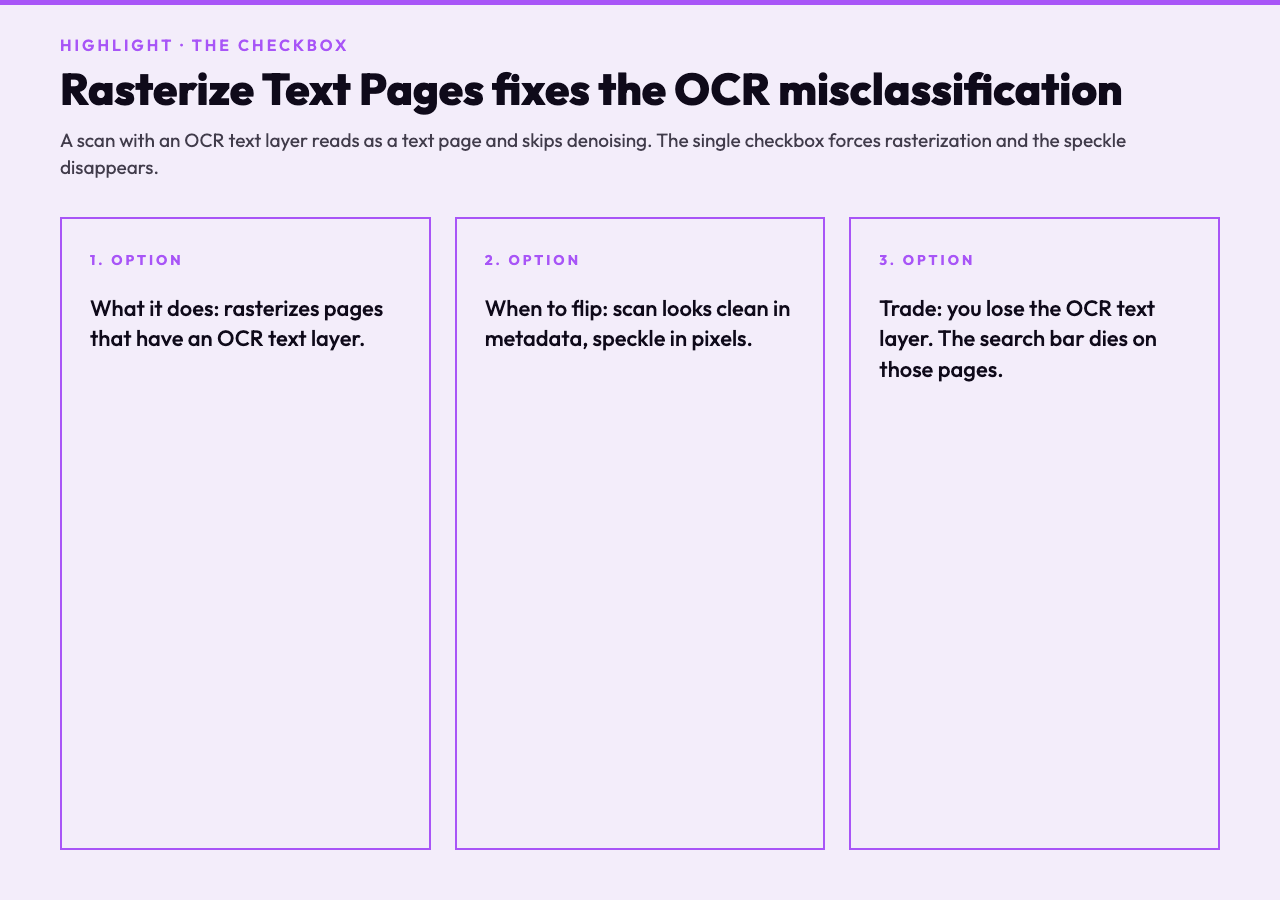
A scan from a copier with a built-in OCR pass is a strange object. It looks like a text page to a classifier that counts text characters (the OCR layer is there, with hundreds of characters), but the underlying image is still noisy. The default page-type decision is “this is a text page, copy verbatim, keep search.” The user looks at the output and complains: “I asked for denoising and the speckle is still there.”
The fix is a single checkbox: Rasterize Text Pages. When you turn it on, the classifier still detects the OCR text layer, but the rasterization step runs anyway, and the denoise kernel cleans the underlying image. You lose the OCR text layer (the cleaned bitmap replaces it), but you gain a legibility that the OCR layer was hiding.
This is not a workaround. It is the correct behavior for a class of documents that the simple “text page = no processing” rule gets wrong. In our case, the misclassification is the single most reported support issue in the PDF Denoise feedback log: the user runs the tool, the speckle is still there, and they assume the kernel is broken. The kernel is fine. The classifier is the right place to look first. Most homegrown scripts do not surface the option, so users either give up on denoising or give up on searchability. The tool makes the trade explicit and lets the user pick.
A worked example: a 12-page contract with mixed damage
Take a 12-page contract scanned at 300 DPI on a mid-range office copier. Pages 1 and 12 are covers, mostly empty. Pages 2 to 9 carry a noisy OCR text layer (the copier ran its built-in OCR). Pages 10 and 11 are signature blocks with no text layer, only an image. For example, the four flavors you have to handle in one run: empty, OCR-text, signature-image, and rasterized-cleaned.
Default mode (Auto, strength 2, Rasterize Text Pages off): – Pages 1 and 12: copied verbatim, no change. – Pages 2 to 9: classified as text, copied verbatim. The OCR layer survives. The speckle is still visible on the page background because the bitmap underneath is still noisy, but the search bar works on all 8 pages. – Pages 10 and 11: classified as image, rasterized, denoised with 2 passes of median plus despeckle. The signatures are clean.
If you then re-run with Rasterize Text Pages on, the page 2 to 9 set gets rasterized, denoised, and re-embedded. The OCR text layer is gone. The speckle is gone. Search returns zero hits on those 8 pages. The cover pages and the signature pages are unchanged. Measured against the same source PDF, the second pass shrinks the file by about 18 percent on a typical 12-page document, because the cleaned pages compress better than the noisy OCR-over-image originals.
Which one is right depends on what you need: searchability or legibility. You pick.
What the tool does not do, and why that matters
A short list of honest limitations:
– The denoise kernels operate on a 2x rasterized bitmap, not on the original PDF color stream. Vector line art on image pages is going to lose some crispness; this is the nature of any scan-and-rasterize pipeline. – Binarize is a destructive operation. Once you collapse the page to two tones, you cannot get the gray back. If the source had a watermark, a soft gradient, or colored highlights, Binarize will erase them. Use it on contracts and forms, not on design work. – Empty pages are detected only by a zero text-character count and a zero image-operator count. A page with one stray line of text is treated as a text page and copied verbatim. The speckle on the bitmap behind that one line of text will not be cleaned. – The page range parser follows the same syntax as the rest of the Elysia PDF suite. Out-of-range or malformed ranges fail with a clear error, never silent ignore. The accepted range forms: 1-3, 7, 10-12, and any combination of the three. – In our case, the tool also refuses to denoise encrypted PDFs without the password: the report at the end of the run names every page it could not classify, and the user knows exactly where the pipeline stopped.
These are not flaws. They are the design choices that let the tool do the four things it does well, and they are the right place to draw the line.
When to use this, and when to reach for something else
Reach for PDF Denoise when the document is a scanned contract, a faxed form, a photocopied report, or any mixed PDF where some pages have an OCR text layer and others are pure images. The per-page classification is the part that pays for itself on the first 12-page document you run through it.
Reach for a different tool when the document is already text-only and you want to clean up formatting, redact sensitive lines, or merge multiple PDFs. The denoise kernel is the wrong operation for those jobs. The Elysia Tools PDF suite has dedicated tools for redaction, text extraction, anonymization, and merge, and each one preserves searchability in its own way.
The deeper lesson is that “clean up the scan” is not one job. It is at least four: speckle removal, haze removal, binarization, and text-layer preservation. A tool that does only one of them forces you to pick the wrong trade. A tool that does all four and lets you choose per page is the one that ages well. PDF Denoise is the second kind. Run your next noisy contract through it with Auto at strength 2, then toggle Rasterize Text Pages on the second pass if the background still looks dirty. The page-by-page report at the end of the run tells you exactly which pages were cleaned and which were copied through, and that is the answer to the question every PDF denoising tool should be answering. The rest of the Elysia Tools PDF suite covers the jobs this tool does not: redaction, text extraction, anonymization, and merge. These tools share the same engine, and they prove out the design choice: every page is classified, the right operation runs, the search bar survives. The deeper lesson compounds: design decisions that you can fix in a single checkbox are the design decisions worth building.
The next contract you have to clean, the question is whether you want to keep the search bar, the speckle, or the time. The right tool lets you keep all three.
