
A clean CSV file is a polite file: it knows the difference between a header and data, and it keeps them apart. Most CSV tools treat the first row as sacred, which is exactly why database importers, ML pipelines, and warehouse loaders routinely refuse to read your exports. The Header Remover tool solves that one specific thing — strip N rows from the top of a CSV, preview first, validate after — and it solves it with a separator selector that knows comma, semicolon, tab, space, and pipe are all real-world formats. If you’ve ever had a working dashboard stall because an upstream vendor added a six-row preamble before the column titles, this is the fix. Paste, choose a mode, hit preview, copy the output. Field guide below.
What “header” actually means in this context
A header is any row at the top of a CSV that contains field names rather than data values. In a typical export it’s the single first line (Name,Age,City,Position), but real-world files accumulate extras: a sep=; MIME hint line, a copyright notice, a # generated 2026-08-06 timestamp, a blank line for breathing room, and then the column titles. The Header Remover handles both the simple case and the messy case without needing a different tool for each. See the live editor at Header Remover for the full input panel including separator and validation controls.
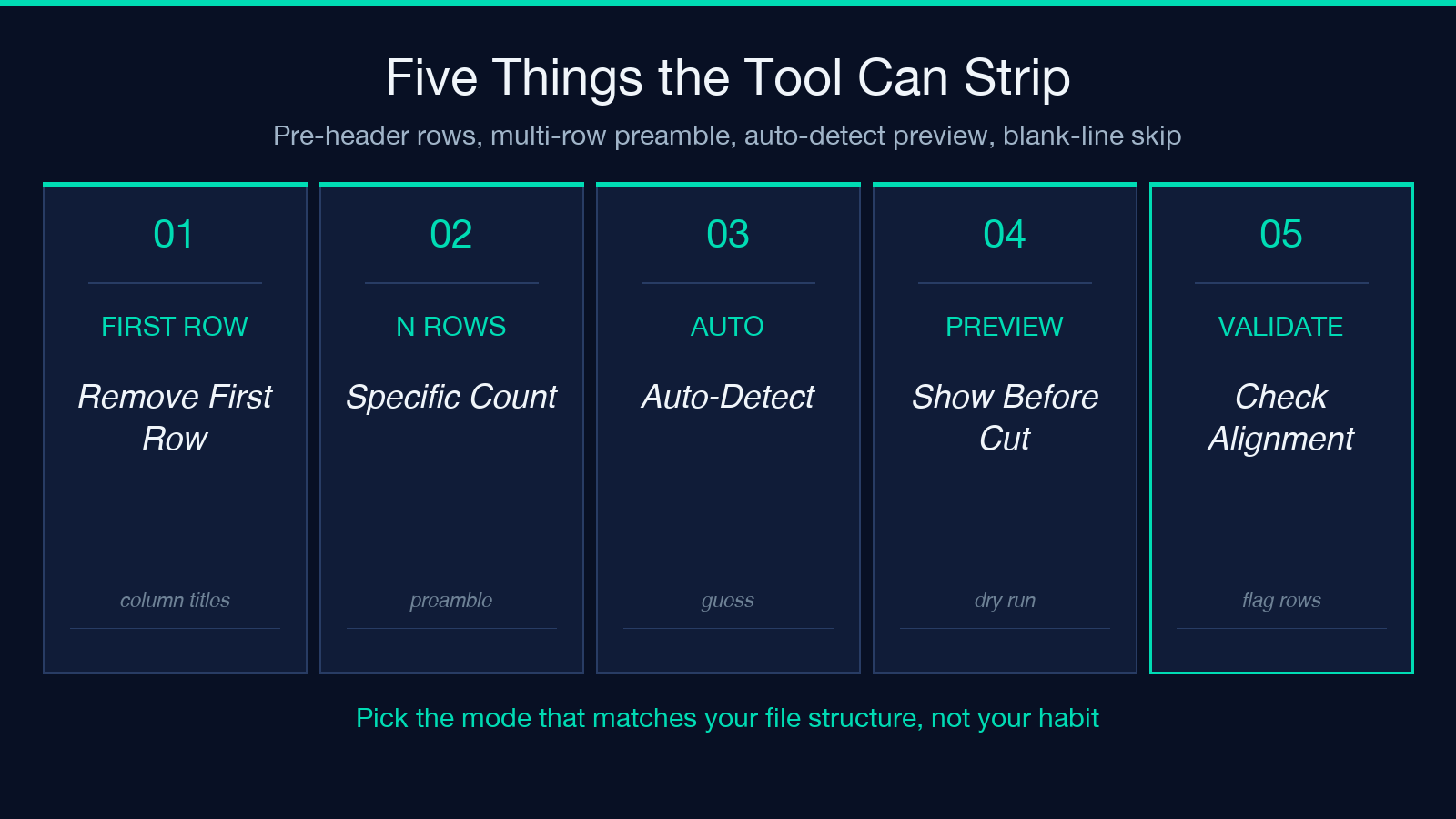
The three modes are not redundant — they cover three different mental models. Remove First Row assumes the only preamble is the column-titles row. Remove Specific Number of Rows lets you declare “strip the top N” without telling the tool what’s in them. Auto-Detect Headers lets the tool guess by checking whether every cell in a row looks like a string of letters rather than a number or date. Choose wrong and you’ll either lose data or keep the header in. Preview before committing.
Why header removal is a database-shaped problem
Most relational databases expect the data layer to be the file content and the schema layer to be declared separately (in CREATE TABLE or in the load command). PostgreSQL’s COPY accepts a header and parses it, but LOAD DATA INFILE for MySQL has famously quirky behavior around the IGNORE 1 LINES clause — it works on the literal first line, which may not be the column titles if the export added a preamble. SQLite’s .import defaults to expecting headers but errors out cleanly when the first row contains anything that looks like non-header text. Snowflake, BigQuery, and Redshift all assume the first row IS the schema. If your pipeline bends data from one of those targets into another, you often need to remove the header somewhere in the middle.
The second reason is validation: a header row contains strings, but data rows contain strings + numbers + dates + booleans. Many validators key on row type and refuse a CSV whose row 1 looks like a string and row 2 looks like a number. Removing the header first lets validators do their job properly. The Validate Data option in the tool checks column alignment after removal — useful when the source file had ragged trailing whitespace per row.
Choosing the right mode for your file
Use Remove First Row when the file’s structure is conventional: single row of column names, then uniform data, then optional blank lines and footer. This is the most common case for CSVs from Excel, Google Sheets, Airtable exports, Notion database exports, and most analytics dashboards. The result is identical to “save as CSV with headers stripped” except you don’t need a spreadsheet to do it.
Use Remove Specific Number of Rows when the file has a documented preamble. If your vendor emails you a daily file with rows 1-2 being a copyright, row 3 being a blank, row 4 being the column titles, set headerRows to 4 and you’re done. If the preamble length varies (some files have 5 rows, some have 7 because of an extra Notes: section), you’ll need to check — count the lines that don’t look like data and set accordingly. The tool’s preview option shows what gets removed without modifying the input.
Use Auto-Detect Headers when you don’t know whether the file has a header at all — a common case with archaeological CSV files from older systems, or with files that came from a tool that doesn’t always include headers (older .dbf exports, some legacy ETL outputs, raw psql -A dumps with the --no-align flag). The detector identifies a header as a row whose cells are predominantly non-numeric strings. If the first row contains dates or numbers mixed with strings, auto-detect may either strip it or skip it depending on the heuristic.
Separators matter more than people think
CSV “with comma” is the textbook default, but real-world files use all five options listed in the tool. Semicolon-separated files are the European Excel standard — locale-dependent — because Excel defaults to , as the decimal separator there and using , for field separation produces ambiguous output (1,234,5 could mean 1234.5 or 1234 followed by 5). Tab-separated is standard for tsv files exported from SQL clients and from copy-paste between database tools. Pipe-separated is rare but shows up in some log formats. Space-separated shows up in scientific data exports and some legacy NUL-padded formats.
If you remove a header from the wrong-separator file, the output keeps every row wrong but losing the header doesn’t fix the underlying issue — your downstream loader still chokes. Preview the output before committing. The Detail Report format (one of three output options) shows you the detected separator per row, which catches files where the vendor used commas in some rows and semicolons in others — a real occurrence with concatenated files from multiple sources.
Output format and downstream pipelines
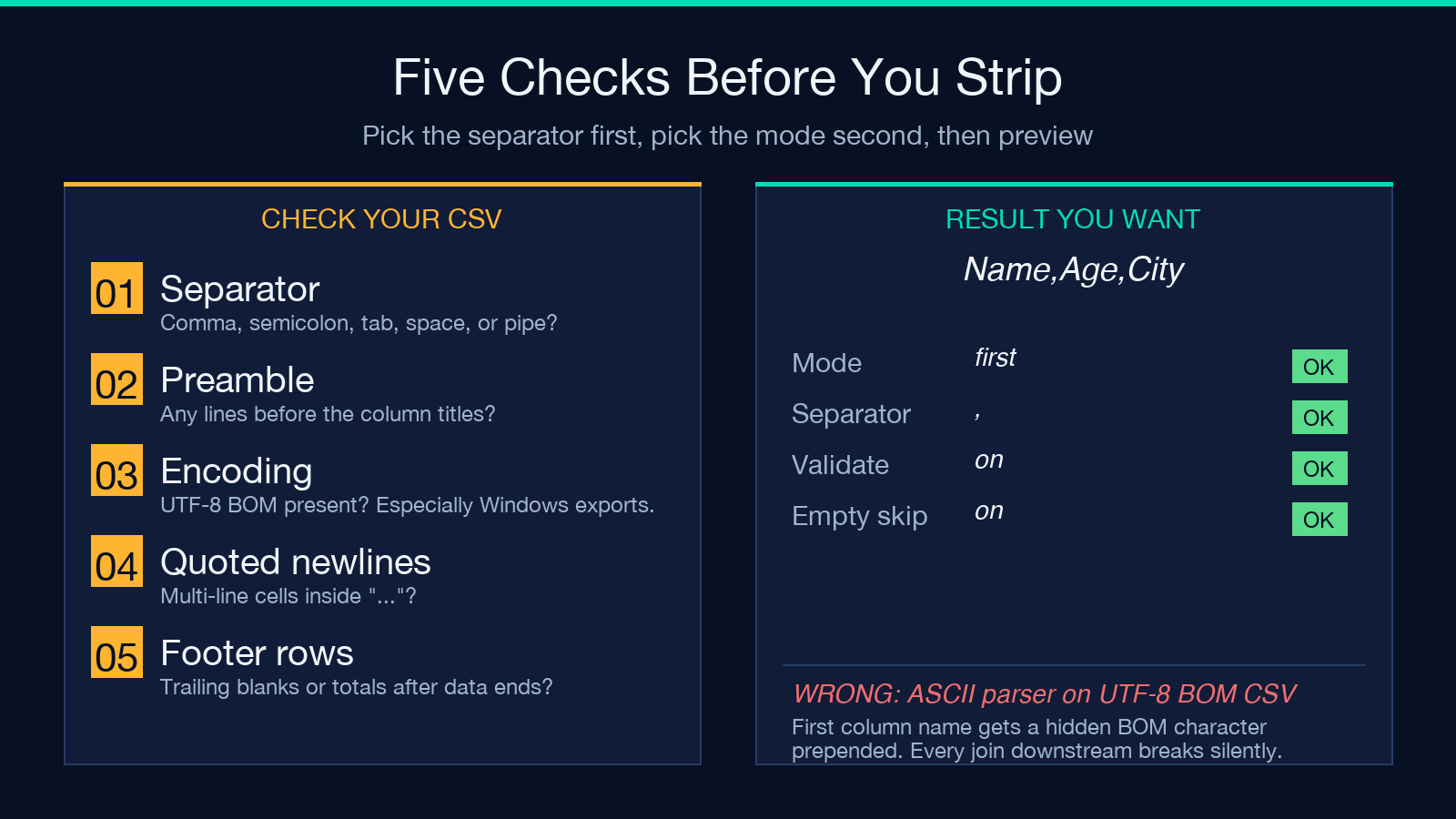
The csv output format is the standard plain comma-separated rows. The detailed output format shows row-by-row what was kept and what was removed, with column counts per row for validation. The json output format wraps the entire result as a JSON array of arrays, with each inner array being one row’s cells — useful when your downstream pipeline is JavaScript or any tool that natively reads JSON. A concrete pattern is: vendor exports CSV → Header Remover → JSON output → JavaScript visualization library. The JSON conversion happens as a side effect of removing the header; you don’t need a separate CSV-to-JSON step. Compare with the JSON Formatter for what to do once the JSON is in hand.
For database pipelines specifically, the output goes directly into your COPY or LOAD DATA command. PostgreSQL: COPY mytable FROM STDIN WITH (FORMAT csv). MySQL: LOAD DATA LOCAL INFILE '/tmp/clean.csv' INTO TABLE mytable FIELDS TERMINATED BY ',' LINES TERMINATED BY 'n'. SQLite: .import --csv --skip 1 /tmp/clean.csv mytable. The --skip 1 in SQLite tells it the header is gone — same effect achieved by removing it upstream.
Validation: the option most people skip
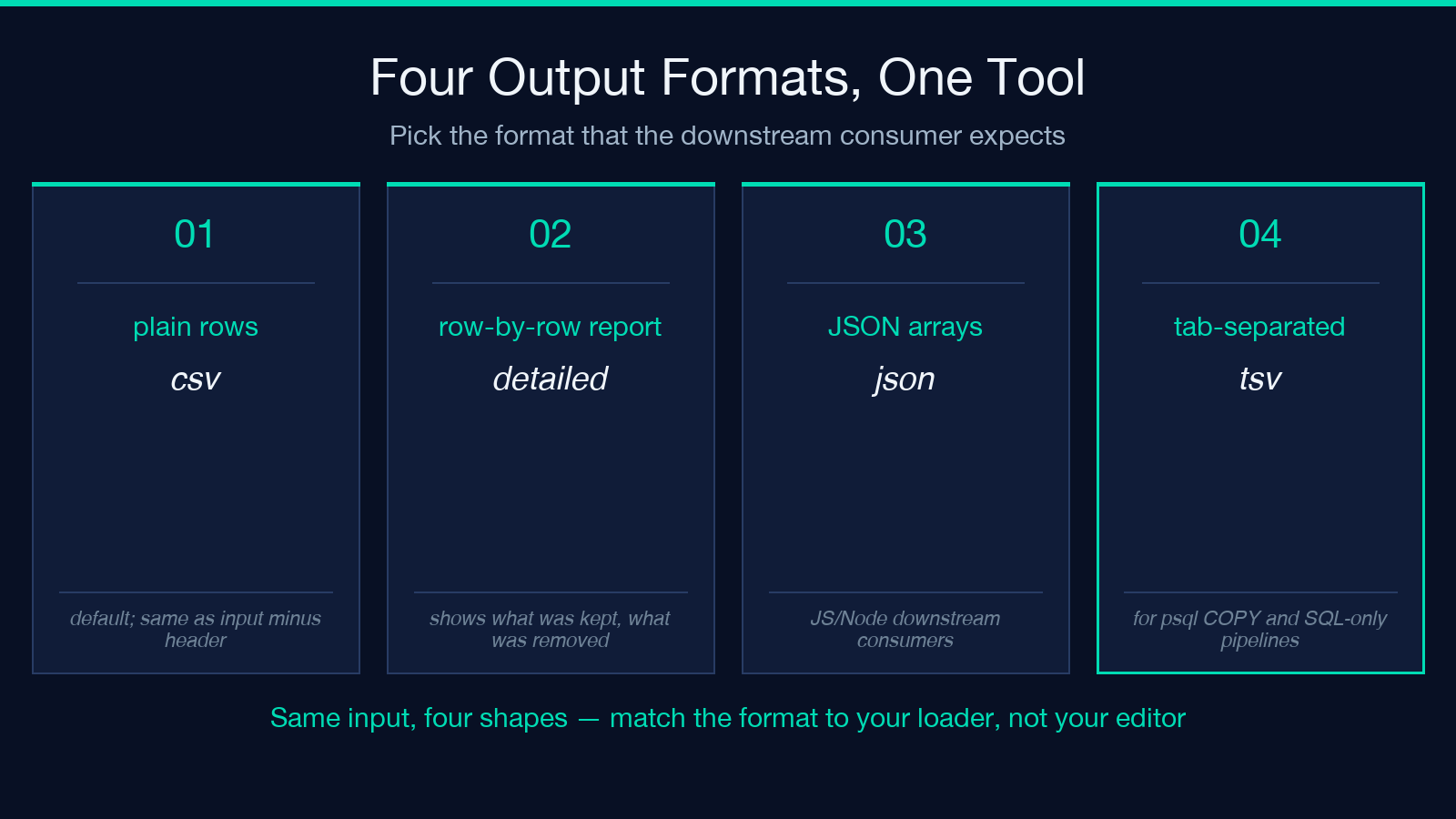
Validate Data is on by default in the Header Remover, and turning it off should be a conscious decision. Validation runs after header removal and checks three things: row length consistency (every row has the same number of fields, after parsing), column count match (the data rows have the same column count the header would have had — useful when you want to confirm you’re not feeding ragged rows), and separator consistency (the file doesn’t switch mid-stream). When validation fails, the tool flags the offending row in the output’s Detailed Report mode but still produces the requested format — you decide whether to trust the result.
The common false-negative is the trailing whitespace row: Excel exports often include a final empty row (where the cursor was last), and some tools count that as a header violation because column counts don’t match. The Skip Empty Lines option handles that, but only at the beginning of the file — it removes blank lines between the header and the data, not at the end. For trailing blank lines, the csv output naturally drops them at most loaders’ COPY/LOAD step anyway.
Edge cases the modes don’t cover
Three real-world situations need more than row-counting, and the Header Remover’s auto-detect mode handles one of them. The first is the multi-row header (vendor exports with three rows of “HeadernSub-headernUnits” before data starts): count the title block carefully and use Specific Number of Rows. The second is the in-file BOM (UTF-8 byte-order mark): some Windows-exported CSVs include a three-byte 0xEF 0xBB 0xBF prefix that the browser hides but downstream parsers read as a weird character in the first cell name. The tool ignores BOM so this is fine, but flag it for your downstream loader. The third is the embedded newline inside a quoted field — a CSV cell can legitimately contain a newline character inside its "..." quotes, which makes naive line-counting wrong. The header removal happens correctly but the preview shows line numbers that may surprise you.
The single biggest mistake
Don’t remove the header before checking what the downstream consumer expects. Some tools (pandas.read_csv with header=0) want the header kept, and giving them a headerless file changes column names to integers, which then breaks every downstream script that referenced df['age']. Other tools (most psql copy workflows) want the header gone, and keeping it produces an error from the database. Different parts of the same pipeline may disagree. Read your loader’s docs before you strip.
The fix workflow: identify what the loader expects, choose the mode that matches, preview, then run. The Header Remover’s preview option shows you what removal would produce so you can save it and compare before committing. For more on CSV cleanup before it hits your pipeline, see the CSV Cleaner and the CSV Splitter for large-file splitting. Browse related tools at elysiatools.com.
