
Five lives of the same five numbers. A crontab expression is just five whitespace-separated fields — minute, hour, day of month, month, day of week — but every runtime rewrites those fields in its own dialect. The same 0 9 * * 1-5 reads as “9 AM on weekdays” to cron, as a Mon..Fri *-*-* 09:00:00 OnCalendar to systemd, and as {"minute":"0","hour":"9","day_of_week":"1-5"} to a JSON pipeline. The Crontab Converter keeps that translation in one place, so you stop rewriting the same schedule every time it crosses a platform boundary.
What the converter actually does
The tool takes a single cron expression and a target format, then returns the same schedule rewritten in that format. Five targets are wired in: standard cron (5 fields), enhanced cron (6 fields with a leading second), human-readable text, JSON, and a systemd timer unit. The conversion logic is intentionally narrow — it does not try to parse steps, ranges, or W/L modifiers (Quartz-only constructs are a separate tool). It is the layer that sits between “you wrote a cron” and “the next runtime needs to read it,” and it does exactly that.
Try the live tool at Elysia Tools. Drop in */15 9-17 * * 1-5 and pick JSON: the output is a structured object you can hand to a watcher, a backfill job, or a test fixture. Pick systemd and you get a .timer unit that drops straight into /etc/systemd/system/. The same input string, three different downstream consumers, zero reformatting by hand.
The five target formats, side by side
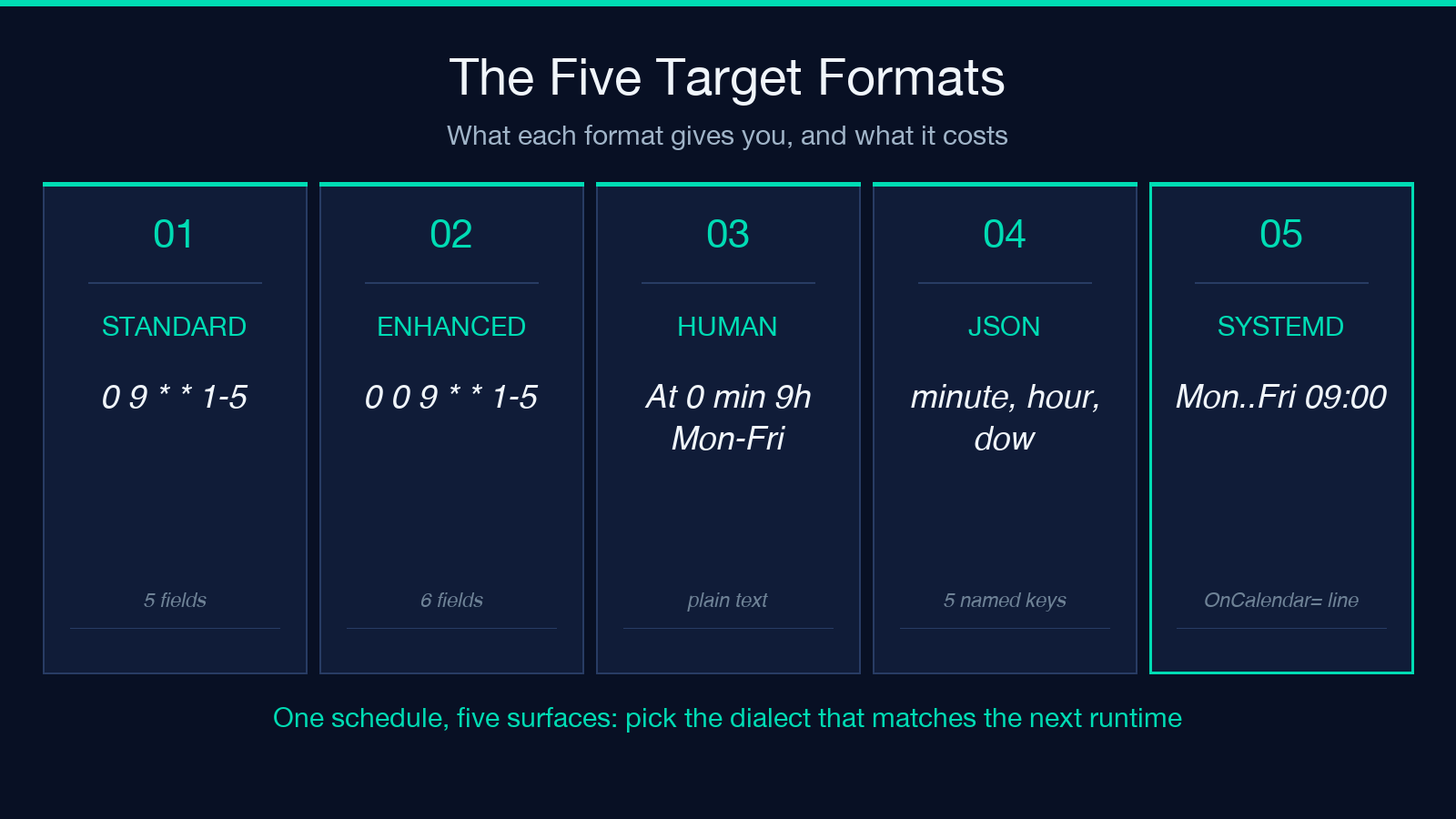
Each format answers a different question. Standard cron is the lowest-common denominator: every Unix-like system speaks it, but it has no seconds field and no notion of a year. Enhanced cron adds a leading second field for environments that need sub-minute precision (Spring’s @Scheduled, some Java schedulers). Human text replaces the five fields with a sentence — “At 0 minutes past 9 hours, on day 1-5 of every month, on Mon through Fri” — which is the right shape for a UI label or a log message. JSON gives you a dictionary with named keys (minute, hour, day_of_month, month, day_of_week), which is what your code wants to deserialize. Systemd timer is a drop-in unit file with an OnCalendar= line that uses systemd’s own cron-style syntax.
Where the format boundaries actually break
The first place the boundaries bite is when you migrate a cron to systemd. Cron’s Mon and Fri are 1 and 5; systemd’s Mon..Fri is a range literal. Cron’s * for “every day of the month” is systemd’s * for the day-of-month field in OnCalendar=, but the field order is different — systemd puts the weekday at the front, not the back. The converter normalizes both directions: cron → systemd emits Mon..Fri *-*-* 09:00:00 for 0 9 * * 1-5, and systemd → cron reads the OnCalendar= line back into the five-field shape.
The second boundary is JSON. Most teams that pull cron expressions into a typed config want a fixed schema, not a free-form string. The converter emits an object with five or six named keys depending on whether the input is standard or enhanced. That means your downstream code can switch on the partCount (or on the presence of second) and pick the right handler. The shape is stable: same keys, same string values, no nested structures.
The third boundary is the human-readable line. It is the one target that does not start with the same five tokens. The output is two lines of English: “At
Walkthrough: turning 0 9 * * 1-5 into three targets
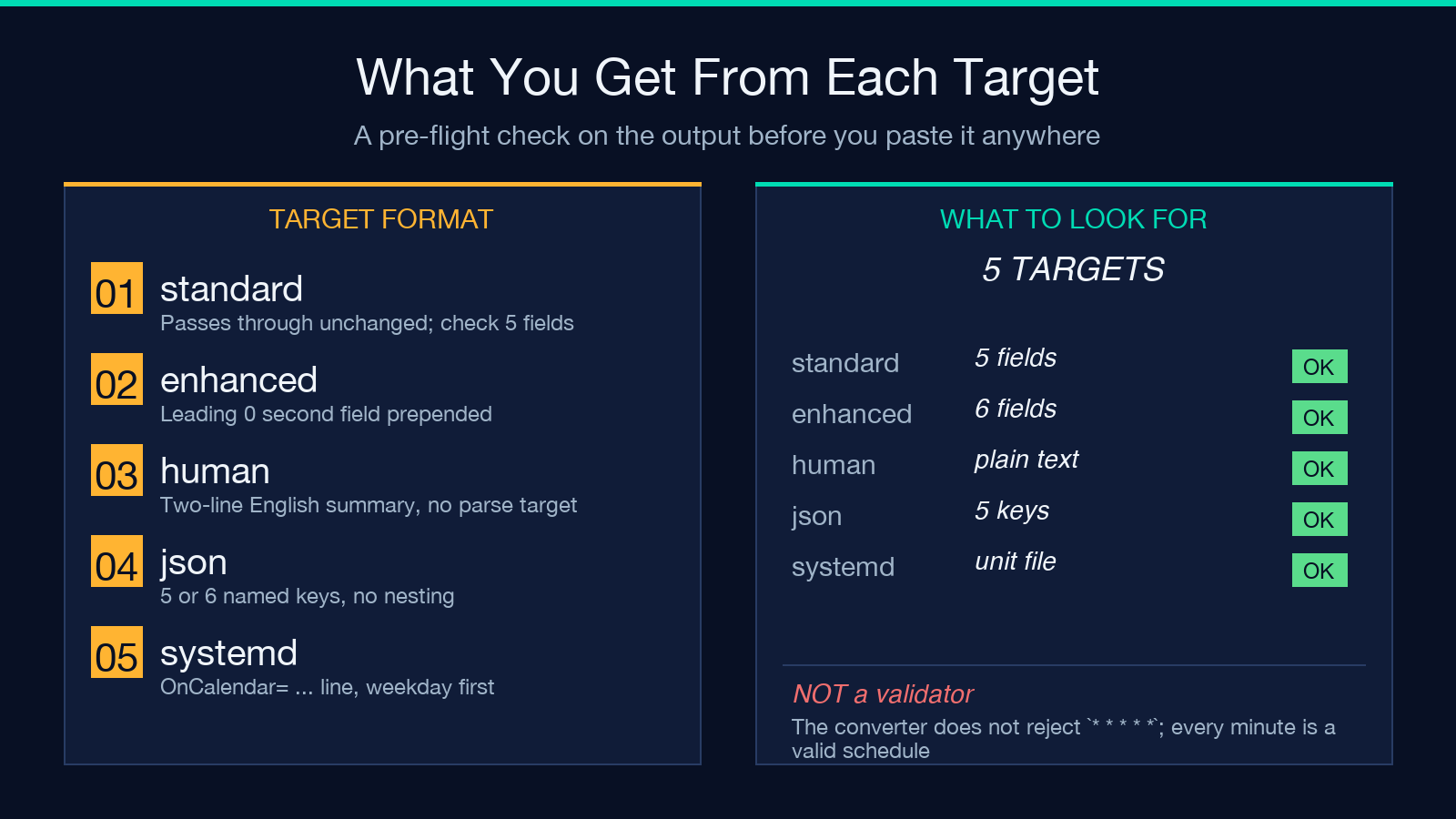
The fastest way to see the converter’s value is to run the same input through three targets and look at the diff. The input is 0 9 * * 1-5: at minute 0, hour 9, every day of month, every month, weekdays 1 through 5. Three converters, three shapes.
Pick standard and the output is 0 9 * * 1-5 — the tool recognizes the input as already standard and returns it unchanged. Pick enhanced and the output is 0 0 9 * * 1-5 — a leading 0 second field is prepended, turning the 5-field expression into a 6-field one. Pick JSON and the output is a five-key object. Pick systemd and you get a complete .timer unit file with the OnCalendar= line correctly rewritten. Pick human and you get the two-line English description.
The walkthrough is worth doing because it shows which formats are reversible (standard ↔ enhanced, standard ↔ systemd, standard ↔ JSON) and which are not (standard → human, one-way). The tool does not try to round-trip human-readable back to a schedule, and that is the right call — human text is for humans, not for parsers.
A reasonable workflow
The pattern that holds up in practice is short. Express the schedule once in the format that matches the source of truth (usually standard cron, because that is what crontab -l returns). Run the converter to produce the formats your downstream consumers need. Paste the JSON into a config file; paste the systemd unit into a service template; paste the human line into a runbook. The converter is the bridge, not the source.
The tool has two inputs: the crontab expression itself, and a target format. The expression can be anything standard cron accepts — *, */5, 1-5, 1,3,5, or a literal 0. The target format is a dropdown with five options. The output is a string: the original expression, the human description, and the converted target. There are no auth tokens, no scheduling, no execution — the tool is strictly a translator.
How this compares to alternatives
Crontab-related tools in the same family split along three lines. The Crontab Converter is on the format-conversion line: same schedule, different dialects. The Cron Expression Explainer is on the human-readable line: cron → English. The Cron Expression Visualizer is on the visualization line: cron → a timeline of the next N firings. The tools are complementary, not redundant — a single workflow might use the converter to produce a JSON payload, the explainer to inline a comment, and the visualizer to sanity-check the edges (month boundaries, weekday overlaps).
Beyond cron-specific tools, the broader pattern is worth noting. The converter does for cron what a SQL formatter does for SQL: it round-trips between dialects without changing the semantics. The same 0 9 * * 1-5 is the same schedule in every output, and the converter’s job is to preserve that sameness while changing the surface syntax. If you have ever written a cron line that worked in development but failed in production because the runtime expected a different field order, this is the layer that prevents that.
What the converter does not do
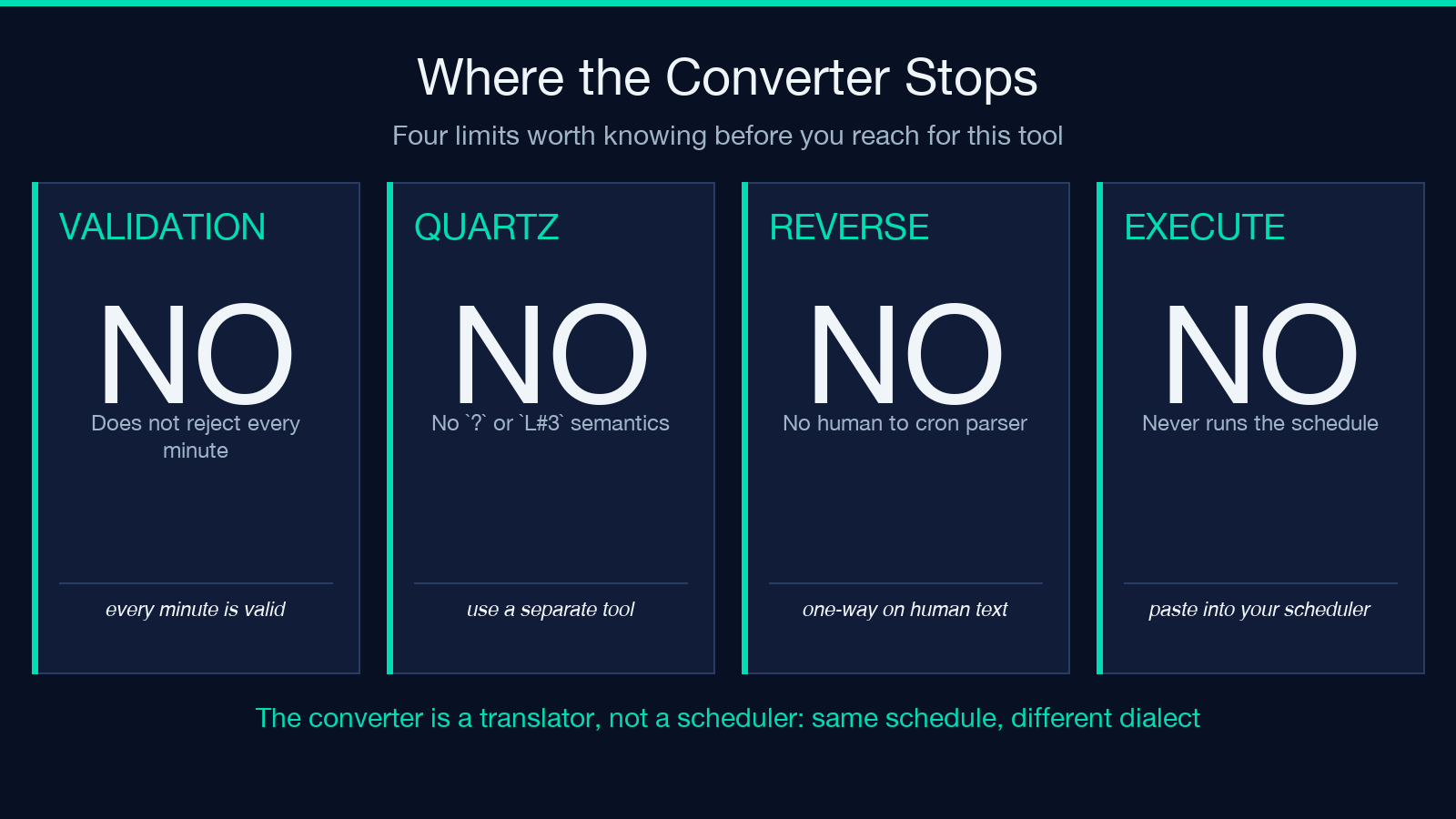
The converter does not validate that the expression is meaningful. It does not reject * * * * * (every minute) — it converts it as written. It does not validate that the day-of-month and day-of-week fields are mutually exclusive (cron’s OR semantics are a runtime concern, not a parser concern). It does not extend cron with Quartz-specific features like ? or L#3. It does not run the schedule — paste the output into your scheduler, the converter’s job is done.
Two specific limits are worth naming. First, the converter accepts 5-field or 6-field input only. A 4-field input (the deprecated “minute hour day month” form) is not recognized — the tool returns the original expression unchanged. Second, the systemd target emits a deterministic OnCalendar= line for the most common cases, but edge cases like */2 for the second field (which systemd does not support) fall through to a literal pass-through. The output is best-effort for the long tail; the common cases are exact.
Putting it together
The actual workflow is three steps. First, write the cron expression in the lowest-common-denominator form (0 9 * * 1-5 for “weekdays at 9 AM”). Second, run the converter for each target you need: JSON for a config, systemd for a service unit, human for a tooltip. Third, paste the outputs into the right places. The converter’s job is to keep that translation consistent across all five targets.
If you regularly move cron expressions between environments, the converter is the one tool that should sit in your editor’s toolbox. It is not a scheduler, not a debugger, not a validator — it is a translator. A cron is a five-token string; the converter is the bridge that keeps that string readable across cron, systemd, JSON, English, and enhanced-cron runtimes.
Browse the full tools directory for related converters.
