
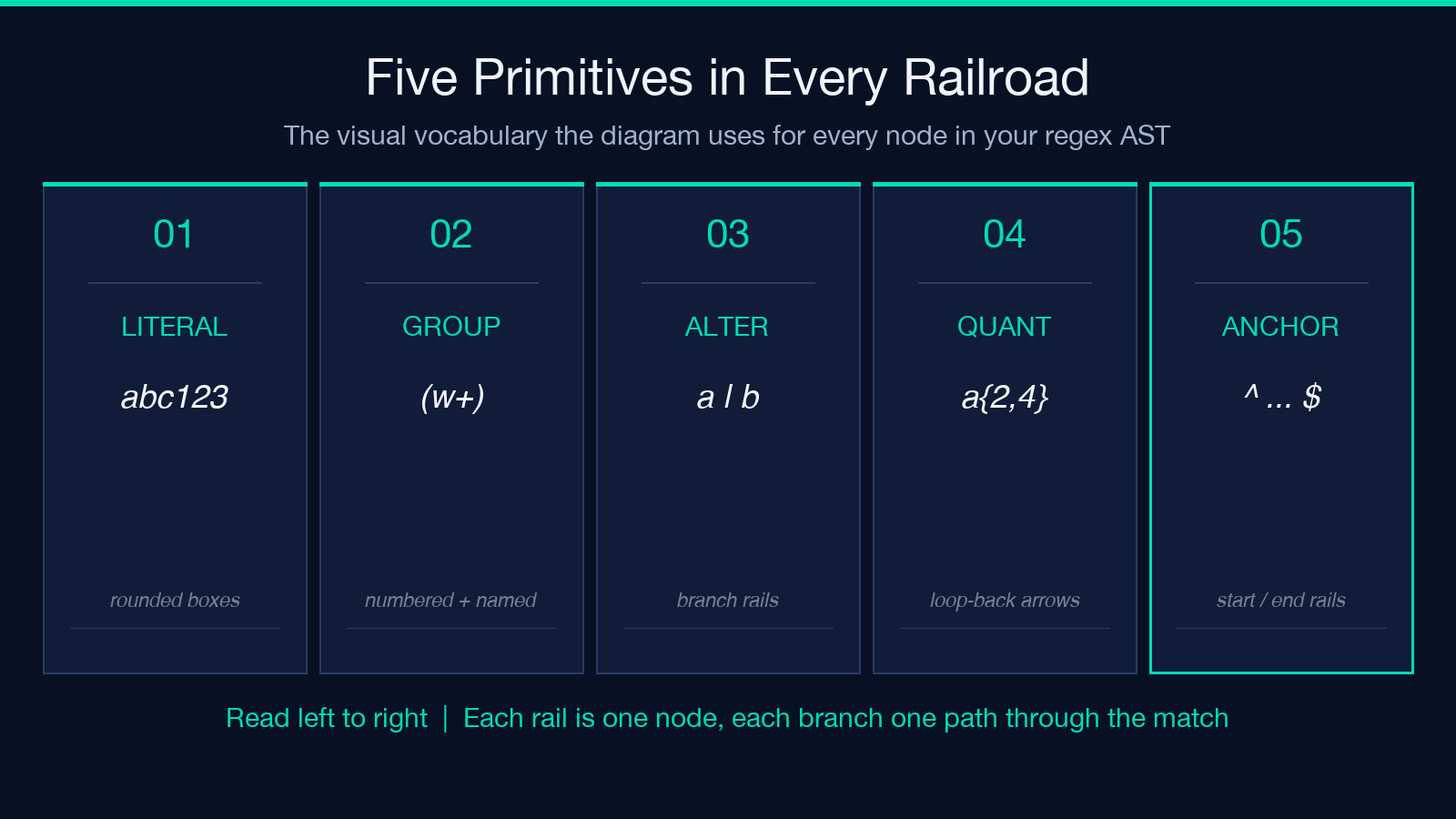
A railroad diagram is the easiest way to see what a regex actually means. Paste a pattern into the Regex Railroad Diagram Visualizer and it draws the structure as an SVG — literals as rounded boxes, groups as labeled chips, alternations as branching rails, quantifiers as loop-back arrows — so you can read the pattern left to right instead of squinting at metacharacters.
Why railroad beats text for teaching and review
A regex written as a one-liner compresses a lot of structure. Anchors, capture groups, alternation, and quantifiers are all expressed with single characters that read like noise until you have the parser model loaded in your head. A railroad diagram inverts that — it lays the same AST out as a labeled graph and gives each node a visual identity. When you can point at a rail and say “this is the ? quantifier that optionally consumes the port number”, a regex review stops being an exercise in pattern-matching the metacharacters and becomes a normal diagram review.
The visualizer accepts JavaScript and PCRE-flavored patterns, parses them with ret into an AST, then maps each node to a railroad primitive. Literals become rounded boxes, capture groups are labeled with their index (and name when present), alternations branch into a choice node, and quantifiers (*, +, ?, {n,m}) become loop-back arrows. The output is a self-contained SVG that you can drop into a doc or open in any browser. If you need to walk through how a particular input matches, the Regex Debugger is the natural pair — it shows the same pattern matching against a string position by position, with backtracks and partial successes traced.
What the diagram is actually showing you
Read left to right. The leftmost element is what the matcher has to consume first; the rightmost is what comes last. Alternations branch vertically — every branch is a valid path through the rail, and the matcher chooses one. Quantifier rails loop back from the right edge to their entry on the left, with an “any number of” loop or a {2,4} rail that labels the bounded range. Capture groups are wrapped in a labeled rail that records which span matched, so group 1 and group 2 show up next to their rail and the visualizer also lists them in a separate table with their index and (for named groups) the name.
For something like ^(https?)://([^/:]+)(:\d+)?(/.*)?$, the diagram has an anchor rail on the left, a literal https? box that branches into http and https, a :// literal, then a capture-group rail for the host, an optional port rail, an optional path rail, and the closing anchor. Once you have seen that diagram once, the raw pattern no longer feels like a wall of metacharacters — it is a picture you remember. If you want to step through how the matcher actually walks the rail against a specific URL string, the Regex Tester lets you paste the pattern plus an input and see the matches inline.
Spotting catastrophic backtracking before it ships
One of the most valuable uses for a railroad diagram is spotting nested quantifiers — the shapes that look fine in source but blow up at runtime. A pattern like (a+)+ or (\w+\s+)* looks reasonable, but its diagram shows the loop-back arrows stacked two-deep: an inner repetition rail inside an outer repetition rail. That is the visual signature of catastrophic backtracking. When the matcher tries to satisfy the outer loop and the inner loop together on a near-miss input, it can spend exponential time before giving up.
The visualizer is read-only — it will not warn you about a degenerate shape — but the diagram makes the structure obvious enough that you can flag it yourself before you ship. For an automated check, the Regex Linter flags risky patterns, suggests rewrites, and identifies unanchored patterns that can cause subtle partial matches. If you already suspect the issue is performance rather than correctness, the Regex Benchmark compares candidate rewrites side by side, so you can prove the fix before merging.
The capture-group numbering is the part most people get wrong
A capture group’s index is determined by the position of its opening parenthesis, not by the name or the order of alternation branches. In ((a)|(b)), group 1 is the outer group, group 2 is the a branch, group 3 is the b branch — even though branches a and b are mutually exclusive at runtime. The visualizer lists every group in declaration order with its number and (when named) its name. This is the table you want next to the diagram whenever you are writing extraction code against the pattern.
Named groups — (? instead of ([^/:]+) — render with the name as the rail label instead of the bare index, which makes the diagram much more useful as documentation. The visualizer reports the name alongside the index in the group table. If you are writing the consumer code, the Regex Replace Previewer lets you paste a pattern plus a replacement string and shows you exactly what each match becomes, so you can verify the group references ($1, $, ${host}) are pulling from the right place before you commit.
How it fits with the rest of the elysia regex set
The regex tools on elysiatools cover the full loop from reading a pattern to debugging it to shipping it:
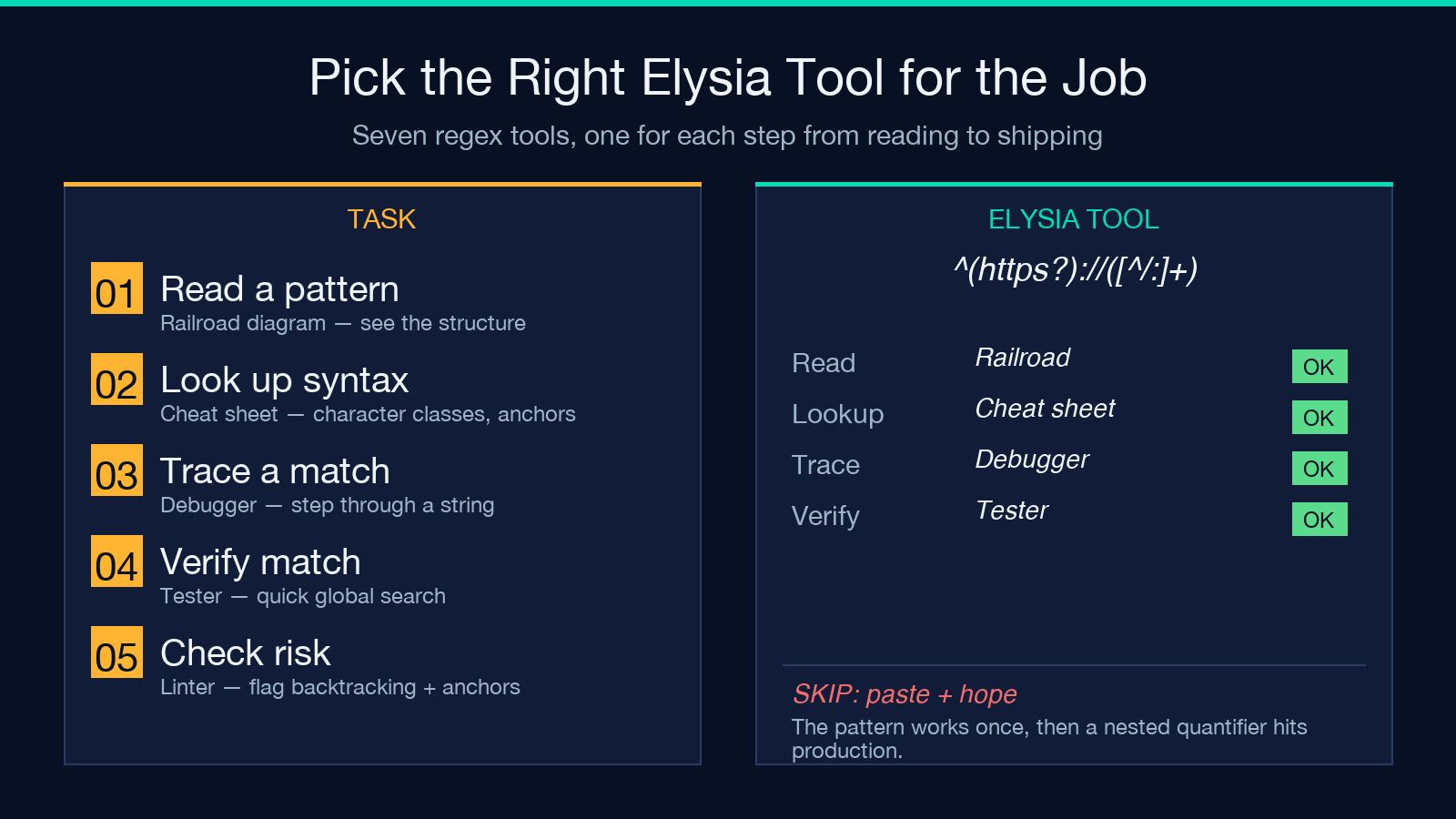
- The Regex Railroad Diagram Visualizer is for reading and explaining patterns.
- The Regex Cheat Sheet is for looking up syntax when you are writing.
- The Regex Debugger is for understanding why a pattern does or does not match a particular input.
- The Regex Tester is for quick match/no-match checks against arbitrary text.
- The Regex Linter is for catching risky patterns before they reach production.
- The Regex Benchmark is for proving a rewrite is faster than the original.
- The Regex Replace Previewer is for verifying that substitution strings pull from the right groups.
A reasonable workflow is to write the pattern with the cheat sheet open, visualize it with the railroad tool to confirm the structure looks right, then step through a few real inputs in the debugger to confirm the captures land where you expect. If the pattern is on a hot path, benchmark it; if it is doing extraction, preview the replacement. If you want everything in one place, browse the full set at elysiatools.com/en/tools.
Using the diagram as documentation
A self-contained SVG from the visualizer drops cleanly into Markdown, GitHub, Notion, Confluence, or a PDF runbook without losing layout. For a code review, the SVG plus the original pattern is usually enough to land the PR — reviewers can read the structure off the diagram and trust the regex without re-deriving the AST themselves. For onboarding, a small gallery of common patterns (URL matcher, email capture, ISO date, semver tag) rendered as diagrams is a faster way to teach the language than a wall of metacharacter tables.
The diagram is also useful in incident review. When a regex causes a production issue — wrong captures, missed matches, pathological backtracking — the first thing to drop into the postmortem is the diagram. It compresses the regex’s structure into something the whole team can read regardless of their regex fluency, so the conversation can stay focused on what the pattern is supposed to do rather than on parsing the metacharacters.
Reading flags and dialect differences
A diagram shows structure, but a pattern’s runtime behavior also depends on the flags you pass in. The g flag turns on global matching so the matcher finds every occurrence rather than just the first. The i flag enables case-insensitive comparison so a and A are equivalent. The m flag flips ^ and $ from matching the start and end of the whole string to matching the start and end of each line, which is the difference between “this string starts with foo” and “some line in this string starts with foo”. The s flag turns the dot . into a true “any character” by allowing it to match newlines. The u and y flags switch on Unicode and sticky semantics, and the d flag enables explicit capture indices. The visualizer renders the AST identically regardless of flags — flags change how the matcher walks the rail, not what the rail looks like — but it does list every flag next to its plain-language explanation, so you can confirm the runtime semantics match your intent.
JavaScript and PCRE share most of their syntax but diverge on a few edges: PCRE supports recursive patterns, K to reset the match start, branch reset groups, and conditional subpatterns; JavaScript does not. Conversely, JavaScript has named groups and lookbehind but does not support some of the PCRE possessive quantifier and atomic-group forms. The visualizer parses both dialects; if you copy a pattern from a PCRE codebase into JavaScript and hit a parse error, that is the most common cause.
Limits worth knowing
The parser covers the JavaScript and PCRE syntax surface that matters in practice: character classes, anchors, backreferences, named groups, lookaround (reported as such in the diagram), and bounded and unbounded quantifiers. A few advanced PCRE features are not supported — recursive patterns, K, branch reset groups, and conditionals will surface as a parse error rather than a diagram. If your pattern triggers an error, simplify to the closest equivalent that fits the supported surface (most patterns can be rewritten without these features) and confirm with the tester that the behavior is unchanged.
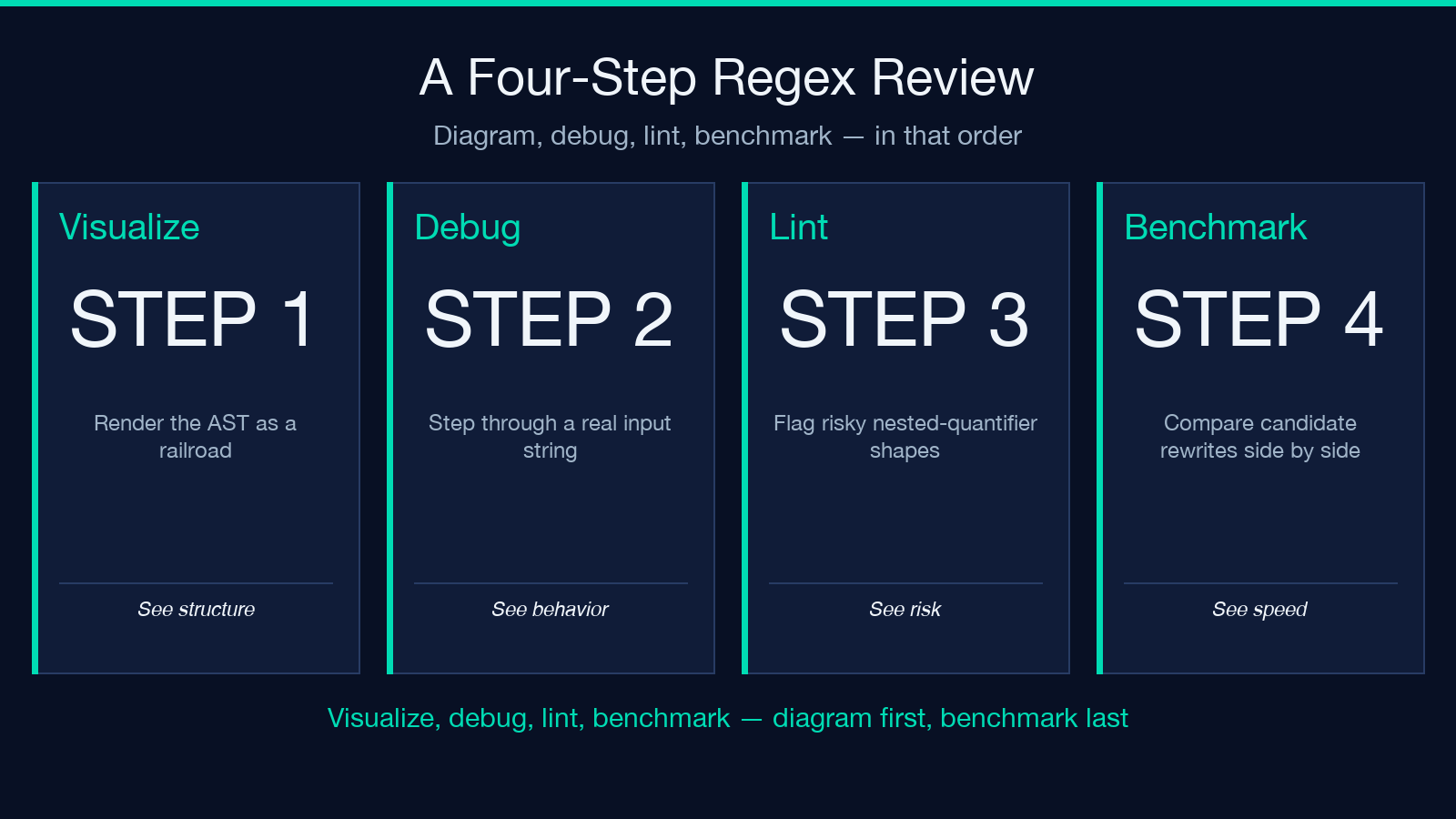
The visualizer is also read-only: it does not generate code, run the regex against an input, or warn about backtracking. It is one piece of the toolchain. Pair it with the debugger for runtime behavior, the linter for risk, and the benchmark for performance, and you have a complete review path from “I have a regex” to “I trust this regex in production.”
A diagram is not a substitute for understanding the pattern, but it is the fastest way to get a shared understanding. Drop the SVG into the PR description, the runbook, or the onboarding doc, and the next person who has to read the pattern will spend their attention on the structure rather than on parsing the metacharacters.
