
Converting ICO to PNG cleanly depends on three knobs: pick the size you actually need, preserve transparency when the icon has an alpha channel, and let adaptive filtering shrink the output without losing edges. The rest of this field guide walks through what those knobs do, where they bite, and how to drive them from the Convert ICO to PNG tool without producing a washed-out, bloated, or misaligned result.
ICO files are deceptively simple. They look like one image, but a single .ico is usually a stack of PNG-or-BMP-encoded icons at 16, 24, 32, 48, 64, 128, and 256 pixels — whatever the original artist bundled. Modern browsers and apps grab the size that fits their UI surface, and ignore the rest. The trouble starts when you hand that bundle to a pipeline that only understands PNG: favicon generators, README badges, social-share cards, mobile-app icon exports, design-system component docs. Each downstream tool wants exactly one raster at one size. This guide shows how to pull a single image out of the bundle, on the right canvas, with the alpha channel intact.
Why ICO is a bundle, not a file
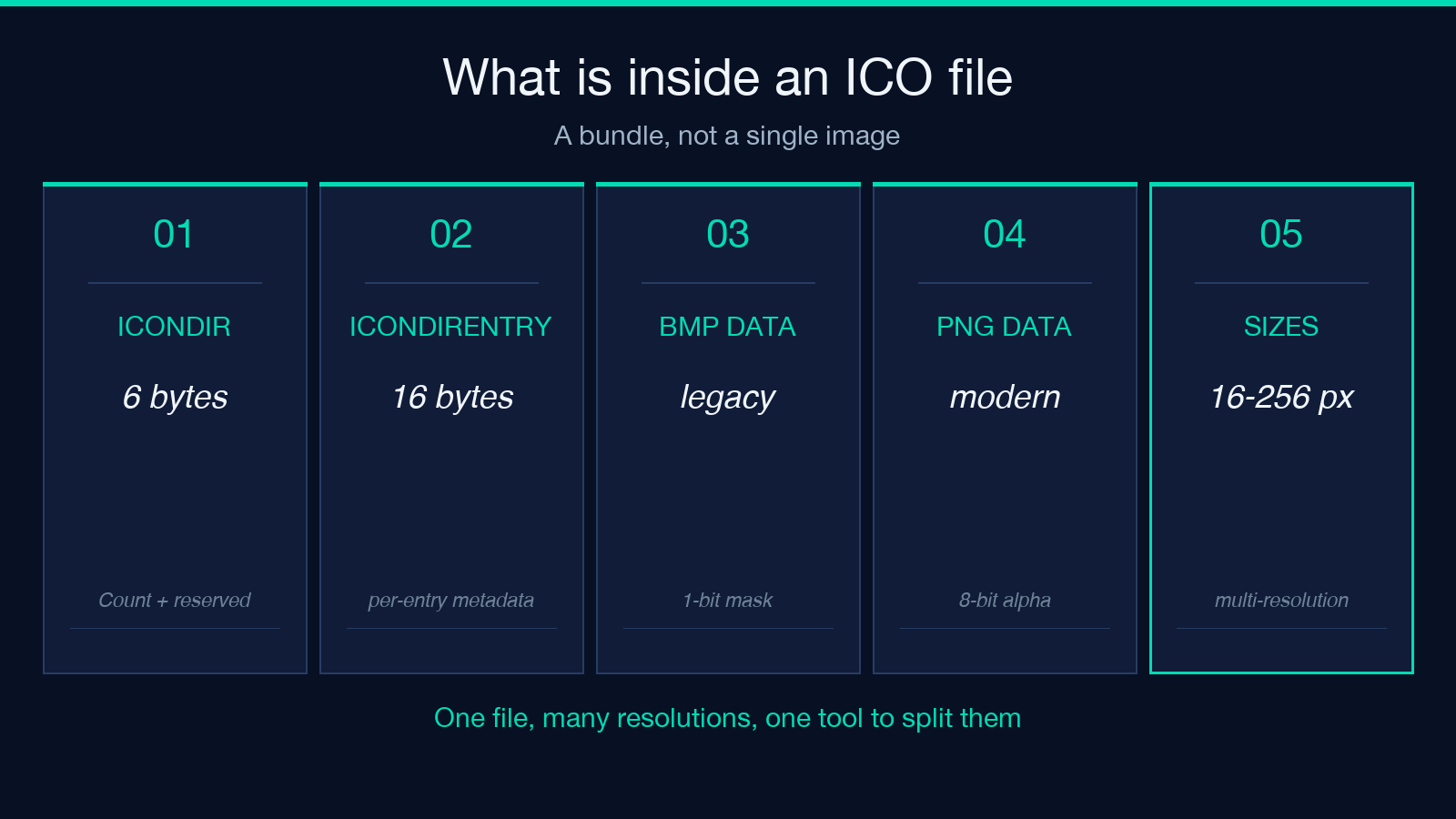
ICO is a container format with an ICONDIR header followed by ICONDIRENTRY records, one per embedded image. Windows has used this since the 1990s for .ico and .cur (cursor) files. Inside each entry, the pixel data is stored as either BMP (the legacy path) or PNG (the modern path, common for sizes at or above 32×32). A single favicon.ico on a marketing site might be 16 KB of header data plus 32 KB of 256×256 PNG and 1 KB of 16×16 BMP — seven sizes total, none of them the same compression trade-offs.
The bundle structure is also why naive conversion goes wrong. If you open an ICO in a tool that treats it as a single image, you usually get either the largest entry (often 256×256) or the first entry (often 16×16) with no warning. The Convert ICO to PNG tool exposes an Extract Size selector that lets you pull a specific entry, or default to the largest available.
Pulling a single size out of the bundle
The Extract Size option is the first knob. Its dropdown is auto, 16, 24, 32, 48, 64, 128, 256. The values map directly to ICONDIRENTRY.wWidth and wHeight fields — pixel sizes of the embedded images.
The defaults matter:
* auto — picks the largest embedded size. Best when you don’t know what the source bundle contains, or you want a “max-resolution PNG” for a README badge or hero image. * 16, 32, 48 — the bread-and-butter favicon sizes. Pick these when the target is browser tabs, OS notifications, or small UI chips. * 256 — only present in modern icon bundles (post-Vista). High-resolution masters used for app store icons and design tokens.
If the requested size is missing from the bundle, the tool falls back to contain-fit scaling from the nearest available entry — same canvas size, transparent padding where the aspect ratio doesn’t match. For a square ICO that always matches, so you get a clean square PNG at the requested pixel size.
Resizing beyond the embedded sizes
Sometimes the size you want is not in the bundle at all. App store icons are 1024×1024. Marketing hero banners want 512×512 or 768×768. Old icon sets top out at 64×64. The Output Width and Output Height fields handle this case. They are optional numbers, validated between 1 and 4096.
Three resize modes kick in depending on which fields you set:
* Both width and height set — fixed canvas with fit: contain, transparent padding around the icon if the aspect ratio doesn’t match. * Only width set — proportional scale, height auto-derived. Useful for inline icons in markdown where you want consistent column width. * Only height set — same on the other axis.
All three use the same transparent-white background { r: 255, g: 255, b: 255, alpha: 0 }. That matters: if you set preserveTransparency: false later, the same color is used to flatten the alpha channel, so the resize and the flatten use the same reference white and you don’t get a halftone ring around the icon.
Preserve transparency — and when to turn it off
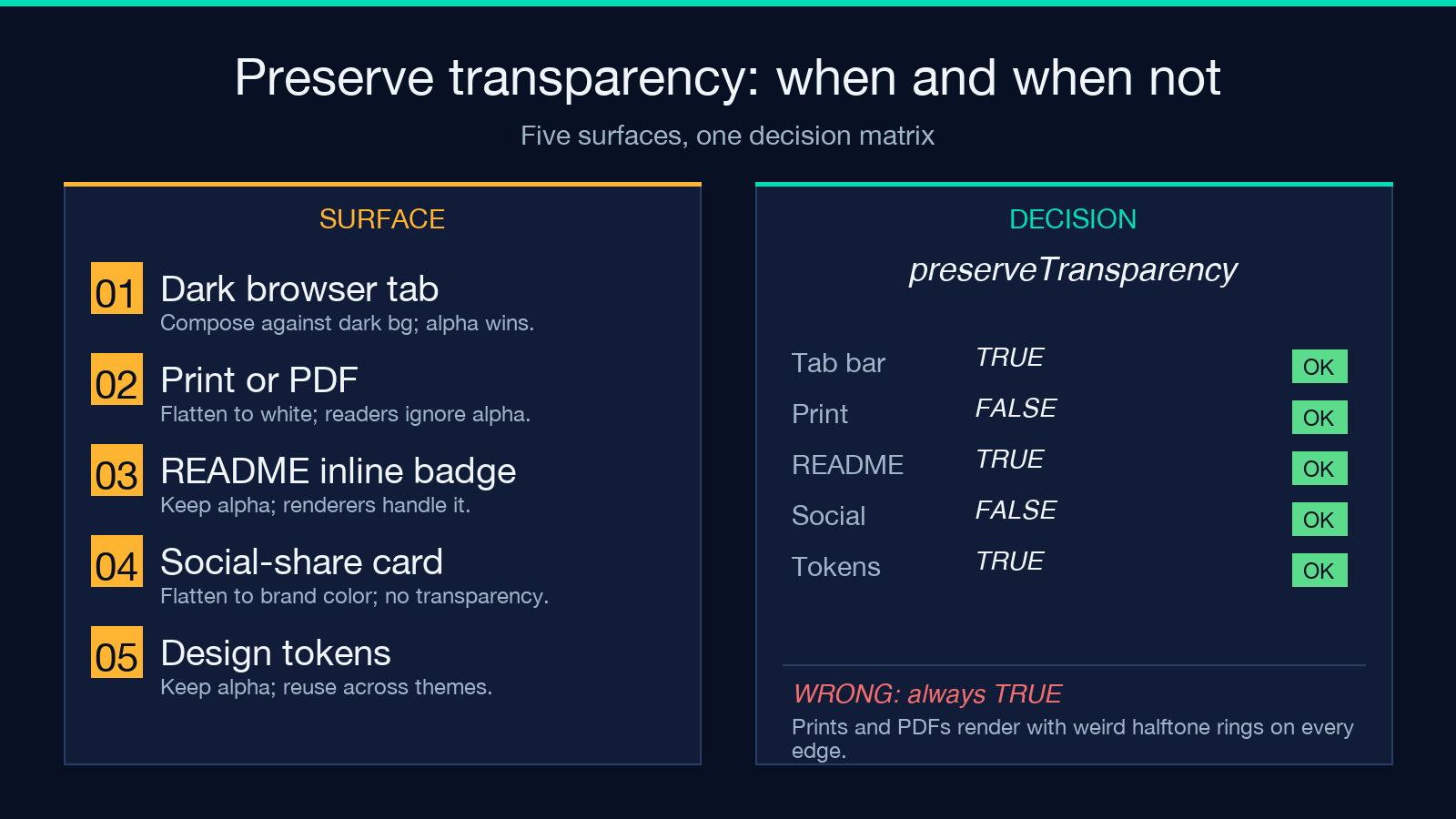
ICO transparency is binary-mask on legacy BMP entries and full alpha on modern PNG entries. Most icon bundles after 2010 use PNG-encoded entries with real alpha. Three states you can hit:
* preserveTransparency: true (default) — alpha channel survives into the output PNG. ICO mask data is dropped because PNG has a real alpha channel. * preserveTransparency: false — sharp().flatten() runs with the transparent-white background, turning all transparent pixels into solid white. Useful when the icon will be composited onto a known background color (a corporate website header, a printed PDF, a sticker). * Missing alpha — some older ICO bundles have no transparency at all. Flattening is a no-op for those.
The choice matters for two real cases:
1. Favicons on a colored tab bar. If the browser tab bar is dark and the icon has transparency, keep it transparent — Chrome will composite against the tab color. Flattening to white gives you a white square in dark mode.
2. Print or PDF export. Press pipelines and PDF readers don’t honor alpha. Flatten first, against the document background, and you avoid weird color shifts.
Compression level and adaptive filtering
PNG is a lossless format, so “compression level” doesn’t mean image quality — it means how hard the encoder works to find a smaller representation. The compressionLevel slider runs 0 to 9:
* 0 — fastest encode, largest file. Useful for batch pipelines that convert thousands of icons per minute. * 9 (default) — slowest encode, smallest file. Use for one-off conversions where the user waits anyway.
adaptiveFiltering is the deeper lever. PNG supports five filter types (None, Sub, Up, Average, Paeth) that try to predict pixel values from neighbors before deflate compression. Sharp’s adaptive filter tries all five per scanline and picks the smallest output. Default is on — turning it off is rarely a win for icons (icons have lots of solid regions and sharp edges, which Paeth filters handle well). The only case where turning it off helps is when you have a very fast compressor and want to skip the filter-selection overhead entirely.
Choosing the right output for the job
Different surfaces want different conversions. A small matrix of common cases:
* Browser favicon, retina display: extractSize: 32, preserveTransparency: true, compressionLevel: 9. Browsers cache these aggressively and 32×32 PNGs at full compression are well under 1 KB each. * README badge or docs inline icon: extractSize: auto, width: 128, preserveTransparency: true. Inline-markdown renderers handle the 128px width consistently. * Social-share card or app store icon: width: 512, height: 512, preserveTransparency: false, compressionLevel: 9. Square canvas, flattened against white, ready for a JPEG-recompress downstream. * Design system or component library asset: extractSize: 256, compressionLevel: 9, adaptiveFiltering: true. Preserve the original artwork, ship a small file.
The common mistake is leaving every option at default. extractSize: auto is right when you don’t know what’s in the bundle, but it’s almost always wrong when you do know — picking the explicit size avoids surprises when the artist ships a new bundle that contains a 1024×1024 master you didn’t know about.
Common ICO quirks worth knowing
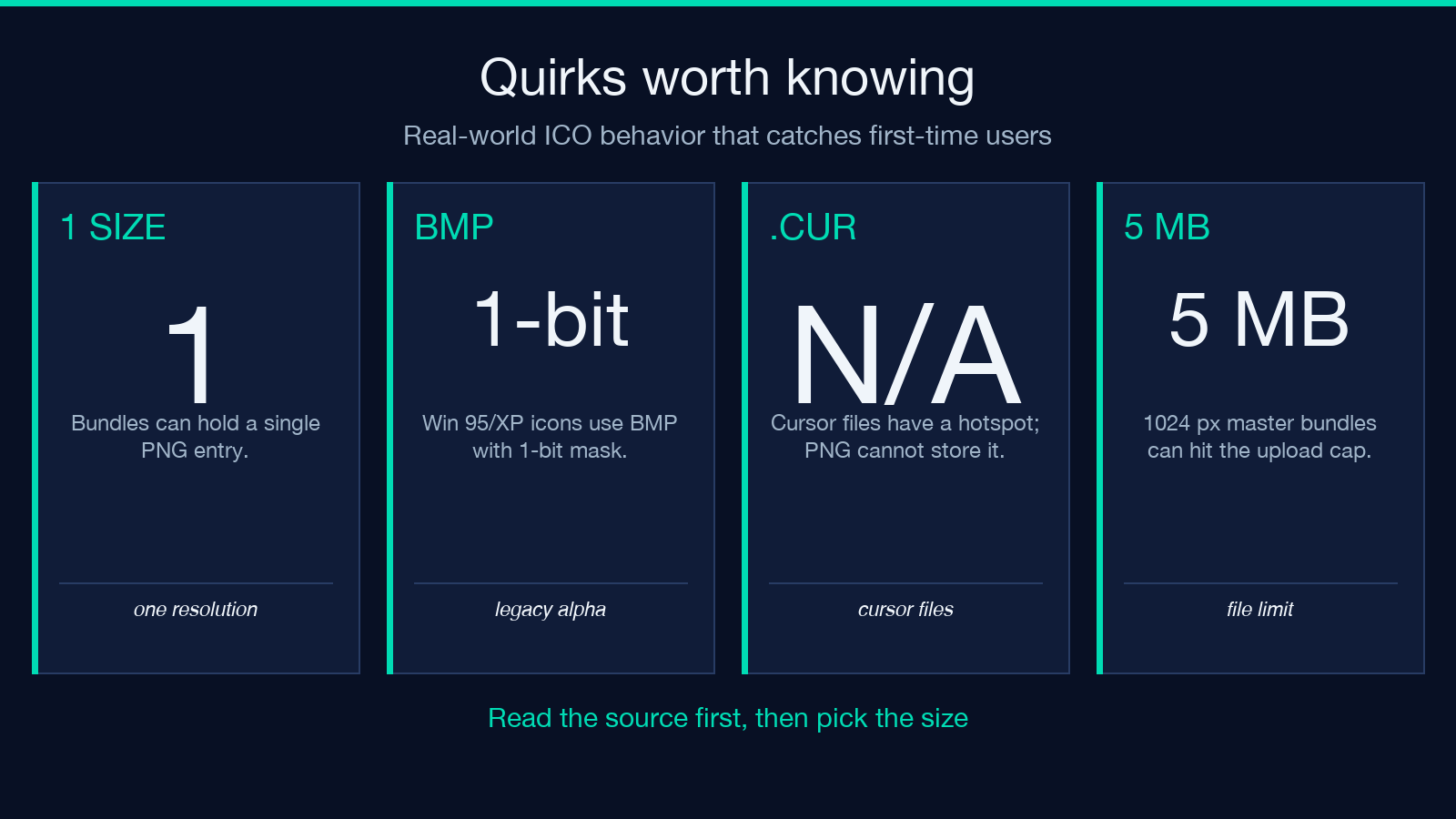
A few real-world behaviors that catch first-time users:
* Bundle with one size. Some tools export ICO files containing a single 32×32 PNG. The Extract Size dropdown then has only one viable choice. No error, no warning — you get the same image no matter what you pick. This is correct behavior; the ICO spec allows it. * BMP-encoded legacy icons. Windows 95 / XP-era icons store pixel data as BMP, not PNG. Sharp’s ICO decoder handles these, but the alpha channel is a 1-bit mask, not 8-bit — corners look stair-stepped when scaled up. * Cursor files (.cur). Same container format as ICO, with an extra hotspot field. The tool validates the extension is .ico and rejects .cur — that’s intentional, because PNG has no hotspot and cursor conversion would silently lose functionality. * 5 MB upload limit. The fileLimit is set to 5 MB. A 1024×1024 PNG-encoded ICO bundle can hit this — the size cap exists because browser-side ICO parsing becomes slow above a few MB and there’s no honest reason to ship a 50 MB favicon.
If you hit the upload cap, the simplest fix is to re-export the icon at a smaller master size (most design tools support this) before running it through the converter. The tool is built for the common case, not for edge cases where a designer dumped the entire layered master into the bundle.
Where this fits in a larger pipeline
For most teams, ICO→PNG is one step in a longer image asset chain. Two patterns the Elysia Tools ecosystem supports well:
* Favicon refresh across legacy sites. Take a single SVG or PNG master, bundle it into an ICO using a sister tool, ship to legacy browsers. Then pull individual sizes back out of the ICO for the per-platform icons (Apple touch icon, Android home screen, Windows tile). The round-trip stays inside one format family. * Design token extraction. When a brand refreshes, designers ship the new icon set as an ICO bundle plus per-platform PNGs. The PNGs come from this converter, the SVG master goes to a separate SVG-optimizer tool, and the per-platform variants go through PNG-sprite or favicon-manifest generators. Each step uses a focused tool rather than one mega-pipeline.
For one-off conversions, the Convert ICO to PNG tool stays out of the way — defaults work, but the seven knobs are there when the bundle, the target, or the brand demands more control.
Explore more tools at elysiatools.com.
