
Drop one image, ship five export files. The Elysia Tools Image Color Palette Extractor reads a JPG or PNG and emits JSON, CSS variables, Tailwind config, ASE, and ACO in one pass — so the handoff from a designer who picked three swatches in a meeting to a developer who needs tokens at build time stops being a 30-message Slack thread.
This field guide walks through the workflow that turns a screenshot into a brand-ready palette package, the five checks you should run before committing a palette, and the four palette sizes you can pick from depending on how much tonal range you actually need.
What the tool does and why a brand palette is not a screenshot
A palette is not the dominant colors of an image. A palette is a small, curated set of named tokens that a design system, a Tailwind config, and a Photoshop file can all read from without re-deriving colors every time someone exports an asset.
The Image Color Palette Extractor treats the two halves of that pipeline as one operation. You drop a hero photo, a UI screenshot, or a product render. The tool samples the image, clusters the dominant tones, then packages the result in five formats — JSON for design tokens, CSS variables for the front-end, Tailwind config for utility-first CSS, ASE for Photoshop, and ACO for Illustrator. The whole loop runs in the browser without an account or a server round-trip, and the output is the kind of file a developer can paste straight into a repo.
The catch is that “dominant colors” is a sampling artifact. Camera white balance, lighting gradients, and the fact that a JPEG compresses nearby pixels into similar blocks all bias the result. The tool exposes a paletteSize option (5 through 10) and a contrast ratio check on each pair so the bias becomes a parameter you can audit rather than a hidden variable.
If you want to see the full export shape, the tool is at elysiatools.com/en/tools/image-color-palette-extractor. The category index for related design tools sits at elysiatools.com/en/tools.
The five export files you get from one upload
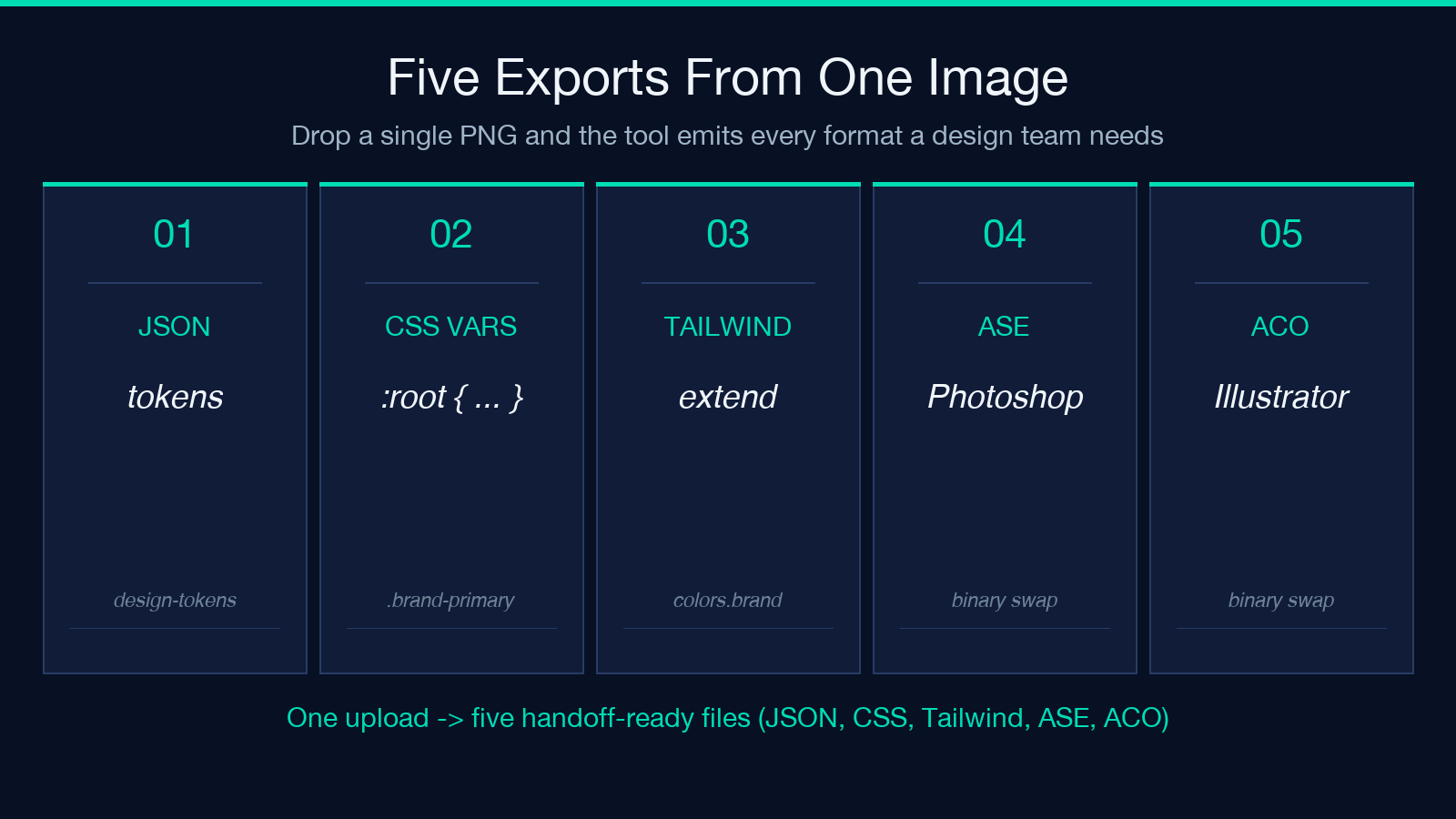
Drop a single PNG and the tool emits every format a design team needs to hand the result off without manual conversion:
- JSON — a flat token map keyed by role (primary, accent, neutral-1, etc.). This is the source of truth for any downstream pipeline that consumes design tokens, including Style Dictionary and Tokens Studio. Open the file and the role-to-color mapping is right there.
- CSS variables — a :root { –brand-primary: #…; } block ready to paste at the top of a stylesheet. The variable names follow the same role convention as the JSON so the two files can be cross-referenced by line.
- Tailwind config — a theme.extend.colors.brand object that drops into tailwind.config.js. If you are on Tailwind 3.3+ and use the CSS variable mode, the CSS variables and the Tailwind tokens share the same underlying hex codes.
- ASE — Adobe Swatch Exchange, the binary format Photoshop reads on import. The palette lands as a named group in the Swatches panel so a designer can apply it to layers without re-picking.
- ACO — Adobe Color, the Illustrator binary. Same intent as ASE, different consumer. Keeping both means a designer who only opens Illustrator and a developer who only opens VS Code both get the same palette without an intermediate conversion step.
The combined package is small enough that you can version-control it as a single directory. Most teams land on a tokens/ folder with the JSON, CSS, and Tailwind files checked in, and the binary formats regenerated when the source image changes.
The five checks before you ship a palette
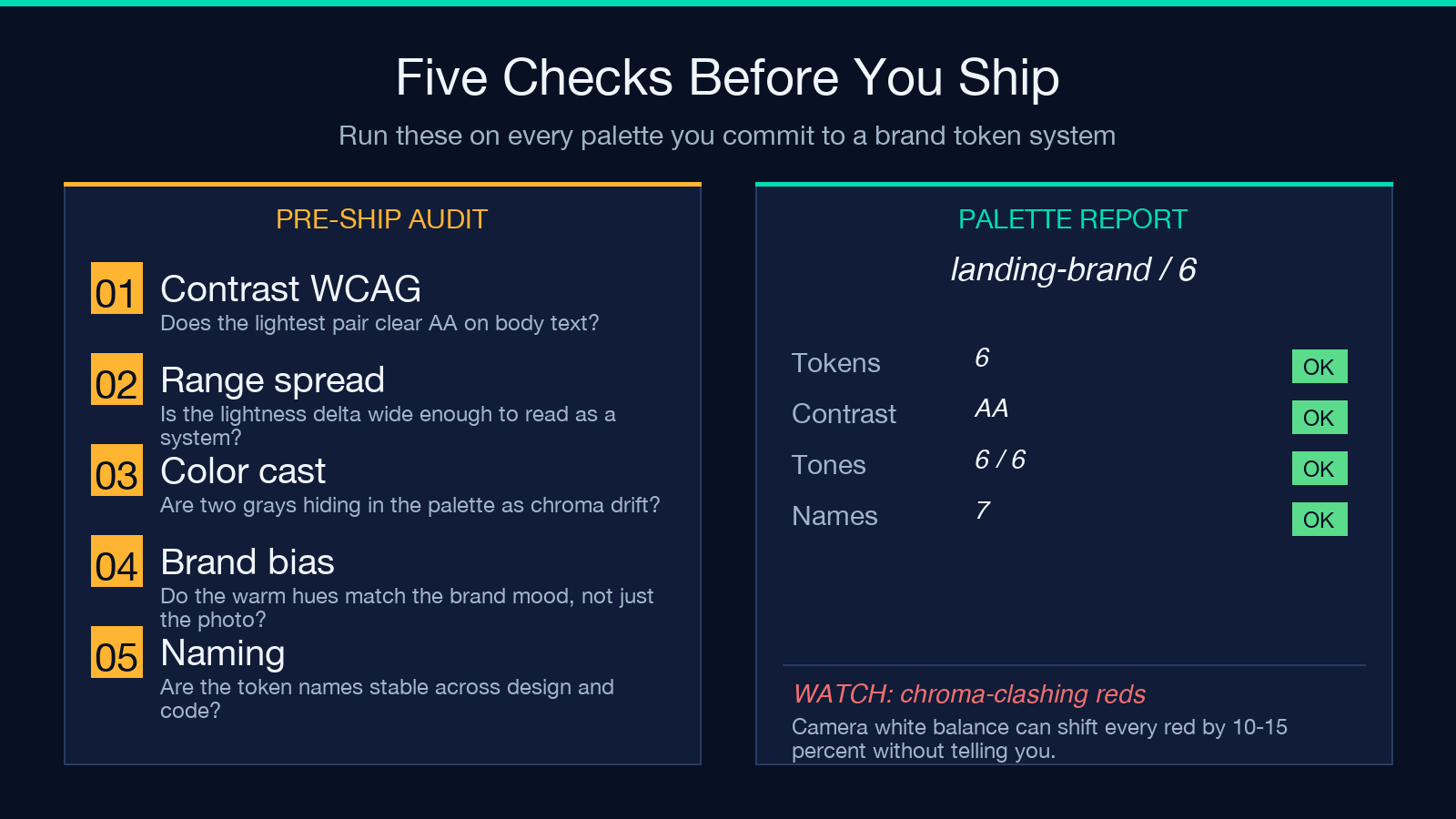
A palette that compiles is not a palette that survives contact with a real design system. Run these five checks on every palette before you commit it to a brand token repository:
- Contrast WCAG — Does the lightest pair clear AA on body text? The tool renders a contrast ratio per pair; AA requires 4.5:1 for normal text and 3:1 for large text. Anything below that pair needs a darker shade added.
- Range spread — Is the lightness delta wide enough to read as a system? A palette of six colors that all sit between L=45 and L=55 will look monotone the moment you apply it to a real UI. The lightest tone should be at L=95+ and the darkest should be at L=15 or below for a balanced scale.
- Color cast — Are two grays hiding in the palette as chroma drift? Photos often pick up a warm or cool tint from lighting, and the tool will faithfully reproduce it. If your “neutral” colors all carry a 5-10% chroma shift toward yellow or blue, the palette is biased.
- Brand bias — Do the warm hues match the brand mood, not just the photo? A photo from a sunset shoot will pull the palette toward orange. A photo from a clinical product shot will pull it toward teal. The photo is the input, not the brand.
- Naming — Are the token names stable across design and code? The tool emits role-based names (
primary,accent,neutral-1), but downstream consumers may want semantic names (brand-primary,brand-secondary). Pick the convention before you ship, then enforce it in the JSON before the CSS is generated.
If you want a sister tool that audits contrast pairs without re-extracting the image, the Accessible Color Palette Contrast Checker takes a hex list and reports WCAG ratios directly.
The four palette sizes and what each delivers
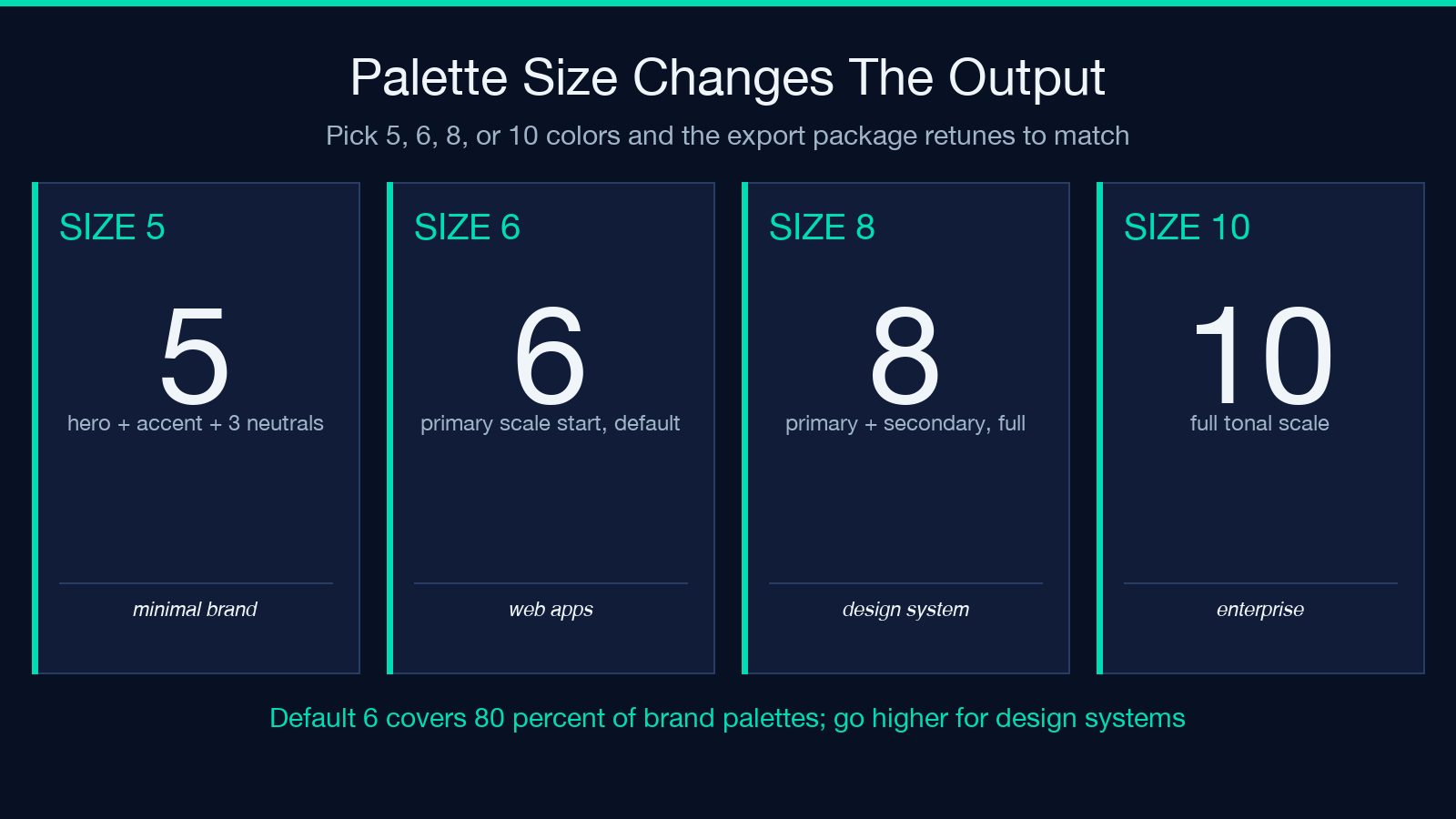
The paletteSize option is the lever that controls how much tonal range the tool tries to capture. The choice matters because each size ships a different export package — different variable counts, different Tailwind object shapes, different binary group layouts:
- Size 5 — hero + accent + 3 neutrals. A minimal brand system. Good for landing pages and one-off microsites where the palette is decorative rather than functional. The export is small (one JSON object, six CSS variables).
- Size 6 — primary scale start, default. Web apps, SaaS UI. The default. The export is balanced enough to cover a primary, a secondary, two neutrals, a success state, and a warning state.
- Size 8 — primary + secondary, full. Design systems, marketing. Adds two more tones for hover states, focus rings, and disabled states. The export starts to look like a real token system.
- Size 10 — full tonal scale. Enterprise, product lines. The export carries enough granularity to support a multi-product brand where different products pull different ranges from the same source. Ten is also the upper bound the tool accepts.
Default is 6, and it covers roughly 80% of brand palettes. Go higher when you have a design system that needs distinct focus and disabled states. Go lower when the palette is decorative.
If you are extracting from a URL rather than an upload, the sister tool Color Palette Extractor from Image URL does the same job without the file picker — useful when the source image lives in a CDN or a brand repository.
The five-token naming convention that survives a design review
The tool emits role-based names by default, but a design review will quickly reveal that “primary” and “secondary” are not enough. A convention that holds up across a design system, a Tailwind config, and a Photoshop swatch panel needs five layers:
* Role — primary, secondary, neutral, semantic (success, warning, error, info). This is the layer the tool emits by default. * Scale step — 50, 100, 200, 300, 400, 500, 600, 700, 800, 900. Tailwind’s numeric scale is the cleanest reference. A neutral at 50 is near-white, a neutral at 900 is near-black. * Variant — base, hover, active, disabled, focus. These are the state-specific derivations of a base color, typically generated from the base color rather than picked separately. * Surface — background, border, text, foreground. The same color can serve as a background on a button and as text on a card. Naming the surface avoids the same hex appearing twice with different roles. * Domain — brand, product, marketing. The same primary blue can be a brand-primary-500 for the corporate site and a product-primary-500 for an in-app surface. Keeping the domains separate stops a marketing tweak from leaking into product UI.
The five-layer convention is the contract between the JSON file and the design system. The CSS variables and the Tailwind config are generated views of that contract; they don’t carry their own semantics. If you want a sister tool that helps you export a Figma or Tokens Studio variables file to the same convention, Figma Tokens Export does the format conversion without re-extracting from an image.
When to extract from an image and when to start from a token system
The Image Color Palette Extractor is at its best when the source is a photograph, a screenshot, or a render — anything where the colors already exist and need to be captured. It is the wrong tool when you are starting from scratch and the brand palette does not yet exist; in that case you want a picker tool, not an extractor.
The threshold to remember: if the source of truth is an image, use the extractor. If the source of truth is a designer picking three swatches in Figma, use a picker. Trying to extract from an image and then re-pick from the result is a redundant step that loses information — the re-pick will be made on top of the extractor’s quantization artifacts, not on the original pixels.
When the brand is mature and the palette is already in a token system, the right move is to update the tokens from a designer-approved source (a Figma variable export, a Style Dictionary output) rather than re-extracting from the hero image. The hero image may have shifted in the latest photoshoot; the tokens should not.
If your tokens come from an ECharts theme rather than an image, the ECharts Theme Token Extractor is the sister tool — it parses a theme JSON and emits design tokens in the same five-format package.
Common pitfalls when shipping a palette
Three patterns trip up most palettes on the first commit:
* Photo-as-source bias. The palette inherits the photo’s lighting. A sunset photo will pull every warm hue toward orange. The fix is to either pick the source image deliberately (a neutral product shot, not a marketing hero) or apply a manual chroma correction after the extract. * JPEG compression artifacts. A heavily compressed JPEG will quantize nearby pixels to similar blocks. The extractor will pick up those blocks as separate colors when they should be one. The fix is to feed the tool a PNG when possible, or to set paletteSize lower than the photo’s true color count to force the clustering to merge the artifacts. * Token-name drift. The JSON emits role-based names by default; the CSS variables use the same names; the Tailwind config nests them under theme.extend.colors.brand. Downstream consumers may flatten the Tailwind config, drop the namespace, and end up with a different naming scheme. The fix is to lock the JSON as the source of truth and generate both the CSS and the Tailwind config from it.
None of these are extractor defects — they are design-system defects that the extractor exposes. The tool does what it says; the discipline is in how the output is consumed.
Putting it together
A code-ready palette is one upload, five files, and five checks. The Image Color Palette Extractor handles the upload and the file emission. The five checks — contrast, range, color cast, brand bias, and naming — are the audit gate between the export and the commit.
Default to palette size 6 unless you have a specific reason to go higher. Run the contrast check on every pair before you paste the CSS variables into a stylesheet. Lock the JSON as the source of truth and generate both the CSS and the Tailwind config from it. And treat the source image as the input, not the brand — if the palette needs to feel different from the photo, the photo is the wrong source.
The full design-tools index lives at elysiatools.com/en/tools/design. The general tool index is at elysiatools.com/en/tools.
