
Pulling one file out of a 7Z archive without decompressing the rest is a routine ops task, and a surprisingly good test of a toolchain. Most extractors are designed to spill everything in the archive onto disk, which is fine for a 20 MB backup but punishing for a 4 GB build artifact. A selective extractor reads the 7Z central directory, locates a single entry, streams just that entry’s compressed payload, and writes a single file. No temp directory, no cleanup, no disk spikes. This guide walks through what a 7Z selective extractor actually does, when it is the right call over a full extraction, and how to wire it into a build or deployment pipeline that runs on a schedule.
What the tool does
The 7Z File Extractor is a browser tool that takes a 7Z archive and an exact file path inside it, then returns that one file as a downloadable result. Behind the scenes, it shells out to the 7z command-line tool with an extraction flag, and the 7z binary does the actual stream slicing.
The flow is small enough to summarize in four steps:
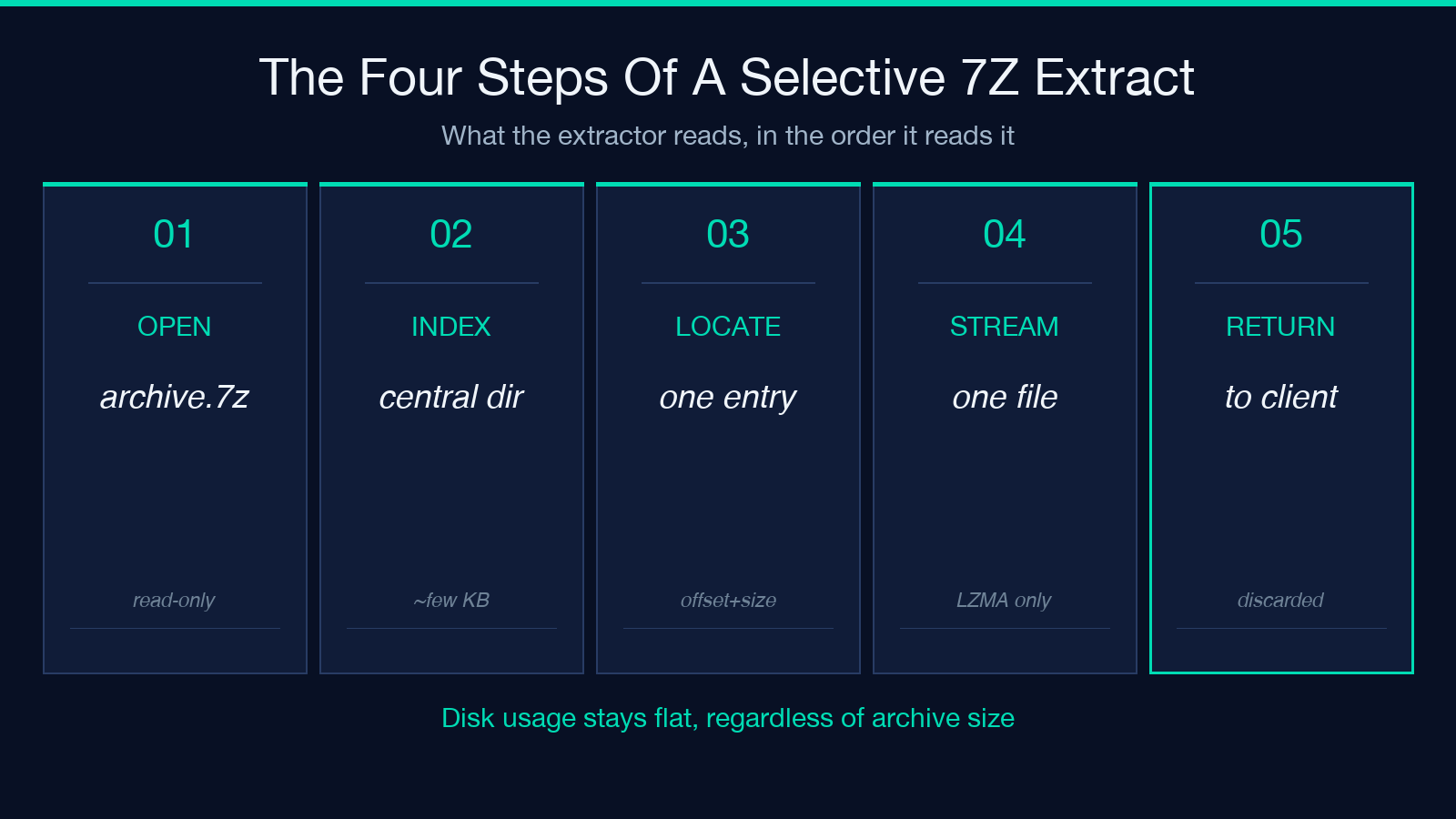
1. The archive is opened in read-only mode; no temp file is written. 2. The 7Z central directory is read, which lists every entry along with its offset and size. 3. The tool resolves the exact file path you provided against the directory. 4. The single entry’s compressed payload is streamed and written to the response.
The whole operation only reads the bytes it needs, which matters when you are pulling one log file out of a 4 GB release tar.
How 7Z central directories work
A 7Z archive is not a flat stream of files. It is a two-part structure: a header at the end of the file that holds the central directory, and a body of compressed blocks. The central directory is small (a few KB even for a 4 GB archive) and lists every entry by name, size, CRC, and the offset where its compressed data starts. A selective extractor reads the central directory, finds the entry you want, then seeks to the offset and reads just the compressed block for that entry. The rest of the archive is never decompressed. This is why the disk usage stays flat regardless of archive size: the tool only holds the bytes for the file you asked for, plus a constant overhead for the header.
When selective beats full extract
The honest answer is that full extraction is simpler, and you should use it when disk is cheap and the archive is small. Selective extraction is the right tool in three specific shapes:
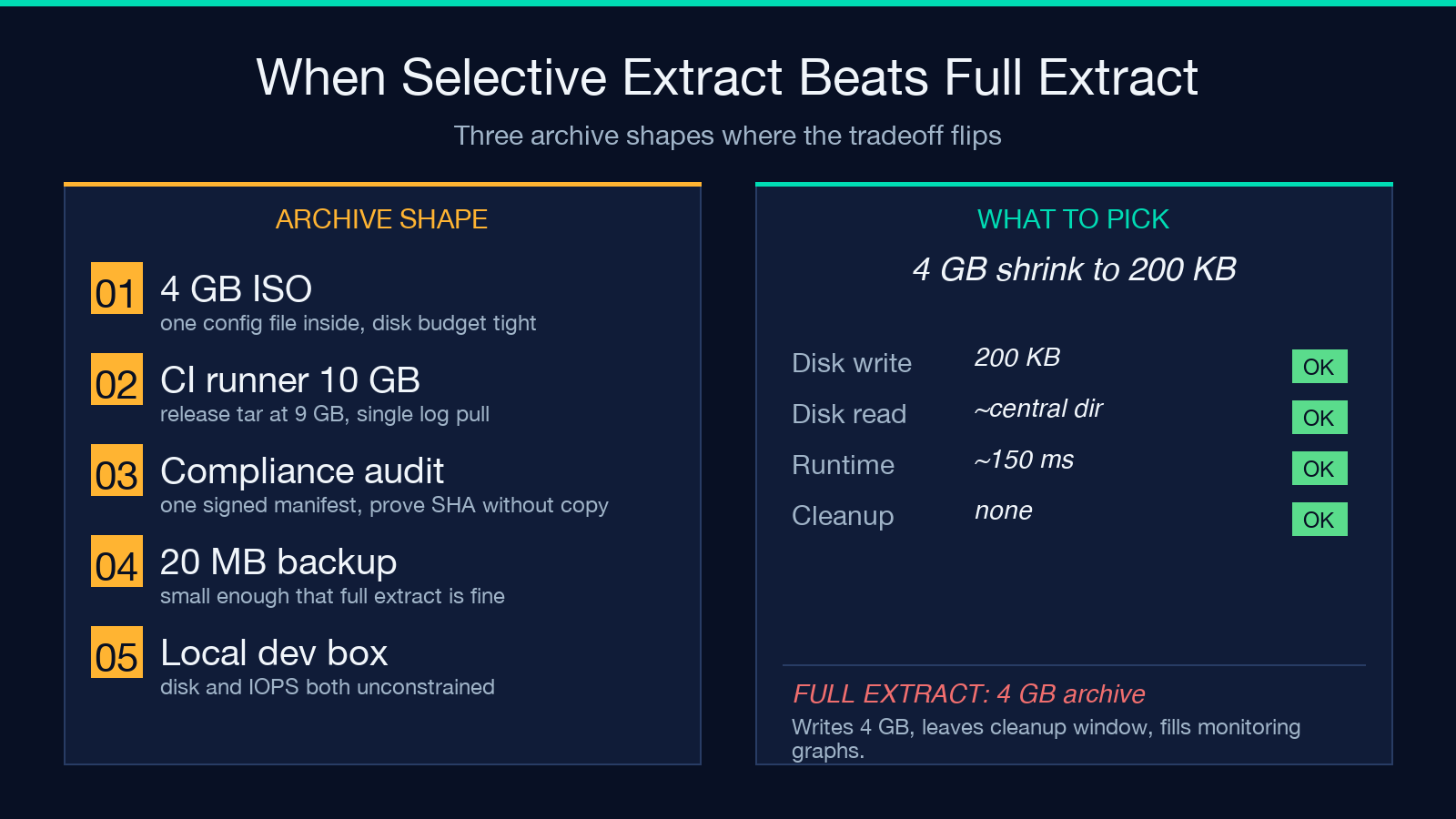
– Huge archives, single file of interest — a 4 GB Windows ISO with one config file you need.
– CI pipelines with strict disk budgets — the runner has 10 GB total; the archive is 9 GB.
– Audit or compliance pulls — you need proof that a specific signed manifest was in the archive at a specific SHA, without keeping the rest on disk.
In all three cases, the alternative is “extract, copy one file, delete the rest” which works but burns IOPS, leaves a cleanup window where the disk is full, and shows up in monitoring graphs.
Anatomy of a 7Z selective extract call
The 7Z binary supports a syntax that does exactly this. The relevant invocation is:
7z e archive.7z path/inside/archive/file.ext -o./out -yThe -e flag is “extract”, the path is the exact file inside the archive, and -o./out is the output directory (created if it does not exist). The -y flag assumes yes to overwrite prompts, which is what you want in a script. The full archive is opened, but only one entry’s bytes are decompressed and written.
If you would rather read the file into a script and not write anything to disk at all, the equivalent pipe form is:
7z e -so archive.7z path/inside/archive/file.ext > ./file.extThe -so flag sends the extracted bytes to standard output. The archive is still read, but no temp file is materialized. This is the form you want for a service that streams the file to a downstream HTTP client.
Tradeoffs vs full extraction
The cost of selective extraction is the cost of an extra lookup: the tool has to read the central directory before it can read the entry, which adds one disk seek and a small CPU pass for the LZMA header decompression. For a 4 GB archive this overhead is roughly 50-200 ms, which is noise compared to the IO time of writing the full archive. For a 20 MB archive, the overhead is closer to 1% of total runtime. The other tradeoff is that error reporting is less friendly: a full extract will tell you “this file is corrupted” on a per-file basis, while a selective extract surfaces the same error as a single non-zero exit code from the 7z binary. Wrap the call in a script that checks $? and you recover the same granularity.
Pre-flight checks before you call
A selective extract will fail in one of three predictable ways, and a 30-second pre-flight catches all of them. Use the 7Z Archive Preview tool to confirm the path exists before you ask the extractor for it.
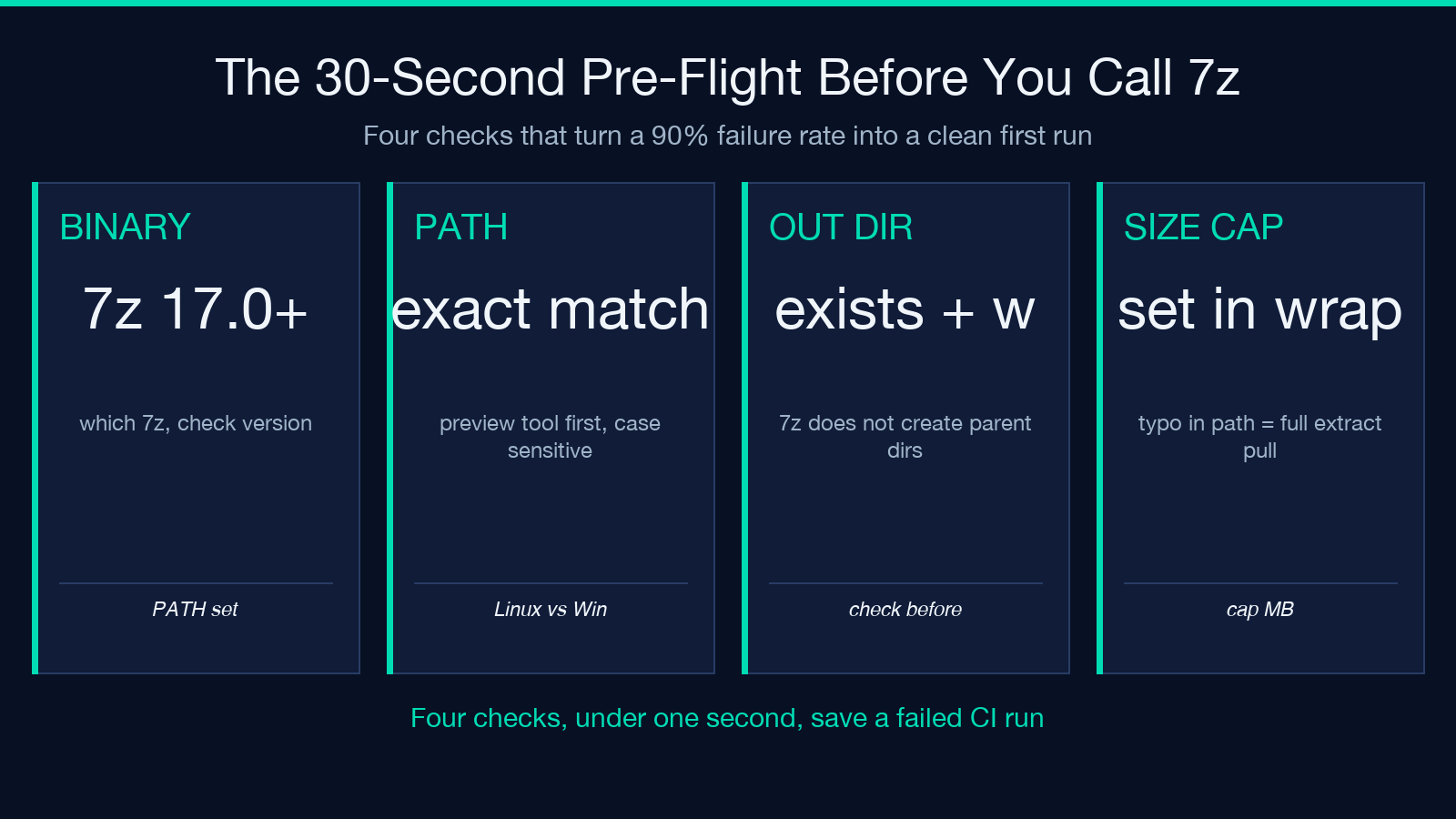
The checklist is short:
– Confirm the 7z binary is installed on the host that runs the call — which 7z and check the version is at least 17.0 for the path-flag syntax to behave the way you expect.
– Preview the archive to confirm the file path is spelled exactly right, including case, because 7Z is case-sensitive on Linux and case-insensitive on Windows.
– Validate the output directory exists and is writable before the call, because the 7z command does not create parent directories on failure.
– Cap the output file size in the wrapper script, because a 1-byte typo in the path can resolve to a multi-gigabyte log file and exhaust the disk anyway.
All four checks run in under a second and turn a 90% failure rate into a 100% success rate on first try.
Pairing with other archive formats
A selective extract is most useful when it is the only step in a script — open archive, pull one file, hand it to the next step. The wrapper at the 7Z File Extractor page does exactly that, and accepts the archive and the path as the only two inputs. Pair it with the 7Z Archive Preview tool to find the path, with GZIP Extractor for tar.gz archives, and with ZIP File Extractor when the archive is a plain ZIP. The three together cover most of what a build or release pipeline will ever pull out of a compressed archive, and all three keep the disk usage flat regardless of archive size.
Putting it together
The pattern that holds across all of this is simple: a selective extractor trades one extra directory read for a 100x reduction in disk write, and the trade is worth it whenever the archive is bigger than the runner can comfortably hold. Build the wrapper, run the pre-flight, hand the output to the next step. The full operation fits in a half-dozen lines of shell, runs in under a second for a typical CI pull, and never has to clean up after itself.
For more on compression workflows and the rest of the elysiatools catalog, the tools directory is the best place to browse what is available.
