
A cinematic look is a controlled hierarchy, not a preset name. Start with a technically sound image, choose a visual direction that supports the subject, then raise intensity only until the palette feels intentional. The Cinematic Color Grading tool makes that workflow approachable: upload a JPEG, PNG, WebP, GIF, or BMP, compare eight film-inspired presets, refine contrast, saturation, temperature, fade, vignette, and grain, then export as PNG, JPEG, or WebP.
What cinematic grading actually changes
Color grading is not the same as correcting a bad exposure. Correction aims for neutral whites, usable shadow detail, natural skin, and consistent shots. Grading adds a point of view after that baseline exists. It can separate warm skin from cool surroundings, compress bright digital highlights, mute distracting colors, or deepen the edges so attention stays near the subject. The tool packages these choices into presets while leaving the important finishing controls exposed. That makes it useful for social images, thumbnails, concept frames, travel photographs, and quick mood studies where opening a full video suite would be excessive.
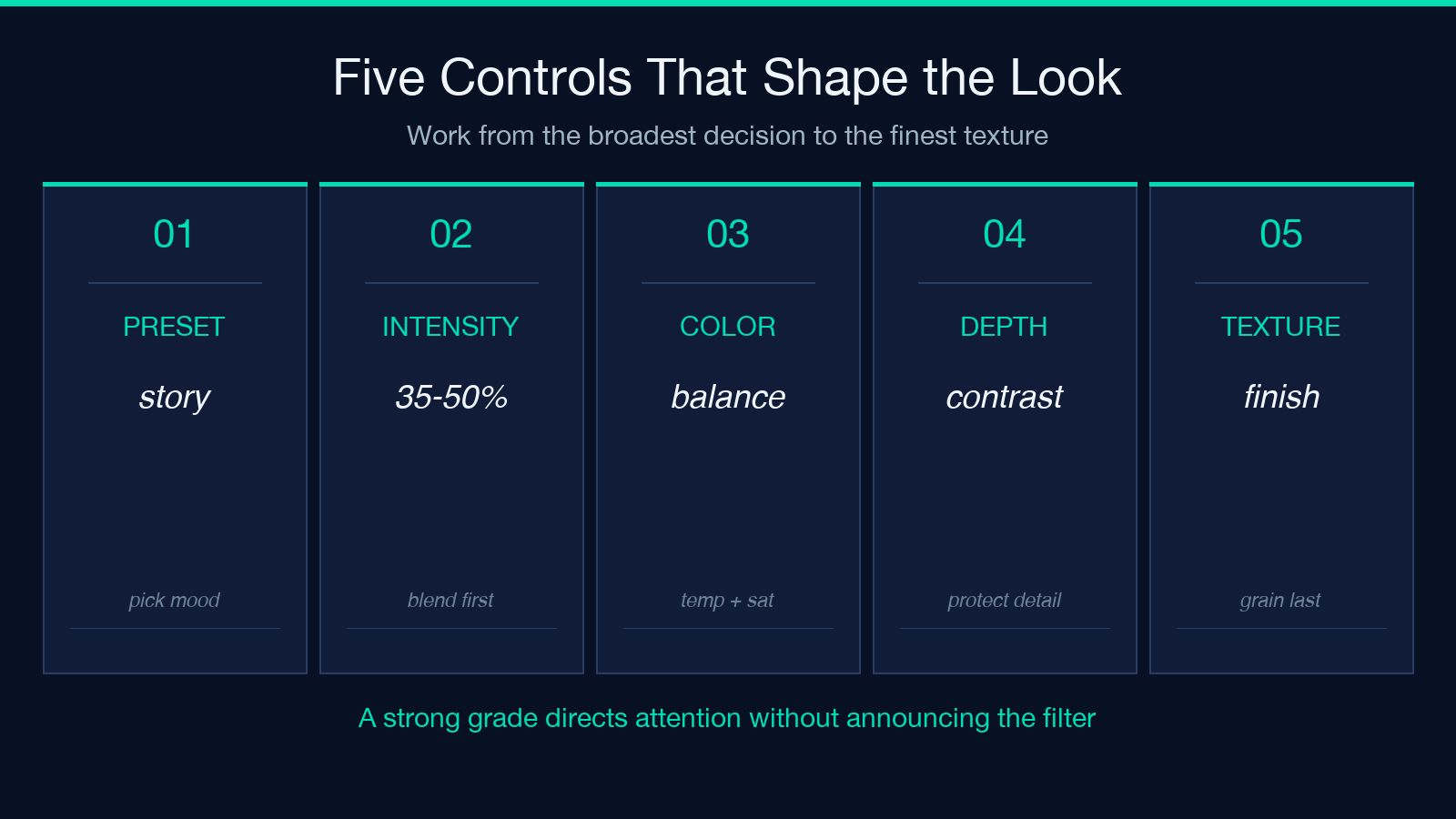
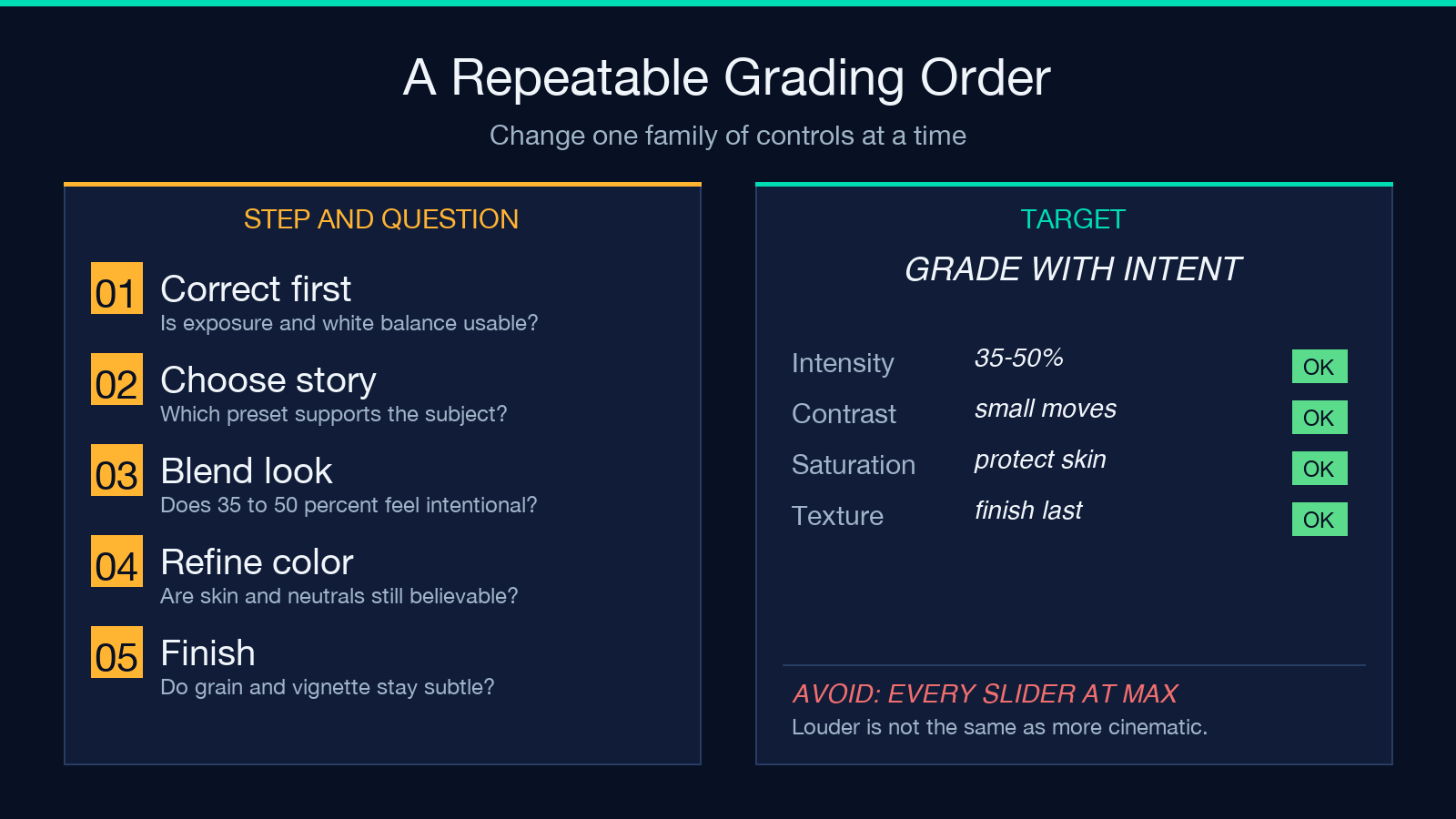
The practical order matters. Fix obvious exposure and white-balance problems first. Apply a preset second. Adjust intensity third. Only then touch the supporting sliders. If you start by pushing grain, vignette, and contrast together, you lose the ability to identify which choice improved the image and which one merely made it louder.
Choose a preset by story, not popularity
The eight presets represent different narrative signals. Hollywood Blockbuster uses the familiar teal-and-orange separation that can lift warm faces against cooler backgrounds. Indie Film is natural and desaturated, useful when restraint matters more than spectacle. Vintage Film adds warmth and fading; Film Noir removes color and emphasizes shape. Sci-Fi pushes toward cool blue, Action Movie increases punch, Romance softens and warms, while Horror darkens and suppresses color.
Do not ask which preset is objectively best. Ask what the frame should communicate. A product photograph needs accurate brand color, so an aggressive teal shift may be wrong even if it looks dramatic. A foggy architecture shot may welcome a cool Sci-Fi treatment. A family portrait usually benefits from gentler Romance or Vintage settings. Compare presets at moderate intensity before making a decision; extreme settings conceal the differences between a coherent palette and a novelty filter.
Use intensity as the master restraint
Effect Intensity runs from 0 to 100 percent and should be treated as the master blend. Begin around 35 to 50 percent. At that range, you can recognize the preset without sacrificing every original color relationship. Move lower for portraits, branded graphics, food, and interiors where familiar colors carry meaning. Move higher for stylized landscapes, posters, or concept art where atmosphere is the main goal.
A useful test is to look away for ten seconds, then return to the image. If the first thing you notice is the grade rather than the subject, reduce intensity. Also compare the result at thumbnail size. Heavy shadows and strong vignettes that feel subtle on a large monitor can collapse into muddy corners on a phone. The best setting is often ten points lower than the exciting first choice.
Refine contrast, saturation, and temperature
Contrast, saturation, and temperature each range from -50 to +50, giving you a focused way to correct a preset for a particular photograph. Contrast changes separation between light and dark regions. Increase it carefully when the frame feels flat; decrease it when faces or clouds lose detail. Saturation controls color strength, but global saturation can make skin and warning colors fail first. Small negative moves often create a more convincing film-like result than large positive moves.
Temperature shifts the emotional center from cool to warm. Use it to counter a preset rather than blindly reinforce it. For example, Hollywood styling already favors warm highlights and cool shadows; adding maximum warmth can destroy that balance. Check neutral objects, skin, and known white surfaces. Their color does not have to be perfectly neutral in a creative grade, but it should look intentionally biased rather than accidentally contaminated.
Add fade, vignette, and grain with purpose
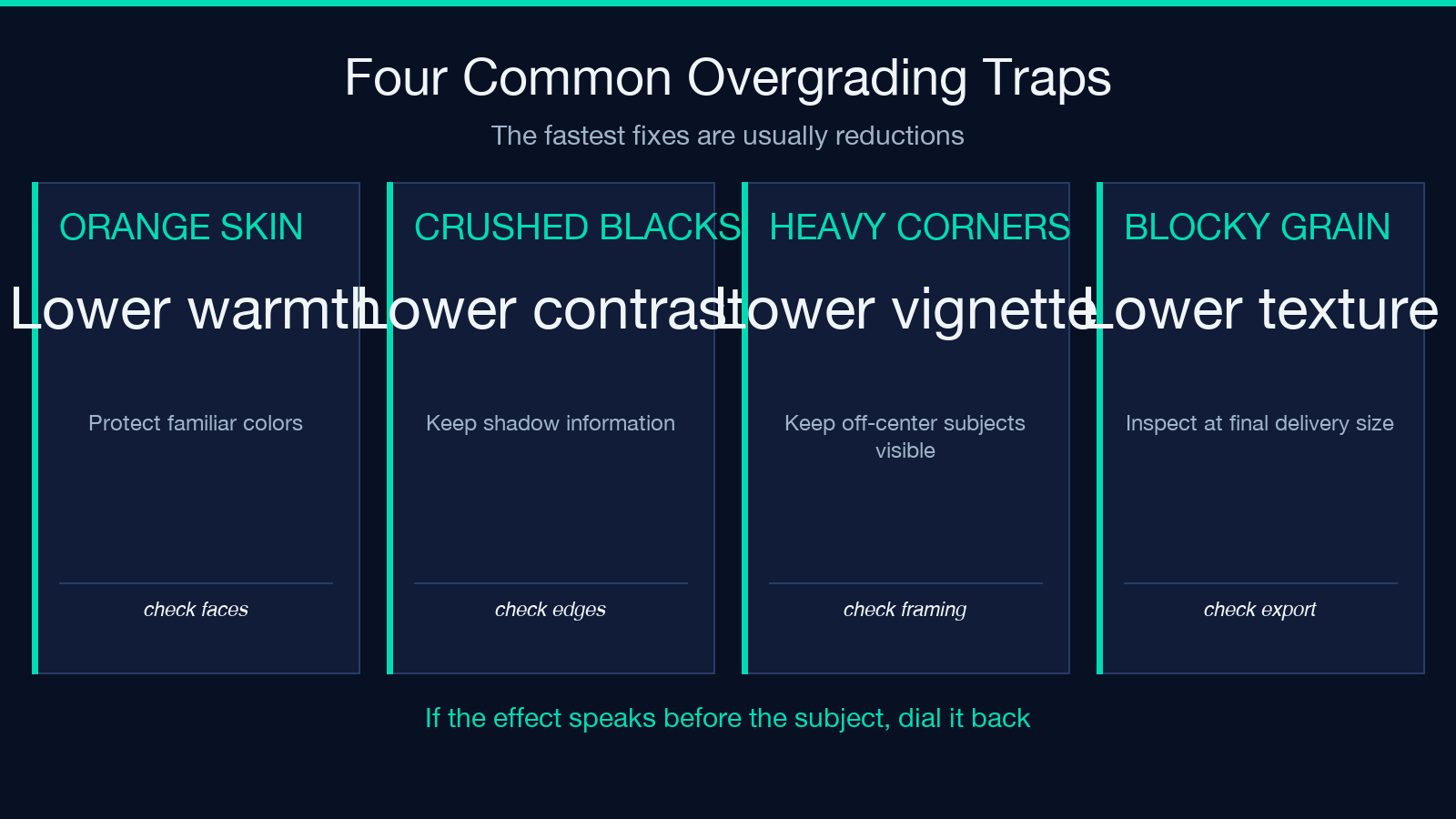
Fade lifts the deepest blacks and reduces the crisp digital floor. It can support Vintage, Indie, or Romance treatments, but too much removes depth. Vignette darkens the perimeter to guide attention inward. It works best when the subject is already near the center; on off-center compositions it may darken the very detail you want viewers to see. Film grain adds texture and can unify gradients, but it is not a repair for a low-resolution source.
Apply these effects one at a time and inspect the image at 100 percent. A subtle grain pattern can disappear after social-media compression, while strong grain may turn into blocky noise. Vignette should be felt before it is consciously seen. Fade should preserve enough black structure that silhouettes remain readable. These are finishing effects, not substitutes for a clear subject and balanced tonal range.
Build a repeatable grading workflow
Use a simple sequence: upload the highest-quality source available; preview several story-appropriate presets; choose one at moderate intensity; adjust contrast, saturation, and temperature; add minimal fade, vignette, or grain; then compare against the original. Keep a short note of the settings when grading a series so multiple images share a visual language.
The uploader accepts common web and camera-delivery formats up to 50 MB. That ceiling is generous, but a clean source still matters more than file size. Avoid repeatedly saving a JPEG before grading because each generation can add artifacts. If several images belong to one campaign, test the settings on the brightest, darkest, and most colorful frames before committing. A grade that works only on the easiest image is not yet a dependable recipe.
Pick the right output format and quality
Choose PNG when you want lossless output or expect more editing. Choose JPEG for photographs where smaller files and broad compatibility matter. Choose WebP for modern web delivery when your publishing stack supports it. The quality setting spans 1 to 100; for JPEG and WebP, a practical starting range is 82 to 92. Inspect edges, smooth gradients, skin, and grain before accepting a lower value.
Do not assume 100 is always useful. It can create a much larger file with little visible gain. Conversely, low quality can undermine the grade by introducing banding in skies and blocking in dark, cinematic shadows. Export once from the graded master, keep that file, and create smaller delivery versions from it rather than repeatedly recompressing the same derivative.
Audit the result before you publish
Review the final image on both a bright and a dim display if possible. Check that faces remain plausible, shadows contain intentional detail, highlights are not clipped, and the focal point survives at thumbnail size. Compare with the original to ensure the grade strengthened the message rather than merely changing every color. For client or brand work, verify logos, product colors, and accessibility-sensitive information separately.
Most importantly, save restraint for the last pass. Reduce any setting that calls attention to itself: obvious corner darkening, crunchy contrast, orange skin, blue neutrals, or oversized grain. A convincing cinematic image feels authored without advertising the mechanism. Use the online grader as a fast visual workbench, export the strongest version, and explore more focused utilities at Elysia Tools.
