
Molar mass is just a number — until you ask where it came from. A sortable comparison table of atomic weights looks trivial, but the value you read off the table decides whether a stoichiometry problem balances, a buffer recipe scales, or a teaching slide embarrasses you in front of a class. This field guide walks through the Molar Mass Lookup tool end-to-end: input modes, output schema, sort options, decimal precision, integration with downstream calculators, and the edge cases where periodic-table conventions actually disagree.
A clean lookup should leave you with the number, the source convention, and a way to verify both against another tool. Anything less and you are doing chemistry by reputation.
What the tool actually does
The Molar Mass Lookup at Elysia Tools is a single-input, single-output utility. You hand it a list of element tokens — symbols, atomic numbers, or English names — and it returns a JSON object containing each element’s symbol, full name, atomic number, and atomic weight in g/mol. The default behavior is non-destructive: it does not compute molecular weights, it does not balance reactions, and it does not guess which isotope you mean. It is a reference companion to the Molecular Weight Calculator, which combines these atomic weights into per-compound totals.
Three input modes are accepted in any single submission:
- Element symbols — standard 1- or 2-letter codes like
Fe,Cu,Zn. Case-insensitive on input. - Atomic numbers — integers from 1 to 118, comma- or whitespace-separated.
- English names —
iron,gold,oxygen. Hyphenated names likeroentgeniumare accepted as single tokens.
Mixing modes in one input is allowed. The parser scans each token and resolves it independently, so Fe, 79, oxygen is a valid three-row query.
Inputs, options, and what they mean
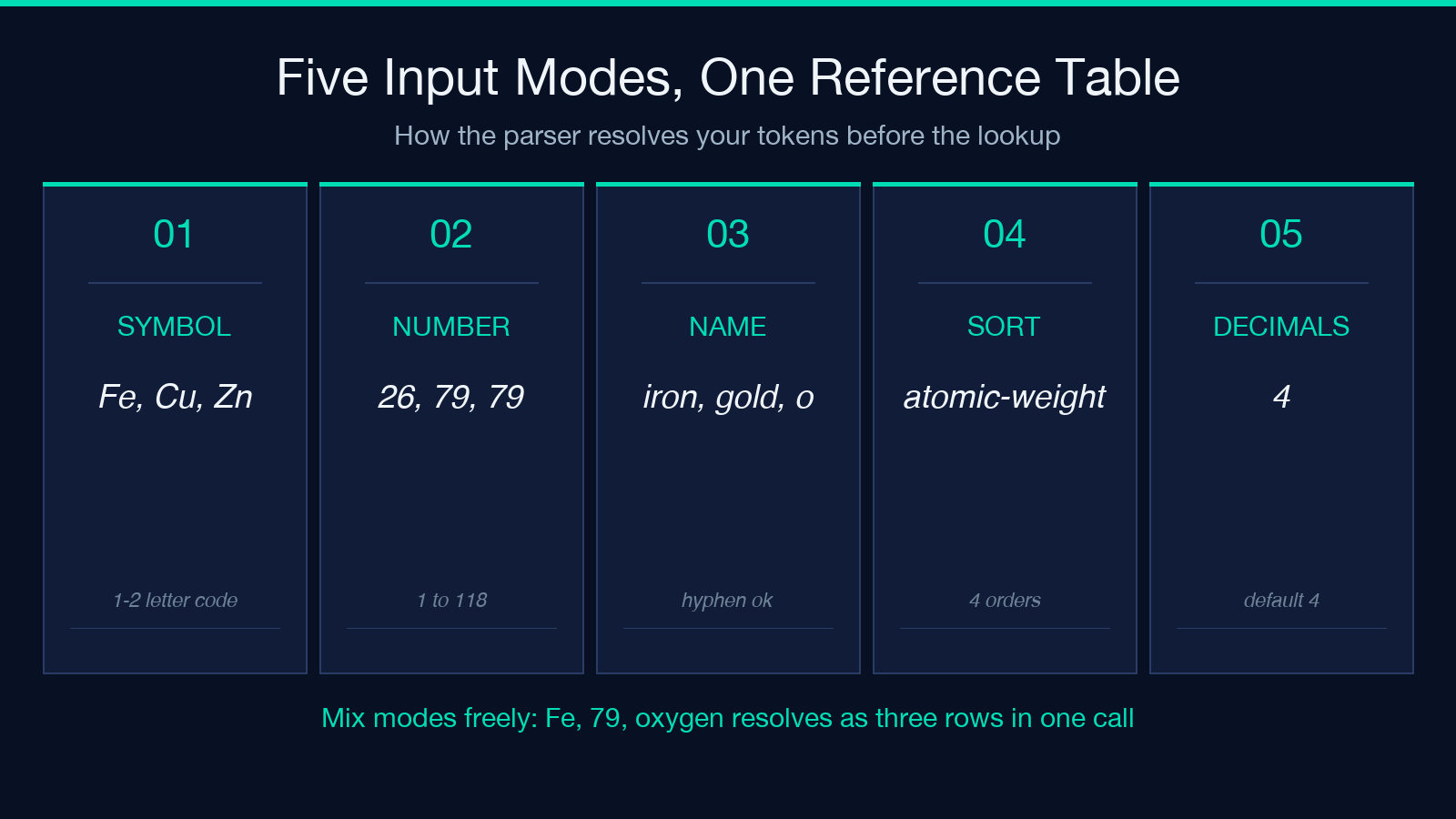
The single primary input is a textarea named elements. Its placeholder previews the flexibility well: one element per token, separators can be comma, space, semicolon, or newline, and the order you type is preserved unless you change the sort option.
Beyond the primary input there are three secondary options:
- sortBy — controls the row order in the output. Four choices:
input-order(default),atomic-number,atomic-weight(ascending), andalphabetical(by symbol). - includeDetails — when true, adds a
categoryfield to each row (alkali metal, transition metal, halogen, etc.). Useful when grouping for slides or quizzes. - decimalPlaces — an integer that caps each atomic weight’s precision. Default is 4, which matches the IUPAC 2021 standard abridged values.
Validation is intentionally permissive. The textarea accepts 1 to 2000 characters, which is enough for batch lookups like all 118 elements in one call.
Reading the output schema
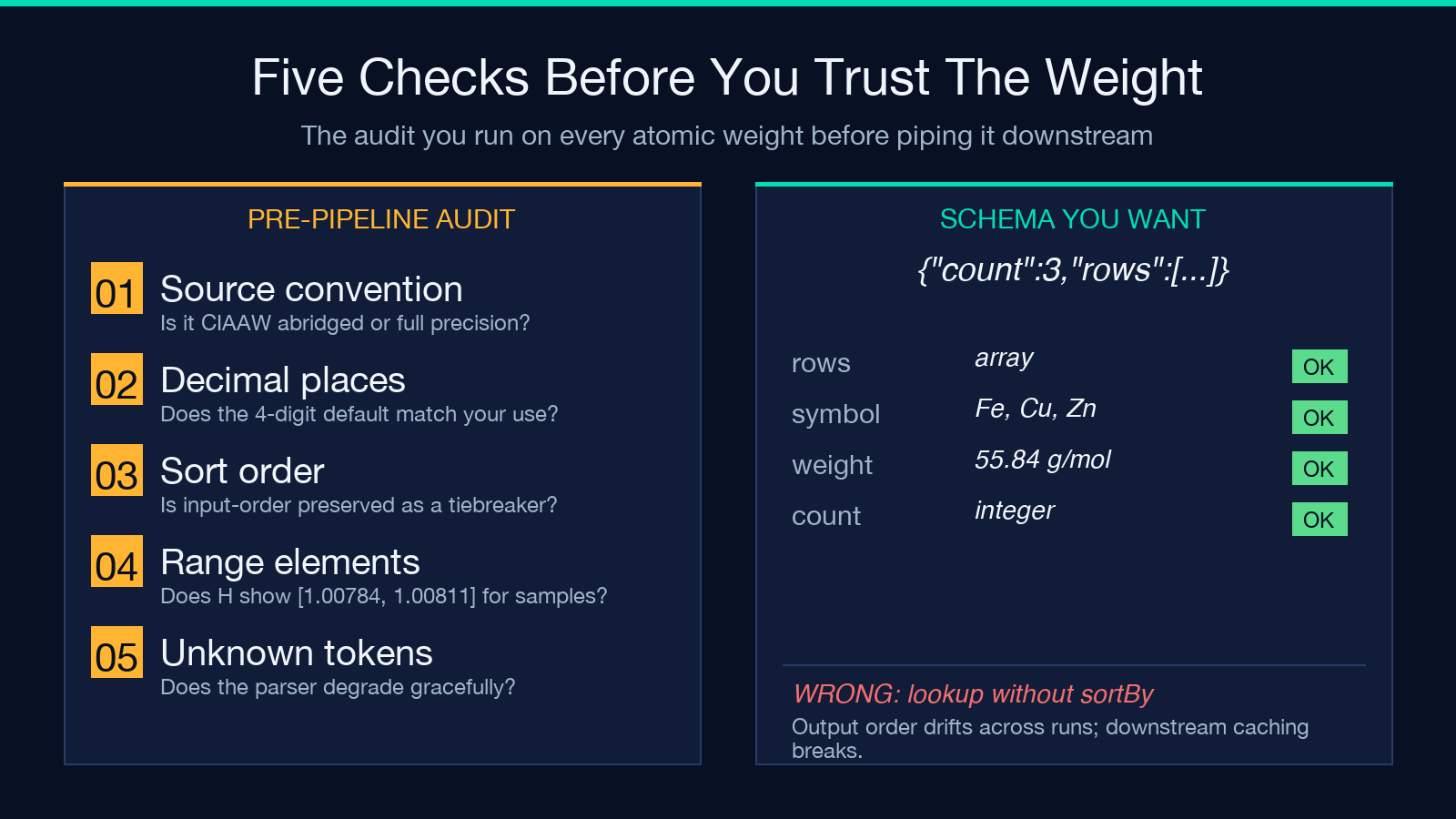
A typical response for Fe, Cu, Zn with the default options looks like this in JSON shape:
{
  "count": 3,
  "rows": [
    {"symbol":"Fe","name":"Iron","atomicNumber":26,"atomicWeight":55.84},
    {"symbol":"Cu","name":"Copper","atomicNumber":29,"atomicWeight":63.55},
    {"symbol":"Zn","name":"Zinc","atomicNumber":30,"atomicWeight":65.4}
  ]
}
The count field is redundant with rows.length but useful when piping into a downstream calculator that keys off the count rather than the array. The rows array is the canonical payload — every other calculator on the site that consumes atomic weights reads this array.
When includeDetails is true, each row gains a category string. Categories follow IUPAC block notation: alkali metal, alkaline earth metal, transition metal, post-transition metal, metalloid, nonmetal, halogen, noble gas, lanthanide, actinide.
Why the decimal precision matters
Default precision is 4 decimal places, which tracks the IUPAC abridged values. For teaching and most stoichiometry, that is more than enough — 55.845 rounded to 55.84 is a 0.005% deviation, well below the noise floor of any analytical balance you will meet in an undergraduate lab.
Where precision matters is isotopic work. Several elements have standard atomic weights that are technically ranges because their natural isotopic composition varies by source. Hydrogen, for example, has a standard atomic weight of [1.00784, 1.00811] depending on whether your sample is freshwater or seawater. Lithium is similar. The tool returns the conventional single value for these elements because the use case is batch lookup, not isotopic bookkeeping — for that, you want a tool that exposes isotopic mass numbers directly.
If you need higher precision, raising decimalPlaces to 6 gives you the full CIAAW values where available, though the underlying reference table itself is only given to 4 significant figures for many elements.
Sorting and comparison workflows
The sortBy option is more useful than it looks. Three concrete workflows worth memorizing:
- Quiz generation — feed a shuffled list of 20 elements with
sortBy=atomic-number. The output is the canonical ordering for an answer key. - Density calculations — sort by
atomic-weightto identify the heaviest and lightest entries in a mixed list before computing molar ratios. - Alphabetical scan —
sortBy=alphabeticalis the right choice when you are validating that the parser accepted every token from a long pasted list — gaps in the alphabet reveal typos.
The input order is preserved as a hidden tiebreaker in the other three sort modes, so two elements with the same atomic weight keep their original relative order. This avoids non-deterministic output across runs.
Where it sits in a larger chemistry pipeline
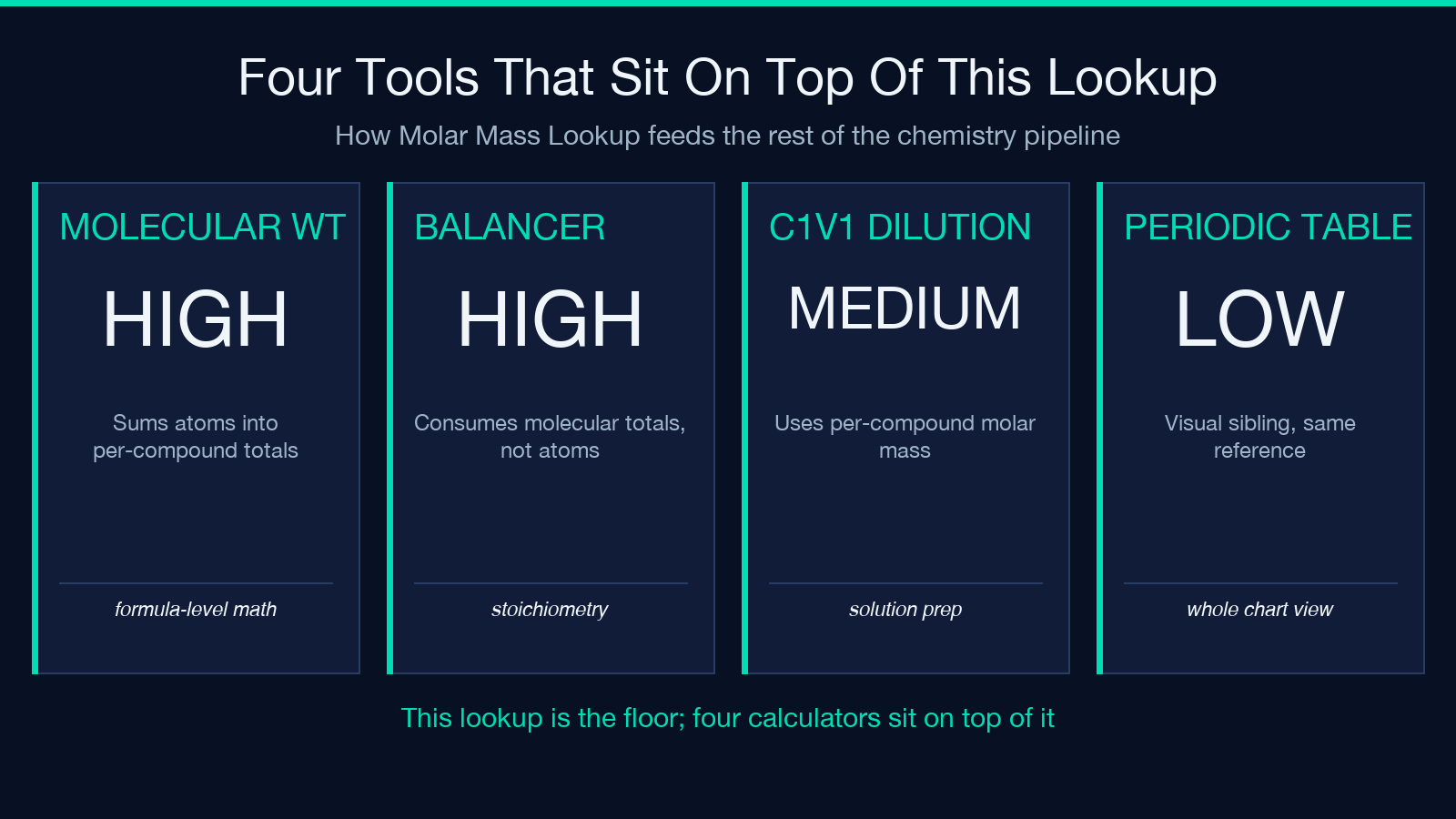
Molar Mass Lookup is the lookup primitive, not the calculator. Several other tools on the site consume its output or run adjacent computations:
- Molecular Weight Calculator — takes chemical formulas like
H2SO4and returns per-element totals. Internally it looks up each unique element’s atomic weight using the same reference table as Molar Mass Lookup. - Chemical Equation Balancer — consumes formula-level totals from the molecular weight tool, not atomic weights directly, but the lookup table underpins both.
- Molarity Dilution C1V1 Calculator — relies on per-compound molar masses when scaling working solutions from stock concentrations.
- Periodic Table Studio — the visual sibling of this lookup, useful when you want the whole table rather than a filtered subset.
For a complete stoichiometry workflow, the typical pipeline is: lookup atoms by symbol here, sum their weights into a formula with the molecular weight tool, balance the reaction, then compute solution concentrations with C1V1 or the Reaction Stoichiometry Calculator.
Edge cases worth handling up front
Three input patterns trip up the parser less than you might expect but are worth flagging:
- Mixed case —
FE,fe, andFeall resolve to iron. The output always normalizes to the canonical capitalization. - Trailing punctuation —
Fe,andFe.are both accepted. The parser strips non-alphanumeric trailing characters before lookup. - Unknown tokens — an unrecognized symbol or out-of-range atomic number produces a row with
symbol:nulland a non-fatal warning in a siblingwarningsarray. The remaining valid rows still parse, so partial batches degrade gracefully rather than failing the whole call.
Putting it together
The Molar Mass Lookup is intentionally minimal. It does one thing — resolve element identifiers to atomic weights — and it does it on a stable reference table that other calculators downstream can lean on without re-validating the source. Treat it as the read path: every other operation in a chemistry pipeline eventually wants an atomic weight, and this is the canonical place to fetch it.
When the lookup is the bottleneck (large batch queries, programmatic stoichiometry generators, teaching dashboards), the relevant question is not whether to use it but how to batch inputs to keep each call under the 2000-character textarea ceiling. Three consecutive lookups of 40 elements each will outperform one call that overflows.
For visual exploration alongside the numeric output, the Periodic Table Studio gives you the whole chart in one view. For chemistry workflows that start from formulas rather than individual atoms, jump straight to the molecular weight and equation balancer tools. The lookup table is the floor; the rest of the chemistry stack sits on top of it.
Explore more reference and calculator tools at elysiatools.com.
