
Org Chart Maker turns a nested JSON object into a clean, vertical organizational chart in one paste. If your reporting structure lives in a spreadsheet, a headcount doc, or the back of someone’s notebook, you can paste it as JSON, pick a colour scheme, and ship a chart that stakeholders actually open. The tool handles arbitrary depth, optional titles, and four colour schemes out of the box, and it lives next door to a flowchart maker, a tree-diagram generator, and a mind-map maker when your hierarchy turns out to be something other than an org chart.
The shape the tool expects
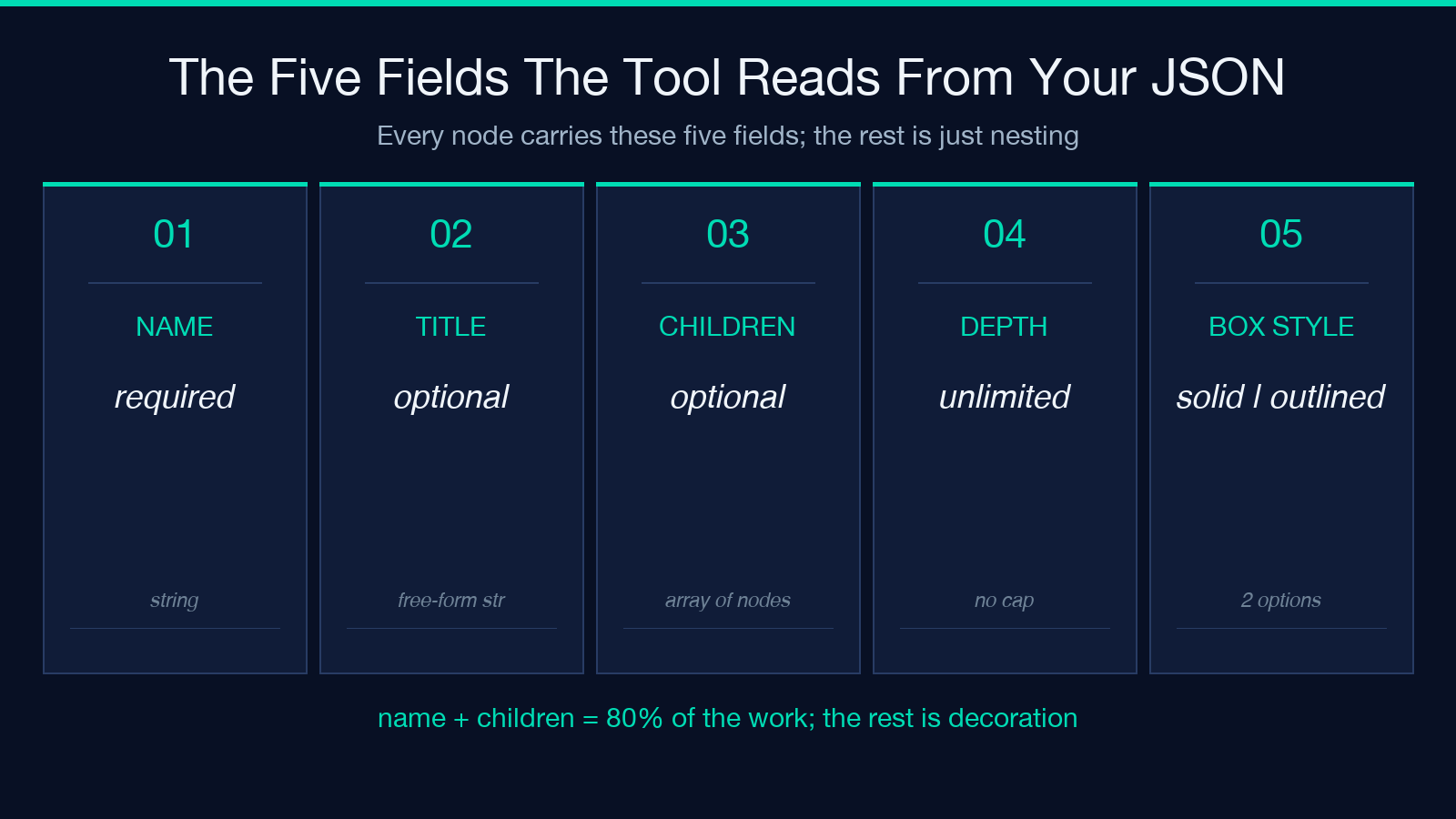
The tool reads a single JSON object where every node carries a name, an optional title, and an optional children array. The root of your chart is the top-level object; each entry in children becomes a box one level down; their own children become the next level, and so on until the tree runs out of branches. Depth is not capped, so a CEO with twelve layers of nested VPs and team leads renders without complaint, though past about six levels the boxes start to crowd and a tree diagram starts to read more cleanly.
A minimal example looks like this:
{
  "name": "CEO",
  "title": "Chief Executive",
  "children": [
    { "name": "VP Engineering", "title": "Vice President" }
  ]
}
Notice that title is a free-form string and name is the bold line that lands in the chart’s primary slot. If you leave title off, the tool simply omits the second line, which keeps the chart compact when your tree only needs first names or role codes.
Why JSON beats a spreadsheet
A spreadsheet forces you to flatten the hierarchy into parent / child columns and then rebuild the tree by sorting on parent and re-joining by hand. With a JSON object the hierarchy is the data: each children array literally contains the next level. You cannot accidentally promote a manager two rungs up by re-sorting, and you cannot lose a node because a parent ID was mistyped. For teams larger than about twenty people the spreadsheet route also produces orphan rows whenever someone reorders; the JSON route cannot, because every node except the root lives inside exactly one children array.
If your source of truth is already a CSV, you can paste it into a CSV data grouper and re-emit it as a parent-child table, then convert that table to JSON before feeding it here. Most engineering teams already have a script that walks an HRIS export and emits this exact JSON shape, so the migration is usually a one-liner.
The four colour schemes, in plain English
The tool ships with default, warm, cool, and pastel. default is a neutral navy-and-grey palette that prints cleanly on a black-and-white printer; warm leans into amber and terracotta, which reads well against a slide deck with a red brand colour; cool is slate and teal, the safe choice for investor updates; pastel is the lightest of the four and is the right pick when the chart sits behind a lot of text on a wiki page.
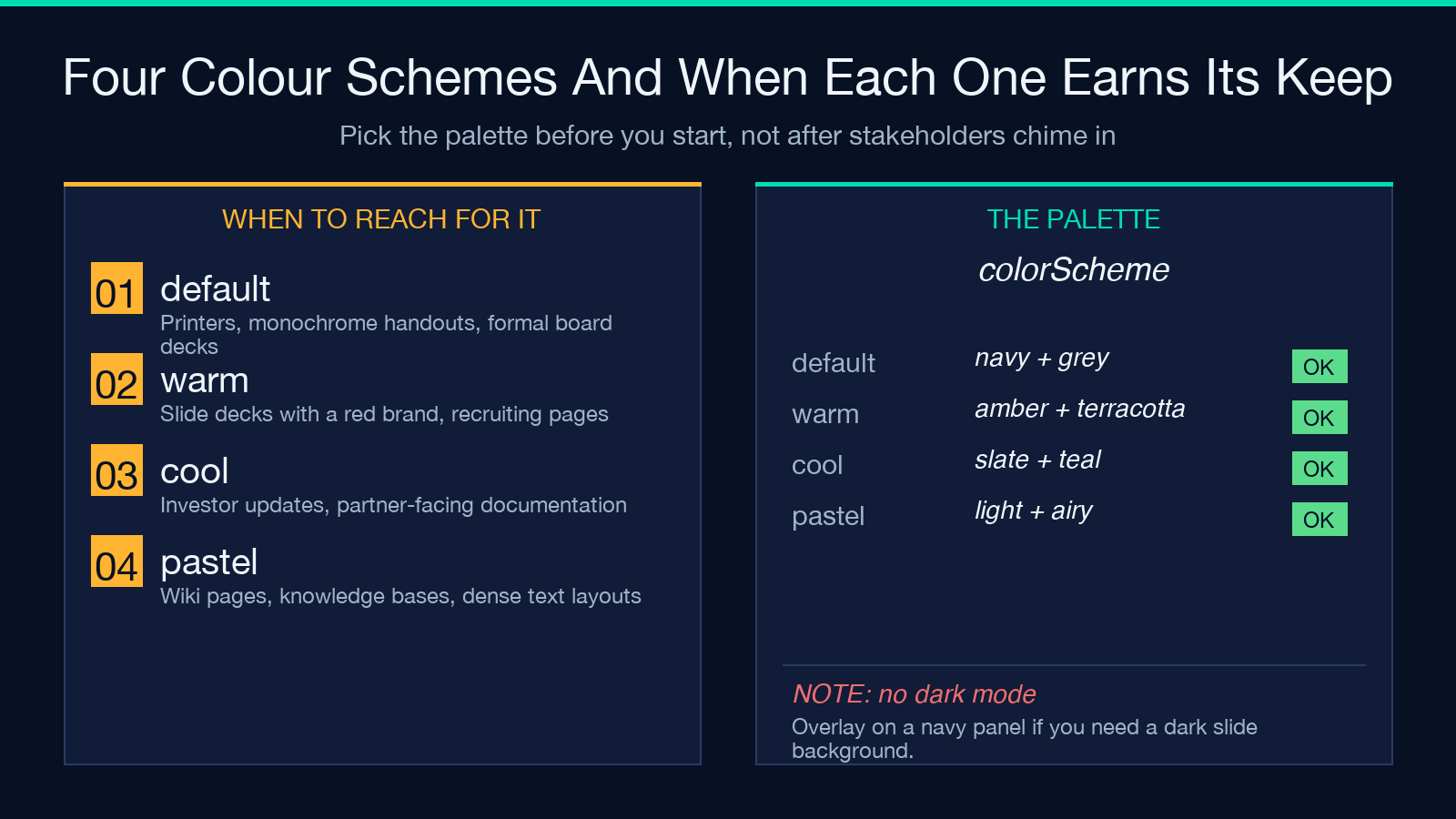
There is no dark mode yet. If you need a dark-themed chart for a Notion board or a slide deck with a black background, render with cool and overlay the chart on a navy panel. The chart boxes are filled, not outlined, so they sit cleanly on either background.
The two box styles
boxStyle: solid fills each box with the colour from the chosen scheme. boxStyle: outlined keeps the same colour but draws the box with a thin border and a near-white interior. The outlined style is the right choice when the chart has more than forty nodes, because adjacent solid boxes of similar colour start to merge visually and the borders are what actually separate one role from the next. For a six-person leadership team, solid is fine and looks more decisive on a slide.
You can also toggle showTitles: false to drop the second line from every box. That is the move when your tree only contains names without formal titles (a project breakdown, a feature dependency map, a list of open pull requests grouped by owner) and the second line would only repeat the obvious.
Common pitfalls when authoring the JSON
The first pitfall is trailing commas. JSON does not allow them, and most linters in your editor will flag them, but if you are generating the JSON by string concatenation you may sneak one through. The second is mismatched braces, which the validator inside the tool catches and reports with the line number, so you do not have to count braces by eye. The third is mixing arrays and objects: every children field must be an array, even if it has exactly one entry. Writing "children": { "name": "VP" } instead of "children": [ { "name": "VP" } ] is the single most common cause of “the tool only shows the CEO and nothing else”.
The fourth pitfall is treating the tool as a database. It is a renderer, not a stateful service. Every paste is a fresh tree, and there is no way to update a single node without re-pasting the whole hierarchy. If your org changes weekly, keep the JSON in a version-controlled file and paste the current snapshot each time.
When the tool is the wrong choice
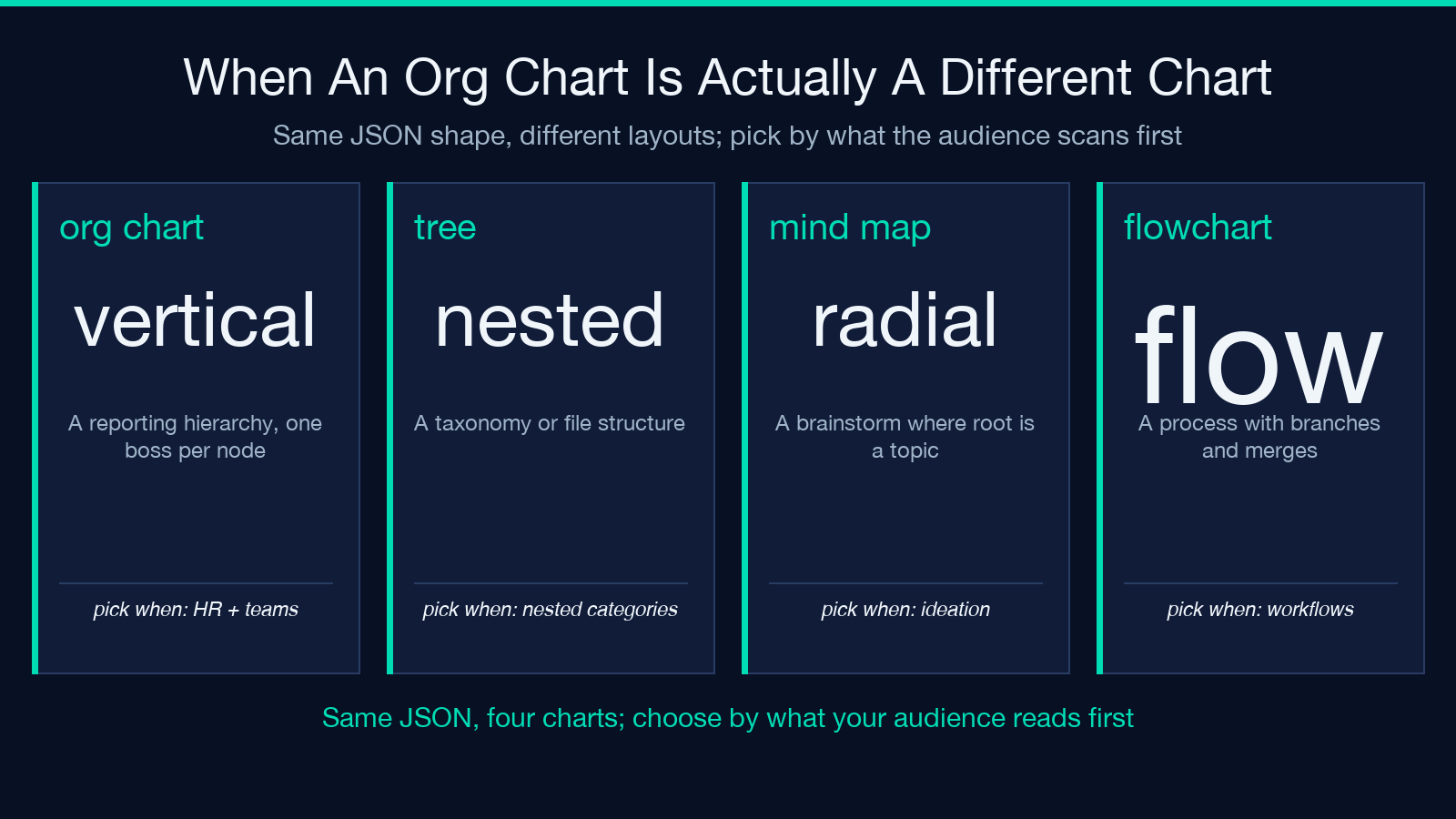
If your hierarchy is actually a process with branches and merge points – a deployment pipeline, an onboarding flow, a multi-step approval – you want the flowchart maker instead. The org chart tool assumes every node has exactly one parent, which is true of reporting structures and not true of most workflows. If your data is a tree of ideas rather than a tree of people – say, a feature breakdown for a roadmap – the mind map maker reads more naturally because it centres the root and radiates branches instead of stacking them vertically.
If the underlying data is large enough that the chart becomes unreadable past a screen of scrolling, drop down a level of abstraction. Pick the next-tier manager as the root, render their direct reports as one chart, and link the charts together. That keeps every chart at four or five levels deep, which is the sweet spot where the boxes stay wide enough to read on a laptop screen.
A worked example
Suppose you are visualising a small engineering organisation. The root is the CTO, with two VPs reporting up – one for platform, one for product. Under platform sit a database lead and an infrastructure lead; under product sit a frontend lead and a mobile lead. Each lead has two engineers. The full JSON is sixteen nodes, four levels deep, and renders as a chart that fits on a 1280×800 slide with room for a footer.
Paste the JSON, set colorScheme: cool, leave boxStyle: solid, leave showTitles: true, and the chart produces in roughly a second. The export is an SVG that you can drop into a Google Slides deck, paste into a Notion page, or attach to a Confluence page without any extra steps. SVG is the right output here because it scales without aliasing, which matters when the same chart gets used in a printed handout at A3 size and in a Slack message at 480 pixels wide.
If you need a PNG instead, take a screenshot of the SVG at the size you need. The SVG is also amenable to light editing in Figma – you can recolour a single box by editing its fill attribute, which is useful when you want to mark a hiring priority or a reorg candidate.
Try it, then ship it
The fastest path from “we need an org chart” to “it is on the wiki” is to start from the example JSON in the placeholder, delete the parts that do not apply, and paste in your own hierarchy. The tool does not require login, does not store your data, and renders entirely in the browser, so the chart is safe to publish even if the hierarchy contains names you would not want to leak. If you want to see the tool in action first, the live preview sits at Org Chart Maker, and the rest of the hierarchy-and-graph family lives under the data visualization category.
