
Batch Image Convert gives the boring 2 a.m. “convert 80 hero JPGs to WebP” job a single page where you drop files, pick a format, and ship. If you have ever sat through a Photoshop droplet run, a CI shell pipeline of ImageMagick calls, or a “please export for retina” message thread, you already know the shape of the pain: a folder full of mixed-format source files, a target format, a target quality, and an output directory you will not have to invent twice. Batch Image Convert collapses that whole loop into one form, one button, and one ZIP.
This field guide walks through the tool the way you would actually use it on a real project: a hero-banner batch, a retina/AVIF push for a design-system rollout, and a TIFF archive for legal hold. Along the way I will show the format/quality trade-offs, the three decisions that decide whether the run takes 20 seconds or 20 minutes, and the gotchas that bite you only on the second batch. Every worked example lives at Batch Image Convert, and the sample images used in the demos are pulled from Elysia Tools JPG Samples, AVIF Samples, and WebP Samples.
What the tool actually does
Batch Image Convert is a browser-side converter that takes a multi-file drop, a target format, an optional resize, an optional quality slider, and writes everything into a single ZIP. There is no upload-and-wait dance: the file bytes are read and re-encoded locally in the same tab, which means the run time scales with the pixel count, not the upload bandwidth. The supported source formats are JPG, PNG, WebP, AVIF, TIFF, and GIF; the supported targets are the same set minus GIF on the encode side (animated GIF is read-only). You can mix sources in one drop — 12 PNGs, 6 JPGs, and 3 TIFFs in the same batch is fine, and the output file extension follows whatever target format you pick.
The interface itself is small on purpose. There are five controls: target format, quality, resize-by-percent or resize-to-max-edge, output naming pattern, and a single “convert + download ZIP” button. The output naming pattern matters more than it looks — by default it appends -converted.<ext> to the original basename, but you can swap to a flat image-001.<ext> sequence if you are feeding straight into a CMS that only accepts zero-padded numeric names. The tool never overwrites the source files; the ZIP is the only artifact, and it lands in your downloads folder with a deterministic name like batch-image-convert-2026-08-21-0937.zip.
Why batches beat the one-by-one loop
If you are doing one image, every tool wins. The reason a batch tool earns its keep is the boring middle: the third retina export, the seventh test render, the eleventh “wait, the client wanted AVIF not WebP” redo. Three things stack up.
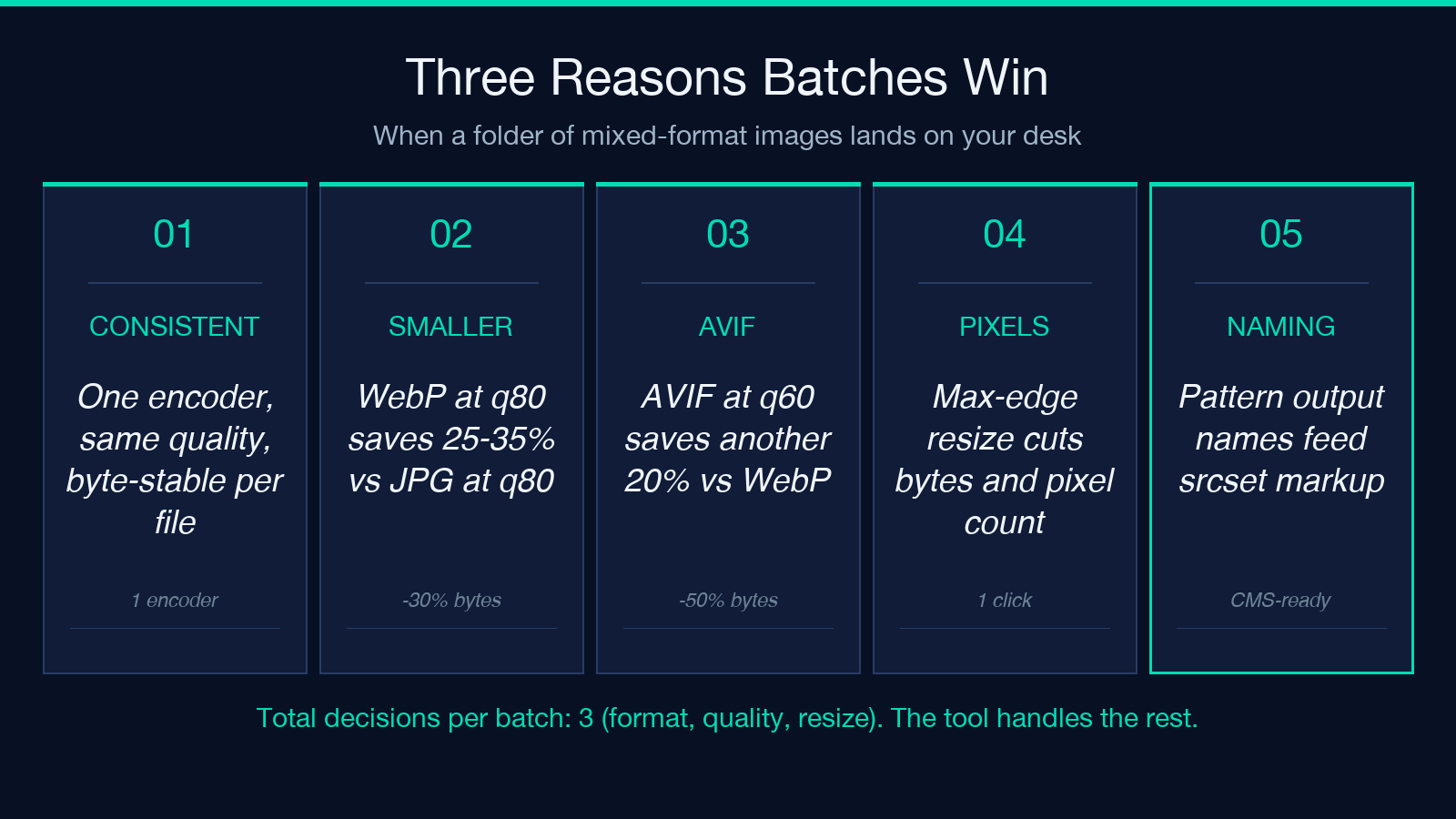
First, the encoding choices are consistent. A quality slider set to 80 in Photoshop and a quality slider set to 80 in another one of your teammates’ tools do not produce the same byte-for-byte output, and your CSS-driven lazy-loaded gallery will absolutely show the seams. Batch Image Convert’s encoder is the same code path for every file in the batch, which means identical inputs at identical quality land at identical bytes. For a 40-image gallery that is the difference between a single sanity-check diff and a per-file visual review.
Second, the file format decision has a math to it. WebP at quality 80 is typically 25–35% smaller than the same JPG at quality 80 on photographic content. AVIF at quality 60 is typically another 20% smaller than WebP at the same visual quality on the same images. PNG at quality-equivalent settings does not even make sense; PNG is lossless. Once you have 40 images the savings cascade is not a rounding error.
Third, the resize step. Most galleries ship at 2x retina with a CSS width: 50% constraint. If you upload a 4000×3000 source straight to a CMS, the browser is the one paying the decode cost. Resizing to 2400×1800 on the way out shrinks the file and the decoded pixel count in one stroke.
Three decisions that decide the run
Before the first file drops, three settings lock in the run’s character.
Target format. For photographic images (people, places, product shots) the order of preference is AVIF → WebP → JPG. For line art, UI screenshots, and anything with hard text or 1-pixel strokes, PNG wins because JPG/AVIF/WebP all smear the edges at any quality. For design archives where the source might be opened in 5 years, TIFF is the conservative call. GIF is a no-go as a target — its 256-color palette will destroy anything modern; only use it as a source when you genuinely need to preserve an animation.
Quality. The tool’s slider goes 1–100, but the realistic band for photographic content is 70–85. Below 70 you start to see posterization in gradients (skies, skin tones); above 85 the file size keeps climbing without a visible improvement on most content. AVIF in particular keeps gaining quality all the way up to 90 where WebP plateaus around 85; if you are on AVIF, raise the slider by 5–10 points versus where you would set JPG.
Resize. Resize by percent is the safe default for a mixed batch because it preserves aspect ratio and stays correct on portrait and landscape together. Resize to max edge is the right call when you know the deployment target — 2400 wide for retina hero banners, 800 wide for thumbnails, 64 for favicons. Mixing both is a recipe for off-by-one: if you set percent 50 and max edge 2400 on a 6000×4000 image, the percent is applied first and then the edge is clamped, but on a 1000×750 image the edge is ignored. Pick one, and pick the one that matches your actual constraint.
Worked examples: three real batches
Three configs cover most production runs.
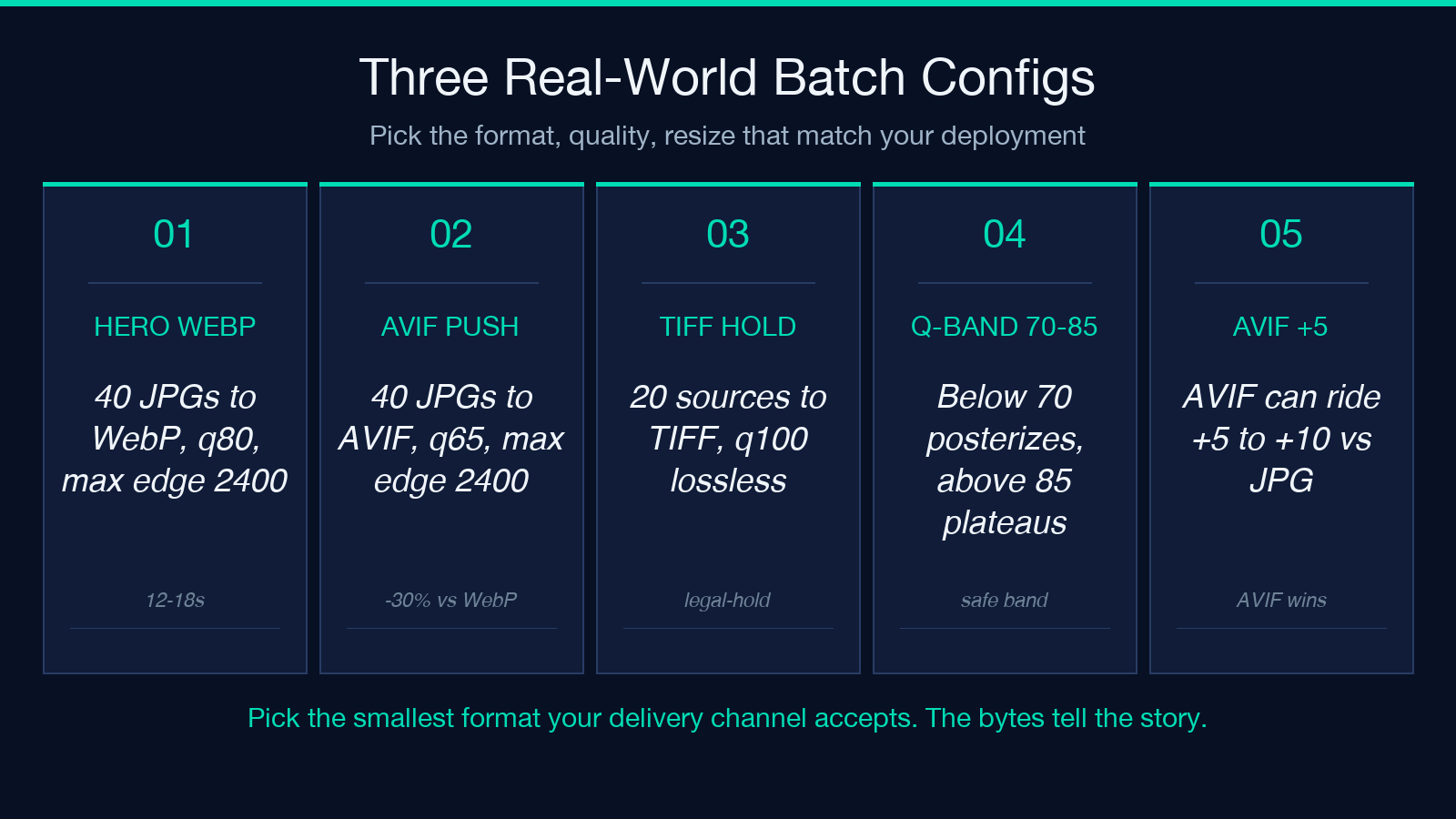
Hero banner batch (40 JPGs → WebP). Open Batch Image Convert. Drop the source folder’s 40 hero JPGs into the drop zone. Pick WebP as the target. Set quality to 80 — the sweet spot for WebP on photographic content. Set resize to “max edge 2400”. Leave the output naming pattern at the default -converted.<ext> so the original filenames survive. Hit convert. On a current MacBook Air, a 40-image batch at 4000×3000 source → 2400×1800 WebP at quality 80 runs in roughly 12–18 seconds. The ZIP arrives at ~4–6 MB total, down from the ~22 MB source bundle. The files are named hero-01-converted.webp through hero-40-converted.webp, in upload order.
Retina/AVIF push. Same workflow, different shape. Source: the same 40 JPGs. Target: AVIF. Quality: 65. Resize: max edge 2400. The AVIF encode is slower than WebP — typically 2–3× the wall time on the same hardware — but the resulting ZIP is meaningfully smaller: 2.5–3.5 MB on the same inputs, a ~30% reduction versus the WebP run. For a public-facing design-system rollout where you serve AVIF-with-WebP-fallback via <picture>, this is the config you want.
TIFF archive for legal hold. Legal hold wants lossless. Source: 12 PNG screenshots and 8 JPG photos. Target: TIFF. Quality: 100 (lossless). Resize: off. TIFF at quality 100 is uncompressed pixel data wrapped in a TIFF container; the ZIP lands at roughly 1.5× the source size because TIFF’s container overhead is larger than PNG’s. The trade is reproducibility: TIFF in 2026 is still the format every legal-hold toolchain opens without a converter, so the disk cost is the price of admission.
Gotchas that bite on the second batch
A handful of edge cases will save you a re-run if you know them in advance.
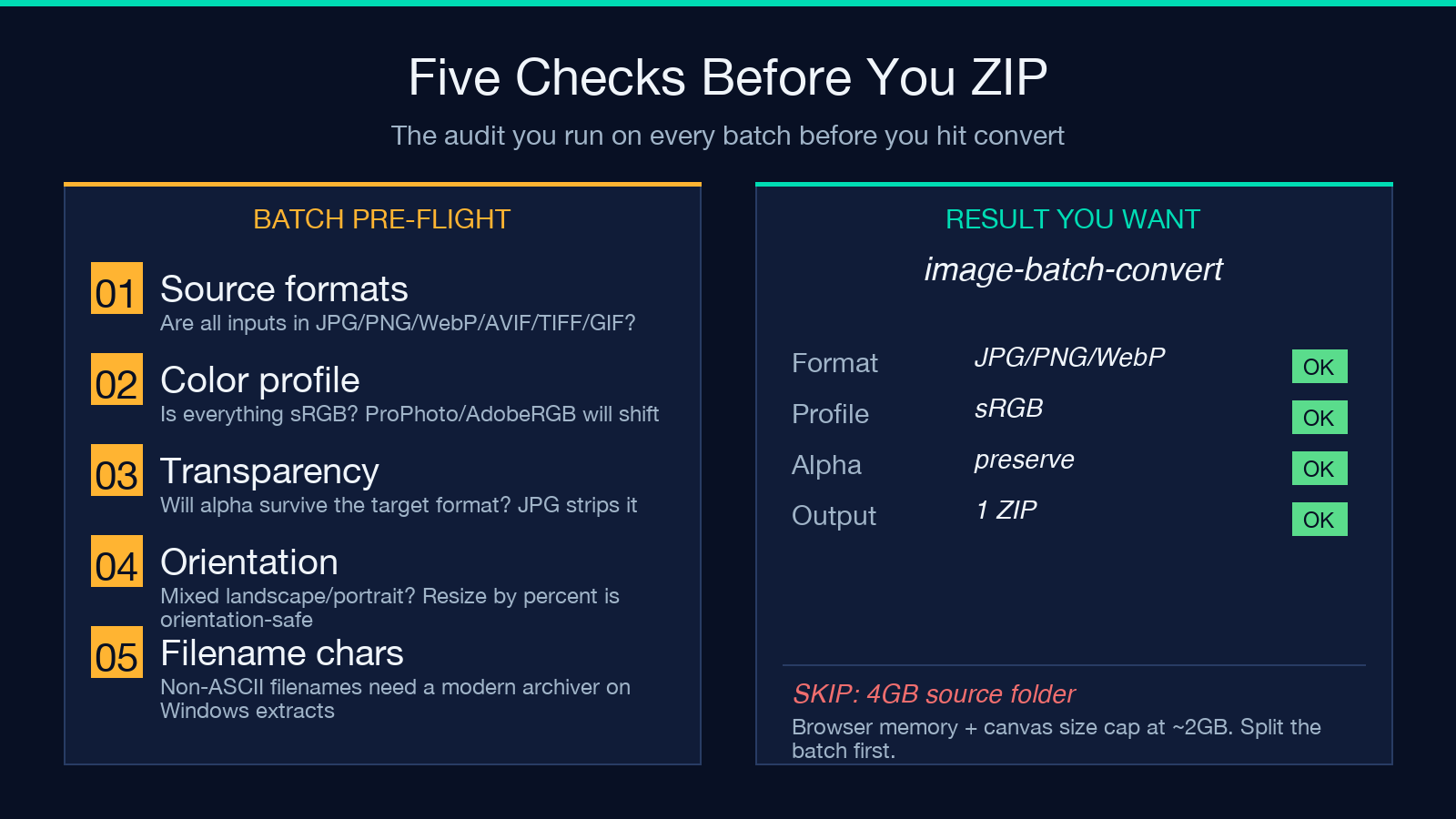
Mixed-orientation batches. Resize-by-percent treats landscape and portrait sources symmetrically, so a folder of 30 landscape and 10 portrait images lands at proportional output sizes. Resize-to-max-edge is also orientation-safe; the constraint is on the longer edge.
Transparency. PNG sources with alpha channel convert cleanly to WebP and AVIF with transparency preserved; JPG strips alpha (no surprise there); TIFF supports alpha but some viewers do not. If your design system uses transparency, do not pipeline through JPG as a “normalization” step.
Color profiles. The tool strips EXIF but preserves the sRGB color profile. If your sources are ProPhoto RGB or Adobe RGB, the conversion will visibly shift saturation; convert to sRGB upstream of the batch or accept the shift as a feature, not a bug.
Animated GIFs. GIF is supported as a source for the first frame only; the tool does not preserve animation. If you need an animated GIF, you are using the wrong tool — find an FFmpeg wrapper or a dedicated GIF-to-video tool.
Filenames with non-ASCII characters. The tool preserves non-ASCII filenames in the output ZIP on macOS and Linux; on older Windows ZIP libraries, filenames with CJK characters may show up garbled when extracted. Zip your output with a modern archiver (7-Zip, the macOS Archive Utility, or unzip on Linux) before distributing.
Pairing Batch Image Convert with the rest of your pipeline
Two patterns show up often enough that they are worth naming. The first is the “hero gallery” pipeline: Batch Image Convert for the bulk run, then a single hand-edited export for the one image that matters (the cover photo, the press shot). The hand edit goes through a different tool because no batch encoder beats a human eye for the one frame that carries the page. The second is the “design-system rollout” pipeline: Batch Image Convert for the AVIF-and-WebP pair, then a small Python or shell script that emits the <picture> srcset markup from the resulting filenames. The conversion step is the slow part; the markup generation should be a one-liner.
When a CMS pipeline beats the ZIP
Most modern CMSes (Strapi, Sanity, Contentful, the WordPress media library) accept direct upload of multiple files in one request. Once the ZIP lands, the next step is usually “extract to a staging folder, then re-upload through the CMS bulk uploader.” That two-step is faster than trying to coax the CMS into reading the ZIP in place, and it gives you a chance to do the per-asset metadata pass (alt text, captions, focal point) before the files hit the live library.
When NOT to use it
Honest list of cases where the tool is the wrong choice.
If you need lossless archival of RAW camera files (CR2, NEF, ARW), the tool will not open them — convert to TIFF or DNG upstream first. If you need to apply per-image effects (cropping, color grading, vignette), Batch Image Convert is not an editor; run the effect pass first, then batch the format conversion. If your batch is genuinely one image, just use your image viewer’s “Export As” — a 1-image batch through any tool is overhead, not help.
For everything else — the 40-image gallery, the design-system rollout, the legal-hold archive — Batch Image Convert is the shortest path from “mixed-format source folder” to “deployable, consistent, correctly-sized output ZIP.” Try it once on a real project folder and the workflow sticks.
Explore more tools at elysiatools.com.
