
The fastest way to fill a hundred copies of the same PDF form is not to fill them. Drop one template, paste one JSON array, and let PDF Form Fill Batch hand you back a ZIP of finished PDFs (or one merged PDF) in a single operation. The mental model is mail merge, but the I/O is plain JSON, the output is real filled PDFs, and every copy starts from a freshly loaded template so nothing leaks between records.
This field guide walks through the option surface, the two output modes, the field types that actually work, the file-naming convention, and three concrete workflows where batch form filling pays for itself the first time you run it. Every claim is grounded in the canonical tool source — the option schema, the loader loop, and the output handling.
Why batch form filling exists
Single-form filling has its own tool: PDF AcroForm Filler takes one PDF and one JSON object. That covers the “edit this one form I just got” case cleanly. The moment you have a list of records — three certificates, twenty invoices, two hundred HR onboarding packets — the single-file workflow collapses into a copy/paste loop that does not scale and invites errors.
PDF Form Fill Batch is built for that second case. One template, one array, one operation. Under the hood it is the same pdf-lib + JSZip stack as the single-file tool, but with a per-record reload loop that guarantees a fresh PDFDocument for every row. That sounds like a small implementation detail. It is actually the reason two adjacent records cannot bleed state into each other — the most common batch-filling failure mode in pdf-lib and the one most likely to ship a corrupt certificate or invoice to a real customer.
Inputs: what you actually upload
Two inputs, both required:
- Template PDF — a PDF containing an AcroForm. The form fields define what the tool can fill; the tool does not synthesize new fields from your JSON. If a key in your records JSON does not match a field name in the template, it is silently ignored. Practical consequence: open the template in Acrobat or any PDF viewer with the field list visible before you build your records array.
- Records JSON — a JSON array of objects. Each object is one record’s field values. The placeholder shown in the tool (
[ { "name": "Alice", "tier": "pro", "agree": true }, { "name": "Bob", "tier": "basic", "agree": false } ]) is the canonical shape.
Three optional inputs shape the output:
- Output Mode —
ZIP (separate files)(default) orMerged (single PDF). - Name Field — the record key used to name each output file in ZIP mode. Defaults to
name. Useful to rename it toinvoice_no,employee_id, or whatever your dataset already keys on. - Flatten Each — boolean, default
true. Flattens each filled form so the resulting PDF is non-editable. Leave it true for anything customer-facing; uncheck only when you want recipients to be able to correct a typo in their own copy.
The two output modes, and when each one wins
ZIP mode (default): one PDF per record
Each record produces its own filled PDF, all of them bundled into a single ZIP. The ZIP is the right output when each filled PDF has a distinct downstream destination — one certificate per recipient emailed individually, one invoice per client attached to a billing email, one contract per vendor uploaded to a separate folder.
The naming convention: the tool takes the value of nameField from each record, sanitizes it (strips characters that are illegal in filenames), and falls back to a numeric index if the field is empty. So a record {"name": "Alice Zhang"} produces Alice Zhang.pdf inside the ZIP; a record {"invoice_no": "INV-001"} with nameField: "invoice_no" produces INV-001.pdf. The index suffix prevents collisions when two records sanitize to the same name.
Merged mode: one combined PDF
All records are appended into a single multi-page PDF, in array order. This is the right output when the downstream consumer reads the whole batch as one document — a print queue, an archival folder, a regulator submission where one file is easier to track than a hundred.
Merged mode keeps the same flattenEach behavior as ZIP mode, so the combined PDF is still non-editable if you left the option on. The trade-off: you cannot separate the records back out without re-running the batch, so do not pick merged mode if there is any chance a recipient will need only their own page.
Field types that work, and the failure modes that don’t
The loader supports the five AcroForm field types: text, checkbox, radio group, dropdown, and option list. Each one matches a value in your JSON against the field’s declared type:
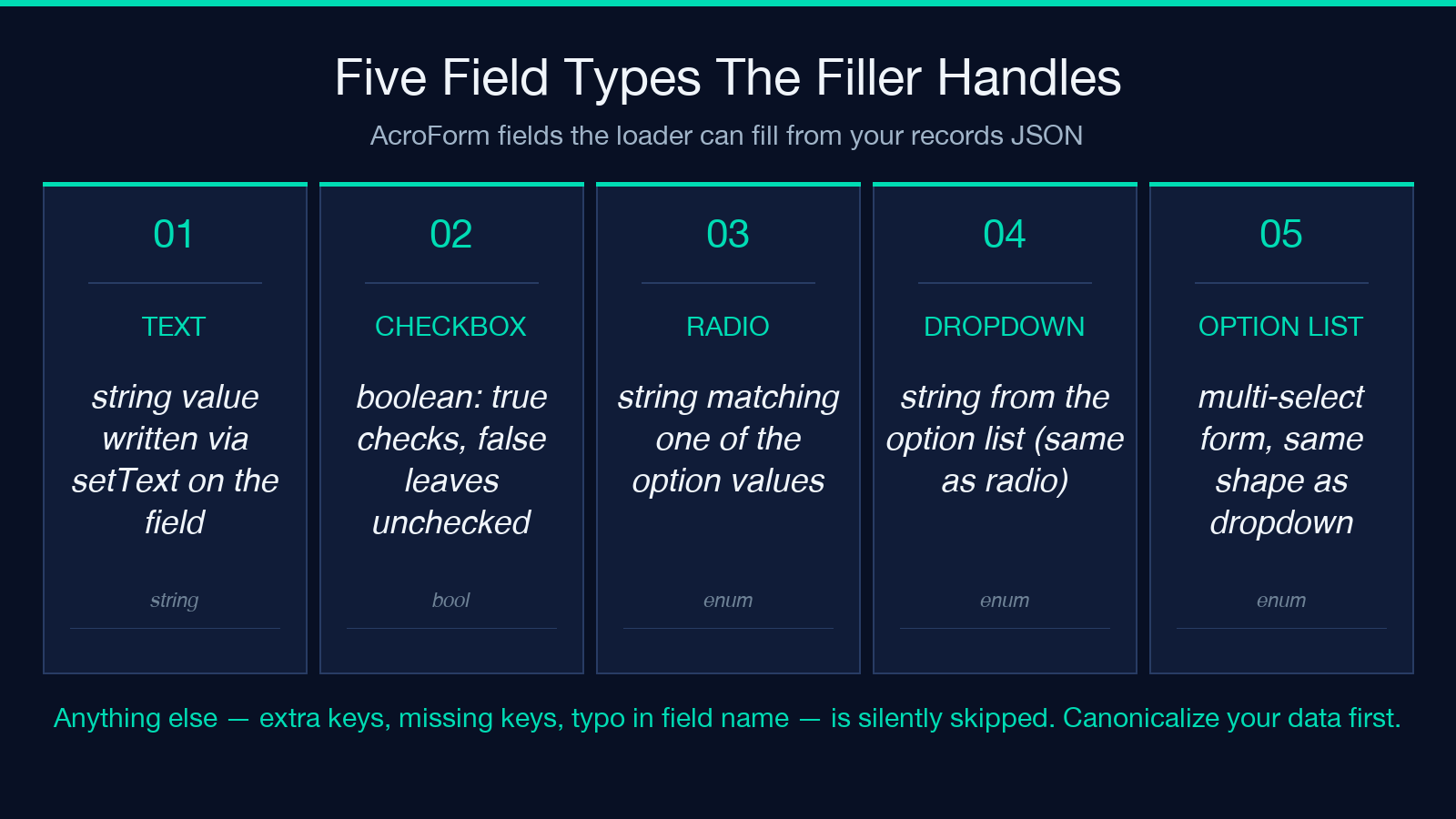
- Text — string value. Goes into
PDFTextField.setText(...). - Checkbox — boolean.
truechecks the box,false(or absent) leaves it unchecked. - Radio group — string matching one of the option values. Anything else is rejected silently.
- Dropdown — string from the option list, same as radio.
- Option list — same shape as dropdown.
The silent-rejection behavior is the operational gotcha. If a record has "tier": "Pro" (capital P) but the dropdown option list is pro (lowercase), the field renders empty without an error. The fix is to canonicalize your data before generating the records JSON — lowercase strings, normalize booleans to true/false, and verify field names against the template’s actual AcroForm field names, not the human-readable labels.
A second gotcha: the loader runs PDFDocument.load(...) once per record inside the loop, not once and clone. This is intentional — pdf-lib’s form cache is not reliable across cloned documents, and trying to clone the form state forward is the standard way to ship a batch where record N+1 carries over fields from record N. The per-record reload costs a few extra milliseconds per row. It is the cheapest insurance against silent cross-record contamination.
Three concrete workflows where this tool earns its keep
Certificates and acknowledgments at the end of a course or event
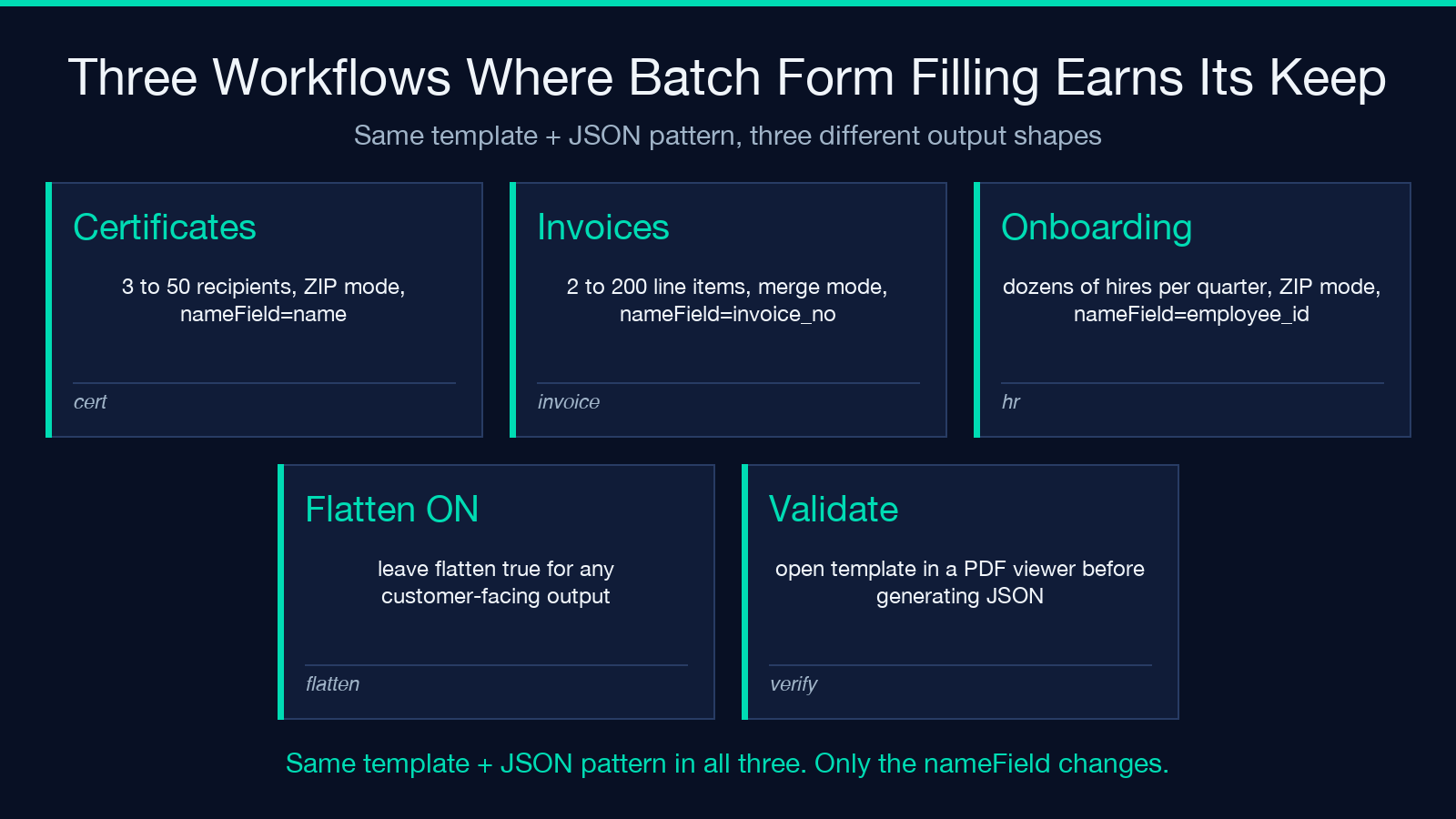
Three to fifty recipients, one template, ZIP mode. Set nameField: "name", flatten each result, and hand the ZIP to whatever distribution step handles the email blast. The tool ships a working example: a certificate template filled with three records (Alice Zhang / Advanced TypeScript / 2026-06-16, Bob Chen / Go Fundamentals / 2026-06-16, Carol Lee / Rust Systems / 2026-06-16), returned as a ZIP.
The same recipe covers HIPAA acknowledgments, NDA bundles, training completion certificates, and any other “one signature, one recipient” workflow where the per-row identity is the only thing that varies.
Invoice runs at month-end
Two to two hundred line items, merged mode. Set nameField: "invoice_no", leave flatten on, and you get one printable PDF ready for the print queue or the email-merge step. The tool’s second example: an invoice template filled with two records (INV-001 / Acme / 1500, INV-002 / Globex / 2300), returned as a single merged PDF.
For higher-volume runs, swap nameField for the customer ID and let the merge produce a single combined batch. The flattening step matters here — most accounting systems reject editable PDFs because they cannot tell whether the totals were altered after the fact.
HR onboarding packets
A dozen fields per record, dozens of new hires per quarter, ZIP mode with nameField: "employee_id". Each output PDF is a personalized packet ready to upload into the HRIS document store. The flatten step prevents new hires from editing their salary or start date fields after the fact.
For HR specifically, the PDF Form Flatten tool covers the edge case where you already filled the forms individually and just need to lock them down. For exporting the field values back out of a filled batch (e.g. into a CSV for downstream processing), PDF Form Data Export is the inverse direction.
How it fits into a larger PDF batch pipeline
The tool is one node in a much larger PDF batch ecosystem. Once you are filling templates at scale, the same records often need to be:
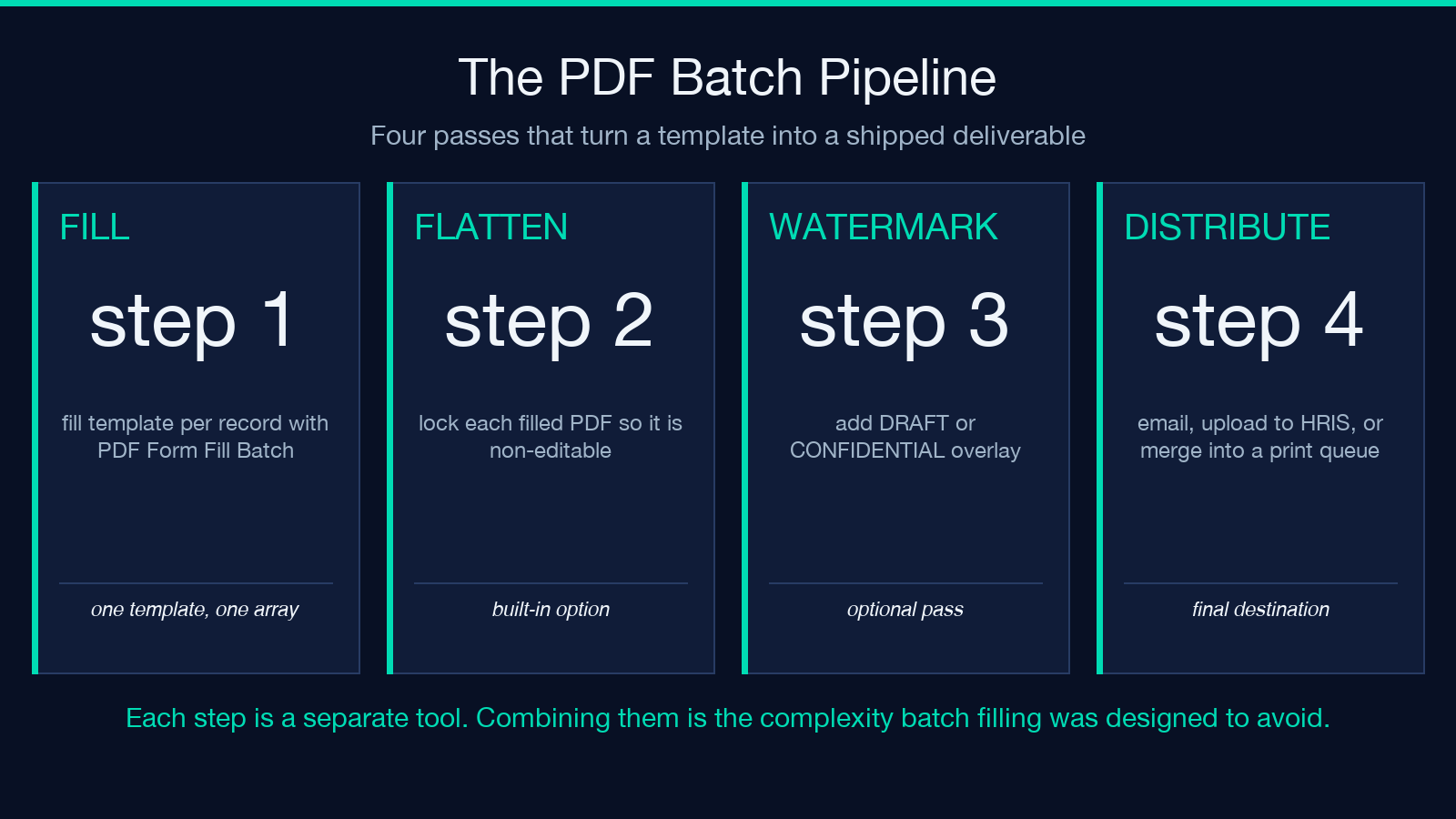
- Watermarked with a “DRAFT” or “CONFIDENTIAL” overlay before distribution — see PDF Batch Watermark.
- Compressed before email or upload, especially for image-heavy templates — see PDF Batch Compress.
- Split into per-page files when one record generates a multi-page packet — see PDF Batch Split.
- Combined with metadata stripping when the filled PDFs are destined for a public portal — see PDF Clean.
The canonical pattern is fill → flatten (built-in) → watermark → compress → split → distribute, applied as separate passes. Trying to do all of those inside a single tool is exactly the complexity that batch form filling was designed to avoid.
For checkbox-heavy templates (inspection forms, compliance checklists), PDF Checklist Form is a complementary tool — it is optimized for the “many checkboxes, few text fields” shape that the generic batch filler handles correctly but slowly.
Practical recipes for the records JSON
Canonical certificate batch
[
  { "name": "Alice Zhang", "course": "Advanced TypeScript", "date": "2026-06-16" },
  { "name": "Bob Chen", "course": "Go Fundamentals", "date": "2026-06-16" },
  { "name": "Carol Lee", "course": "Rust Systems", "date": "2026-06-16" }
]
With outputMode: "zip", nameField: "name", flattenEach: true. Each output PDF is one certificate.
Canonical invoice batch
[
  { "invoice_no": "INV-001", "client": "Acme", "total": 1500 },
  { "invoice_no": "INV-002", "client": "Globex", "total": 2300 }
]
With outputMode: "merge", nameField: "invoice_no", flattenEach: true. Output is one combined multi-page PDF.
Building the JSON from a spreadsheet
The fastest production workflow is to author the records in a spreadsheet, export to CSV, then convert CSV to JSON with a one-liner. The records JSON does not need to be pretty-printed; newlines between objects are optional. The tool accepts a single line as long as the brackets and commas are right.
The one trap: spreadsheet export often converts booleans to "TRUE" / "FALSE" strings, which the AcroForm checkbox loader rejects silently. Run a search-and-replace to convert those to JSON true / false literals before pasting into the records textarea.
Where the tool stops
It does not synthesize new form fields. If your template is a flat PDF without an AcroForm, the tool has nothing to fill. Convert the template to an AcroForm first (Acrobat, or any PDF editor that supports form creation), then re-upload.
It does not validate that every record has the same set of keys. Records can be heterogeneous; missing keys are skipped, extra keys are ignored. This is the right behavior for batch filling but means typos in field names will not be flagged.
It does not run on the server side beyond the per-record load + fill + zip. There is no job queue, no async mode, no callback URL. For very large batches (thousands of records), expect the browser tab to be busy for a while. For the hundred-record case this tool is built for, the round trip is fast enough that you can re-run it interactively.
Explore more PDF batch tools at elysiatools.com.
