
A DNS query is rarely one question. It’s seven different ones stacked behind a single line of text, and the answer you actually need almost never sits in the record you thought to ask for. When a site stops resolving, mail starts bouncing, or a CDN migration silently breaks half your traffic, the difference between a 40-minute debug and a four-hour one is whether you remembered to query the right record type first. The Elysia Tools DNS Query Tool lays every record type — A, AAAA, MX, TXT, NS, CNAME — in front of you side by side, so the next domain you suspect stops acting the way its zone file claims it should, you can read the answer without reaching for dig flags you half-remember.
Why “A Record” Is Almost Always the Wrong First Question
Most engineers reflexively query the A record first because that’s what nslookup example.com returns by default. The A record tells you one thing: the IPv4 address the authoritative nameserver currently hands out for the apex domain. That’s useful when the site is hard-down and you want to confirm whether DNS is even resolving, and it’s almost useless for every other question you actually have.
The reason shows up the first time you debug a CDN migration. You point your apex at the new provider, query the A record, see the new IP, and tell yourself the work is done. Then half your users report 404s, your monitoring says the origin is healthy, and your status page says “all systems operational.” The A record lied by telling the truth: it gave you the apex IP, but the apex is a CNAME alias to the CDN edge, the CDN returns different IPs based on geography, and the record type that would have revealed all of that is the CNAME chain — not the A record.
Treat the A record as a ping, not a diagnosis.
The Seven Record Types Each Carry a Different Answer
The Elysia Tools DNS Query Tool lets you query any of seven record types from a single input field, and each one answers a question the others can’t.
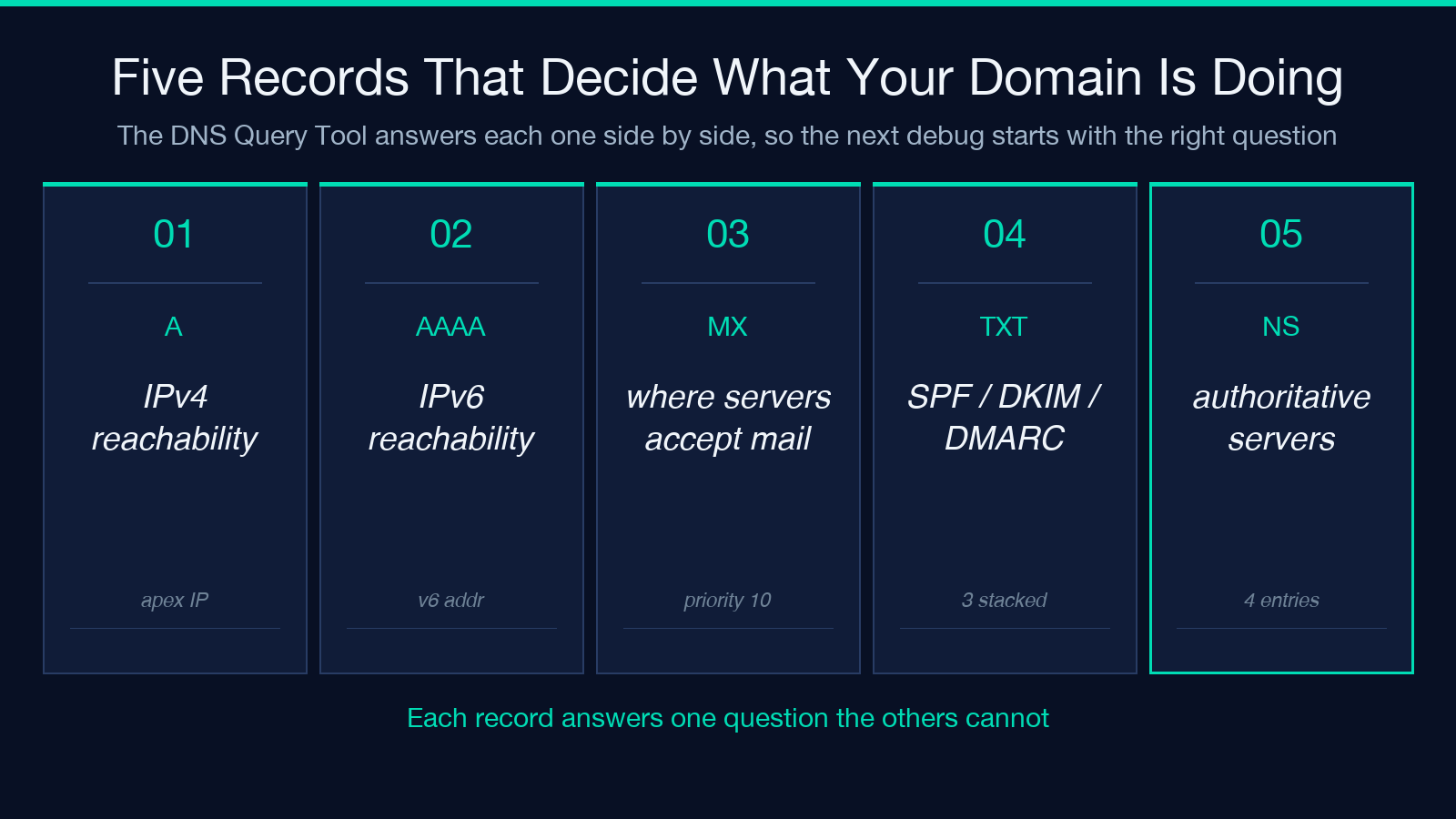
A and AAAA are the obvious pair — IPv4 and IPv6 reachability respectively. If AAAA is missing entirely and your service is IPv6-only, your users on dual-stack networks will hit a 30-second TCP timeout before the resolver falls back to A. MX tells you which servers accept mail for the domain, and the priority field tells you which one is tried first. TXT splits into three sub-meanings: SPF (which IPs are allowed to send mail for the domain), DKIM (a signing public key), and DMARC (the policy when alignment fails). NS names the authoritative nameservers; if those four entries disagree with what your registrar shows, you have a delegation problem you will not solve by editing the zone file. CNAME reveals alias chains — apex → CDN edge → regional pool — and is the record most often misconfigured during migrations.
MX, TXT, and NS Are Where Email Deliverability Quietly Dies
When mail starts bouncing with “550 No SMTP server here” or “550 SPF check failed,” the culprit is almost always one of three records, and the diagnostic recipe is the same regardless of which one broke.
First, query MX. If the value is missing entirely, the domain does not accept mail and every email-to-form submission you have ever wired to it has been silently vanishing. If the priority order looks wrong — backup server at priority 10, primary at priority 20 — every delivery attempt hits the slow path first. Second, query TXT. SPF must list every IP that legitimately sends mail for the domain; if it ends in +all it is a spam enabler, and if it ends in -all but Google Workspace is also sending, you have a phantom-bounce loop. DKIM is the public half of a key pair your ESP uses to sign outgoing mail — if the public key is missing from TXT, no receiver will accept the signature. Third, query NS. If your NS records point at ns1.oldregistrar.com but you migrated to ns1.newregistrar.com six months ago, half the world’s resolvers are still asking the old server, which returns SERVFAIL for your zone, which means every record on this domain is intermittently invisible.
Reading a CNAME Chain Beats Memorising IP Blocks
CIDR ranges and IP allowlists are necessary, but the modern debugging question is rarely “is this IP in the allowlist?” — it is “which edge node does this resolver think I’m on, and why?”
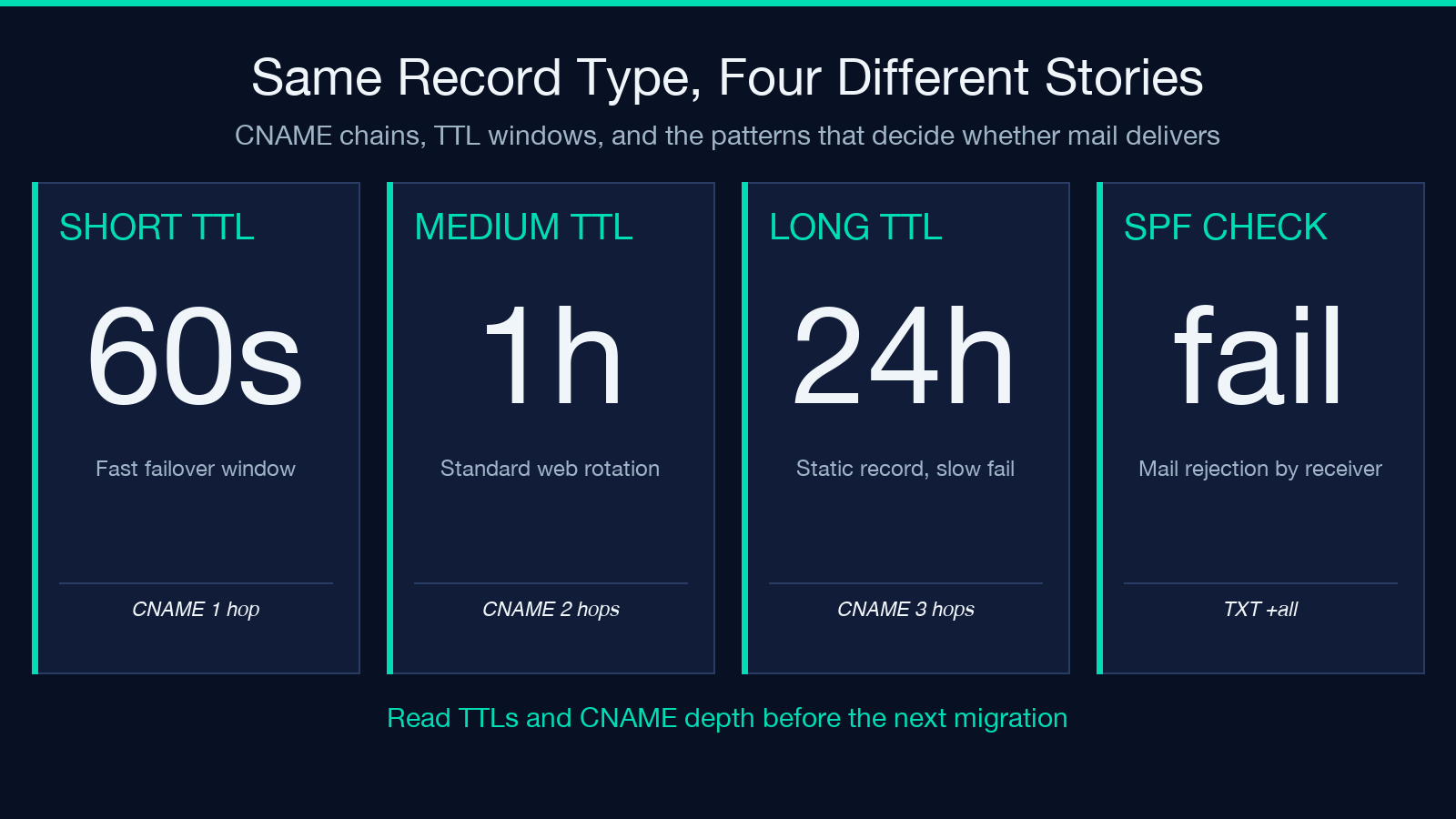
A CNAME chain is the delegation pattern: app.example.com → edge.cdn.net → regional-pool.cdn.net → 198.51.100.42. The first hop is your zone’s responsibility; the rest is owned by the CDN. When a regional outage happens, querying the CNAME chain from two different resolvers (one in Europe, one in Asia) will show you which hop they disagree on — that disagreement is the actual incident, not the IP you finally land on. The DNS Query Tool surfaces the full chain on a single screen, so you stop having to chain dig +short calls together in a terminal session you will lose track of halfway through.
For a deeper dive into how the IPv4 side of that final hop is structured, the CIDR Calculator on Elysia Tools tells you whether the IP you landed on is in a /22 or a /28 and how many other hosts share that block. The two tools pair naturally: DNS Query tells you where you went, CIDR Calculator tells you what neighbourhood you arrived in.
What “All Records” Hides That Individual Queries Don’t
The ANY pseudo-record type — the tool’s “All Records” option — returns a combined view that looks like a complete picture but actually hides two of the most important DNS behaviours: TTL drift and negative caching.
TTL drift happens when a record’s TTL is set low (say, 60 seconds) for fast failover, but the zone file has been copied from a template that left another record at 86400 seconds. Querying ANY shows you the current values but not the lifetime distribution: which records will expire in the next minute, which will not expire until tomorrow, and which the resolver will silently hold for a week because no one ever lowered the TTL before the maintenance window.
Negative caching is the worse trap. When a record does not exist — say, you query MX for a domain that does not accept mail — the resolver remembers that “this name has no MX record” for the duration of the SOA minimum TTL field. If you add MX records during a migration and your SOA minimum is 3600 seconds, every resolver that queried during the empty window will keep returning “no MX record” for the next hour regardless of what your authoritative server now says. The DNS Query Tool lets you query individual record types precisely because ANY cannot tell you which negative-cache window you are sitting inside.
The 60-Second Domain Audit You Can Run Before Every Outage
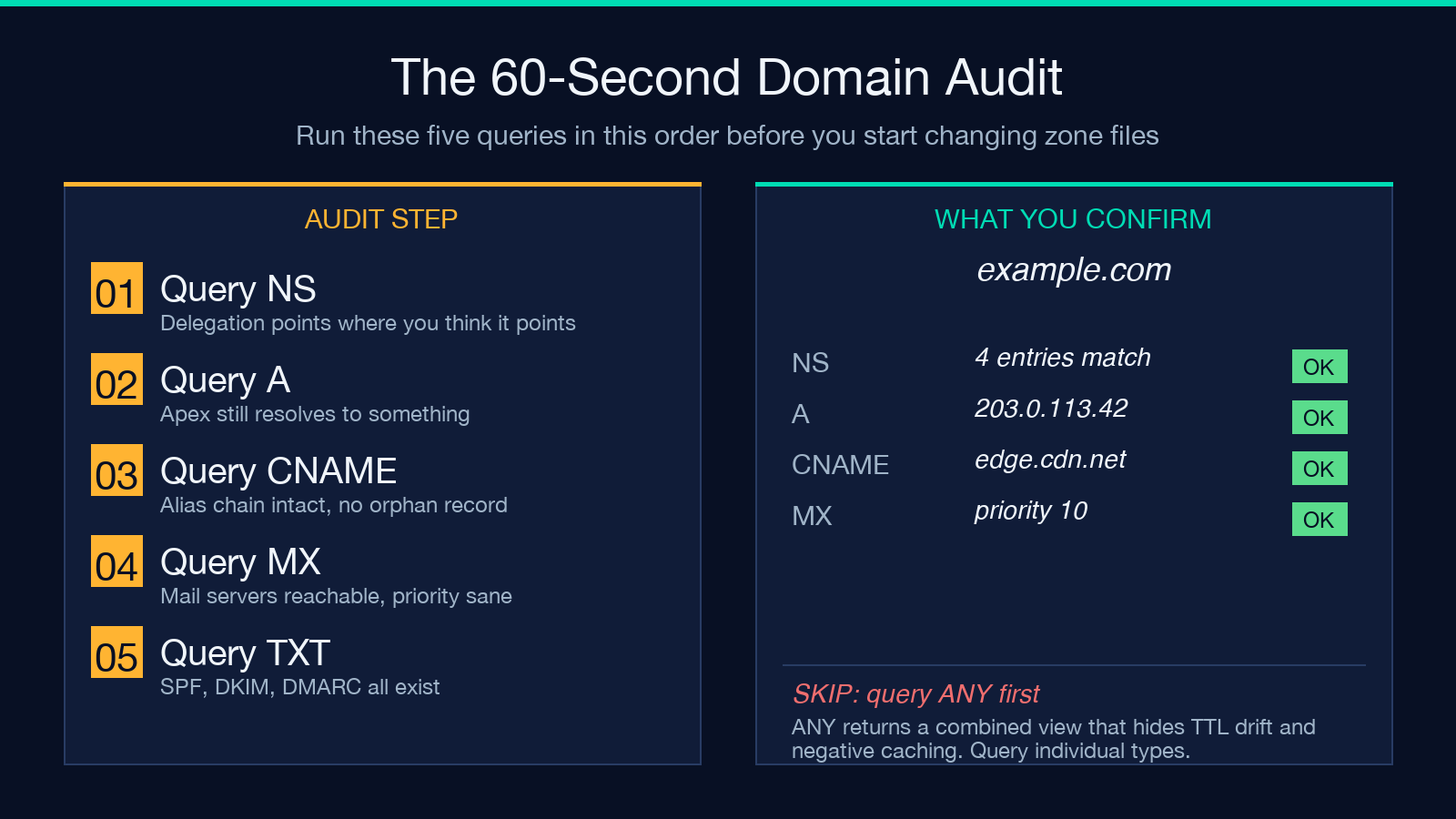
When a domain starts misbehaving, run the same five queries in the same order every time. The pattern reveals which layer of the DNS stack is broken before you start changing zone files.
Query NS first — confirm the delegation points where you think it points. Query A second — confirm the apex resolves. Query CNAME third — confirm the alias chain is intact. Query MX fourth — confirm the mail servers are reachable. Query TXT fifth — confirm SPF, DKIM, and DMARC all exist.
If A fails, the problem is at the registrar or the TLD; nothing in your zone file matters. If A passes but CNAME fails, your CDN configuration is broken. If MX fails but A passes, your mail server is down but your site is fine. If TXT is incomplete but MX passes, mail will deliver but will land in spam folders or fail SPF checks. The audit takes 60 seconds with a tool that lets you flip between record types without restarting a dig process each time.
Closing: Stop Reading the Record You Asked For
The DNS layer punishes reflex queries. The A record is rarely what you actually want. The CNAME chain is rarely what your monitoring dashboard shows. The TXT record is rarely a single string — it is three policies stacked on top of each other, and misreading one of them will silently break deliverability for months before anyone notices.
The right diagnostic posture is to query all seven record types for any domain you depend on, read the answers side by side, and pay attention to the ones that are missing entirely — the empty values tell you more than the populated ones do. Try the DNS Query Tool on a domain you maintain and read the result the way you would read a triage report: every line is a question, every answer is either confirmed or suspiciously silent, and the silence is where your next hour will be spent.
For the IP-side analysis that comes after the DNS lookup resolves, the CIDR Calculator and the IP Geolocation tool close the loop. Explore more networking tools at elysiatools.com.
