
The CSV-Excel diff problem is not “did the file change”; it is “which rows, which cells, and what do I do about it.” A spreadsheet diff that shows a single red cell might as well show the entire file — you still have to read every column to find what matters. The diff tool from Elysia Tools surfaces row-level adds, removes, and column-level cell mismatches into a PDF report you can attach to a Jira ticket, drop into a Slack thread, or forward to a vendor without ever reopening the spreadsheet. Run it at Elysia Tools CSV Diff and feed it two files (CSV or XLSX) along with a key-column list and a report title, and you get a single document that names what changed and where.
What the Diff Report Actually Contains
The tool reads two CSV inputs (or two XLSX files with optional sheet names), lets you pick which columns uniquely identify a row, and produces a PDF showing three sections side by side:
- Added rows: rows present in the right file but missing from the left. Each row shows every column so the recipient does not need to scroll back to the source.
- Removed rows: rows present in the left but gone from the right. Same column-padded layout for symmetric reading.
- Changed rows: rows whose key matches in both files but at least one non-key cell differs. The diff highlights the changed cell in place rather than redrawing the whole row.
The structural symmetry is the point. Skim the first page and you can see “14 added, 3 removed, 22 changed across 5 columns” without parsing the cells one-by-one. Send that single page and your collaborator has the same overview you do.
When Key Columns Make the Diff Worth Running
Diff tools that treat every column as content produce noise. A spreadsheet where one row is SKU,Name,Price,Stock,Warehouse and the diff treats Stock as part of the row identity will report every stock count change as a “row modified” even when the row itself is fine. The opposite is just as bad: a tool that ignores stock changes will mark two physically identical products as “no change” while the warehouse shipped every unit out last night.
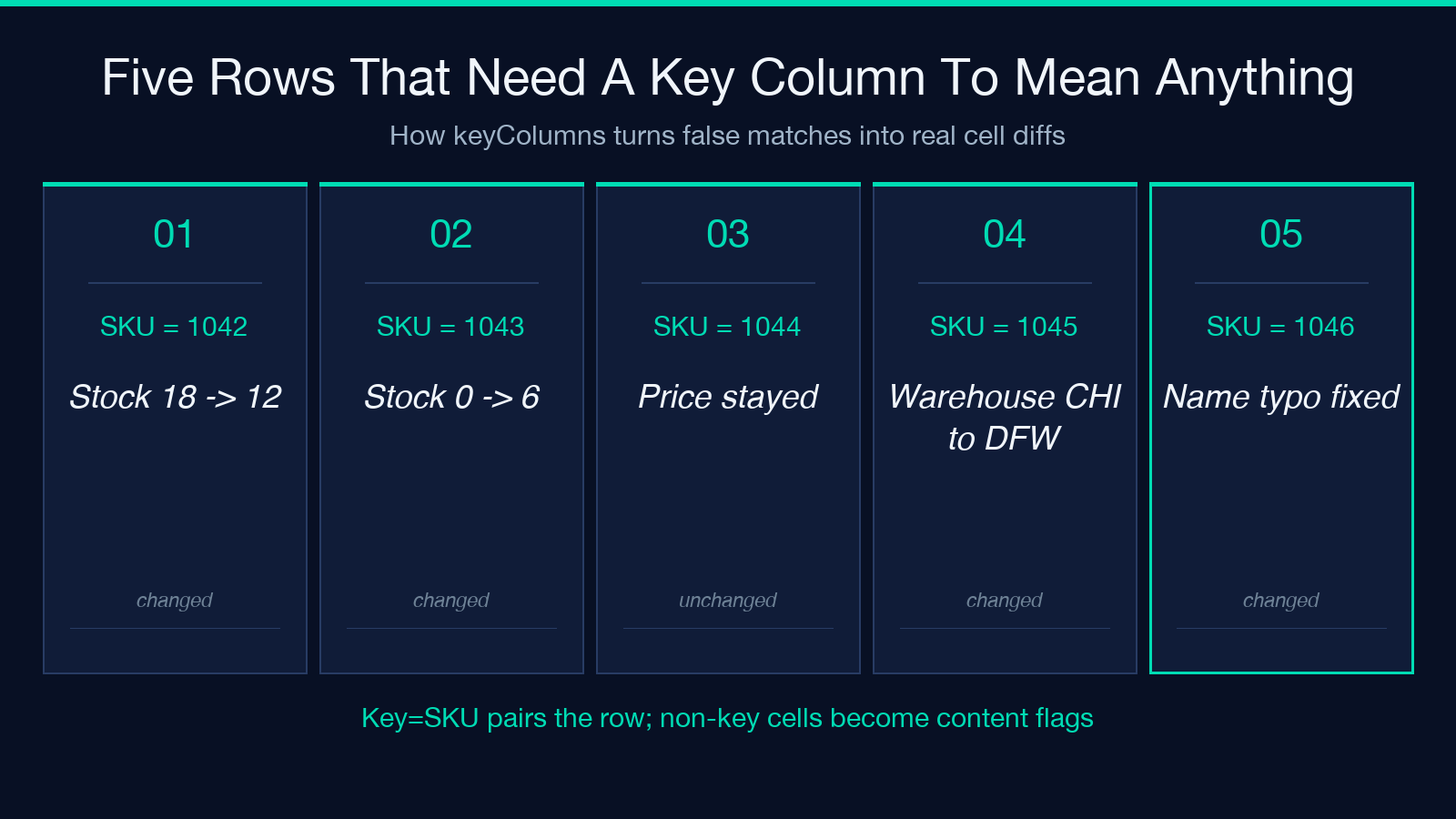
The Diff Tool’s keyColumns option fixes this. Set it to the column (or comma-separated columns) that genuinely identify the row’s identity, and the engine uses only those columns to match rows between left and right. Every non-key column becomes a content cell that the engine can flag as changed. For the SKU-and-stock case, pick SKU as the key column and you get “SKU-1042 changed: Stock 18 → 12, Warehouse CHI → DFW” instead of a meaningless row-id collision. Try the layout yourself at the Elysia Tools Diff Tool page.
A useful sanity check: before running the diff, sort both files by the key column externally and confirm the sort is stable. Multi-column keys (Warehouse,SKU) need a deterministic tiebreaker because SKU alone collides across warehouses.
Compare Mode Is the Difference Between a Report and a Noise File
The Diff Tool ships with three compare modes that change which rows appear at all:
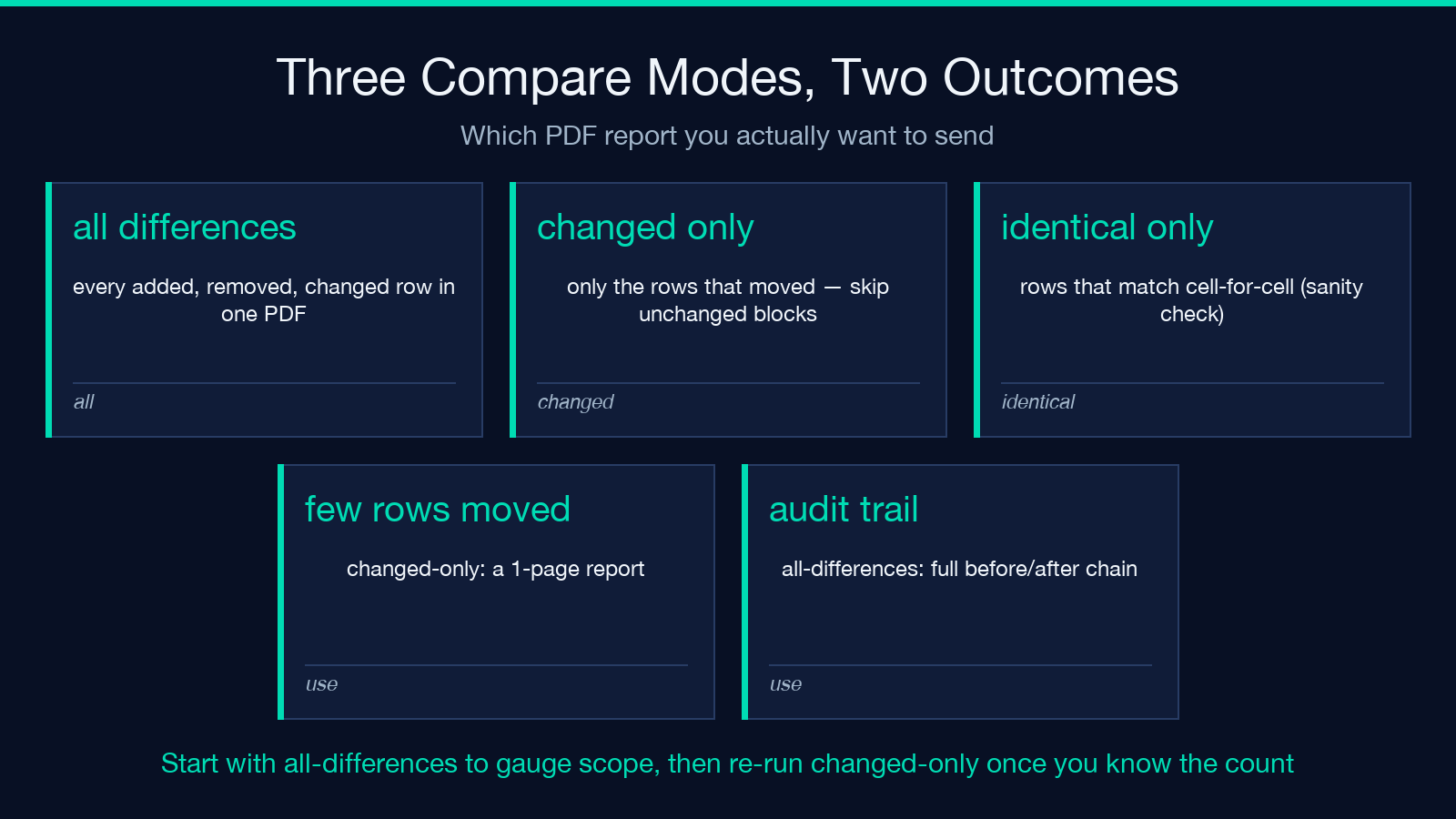
- all differences: every added, removed, and changed row in one PDF. Use this when you want a complete audit trail — for example, before a regulated file handoff where the recipient’s compliance team will sign off against your diff.
- changed only: only the added, removed, and changed rows. Skips unchanged rows entirely. Use this when both files are large and you want a “what should I look at” list instead of a full re-listing.
- identical only: rows that match in every cell. Helpful as a sanity check — sometimes a “mostly identical” comparison has a 5% block of unexpected identical rows that you did not realize were shared. Use this to confirm the two files overlap on more than just headers.
The mode changes the size and focus of the PDF, not the underlying analysis. If you are unsure which mode to pick, start with all differences, read the first page summary, then re-run with changed only once you know roughly how many rows are involved. A “38 changed, 12 added, 4 removed” PDF is much easier to act on than a 600-page unchanged-padded report.
CSV-to-CSV, XLSX-to-XLSX, and the Mixed Pairing Trap
The tool accepts four combinations: CSV-to-CSV, XLSX-to-XLSX, CSV-to-XLSX (left file XLSX, right file CSV), and the reverse. The mixed cases are useful for “vendor sent a CSV, our internal system uses XLSX” reconciliation, but they have a header-row trap: the CSV file might not have the same column order as the XLSX’s first sheet. The Diff Tool matches by column name, not by position, so this is handled automatically — but only as long as both files have header rows that the parser recognizes. If the CSV is headerless, rename the columns before you upload, or the diff will treat every row as a “first row changed” with mismatched labels.
Another header pitfall: a CSV file with trailing whitespace in header cells (" Stock ") will fail to match the same column in the XLSX. The Diff Tool does not auto-trim headers. A 30-second awk '{print $1}' or trim pass over the CSV header line removes the trap before you upload.
Sheet Selection for XLSX Inputs
When the left or right file is XLSX, the leftSheetName and rightSheetName options let you pick which sheet to diff. This matters because real XLSX exports often contain a “summary” sheet alongside the data sheet, and a blind default-to-first-sheet can produce a “0 added, 0 removed, 18 changed” report where every change is just the same data reflowed into a different sheet structure. Always pick the data sheet by name when the file has more than one sheet. If you do not know the sheet names, open the file once in Excel to confirm — saves a 30-second wasted diff run.
Numeric Tolerance and Floating-Point Reconciliation
Spreadsheets love to add trailing decimals: a cell stored as 1.5 reads back as 1.5000000000000002 if the file ever round-tripped through JSON, and a diff that treats every byte as significant will scream “changed” on a column that visually displays identically. The Diff Tool compares by string representation today (meaning it will flag 1.5 vs 1.5000000000000002 as different), so when both sides are post-JSON-round-trip, either:
- round both sides to a fixed decimal place before upload (
printf "%.4f"on the suspect columns), or - sort both files by key and accept that the report will flag the floating-point columns as changed (then visually verify they are equivalent to your tolerance).
A future numeric-mode toggle would handle this natively; until then, the pre-upload round is the fastest path.
Building the PDF Report for External Reviewers
The reportTitle field appears at the top of the generated PDF and is the only piece of metadata your external reviewer will see before opening the attachment. A title like “q3-pricing-2026-08-29” beats “diff” by a wide margin — the recipient knows which time window, which pricing round, and which version of which file the report covers, all from the filename and the PDF title together. If you are diffing two files across a regulated handoff, put the request ID, the change ticket, and the date in the title so the recipient’s archive system can route it correctly without opening the document.
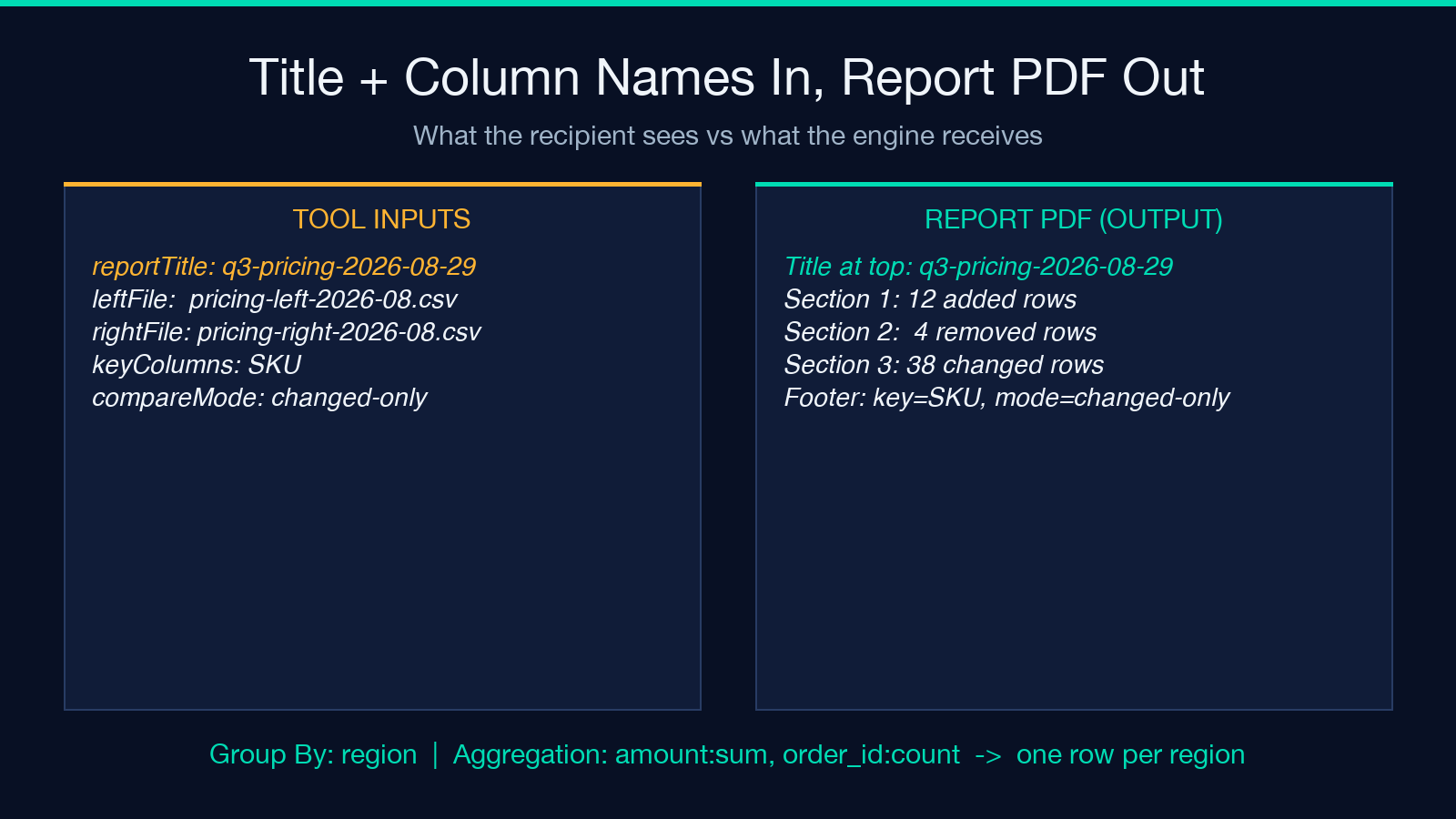
The PDF also embeds the column names and the mode you chose, which is a small but useful audit signal. A reviewer six months later can read the PDF and reconstruct “this diff was generated with key=SKU and mode=changed-only” without needing the original tool inputs.
When the Diff Tool Is Not the Right Answer
The Diff Tool is built for two file-shaped inputs (CSV or XLSX) and one structured output (PDF report). It will not help when:
- One side is a database dump and the other is a spreadsheet. Convert the database side to CSV first, then run the diff — but be aware that SQL NULLs become empty strings in CSV and the diff will not flag
NULLvs""as a change. - You need a streaming, row-by-row diff for a live API. The tool loads both files in full; large XLSX (above 100 MB) should be pre-split or sampled.
- The changes are semantic, not cell-level. If “Price increased by 2%” is the meaning you care about, post-diff analysis on top of the PDF is the right path; the diff itself is cell-level.
For those cases, the umbrella of related tools — Elysia Tools — has options covering JSON-line diffs, database-to-CSV adapters, and percentage-change calculators. The Diff Tool is the cleanest fit when both inputs are spreadsheet-shaped and the output is “send to a human for review.”
Explore more field guides and tools at elysiatools.com.
