
Most teams reach for a regex or a stack of String#padStart calls the moment a console report needs a tidy column. That works once. The second alignment case — a center-justified banner inside a header, a dot-leader Table-of-Contents, a fixed-width receipt — breaks the homegrown path every time. A purpose-built pad-and-align tool collapses the four canonical alignments (left, right, center, justify) plus a configurable pad character into a single, deterministic pass that runs in the browser, leaves the file untethered from any network round-trip, and keeps width math out of business logic. Once you see it, going back to copy-pasting spaces feels like debugging a slow build.
Padding is the kind of fix that quietly grows up into a load-bearing dependency. What starts as “make this log line read better” turns into a header bar in a CLI dashboard, then a TOC separator, then a printable receipt. The first few lines are fine — padEnd here, an f"%-30s" there. Then someone asks for center-justified text inside an envelope, and the padding math starts leaking back into the application code. This field guide walks through the four alignment modes a real pad tool exposes, the width-and-character knobs that change the output more than the documentation suggests, and the three small decisions that decide whether your padded output renders cleanly in ASCII reports, console banners, and table-of-Contents blocks alike.
The full tool is at Elysia Tools Text Pad & Align — copy text, pick an alignment, set a width, and the result is in your clipboard in the time it takes to type one option. The rest of this guide explains which combination of inputs is right for each job.
What Lives Inside the Workspace
The Text Pad workspace exposes exactly four inputs and one output. The shape is intentional — there is nothing else to look at, nothing to enable, no preview mode to toggle. Concretely:
- a multiline textarea that accepts up to 20,000 characters and runs the input through a
zod-backed validation chain; - an alignment selector with four values (left, right, center, justify);
- a target width number field with bounds from 1 to 200 and integer-only steps;
- a pad character single-line text input that accepts one to five characters;
- and a result pane below that renders the padded output verbatim.
There is no project file, no session token, no login. The whole flow runs inside the browser tab; refreshing the page resets every input to defaults but does not delete the result pane until you click somewhere else, which is the rare case where a stateless in-browser tool feels friendlier than a server-backed one. The same textarea can also be fed a plain-text file by paste — common workflows include pasting a chunk of log lines, hitting Pad right with width matched to the longest line, and watching every shorter line’s tail get padded to identical width in one pass.
Why Alignment Is a Separate Problem from Layout
Most text layouts assume alignment is implied. You write a printf format string, the column lines up, and nobody asks how. The moment the alignment moves to center (a banner across an 80-column terminal), justify (paragraphs filling a fixed width with inter-word spacing), or right (a numbers column where decimal alignment matters more than total width), the implicit alignment stops working. A pad-and-align tool exists specifically because these four modes are not interchangeable — each has a definition, a width boundary, an edge case where the pad character runs out, and a behavior at the end of the input where the remaining characters are short of the width.
A typical inline implementation only handles one or two modes. A purpose-built tool gives you all four plus the dial (alignment) and the constraint (width) exposed as options, which means the same code path powers every column-formatting job you throw at it. See Elysia Tools Text Pad & Align for the workspace-level surface — alignment, target width, pad character, and the input textarea are the only things you have to learn.
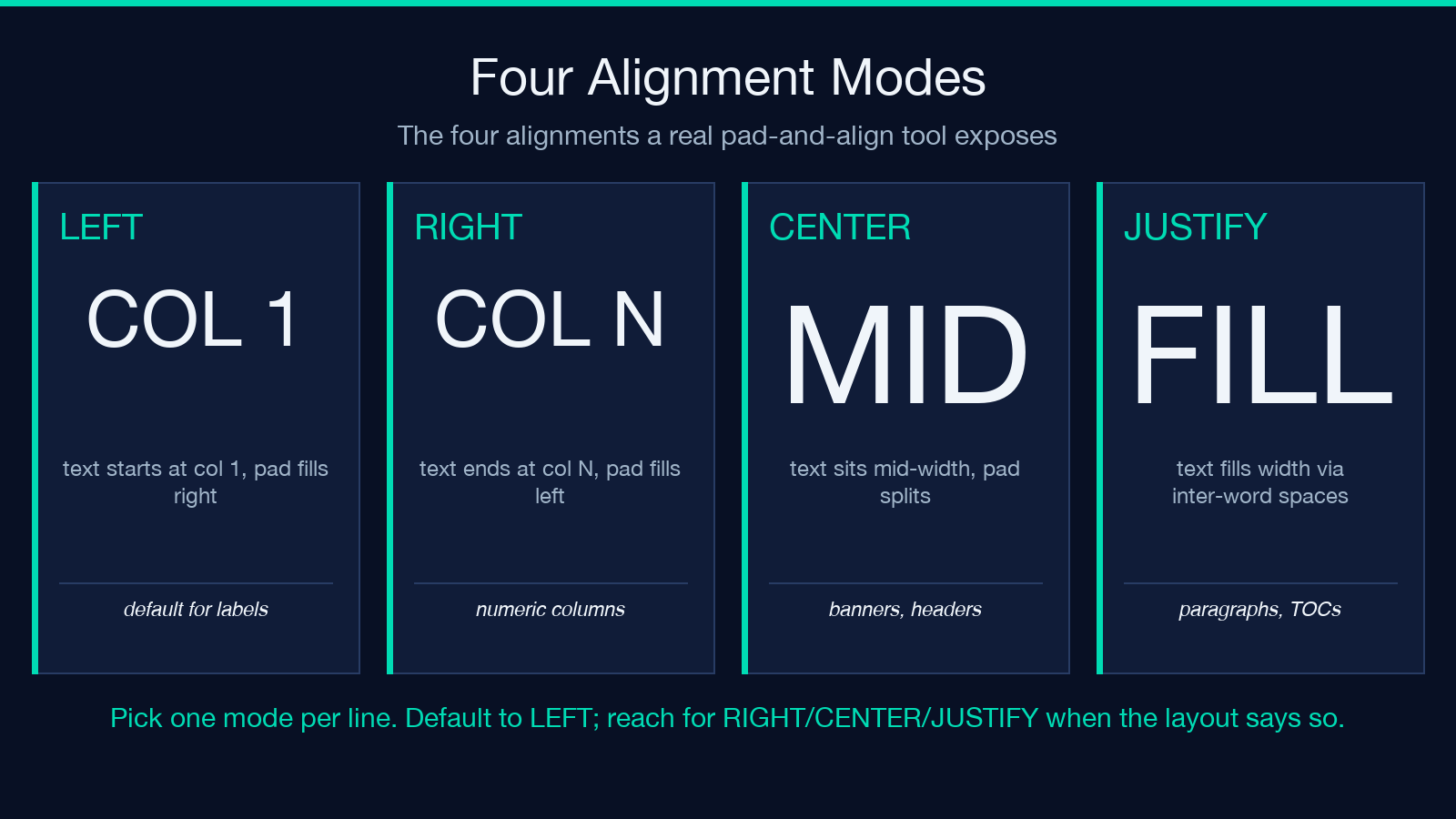
The classification that makes the four modes worth distinguishing in the first place:
- Left — text starts at column 1, pad character fills the right edge; default for labels, names, and most prose.
- Right — text ends at column
width, pad character fills the left edge; required for numeric columns where the decimal point stays in the same screen column. - Center — text sits in the middle of the width, pad character split between both edges; the natural shape of a banner or a section divider.
- Justify — text fills the width exactly when the line has at least two words and the remainder can be distributed as inter-word spaces; left-only when the line has zero or one word.
left is the right answer maybe sixty percent of the time. The other forty percent is where the value lives, and that is also where most hand-rolled pad functions get retired.
The Three Width Decisions Most Teams Skip
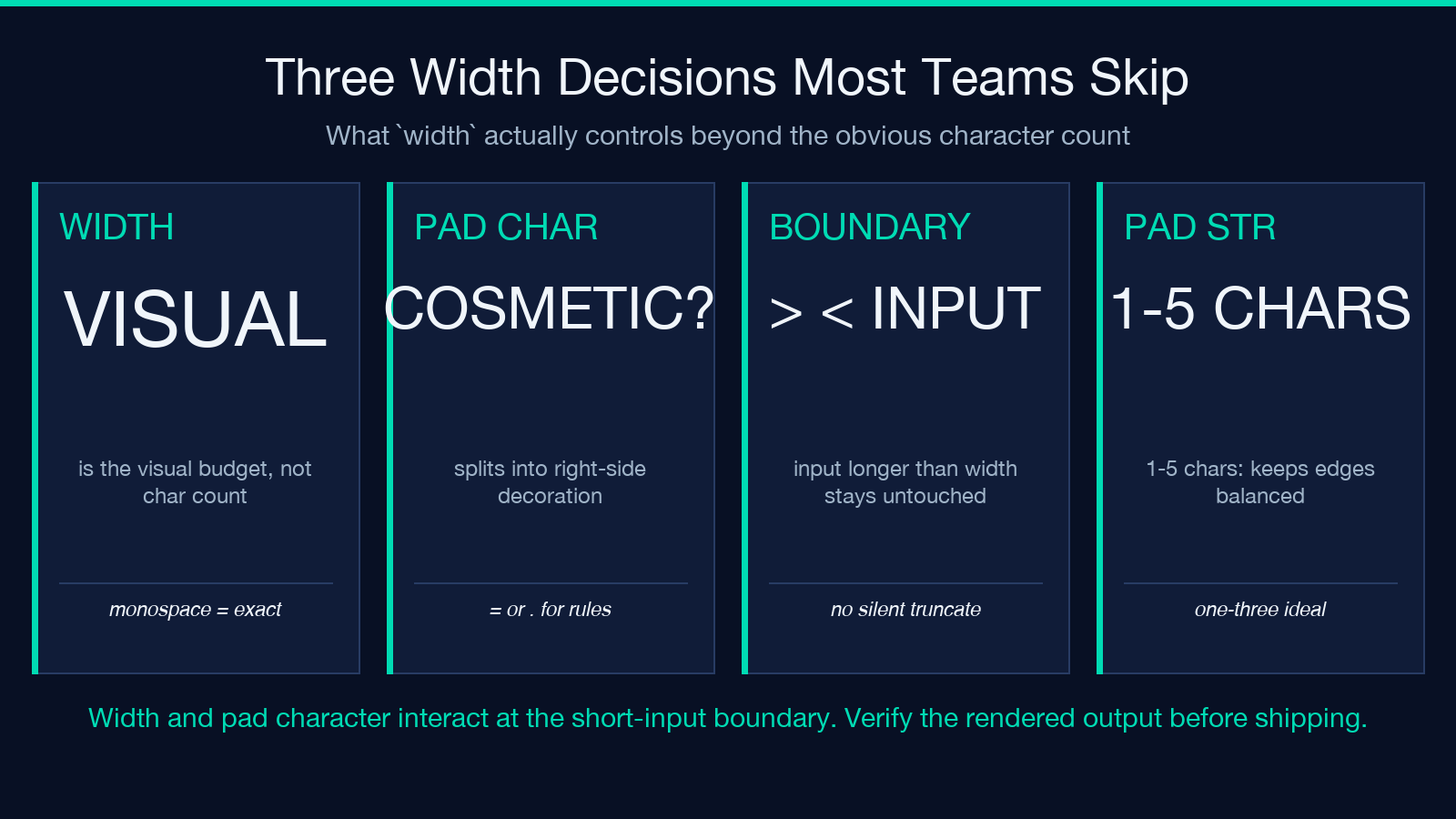
The width option accepts integers from 1 to 200. The choice of width shapes three things most teams underestimate:
1. Width is the visual budget, not the character count. Picking width = 30 means the line will read “30 columns wide in the destination font.” If the destination is a proportional font, the visual width drifts; if the destination is a monospace terminal, the count is exact. For monospace logging, banners, and ASCII tables, width is honest. For HTML pages and PDF reports, treat width as “approximate, in cells” and verify the rendered output once before you ship.
2. Pad character is not just cosmetic. Space is the default. A - produces an ASCII underline that doubles as a separator. A = produces a heavy section break. A . produces a TOC dot leader. Picking the right pad character at the time of generation, not in post-processing, prevents a class of decoration bugs where the pad character has a different alignment than the underlying text.
3. Width and pad character interact at the short-input boundary. If the input text is already longer than width, the tool returns the input untouched (no truncation, no clipping, no surprise). For inputs shorter than width, the tool produces a result of length exactly width (except justify with one word, which leaves the word where it lands). Memorize the short-edge and the long-edge behavior once and you never misread the output again.
The text input itself runs through validate.standard with a hard cap of 20,000 characters — enough for a complete chapter’s worth of log lines, a 200-row ASCII table, or a multi-page header banner. The cap is not arbitrary; it sits comfortably above every real-world text-pad job and well below the limit where browser-based rendering slows down.
A Worked Example: Building an ASCII Header Banner
The most useful end-to-end exercise on the tool is the centered, fixed-width banner. The cleanest sequence is:
Input. Paste the title line — for example, Monthly Report — October. Set Alignment to center. Set Target width to 60. Leave Pad character as the default space. Hit generate. The output line is sixty columns wide with the title centered between the spaces.
Refine for a divider. Re-run with the same input but change the pad character to =. You now have a center-aligned title on one line and a ===...=== rule on the next line — a section break that visually announces a new chapter of the report without any extra markup.
Stack two banners. Center-align a title line and a subtitle line with the same width and a dash pad for the subtitle. The result reads as a two-line headline block; a complete header for a terminal-based dashboard or a printable one-pager.
The detail that often surprises first-time users: the pad character can be one to five characters long. A 3-character pad character (===) automatically expands or shrinks to keep both edges of the pad balanced under center, and keeps the same total width under left/right. A 5-character pad (<+ +>) lets you draw a high-fidelity ASCII flower rule if that is the right shape for the document. You are not constrained to a single character — the pad character is just another string the tool distributes.
For a catalog of header style examples and full output samples, see Elysia Tools samples — pick any sample, paste into the textarea, change the alignment, watch the output.
Why Four Modes Instead of One Smart Mode
A reasonable objection: “why not detect the input and pick the mode automatically?” The answer is the same reason your IDE does not infer formatting from context — formatting decisions are part of the data contract. A column header needs left-alignment every time, including the time the column header is short and the cell is one third of the width. A page number needs right-alignment every time, including the time it overflows past the target width and you wanted it to clip. Trying to be smart at this layer produces output that is one off-by-one away from correct, and that one off-by-one becomes a customer support ticket the first time someone reads the output aloud.
The four modes are exhaustive for the column-formatting job. You can build every ASCII report, every CLI dashboard header, every receipt template, every table-of-contents dot leader, every fixed-width log line, and every banner with the four options exposed here. The Text Pad & Align tool makes the four modes a single round-trip rather than four custom-coded functions in your codebase.
Common Patterns in Production Logs
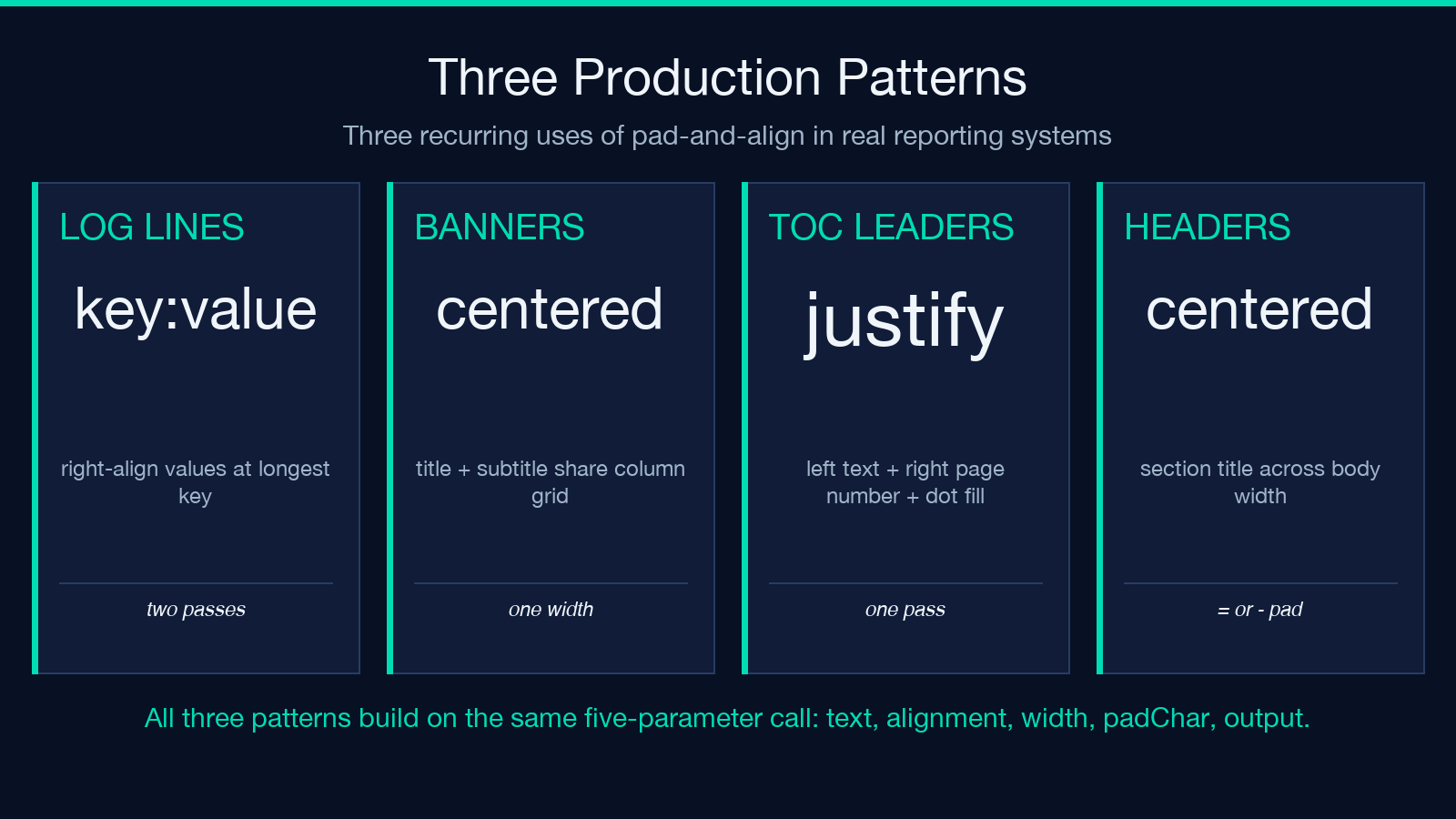
Three recurring patterns from production logging and reporting:
Pattern 1: Key-value pairs in monospace logs. Right-align the value column at the column’s widest member; left-align the key column. Two passes: first pass scans the input to compute the value column width, second pass pads each line with the computed width. Same tool, different input per pass.
Pattern 2: Section banners. Center-align the section title in a width that matches the body content’s natural width. The banner and the body share a column grid, which is what makes the page read as “one report” instead of “two things pasted together.” Choose a pad character that does not appear in the body content (=, -, *).
Pattern 3: Table-of-contents dot leaders. Dot-leader formatting is just justify alignment on a line like Section 1 ... 12. The leading text is left in column 1, the page number is right-aligned at the target width, the dots fill the gap. The dot character is the pad character on a right-align pass; the actual text is the section name and the page number.
For a wider look at how sibling tools chain the same input for richer layouts — particularly for aligned tables, with explicit column count and column widths — see the broader Data Processing family on Elysia Tools.
The Limits Worth Knowing
Two boundaries a power user runs into within the first hour.
Boundary 1: width > input length + pad length. For right and left alignment, any input up to width - len(padChar) characters fits cleanly. Past that bound, the tool returns the input untouched. This is intentional — silent truncation is worse than a visible overflow. Size your width to your longest possible input, not your shortest typical input.
Boundary 2: pad character length > width. If padChar is longer than width, no alignment makes sense; the tool keeps the input untouched. Keep the pad string to one to three characters for the most legible results.
Both boundaries are recoverable: pick a smaller pad character or a larger width. Neither is a defect. They are the contract that protects your output from silent corruption. The contract is part of why the tool feels predictable instead of magical.
Putting It Together
A fixed-width text layout is one of the few UI patterns that does not get better with abstraction. A monospace column is a one-pixel grid; a center-aligned banner is two padding rules around a label; a dot-leader TOC is one line of justified text. All four collapse into the same five-parameter call: text in, alignment, width, pad character, text out. The tool that exposes those five parameters as options gives you every layout pattern monospace can express — and no monospace layout you cannot express. The rest of your codebase can stop growing padding utilities.
Explore more at elysiatools.com.
