
Most “checklist” generators produce styled HTML that prints as decorative boxes — text that looks like a checkbox until a printer eats the font. PDF Checklist Form sidesteps that failure mode entirely by rendering the document through Elysia Tools PDF Checklist Form using a Puppeteer pipeline that draws real printable pseudo-checkbox glyphs, then freezes them inside a PDF that survives A4, Letter, and archival profiles. This field guide walks through the seven decisions that decide whether your printed list is actually useful on a clipboard — or just looks like one.
Why “Printable Checkbox” Is Not a Typographic Detail
A checkmark is not a Unicode character that survives every font. Two glyphs compete for the slot: U+2610 (☐) and U+2611 (☑). The first is a hollow box, the second a ballot box with a check. Most serif and many sans-serif system fonts ship them as part of a dingbat range that print engines quietly swap for .notdef boxes. When that swap happens at the print device, every checked row suddenly looks unchecked — exactly the opposite of what the reader needs.
The tool draws the checkbox as an inline pseudo-element with a fixed-glyph fallback list. If Helvetica has it, you get Helvetica’s ballot box; if it doesn’t, the engine substitutes a stroked rectangle of identical metric width. The check inside the box is a separate vector path, not a glyph. Net effect: a printer without the dingbat range still produces a square you can mark with a pen. That distinction is invisible on screen and total on paper.
For teams that audit printed checklists weekly — onboarding, safety walkthroughs, equipment sign-off — this is the difference between a list that tracks work and a list that gets re-typed on the spot.
What Spreadsheets Quietly Lose
Spreadsheets handle the checkbox column poorly. Excel’s [ ] and [x] strings render fine on screen, but the print engine strips the brackets when column width is tight, and merged cells hide rows that look present. Google Sheets behaves better until the printer driver substitutes a font that lacks the ballot glyph — exactly the failure mode the PDF approach avoids.
The other spreadsheet trap is locked-cell interactivity. A printed spreadsheet cell cannot be partially ticked; the reader either ticks the row or rewrites the row. Checklist forms keep the row text static and treat the box as a free-floating mark zone. Pen-and-paper readers expect that. Excel users often forget it.
When the workflow is “reviewer marks items, scanner captures marks later,” the PDF form layout is what reviewers actually want. A spreadsheet is what the data team thinks they want. They are not the same artifact.
Layout Controls That Decide Print Fidelity
The tool exposes the five controls that matter for printable output:
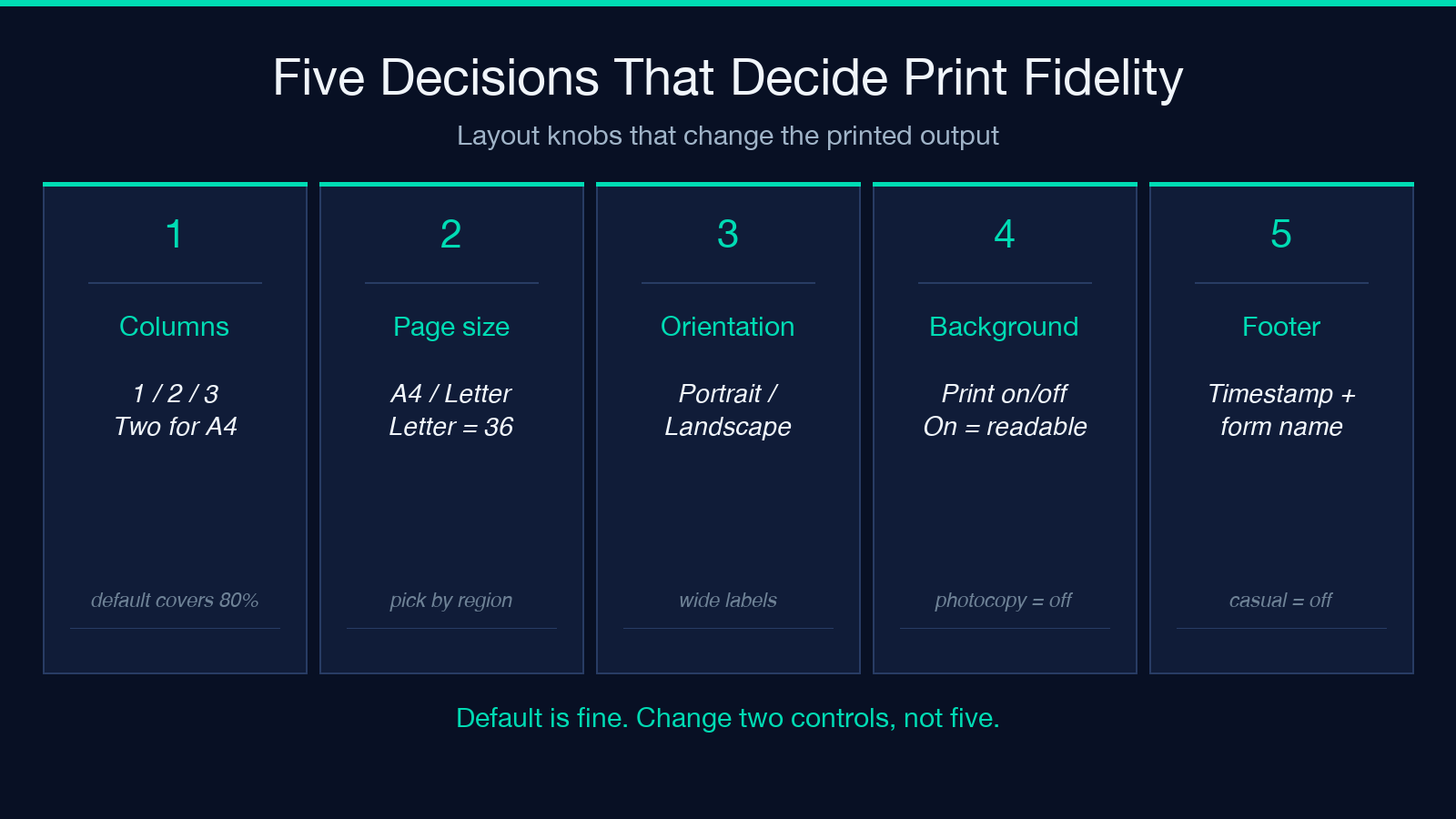
- – Columns (1 / 2 / 3) — splits the checklist into parallel stacks so a wide form fits on a portrait page. Two columns is the sweet spot for A4/Letter; three starts to clip item labels at 12pt.
- – Page size (A4 / Letter / Legal) — sets the canvas. Letter accepts ~36 lines at 11pt single-column; A4 ~42. Legal buys vertical room for compliance checklists.
- – Landscape — flips the orientation. Useful when item labels run long (think equipment sign-off rows with serial-number fields).
- – Print background — controls whether the subtle row banding prints. Leave it on for readability, off if the form will be photocopied.
- – Show footer — adds a generation timestamp and option name. Useful for audit trails, noise for casual use.
The default Columns=1, Page size=A4, Portrait, Print background=on, Show footer=on covers ~80 percent of use cases. The other 20 percent is where the tool earns its keep.
Puppeteer Timing: When Extra Wait Time Actually Matters
The waitUntil and waitTime options look like knobs nobody touches. They are the most common source of clipped first-page output.
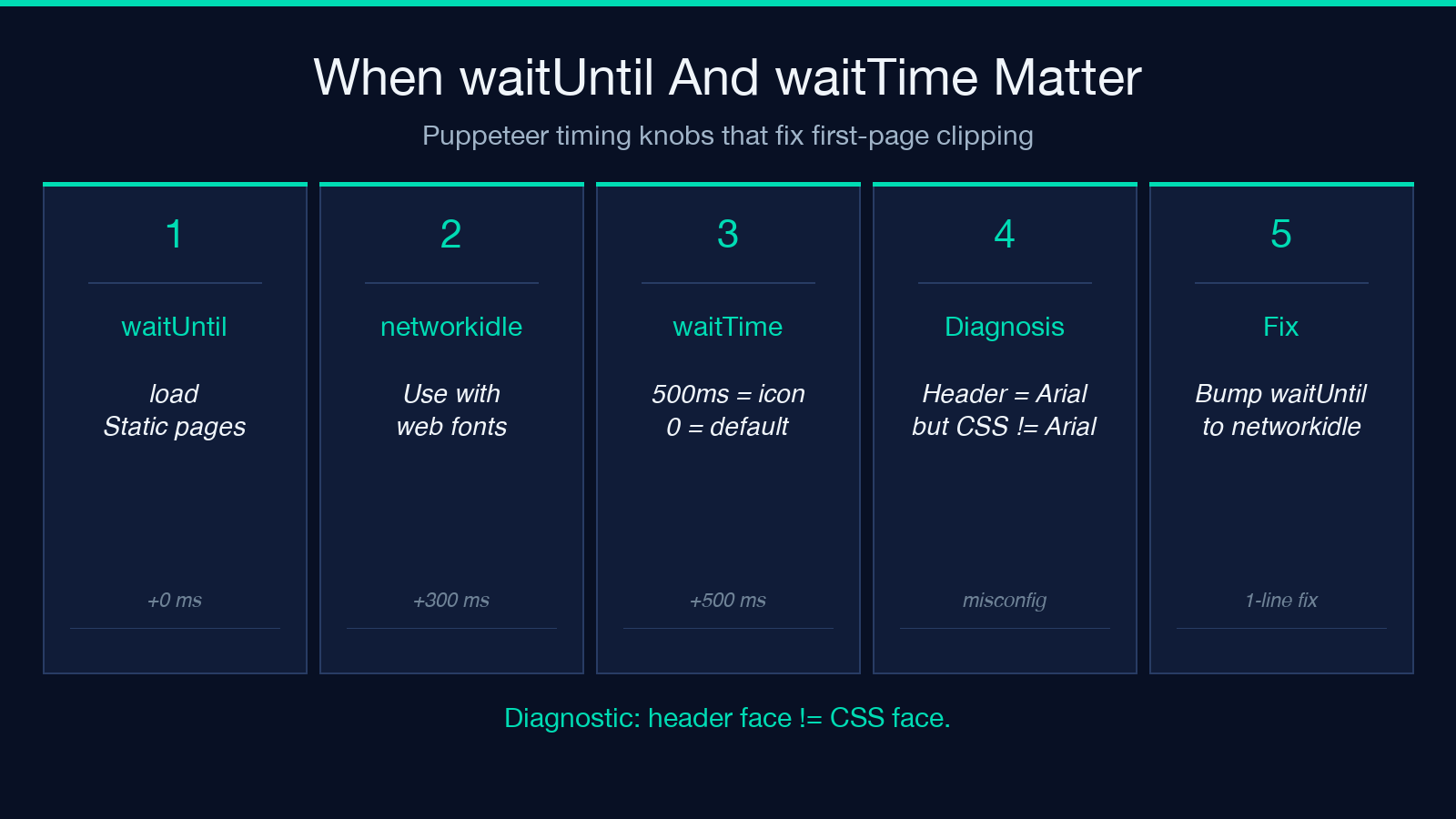
waitUntil selects the Puppeteer lifecycle event that triggers PDF capture: load, domcontentloaded, networkidle, or networkidle0. The default load is fine for static checklist content. If the page pulls in a web font for the header — many do, for branding consistency — load fires before the font swap completes and the rendered PDF embeds a fallback font face. Switch to networkidle for any branded header; the cost is roughly 200-400ms per render.
waitTime (ms) adds an explicit delay on top of the lifecycle event. Set this to 500 when the page hosts an icon font that loads asynchronously after networkidle. Set it to 0 for everything that doesn’t. A misconfigured waitTime=2000 on every run is the difference between a fast batch and a slow one.
The diagnostic is straightforward: if your first page header font looks like Arial but your CSS specifies Inter, the wait event fired too early. Bump waitUntil to networkidle and the rendered face will match the stylesheet.
Pre-Checked Indexes: Scaffolding a Partial Run
checkedIndexes is a comma-separated list of row numbers that should appear already ticked when the form is opened. The use case is narrower than it sounds but valuable: partially-completed audits.
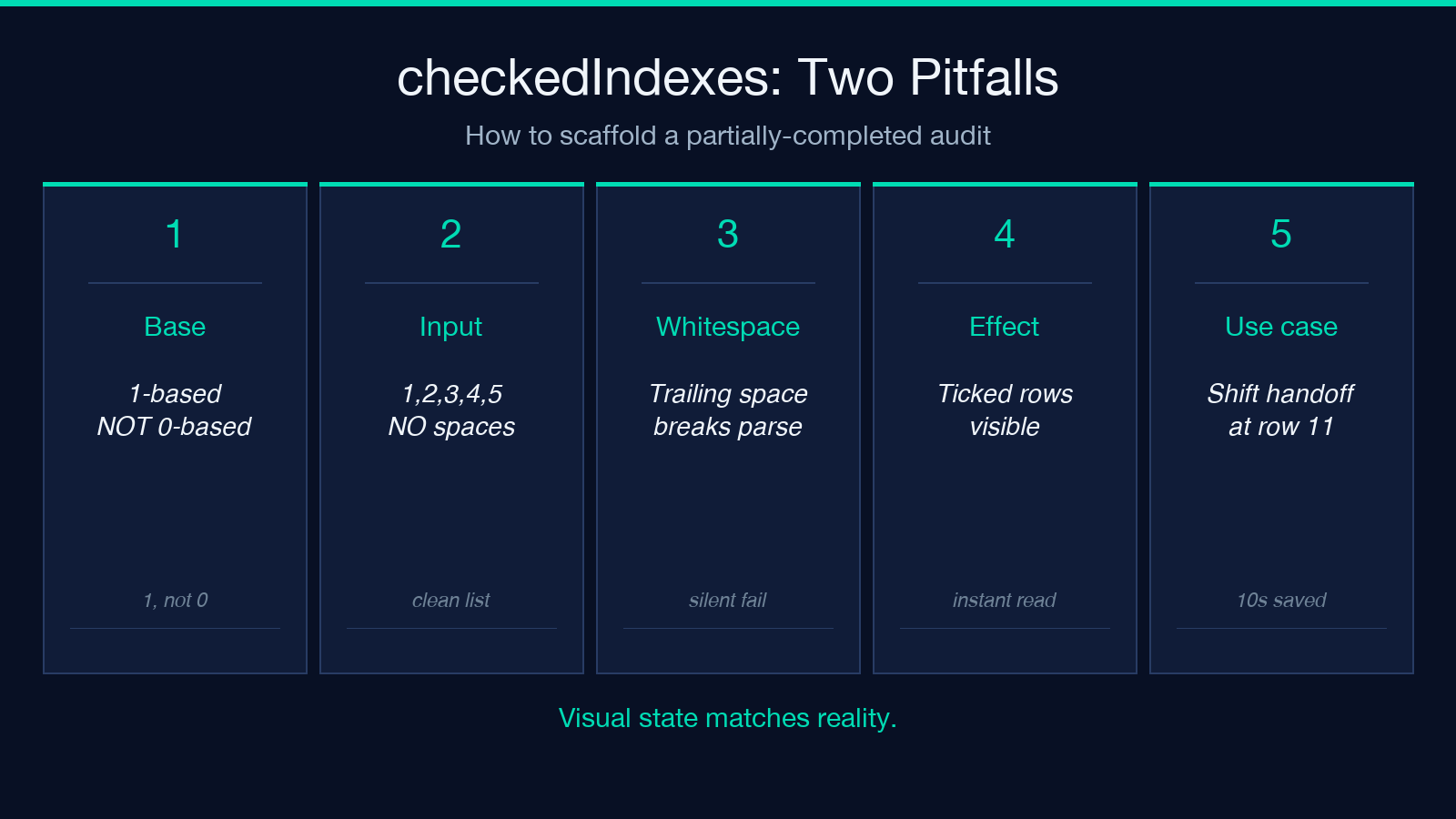
A safety walkthrough that was halfway done yesterday needs a new print today. The reader doesn’t want to re-mark the rows they already cleared; they want to start from row 11 of 40. Pass checkedIndexes=1,2,3,4,5,6,7,8,9,10 and the reader picks up exactly where the previous shift left off.
Two pitfalls:
- 1. Indexes are 1-based, not 0-based. A common first-time mistake is passing
0,1,2and finding row 1 empty. - 2. Trailing whitespace breaks the parser.
checkedIndexes=1, 2, 3(with spaces) silently fails the whole list. Use1,2,3and let the textarea input reject whitespace.
The output is a form whose visual state matches reality. That sounds trivial until you watch a reader spend ten seconds checking whether “row 7 was already done” — that hesitation is what the option eliminates.
Multi-Column Modes and What They Hide
Two-column mode looks compact and professional. It also hides two issues until the first print:
- – Row order across columns. Two-column packing flows top-to-bottom in column 1, then continues at the top of column 2. The eye reads left-to-right, top-to-bottom across the page. Items 1-15 in column 1, 16-30 in column 2 — but a left-to-right reader sees item 1 then item 16 first. Always list items in the order the reader will scan them, not the order you think about them.
- – Item length. Two-column mode halves the available width per row. Items longer than ~50 characters get truncated at the right margin. Three-column mode (≈30 char limit) is even tighter.
For lists longer than ~30 rows, single-column is clearer. Two-column only earns its keep for short, label-style checklists: equipment checks, daily standups, onboarding tasks. The 50-character limit is the rule.
When the Printed List Drifts From the Working List
The printed form is a snapshot. The working list (Notion, Linear, a spreadsheet) is the live source. They diverge the moment anything changes.
The tool does not solve drift. It solves the act of capturing what the working list said at a specific moment. Treat the printed form as a frozen contract: “this is what we agreed to check on this shift.” Drift is fine — drift is the difference between the live list and the printed copy, and that difference is what an audit captures.
The corollary: do not print the form more often than the work changes. A weekly checklist printed daily is a daily re-baseline, which makes the audit trail noisy. A daily checklist printed once and ticked five times is five days of evidence. Pick the cadence that matches the rate of change.
Bringing It Together: A 30-Second Routine
For a team that adopts the tool as a daily habit, the operational routine is:
1. Build the canonical checklist once — paste it into Checklist Items, set Columns=2 and Page Size=Letter, set Show Index=on. 2. Generate the PDF. Inspect the first page; verify item labels are not truncated at the right margin. 3. Print N copies. Hand them out at the start of shift. 4. End of shift: collect, file, scan if the audit needs digital copies. 5. Next day: regenerate if anything changed. Reuse if nothing did.
That is the entire workflow. The tool replaces a half-hour spreadsheet-formatting session with a 30-second paste-and-print. The deeper payoff is the audit trail — every shift has a dated, printed, signed artifact that says exactly what was checked and when.
Open the tool at Elysia Tools PDF Checklist Form and run your most-used checklist through it once. The first render takes about a minute; the hundredth takes ten seconds. That’s the kind of tool that earns its slot in the sidebar.
Explore more printable document workflows at elysiatools.com.
