
Three knobs decide how a line of text sits inside a fixed-width block, and they almost never appear in the same place twice. When you write a banner, an ASCII table, or a monospaced config snippet, the layout is determined by the target width, the alignment mode, and the pad character. Pick any two and the third has to match them — and the only reliable way to keep them consistent at scale is to stop writing them by hand and let a tool do it. The Text Pad & Align tool is built for exactly that kind of column-by-column decision, and it is the one this field guide is about.
Most text-formatting tools start with a font and end with a renderer. Text Pad & Align starts with a column count and ends with a string. The intermediate step — choosing how a line is positioned within that block — has more design space than people realize, and four alignment modes (Left, Right, Center, Justify) cover the four common cases. The rest of the article walks through them, the options that matter, and the failure modes that show up when you try to hand-roll this in your editor.
What text padding actually does
A pad operation takes a line that is shorter than a target width and adds characters to make it that wide. The alignment parameter decides where the original text sits inside the resulting block, and where the padding characters go.
– Left — text stays at the left edge; padding is added on the right. The default for almost every console log, header file, and config snippet.
– Right — text sits at the right edge; padding is added on the left. The shape of a right-aligned number column.
– Center — text sits in the middle; the padding is split between both sides. When the leftover space is odd, the extra pad goes on the right (so center alignment is deterministic, not random).
– Justify — for multi-line input, full-justify every line except the last: words are spread so the line reaches the target width. A line containing only a single word falls back to left alignment because there is nothing to spread.
A 4-character target with the input hi produces four different outputs:
Left   → "hi  "
Right  → "  hi"
Center → " hi "
Justify → unchanged — single word, no spread
The four lines above are not stylistic variants of the same idea. They are four different solutions to the same problem: “where do these two characters sit inside a four-cell block.” The default — Left — is the one most code paths assume, which is why padding bugs usually surface when someone changes alignment without changing the surrounding layout.
The three knobs that matter
Every pad operation in Text Pad & Align is parameterized by three inputs. They are visible at the top of the tool, but they are also implicit in every hand-written padded string you have ever seen.
– Target width — the column count each line is padded to, from 1 to 200. This is the only knob whose value is a hard limit: a line that is already at or past the target returns unchanged for Left, Right, and Center (you cannot shrink text by padding). Width is measured in Unicode code points, which means CJK characters each count as one column — pair the tool with a monospaced display and the visual alignment actually matches the column count.
– Alignment — Left / Right / Center / Justify. The single most-overlooked knob in monospaced layouts. A code block padded to 80 with Right alignment looks structurally different from the same block padded to 80 with Left alignment, even though both are 80 characters wide.
– Pad character — the character used to fill the gap. Defaults to a space, which is what most formatted text uses. Common replacements are - (banner separators), = (heavy separators), . (table leaders), and 0 (zero-padding numeric columns, common in finance and inventory files).
These three knobs are not independent. A --padded block at width 40 with Center alignment looks like a divider rule. The same block at width 40 with Left alignment and a 0 pad character looks like a numeric prefix. The tool itself does not care which mode you pick; the output strings are all equally valid, and the choice is yours.
Where padded strings actually live
Padded text shows up in four common places, and each one has its own convention about which knob is “the right one.”
– ASCII banners and dividers — ===== or ----- separators. The pad character is the entire visual, so the tool’s output is the same regardless of alignment; the dominant knob here is pad character, not width.
– Console logs and fixed-width config files — left-aligned text padded to a column boundary. The default mode is correct almost always; the failure mode is forgetting to set a target width and getting a ragged block.
– Number columns in reports — right-aligned numerics, often zero-padded. The dominant knob is alignment, and the failure mode is mixing Right with a - pad character (which produces leading minus signs that look like numeric overflow).
– Monospaced tables — multi-line input with Justify for the body lines and Left for the header and footer lines. The dominant knob is alignment, and the failure mode is feeding a single-word header line into Justify and getting Left instead.
For worked examples of these layouts in actual use, the Text Pad & Align page shows live output for each mode against the same input. The visual difference between the four modes is small on a single short line and dramatic on a 60-line banner.
The four alignment modes at a glance
A single block of input, padded to width 24 with - as the pad character, looks like this in each mode:
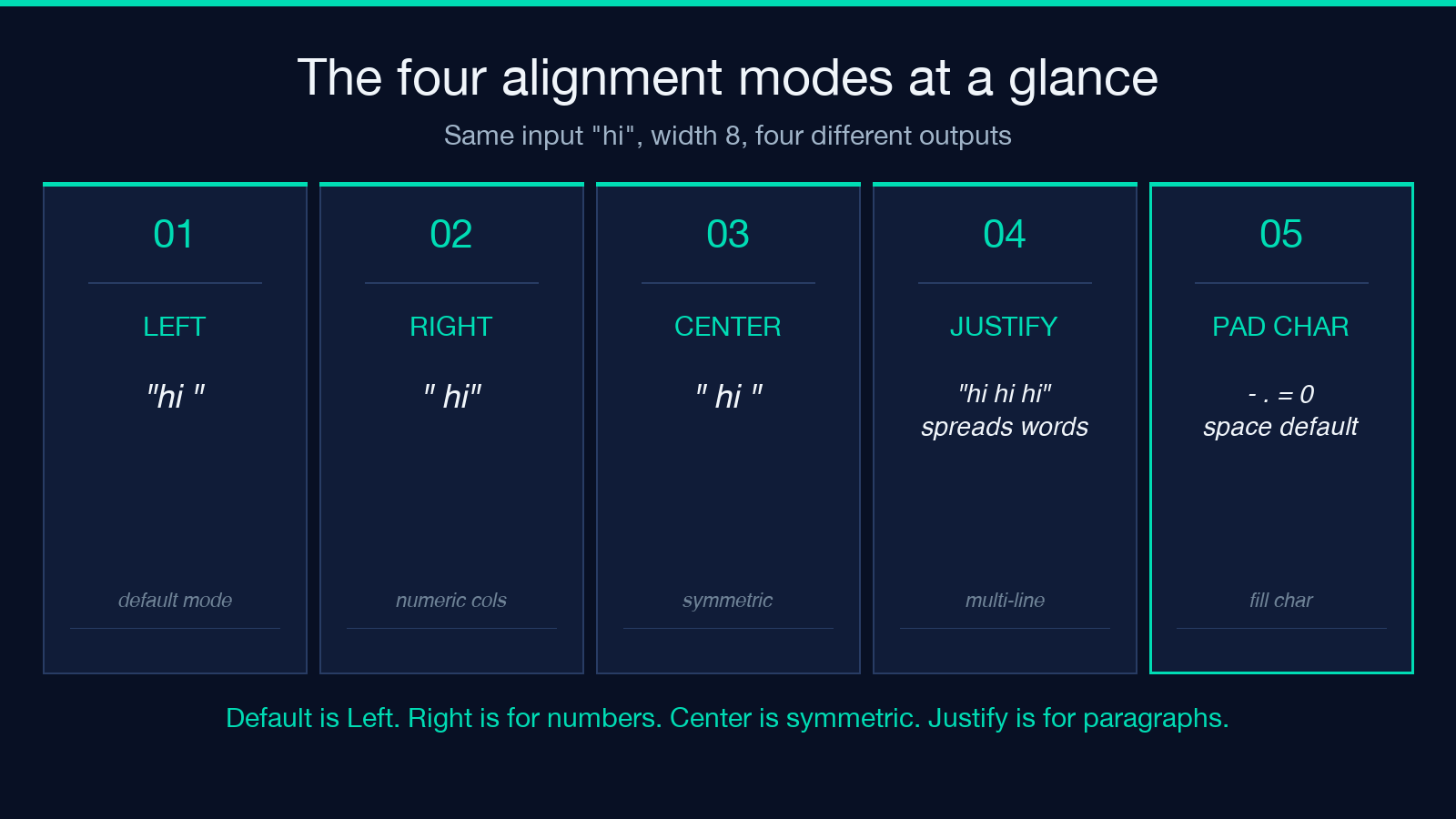
– Left — every line starts at column 0 and ends with enough - to reach column 23. Reads top-down; the left edge is a clean rule.
– Right — every line ends at column 23, with leading - filling the gap. Reads bottom-up; the right edge is a clean rule.
– Center — every line is centered; lines with odd remainders put the extra - on the right. Reads inward; both edges are symmetric except for the last column on odd-width lines.
– Justify — every line except the last is stretched to exactly 24 characters, with extra spaces distributed between words. The last line is left-aligned (newspaper convention).
The four outputs are visually distinct. They are also data-distinct: a downstream parser that expects Left alignment will misread a Right-aligned block the moment the column count stops matching. The visual choice has semantic consequences.
When padding silently fails
Three failure modes appear over and over in hand-written padded text, and all three are preventable with the tool.
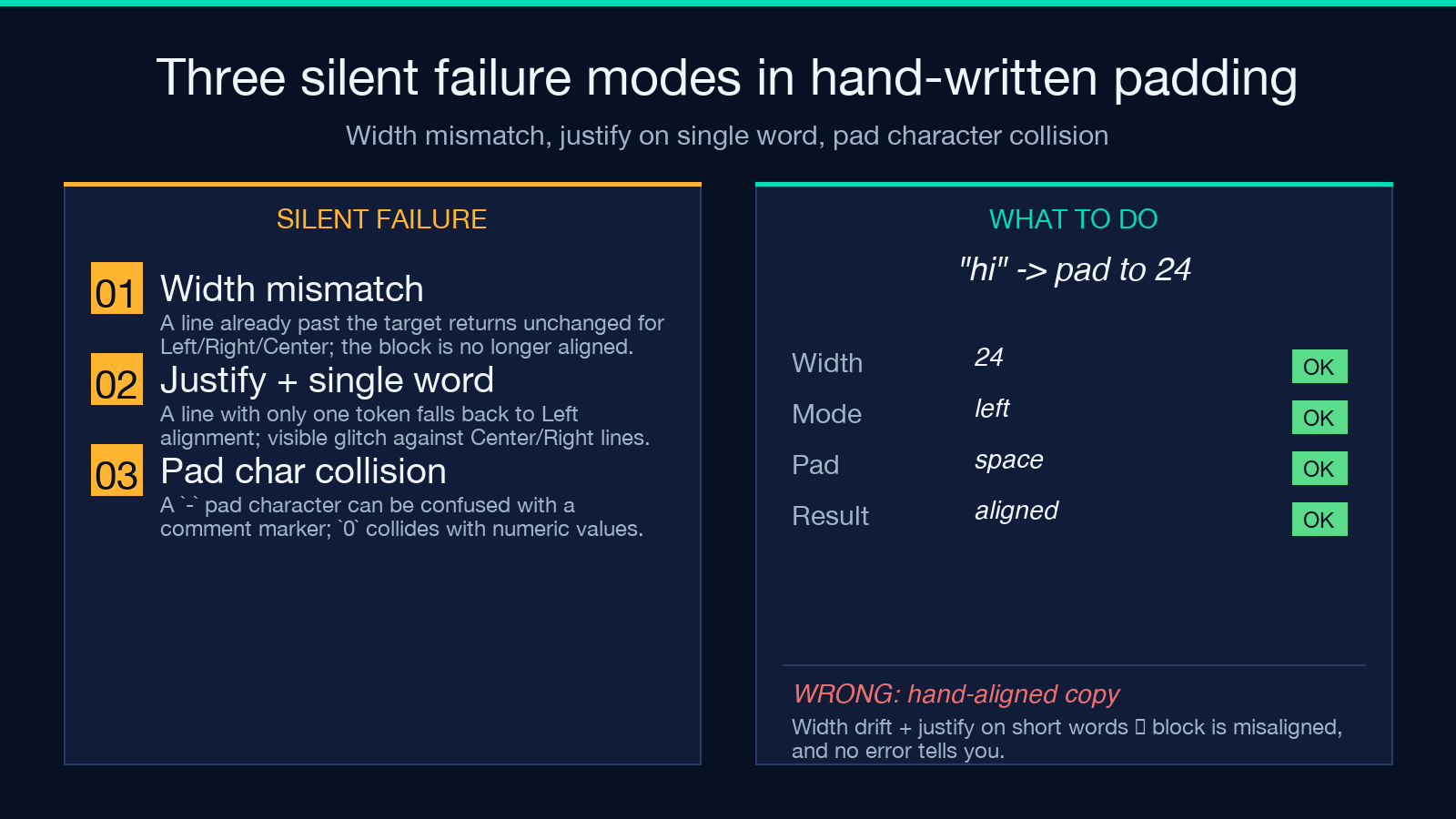
– Width mismatch — A line that already exceeds the target width is returned unchanged for Left, Right, and Center. The block is no longer aligned; the right edge of that line juts past every other line. The tool reports this faithfully (it does not silently truncate), but a hand-written copy-paste loop tends to hide the offending line behind the visible block. Always run the input through Text Pad & Align with the same width you intend to render at, even if the input “looks fine.”
– Justify on a single word — A line containing only one token has nothing to spread; it falls back to Left alignment. A header line padded with Justify therefore looks like a Left block followed by Right/Center body lines — a visible alignment glitch that hand-written code tends to mask with empty lines.
– Pad character collision — A - pad character inside a code block can be confused with a comment marker in some languages. A 0 pad character on a numeric column can collide with the values themselves. Pick the pad character last, after you have confirmed the rest of the layout, and treat the choice as semantic — not cosmetic.
For all three failure modes, the right defense is to generate the block once with the tool, paste the result, and stop editing it by hand.
Common padding patterns in real configs
Padding shows up in three specific file formats more than anywhere else.
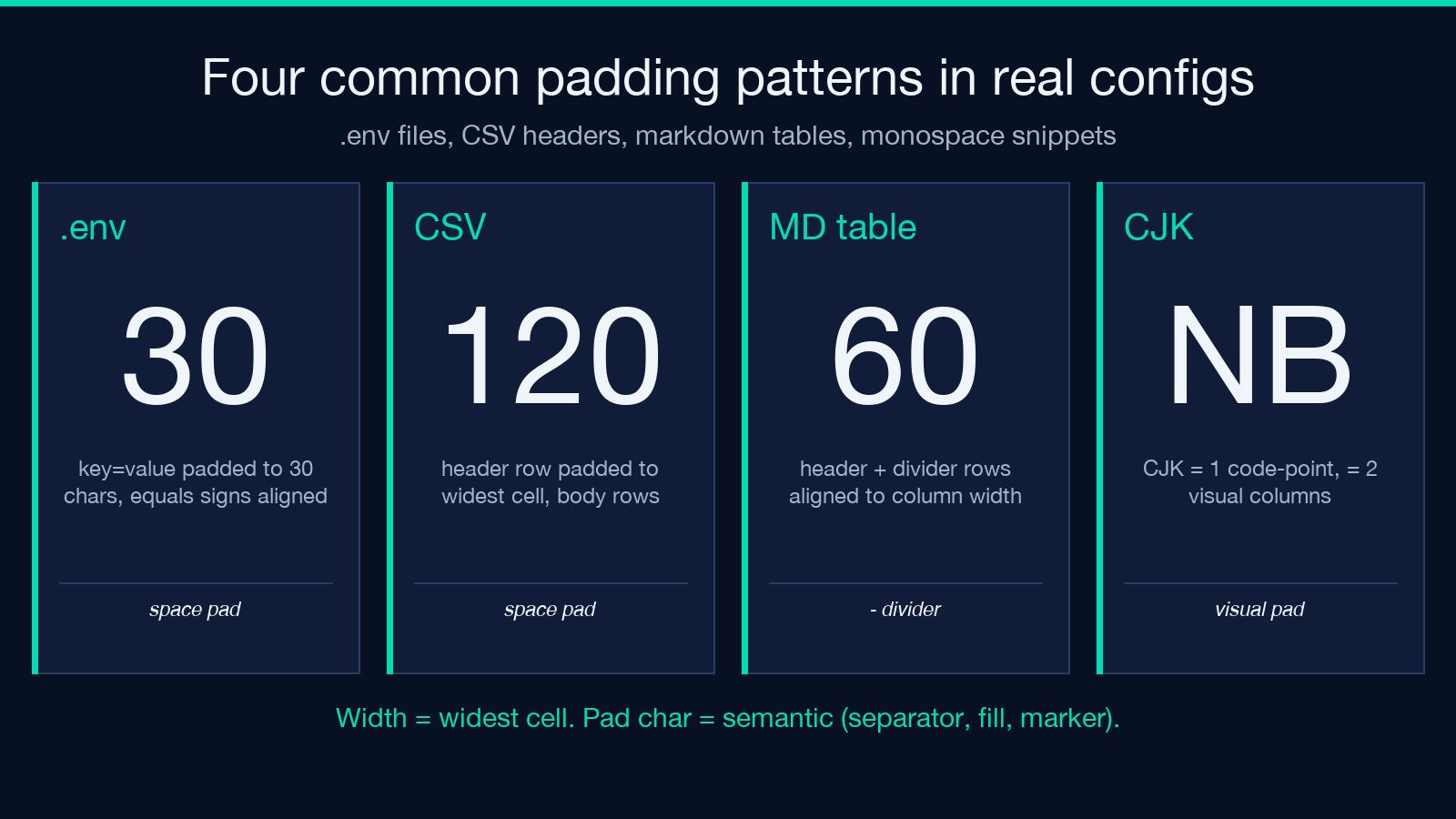
– .env files — left-aligned key-value pairs padded to a column boundary so the equals signs line up. Width is usually 30 (the longest key plus padding); pad character is space.
– CSV / TSV headers — header columns padded to a fixed width so that downstream awk / cut commands can slice on column count. Width is the widest cell; pad character is space.
– Markdown table cells — header and divider rows padded to the column width, body rows padded to match. Width is the widest cell in the column; pad character is - for the divider row and space for everything else.
In all three cases, the layout is preserved only as long as no cell grows past the chosen width. The tool does not enforce this — it returns the input unchanged when a line is already at or past the target — which is the correct behavior. The discipline of re-running the block when the input changes is what keeps the output aligned. For larger reformatting jobs, the Markdown Table Generator handles the multi-column case and produces padded output as a side effect.
Where Text Pad & Align stops being enough
Three cases are out of scope for a single-line pad operation.
– Multi-column tables — column widths are interdependent; padding one column changes the visual alignment of every other column. Use a dedicated table tool, not Text Pad & Align.
– CJK + Latin mixed content — character width is measured in code points, not visual columns. A CJK character is one column in the tool but two columns in most monospaced fonts. Pad to the visual width, not the code-point width.
– Right-to-left content — Arabic and Hebrew padded to a width of N produce a different visual block than the same content padded left-to-right. The tool does not currently have an RTL mode; for now, mirror the output by hand or use a layout tool that understands bidi.
None of these are bugs in the tool; they are scope boundaries. Knowing where the tool ends is what makes it useful inside its scope.
Closing the loop
Pick a width, pick an alignment, pick a pad character, and let the tool do the rest. Three knobs. Four modes. One tool. The result is a block of text that is exactly the width you asked for, aligned the way you asked for it, with a pad character you can swap without rewriting the layout. Hand-written padding drifts; tool-generated padding does not. The next time you write a banner, a divider, a config header, or a fixed-width report column, run the input through Text Pad & Align and stop arguing with the spaces.
For related fixed-width work — markdown tables, code formatting, ASCII art — explore the Markdown Table Generator for the multi-column case, or visit the main tools index to browse the full catalog.
