
Eight flags decide a photo mosaic's fate. Photo mosaics collapse a hundred, a thousand, sometimes tens of thousands of small images into a single composite that, when squinted at from across the room, reveals a coherent target picture. The eye reads the macro image, but every square centimeter of it is a separate photograph chosen to match the local color signature. The reason most photo mosaics look like noise rather than art has nothing to do with the source photos and everything to do with which eight controls the operator touched — tile size, tile resolution, blending mode, output format, quality, overlap, analysis depth, and the tile pool itself. Touch the wrong combination and your portrait of your grandmother looks like a tile floor; touch the right combination and the same portrait looks like a stained glass window. Try the Photo Mosaic Generator on Elysia Tools to see the control panel live.
The Eight Flags That Decide the Mosaic
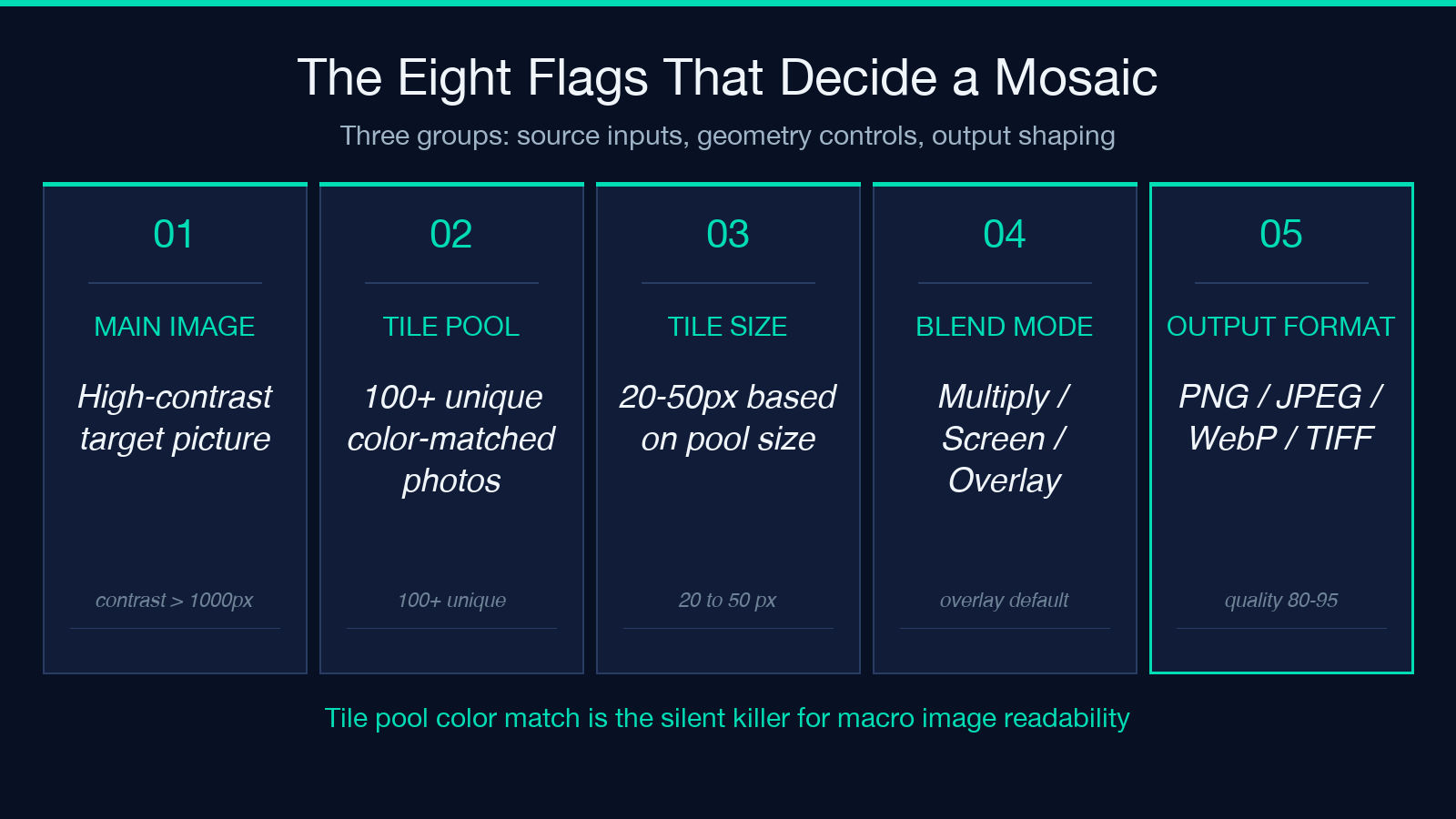
Photo mosaic generators universally expose a fixed set of parameters, and they fall into three groups: source inputs, geometry controls, and output shaping. Source inputs are the main image (the picture you want viewers to see at a distance) and the tile pool (the corpus of small images used to fill the grid). Geometry controls are tile size, tile resolution, and overlap. Output shaping covers blending mode, output format, and quality.
The reason these eight flags matter so much is that the entire quality of the final mosaic is decided by how the geometry and analysis layers interact with the tile pool’s color distribution. A tile pool of 5,000 vacation photos clustered around warm tones will fail spectacularly on a cool-toned target image regardless of how clever your geometry is. A pool of 500 professional product shots with neutral color balance will produce mediocre mosaics on a target image with extreme contrast because the pool lacks the shadow and highlight extremes needed to span the target’s dynamic range.
The Photo Mosaic Generator handles the matching algorithm; the operator handles the inputs. Understanding which inputs to feed is the entire game.
Source Inputs: Main Image vs Tile Pool
The main image is the macro picture you want viewers to perceive at a distance. It must be high contrast, well-lit, and ideally larger than 1000 pixels on the longest edge. Low-contrast main images produce mosaics that read as muddy color fields because the algorithm cannot find enough tonal variation across the image to pull distinctive tile clusters together. A silhouette main image produces dramatic mosaics. A flat-lit portrait produces flat mosaics regardless of tile pool quality.
The tile pool is the corpus of small images used to fill the grid. Three rules govern a good tile pool:
1. Count: a pool of at least 100 unique images is the minimum for a presentable mosaic. Pools under 50 produce obvious repetition. Pools over 1000 produce varied, professional results. The Photo Mosaic Generator accepts up to 500 tiles per upload. 2. Color distribution: the pool’s average color, per-channel, must span a similar range as the main image’s color distribution. A pool of warm-toned sunset photos cannot serve a cool-toned winter scene. 3. Subject diversity: similar subject matter across the pool produces a homogeneous mosaic that reads as one repeating pattern rather than a composite of varied imagery.
The second rule is the silent killer. Most casual operators assemble a tile pool from one photo shoot — wedding photos, vacation snapshots, product shots — and then try to build a mosaic of a different subject. The tonal mismatch produces a mosaic that, viewed close, looks fine, but viewed at distance, fails to resolve into the intended macro image.
Geometry Controls: Tile Size, Resolution, Overlap
Tile size is the most important geometry flag. A 20-pixel tile produces a high-resolution mosaic that requires the viewer to step back several meters to resolve the macro image; a 50-pixel tile produces a coarser mosaic visible at conversational distance. The trade-off is tile pool size: a 20-pixel tile on a 1000-by-1000 main image requires 2500 unique tiles; a 50-pixel tile requires only 400. Operators with small pools must use larger tiles.
Tile analysis resolution is the pixel block size the algorithm samples per tile to extract its color signature. A 5-pixel sample captures fine tonal variation within each tile but increases computation time; a 20-pixel sample treats each tile as a flat color patch. For color-distributed mosaics, 10-pixel analysis works well.
Overlap tiles is a checkbox flag that controls whether adjacent tiles bleed into each other by 1-2 pixels. Enabling overlap produces softer-edged mosaics that read as watercolor or stained glass; disabling it produces crisp grid mosaics that read as pixel art. The flag is a stylistic choice, not a quality choice.
For additional design guidance on contrast, color theory, and visual composition, see the Elysia Tools Design category which includes complementary generators.
Blending Modes: Multiply, Screen, Overlay, and Beyond
Blending mode controls how each tile’s color signature is composited onto its position in the mosaic. The four most common blending modes are:
– Multiply: darkens the underlying color. Produces rich, saturated mosaics with strong shadow regions. Best for warm-toned main images and tile pools with deep colors.
– Screen: lightens the underlying color. Produces bright, airy mosaics with strong highlight regions. Best for cool-toned main images and tile pools with pastel colors.
– Overlay: combines multiply and screen based on the underlying color’s luminance. Produces balanced mosaics with both shadow and highlight detail. The default mode in most generators.
– Normal: replaces the underlying color entirely with the tile’s color. Produces pixel-art style mosaics with no tonal blending. Best for high-contrast target images and high-variance tile pools.
Choosing the wrong blending mode is the most common cause of “the colors look wrong” complaints. Operators with a tile pool of muted, low-saturation photos should use Overlay or Screen; operators with a high-saturation tile pool should use Multiply or Normal.
The blending mode is set per mosaic, not per tile, so changing the mode requires regenerating the entire output. Plan accordingly.
Output Format: PNG, JPEG, WebP, and the Quality Trade-off
Output format is the file container the mosaic is saved in. The four formats offered by most generators each have a specific use case:
– PNG: lossless, large file size, supports transparency. Best for archival, print, and any case where file size is not a concern.
– JPEG: lossy, small file size, no transparency. Best for web display, social media sharing, and any case where file size matters more than pixel-perfect fidelity.
– WebP: modern lossy/lossless hybrid, smallest file size for equivalent quality, no transparency in lossy mode. Best for modern web display with optimized loading.
– TIFF: lossless, very large file size, professional print standard. Best for gallery prints and archival masters.
Quality is a 1-100 scale that controls the JPEG/WebP compression level. Quality 100 is visually lossless but produces files 5-10x larger than quality 80. Quality 80 is the sweet spot for web display; quality 95 is the sweet spot for archival.
For comparison of file size across formats at equivalent visual quality, the Elysia Tools image utilities include compression analyzers that benchmark the same image at quality settings from 60 to 100.
The Three Common Failure Modes
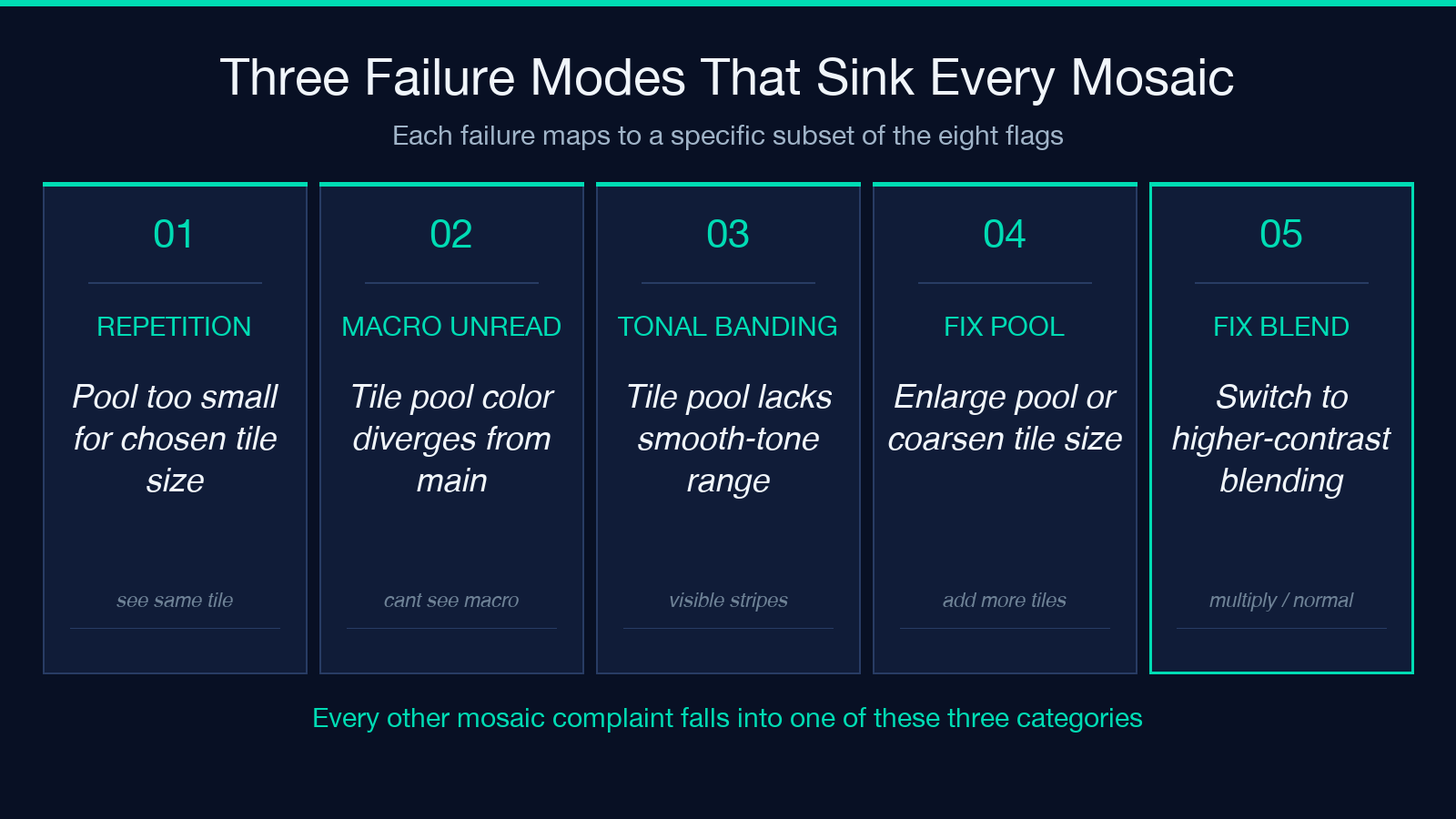
Photo mosaics fail in three predictable ways, and each failure mode maps to a specific subset of the eight flags.
Failure 1: Repetition visible. The mosaic shows obvious repetition of the same tile across multiple grid positions. This happens when the tile pool is too small for the chosen tile size, or when the analysis resolution is too coarse to differentiate similar tiles. Fix by enlarging the tile pool or coarsening the tile size.
Failure 2: Macro image unreadable. Stepping back from the mosaic, the macro image is not recognizable. This happens when the tile pool’s average color diverges from the main image’s color distribution, or when the blending mode washes out the tonal differences the algorithm is trying to exploit. Fix by rebalancing the tile pool’s color distribution or switching to a higher-contrast blending mode.
Failure 3: Tonal banding. The mosaic shows visible bands or stripes of color across regions that should be smooth gradients. This happens when the tile pool lacks the continuous tonal range needed to span smooth gradients in the main image, or when tile size is too coarse for the gradient resolution. Fix by adding high-resolution smooth-tone images to the tile pool, or by reducing tile size.
These three failure modes are the entire taxonomy. Every other complaint a user brings to a photo mosaic generator falls into one of these three categories.
Building the Pipeline: From Inputs to Final Output
The full pipeline for producing a presentable photo mosaic runs in five steps:
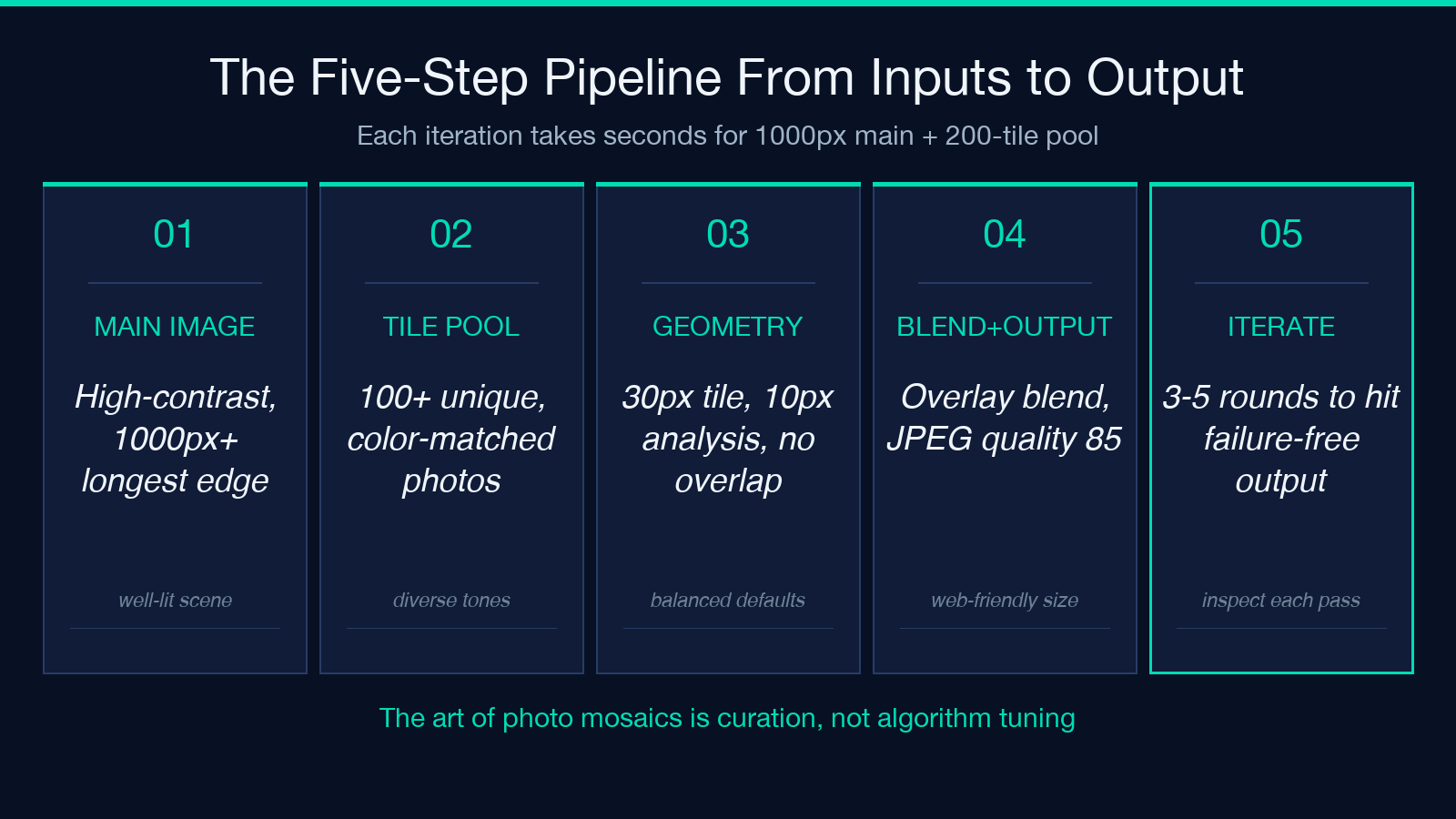
- Select the main image. Choose a high-contrast, well-lit image at least 1000 pixels on the longest edge.
- Curate the tile pool. Assemble at least 100 unique images with a color distribution matching the main image.
- Set geometry. Start with 30-pixel tiles, 10-pixel analysis resolution, no overlap. These defaults work for most target images.
- Set blending and output. Use Overlay blending for balanced mosaics; JPEG output at quality 85 for web display, PNG for archival.
- Iterate. Generate the mosaic, inspect at conversational distance and at close range, adjust tile size and blending mode based on which failure mode appears.
Each iteration takes seconds for a 1000-pixel main image and a 200-tile pool. Plan for 3-5 iterations before producing the final output. The Photo Mosaic Generator preserves all flag values across iterations, so only the changed parameter needs to be re-set.
For related image processing workflows including batch resizing, format conversion, and color-space manipulation, see the broader Elysia Tools design and image utilities.
Closing the Loop
Eight flags, three color buckets, one tile pool. The decisions that make a photo mosaic read as art rather than noise are the geometry flags (tile size, resolution, overlap), the blending flag (multiply, screen, overlay, normal), and the source inputs (main image contrast, tile pool color distribution, tile pool size). Each flag has a default that works for most cases; each flag has a failure mode when misconfigured; each flag has a measurable effect on the final output. The art of photo mosaics is not in the algorithm but in the curation: choose a high-contrast main image, choose a tonal-matched tile pool of at least 100 unique images, set geometry to fit the pool size, set output format to match the use case. Touch the right eight flags and your composite reads as a stained glass window; touch the wrong ones and the same composite reads as a tile floor. The Photo Mosaic Generator and the broader Elysia Tools design suite handle the matching algorithm and the output pipeline; the operator’s job is to feed the right inputs.
