
Working out is the easy part. Printing a program your members will actually read — week after week, set after set, without skipping the video links — is the part that quietly eats your afternoon. The Fitness Workout PDF Generator takes a JSON or CSV workout plan and turns it into a printable PDF with exercise tables, progress checkboxes, and QR-coded video demonstrations. Five toggles decide whether the output looks like a real program or like an exported spreadsheet with no margin and a QR floating off the page.
Lead phrase. Coaches and gym owners who run the same plan across dozens of trainees need a way to print one document that everyone can tick off, with the demo video one scan away. This generator takes a JSON or CSV workout plan and produces a printable PDF — exercise tables, progress boxes, and optional QR video links — and it does the layout choices for you if you give it five flags.
How the Workout Data Schema Drives the Output
The generator accepts two input shapes: a JSON array of objects or a CSV with the same column names. Either way, the columns that matter are the ones that show up in the printed table — day, exercise, sets, reps, rest, notes, and videoUrl. The full layout and input pipeline lives at the Fitness Workout PDF Generator page.
Each row becomes one row in the printed exercise table. Days become section breaks. The videoUrl column, when present, becomes either a QR code (if you enable QR codes) or a plain hyperlink (if you don’t). Skipping videoUrl entirely is also a valid choice for plans that don’t need video reference.
What makes the schema forgiving is that you don’t need every column for every exercise. A mobility day might leave rest blank; a hypertrophy day might skip notes entirely. The table renderer drops empty cells without leaving a dash, so missing data doesn’t look like a typo.
The Five Flags That Decide Layout
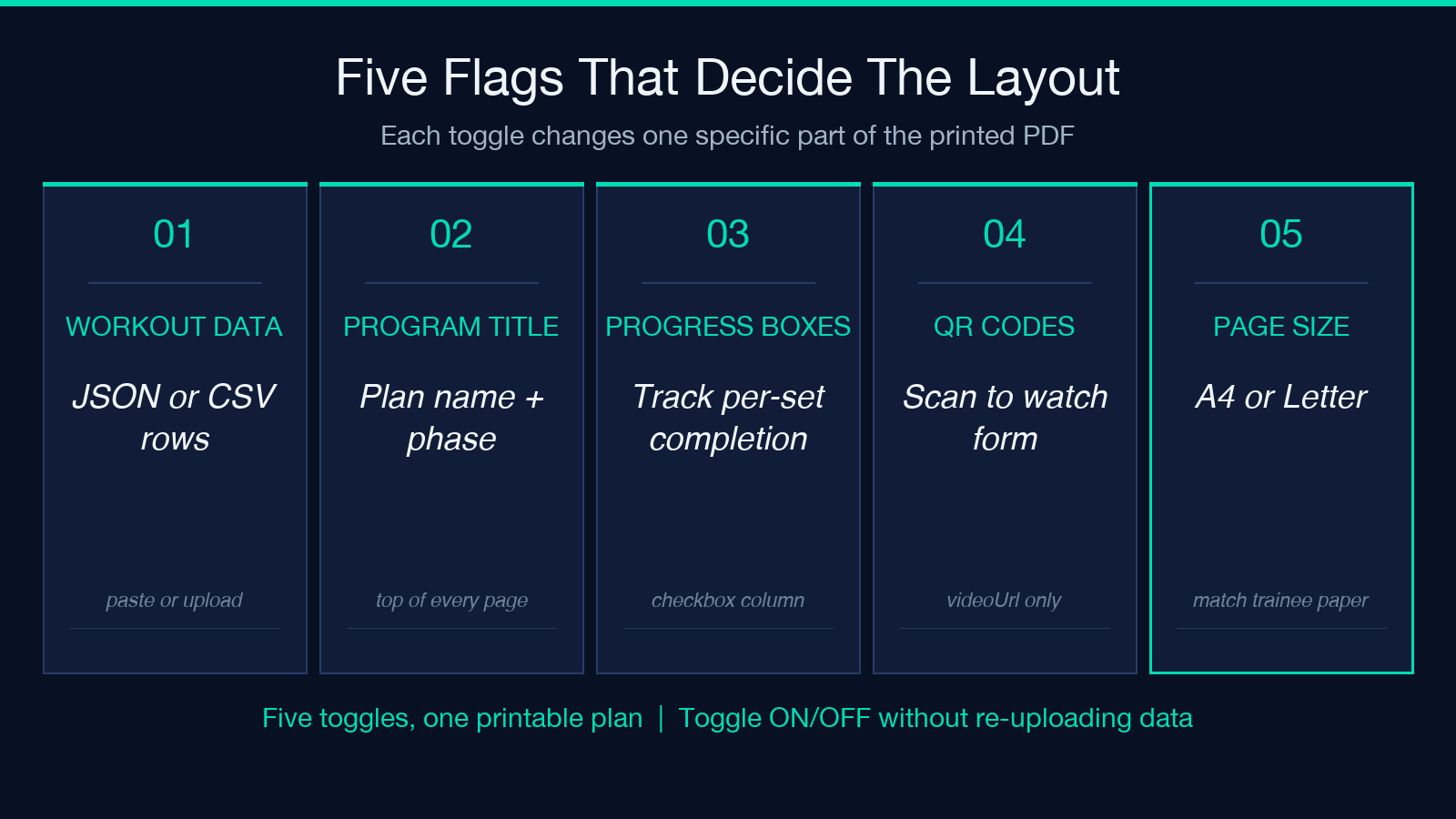
Most of the layout choice happens in five toggles: Workout Data vs Workout File, Program Title / Subtitle, Include Progress Boxes, Include QR Codes, and Page Size.
Workout Data vs Workout File is just input source — paste rows or upload a saved CSV/JSON. Same parser either way; the file upload exists so coaches who keep programs in Drive can drop a file instead of opening the tool every week.
Program Title / Subtitle prints at the top of every page. Default is “Workout Plan”. For a real program, set the title to the program name (“PPL Hypertrophy — 8 Weeks”) and the subtitle to the trainee phase (“Week 3 of 8, deload”).
Include Progress Boxes adds a checkbox column to the right of every exercise row. This is the toggle that turns a reference sheet into a working sheet — trainees actually tick off sets as they go instead of referring to the PDF and forgetting which set they’re on.
Include QR Codes turns each videoUrl into a scannable QR code at the end of the row. Without this, videoUrl renders as a plain text URL — fine for digital reading, useless for a printout on a gym floor. With this, trainees scan and watch without typing a URL on a sweaty phone.
Page Size is A4 vs Letter. A4 fits a 3-column metric layout better; Letter fits a 4-column imperial layout better. Pick the one that matches the trainee’s paper supply — not the trainer’s country.
Three Patterns for the Workout Data CSV
Three CSV patterns cover 90% of plans coaches actually write.
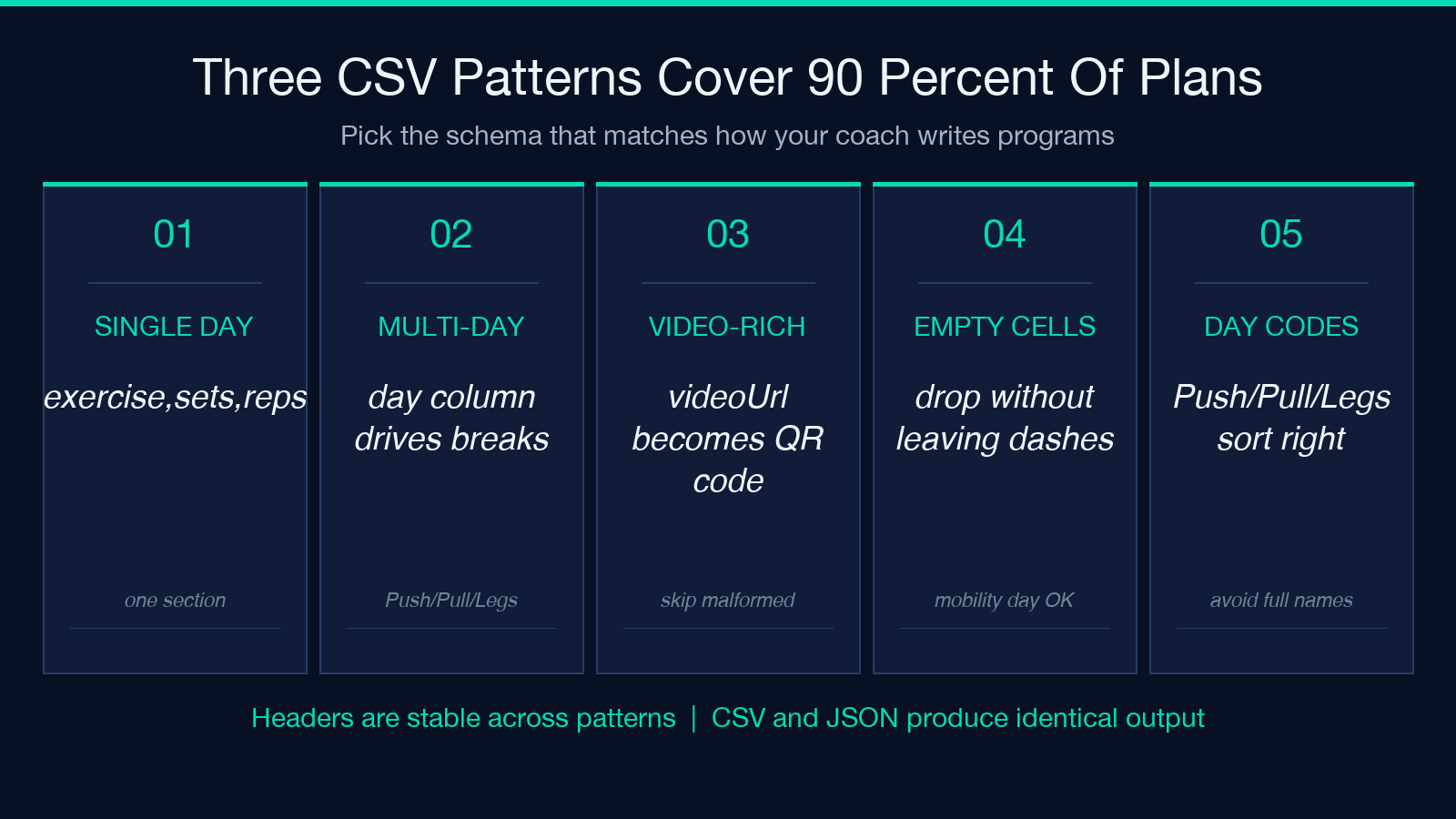
Pattern 1 — single-day programs. One day, multiple exercises. Headers: exercise,sets,reps,rest,notes. Day column is optional; if absent, every row goes into one section.
Pattern 2 — multi-day programs. Headers: day,exercise,sets,reps,rest,notes. Day column drives section breaks. Rows with the same day get grouped together; the renderer sorts days alphabetically by default (or by first-appearance order if you set day to “Push”, “Pull”, “Legs”).
Pattern 3 — video-rich programs. Same as pattern 2, plus a videoUrl column. Each non-empty URL becomes a QR code if QR Codes is on. URLs that fail to render as QRs (malformed, non-HTTP, javascript: prefix) are silently skipped and the row still prints.
When Progress Boxes Earn Their Page Real Estate
Progress boxes add a column to the right of every exercise. Three pages or fewer — they earn it. Five pages or more, and the box column starts to push the notes column into a second line per row, which makes the table harder to scan.
For programs with progress boxes, keep notes short (under 40 characters per row). For programs without boxes, notes can run longer because the freed space goes to text, not checkbox glyphs.
Choosing the Right Workout File Format
The generator accepts two input formats: CSV and JSON. Both produce identical output — the parser reads them into the same intermediate row representation before layout begins. The choice is about author workflow, not about capability.
CSV wins when the plan is written by hand or exported from a spreadsheet. Coaches who keep programs in Google Sheets can save-as-CSV and drop the file straight into the generator. CSV is also easier to diff in version control if you and a co-trainer iterate on the same program week over week.
JSON wins when the plan is generated programmatically. A fitness app that builds a personalized plan from a questionnaire can emit a JSON array of objects with the same field names the generator expects, no transformation needed. JSON also handles special characters in notes (commas, quotes, newlines) without escaping, which matters for plans with detailed coaching cues.
If the input contains tabs, the parser falls back to tab-delimited CSV automatically. Useful for Excel exports from coaches who use semicolons or tabs instead of commas.
When QR Codes Beat Plain URLs
A printed PDF on a gym floor with plain text URLs is a 5-tap workflow: find the URL, type the domain, navigate, find the video. With QR codes, it’s a 1-tap workflow: scan, watch. For programs where trainees actually need to watch the form on a heavy squat day, QR codes pay for themselves in the first session.
The renderer uses standard error-correction level Q (about 25% redundancy) — robust enough to scan through a sweat-wet finger or a slightly bent page. It will not scan if the printed PDF has been photocopied at 50% scale, because the QR cell becomes too small. Print at 100%.
When the Output Looks Wrong (and How to Fix It)
Three common output problems and their fixes.
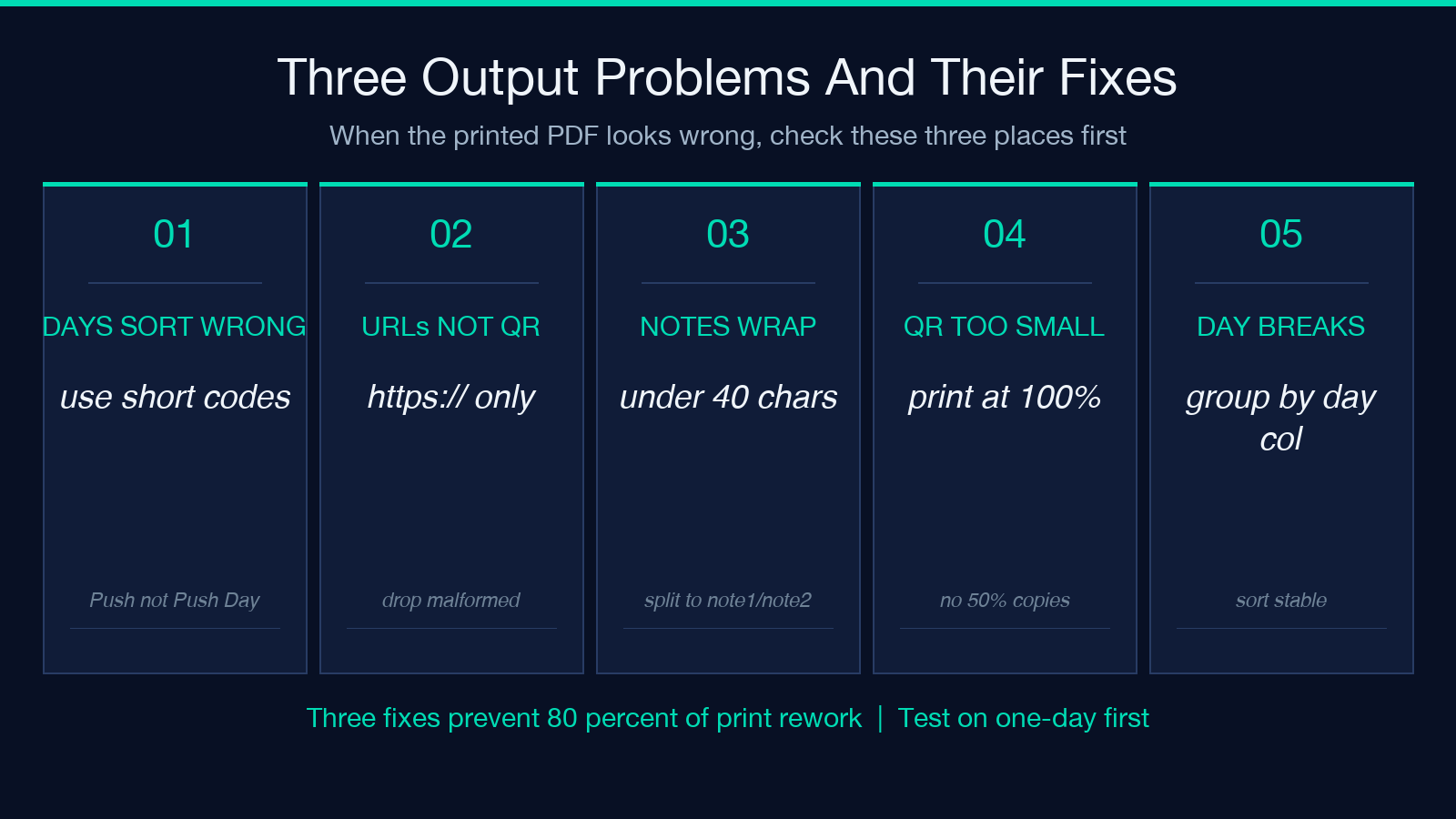
Problem 1: days print in alphabetical order instead of program order. Cause: the day column contains full names (“Push Day”, “Pull Day”, “Leg Day”) that sort alphabetically. Fix: use short codes (“Push”, “Pull”, “Legs”) — the renderer preserves first-appearance order for short day values.
Problem 2: video URLs render as plain text even though QR Codes is enabled. Cause: videoUrl cells are empty or contain non-URL text (“see notes”). Fix: ensure videoUrl is a complete https:// URL; empty cells are dropped, malformed URLs are silently skipped.
Problem 3: notes wrap to two lines, pushing rows down the page. Cause: notes column contains long sentences. Fix: trim notes to under 40 chars, or split into a separate note1 and note2 columns if the trainer wants more detail.
Putting It Together
For a 4-day hypertrophy program printed for a dozen trainees, the working recipe is:
– CSV with columns day,exercise,sets,reps,rest,notes,videoUrl – Day values: short codes (“Push”, “Pull”, “Legs”, “Upper”) – Program Title: the program name – Subtitle: the current week/phase – Progress Boxes: enabled – QR Codes: enabled – Page Size: Letter for US trainees, A4 for EU
The output is a 6-page PDF — one page per day for a 4-day program plus a cover and a glossary — with every exercise tappable, scannable, and tickable. Coaches stop re-printing mid-cycle; trainees stop losing their spot.
Try the generator on a one-day program first to feel the layout, then scale up to multi-day with QR codes for a real test of the print-to-scan path. The full feature reference is at the Fitness Workout PDF Generator page if you need to check an option flag during a print run.
Explore more document-generation options at Elysia Tools — or generate a printable plan now at the Fitness Workout PDF Generator.
