
A mesh background is not one gradient. It’s four radial-gradients stacked over a base color, optionally with a conic underlay, blend modes that decide whether the blobs glow or punch through, and a falloff knob that decides whether the result reads as a hero panel or a smudge. The CSS Gradient Mesh Generator lets you dial all eight of those levers and copy the CSS out. This field guide is what each lever actually does, why the cosmic preset reads as cosmic, and the four-step recipe that gets you from “blank panel” to “shipping hero” without the trial-and-error loop.
If you have ever stared at a Dribbble hero, copied the screenshot into Figma, and tried to reproduce it by hand, you also know the failure mode: three radial-gradients of slightly-too-bright colors blending into mud. The generator sidesteps that because every knob is one of the four actual inputs the browser sees — base color, blob color, falloff radius, blend mode. The rest is decoration.
What A Mesh Background Actually Is
A mesh background is a <section> (or any block element) with a background-color and a stack of background-image layers — each one a radial-gradient(...) placed at a specific background-position. The browser composites them top-down; the top blob wins where it’s opaque, the lower blob shows through where the top one has fallen to transparent. There is no special CSS property for “mesh.” It is the same machinery that paints a single radial dot, used four times with four positions and four colors.
The cosmetic magic comes from three details you have to get right. The falloff. A radial-gradient runs from a fully opaque color at its center to a fully transparent edge at the farthest-corner. If you let it run all the way to the corner, the blob smears across the whole panel and you get noise. If you cut the falloff short — typically by setting the gradient stops at 0% and 60% instead of 0% and 100% — the blob ends as a circle with a transparent ring around it. That ring is the entire point: it lets the underlying color show through without a hard edge, which is what reads as “organic.”
The base color. The mesh only works if the base color is the darkest (or lightest, in a light theme) tone in the palette. The blobs are brighter tints of the same hue. When a blob’s falloff ends, the browser composites the transparent pixels against the base — so the visible color at the edge of the blob is the base color, not the blob’s own color. Pick a base that doesn’t share hue with any blob and you get visible mud rings. Pick a base that is one or two steps darker than the dimmest blob and you get a clean fade.
The blend mode. With normal blending, opaque blob pixels cover the base and the visible result is a literal pile of color circles. With screen or plus-lighter (the modern equivalent of the Photoshop Screen blend), each blob’s pixels add their brightness to the underlying pixel, so two overlapping blobs produce a brighter overlap rather than a clipped overlap. That is what produces the “glowing” look on the ember preset: three warm blobs that brighten where they touch.
The Eight Flags You Actually Dial
The generator exposes eight named inputs. They map cleanly onto the three cosmetic details above plus a few knobs you only notice when you ship the background.
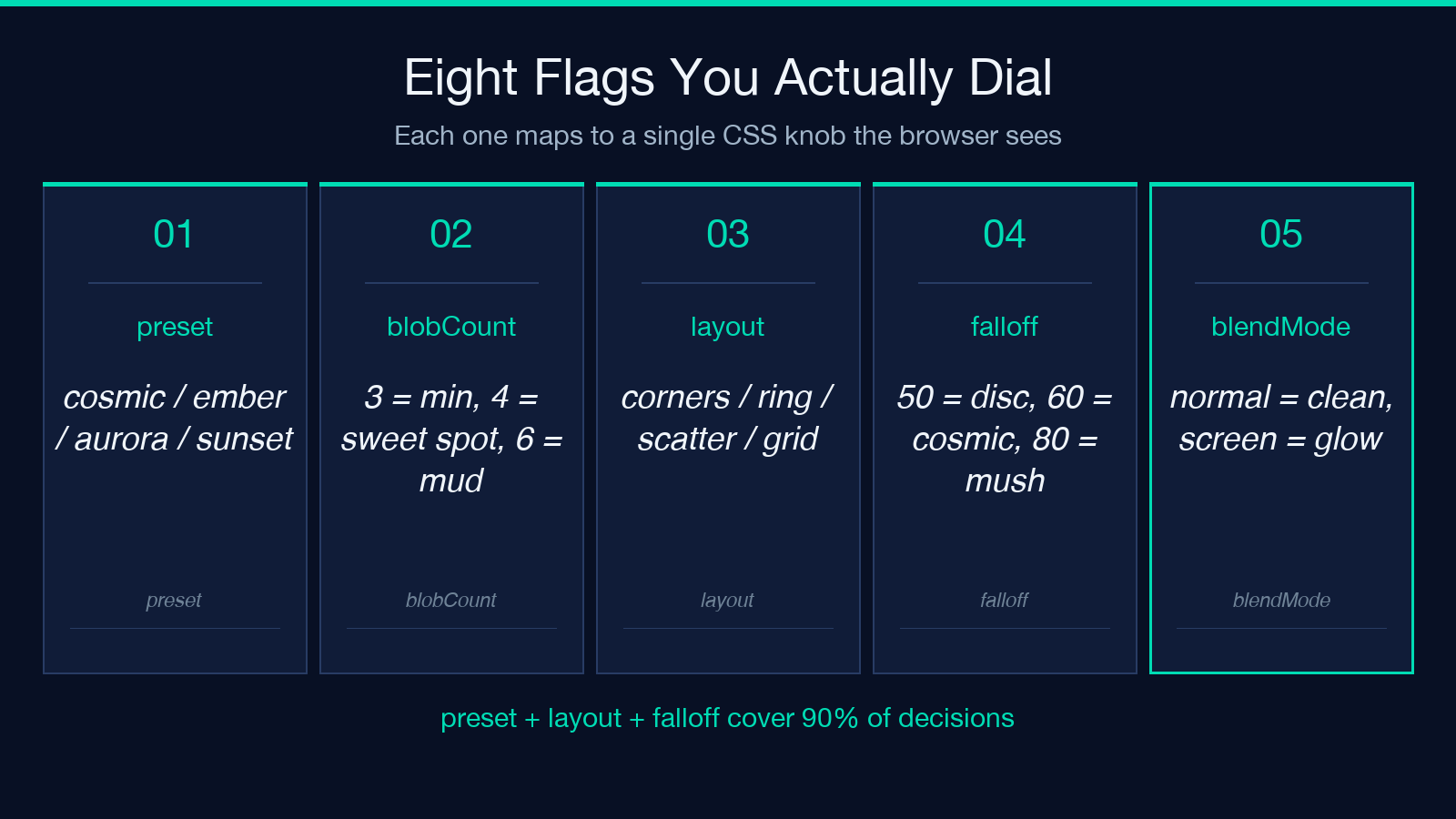
– preset — cosmic (cool palette, dark base, normal blend), ember (warm palette, dark base, screen blend, conic underlay, grain), aurora (green-cyan-magenta, light blend), and a couple of bespoke setups. Each preset is a complete input combination, not a starting point — pick the one closest to your hero and override individual flags from there.
– blobCount — how many radial layers. Three is the minimum for a mesh; four is the sweet spot for hero panels; five or more is almost always muddy. The generator caps at six because the math gets unwieldy above that.
– layout — corners (blobs at the four corners, the most “designed” look), ring (blobs around the perimeter, middle stays clean for content), scatter (positions seeded by an RNG, the most organic look), grid (2×2 evenly spaced, the most controlled look).
– seed — integer that drives the scatter RNG. Same seed produces the same scatter every time, so you can lock a layout and tune color without moving the blobs.
– falloff — percentage that controls how far the radial-gradient runs before going transparent. 50–70% is the useful range; below 40% the blobs are hard circles, above 80% they smear into each other.
– blendMode — normal, screen, plus-lighter, overlay. Use screen (or plus-lighter if you want GPU-accelerated compositing) for the glow look; use normal if you need to keep blob colors literal.
– conicUnderlay + conicAngle — an optional conic-gradient beneath the radial stack. With screen blending, the conic adds a faint prism sweep that reads as “iridescent.” Without it, the mesh is calmer. The angle controls the direction of the sweep.
– grain — toggles an SVG feTurbulence film-grain overlay at very low opacity. It kills the banding you sometimes see on large flat-color regions in dark hero panels, especially on Windows Chrome where 8-bit displays show color steps.
The export is three artifacts. A .gradient-mesh CSS class you paste into your stylesheet. A bg-[image:radial-gradient(...)] Tailwind arbitrary-value class if you work in Tailwind. And a static set of <radialGradient> definitions for SVG fallbacks. See a live cosmic preset render at the CSS Gradient Mesh Generator page.
Why The Cosmic Preset Works
The cosmic preset is four blobs (violet, pink, cyan, mint) at the corners over a near-black base (#0a0a14), falloff: 60, normal blending, no conic, no grain. That’s it. Six settings, none of them exotic. The reason it reads as cosmic and not as “four colored circles on a black panel” is that the base color is far enough below the blob colors that the falloff produces a visible gradient from blob to base, and the four colors sit roughly equidistant on the color wheel so no two blobs fight for the same hue. Violet and pink are adjacent, but violet is much darker than pink, so the overlap (the bottom-left corner where both fade) reads as a dark magenta rather than a muddier pink.
If you copy the cosmic preset and change only blobCount: 6 (six blobs instead of four), the result immediately looks chaotic. The reason: the four-blob layout has each blob occupying one quadrant with empty space in the center. Six blobs, in the corners layout, means two extra blobs land in the center of two opposite edges and start competing with the corner blobs for screen real estate. The fix is to switch layout: ring when you bump blobCount above four. The ring layout spreads six blobs around the perimeter, which keeps the center clean.
The other lesson hidden in cosmic is the choice to keep falloff: 60 rather than pushing it to 80. At falloff 60, each blob has a visible circle of color, then a transparent ring, then the base. At falloff 80, the transparent ring shrinks and the blobs start to bleed into each other; the visible “design” becomes a colored haze. 60 is the threshold at which each blob reads as a distinct shape but the panel still reads as a unified composition.
Choosing The Right Layout For Your Content
The four layouts solve four different content problems. corners is for full-bleed hero panels where the content sits in the center and the mesh frames it. ring is for backgrounds behind login cards, modals, or any content that occupies a center column — the ring of blobs draws the eye outward, leaving the center readable. scatter is for backgrounds that should not feel designed — abstract hero panels, mobile app splash screens, anywhere a “designer touched this” composition would feel heavy. grid is the safe pick when nothing else fits: four blobs evenly spaced, no surprises, no organic feel, just a clean tinted panel.
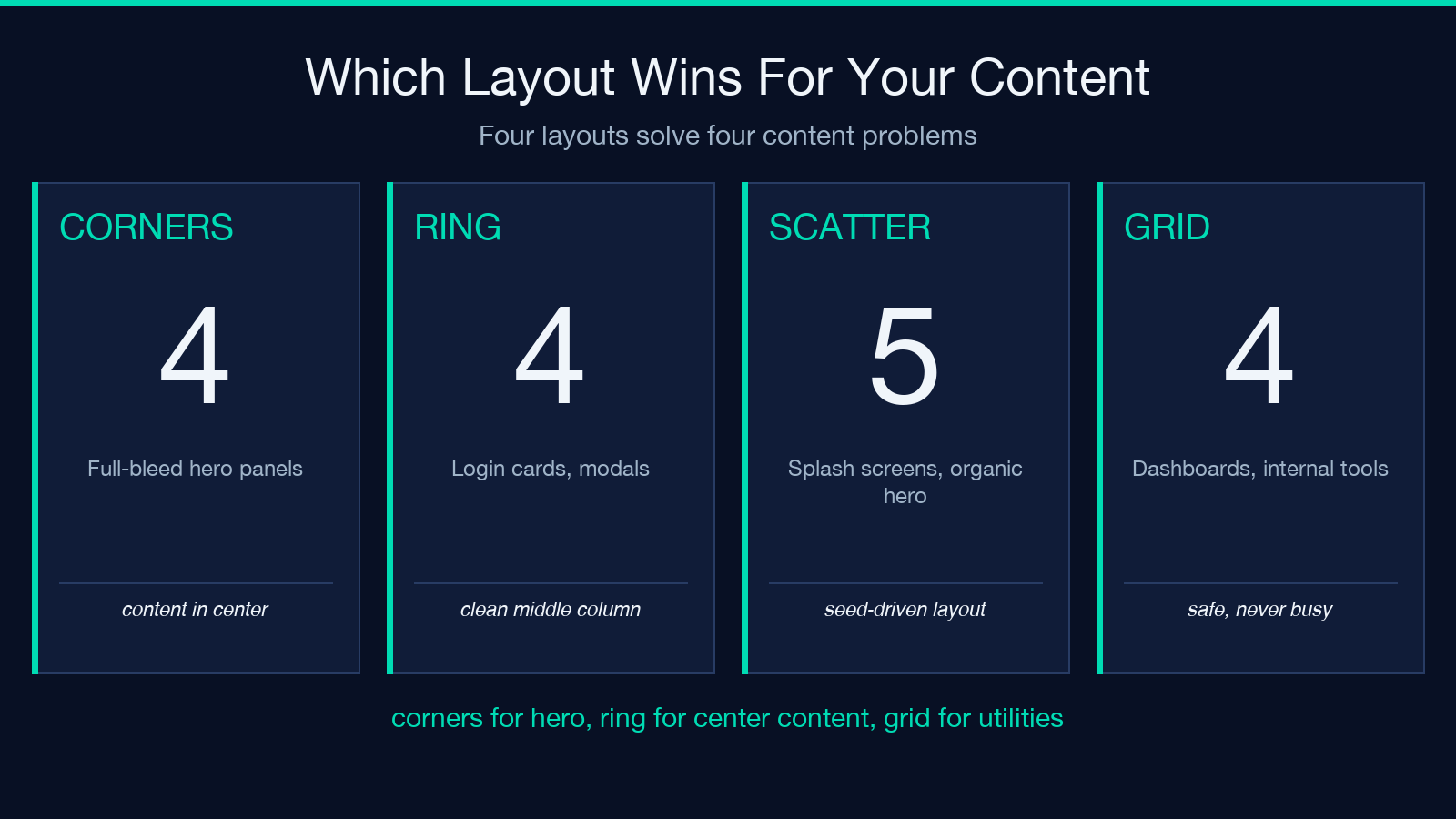
For landing pages with text in the center column, ring with falloff: 65 and blendMode: screen is the canonical pick. The screen blending brightens the overlaps between adjacent blobs on the ring, which produces visible “spokes” of brighter color that pull the eye outward and away from the text in the center. For full-bleed hero sections where you want the mesh to be the design, corners with falloff: 60 and blendMode: normal is the conservative choice — every blob reads as itself, no blending surprises, the mesh is what you see.
For dashboards, internal tools, and any background that needs to survive user-generated content layered on top, grid with falloff: 50 is the right pick. The grid layout is too regular to feel designed, the falloff is short enough that the blobs are obvious shapes, and the result reads as a tinted panel rather than a hero. Most production dashboards use exactly this — a tinted gradient mesh background behind a card grid, no risk of competing with the content.
The CSS Gradient Mesh Generator lets you switch layouts with a single dropdown and instantly see the difference. There is no need to read CSS to compare — the preview is live.
Color Palette Strategy
The three rules that decide whether a mesh looks intentional.
Rule one: the base is the darkest. Pick a base color that is at least one step darker than the dimmest blob. If you have a warm palette (orange, red, magenta), the base should be a near-black with a hint of the warm hue (e.g. #1a0a0a for orange blobs). If you have a cool palette, the base is a near-black with a cool hue (#0a0a14 for cosmic). A flat #000 base works for very saturated blobs but reads as harsh; a #0a0a0a base is more pleasant on the eyes and the difference is invisible once the blobs paint over it.
Rule two: the blobs are tints, not hues. Each blob should be a lighter version of the base hue, not a complementary color. A violet blob over a near-black base is #7c3aed over #0a0a14 — both contain blue, both are saturated, but violet is much brighter. A cyan blob is #22d3ee over #0a0a14 — same idea. If you put a true cyan (#00ffff) over #0a0a14 it reads as neon and not as a mesh; the falloff produces visible neon rings rather than a soft fade. Pull the saturation back, lower the lightness slightly, and the mesh becomes organic.
Rule three: no two blobs share a hue family. The cosmic preset uses violet (blue-purple), pink (red-purple), cyan (blue-green), and mint (green). They form a rough color-wheel spread — opposite hues are maximally different, adjacent hues are different enough not to fight. If you put violet, magenta, pink, and red in the same panel, the falloff rings bleed into each other and you get a pink mush. The generator’s curated palettes (cosmic, ember, aurora, mint, sunset) all satisfy this rule by construction; if you pick custom colors, run them through the live preview and check that the center of the panel — where no blob is — reads as the base color rather than as a color blend.
Falloff Is Where Most Meshes Go Wrong
The falloff knob is the single biggest difference between a hero-ready mesh and a smudge. Most beginners leave it at 100 (the default if you write the gradient by hand and forget the second stop). At 100, each blob runs from opaque to fully transparent across the entire panel, and the four blobs add up to a wash of color that doesn’t have visible structure. It looks “blurry” rather than “designed.”
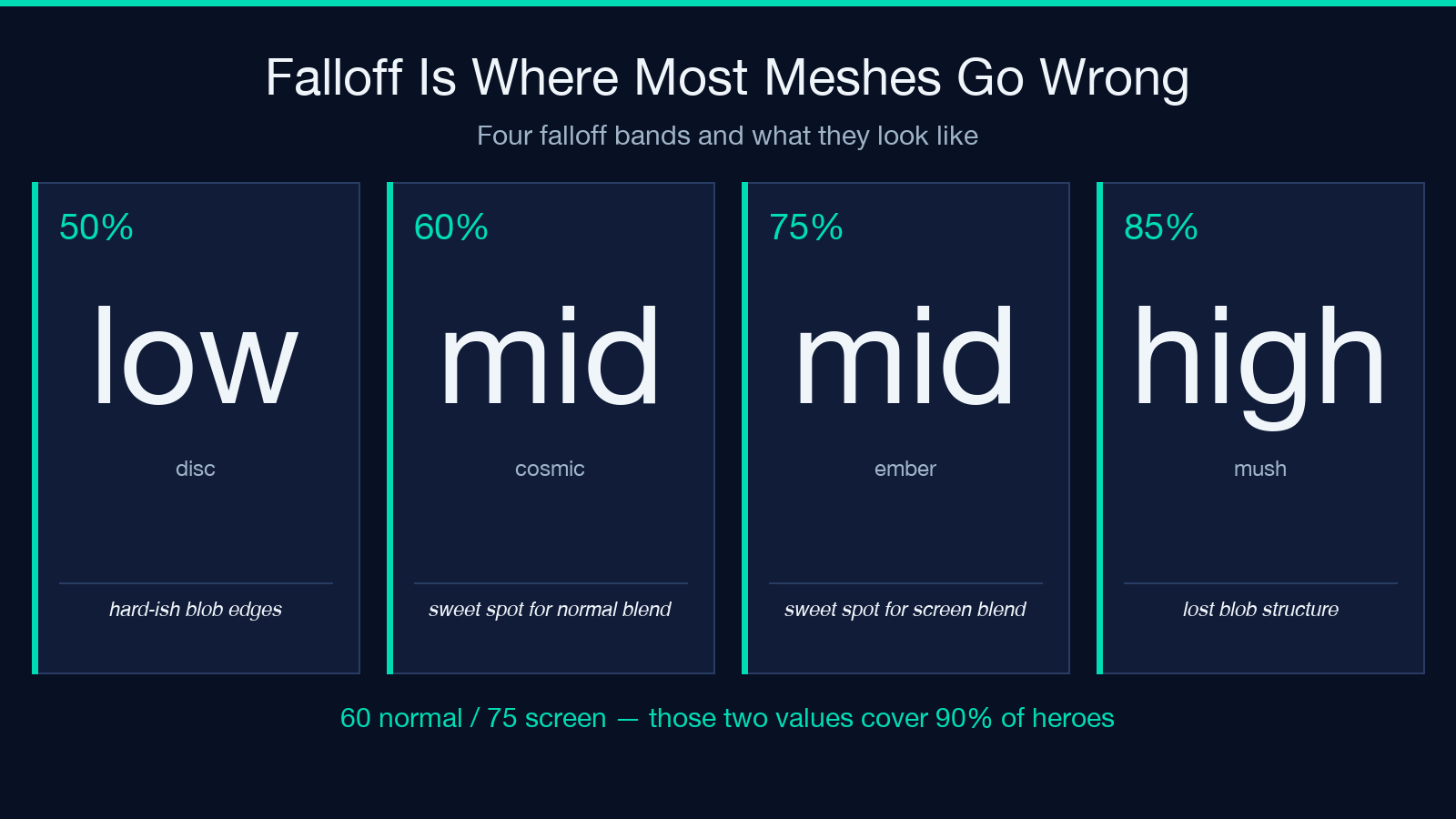
The sweet spot is 50–70. At 50, the blobs are nearly solid circles with a hard-ish edge — the panel looks like it has four colored discs at the corners, which is too literal for most hero designs but works for dashboards and UI cards. At 60, the blobs have a clear circle with a soft falloff ring, which is the cosmic preset’s choice and the most “designed” look. At 70, the falloff ring is soft enough that adjacent blobs start to overlap with their falloff rings, producing a soft halo between them. At 80 and above, you start losing the discrete-blob structure entirely.
For screen blending, the falloff behaves differently. Because screen blending only does anything where pixels are non-transparent, a longer falloff (70–80) still produces visible blob shapes because the falloff pixels are mostly transparent and don’t add to the screen blend. The screen-blend recipe is falloff: 75, blendMode: screen, no conic — produces the ember preset’s signature glow. The normal-blend recipe is falloff: 60, blendMode: normal, no conic — produces the cosmic preset’s signature clarity.
When To Add The Conic Underlay
The conic underlay is a faint rotating gradient that sits beneath the radial stack. With blendMode: normal, the conic is invisible because it paints solid color over the base. With blendMode: screen, the conic’s brighter stops add to the radial blobs’ colors, producing a faint “iridescent” sheen that rotates around the panel. The conicAngle flag controls the rotation start; 45° is the conventional pick because it produces a visible diagonal sweep rather than a horizontal or vertical one.
The conic is a finishing touch, not a structural choice. If your panel looks flat without it, add it. If your panel looks busy with it, drop it. The cosmic preset skips it because cosmic is supposed to read as calm and structural; the ember preset uses it because ember is supposed to read as glowing and chaotic.
The other thing the conic underlay does is hide the seams between blobs in screen blend mode. With four screen-blended blobs and no conic, you sometimes see faint “rings” where the falloff transitions. The conic’s continuous rotation smooths those rings out. With normal blending, the rings aren’t visible because there’s no additive behavior, so the conic is purely cosmetic.
The Four-Step Recipe For Shipping A Hero
Step one: pick a preset that matches your palette (cosmic for cool dark, ember for warm dark, aurora for cool light, sunset for warm light). Step two: pick a layout that matches your content (corners for full-bleed, ring for center-column content, scatter for organic, grid for utility). Step three: dial falloff to 60 for normal blending or 75 for screen blending — those two values are the safe defaults for each blend mode. Step four: if the panel looks flat, add conicUnderlay: true with conicAngle: 45. If the panel looks busy, drop the conic. If the panel still looks flat, toggle grain: true to kill banding.
The whole loop takes about 90 seconds in the live preview, and the export is a single CSS class you paste into your stylesheet. For a Tailwind project, you get an arbitrary-value class you paste into your component. For an SVG fallback, you get the static gradient definitions you can inline.
The CSS Gradient Mesh Generator is the production version of the recipe above. The eight flags map directly to the eight decisions; the live preview lets you verify each one before committing. If you want to see the cosmic and ember presets side-by-side with the actual CSS that produces them, open the tool and toggle between presets. The CSS panel updates as you change flags, so you can read the resulting styles and learn the syntax.
For other background recipes and palette strategies, the rest of the Elysia Tools design kit covers complementary tasks — color palette extraction, accessibility contrast checking, and a CSS audit tool that catches the cases where your mesh’s gradient layering order doesn’t match the spec. The mesh is one piece of a larger visual system; the generator handles the mesh.
