
Most inventory scanning failures start as a barcode problem, not a scanner problem. A CODE128 strip renders cleanly at one module width and unreadably thin at another; an EAN-13 with a damaged check digit passes every visual check but rejects at the till; a CODE39 string with a lowercase letter silently emits nothing at all. The fix is rarely the scanner — it is the renderer. The Barcode Generator at Elysia Tools encodes any text payload to a fixed-dimension strip in CODE128, the format most label printers, warehouse handhelds, and POS systems accept by default. This field guide walks through the five decisions that decide whether a barcode prints, scans, and survives the trip through a thermal printer head.
The five formats you actually need
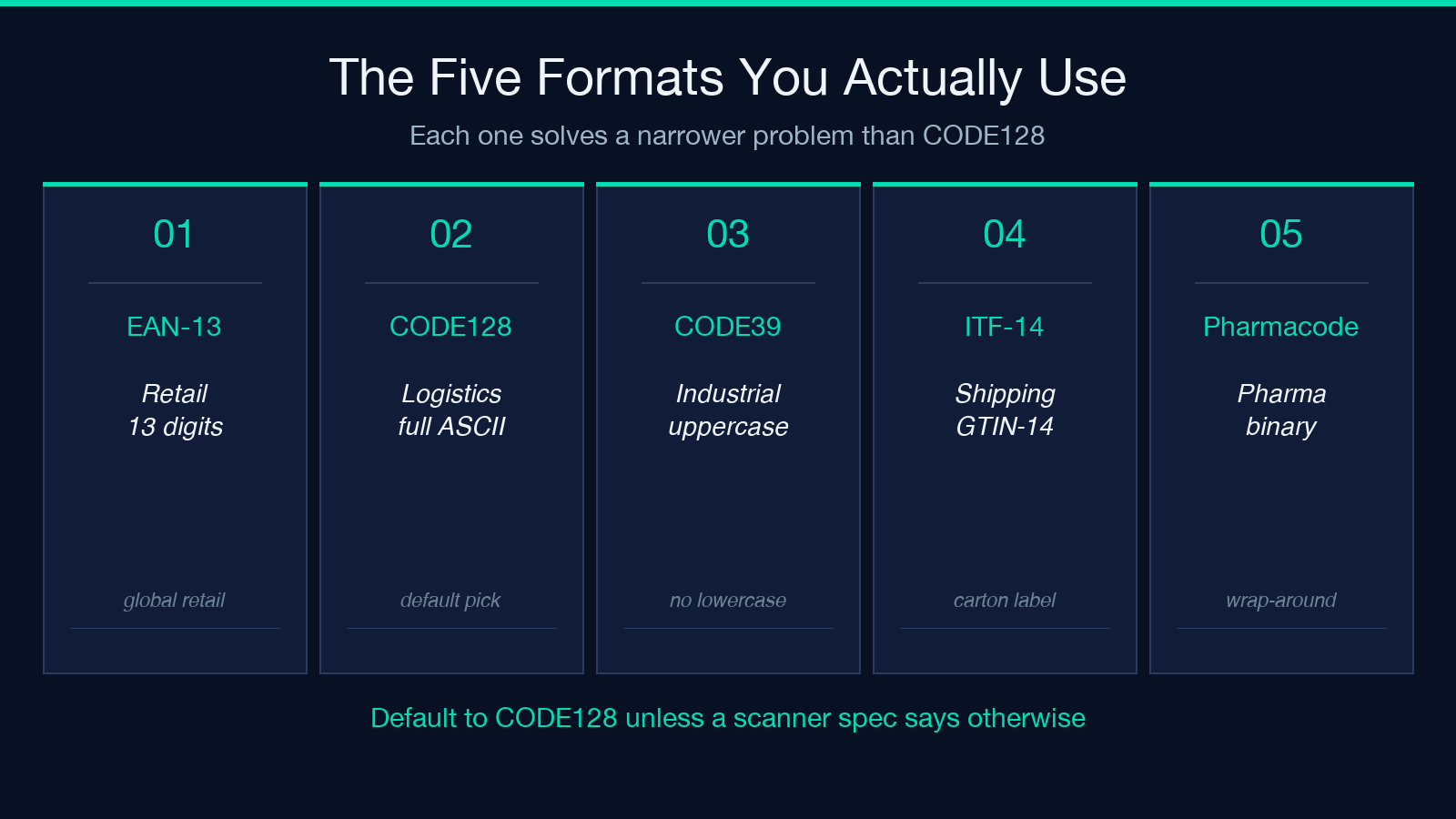
CODE128 is the default for a reason: it encodes the full ASCII range, supports a configurable module width, and is the lingua franca for logistics labels that mix letters, digits, and punctuation. The other formats each solve a narrower problem. EAN-13 (12 numeric digits plus check) is the global retail standard; EAN-8 compresses short SKUs; UPC-A is the North American retail variant; CODE39 stays readable through industrial paint and chemical processes; ITF-14 carries GTIN-14 across shipping cartons; MSI handles inventory and warehouse trays; Pharmacode is the pharmaceutical industry’s wrap-around reader. If you generate all of these through the same tool, the format choice becomes a per-SKU decision instead of a per-tool decision. The Barcode Generator keeps the format switch in a single dropdown so the same payload renders across all eight.
Why fixed dimensions beat “auto-fit”
Most online generators fit the barcode to the requested image width by stretching or shrinking the module width — the black bar thickness — independently. The scanner does not care about image width; it cares about module width in absolute units. A CODE128 strip with 0.25 mm modules reads at a warehouse gate scanner set for 0.25 mm tolerance; a strip rendered at 0.10 mm reads at a desktop imager but fails the gate. Fixed dimensions means: 3 pixels per module at 300 DPI for screen-readable labels, 10 pixels per module at 600 DPI for thermal printer output, and a quiet zone of at least 10 modules on each side. The generator renders at the dimension you specify, not at whatever shape fits the canvas, which is why the output prints predictably on a Zebra, Datamax, or Brother QL series.
Quiet zones, check digits, and the two rules that decide scan success
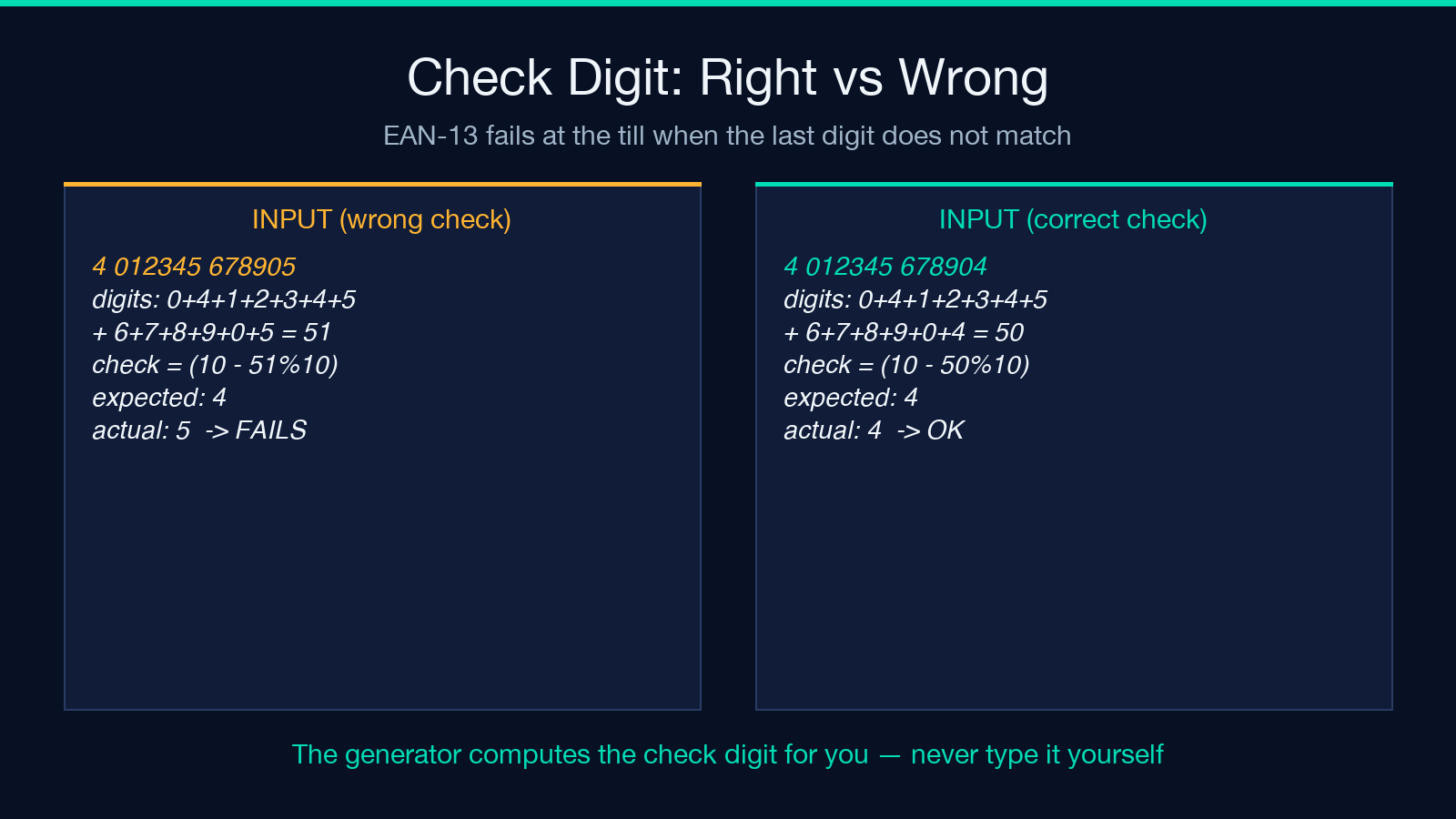
Every barcode spec requires a quiet zone — empty white space — on at least the left and right of the encoded bars. CODE128 wants 10 modules minimum; EAN-13 wants 9 modules; UPC-A wants 9. A barcode with a perfect encoding but a 2-module quiet zone reads cleanly in a lab and fails at a checkout. The second rule is check-digit integrity. EAN-13, EAN-8, UPC-A, and ITF-14 all carry a modulo-10 check digit at the end. A 12-digit UPC string with a typo in the 11th position renders fine, looks fine, and refuses to scan. The generator computes the check digit for you when you pick those formats, so you cannot accidentally ship a barcode with a wrong checksum. For formats without a check digit (CODE128, CODE39, MSI), the payload is exactly what you typed — including any extra whitespace, which CODE39 treats as data.
CODE39’s lowercase trap
CODE39 supports uppercase letters, digits, space, and eight punctuation characters (-.$/+%). It does not support lowercase. A string like “order-id-2026” renders nothing in CODE39 because the lowercase letters are silently dropped. The two workarounds: (a) convert the payload to uppercase before generating (“ORDER-ID-2026”), which is what industrial barcode labels have done since the 1970s, or (b) switch to CODE128, which encodes the full ASCII range and treats lowercase letters as ordinary data. The generator does not warn you when CODE39 receives lowercase input — it just emits the printable subset. For mixed-case human-readable strings, CODE128 is always the right call.
When CODE128’s start codes matter
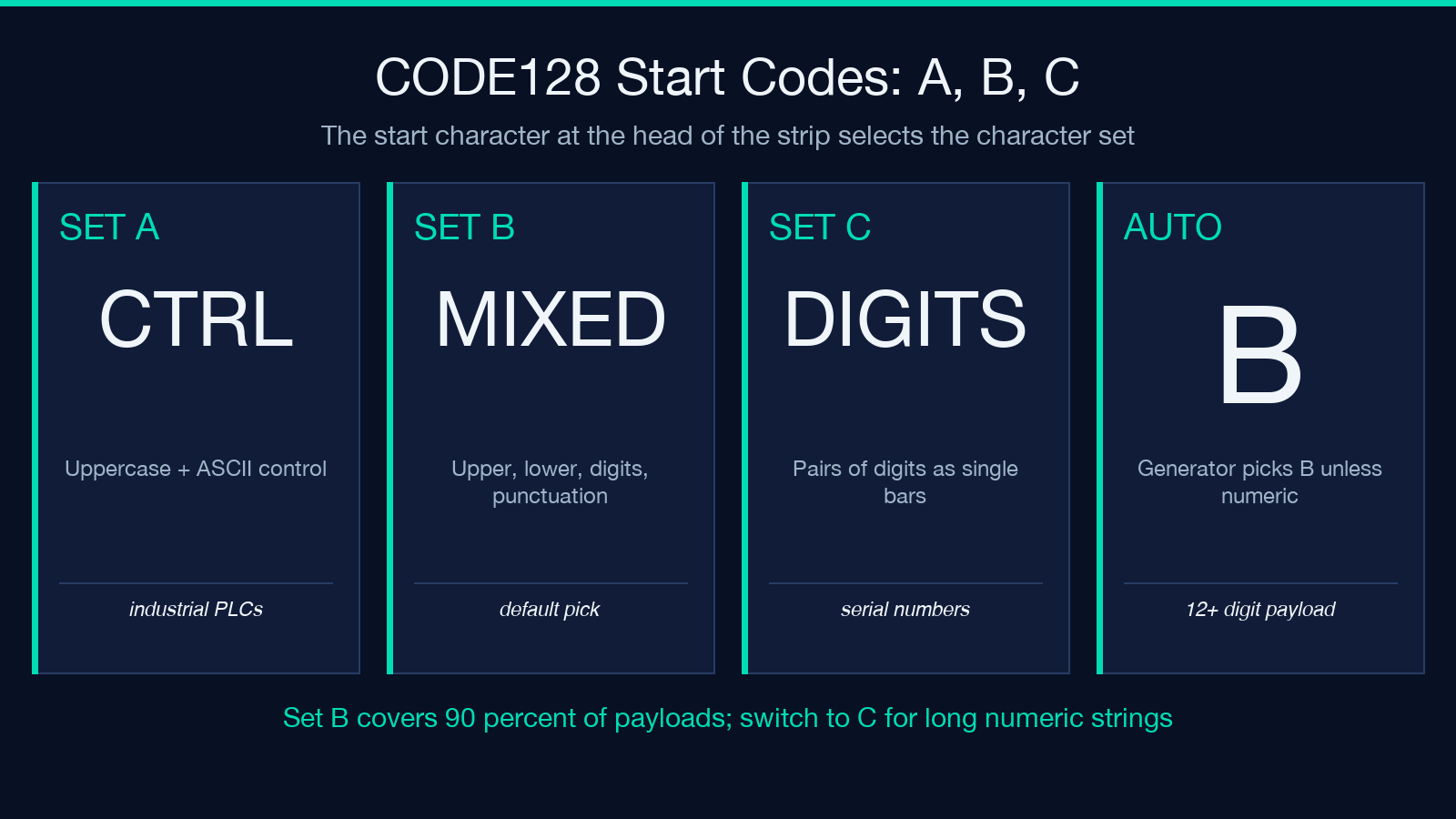
CODE128 actually contains three character sets — A, B, and C — selected by a start code at the beginning of the strip. Set A encodes uppercase and control characters; Set B encodes uppercase, lowercase, digits, and punctuation (the everyday choice); Set C encodes pairs of digits as single bars, which roughly halves the strip length for numeric-only payloads. The generator picks Set B by default because it covers the most payloads without ambiguity. For numeric-only strings longer than 12 digits — serial numbers, container IDs — switching to Set C produces a strip about half as wide, which matters on small labels where every millimeter of width costs you real estate.
Verifying the output before you print
Three checks separate a barcode that reads at the gate from one that does not. First, scan it with a phone app — every modern smartphone has a CODE128 reader built into the camera app on iOS and Android. Second, check the rendered image at print size; if the bars look thinner than a hair at the actual print resolution, the modules are too small for the scanner you are using. Third, run the same string through the UPC/EAN Barcode Samples collection if you are testing retail formats, or the QR Code Samples collection if you are pivoting to a 2D code for richer payloads. Live samples beat synthetic test strings because they include the edge cases: GTIN-13 with a leading zero, EAN-8 with a non-zero add-on, QR codes with low error correction.
Embedding the barcode in a label or form
The output is a PNG with transparent background, sized at exactly the module width you specified. Two embedding patterns cover most label workflows. For a thermal printer using ZPL or EPL, generate the PNG at the exact pixel dimensions of the print head, then send the file to the printer’s filesystem — the printer renders the bitmap as-is without resampling. For an HTML label or PDF form, set the image to display: block with width: 100% of its container and let the browser handle the scaling; CODE128 stays readable down to about 60 percent of native size before the bars blur into noise. Do not embed the barcode as a vector SVG unless your scanner explicitly supports it — most POS handhelds expect a rasterized strip.
Picking the right format for your payload
If you are encoding a SKU for retail, EAN-13 or UPC-A with the auto-computed check digit. If you are encoding a shipment tracking number with mixed letters and digits, CODE128. If you are encoding a short numeric inventory tag, EAN-8 or MSI. If you are encoding an industrial part number that will live on a painted metal surface, CODE39 in uppercase. If you are encoding a pharmaceutical product code, Pharmacode. The default — when in doubt — is CODE128 Set B with 3 pixels per module, a 10-module quiet zone on each side, and a 300 DPI output. That single combination reads on roughly 90 percent of scanners in active industrial use, and the Barcode Generator applies it without any configuration when you leave the dropdown on CODE128 Standard. Explore more label and document tools at elysiatools.com.
