
Most font problems aren’t font problems. They’re metadata problems, coverage problems, or licensing problems hiding behind a filename. A TTF that opens cleanly in one app and breaks in another is usually fine — the diff lives in weight class, mapped codepoints, and the GSUB feature records that the second app actually queries. The Font File Inspector reads the whole sfnt container in the browser and surfaces every one of those fields in a single page, so the question stops being “why is my glyph missing?” and becomes “which of the eight things this font actually says about itself did I forget to check?”
Closing: Open the Inspector Before You Open the Font
>The fastest way to debug a font problem is to read what the font says about itself before you trust what your layout app says about the font. Font File Inspector parses the sfnt container client-side, decodes WOFF2 automatically, and reports numGlyphs, mappedCodepoints, unitsPerEm, the OS/2 weight/width/style flags, the bounding box, and the GSUB ligature count in one HTML page. You paste the file in, you read the summary line, and the next move is obvious — coverage gap, weight mismatch, missing liga feature, or named-instance drift.
The point of a field guide like this is to give you the inspection checklist before you ever need it. The eight sections below cover what the inspector shows, why each field matters, and the three failure modes that look like font bugs but are actually font metadata in disguise.
Why a Browser-Based Inspector Replaces a Desktop One
>Traditional font inspection tools — FontForge, TTX, otfdump — are excellent but they require a local install, often a Python toolchain, and a willingness to read 200 MB of XML. For the 80 percent case (“does this font have the ligatures I need?” “is this variable font actually variable?” “why is this glyph rendering as a tofu?”), the browser-based inspector covers the same ground with one drag-and-drop.
WOFF2 decompression is the practical unlock. WOFF2 is the format every modern website ships, but it’s also a Brotli-compressed sfnt stream — most desktop tools want the underlying TTF/OTF. The inspector unpacks it for you, so the file you uploaded is the file you can inspect. There is no separate decompress step, no woff2_decompress command, and no temporary file to lose track of.
It also means the inspection happens before you commit to a CDN path or a @font-face declaration. You can confirm that the weight class matches your CSS, that the bounding box matches the line-height grid, and that the Unicode coverage matches the copy you’re about to ship — all from the same drag-and-drop.
Five Containers, One sfnt Skeleton: TTF, OTF, WOFF, WOFF2, and TTC
>Every modern web font is an sfnt container. The container formats differ in compression, table packing, and what they assume about the recipient. The inspector reports the container on the summary line so you can verify what you actually have.
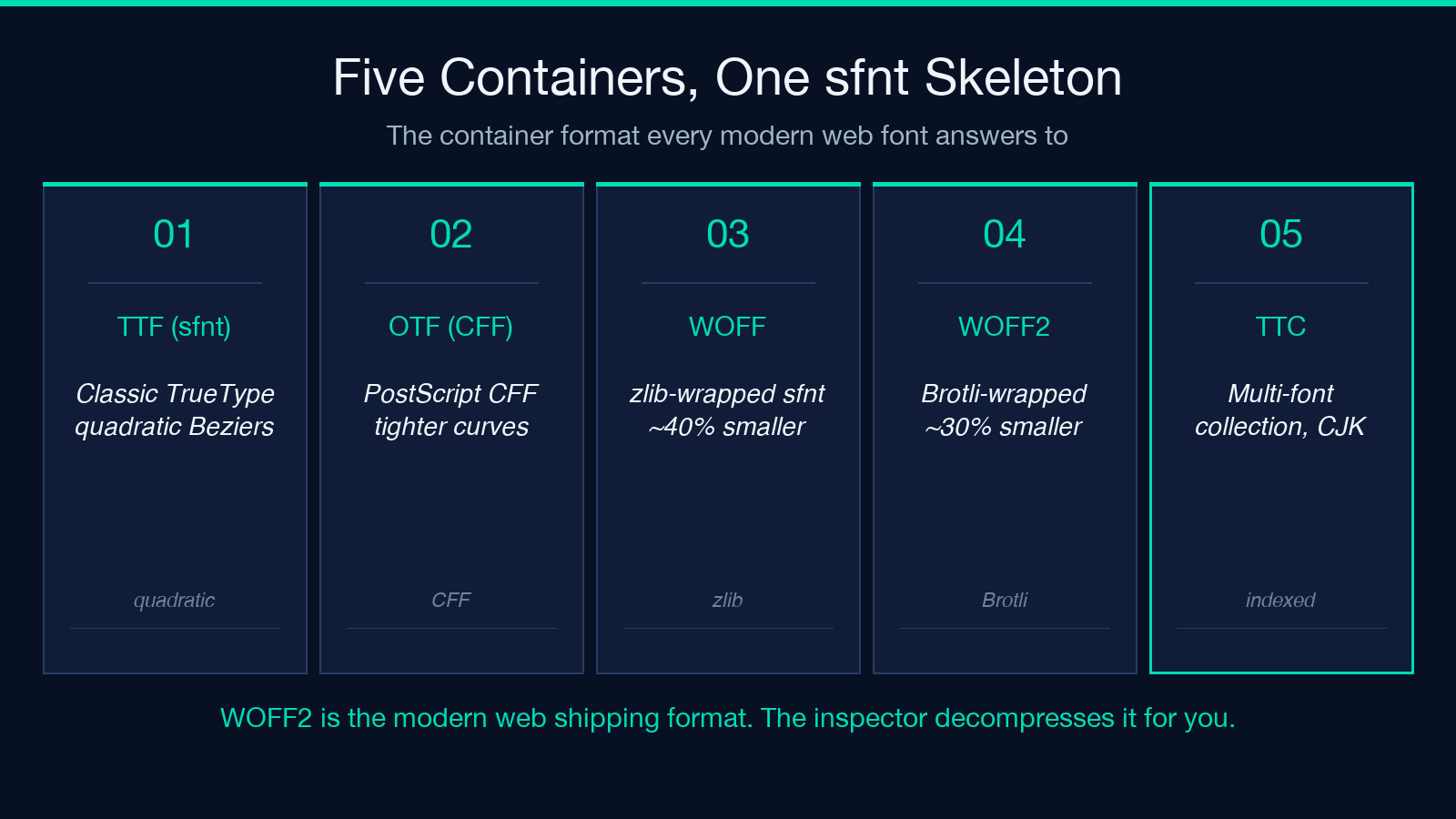
- TTF (sfnt) — the classic TrueType container. Glyph outlines are quadratic Béziers. Wide compatibility but no PostScript outlines. The inspector shows
TTF (sfnt)and the table list. - OTF (CFF) — OpenType with PostScript-style CFF outlines. Smaller file size for the same glyph count and tighter curves. Often the format of choice for display fonts.
- WOFF — sfnt wrapped in zlib compression. Roughly 40 percent smaller than the underlying TTF/OTF. The inspector handles it transparently.
- WOFF2 — sfnt wrapped in Brotli compression. Roughly 30 percent smaller than WOFF, which is why every modern CDN ships WOFF2. The inspector decompresses it before reading the tables.
- TTC — TrueType Collection. Multiple fonts in one file, addressed by index. Rare on the web, common in CJK fonts.
The container matters because some tools treat WOFF2 as opaque. If your build pipeline expects a TTF input and you’re shipping WOFF2, the inspector’s decompress step is the bridge.
Unicode Block Heatmap: The Coverage Number That Actually Matters
>numGlyphs is the count of glyphs in the file. mappedCodepoints is the count of Unicode code points those glyphs respond to. The gap between the two is the count of alternate glyphs that exist but are not reachable from Unicode input — they live in the font for OpenType layout (ligatures, alternates, small caps) and are only accessible via GSUB/GPOS feature records.
The inspector renders a Unicode block heatmap so the coverage is visible at a glance. A Latin-only font lights up Basic Latin, Latin-1 Supplement, and Latin Extended-A. A pan-European font lights up the same plus Latin Extended-B, Greek, and Cyrillic. A CJK font lights up CJK Unified Ideographs plus the punctuation and half-width kana blocks.
The coverage number that actually matters is the intersection of the heatmap and your content. If your copy contains the em dash (U+2014), the en dash (U+2013), and the Euro sign (U+20AC), and the heatmap shows those three blocks lit, you’re covered. If the heatmap shows Basic Latin but no General Punctuation, every em dash will render as a tofu box regardless of how many other glyphs the font ships.
Variable Axes and Named Instances: When fvar Saves the Day
>Variable fonts ship with an fvar table that defines axes — wght (weight), wdth (width), slnt (slant), ital (italic), and any custom axes the designer added. The inspector reports every axis with its minimum, default, and maximum values, plus the named instances — pre-baked combinations like “Regular”, “Bold Condensed”, or “Display Black Italic”.
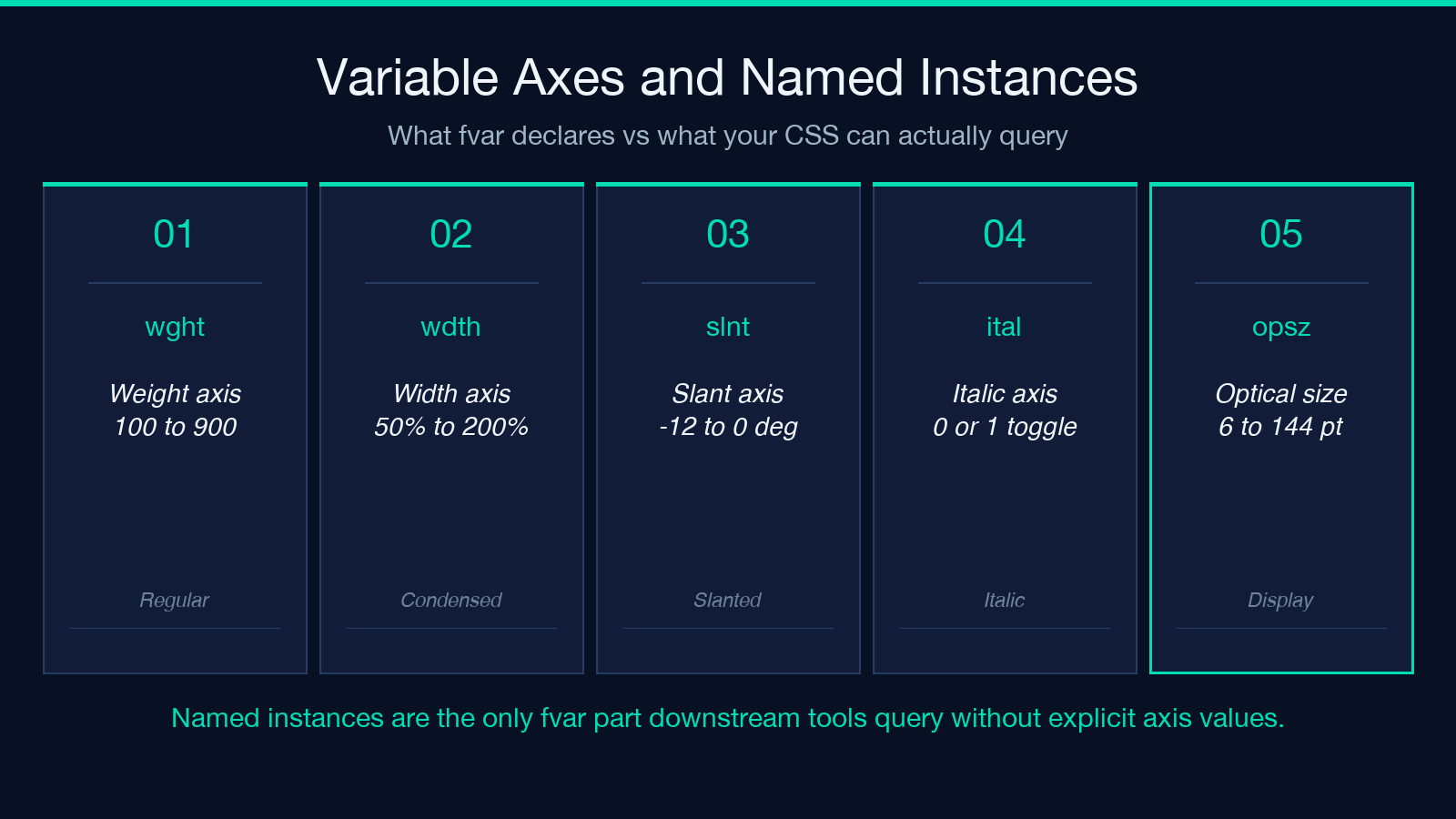
Named instances matter because they are the only part of the fvar table that downstream tools know how to query without explicit axis values. If you write font-variation-settings: "wght" 720 but the font does not declare a weight axis, the browser silently does nothing. If the font declares a weight axis and you don’t specify an instance, the browser uses the default instance. The inspector shows you what is declared, what is named, and what is missing.
The four-axis case is the common one — a font with weight, width, italic, and slant axes covers 99 percent of design system needs. A font with custom axes (optical size, grade, ascent override) is a design tool, not a body text tool. The inspector reports both kinds and lets you decide whether the axis structure matches your CSS variable plan.
GSUB Ligatures and OpenType Features: What “liga” Really Means
>The GSUB (Glyph Substitution) table is where ligatures live, where small caps live, where stylistic alternates live, and where every other context-sensitive glyph swap is declared. Each feature has a four-letter tag — liga for standard ligatures, dlig for discretionary ligatures, smcp for small caps, onum for old-style numerals, frac for fractions, kern for kerning (which is technically GPOS but commonly grouped here).
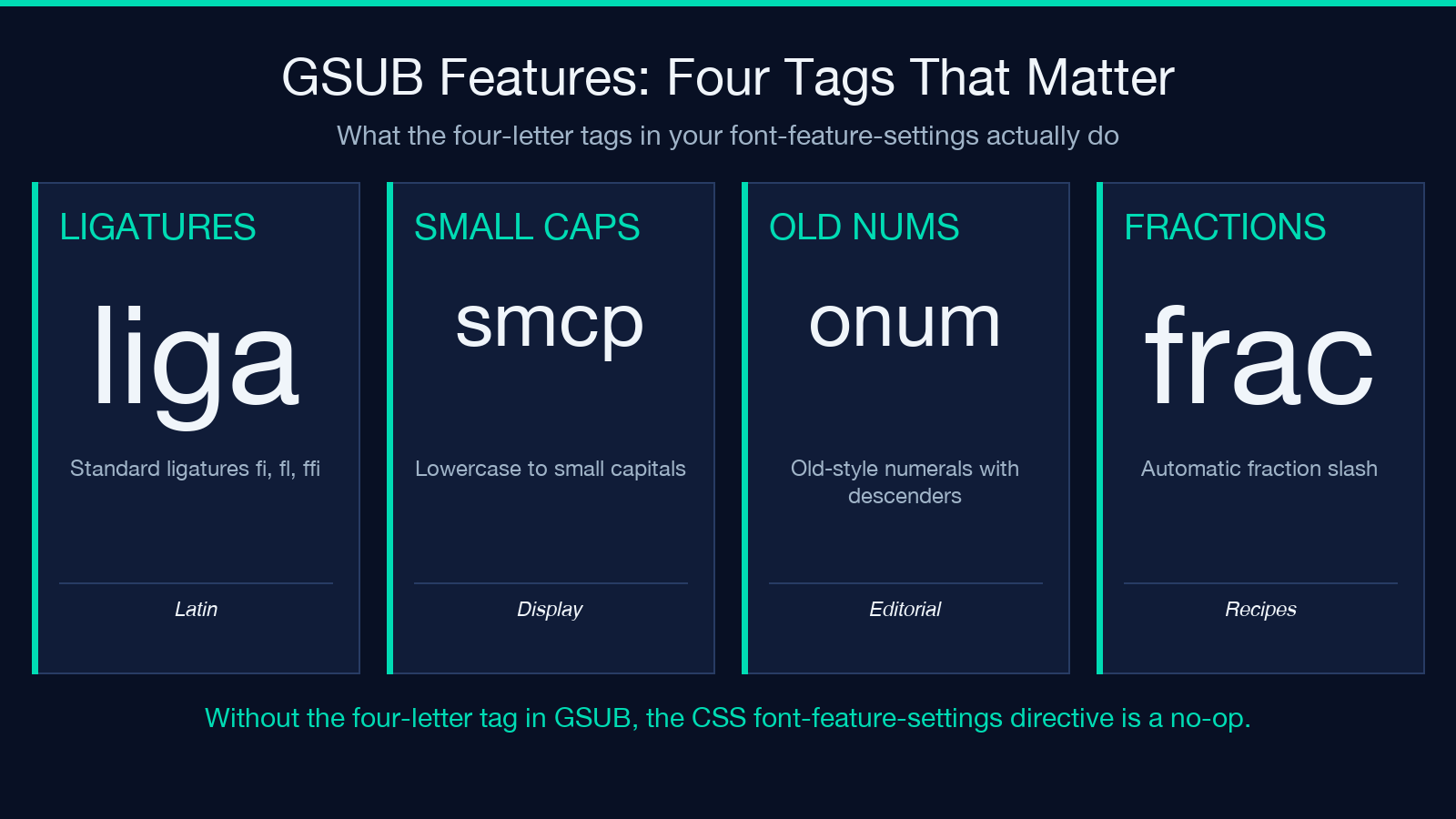
The inspector reports the ligature count from GSUB and lists which features are declared. If the font ships six liga ligatures and your CSS turns font-feature-settings: "liga" 1 on, the six ligatures activate. If the font ships zero liga ligatures, the CSS directive does nothing — your fi, fl, and ffi pairs render as three separate glyphs.
The Arabic lam-alef case is the diagnostic gold standard. A well-formed Arabic font ships six lam-alef ligatures (lam-alef, lam-alef isolated, lam-alef final, and the same three with hamza). The inspector’s ligature count tells you whether all six are present in a single read. If the count is zero, the ligature feature is missing or the GSUB table is malformed. If the count is six, the ligatures will activate when liga is on.
A Five-Step Inspection Workflow for Designers and Developers
>The workflow that catches the most field-level bugs in the fewest inspections:
- Drop the font in. TTF, OTF, WOFF, and WOFF2 all work; TTC and the container is reported in the summary line.
- Read the summary line. Family, subfamily, container, glyph count, mapped count, weight class. If the family does not match what the filename suggested, stop here.
- Check the Unicode heatmap against your content. Drag your CSS or copy into a preview text field if the inspector offers one. Confirm every character you actually use has a lit block.
- Verify variable axes. If you intend
font-variation-settings, confirm the axes and the named instances the font declares. Write CSS against the axis tags you actually have. - Audit GSUB features. For ligatures, small caps, or old-style numerals, confirm the four-letter tag exists in the feature list. Without the tag, the CSS
font-feature-settingsdirective is a no-op.
For variable fonts, step 4 is the highest-leverage move. For multilingual sites, step 3 is the highest-leverage move. For display fonts with stylistic alternates, step 5 is the highest-leverage move.
Three Failure Modes That Look Like Font Bugs but Aren’t
>The three failure modes the inspector catches that look like font bugs but are actually metadata mismatches:
- “Missing” glyphs that the font actually has. The font ships 3,377 glyphs but the inspector reports 3,322 mapped codepoints. The 55 unmapped glyphs are alternates that only activate via GSUB features. If you typed the Unicode code point directly and saw a tofu, the fix is in the GSUB activation, not in the font file.
- Weight mismatch that is actually width class. The font ships weight 400 Regular but the bounding box width is wider than your line-height grid expects. The fix is the CSS
font-stretchproperty and thewdthaxis, not a different font file. - Italic that is actually slanted. The font has no
italaxis but has aslntaxis at -12 degrees. Settingfont-style: italicdoes nothing because there is no italic axis. Settingfont-variation-settings: "slnt" -12activates the slant.
Each of these looks like “the font is broken” from the application side. Each is actually a metadata mismatch that the inspector surfaces in a single read. Drop the file, read the summary, and the fix path is one CSS declaration or one feature tag away.
For more inspection recipes and to try the inspector on your own files, see Font File Inspector on Elysia Tools — the page covers TTF, OTF, WOFF, and WOFF2 inputs, WOFF2 decompression, Unicode block coverage, variable-font axes, and the full GSUB feature list in one HTML report.
Explore more design and typography tools at elysiatools.com.
