
Most coaches and trainers still hand-craft workout PDFs in Word or Google Docs, one table at a time, until the day a client asks for a four-week progression with QR-coded video links and the file turns into a four-hour copy-paste project. A printable workout-plan PDF generator built for JSON or CSV input collapses that work into a single render: feed it a structured routine, get back a clean PDF with exercise tables, progress-check boxes, and optional QR video links that the client can scan from the page.
Why “Just Save It from Word” Stops Working at Three Routines
A single-session workout fits comfortably on one Word page. Add a second session with a different warmup, swap the exercise order between weeks, and the manual layout starts breaking: the table extends past the page margin, the header repeats inconsistently, and any embedded video link has to be either a long URL nobody will type or a tiny QR code pasted in by hand. By the time you maintain three or four client programs, the document is held together by habits nobody on your team can recreate from scratch.
A structured-data PDF generator separates the routine from the presentation. The exercise list, sets, reps, and tempo live in a JSON or CSV file you can read, diff, and version-control. The renderer handles page breaks, table styling, the check-box column, and the QR-code placement. When a client wants to swap an exercise, you change one row in the source and re-render — no manual layout surgery.
The same approach also unlocks the parts of a workout PDF that hand-built documents skip entirely: per-exercise QR codes that link to demo videos, a progress-check column the client can fill in with a pen or a tablet, and a one-page summary card at the top of every routine that shows the weekly schedule without scrolling.
What the Source Data Looks Like
A typical input is a small JSON object per exercise, then a top-level array that orders them by day. The renderer walks the array and emits a row per exercise with the columns you ask for: name, sets, reps, load, tempo, rest, video URL. A minimal entry looks like:
{
  "name": "Goblet Squat",
  "sets": 4,
  "reps": "8-10",
  "load": "16-20 kg",
  "tempo": "3-1-1",
  "rest": "90s",
  "video": "https://example.com/goblet-squat"
}
A weekly plan can then reference exercises by ID, and the renderer resolves the references into full rows in the printed table. CSV input works the same way for trainers who prefer to keep their routines in a spreadsheet — the column headers are mapped to the same fields, and the renderer emits an equivalent PDF.
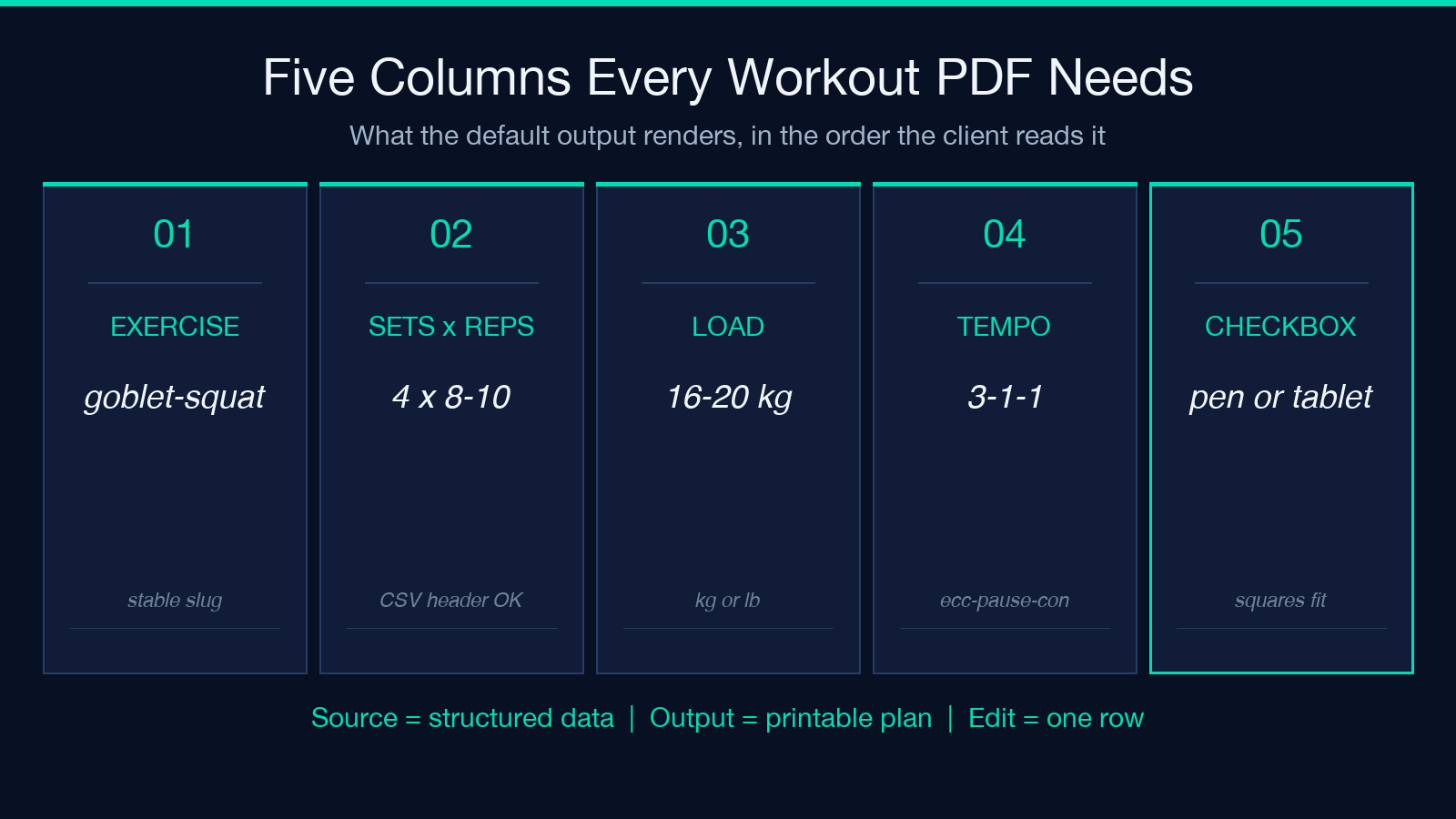
Two practical rules keep the source manageable. First, every exercise gets a stable slug (goblet-squat, not Goblet Squat (week 2)) so week-to-week plans can reuse the same definitions. Second, video URLs live on the exercise record, not on the plan, so a single edit propagates across every plan that uses that exercise.
What the Generated PDF Actually Contains
The default output is a multi-page PDF with one section per workout day. Each section opens with a one-line header showing the day, week, and focus (e.g. Week 2 / Day 3 / Lower-body strength). The body is a four-column table: exercise name, sets x reps, load, and tempo. A fifth column carries the progress checkbox — a small empty square the client can mark with a pen as they complete each set.
When a video URL is present, the renderer places a small QR code in the right margin of that row. Scanning it jumps to the demo clip, so the client does not have to type a long URL or copy it across apps. The QR codes are sized at roughly 12 millimetres square, which scans reliably from a printed page held at arm’s length.
A summary page sits at the front of the document: the weekly schedule in a small grid, the trainer’s contact line, and any notes for the week (deload week, travel week, etc.). When the document spans more than two weeks, the renderer repeats the summary page at every two-week boundary so the client always has a one-page reference without scrolling.
Where This Beats a Hand-Built Word Document
Three differences matter in practice. First, the source data is testable: if you accidentally delete a comma in the JSON, the renderer fails loudly instead of silently mis-rendering a row. Second, the layout is consistent across every document you ever produce, which means a client switching between two programs from the same trainer does not see two completely different formats. Third, the QR-code placement is automatic — every exercise with a video URL gets a scannable code in the right place, with no per-row manual paste.
The renderer also handles the page-break edge cases that hand-built documents routinely get wrong. A long exercise description that overflows the bottom of a page gets pushed to the next page rather than splitting across the margin. A four-week plan with daily workouts produces a document where every section starts on a clean page break, so a client flipping through does not see a half-table at the bottom of a sheet.
Common Workflow Patterns
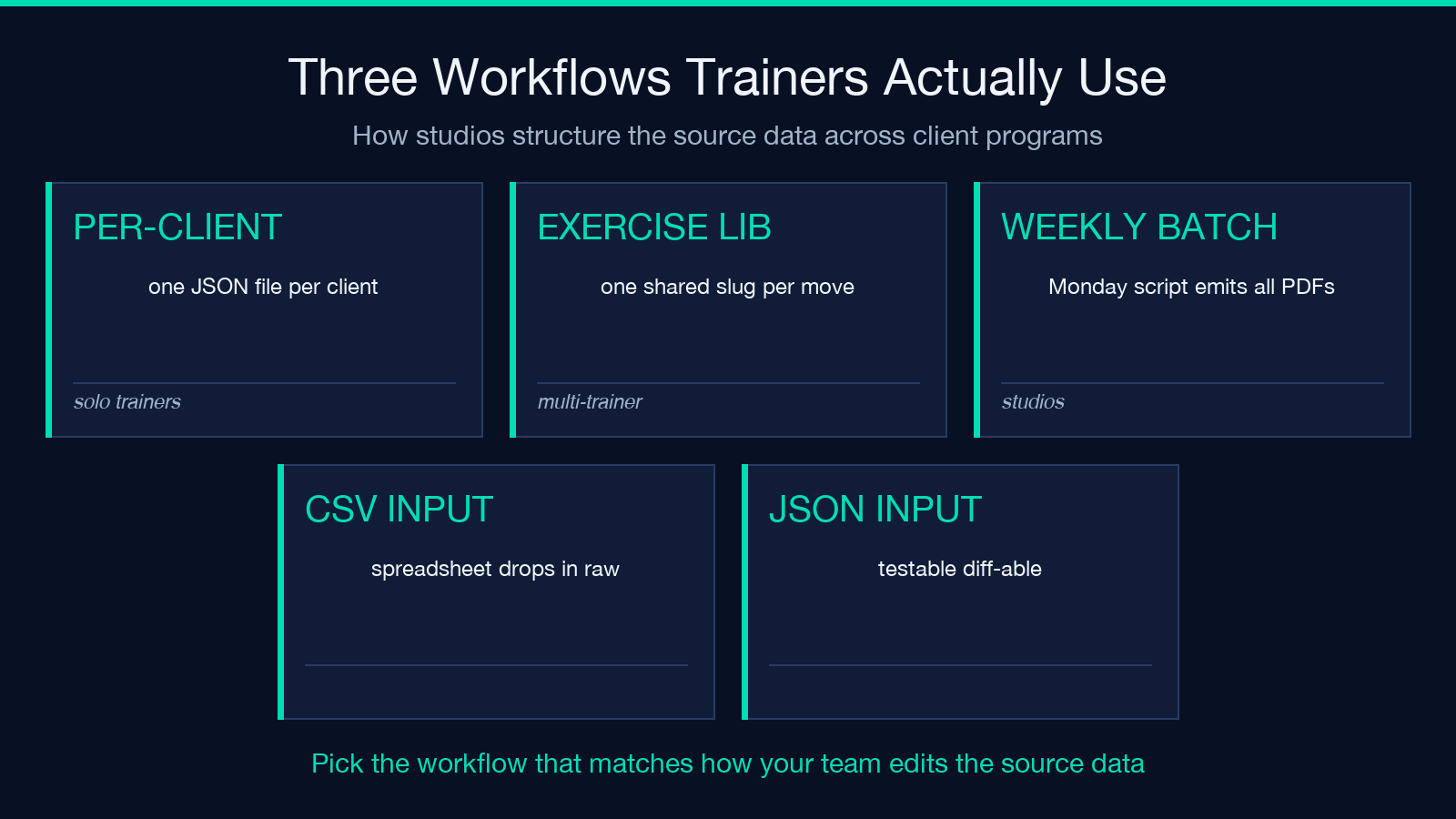
Trainers who adopt structured workout PDFs typically settle into one of three workflows. The first is a per-client template: every new client gets the same skeleton, with the exercise list swapped for their goals. The second is a reusable exercise library: every exercise used by the studio lives in one JSON file, and each client’s plan references it by slug. The third is a weekly batch render: a Monday-morning script reads the week’s programs from a folder and emits one PDF per client, ready to send.
For solo trainers, the simplest workflow is the per-client template — one JSON file per client, one render per week, no library needed. For studios with several trainers, the reusable library pays off quickly because every new program can compose from exercises the team has already defined and vetted.
Generating the First PDF
The minimum viable input is a JSON array of exercises with the fields the renderer expects, plus a top-level metadata block for the document (trainer name, client name, program title, week count). The renderer does the rest: layout, page breaks, QR codes, summary page. A first-pass document typically renders in under two seconds for a four-week plan, which makes iterating on the routine — adding an exercise, tweaking a tempo, swapping a video link — fast enough to do during a live client session.
For trainers who prefer spreadsheet workflows, the CSV path uses the same column headers as the JSON fields. A CSV export from Google Sheets or Excel drops directly into the renderer with no transformation step, which keeps the data in the tool the trainer already uses to plan.
When to Use a QR Code Versus a Plain URL
Plain URLs work when the client will read the PDF on a screen — most modern PDF viewers make a link clickable. They fail the moment the client prints the page, because the URL becomes a string nobody is going to type. QR codes solve that case at the cost of a small amount of page real estate: roughly twelve millimetres square per code, which fits inside the right margin of a standard portrait table without forcing the body to wrap.
A practical rule: if the document is intended to be printed (which most workout PDFs are, because the client carries them to the gym), include a QR code for every video URL. If the document is intended to be read on a screen only, a plain URL is fine and saves the visual weight. The renderer accepts both modes per exercise, so a single plan can mix QR-coded and plain-link rows when the goal justifies the difference.
A second trade-off is QR-code density. A page with twelve codes still scans reliably; a page with twenty codes gets crowded, and some clients find the visual noise distracting. For routines with more than twelve video-linked exercises per page, splitting the routine across two pages usually reads better than packing every code into one margin.
A Practical Audit of What to Verify
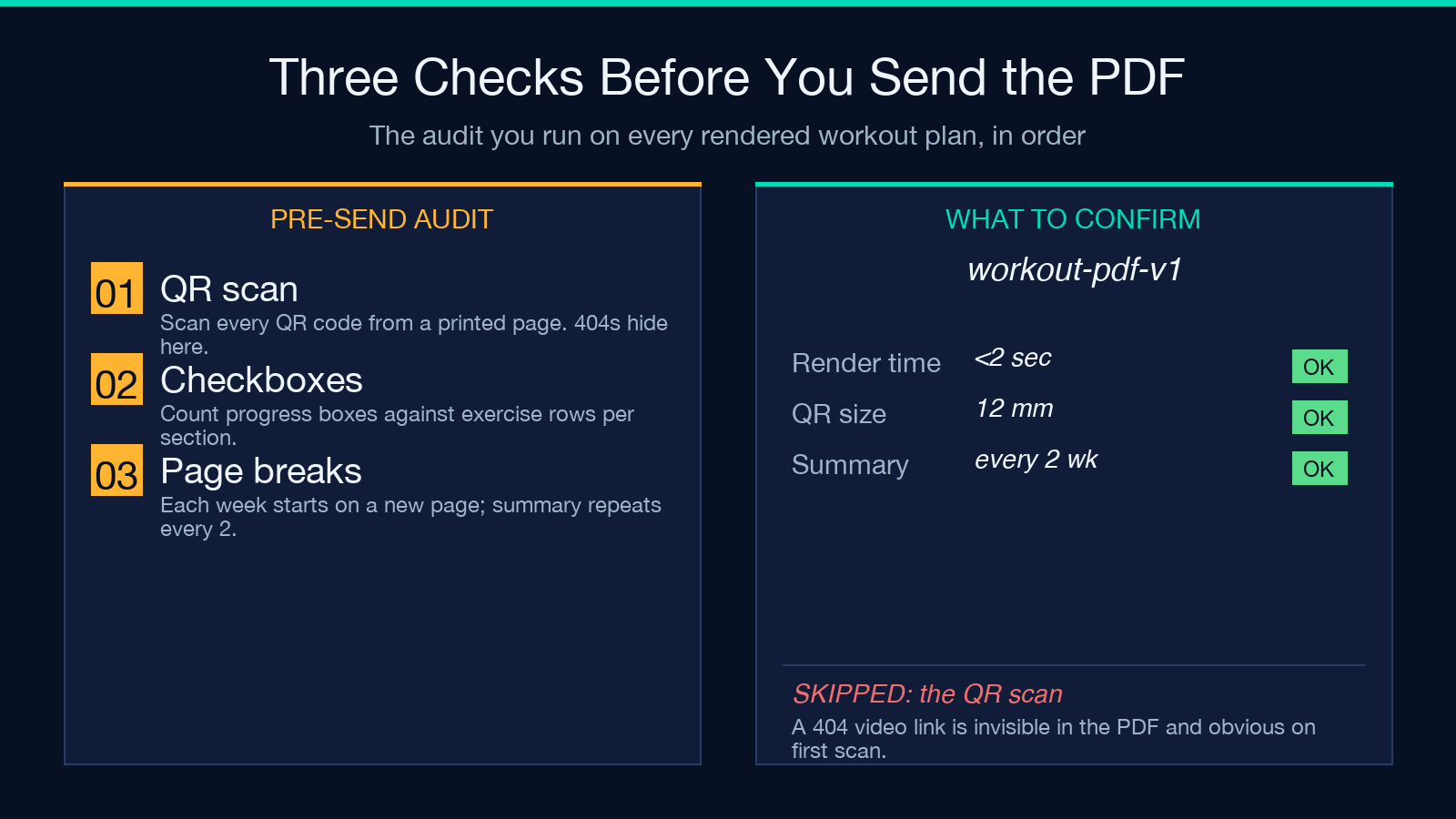
Before sending a rendered PDF to a client, three checks catch the mistakes that show up most often. First, scan the QR codes with your phone — a typo in the URL field produces a code that resolves to a 404 page, which is invisible in the PDF but obvious on the first scan. Second, count the progress checkboxes against the exercise count — a missing checkbox column on one section usually means a missing field in the source row. Third, confirm the page breaks land where you expect: a four-week program should put each week on its own sequence of pages, with the summary repeating every two weeks.
These checks take a minute per document and catch roughly ninety percent of the issues that would otherwise surface when the client opens the file. The remaining ten percent — a mis-spelled exercise name, an awkward tempo notation — are visible only to the trainer and are best caught by reading the rendered PDF once before sending.
For a working example of the input format and a side-by-side comparison of the JSON and CSV paths, the Fitness Workout PDF Generator tool has a live demo with sample data.
Explore more document-tool workflows at elysiatools.com.
