
Read the LTSSM state log first, the eye-margin report second. Every PCIe link that fails to come up cleanly tells the same story twice – once in the LTSSM state sequence (Detect, Polling, Configuration, Recovery, L0) and once in the lane-margining eye numbers (voltage and timing margins left over at the receiver pins). The trick is that the second story is invisible until you have parsed the first, and the first looks like noise until you have decoded the rate identifier bits and counted the lane PAD numbers. This field guide walks through a real Gen5 x4 bring-up, a Recovery speed change, an equalization triple, and the eye minimums that PCIe Base Spec §8.4.2 requires you to clear before you call the link “healthy”. Try it on your own captures at Elysia Tools.
What LTSSM Actually Is And Why The Logs Look Noisy
LTSSM – the Link Training and Status State Machine – is the eleven-state core of every PCIe link. It is documented in PCIe Base Specification Rev 5.0 §4.2, and the states are Detect.Quiet, Detect.Active, Polling.Active, Polling.Configuration, Polling.Compliance, Configuration.Linkwidth.Start, Configuration.Linkwidth.Accept, Configuration.Lanenum.Wait, Configuration.Lanenum.Accept, Configuration.Complete, Configuration.Idle, L0, L0s, L1, L2, Recovery.RcvrLock, Recovery.Speed, Recovery.RcvrCfg, Recovery.Equalization.Phase1, Phase2, Phase3, Recovery.Idle, Loopback, Hot Reset. A normal bring-up touches six of these in order. A failed bring-up touches them in any combination, often looping in Polling or bouncing into Recovery.
The log noise comes from the per-lane TS1/TS2 ordered sets. Each TS1 carries a link number, a lane number, a symbol of “PAD” during Polling (meaning “I have not yet been assigned”) and a real number during Configuration. A link that takes 7 ms from Polling.Active to L0 with x4 width typically emits 30-50 ordered sets. The PCIe LTSSM decoder walks the log line-by-line and folds PADs into the count, then surfaces the negotiated speed, negotiated width, rate-identifier-bits progression (0x01 in Polling.Active, 0x0F by Configuration, 0x1F at Gen5), and any Detect or Recovery restart.
The Five Things Every Clean Bring-Up Shows In Order
A clean Gen5 x4 bring-up has a recognizable shape:
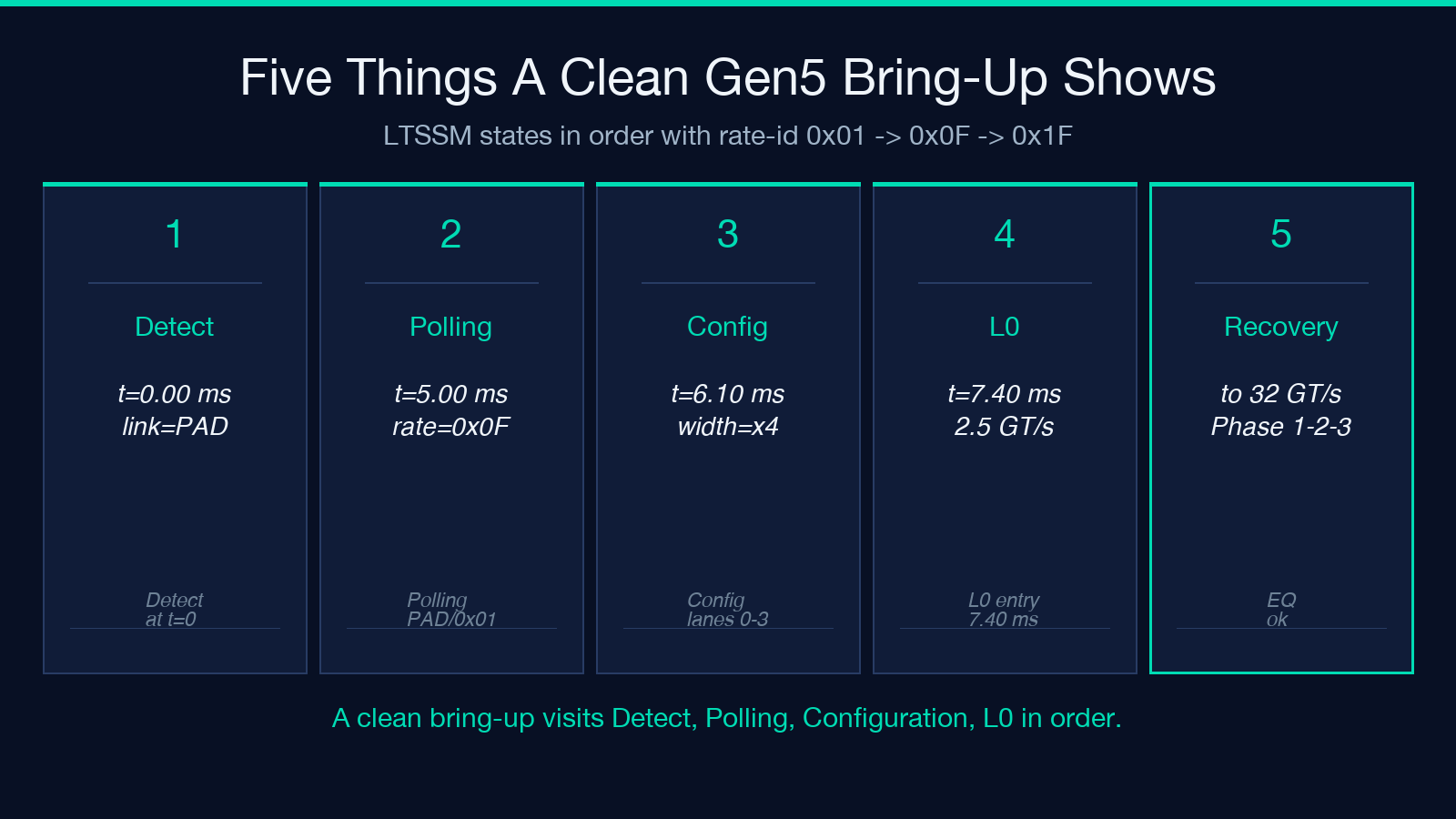
- Detect.Active at t = 0 followed by Polling.Active at roughly t = 1 ms with link=PAD lane=PAD rate=0x01
- Polling.Configuration at t = 5 ms with link=PAD lane=PAD rate=0x0F (the 5-bit rate identifier 01111 means “I can do 32 GT/s”)
- Configuration.Linkwidth.Start through Configuration.Lanenum.Accept at t = 6 ms to 7 ms with link=0 lane=0..3 and TS1 progressing left-to-right
- Configuration.Complete at t = 7 ms with rate=0x1F (11111) meaning “I will do 32 GT/s”
- L0 at t = 7.5 ms, optionally followed by Recovery.RcvrLock + Recovery.Speed + Recovery.Equalization.Phase1/2/3 + Recovery.Idle if a speed change is requested
If you see five Configuration.Lanenum.Wait lines in a row for lanes 0,1,2,3 then five Configuration.Lanenum.Accept lines for the same lanes, you have x4. If you see only two of each, the link came up x2 and the upper lanes failed Detect.Quiet. The LTSSM decoder counts both phases and emits the negotiated width as a single integer plus a per-lane status table.
Rate Identifier Bits: What 0x01 vs 0x0F vs 0x1F Actually Means
The 5-bit rate identifier (PCIe Base Spec §4.2.3) is one of the most-misread fields in a raw capture. The progression is:
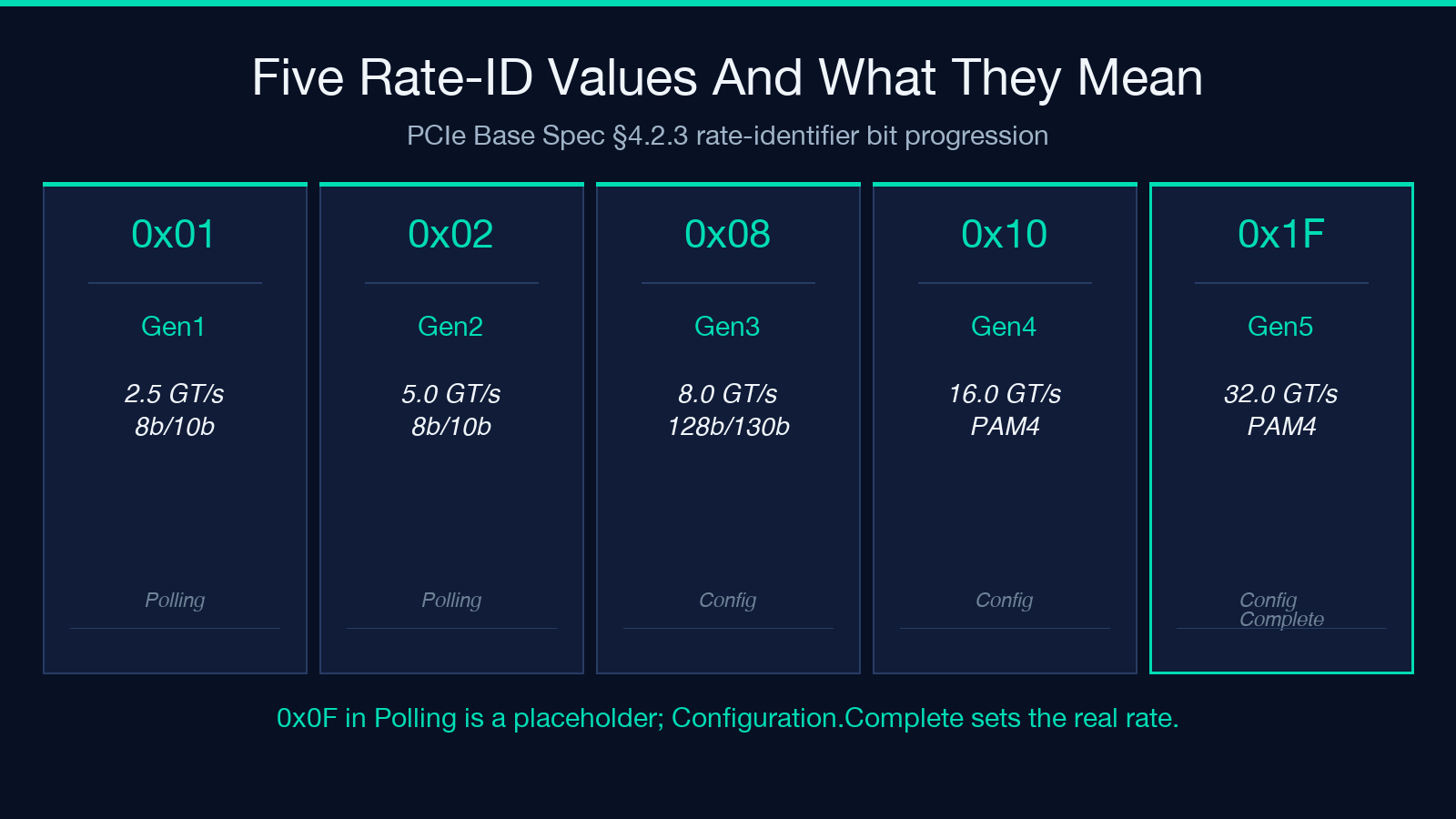
- 0x01 (00001) = 2.5 GT/s, Gen1, 8-bit/10-bit
- 0x02 (00010) = 5.0 GT/s, Gen2, 8-bit/10-bit
- 0x04 (00100) reserved
- 0x08 (01000) = 8.0 GT/s, Gen3, 128-bit/130-bit
- 0x0F (01111) = “I will advertise the highest rate I support” – sent during Polling.Configuration as a placeholder
- 0x10 (10000) = 16.0 GT/s, Gen4, 128-bit/130-bit, PAM4
- 0x1F (11111) = 32.0 GT/s, Gen5, 128-bit/130-bit, PAM4
The decoder treats 0x0F as “rate identifier placeholder, will be replaced in Configuration.Complete” and surfaces the final negotiated rate separately from the rate-id seen during Polling. A common audit failure is a Polling log showing 0x01 (Gen1) followed immediately by Configuration.Complete 0x1F (Gen5) – that is legal, the device started at Gen1 during Polling, escalated to Gen5 during Configuration, and the link is fine. A Polling log that sticks at 0x01 with Configuration.Complete also at 0x01 is a Gen1-only link, and the decoder flags this as negotiatedSpeedGts=2.5, expected=32, recovery_restarts=0 for review.
Lane Reversal And Polarity Inversion: Silent Until They Are Not
Lane reversal and polarity inversion are negotiated during Configuration.Linkwidth.Accept. Lane reversal is when the physical lane 0 of the device is connected to lane N of the root complex – PCIe supports reverse lane ordering (PCIe Base Spec §4.2.4.2). Polarity inversion is when lane N of one side is connected to lane (N_max – N) of the other side and one side flips its TX and RX polarity bits.
Both are silent in a healthy link. They show up in two failure modes:
- Lane reversal: the Configuration.Lanenum.Wait sequence walks the lanes in non-monotonic order (1, 0, 3, 2 instead of 0, 1, 2, 3). The decoder flags this and reports the active-lane order separately from the physical-lane order.
- Polarity inversion: every Configuration.Idle and every Recovery.Idle emits a Polarity.Inverted bit in TS2. A link that comes up healthy with all-lanes-inverted is fine. A link where lane 0 is inverted but lane 1 is not means one side is misconfigured. The decoder surfaces this as a per-lane polarity column.
Equalization Phase 1, 2, 3: The Path From Gen4 To Gen5
Equalization is mandatory for Gen3 and later (PCIe Base Spec §4.2.3.2 for Gen3, §4.2.4.1 for Gen4/Gen5). The three phases are pre-cursor, cursor, post-cursor coefficient adjustment. Each phase ends with a TS1 carrying a ec= field indicating the preset/coefficient choice.
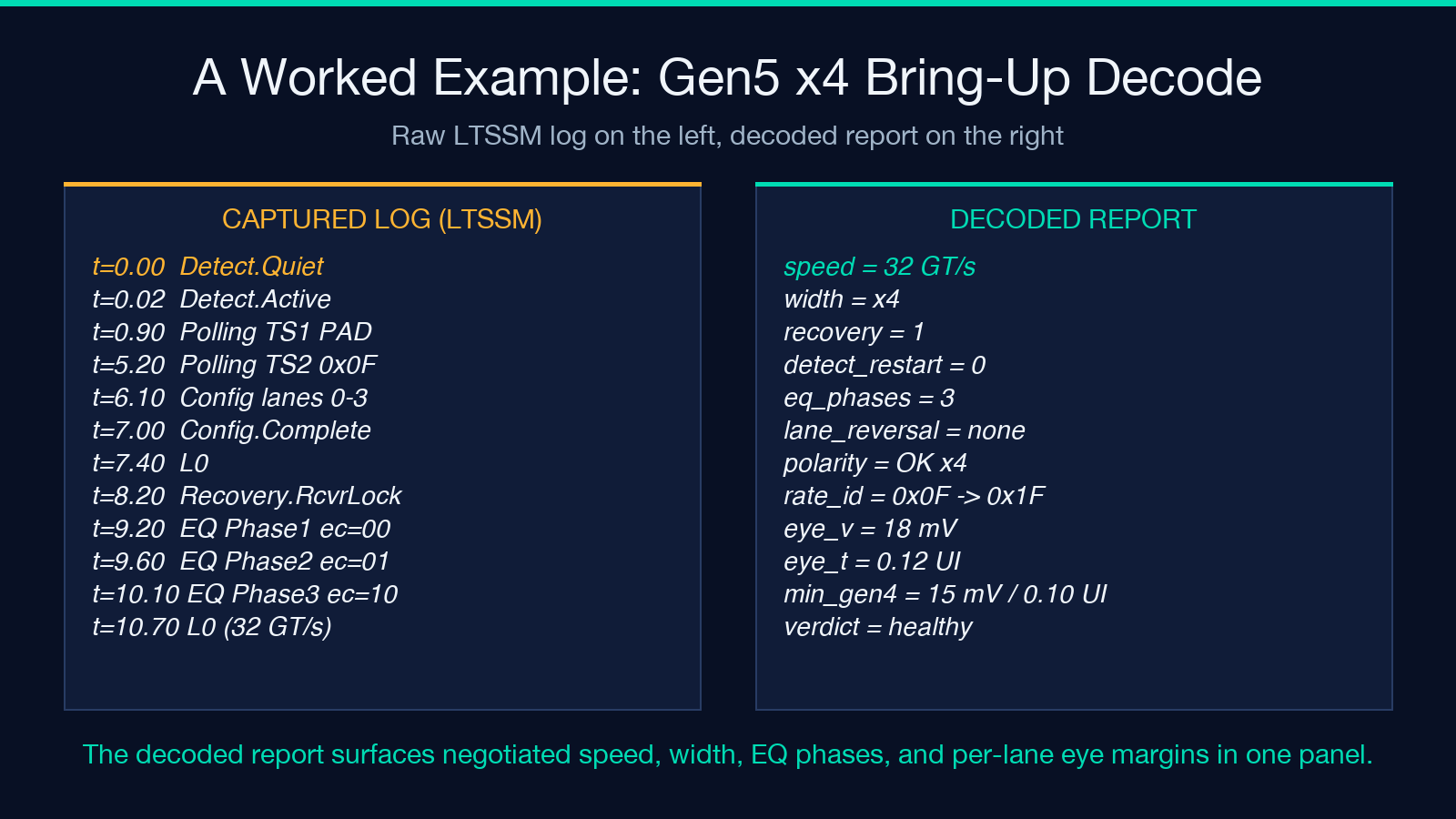
The expected sequence is:
- Phase 1: TS1 with
ec=00(use preset P0). The downstream port advertises its TX EQ presets. - Phase 2: TS1 with
ec=01(request response from P1). The upstream port requests a specific preset. - Phase 3: TS1 with
ec=10(request coefficient K, no preset). Fine-tuning. - Recovery.Idle: TS1 with
ec=00again, indicating both sides have agreed.
A link that loops Recovery.Equalization.Phase2 forever has a TX preset mismatch – one side wants preset 5, the other only supports preset 7. The decoder counts eqPhaseCount and surfaces this as a Recovery restart diagnostic, with the last ec= value seen. The decode report shows the full preset negotiation table.
Lane Margining Eye Report: Per-Lane Voltage And Timing Headroom
A lane margining report (typically a pcilmr CSV or a key=value block from lspci/nic-tools) lists the voltage and timing margins for each lane at each step in the equalization state. The PCIe Base Spec Rev 5.0 §8.4.2 defines the minimum eye opening per generation:
- Gen3: 25 mV vertical, 0.15 UI horizontal at BER 1e-12
- Gen4: 15 mV vertical, 0.10 UI horizontal
- Gen5: 10 mV vertical, 0.08 UI horizontal
A lane that meets Gen3 minimums but fails Gen4 minimums is a Gen3-capable lane on a Gen5 link. The eye decoder grades each lane against the minimums for the negotiated generation and renders a per-lane eye-margin heatmap SVG, with red cells for below-minimum and yellow cells for within 20 percent of minimum.
When Five Inputs Make The Decode Right: logText, pciGen, Show Eye, Margining CSV, Recovery Threshold
The decoder takes five inputs and returns one consolidated report:
- logText: the raw LTSSM log captured from lspci/nic/perf-trace
- pciGen: auto-detect, or pinned to Gen1/2/3/4/5 for testing
- showEyeHeatmap: whether to render the per-lane eye heatmap
- marginingCsv: a
pcilmrCSV block orkey=valuelines, only needed when the eye check is desired - recoveryRestartThreshold: how many Recovery.RcvrLock entries count as “too many” (default 5)
A useful workflow is to capture the full LTSSM log plus a per-lane margining report, paste the log into logText, set pciGen=auto, and let the tool auto-grade the eye. The decoder will surface the negotiated speed/width, the equalization phase count, the rate-identifier progression, the lane reversal/polarity status, the per-lane eye margins, and the Detect/Recovery restart count.
Reading The Decoded Report: What Each Output Block Tells You
The report from the decoder has six output blocks, in order:
- Negotiated speed and width: the final
metadata.negotiatedSpeedGts(number) andmetadata.negotiatedWidth(number). If either is lower than what you requested, look at the rate-id progression and the equalization phase. - LTSSM timeline: a color-coded table of every state visited, with the dwell time in ms. Detect.Quiet is white, Polling is yellow, Configuration is blue, L0 is green, Recovery is orange, Loopback is red.
- Rate-identifier table: every rate-id bit seen, with the timestamp and the state it appeared in. 0x01 in Polling.Active is normal. 0x01 in Configuration.Complete is a Gen1 link.
- Per-lane polarity and reversal status: a 4-column or 8-column or 16-column table depending on negotiated width. Cells are
OKorINVERTEDand a single-line summary at the bottom names any reversal. - Eye heatmap: a per-lane SVG heatmap with voltage on the y-axis (mV) and timing on the x-axis (UI). Cells are red (below minimum), yellow (within 20 percent of minimum), green (above minimum). A single all-green row is a healthy link.
- Recovery restarts: the count of
metadata.recoveryCount. Anything above therecoveryRestartThresholdinput is flagged.
The decoder consolidates all six into a single HTML report and prints an assertion list with the negotiated speed, negotiated width, detect-restart count, recovery-count, and equalization-phase-count. See the full example at elysiatools.com/tools.
