
A regression line is the simplest summary a dataset can give you. Run a straight line through the cloud, and you have a slope, an intercept, an R², a p-value, and a prediction interval — four pieces of arithmetic that turn a thousand rows of CSV into a defensible forecast. The Regression Analyzer keeps that whole pipeline in your browser, so the model never leaves the page and the diagnostic charts render the moment you paste a column.
Why browser-side regression matters
Most analytics stacks treat a regression as a one-shot script: clean the data, call lm() or sklearn.linear_model, capture the coefficients, and hope the assumptions held up. Three properties get lost in that flow — provenance, interactivity, and reproducibility. When the model lives in a browser session, every input change re-fits on the same data, every chart updates from the same coefficients, and every value shown to the user is derived from whatever the user just typed.
That round-trip is small for one row, but it gets valuable quickly. Paste a table with a missing value in column C and the algorithm either imputes or excludes it depending on the toggle; change a confidence level from 95% to 99% and every interval widens in place. The visual feedback makes the model tangible in a way that a static notebook never does.
The classic fit: simple linear regression on two columns
Start with the smallest useful case — one y, one x. Drop two columns of paired numbers into the input, name them, and the tool emits slope, intercept, R², adjusted R², residual standard error, and the F-statistic for the overall model. The same screen also carries the per-coefficient t-statistics and p-values, so you can tell at a glance whether the slope is really doing work or whether the relationship is dominated by noise.
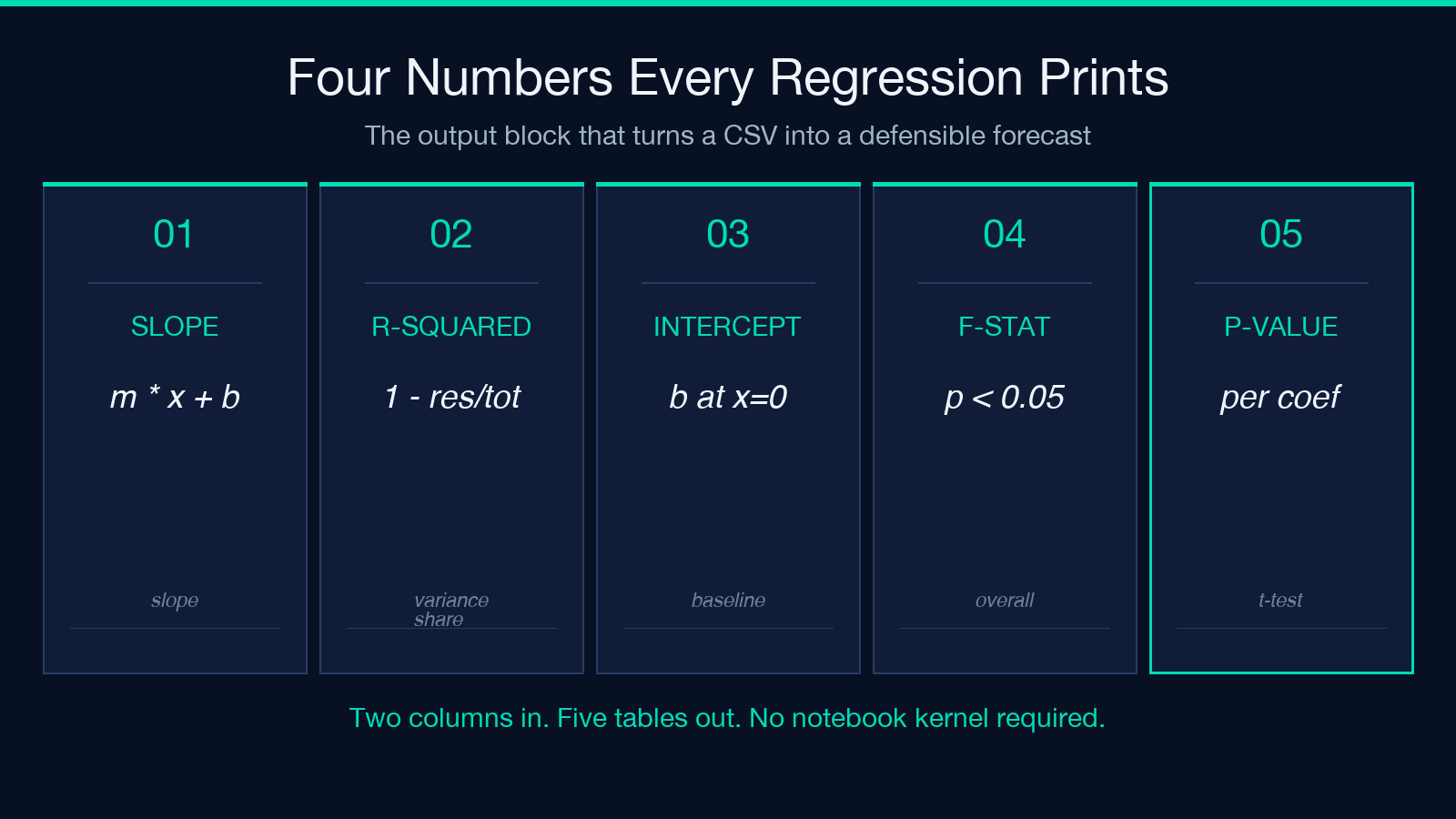
For two columns of roughly normal residuals, the output behaves like the textbook:
y_hat = m * x + b
R²    = 1 - SS_res / SS_tot
SE    = sqrt(SS_res / (n - 2))
The block contains nothing more than the four lines a stats class would put on the board. The value of the analyzer is that those four lines are filled in for you, in real time, and the residuals plot overlaid next to the fitted line tells you whether the textbook assumption held.
Multiple regression without a notebook kernel
Multiple regression is where most quick analyses stall. Drop three, four, or ten columns in and the tool runs the full OLS fit on every numeric column you tagged as a predictor. The output block triples: coefficients table, model-fit table, and the ANOVA decomposition of explained vs. residual variance. The interesting columns are the standardized coefficients (beta), which let you rank predictors on a common scale even when their raw units disagree.
A small but real win is multicollinearity diagnostics. If two predictors carry near-identical information (price-per-square-foot and total-square-footage on the same housing set), the VIF column in the output flags it before you commit. The tool computes VIF the moment the model has more than one predictor, so the diagnostic appears without you asking for it.
Residual analysis is where models actually fail
The coefficient table is what you report; the residual plot is what tells you whether to trust the table. Looking for:
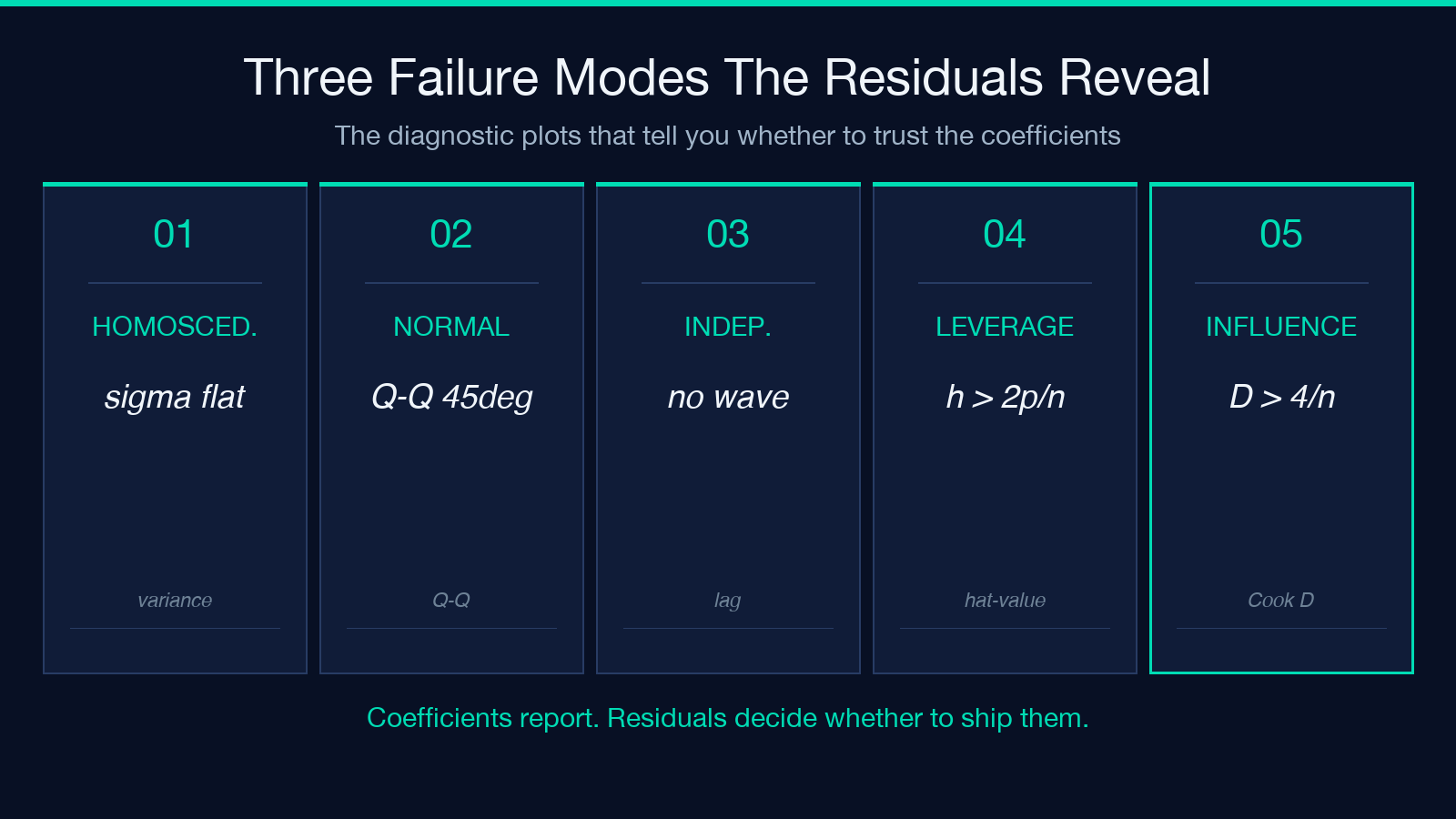
- Homoscedasticity — the spread of residuals should not fan out or pinch in as the fitted value grows.
- Normality — a Q-Q plot of residuals against the theoretical normal should sit on the 45° line.
- Independence — residuals against time or sequence should not carry a wave.
The Regression Analyzer renders a residuals-vs-fitted scatter and a Q-Q plot together, so you can scan for the three failure modes in one glance. When a residual sits visibly off the cloud, the row is highlighted in the source table so you can decide — drop the row, transform y, add a predictor, or leave it.
Outliers and high-leverage points
Every regression dataset has at least one point that pulls the slope toward itself. Cook’s distance, leverage (hat-values), and studentized residuals catch three different flavors of that pull. The tool exposes all three on the residuals table; rows crossing the conventional thresholds (Cook’s D > 4/n, leverage > 2·p/n, |studentized residual| > 3) get a tag in the side panel.
The right move is rarely “delete the point.” A high-leverage point that survives influence analysis is signal, not noise — that is the entire point of running the diagnostic. The wrong move is to delete a point simply because it disagrees with the line; the tool flags rows but never deletes them, so the decision stays with the analyst.
Confidence and prediction intervals behave differently
A common mistake is to read a prediction interval as if it were a confidence interval. They have different widths, and the gap is meaningful.
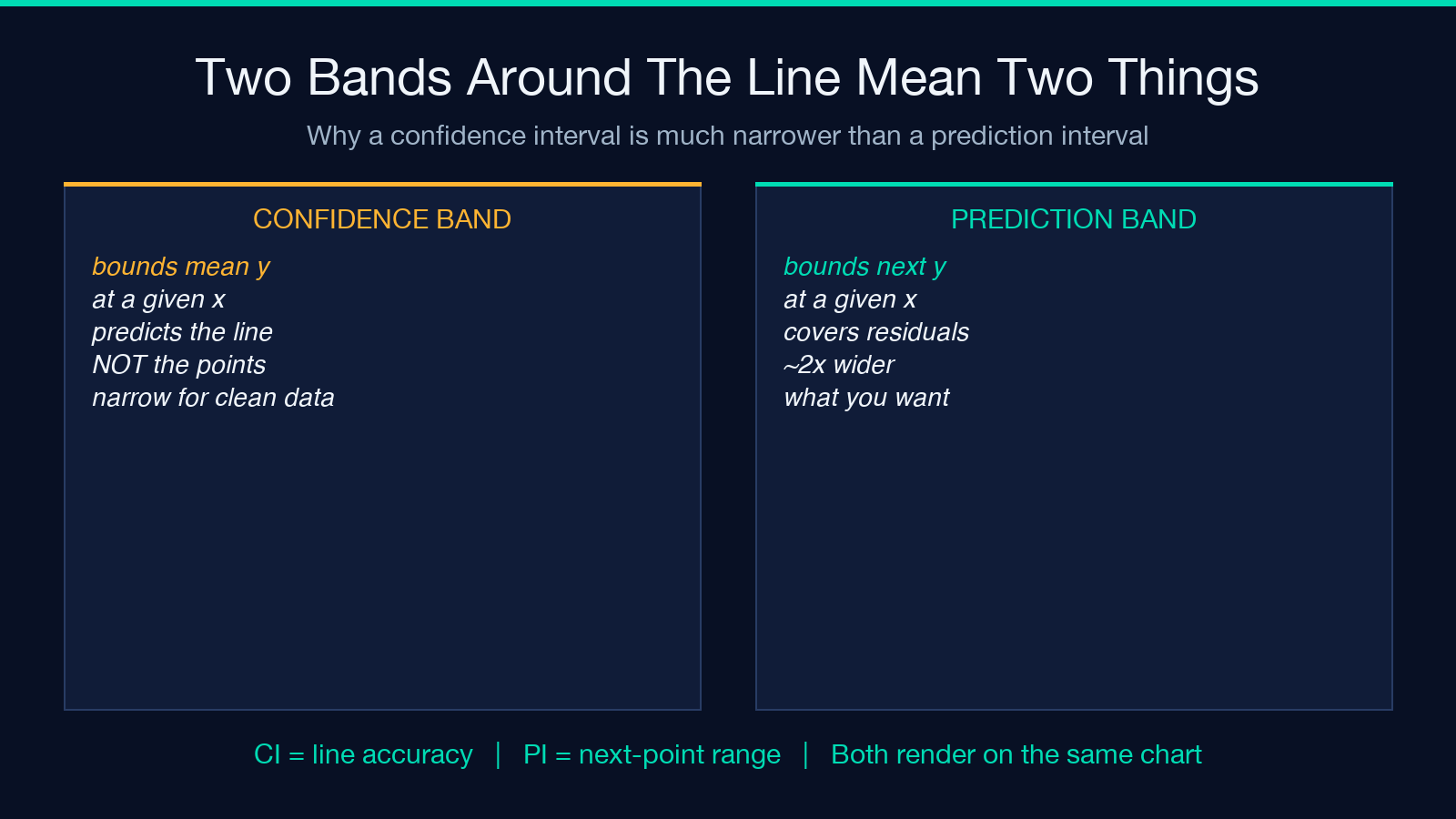
- Confidence interval for the mean — bounds the average y at a given x. Narrow because it’s predicting the line, not the points.
- Prediction interval for a new observation — bounds the spread of the next y at a given x. Wider because it must cover the residual variance too.
The tool renders both intervals as shaded bands around the fitted line, with the prediction band noticeably thicker than the confidence band. If your eyeball says “the bands look about the same width,” you’ve probably got the wrong tab open in another tool — the Regression Analyzer keeps them visually distinct.
Hypothesis tests you actually read
The F-statistic at the top of the model table answers “does any predictor carry signal?” — reject the null and at least one beta is non-zero. The per-coefficient t-tests answer “is THIS beta non-zero?” — useful for feature selection.
Two heuristics the tool makes obvious:
- High R², no significant predictors — usually multicollinearity. The variance is real but spread across near-collinear inputs. Drop one of the collinear pair and re-fit; the surviving coefficient will become significant.
- Low R², highly significant predictors — common in large-n datasets. A 0.05 R² with p < 0.001 means the slope is reliable but small in absolute terms. Report the coefficient and the confidence interval; don't report R² as if it were a success.
Both cases are visible in the same screen — the F-test column and the R² column sit side by side, so the tradeoff between them is plain.
Cross-validation as a sanity check
Coefficient tables can lie because they optimize on the same data they summarize. The tool’s leave-one-out cross-validation column reports the prediction error when each row is held out and the model is re-fit on the remaining n-1. If the cross-validation error is much larger than the in-sample error, the model is overfitting — keep more predictors out, regularize, or collect more rows.
The cleanest way to use that column is to flip the toggle, eyeball the gap, and decide whether the model is worth shipping. Most quick analyses can stop there. For publication-grade work the tool’s output is the input to a downstream validation step — but the column is honest about the in-sample/out-of-sample gap, which is more than most notebooks will tell you.
Explore more tools at elysiatools.com.
