
Three knobs and four blobs is the default state of every hero background you’ve ever admired. CSS Gradient Mesh Generator is the tool that turns the conic.style / Dribbble / Behance “soft-blob mesh” look into copyable CSS — no Photoshop, no Figma plugins, no “export as SVG” detour. You pick a preset, set the blob count and falloff, choose a layout, and the generator walks every layer to ship a .gradient-mesh CSS block, a Tailwind arbitrary-value class, and a layer-chip preview you can paste into any project.
Most teams fake the mesh look with a single oversized SVG or a third-party component because writing the layered radial-gradient CSS by hand looks deceptively simple. Then they hit the first blend mode and the colors go muddy, then they hit the conic underlay and the corners misalign, and by the third revision they’re hand-painting by hand which is what the generator was built to short-circuit. This guide walks through what the generator actually emits, where the falloff slider draws the line between “soft” and “softer”, and how to keep the output readable on both dark and light bases.
If you want to drive the controls while reading, the canonical entry point is at CSS Gradient Mesh Generator.
How The Layered Mesh Stacks
The generator’s first job is not picking colors — it is layering. Every mesh you produce is a base color at the bottom, an optional conic underlay in the middle, and N radial gradients (the “blobs”) fading to the same-hue transparent edge at the top. The order matters: the base color is what shows through wherever a blob’s falloff has decayed to alpha zero, and the conic underlay sits between the base and the blobs so its hue rotation lands between the base color and the blob edges rather than washing them out.
Each radial gradient is rendered as radial-gradient(circle at X% Y%, and the same-hue-transparent endpoint is the reason the blobs fade cleanly. The generator does not blend toward the base color — it fades toward a transparent version of the blob color, so a violet blob fades to a transparent violet, not to a muddy average. This is what makes the mesh look like real “color fog” instead of the cheap “patches of color” you get from a hand-written SVG filter.
The blob positions come from the layout option. Corners pulls each blob toward a corner of the canvas, ring distributes around the perimeter, scatter uses the seed to scatter them, and the resulting CSS positions are percentage-based so the same output scales from a 320px hero to a 1920px hero without re-authoring.
Why Falloff Is The Slider You Touch First
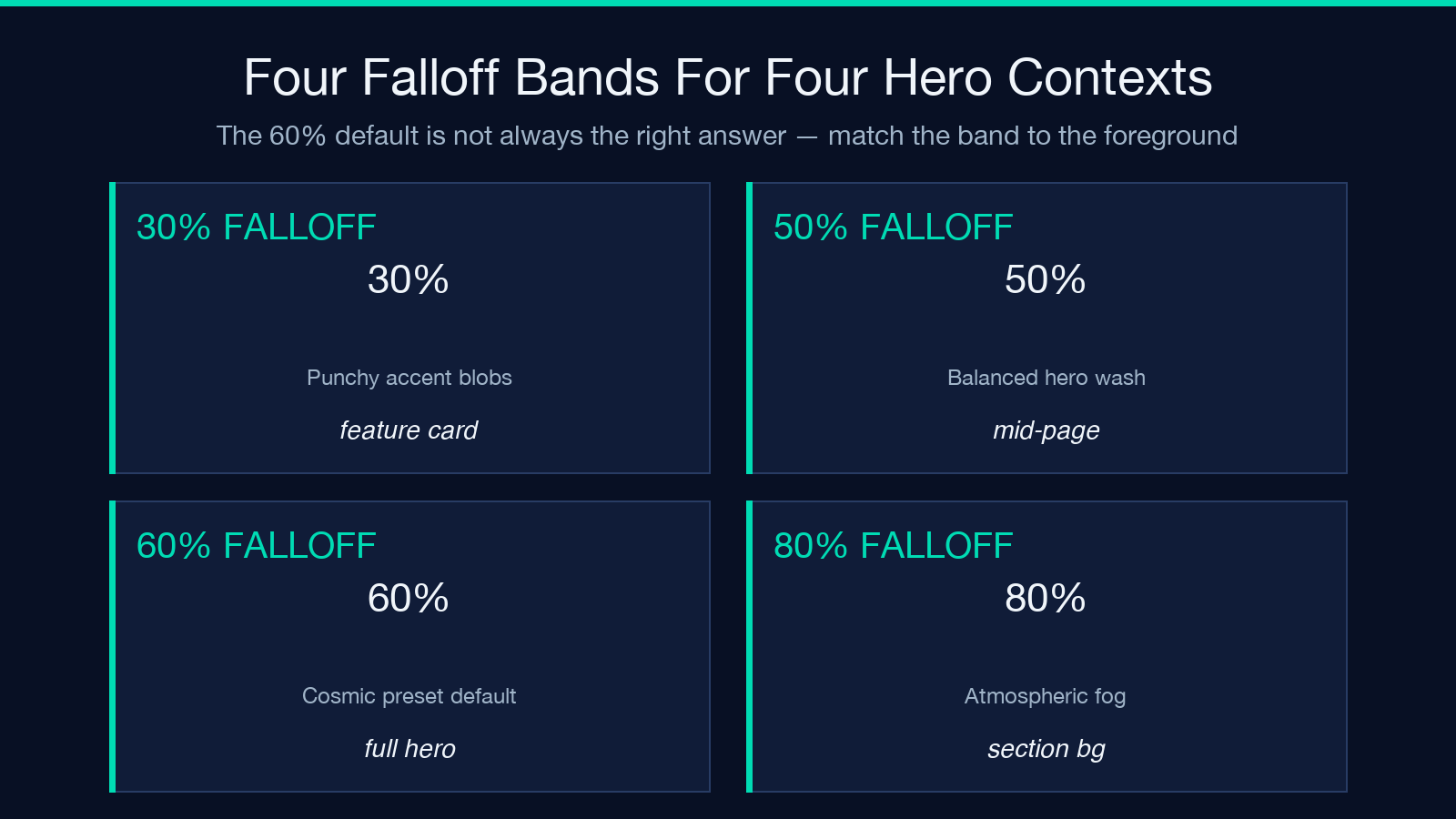
The reason falloff is the most important knob is that it sets how far each blob reaches before it disappears. A 30% falloff means the blob is gone after a third of the canvas — punchy, dramatic, useful for accent backgrounds. A 70% falloff means the blob reaches almost to the opposite corner — soft, atmospheric, useful for full-page hero sections. The generator maps the slider to the radial-gradient’s 100% stop, so a 60% falloff sets the same-hue-transparent endpoint at 60% radius, not at 60% color value. Confusing the two is the most common mistake when porting mesh CSS by hand.
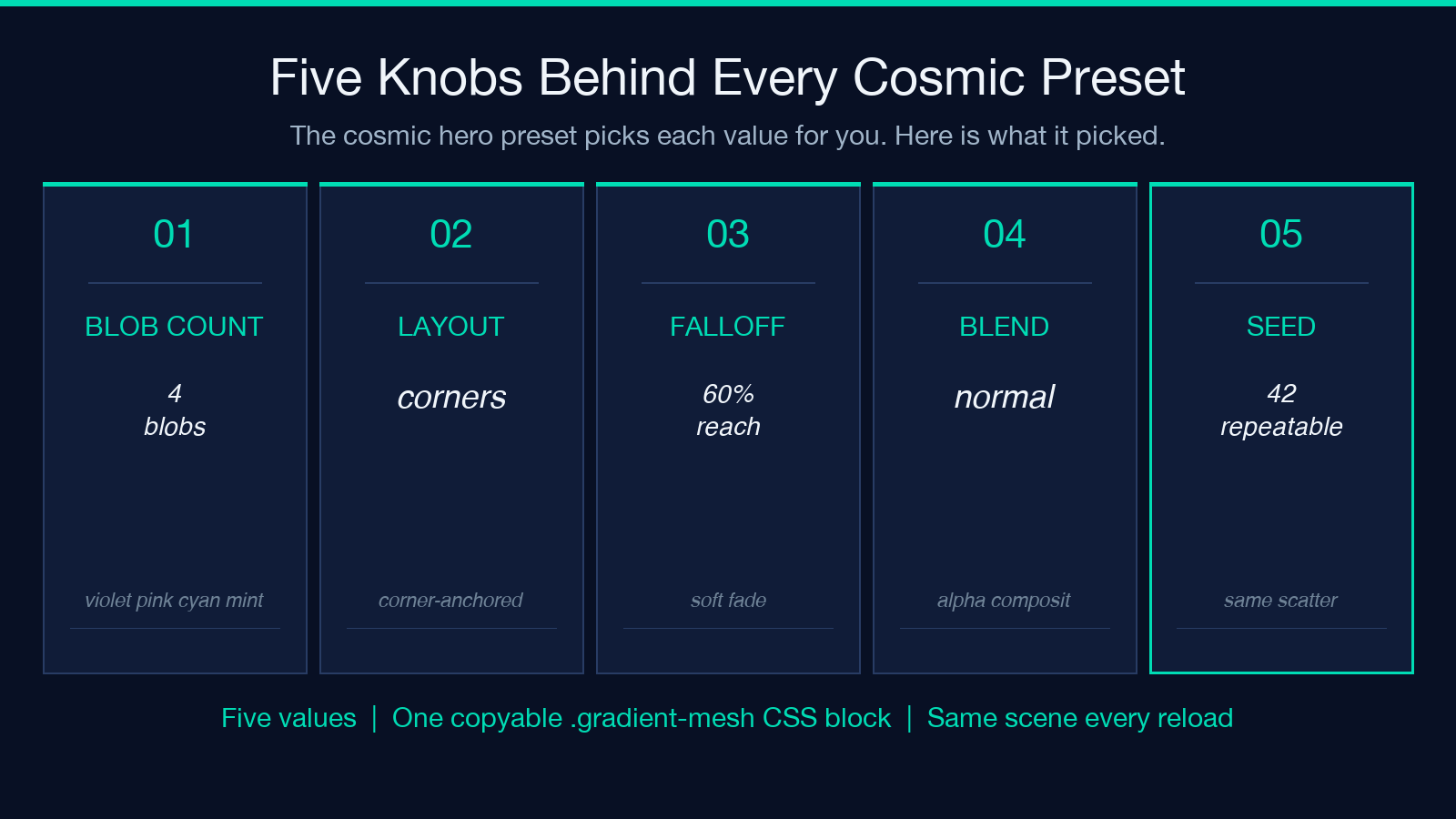
The cosmic preset uses a 60% falloff over a near-black base with four corner-positioned blobs in violet, pink, cyan, and mint. The 60% setting is the room left for the four blobs to overlap without crowding the center, and the corner layout is what keeps the center of the canvas breathing room for the headline. Drop the falloff to 40% and the same four blobs become four punchy accents with a sharp near-black center — useful for a feature card, terrible for a hero.
A common mistake is to set the falloff too high on a busy page. If the foreground content needs to read against the background, a 70% falloff produces a wash that fights the text. Drop back to 45–55% and the blobs become defined enough that the base color shows through behind the text without going full blackout. Differentiation rules apply.
What The Blend Mode Actually Changes
The blend mode selector is the most misconfigured option in the generator because each mode produces a visibly different mesh from the same color set. Normal blending is layer-on-layer alpha compositing — the cleanest result, useful when the colors are already coordinated. Screen blending pushes overlapping colors toward white, the equivalent of light-on-light, useful on dark bases where you want the overlaps to bloom but catastrophic on light bases where the result is just a washout. Multiply is the inverse — overlapping colors go darker, useful on light bases for a layered ink look. Overlay and soft-light sit between normal and the extremes.
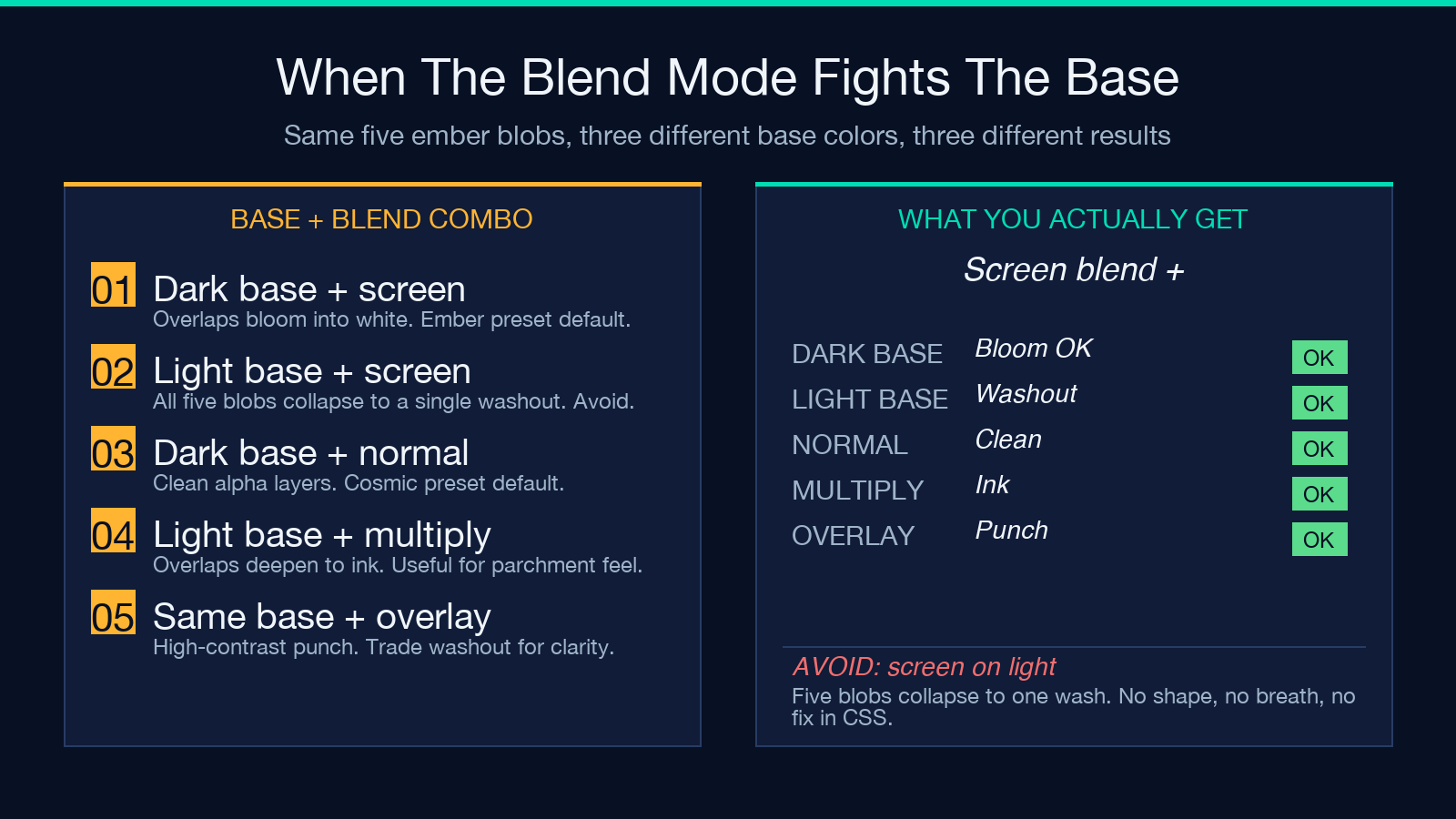
The ember preset uses screen blending on a near-black base because screen only shines on dark backgrounds. If you flip screen onto a near-white base, the same five blobs produce a washout instead of a glow. The generator does not enforce this — it lets you pick any mode for any base — and it is the most common failure mode when porting a preset to a different brand palette.
The conic underlay is the optional layer between the base and the blobs. It renders as conic-gradient(from and the angle option is the rotation point for the hue band. At 0° the conic starts at the top edge of the canvas; at 45° it starts at the top-right corner; at 90° it starts at the right edge. The ember preset uses 45° with a violet-purple-red-green wash that fills the base behind the blobs so the overlap regions pick up a hue band rather than going to gray. The washout hint warns when the combination of a light base and a screen blend mode would produce a low-contrast result — it is a heuristic, not a guarantee, and the right move is to preview the mesh on the actual base color rather than trusting the hint.
Why Seeded Layouts Beat Random Layouts
The reason the generator uses a seeded scatter layout rather than a true random layout is reproducibility. The same seed always produces the same blob positions, so a designer can tweak the seed until they find a layout they like and then keep that layout across all hero backgrounds in a brand system. The corners layout is fully seed-independent (the corners are fixed), the ring layout is seed-independent (the ring is regular), and the scatter and grid layouts use the seed to position them.
The seed is a small integer — typically a number between 1 and 9999 — and the generator hashes it to produce the same scatter coordinates every time. The cosmic preset uses seed 42, the ember preset uses seed 777. If you want a different scatter for a new hero, change the seed to a number you have not used in this brand system yet, paste the CSS into the project, and the next hero in the same system can use the same seed for consistency.
A common mistake is to change the seed every time you regenerate a mesh. The seed is the design asset, not the colors — if you change the seed, you change the layout, and the layout is what makes a hero feel like part of a system. Keep the seed stable across colors within the same brand system, and reserve seed changes for new brand systems.
How To Pick A Palette
The generator ships with several curated palettes and the right one depends on the brand. Cosmic is the four-color dusk (violet, pink, cyan, mint) — useful for hero sections that want a tech-feel glow. Ember is the warm five-color wash (violet, red, amber, gold, sage) — useful for hospitality and food brands. Forest is the cool five-color wash (slate, teal, mint, sage, moss) — useful for sustainability and outdoor brands. Each palette is coordinated to overlap cleanly under normal blending, which is what makes the generator’s output look like a curated design rather than a random color generator.
The curated palettes are not the only option. You can set each blob color to a hex value directly, which is the right move when the brand has a defined color system. The generator does not enforce any relationship between the colors, which is the freedom and the trap. A four-color custom palette with two analogous colors and two complementary colors works under normal blending, but a four-color custom palette with four colors that are all hue-adjacent to each other produces a muddy result under any blend mode. The right move is to pick a curated palette as a starting point and then override one or two colors to match the brand, rather than overriding all four with a custom palette that has not been tested together.
If you want to see what each preset looks like in a different layout, the CSS viewer samples page carries ready-to-paste variations across corners, ring, and scatter with the same color sets.
How To Read The Generated CSS
The generator emits three blocks per mesh. The first is a .gradient-mesh class with the layered radial-gradients, the optional conic underlay, and the optional film grain. The second is a Tailwind arbitrary-value class — bg-[image:var(--gradient-mesh)] — that lets you drop the mesh into a Tailwind project without copying the full CSS. The third is a layer-chip preview that shows each layer as a small swatch so you can see the color order at a glance.
The CSS is always emitted with background-image set to a var(--gradient-mesh) so the colors can be themed via CSS custom properties. The same class can be re-themed by overriding --gradient-mesh with a different value, which is the right move for dark/light mode swaps within the same brand system. The generator does not include any color-mode-aware CSS — that is the integrator’s job — and the right move is to ship two --gradient-mesh values, one for each color mode, and let the integrator pick the right one per mode.
A common mistake is to paste the full CSS as inline styles rather than as a class. Inline styles do not pick up CSS custom property overrides, so a dark/light mode swap that relies on overriding --gradient-mesh will silently fail when the mesh is inlined. The generator’s class-based output is the right shape for color-mode-aware theming.
For a worked example of how to override --gradient-mesh from a Tailwind config, the Tailwind CSS samples page carries the full integration recipe.
How To Add Film Grain Without Slowing The Page
The optional film grain layer is the last thing most integrators consider, and the right move is to keep it. The grain is rendered as an SVG noise pattern that the generator embeds as a data URI, then layered at low opacity on top of the blobs. The visual effect is what makes the mesh look like printed paper rather than a clean digital wash, and the cost is one extra background-image layer per element with the grain enabled.
The grain is not free — the data URI is larger than the radial-gradient block inline, and the SVG noise has to composite on every paint — so the right move is to enable grain only on hero sections and not on every feature card. The ember preset enables grain by default because the warm wash looks unfinished without it; the cosmic preset disables it because the cool dark mesh reads better as a digital artifact. The right move is to follow the preset’s lead unless you have a strong reason to deviate.
A common mistake is to enable grain on long-scrolling pages. The SVG noise pattern composites on every scroll frame, and on a 5000-pixel-tall hero section the cost adds up. If the right context is a long scroll, drop the grain or replace it with a fixed-position SVG grain layer that does not repaint on scroll. The generator does not include the optimization, but it is the right move for any hero taller than two viewports.
Where The Generator Stops Being The Right Tool
The generator is a static-mesh tool, not an animation tool. It does not animate the blob positions, it does not respond to scroll or mouse position, and it does not produce a video background. The moment your hero needs motion, the moment you need a parallax effect, or the moment you need the blobs to react to the user’s mouse, you have left the generator’s design envelope and need a canvas-based or shader-based mesh instead.
For everything before that line — the static mesh hero, the section divider, the feature card background, the empty state — the generator stays the fastest way from a color set to a copyable CSS block. The reason it works is the same reason hand-written mesh CSS fails: the generator never asks you to hand-paint the radial-gradient coordinates, and it never gets confused about the difference between falloff and color stop.
If you want to extend the coverage to other mesh styles before the curated palettes catch up, file a feature request through the design samples feedback path so the next palette gets a preset instead of a hand-rolled CSS block.
Explore more tools at elysiatools.com.
