# 8 Free PDF Tools That Replace Manual Document Work
You just spent 47 minutes adding page numbers to a report. You did it manually because the PDF was already locked, and the “Insert Page Numbers” dialog in Acrobat kept putting numbers in the wrong place.
You didn’t have to do that.
There are tools — free ones — that handle PDF automation tasks like page numbering, header stamping, timesheet summaries, and table extraction. Most people don’t know they exist. This article fixes that.
—
PDF Page Numbering Styles — Add Page Numbers in Any Format
Adding page numbers to a PDF sounds trivial. Until you need Roman numerals for the front matter, Arabic numbers for the body, and a chapter prefix on the first ten pages.
The PDF Page Numbering Styles tool handles all of it in one pass. Choose Arabic numerals, Roman numerals (upper or lower), or a chapter prefix template with `{chapter}` substitution. Numbers go in any corner or center of header or footer, with custom font size and color.
Stop screenshotting page numbers into Acrobat at 11 PM. This tool does it right.
—
PDF Header/Footer Snippets — Add Logos, Titles, and Dates Without Touching the Source
Most people add headers by editing the source document. That’s the slow way.
The PDF Header/Footer Snippets tool stamps repeatable elements — company logo, document title, date, “CONFIDENTIAL” watermark — onto any HTML-to-PDF conversion. Control position, font size, and margins per snippet.
Your marketing team can add branding to PDFs without asking a developer to regenerate the source file.
—
PDF Timesheet Summary — Turn Raw Shift Data into a Payroll-Ready Report
You have 200 rows of timesheet data in a spreadsheet. Finance needs a clean summary. You’re manually totaling hours, flagging overtime, and rebuilding the table in a document editor.
The PDF Timesheet Summary takes JSON rows — employee, date, shift, project, hours — and generates a formatted PDF with employee totals, daily breakdown, and overtime calculation. Set the daily threshold (default 8 hours) and it computes the rest.
Your HR team generates a full payroll summary PDF in under a minute, every pay period.
—
PDF to Structured Markdown Converter — Extract PDF Content Without the Mess
Copy-pasting from a PDF usually brings formatting artifacts, broken tables, and missing line breaks. It’s noisy.
The PDF to Structured Markdown Converter uses OpenDataLoader to convert PDFs into clean Markdown. Choose plain Markdown, Markdown with HTML fragments, or Markdown with extracted image references. Preserve line breaks for legal text, use the native tagged-PDF structure tree, and sanitize sensitive data before export.
When you need to import PDF content into a knowledge base, CMS, or RAG pipeline, you get structured text — not broken formatting.
—
PDF Prompt Injection Scanner — Find Hidden Text That Shouldn’t Be There
PDFs can contain hidden text invisible on screen but extracted by AI parsers. This is how prompt injection attacks hide malicious content inside documents — or how competitors hide disclaimers that only surface when text is processed programmatically.
The PDF Prompt Injection Scanner scans for four categories of hidden content: text in invisible layers, content positioned off-page, font sizes below 1pt, and hidden OCG layers. It outputs flagged snippets with their location and category.
Before you feed PDFs into an AI pipeline, you know what’s hiding in them.
—
PDF RAG Chunker & Citation Pack — Prepare Documents for AI Retrieval
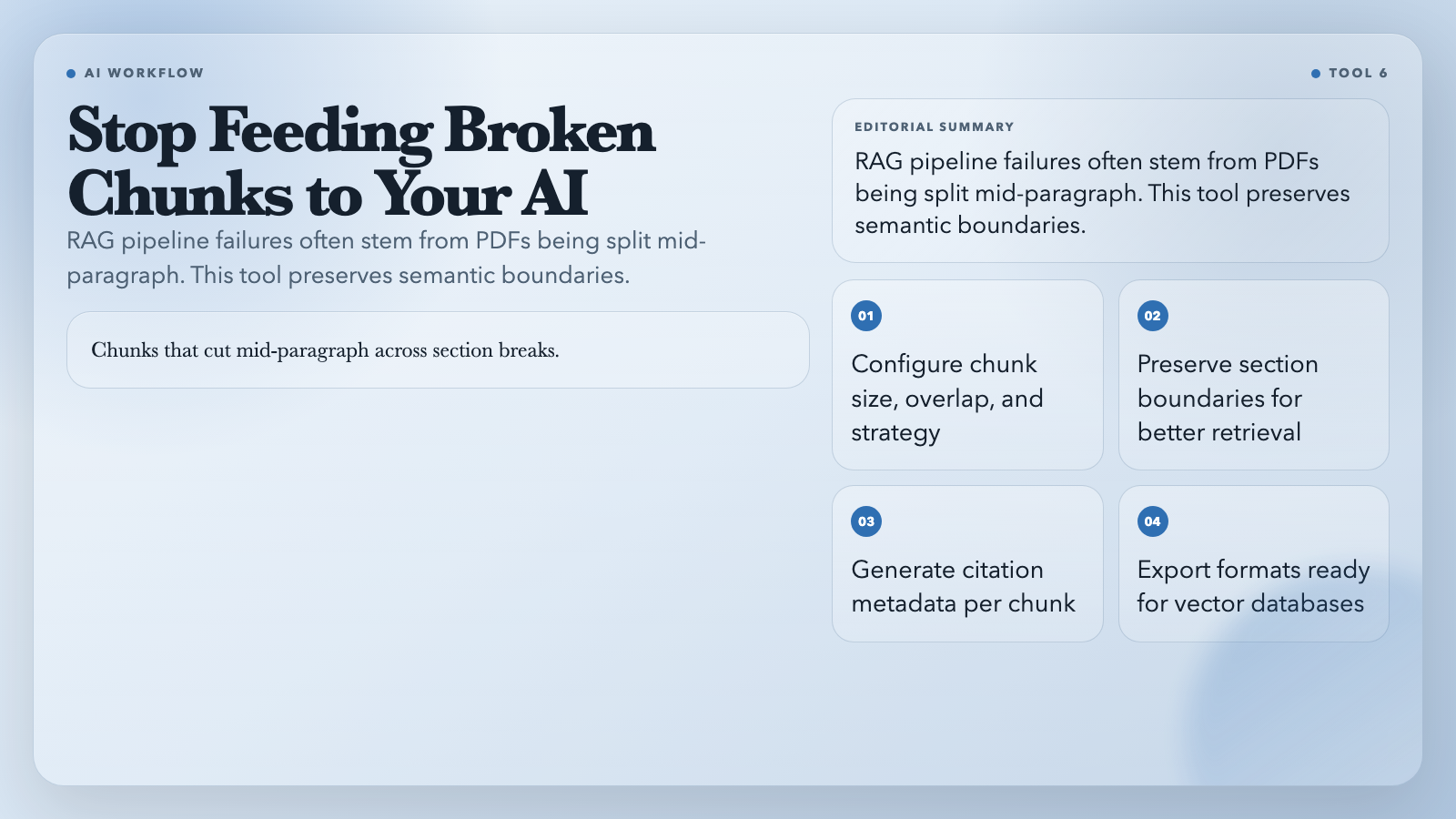
Chunking a PDF for a RAG pipeline isn’t “split every 500 words.” Real retrieval quality depends on preserving semantic boundaries — keeping related content together while creating chunks that fit your vector database’s context window.
The PDF RAG Chunker & Citation Pack lets you configure chunk size, overlap, and strategy. It preserves section boundaries, generates citation metadata per chunk, and exports in formats ready for vector databases.
Your AI team stops getting retrieval failures because chunks kept cutting mid-paragraph across section breaks.
—
PDF Reading Order Debugger — Fix the Order Your Screen Reader Sees
A PDF can look correct on screen but read in the wrong order through a screen reader. The underlying tag tree — which determines reading order — doesn’t always match the visual layout. Multi-column documents and floated elements are common culprits.
The PDF Reading Order Debugger renders the tag tree as a visual overlay so you can see exactly how assistive technology interprets the document’s structure. Identify and fix out-of-order tags, wrong nesting, and missing landmarks.
Your accessibility compliance check stops failing for reasons you can actually see and fix.
—
PDF Table Extractor to CSV/JSON — Pull Structured Data Out of Tabular PDFs
You have a PDF full of tables — financial statements, schedules, inventory reports. Copy-pasting gives you a mess. Manual re-entry takes an hour.
The PDF Table Extractor to CSV/JSON detects tables in uploaded PDFs and exports them as structured CSV or JSON. Specify page ranges and configure merge options for cells that span rows or columns.
Extract tabular data from any PDF into a spreadsheet in seconds, not an afternoon.
—
The One Calculation Worth Making
These tools automate the kind of document work that eats time without building value. Adding page numbers doesn’t make you better at your job. Reformatting a timesheet report doesn’t move projects forward.
The math breaks down fast: 5 minutes setup, 45 minutes saved per occurrence. Do that twice and you’ve bought back an hour. Do it ten times and you’ve reclaimed a workday.
Most people never run the numbers. They keep doing the task manually, every single time, and call it “just how it’s done.”
What’s the 47-minute task sitting in your workflow right now that you still haven’t replaced?
—
*All 8 tools are free to use at elysiatools.com.*