You picked a row count. You hit split. Three files came out — and the first one starts with the column headers, the second one starts with the first row of data, and the third one starts mid-row because the last line of your input had no trailing newline. That is the moment most CSV splitters quietly become a debugging session.
Splitting a CSV by line count sounds trivial. It is not, because CSV has a header line that almost always needs to repeat in every chunk, an optional UTF-8 BOM at byte zero that some splitters count as a row, and a trailing newline that determines whether your last file is empty. Elysia Tools CSV Splitter handles all three — and the rest of this article is what to feed it so you never have to debug a missing-header chunk again.
What CSV Splitter Actually Does
The tool takes CSV content as input, a row count, and produces N+1 files where N is ceiling(total rows / row count). Each output keeps the header row at the top, splits the body rows evenly, and preserves the original delimiter and quoting style. That is the entire surface area — but it is enough to cover most “split this 2 GB export into manageable pieces” use cases.
The input is plain text or a file. The output is a downloadable ZIP containing the chunks, each named with a numeric suffix that preserves order. No server-side persistence, no API key, no signup.
Three things it does not do, and why that matters:
- It does not infer schema. The header row is treated as opaque text. If your input has two header rows (some Excel exports do), only the first is preserved.
- It does not handle CSV dialects other than RFC 4180 defaults. Comma delimiter, double-quote text qualifier, double-quote escape — anything else will silently miscount rows. If your data uses semicolons or pipes, fix it first with a CSV delimiter converter, then split.
- It does not deduplicate. Two identical rows in the input will appear in two output chunks. Run a deduplicator after if that is a concern.
Where Splits Actually Break

Three structural details decide where every chunk boundary lands. Skip any one of them and the split “looks right” until you open the second file.
The header line. RFC 4180 says a CSV has one header row. Most splitters treat row 1 as the header and rows 2..N as data, then prepend the header to every chunk. If your input has no header (pure data, no column names), every chunk will start with what should have been data — and your downstream pipeline will treat row 1 as the header. Always check whether your input has a header before splitting.
The BOM. UTF-8 files exported from Excel often start with three invisible bytes (EF BB BF) called the byte-order mark. A naive line counter reads those bytes as the first row, then splits cleanly but every chunk after the first is offset by one. The fix is to strip the BOM first, or use a splitter that detects and skips it. The Elysia Tools BOM Character Remover handles the cleanup if your splitter does not.
The trailing newline. A file that ends with the last data row (no newline) and a row count of 100 will produce N+1 files where the last one is empty. A file that ends with a trailing newline will produce N files of exactly the row count plus the header. The behavior is consistent — but the file count changes. Pick your row count accordingly.
Quoted fields containing newlines are not a problem here because the splitter counts records, not raw newlines. A row with a newline inside a quoted string is one record, not two. This is the one place where line-counting splitters behave correctly.
What a Clean Split File Looks Like
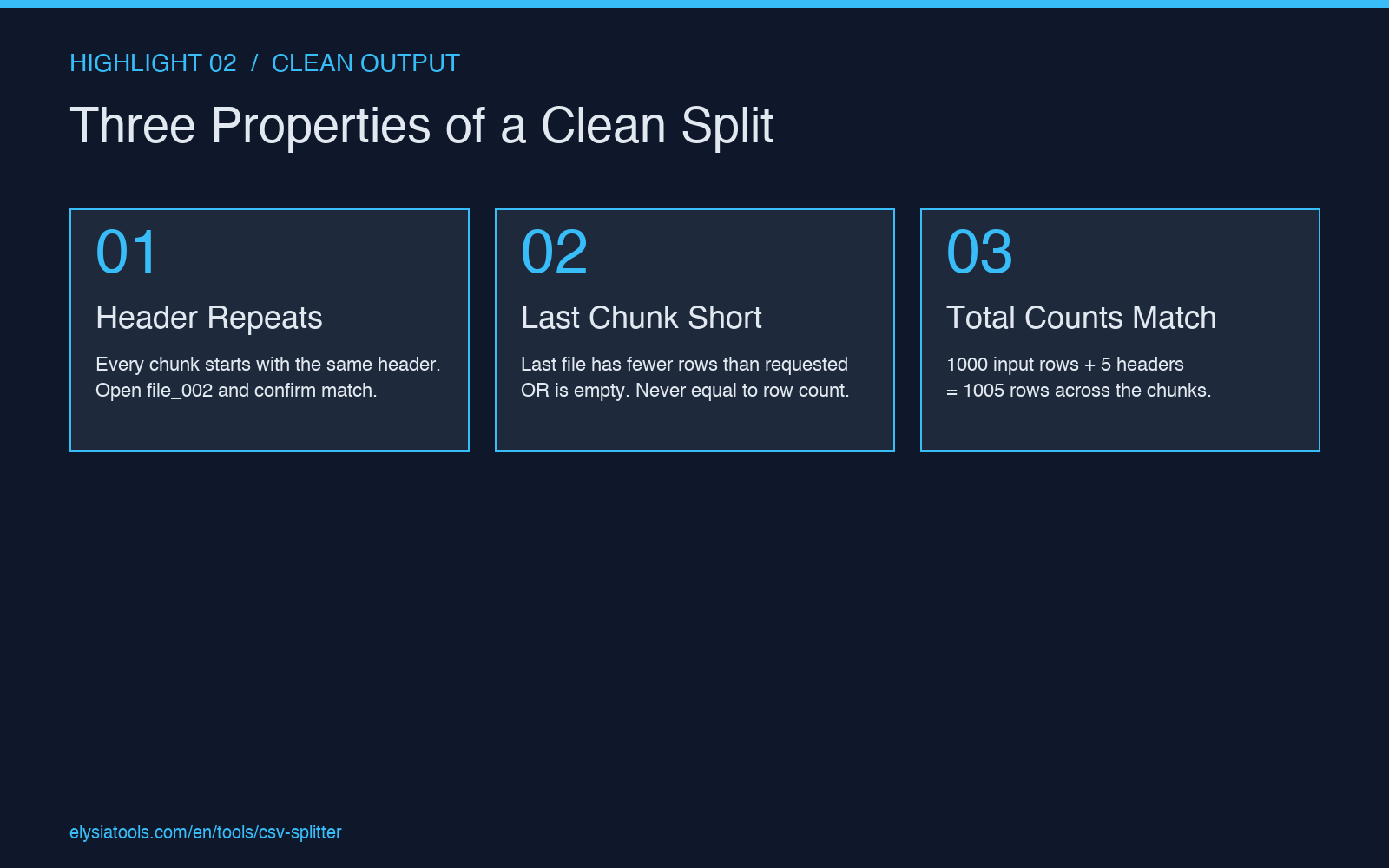
Three properties distinguish a clean split from a broken one, and they are easy to check before you ship the chunks to your downstream pipeline.
- Every chunk starts with the header. Open file_002.csv and confirm the first row matches the header of file_001.csv exactly. If not, the splitter is treating row 1 as data.
- The last chunk is either empty or has fewer than the requested row count. If the last chunk has exactly the requested row count and the file before it ends mid-row, the splitter miscounted somewhere.
- The total row count across chunks equals the input row count plus (N x 1) for the headers. If you started with 1000 data rows and got 5 chunks of 200, the total should be 1000 data rows + 5 header rows = 1005 rows across the chunks. If it is off by one or two, the BOM or trailing-newline issue above is the cause.
A pre-flight check that catches 90 percent of split bugs: open the first two chunks side-by-side and confirm the header line is byte-identical. If it is not, stop and fix the splitter or the input before continuing.
The Row-Count Decision Tree
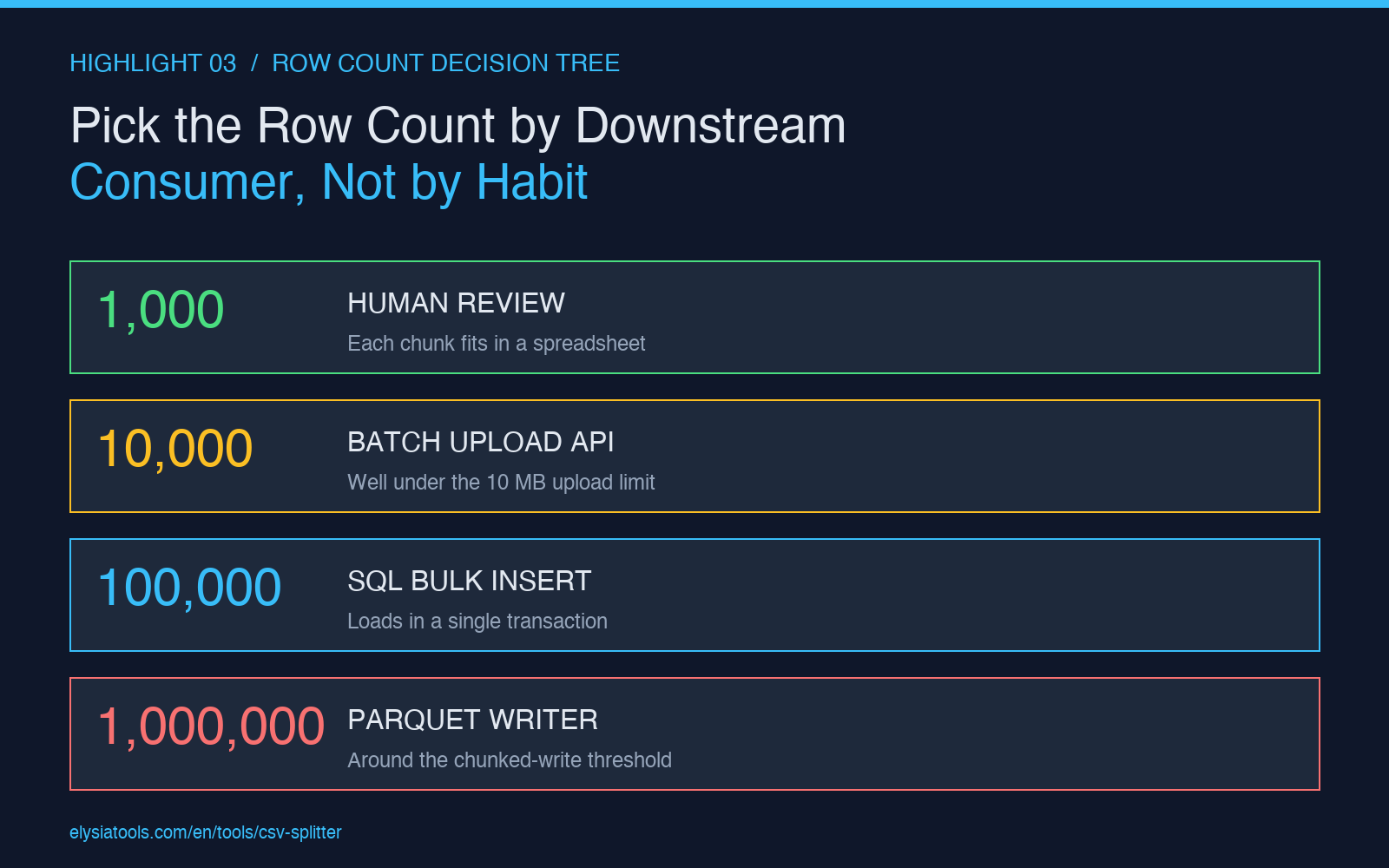
There is no universally correct row count. The right number depends on what your downstream consumer can handle — file size, memory, API limits, or human readability.
- 1,000 rows per file — best for human review. Each chunk fits in a spreadsheet without scrolling. Use this when the split is for an analyst who needs to look at every file.
- 10,000 rows per file — best for batch upload pipelines. Each chunk is well under the 10 MB limit most APIs impose. Use this when the split is feeding an upload job.
- 100,000 rows per file — best for SQL imports. Each chunk loads in a single transaction for most database engines. Use this when the split is feeding a bulk insert.
- 1,000,000 rows per file — best for parquet conversion. Most parquet writers switch from single-file to chunked processing around this size. Use this when the split is feeding a columnar conversion.
The conservative default is 10,000. If you do not know what your downstream needs, that size works for nearly every common consumer. If you know the consumer’s limit, set the row count to roughly 80 percent of it — leave headroom for the header row, BOM, and any rows the consumer rejects during validation.
Three Splitter Pitfalls That Look Like Bugs But Are Configuration
Most “CSV splitter is broken” reports come down to one of three configuration mistakes.
Pitfall 1: splitting a file with no header. The tool assumes row 1 is the header. If your input has no header, the first chunk will be missing its first data row (the tool used it as the header). Solution: either add a synthetic header row before splitting, or use a tool that has a “no header” option.
Pitfall 2: splitting a file with multi-line quoted fields across the row boundary. A 50,000-row file where every row has a quoted field with embedded newlines will produce chunks with mismatched counts because the splitter is treating each embedded newline as a row terminator. Solution: count records by quote-aware parsing, not by raw newlines. The CSV Splitter tool handles this correctly because it understands quoted fields — but if you are debugging a different splitter, this is the first place to look.
Pitfall 3: splitting a file with inconsistent row counts. If your input has trailing empty rows (some Excel exports add a blank line at the end), the splitter will count those as data and your last chunk will have fewer real rows than expected. Solution: trim trailing blank lines before splitting. The BOM Character Remover linked above can also strip trailing whitespace if needed.
Validating the Split Without Opening Every File
For a 50-chunk split, opening every file to confirm it looks right is not realistic. Two programmatic checks cover most cases.
Row count check: read each chunk, count data rows (excluding header), confirm they sum to the input row count. Off by one means a BOM or trailing newline issue; off by many means a quoting issue.
Header check: read the first line of every chunk, confirm it is byte-identical. If chunk 1 and chunk 2 have different headers, the splitter is not treating row 1 as a header consistently.
The Elysia Tools Dataset Quality Profiler handles both checks in one pass for files under 100 MB. For larger files, a quick script that reads the first line of each chunk is faster.
When CSV Splitter Is the Wrong Tool
CSV Splitter is the right choice when you want to chunk a file by record count and keep the schema consistent across chunks. It is the wrong choice when:
- You need to split by a column value (e.g., one file per region). Use a CSV Filter instead.
- You need to split by file size rather than row count. Most splitters do not expose this, but a row count of 50,000 stays under 5 MB for most CSVs.
- You need to split a CSV with a non-comma delimiter and you have not converted it first.
For the common case — splitting a large CSV into chunks of equal size with a repeating header — CSV Splitter at Elysia Tools is the cleanest option. Pair it with a BOM remover if your files come from Excel, and verify the first two chunks match before shipping the rest downstream.
You can try it against any of the public CSV samples on Elysia Tools to see how the chunks behave at different row counts.