PDFs are everywhere, but Markdown is where work actually happens. Documentation sites, GitHub READMEs, static blogs, knowledge bases — they all live in Markdown. So when a well-formatted white paper, an academic paper, or a vendor brochure arrives as a PDF, the first thing most teams do is copy-paste blocks of text into a .md file and rebuild every heading, every list, every table by hand. It is the worst part of the week, and it is exactly the kind of work that should not exist in 2026.
This guide walks through a saner way to convert PDF to Markdown — using a free browser-based tool at PDF to Markdown Converter that runs the structural recovery in your browser, then walks through the cleanup that always follows so the result is actually ready to publish rather than a first draft that needs an hour of fixes.
Why “PDF to Markdown” Is Harder Than It Looks
A PDF is not a document. It is a print instruction file — a description of glyphs, positions, and rules telling a printer how to lay ink on paper. There are no real “paragraphs” inside a PDF: there are coordinates of characters that happen to fall on similar y-axis values. So when you ask a tool to give you Markdown back, what you really want is for the tool to reconstruct the structure that the PDF lost — the heading hierarchy, the bullet lists, the tables, the inline emphasis — using nothing but the visual layout hints the author left behind.
That is a fundamentally harder job than “extract the text,” and it is also why most naive PDF-to-text converters give you unusable output: a wall of words with no structure, no headings, and no clue which paragraph followed which. Modern converters, including the one at elysiatools.com PDF to Markdown, layer several recognition passes over the same file and use layout heuristics to recover what the author meant, not just what the printer drew.
How the Conversion Actually Works
A high-quality PDF-to-Markdown pipeline does roughly four things in sequence. Understanding each step helps you predict where the output will need cleanup:
- Text extraction. Reads the raw glyph stream from the PDF and groups characters into runs of text. For a digitally-authored PDF this is straightforward; for a scanned PDF it requires OCR first.
- Layout analysis. Walks the page and identifies visual structures — columns, headings, lists, tables, images — based on font size, whitespace, alignment, and repeating patterns.
- Format inference. Maps each detected structure to a Markdown construct: a large-bold-isolated line becomes
#, a left-aligned bullet becomes-, a grid of cells becomes a pipe table. - Cleanup pass. Joins hyphenated line breaks, removes stray page numbers, normalizes whitespace, and emits a single coherent Markdown document.
The tool at elysiatools.com runs the full pipeline client-side in your browser, which means your file never leaves your machine — important for contracts, medical reports, or anything else you would not want uploaded to a SaaS.
Step-by-Step: Converting a PDF to Markdown You Can Actually Ship
Here is the workflow that consistently produces publish-ready Markdown from a typical PDF (white paper, vendor brochure, internal report):
- Open the converter in any modern browser and drop in the PDF — or click to select it. Because processing happens locally, the file uploads in milliseconds, not the much slower upload-prompt flow of cloud services.
- Choose the heading style. ATX (
# Heading) is the most portable. Setext (underlined) looks nicer but breaks inside tables. - Set code-block behavior. If your PDF has monospace blocks (terminal output, code samples, ASCII art), tell the converter to preserve them as fenced blocks rather than treating them as paragraphs.
- Run the conversion. The output panel fills in within seconds, even on a long document, because there is no upload round-trip.
- Review the first page carefully. Headings, lists, tables, and code blocks account for almost all the visual structure on a typical page; once you have validated those, the rest of the document usually follows the same patterns.
- Copy the output into your editor. The Markdown is plain text — no proprietary wrappers, no special encodings.
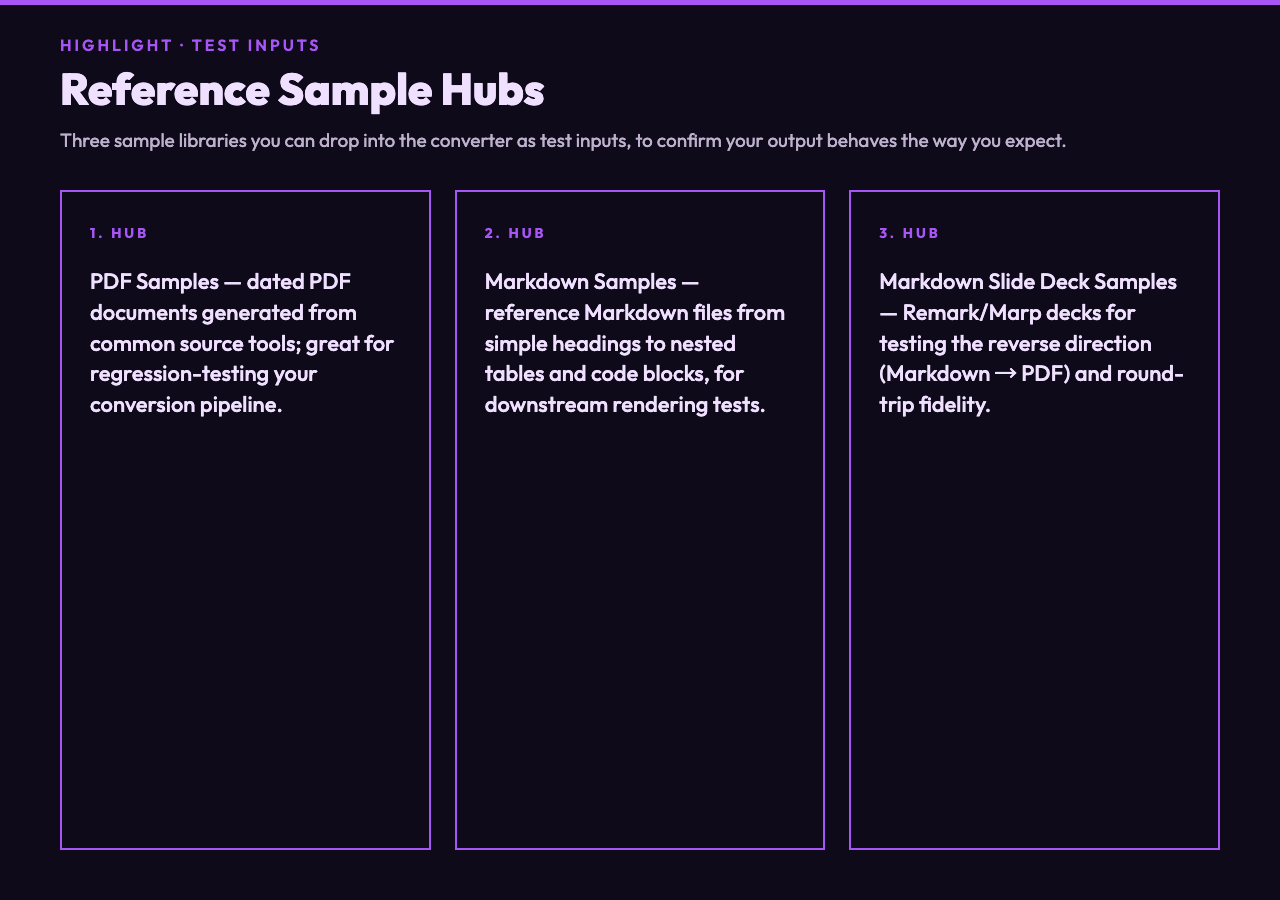
If you want to confirm how a converted document will render before committing to your output, the Markdown Samples hub has downloadable Markdown reference documents spanning simple headings to nested tables and code blocks — useful for calibrating how your static-site generator or doc platform interprets different Markdown constructs.
Common Cleanup Tasks After Conversion
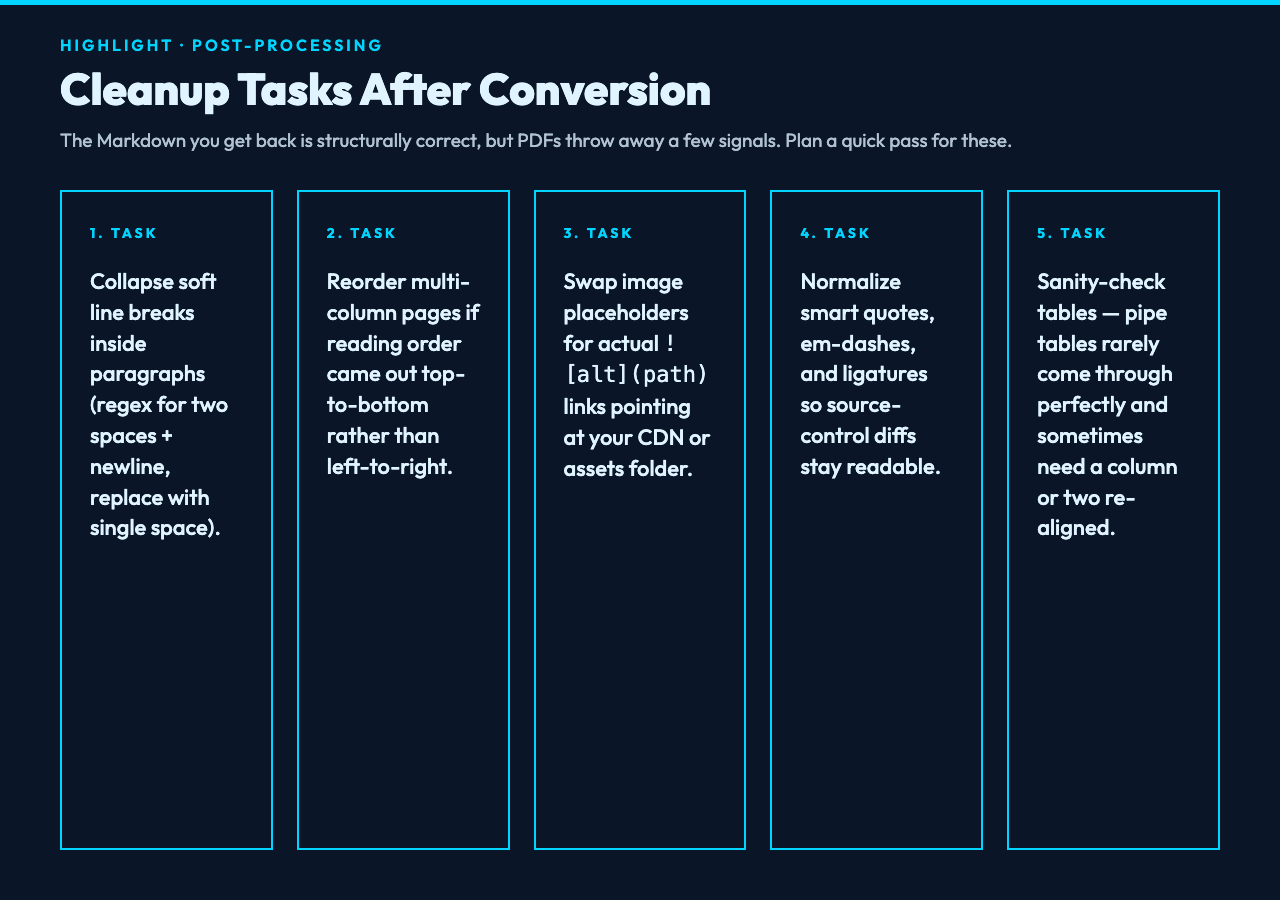
Even the best converter leaves you with some manual cleanup, because the PDF format throws away information the author never meant to discard. Plan for these:
- Soft line breaks inside paragraphs. PDFs often break a sentence across two visual lines; the converter joins most of these, but the first paragraph after a heading or list sometimes still has a stray break. Global find-replace for two spaces + newline collapses these quickly.
- Multi-column layouts. A two-column PDF will sometimes emit the columns top-to-bottom rather than left-to-right. The conversion is correct — both columns’ content is preserved — but the reading order may need a manual fix on the worst-affected page.
- Inline images are dropped or replaced with placeholders. If you want them in the Markdown, switch the converter’s image mode, then fix the resulting
links to point at your CDN. - Special characters. Em-dashes, smart quotes, and ligatures sometimes come through as their HTML or Latin-1 equivalents. The Markdown will still render, but it is worth normalizing for source-control diff hygiene.
None of these are dealbreakers — they are all two-minute fixes — and they are exactly the kind of cleanup you can teach a junior colleague to do in five minutes. The hard structural extraction is what the converter handles for you.
Choosing Test Inputs: Sample Hubs That Match Real PDF Shapes
Once you have run a few PDFs through the converter, it is worth pulling a known-good PDF input and confirming your output behaves the way you expect. The PDF Samples hub gives you reference PDF documents with predictable structure — generated from a variety of common source tools and dated so you can find a clean baseline. Drop one into the converter, compare the resulting Markdown with the original document, and you have an instant regression test for any change to your conversion pipeline.
This is especially useful when you are comparing static-site generators, doc platforms, or wiki engines: a sample PDF is a fair cross-platform test input because every tool handles raw PDF rendering differently, but the Markdown output should be the same. If you want to test the reverse direction (Markdown → PDF) for a publication pipeline that needs both, the Markdown Slide Deck Samples hub has Remark/Marp style decks you can convert to PDF and then run back through the converter to validate round-trip fidelity.
When the Converter Is the Wrong Tool
A browser-based PDF-to-Markdown converter is not always the right choice. Be honest about these limits:
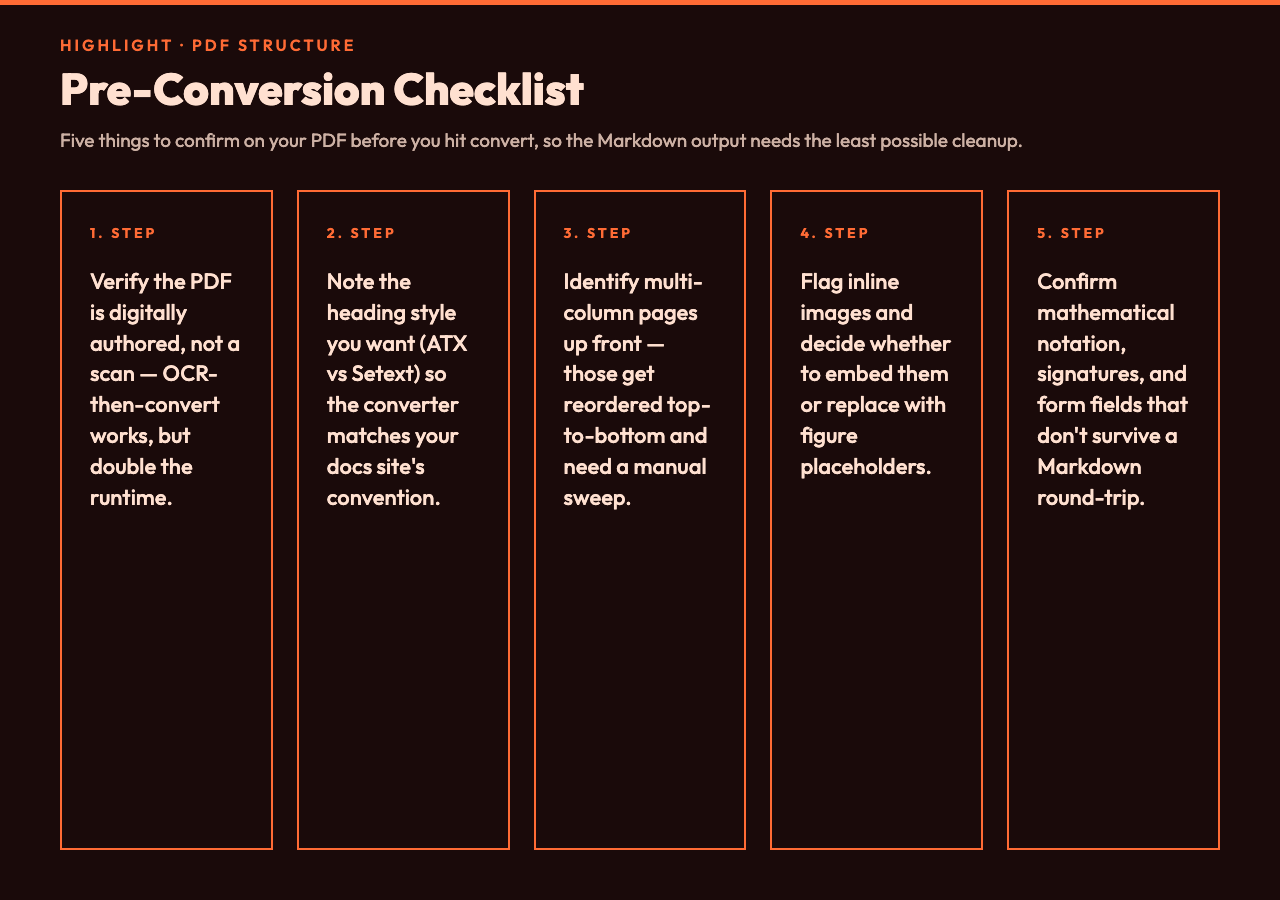
- Scanned PDFs without OCR. If the source is an image of a page rather than a digital document, you need OCR first. The converter handles digital PDFs cleanly; for scans, run a dedicated OCR pass and then convert the OCR’d text file.
- Forms with interactive fields. PDF form values, checkboxes, and signatures do not survive a Markdown conversion — they have no Markdown equivalent. Use a dedicated form-extraction tool for those.
- Tagged PDFs with heavy accessibility metadata. These sometimes give the best output of all, but they require a converter that respects the tag tree. The browser-based tool falls back to visual layout when tags are missing or contradictory.
- Math-heavy academic papers. Equation rendering in Markdown is its own can of worms (KaTeX, MathJax, pandoc, equation blocks). The converter will give you raw equation text — accurate, but not pretty.
For these cases, a different specialty tool or a multi-stage pipeline (OCR → converter → equation extractor) is the right answer. The standard converter is meant for the 80 percent case: a digital PDF that just needs to land in a Git repo or a docs site.
Why Client-Side Conversion Matters for Sensitive Documents
The privacy angle is worth pausing on. Every cloud PDF conversion service you use sends your document to a server, retains a copy (intentionally or not), and exposes you to whatever that provider’s terms of service allow. For a marketing brochure this does not matter. For a contract draft, a medical record, an HR document, or an unreleased financial filing, it absolutely does.
A client-side converter runs entirely in your browser tab. The file is read from disk, processed in JavaScript, and the resulting Markdown is shown to you — at no point does the document touch a network. That is the architectural reason the team behind elysiatools.com chose to build this as a browser tool, and it is the reason it is on the shortlist for legal, healthcare, and finance teams that have already been burned by cloud-conversion privacy incidents.
Closing Thoughts: Where PDF-to-Markdown Fits in Your Workflow
The right mental model is that PDF to Markdown conversion is a structural extraction step, not a complete publish pipeline. What you get out is a clean Markdown draft — heading hierarchy preserved, lists intact, tables as pipe tables, code blocks fenced — which is most of the work, but not all of it. Plan a brief cleanup pass for soft breaks, multi-column layouts, and inline images, and the rest of the document is already publication-ready.
If you regularly process PDFs into a documentation site, a blog, or a knowledge base, the fastest path is to bookmark the converter, define your house style in a short Markdown cheatsheet, and run every incoming PDF through the same pipeline — heading style set once, code-block behavior set once, cleanup checklist memorized. After two or three documents the workflow becomes muscle memory, and the “PDF arrived, now I have to copy-paste everything” dread disappears.
For teams that want a free, fast, privacy-respecting way to convert PDF documents to Markdown without uploading to a server, the PDF to Markdown converter at elysiatools.com is a strong default. It runs entirely in the browser, supports the structures you actually care about (headings, lists, tables, code, links), and produces clean Markdown that drops into any static-site generator, wiki, or doc platform with zero conversion loss. Open the tool, drop in a file, and in under a minute you will have a Markdown document that is closer to publish-ready than any cloud converter I have used.
Explore more free browser-based document tools at elysiatools.com.
Pre-Conversion Checklist
Post-Conversion Cleanup