Cron schedules are written in a language almost no human reads fluently. Five stars on the left, six fields if you’re using Quartz, asterisks and slashes and dashes all fighting for attention. You write 30 9 * * 1-5 and hope it means “9:30 on weekdays” — then three months later your nightly report fires at 3:30 PM on Sunday because someone added a * where the weekday should have been.
The fix isn’t reading more man crontab pages. The fix is a timeline. The Cron Expression Visualizer takes any standard or Quartz expression, parses it, and shows the next 1–20 execution times as a horizontal timeline plus a grouped calendar view — so you can see exactly when your job will fire, on what cadence, and whether the spread matches your mental model. If the visual disagrees with your expectation, the expression is wrong. If they agree, you can ship it.
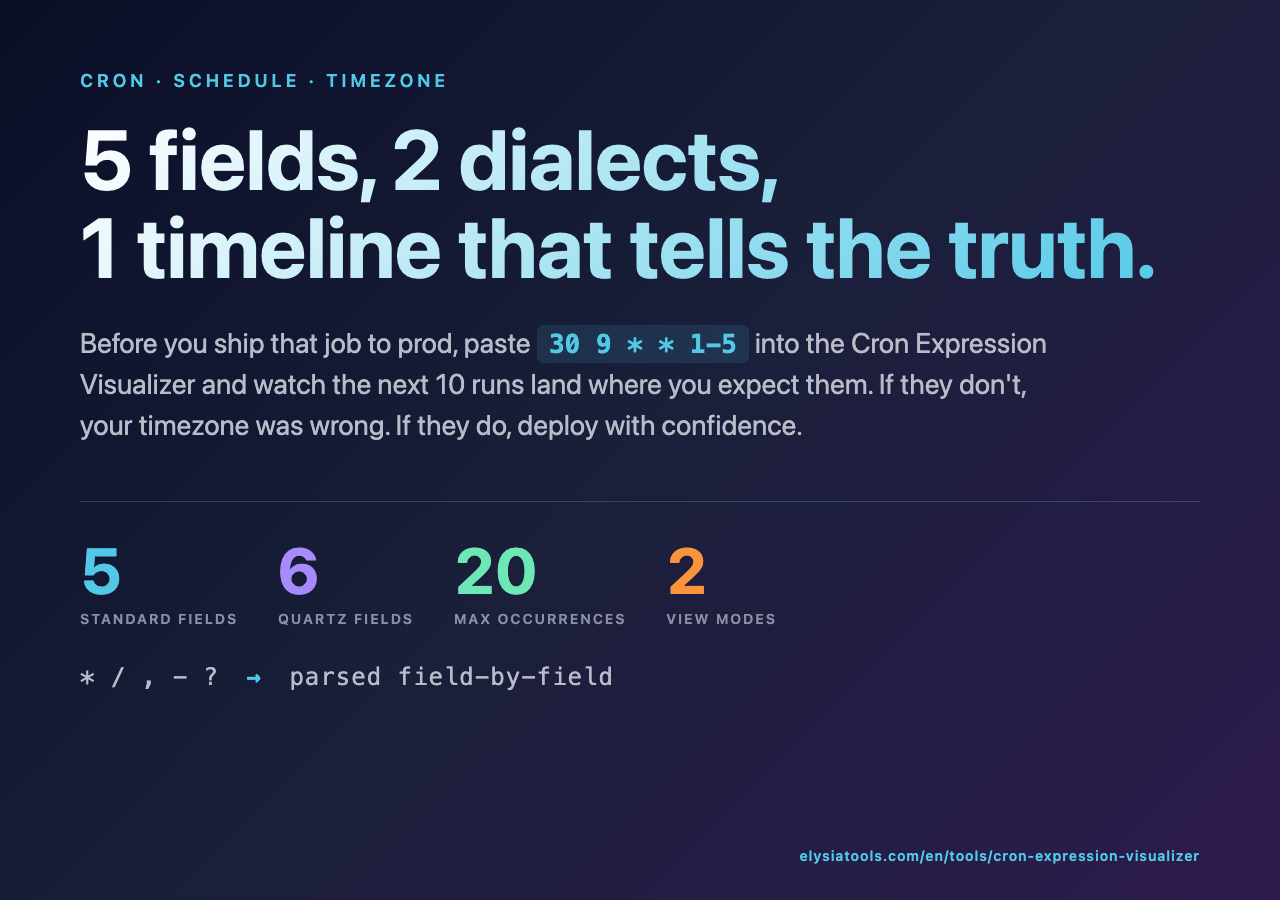
This article walks through three concrete scheduling problems where the visualizer catches mistakes the eye misses — and shows you how to verify any cron job you’re about to ship, without re-reading the manual for the eighth time.
Standard Cron vs Quartz: Two Languages, Same Word
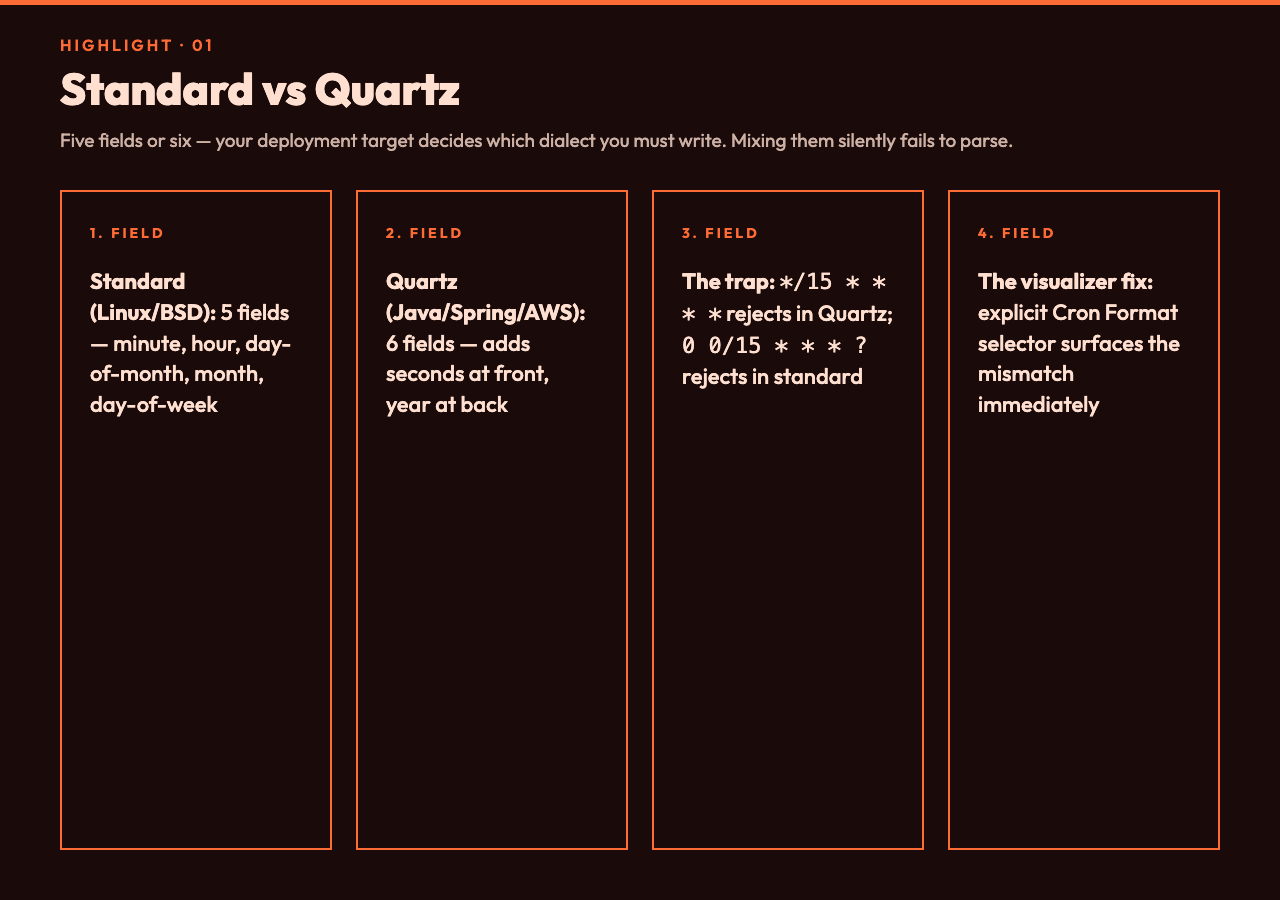
The first confusion most teams hit is the difference between 5-field standard cron (Linux, BSD, classic crontab) and 6-field Quartz cron (Java’s org.quartz, Spring’s scheduler, AWS EventBridge when configured for cron). They both say “cron” but the field count and meaning of ? and the year field are not interchangeable.
Try to run 0 0/15 * * * ? in a standard cron daemon — Linux’s vixie-cron sees six fields and rejects it. Try */15 * * * * in Quartz — Quartz sees five fields with no seconds-or-year field and chokes. They look identical to a tired engineer at 11 PM. They’re not.
The visualizer exposes a Cron Format selector with three values: Auto detect (default), Standard cron, Quartz cron. Auto detect works on the field count and the presence of ?, but if you select the wrong format manually the parser fails immediately and tells you why — “expected 5 fields, got 6” or “expected 6 fields, got 5” — which is the single fastest way to discover your deployment target expects a different dialect than you wrote.
Reading the Timeline Like a Sanity Check
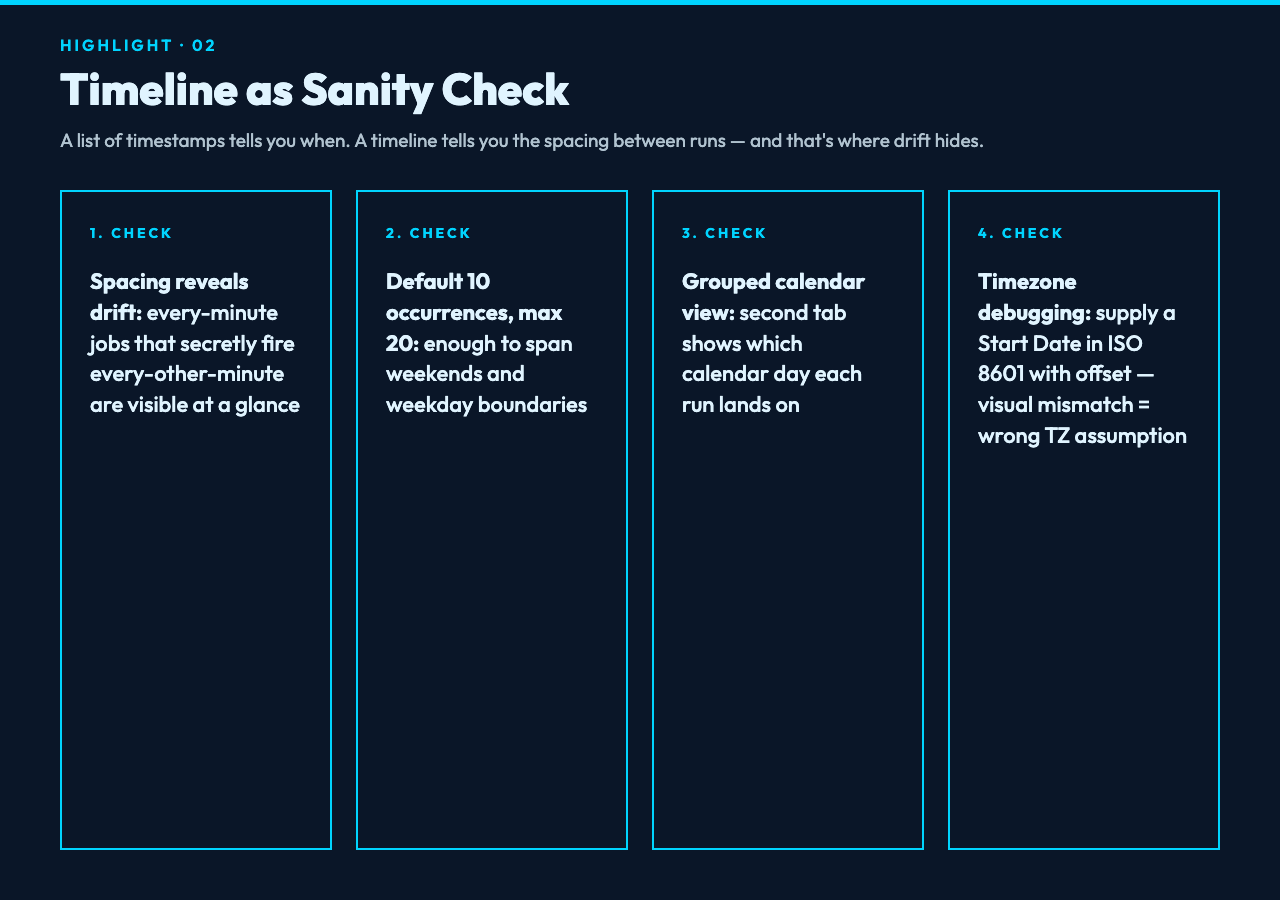
Once parsed, the visualizer lays out the next N executions on a horizontal timeline. The default is 10 occurrences but you can set 1 to 20. The timeline is more useful than a list of timestamps because it shows spacing. Cron jobs that are supposed to run every minute and accidentally drift to every other minute are obvious on a timeline; on a list of 20 timestamps you have to subtract each adjacent pair to notice.
For weekday 9:30 AM (30 9 * * 1-5), the timeline will show: Mon 9:30, Tue 9:30, Wed 9:30, Thu 9:30, Fri 9:30, Mon 9:30, Tue 9:30 — five evenly-spaced runs, then a 48-hour gap to Monday. If you instead see runs on Saturday or Sunday, the weekday field is wrong. If you see 9:00 instead of 9:30, the minute field is wrong. If you see 21:30 instead of 09:30, you’re in a different timezone — see the next section.
Timezone Drift Is the Silent Cron Killer
Cron expressions are almost always written in some implicit timezone — usually the server’s local time, but frequently UTC, and occasionally the developer’s laptop time. The visualizer accepts an optional Start Date in ISO 8601 format with explicit timezone offset, e.g. 2026-03-22T08:00:00+08:00. When you supply a start date, the visualization starts counting from that exact instant — and if your server runs in UTC but the start date is in +08:00, the displayed run times will look “wrong” by exactly 8 hours. That mismatch is the point. It surfaces the timezone assumption your team has been making silently for months.
The grouped calendar view (second tab in the result) is even better for timezone debugging because it shows which calendar day each run lands on. A job intended for “9 AM Monday in Singapore” but executed in UTC will appear as 1 AM Monday — and the calendar grouping reveals that immediately, whereas reading raw timestamps requires you to mentally convert.
Reading 30 9 * * 1-5 Field by Field
Standard cron has five fields: minute hour day-of-month month day-of-week. Each field can be a single value, a comma-separated list (1,3,5), a range (1-5), a step (*/15 or 0/15), or an asterisk meaning “every value in this field’s range”.
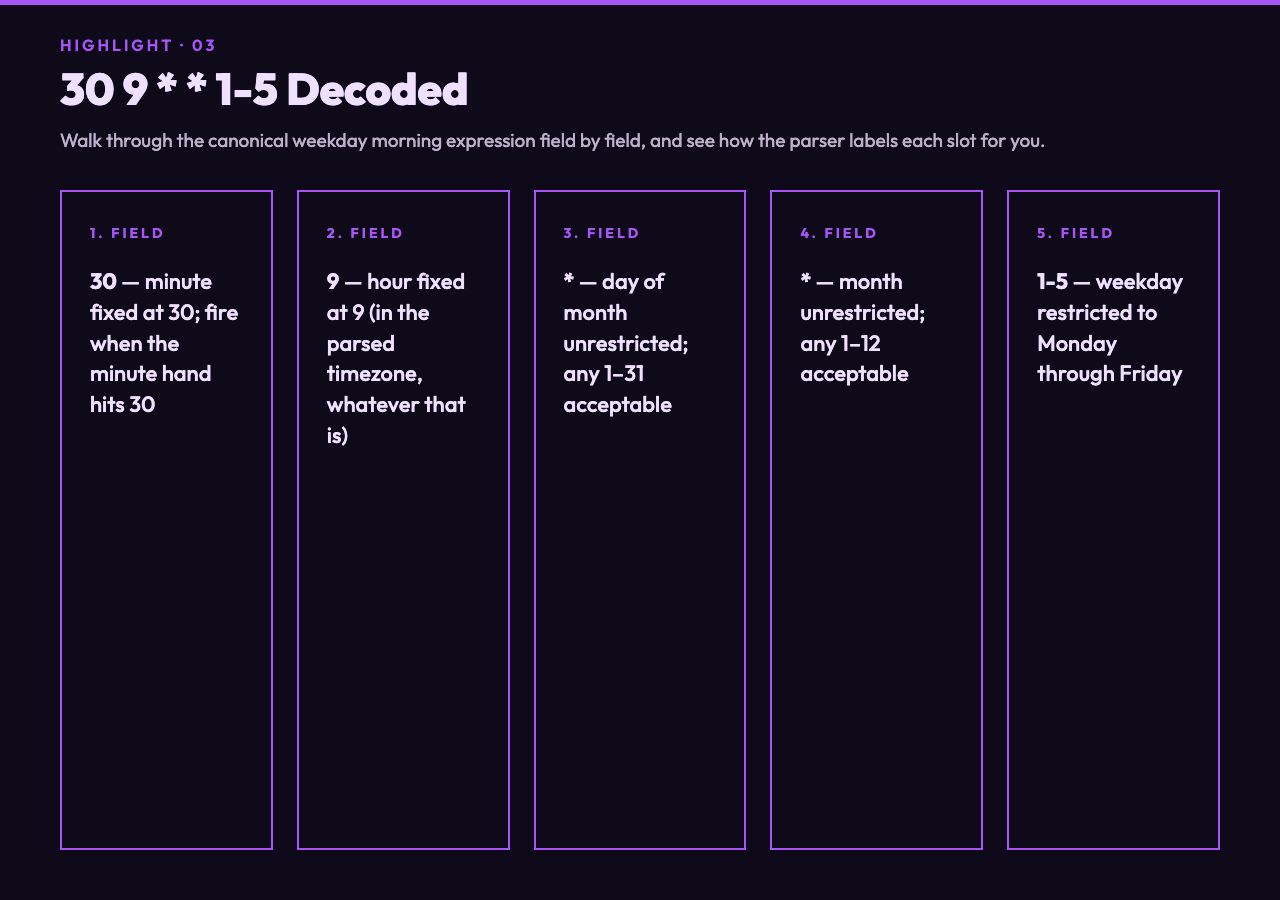
- 30 — minute field is fixed at 30. The job fires when the minute hand hits 30.
- 9 — hour field is fixed at 9 (in the parsed timezone, which is whatever the server or your start date implies).
- * — day of month is unrestricted; any day 1–31 is acceptable.
- * — month is unrestricted; any month 1–12 is acceptable.
- 1-5 — day of week is restricted to Monday through Friday (1=Monday, 7=Sunday in standard cron, or 0=Sunday and 7=Sunday both accepted by most daemons).
So 30 9 * * 1-5 means: when the clock shows 9:30, and the day is Monday through Friday, fire. The day-of-month and month fields are unrestricted, which means the day-of-week restriction is what actually narrows the firing days. If you wrote 30 9 * * 5 instead — single value 5 — the job would fire only on Friday.
The visualizer labels each field in the parsed output, so you don’t have to remember which field is which. For Quartz expressions (6 fields: second minute hour day-of-month month day-of-week with optional year), the same parsing logic applies with seconds added at the front and an extra ? for the day-of-week-or-day-of-month restriction (Quartz won’t let both be unrestricted; you must specify one and use ? for the other).
Putting It Together
Before deploying any cron job to production, paste the expression into the Cron Expression Visualizer, set the cron format correctly, supply a start date in your production timezone, and check that the next 10 run times match your intent. If they do, deploy. If they don’t, the visualizer caught the bug before your 2 AM incident.
For a quick library of canonical patterns (every minute, hourly, daily at midnight, weekday 9 AM, monthly first-of-month) see the Cron Expression Samples hub — copy any of those into the visualizer to see the parsed fields and timeline, then modify for your exact need. And if you need to test how two schedules overlap — say a backup job that conflicts with a report job — try the Cron Job Simulator tool for a two-cron diff view.
Explore more developer tooling at elysiatools.com.