A 30-second video can create an audio file that sounds clean, flat, oversized, or quietly damaged. Which result did you mean to ship? In our work, the broken assumption is that extraction merely removes the picture, but 7 settings reshape the sound. The container, codec, bitrate, sample rate, channel layout, loudness target, and trim window all matter. A useful extractor does not hide those choices; it shows them before you create the file.
The practical consequence is easy to miss. A tutorial editor needs a compact voice track, an archivist wants a lossless copy, and a podcast producer may need predictable loudness. They can start from the same video and still need different outputs. The Video Audio Extract Enhanced tool makes that decision visible instead of treating MP3 as the automatic answer.
Extraction is usually a transcode
A video file is a container holding one or more streams. The picture might use H.264 or AV1 while the audio uses AAC, Opus, PCM, or another codec. Removing the image stream is conceptually simple, but choosing a new audio format often decodes and encodes the audio again.
That distinction matters because lossy codecs remove information. If the source is AAC and you request MP3, the workflow is not a lossless copy; it is a second lossy generation. It may still sound good, but the right question is not whether MP3 works. The question is whether another generation helps the next step.
The implementation shows the pipeline in concrete terms: it inspects the input with FFprobe, confirms that an audio stream exists, maps audio only with 0:a, and disables video output with -vn. It then creates the requested audio file with FFmpeg. This design separates stream selection from format selection and clarifies where the sound can change.
Pick the output for the next job
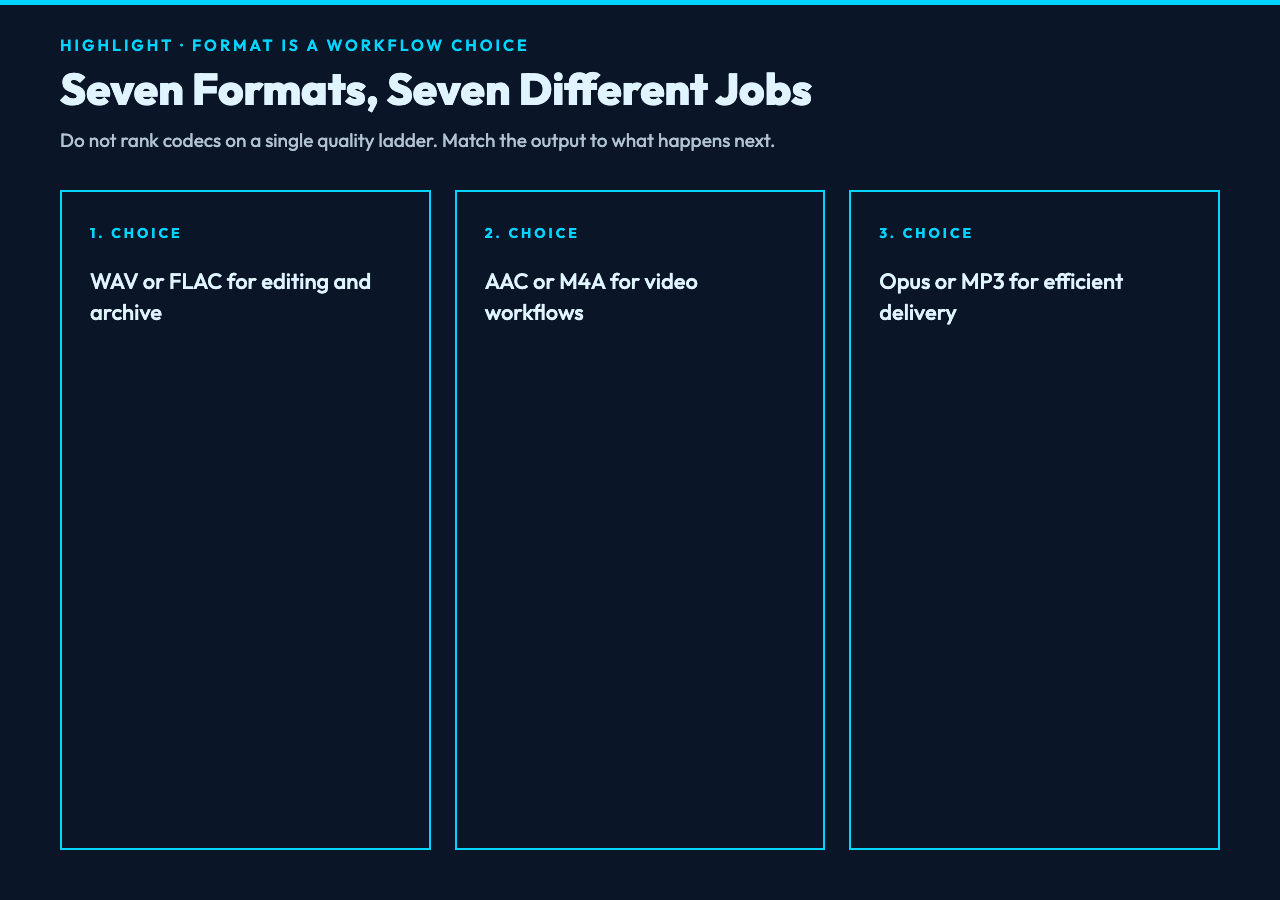
The tool exposes 7 formats: MP3, WAV, AAC, FLAC, OGG, M4A, and Opus. They are not a quality ladder. They are different trade-offs between compatibility, compression, editability, and preservation.
- MP3 is the compatibility choice for downloads, previews, and older playback systems.
- WAV creates uncompressed PCM audio that editors can open with little friction, but files are large.
- AAC or M4A fits common mobile and video workflows; M4A is the familiar container while AAC is the encoded audio.
- FLAC preserves decoded audio losslessly while reducing storage compared with WAV.
- OGG Vorbis is useful in open web and game workflows.
- Opus performs well for speech and streaming at modest bitrates.
For example, measured metadata in the Video Samples collection reports an 11.9 MB file for a 30-second 1080p landscape MP4 and 4.3 MB for its 720p counterpart. The picture drives much of that gap; once the video stream is removed, the audio output size depends far more on duration, format, channels, and bitrate than on whether the source picture was 1080p or 720p.
Choose for the next consumer. Use WAV or FLAC before editing or archiving, AAC/M4A for a video-adjacent workflow, Opus for efficient speech delivery, and MP3 when universal playback matters more than codec elegance. This decision cuts waste because it matches the file to its job.
Bitrate is a budget, not a repair control
For lossy outputs, the available bitrate range runs from 64 to 320 kbps. A higher number gives the encoder more data to represent each second, but it cannot restore detail missing from the source. Transcoding a 96 kbps stream to 320 kbps creates a larger file, not a repaired recording.
Speech can remain intelligible at lower bitrates than dense music. Stereo ambience, cymbals, crowd noise, and reverberant rooms expose compression artifacts sooner. In our case, 128 or 160 kbps can fit spoken notes, while 192 or 256 kbps offers safer headroom for mixed program audio. The best value depends on the source and destination, so audition a representative segment rather than trusting one universal preset.
WAV and FLAC ignore the bitrate setting because they are lossless choices in this workflow. That interface decision removes a control that has no meaningful role and prevents a number from implying quality it cannot add.
Sample rate and channels change the signal
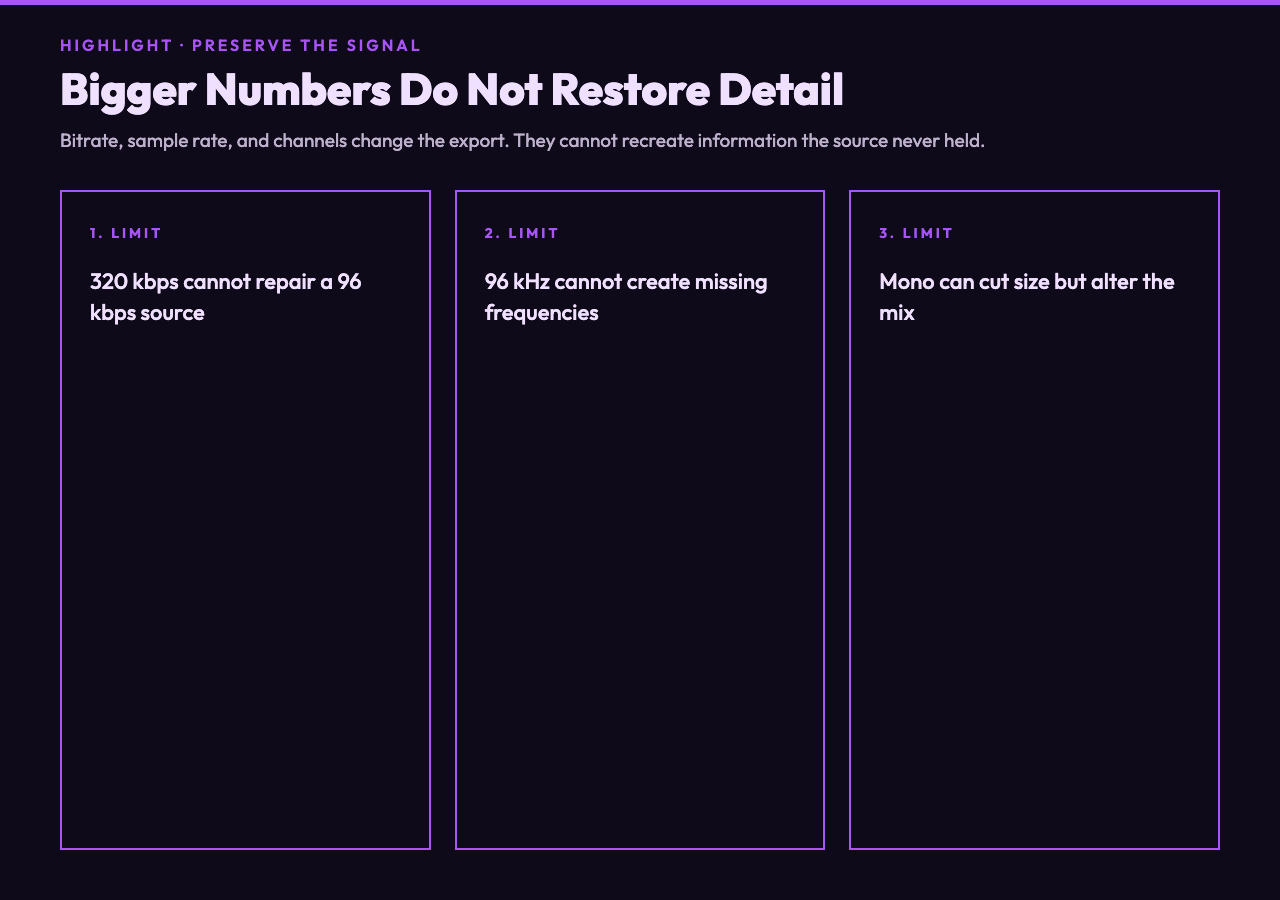
The tool offers 22.05, 44.1, 48, and 96 kHz output rates. For audio that came from video, 48 kHz is often the least surprising match. Music distribution commonly uses 44.1 kHz, and 22.05 kHz can reduce speech-file size when bandwidth matters. A 96 kHz export does not create ultrasonic detail if the source was recorded at 48 kHz; it only adds samples through resampling.
Channel layout needs the same restraint. Keeping the original layout avoids an unnecessary transformation. Stereo is sensible when spatial cues or music matter. Mono can cut duplicated speech content and simplify transcription, but a downmix can alter phase relationships or reduce separation between voices and ambience.
According to the implementation, mono forces 1 channel, stereo forces 2, and original leaves the source layout to FFmpeg. That explicit mapping helps you design a reproducible export instead of accepting whichever layout a generic converter chooses.
Normalize loudness for consistency, not drama
The normalization option applies the EBU R128 loudnorm filter with a target integrated loudness of -16 LUFS, a true-peak ceiling of -1.5 dBTP, and a loudness range target of 11 LU. Those reported values aim at controlled playback rather than maximum volume.
Normalization improves consistency when several clips need a shared listening level or when a quiet interview must sit beside other spoken material. It is not noise removal, compression repair, or dialogue isolation. It will not remove air-conditioning hum, fix clipping, or separate a presenter from background music.
That boundary matters because the word enhancement invites broad expectations. Here, the enhancement is a specific loudness operation. Naming the numbers lets you decide whether it matches the delivery platform instead of assuming that louder means better.
Trim before encoding to save time and damage
Start time and duration accept seconds or timestamp forms such as 00:01:30. FFmpeg seeks to the requested point and stops after the requested duration, so you can extract a scene, quotation, or test segment without processing the complete video.
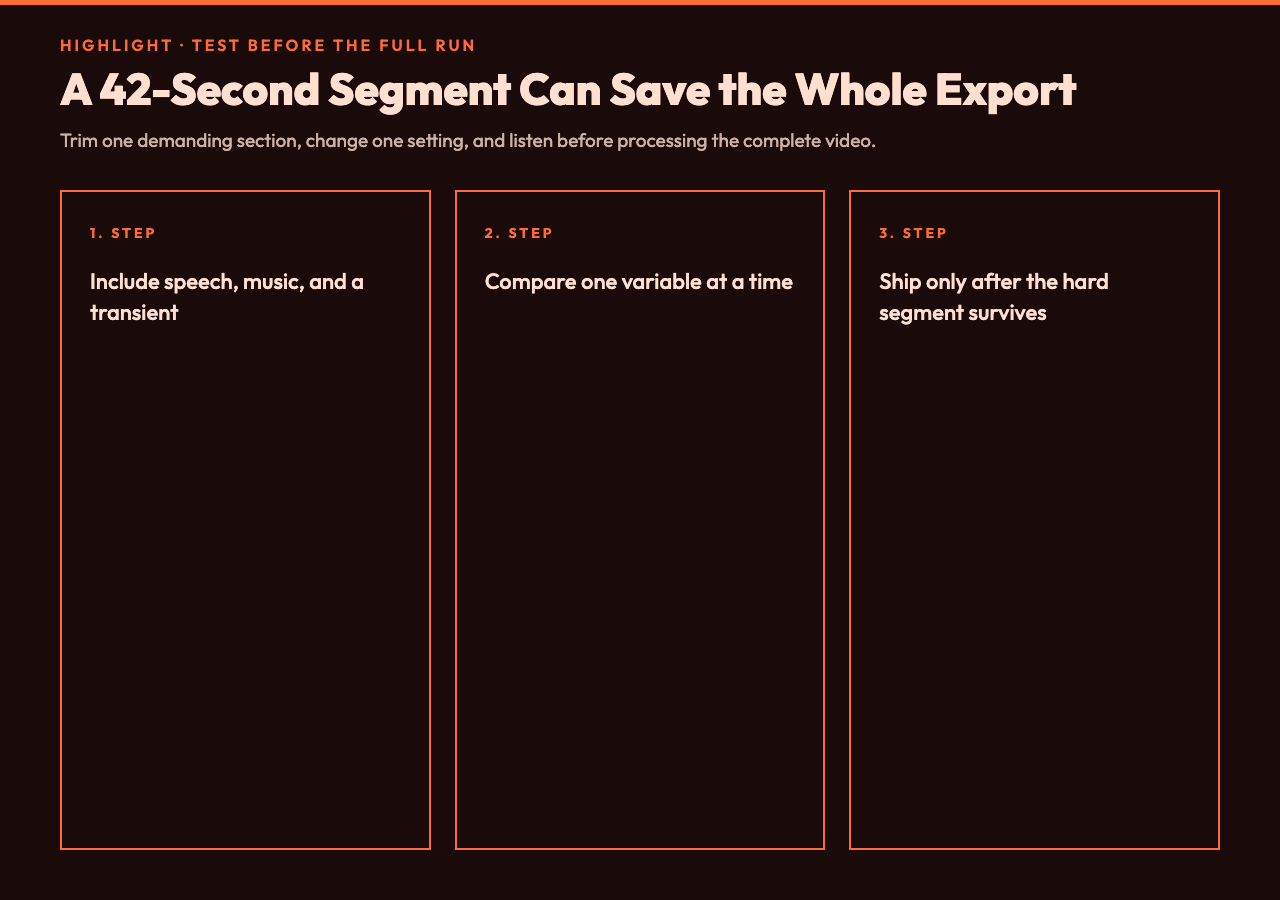
This is more than convenience. A 10-minute source does not need a 10-minute MP3 when the usable interview answer lasts 42 seconds. Trimming first cuts processing time, reduces output size, and makes format comparisons faster. It also creates a disciplined benchmark: export the same difficult segment at two settings, compare, then run the full job once.
For instance, use a section containing speech, music, and a sharp transient. If 160 kbps preserves that section for the intended listener, increasing the whole file to 320 kbps may waste storage. If the transient smears or stereo ambience collapses, change the codec or bitrate before you commit.
A five-step export decision
Before you press convert, write down the destination rather than the source. Then make the choices in this order:
- Next action: playback, editing, transcription, streaming, or archive.
- Format: select compatibility, efficiency, or lossless preservation.
- Signal shape: keep the source sample rate and channels unless the destination requires a change.
- Loudness: enable EBU R128 normalization only when a -16 LUFS delivery target fits.
- Window: test a short representative segment before processing the complete file.
The file limit is 100 MB, and the source lists MP4, MOV, MKV, AVI, WebM, FLV, TS, M4V, MPG, MPEG, and WMV as supported inputs. Those checks build a predictable boundary. If FFprobe reports no audio stream, the tool stops instead of creating an empty artifact.
You can try the extractor here and compare two outputs from the same 30-second sample. Change one setting at a time. That small discipline proves whether a result improved because of the codec, bitrate, loudness pass, or channel mapping.
Ultimately, the point is not to find the best audio format in the abstract. It is to stop making invisible changes. What happens next to the file: editing, delivery, transcription, or preservation? If you can answer that question, the right settings become a design decision rather than a default. Preserve what the next step needs, remove what it does not, and listen to one demanding segment before you ship the full export.