
The Bottom Line
Every terraform plan is a risk map disguised as a receipt. The terminal scrolls past sixty lines of “will be created,” “will be updated in place,” and “must be replaced” in a few seconds, and the only thing that survives in your working memory is the count of changes — not the order in which they will be applied, not the resources sitting on the critical path, and not the one replacement that will delete a database before recreating it. The Terraform Plan Visualizer on Elysia Tools exists to make that risk map legible. You paste the raw terraform show -json output (or a saved plan file), the tool classifies every resource by action, summarizes the impact by provider, and surfaces the dependency edges that decide which changes are safe to apply in one go and which ones need a second pair of eyes. The rest of this article walks through the six actions Terraform can take, the difference between what a JSON plan tells you and what a text plan tells you, and the review order that catches a destructive replacement before it hits production.
Six Actions, Six Different Review Questions
Terraform’s resource_changes array exposes six distinct actions, and the first lesson of plan review is that they are not interchangeable. A create is additive and almost always safe to review for naming and tags. An update in place is interesting because it implies Terraform believes the change is non-destructive — that belief is sometimes wrong, and the cost of being wrong is usually small. A delete is a single-step teardown and the one that wakes people up. A replace is a delete followed by a create, with downtime and state churn in between, and it is the action you must catch before apply. A read is a data-source refresh with no infrastructure impact. A no-op is a change Terraform considered and rejected, often because the input is already at the target value.
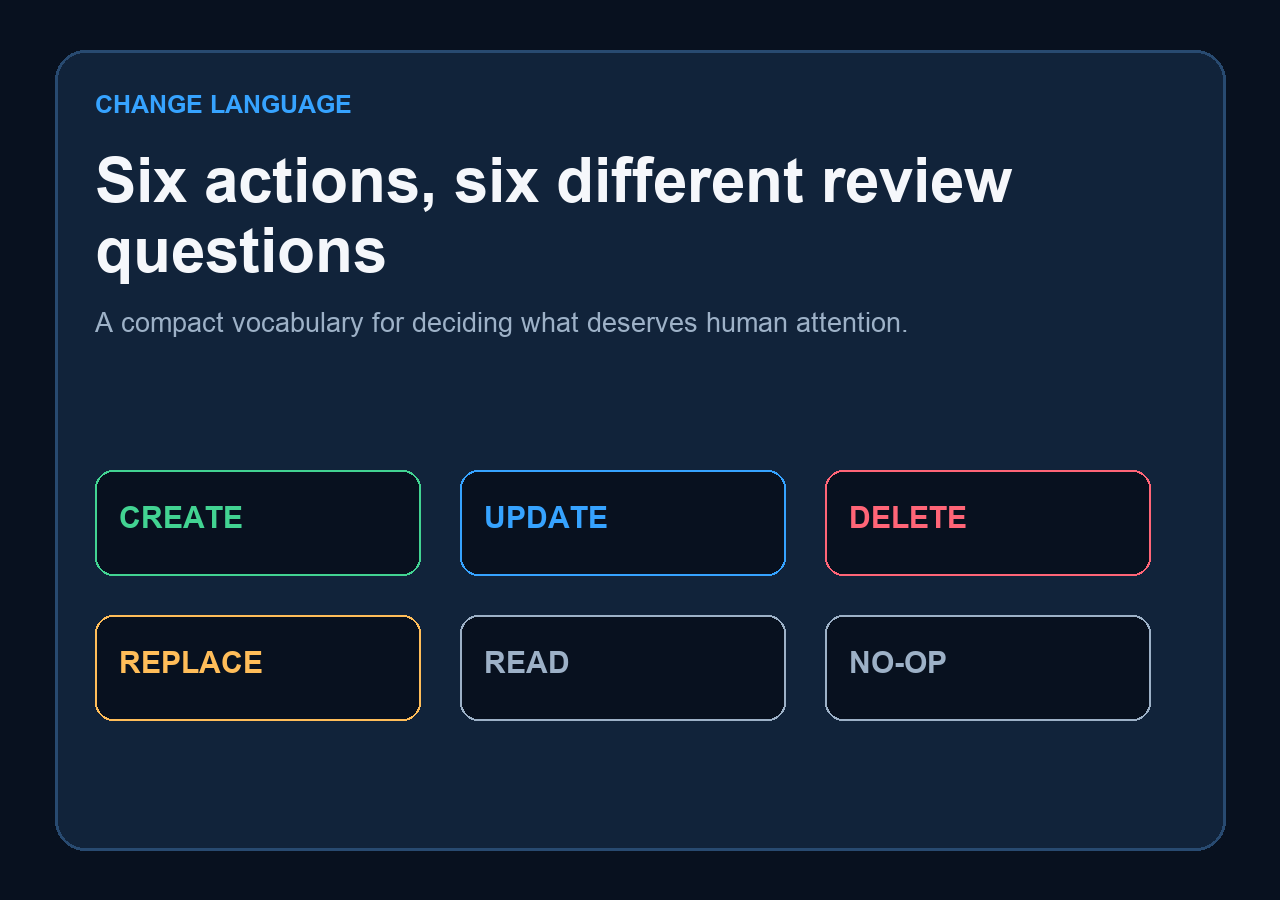
The visualizer tags each change with one of these six labels and color-codes them in the dependency graph. The point is not aesthetic — it is to slow you down on the right rows. A plan that lists 47 changes but only two of them are “replace” tells a different story than a plan that lists 12 changes and 11 of them are “replace,” even though the second plan is shorter. The action distribution is the headline. The visualizer gives you that distribution in the summary card on the right so you do not have to count by eye.
JSON Plans vs Text Plans: What You Are Actually Looking At
Terraform has two output formats and the difference matters more than most people realize. The plain-text plan is what you get from terraform plan with no flags. It prints headers like “# aws_security_group.web will be created” and a compact diff of attribute changes. From that text you can classify actions and infer provider names from the resource type prefix, but you cannot reliably recover dependency edges. JSON plans, produced by terraform show -json planfile, carry the full resource metadata: provider_name, depends_on arrays on every resource, and module structure down to nested child_modules. The visualizer accepts both — set Input Format to auto when the tool should detect the format from the first character, or pick json or text explicitly if you are pasting a snippet.
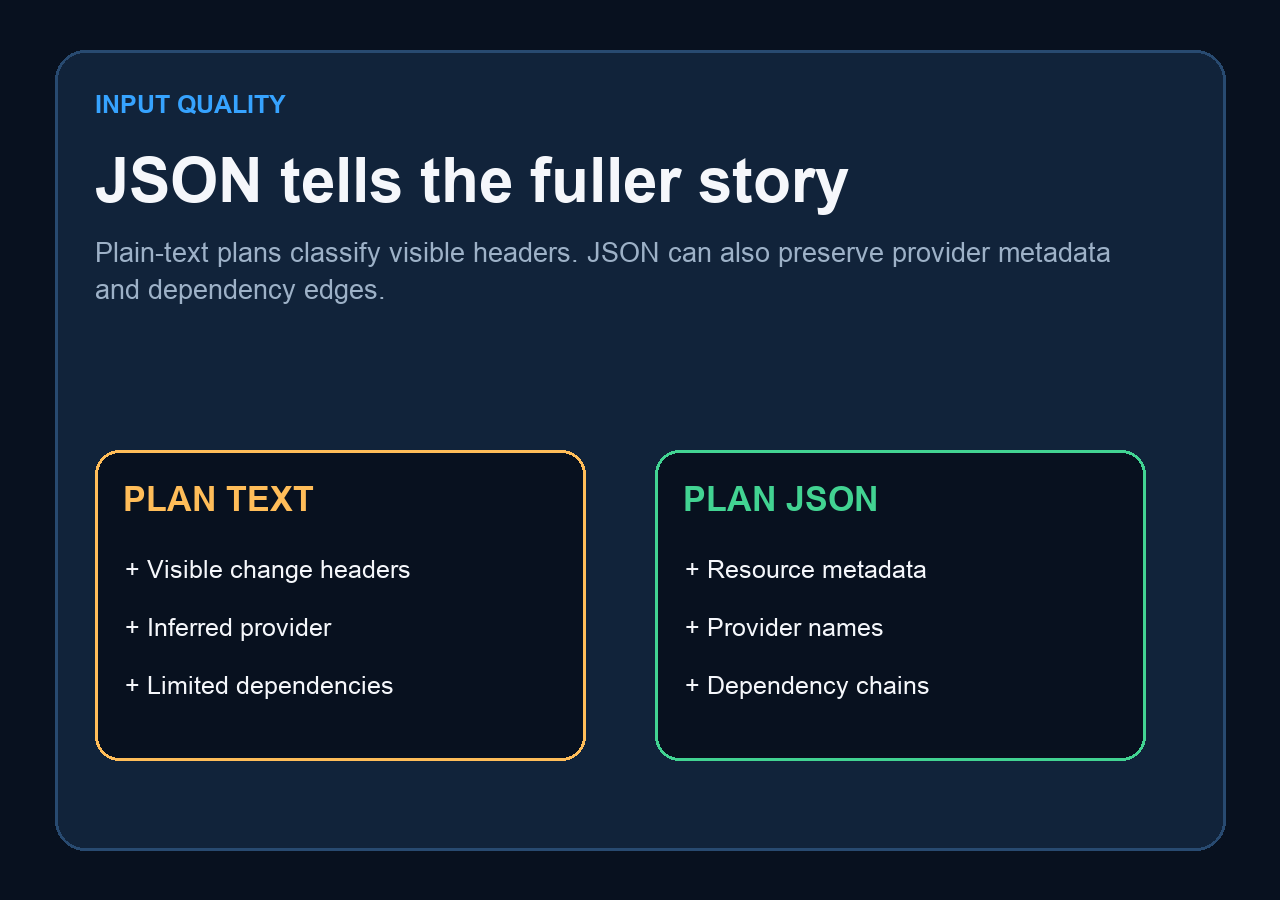
If you only have a text plan, the visualizer still classifies every change correctly and gives you the provider distribution. The dependency graph may be sparser, because text plans do not embed depends_on. The honest trade-off is: JSON plans are heavier to produce (you must run terraform plan -out=plan.bin and then terraform show -json plan.bin > plan.json) but they reveal the dependency skeleton that decides review order. Text plans are produced by default and answer “what is Terraform about to do” but not “in what order” or “what depends on what.” For a one-line prod change, text is fine. For anything that touches a security group, an IAM role, or a stateful bucket, JSON is worth the extra step.
Reading the Dependency Graph Before You Apply
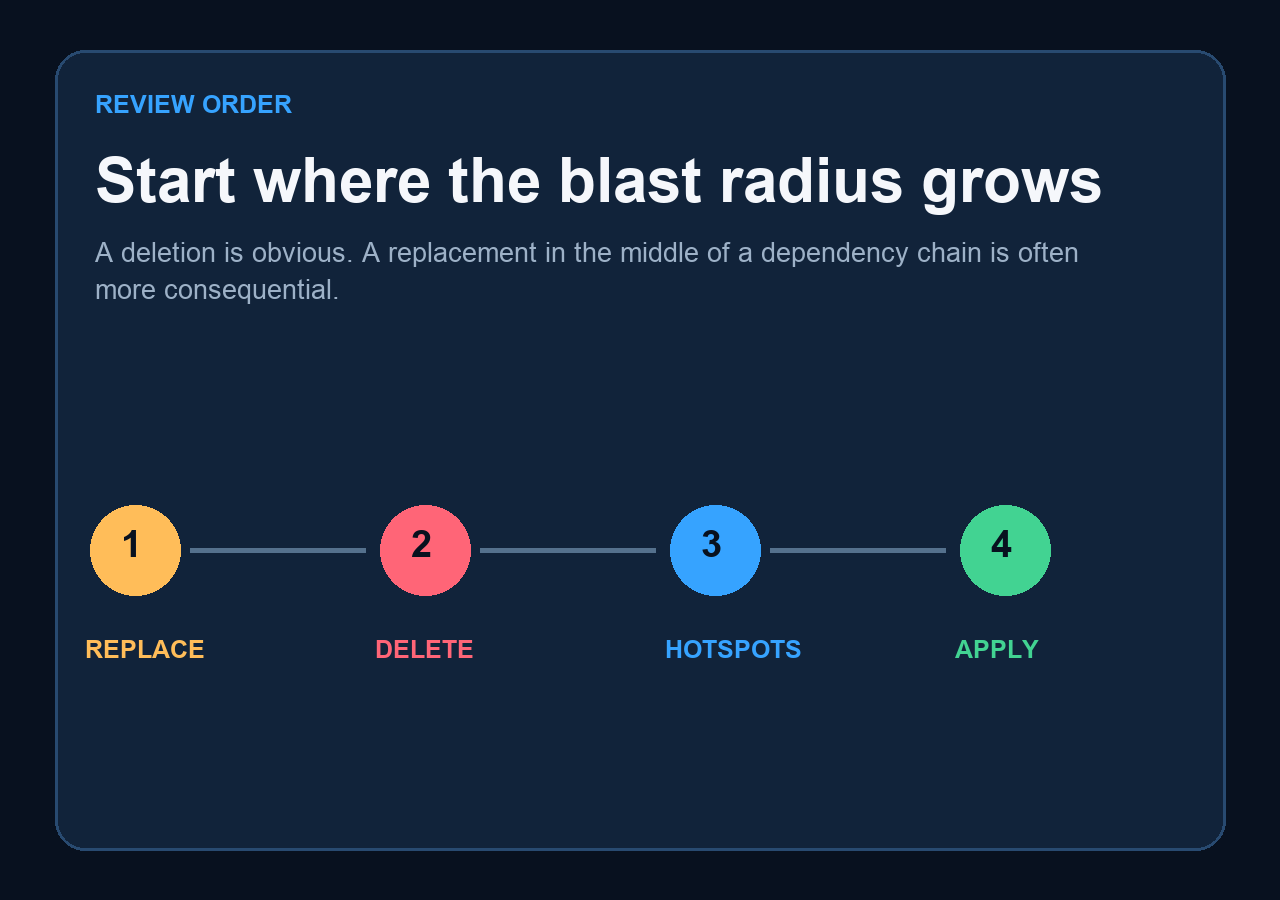
Most plan-review accidents are not about missing a deletion. They are about applying a deletion that sits upstream of a resource you forgot existed. A security group that controls traffic to a database, an IAM role that an ECS service assumes, a route table entry that a VPN depends on — none of these are obvious from the resource name alone, and the only way to know what depends on what is to look at the plan graph. The visualizer renders the first 20 dependency edges as a layered graph: green for create, blue for update, red for delete, amber for replace, gray for read and no-op. Edges go from the dependency to the dependent, so the visual direction matches the apply direction. Resources with multiple incoming edges are hotspots — they are the load-bearing pieces of your infrastructure, and any replacement that touches them should be reviewed first.
The graph is not exhaustive. It is a glance, not a guarantee. Terraform itself does not always know the full dependency graph — implicit dependencies from aws_iam_role_policy_attachment chains or from references in user_data are not always encoded in the plan. Treat the graph as a hint about which rows to read more carefully, not as a substitute for understanding your own stack. For plans that wrap resources in child_modules, the visualizer follows the module structure to recover nested dependencies, which is useful when you have a network module that owns VPCs and subnets consumed by application modules.
The Provider Distribution Tells You Who Owns the Blast Radius
One of the most underused pieces of plan output is the provider breakdown. A plan that says “23 changes, 4 providers” tells you a different operational story than “23 changes, 1 provider.” The first is a coordinated multi-cloud change that probably needs sign-off from more than one team; the second is a single-team change that probably does not. The visualizer computes the top eight providers by change count and renders them as colored pills above the change list. If you see AWS dominating and Kubernetes absent, your plan is purely cloud-infra. If you see Kubernetes appear alongside AWS, you have a cross-stack change and the order of operations between kubectl apply and terraform apply is now a real question.
Provider distribution is also a good sanity check for module boundaries. A plan that is supposed to touch only the network module but shows changes under a database provider is a red flag — either your module is not as isolated as you thought, or you are about to apply changes the reviewer did not expect. The summary card surfaces this without scrolling.
What to Paste: A Plan File vs Inline Text
The visualizer accepts both a file upload and inline text. The 15 MB file limit is generous for JSON plans (most production plans are well under 1 MB even with hundreds of resources) and is a real limit only for very large state files. Use the file upload when the plan is too long to paste comfortably or when you want to keep the JSON out of your clipboard. Use inline text for small plans, for debugging specific sections, and when you want to ask “what does this single resource change look like in the visualizer” without saving a file. Both inputs produce the same output.
If you are reviewing someone else’s plan, the file upload is the safer option — it preserves the exact bytes they applied, so you are not relying on a copy-paste that may have re-formatted the JSON or dropped a section. JSON is robust to whitespace but not to missing trailing braces, and the visualizer will reject malformed JSON with a parse error rather than guessing what you meant.
What the Visualizer Does Not Do
Honest scope: the tool is a parser and a renderer. It does not call terraform plan for you — you still need the Terraform CLI to produce the plan file. It does not validate your HCL or catch syntax errors in your configuration. It does not simulate the apply; a green “create” in the visualizer only means Terraform’s plan says it will create, not that the resource will succeed at apply time (IAM permission issues, quota limits, and provider bugs all happen between plan and apply). It does not store your plan. Every paste is processed in the browser or in a stateless request; nothing is logged.
The visualizer also does not replace a real code review of the configuration that produced the plan. The plan tells you what Terraform is about to do. It does not tell you whether the configuration expresses the intent you actually have. A plan that creates an S3 bucket with versioning disabled is a plan that will succeed; it is also a plan you should reject before apply, but the visualizer will not flag that. Use the plan for risk mapping, and use code review for intent checking.
Putting It Together: A Review Checklist That Scales
Open the visualizer with your plan JSON. Glance at the action distribution: any “replace” is a flag. Glance at the provider distribution: any unexpected provider is a flag. Glance at the dependency graph: any resource with three or more incoming edges is a flag. Then open the change list and read every “replace” row in full — not the summary, the actual attribute diff — before you open the deletes. Deletes in isolation are usually fine; deletes that free a name or an ID that another resource references are not, and the visualizer will not catch that, only your reading of the resource graph will.
For plans with more than ~50 changes, the visualizer is most useful as a triage tool. Use it to identify the rows that need deep reading, then read those rows in the raw plan. Do not try to use it as a substitute for reading the plan — the change list table is a navigation aid, not a summary. The summary card is the summary. The table is the index.
Try It
Paste a terraform show -json payload into the Terraform Plan Visualizer at Elysia Tools and you will get the same six-action classification, provider distribution, and dependency edges the visualizer renders here, applied to your own plan. Sample plans are available under AWS Web Stack Plan, Platform Operations Plan, and Child Module Network Expansion if you want to see how the tool handles nested child_modules and multi-provider plans before pasting your own. The visualizer is one of many infrastructure and data tools at elysiatools.com.
