
Where this leaves you
A spreadsheet is supposed to free you from typing numbers twice, but the formula language is its own barrier. You can describe what you want — “sum the sales column, but only for the rows tagged Q4” — and still stare at an empty cell because the parentheses and quotation marks are a separate skill you never fully picked up. A formula builder collapses that gap. You pick the function, fill in the cells or values, and you get a ready-to-paste string back, with a one-line explanation of what it does. For the common twelve functions — the ones that handle 90% of everyday spreadsheet work — that is enough. You stop fighting syntax and start auditing logic. Try the tool at Excel Formula Builder.
Why a formula builder instead of just typing the formula
Excel‘s formula language is regular. SUM(A1:A10) always means “add the values in cells A1 through A10.” VLOOKUP(lookup_value, table_array, col_index, FALSE) always means “find this value in the first column of that range and return the value from column N.” The structure never changes. What changes is the cell references, the criteria, and the number of arguments you need to remember for each function.
The friction is not novelty. It is recall under pressure. You know COUNTIF exists, but you forget whether the criteria goes before or after the range, and whether the comparison operator goes inside or outside the quotes. You know VLOOKUP returns from a column, but you cannot remember if the column index is 1-based or 0-based, or whether the final argument is FALSE, 0, or something else entirely. Every time you reach for the function, you pay a small tax in syntax lookup. Over a year, that tax is hours.
A builder pays that tax once. The tool holds the structure; you supply the variables. For COUNTIF you enter the range and the criterion. For VLOOKUP you enter the lookup value, the table array, and the column index. The result is a syntactically valid formula plus a sentence-long explanation of what the formula does — which is more useful than it sounds, because the next time you open the spreadsheet three weeks later, the sentence is the only thing that tells you what you meant.
What the tool actually does
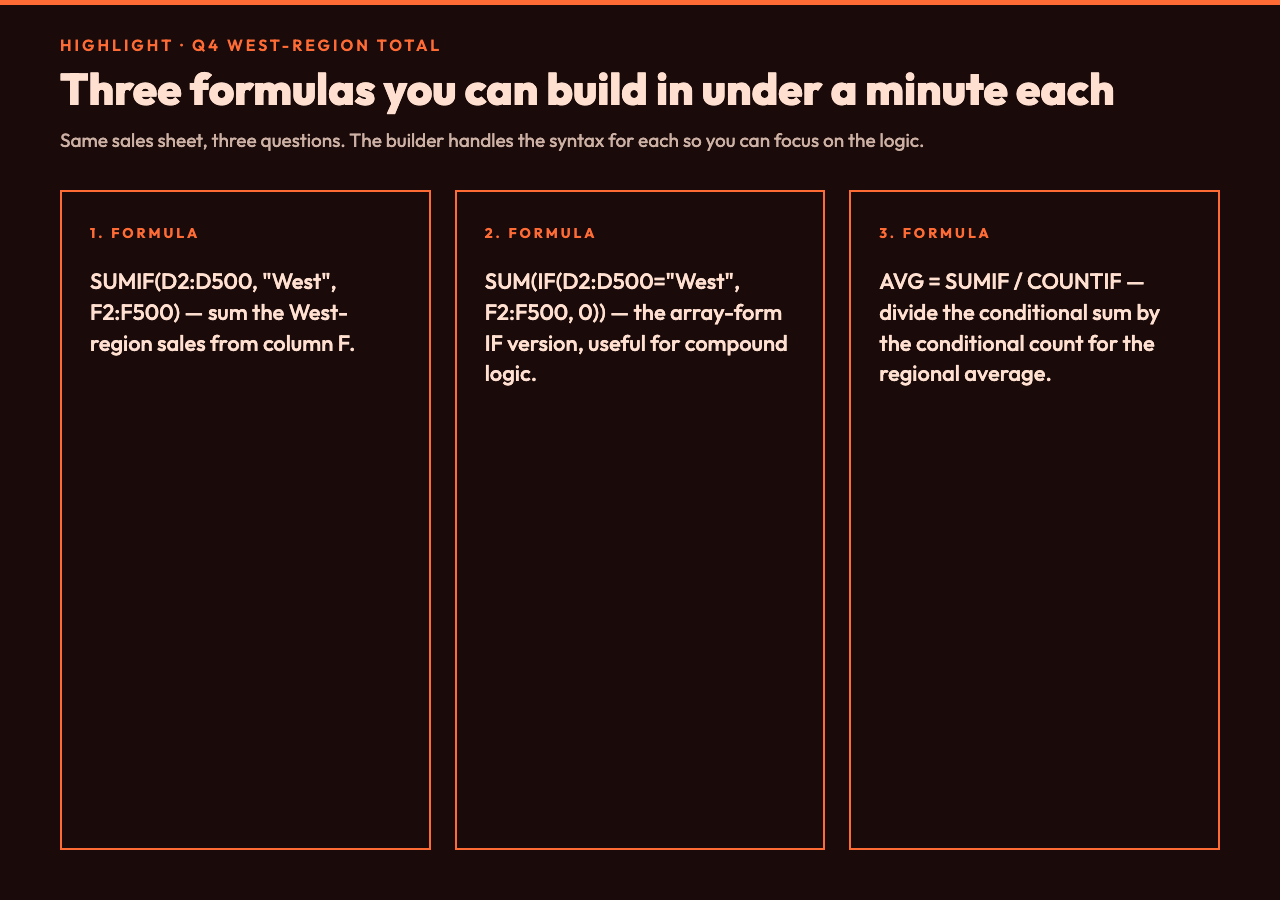
The Excel Formula Builder covers twelve functions, and those twelve cover almost all of the everyday work in a spreadsheet:
– Aggregation — SUM, AVERAGE, COUNT, MAX, MIN over a cell range.
– Conditional logic — IF for branching on a condition, COUNTIF and SUMIF for counting or summing cells that match a criterion.
– Lookup — VLOOKUP for finding a value in a table and returning a related value.
– Text and number formatting — CONCATENATE for joining strings, TEXT for applying a number format, ROUND for controlling decimal places.
You select a function type, fill in the cells or values the function needs, and the tool returns two things: the formula string ready to paste, and a one-line explanation. The explanation is not decorative. It is the audit trail. Three weeks later, when you are looking at =SUMIF(D2:D500, ">1000", F2:F500) and you cannot remember whether the criterion is "greater than 1000" or over 1000, the explanation — “Sums values in D2:D500 that match criteria: greater than 1000” — tells you what the formula is filtering on and what it is summing.
A worked example: the Q4 sales total
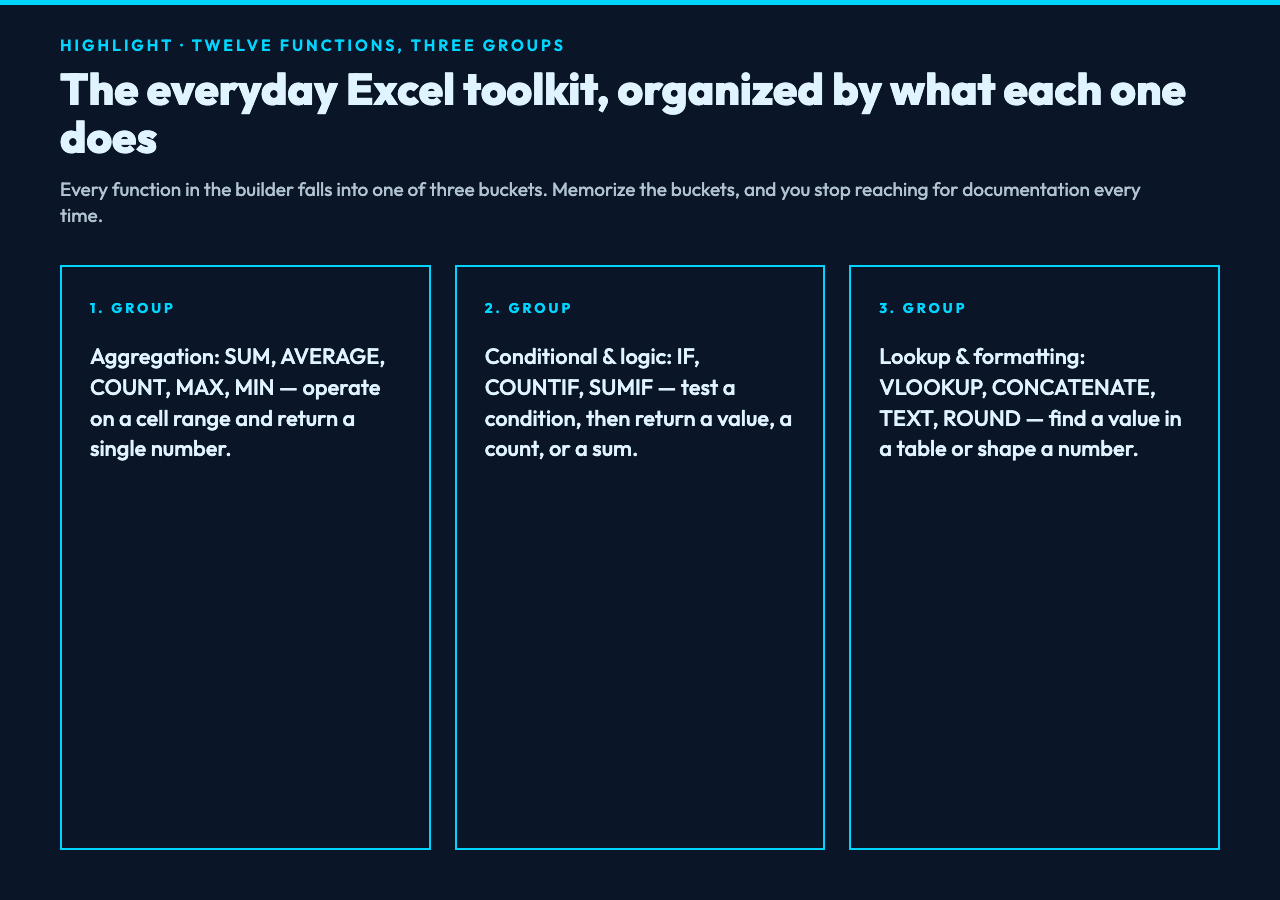
Suppose you have a sales sheet where column D is the region, column F is the sale amount, and rows 2 through 500 are the actual transactions. You want the total Q4 sales from the West region. Three formulas solve this, and a builder lets you build all three without leaving the tool:
1. SUMIF for the conditional total. Pick SUMIF, enter D2:D500 as the range, "West" as the criteria, and F2:F500 as the sum range. Result: =SUMIF(D2:D500, "West", F2:F500). Explanation: “Sums values in D2:D500 that match criteria: West.”
2. IF plus SUM for the two-step version. If you need to handle “West or Q4” as a compound condition, you build =IF(D2="West", F2, 0) and sum that column. The IF builder takes the condition, the value-if-true, and the value-if-false.
3. AVERAGE for the average ticket. Same range, different function. =AVERAGE(F2:F500) or, for the regional subset, build the SUMIF and divide by COUNTIF(D2:D500, "West").
The point is not the specific formulas. The point is that you build each one by filling in what you know — the column, the criterion, the value — and the tool handles the syntax. You can read the explanation to verify the logic before you paste.
For hands-on practice with the underlying logic, the Elysia Tools data processing collection has adjacent utilities — a CSV column extractor, a data normalizer, a deduplicator — that exercise similar conditional reasoning on tabular data.
The functions worth knowing by heart anyway
A builder does not replace knowing what each function does. It removes the syntax friction, but you still need to know when to reach for COUNTIF versus SUMIF, or when VLOOKUP is the wrong tool. Three things to internalize:
COUNTIF counts; SUMIF sums. Both take a range and a criterion, but COUNTIF returns how many cells match, and SUMIF adds the values of a parallel range where the criterion is met. If you find yourself writing SUMIF to count, you are paying a calculation cost you do not need.
VLOOKUP is column-indexed, not name-indexed. You supply the column number, not the column header. If your lookup table has the value column at position 3, you write 3, not "Total". This is brittle when columns move. Modern Excel has XLOOKUP, which the builder does not currently cover, and which fixes this brittleness. For legacy workbooks, VLOOKUP is still the lingua franca.
IF is a branching operator, not a conditional sum. If you are building an IF to return a value and then summing a column of those values, you almost certainly want SUMIF instead. The IF path is for display, not for aggregation.
The Excel Formula Builder does not teach these distinctions — that is what the explanation is for, and what reading other people’s spreadsheets is for — but it does keep you from getting stuck on whether the criterion is in or out of the quotes.
Where the builder stops being enough

Twelve functions cover the basics. They do not cover array formulas, dynamic arrays in modern Excel, LET and LAMBDA for named expressions, or anything that touches Power Query. They do not cover error handling — there is no IFERROR wrapper, no ISBLANK check before a division. They do not cover cross-sheet references with sheet names that contain spaces.
For those, you need the formula bar and a reference. The builder is for the everyday 90%, the formulas you write once an hour or once a day. Past that, you are doing something the builder was not designed for, and you should write the formula by hand with documentation open.
The honest summary: a formula builder is a recall aid for functions you already understand, not a learning tool for functions you do not. Use it for the former. Use a tutorial for the latter. And keep the explanation string in a comment or a cell note — your future self will thank you.
A closing note on what to keep in your clipboard
The most common Excel formula mistake is not a wrong formula. It is a missing dollar sign. A1 is a relative reference that changes when you copy the formula down. $A$1 is an absolute reference that does not. The builder does not insert dollar signs for you — it treats the cell range as you typed it — and this is a deliberate boundary. Locking references is a design decision, not a syntax decision, and the builder does not pretend to know your design.
So build the formula, paste it, then decide which cells need to be locked. That two-step habit — build, then lock — is the difference between a spreadsheet that survives being copied and one that silently breaks three weeks after you ship it.
