8 Free Audio Tools That Replace the $400 Software You’re Still Paying For
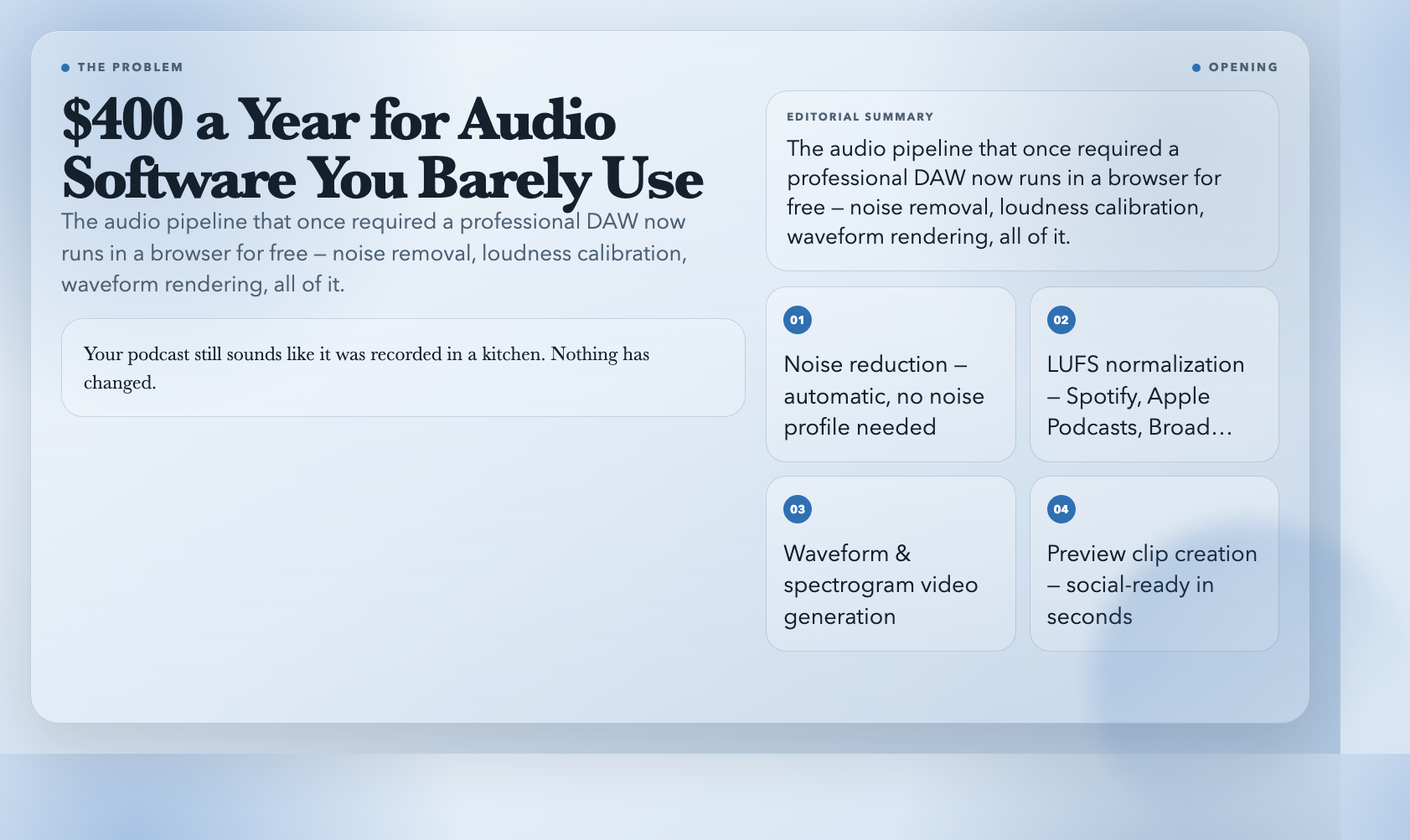
The renewal notice hit your inbox. $400 for another year of audio software you’re not fully using. Your podcast still sounds like it was recorded in a kitchen. Nothing has changed.
But here’s what has changed: the audio processing pipeline that once required professional DAW software — noise reduction, loudness calibration, waveform rendering, preview generation — now runs entirely in a browser, for free, in under two minutes per file.
I tested eight tools across the full audio production workflow. Here’s what actually works.
1. Audio Denoise Chain — Three Filters, One Click, No Expertise
Most bad audio isn’t a bad microphone. It’s a laptop fan, traffic, a neighbor’s dog. The solution isn’t a better recorder — it’s better noise removal.
The Audio Denoise Chain tool chains three filters together. A highpass filter kills low-frequency rumble (HVAC, desk vibrations). A lowpass filter strips frequencies above normal voice range. The RNNoise option, if enabled, applies machine learning on top to handle the rest.
Traditional denoising requires a noise profile and manual threshold tuning. This tool asks you to upload a file. The denoising happens automatically.
Upload a recording at 8pm. Get back something that sounds like it was made in a treated room.
2. Audio LUFS Normalizer — Hit Every Platform’s Loudness Target
Spotify normalizes to -14 LUFS. Apple Podcasts targets -16. Broadcast standards call for -23. If your episode doesn’t match, the platform turns it up — and clips.
LUFS (Loudness Units relative to Full Scale) measures perceived loudness, not peak level. A file can have safe peak levels but still sound quiet or harsh if the average energy doesn’t match expectations.
The Audio LUFS Normalizer applies FFmpeg’s `loudnorm` filter using preset targets for podcast, streaming, or broadcast platforms. You pick your destination. Upload your file. Download audio calibrated to that standard.
A producer friend told me she ships 30+ episodes per month. “LUFS normalization is the one step I never skip. It costs nothing, and it means my episodes sound consistent whether someone hears them on a phone in a noisy subway or headphones in a quiet office.”
3. Audio to Spectrogram Video — See What’s Inside Your Audio
A waveform shows when sound happens. A spectrogram shows what’s actually inside it — every frequency, every harmonic, every problem.
The Audio to Spectrogram Video tool renders audio as a color-coded video, where time runs horizontally and frequency runs vertically. Bright colors mean more energy at that frequency. Silence is flat black. A sibilance problem appears as a bright streak at 4–8kHz. A resonance shows up as a persistent vertical line at a specific frequency.
Audio engineers use spectrograms to find problems a waveform never reveals. But spectrograms are also visually striking — they make abstract sound tangible. A spectrogram of Martin Luther King’s “I Have a Dream” speech shows the rhythm of his voice rendered as color and motion. People share it because it makes the invisible audible.
4. Audio to Waveform Video — The Standard Visual, No Editing Required
Waveform videos are everywhere: podcast players, YouTube tutorials, Spotify tracks. They communicate something a waveform image can’t — that this is audio, it’s alive, and it’s moving.
The Audio to Waveform Video tool generates an MP4 with a customizable waveform. Width, height, color, frame rate — all adjustable. FFmpeg does the rendering. You just upload and wait 30 seconds.
For video podcasters, this is the fastest path to a more polished product. The waveform gives viewers a visual anchor even when they’re listening in the background.
5. Audio Preview Snippets — Send Exactly What Needs Review
You finished a 90-minute episode. Your co-host wants to review before you publish. You could upload the 180MB file to Google Drive. Or you could send them exactly the segments that need review — the 3-minute section at the 47-minute mark, the intro that’s still rough.
The Audio Preview Snippets tool extracts exact time ranges from your file at reduced bitrate, then bundles them into a ZIP. Lower file size. Precise segments. Faster review cycle.
Feedback becomes actionable because it’s tied to specific timestamps. The back-and-forth that used to take a week takes a day.
6. Audio Loudness Report — Measure Before You Guess
You normalized to -14 LUFS. The file still sounds quiet. What happened?
Loudness is perceptual. Two files with identical peak levels can sound completely different if their dynamic range differs. The Audio Loudness Report tool analyzes a file and returns three numbers:
–
Integrated LUFS: overall perceived loudness
–
True Peak: highest instantaneous level, including inter-sample peaks
–
Loudness Range (LRA): how much loudness varies
The True Peak is the one most beginners miss. It’s measured after digital-to-analog conversion simulation, and it catches peaks that look safe on a standard meter but clip in playback. A file that measures -14 LUFS integrated with a -1 dB true peak will sound fine on some players and distorted on others.
Run this before normalization. Run it after. Know instead of guess.
7. Audio RMS Normalize — Consistent Perceived Loudness
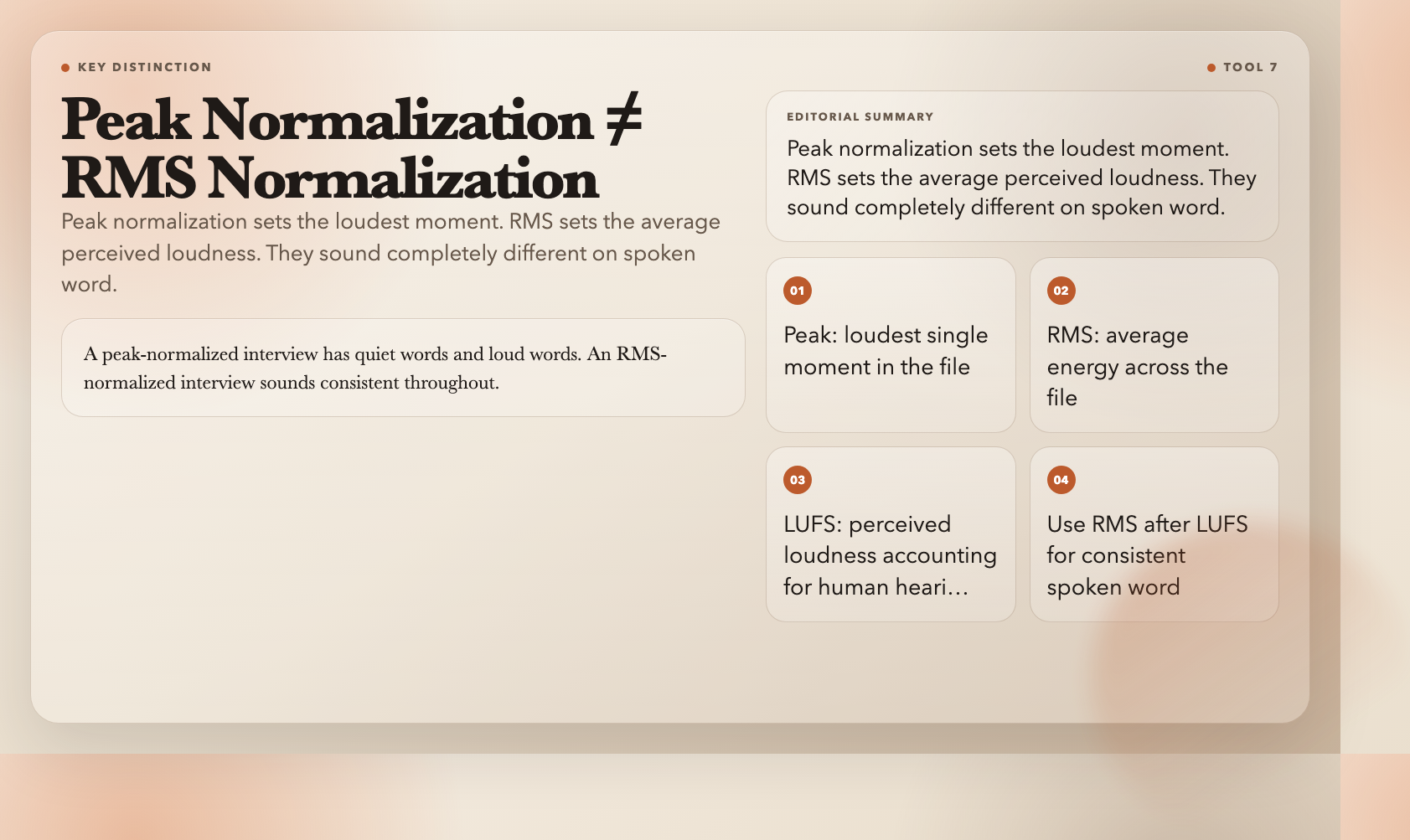
Peak normalization sets the loudest moment to a specific level. RMS normalization sets the average energy — the perceived loudness — to a specific level.
This difference is audible on spoken word content. A peak-normalized interview has quiet words and loud words. An RMS-normalized interview sounds consistent throughout. Every syllable feels equally present.
The Audio RMS Normalize tool applies RMS-based normalization. Use it after LUFS normalization if your content has varying dynamics — interviews with both speakers and ambient sound, narrative content with pauses and emphasis.
8. Audio Preview Quality — Make People Want the Full Version
Social audio doesn’t open with the full episode. It opens with a 30-second clip that makes someone think: I need to hear the rest.
The Audio Preview Quality tool generates low-bitrate preview snippets. This is intentional. A preview that’s indistinguishable from the full version satisfies curiosity instead of creating it. A preview that’s clearly a sample — slightly degraded, clearly partial — drives the listener to the platform.
The rule social audio creators follow: the preview should answer “what is this?” not “was that complete?”
The Complete Workflow
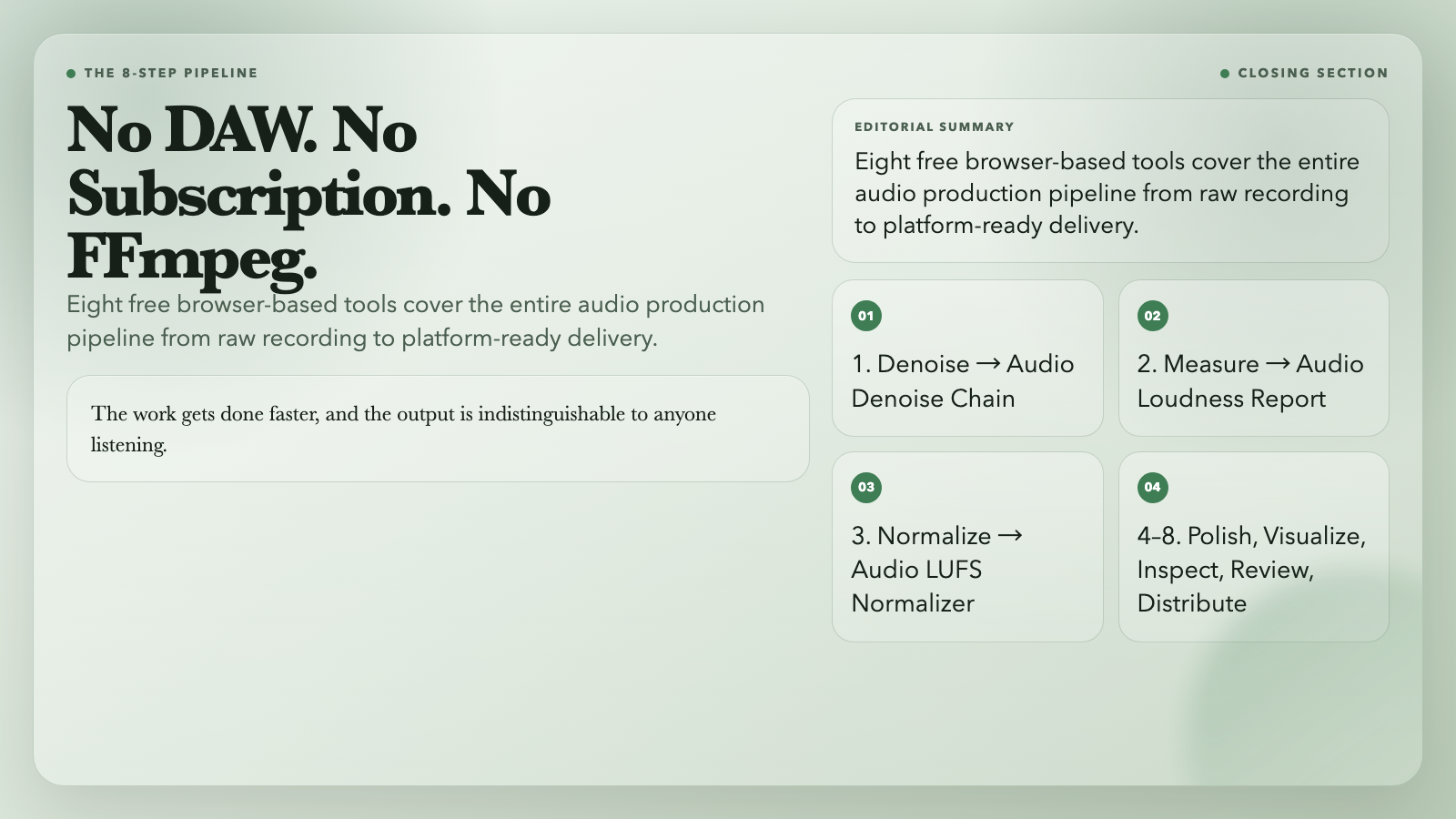
These eight tools form a production pipeline:
1.
Denoise → Audio Denoise Chain removes noise automatically
2.
Measure → Audio Loudness Report diagnoses what you’re starting with
3.
Normalize → Audio LUFS Normalizer hits your platform target
4.
Polish → Audio RMS Normalize fixes dynamics for spoken word
5.
Visualize → Audio to Waveform Video creates video content
6.
Inspect → Audio to Spectrogram Video finds hidden problems
7.
Review → Audio Preview Snippets speeds up editorial feedback
8.
Distribute → Audio Preview Quality generates social clips
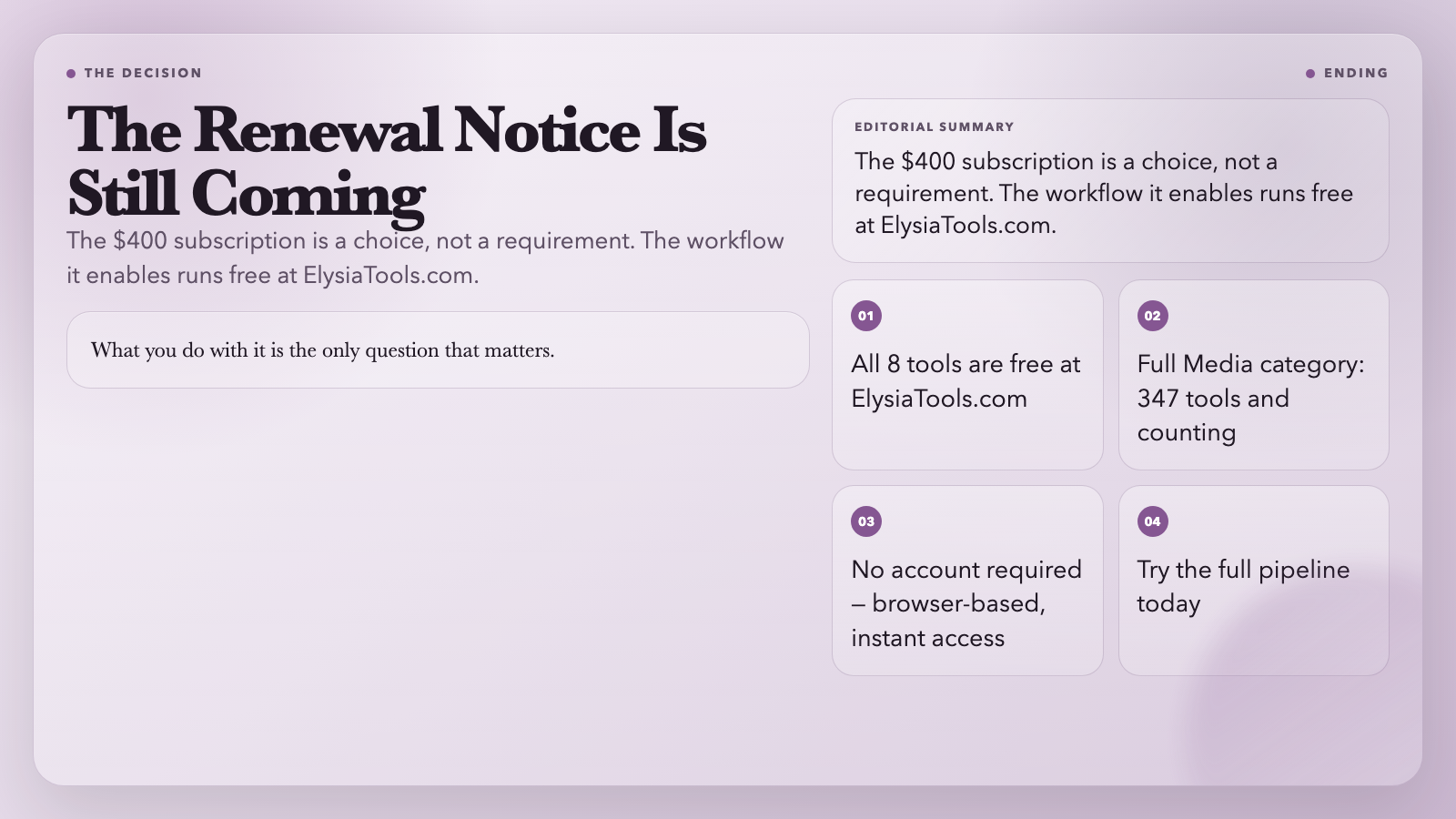
No DAW. No subscription. No FFmpeg commands to Google.
I used to spend $400 a year on audio software. Now I spend zero. The work gets done faster, and the output is indistinguishable to anyone listening.