
Lead phrase. A 12 KB SVG icon does not need a CDN gzip rewrite. It needs someone to read the markup and stop trusting the bytes the design tool produced. Every shipped SVG carries redundant group attributes, integer precision where two decimals would render identically, unused xmlns: prefixes, and editor metadata that exists only because Illustrator or Figma felt lonely. The naive move — run SVGO with default settings and ship the result — strips more than bytes; it strips comments that hold team documentation, IDs that anchor external CSS, and class hooks your interaction layer depends on. The careful move is the SVG Minifier & Analyzer workflow: inspect the file, decide which transforms are safe for this asset, then shrink precision and remove dead markup while keeping the structural anchors intact.
This guide walks through the five-step analysis that decides whether your SVG is a 30 KB offender or a 4 KB asset, the three cases where the default minifier destroys more than it saves, and the precision-shrink rule that prevents a 0.5-pixel sub-pixel blur when the icon scales to 48px and back.
Why “Just Run SVGO” Quietly Breaks Production Icons
The default SVGO preset removes 80% of bytes because it removes 80% of information. Editors pad floats to four decimals (12.34567890), wrap every shape in a <g> for no reason, and emit <defs> blocks for gradients a designer named once and never used again. SVGO strips all of that — and also strips the IDs, classes, role attributes, and ARIA labels that make the SVG accessible and styleable from outside the file.
The cost shows up six weeks later when a product manager asks to recolor the chevron icon on hover. The SVG is on disk at 1.8 KB, beautiful and small, but the <path> no longer carries a class because SVGO’s cleanupIds transform renamed it from icon-chevron to a. Now the CSS selector that referenced .icon-chevron matches nothing, the hover state silently fails, and the fix requires pulling the original out of the design tool — which is on the designer’s laptop, which is in a different timezone.
The fix is a per-asset decision matrix. Use the SVG Minifier & Analyzer to preview the diff before committing, then disable the transforms that touch identity attributes. Three transforms are safe for nearly every asset (precision shrink to two decimals, whitespace collapse, default-attribute removal). Three transforms need a policy (ID renaming, class merging, comments). One transform — the editor metadata strip — should run on every export but should land in a separate file because it removes information you may want for bug reports.
Five-Step Audit Before You Touch the Minifier
Step one is a structural count. Open the analyzer and watch the breakdown panel: how many <g> groups, how many <defs>, how many <path> elements, how many <use> references. A 12 KB icon with one <path> is not a minification problem — it’s a precision problem. A 12 KB icon with twelve <g> wrappers is not a precision problem — it’s a tool-config problem. The audit output tells you which axis to attack first.
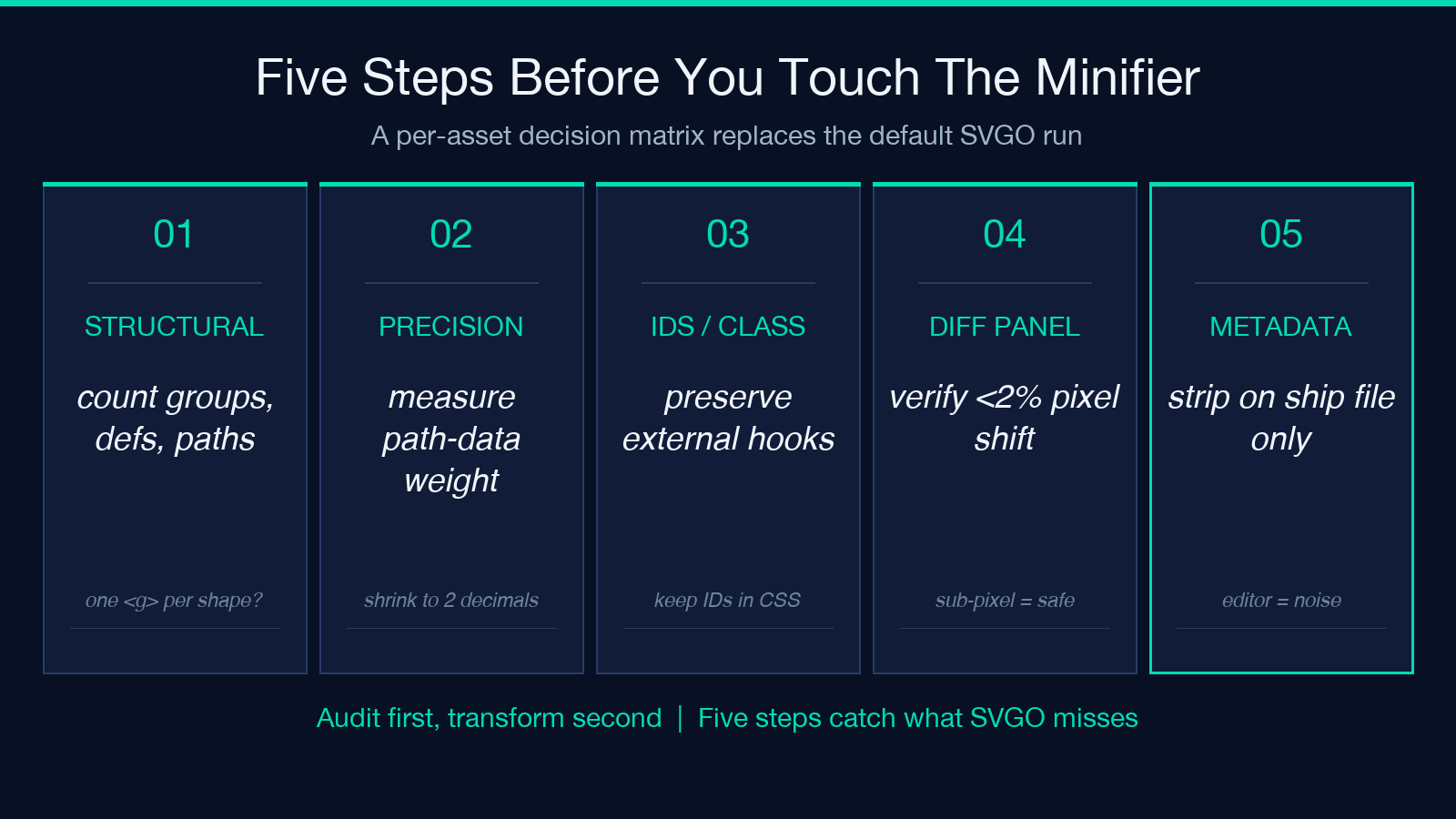
Step two is precision measurement. SVG paths encode coordinates as floats. The browser rasterizes them at the target render size, so a coordinate of 12.34567890 and a coordinate of 12.35 produce visually identical pixels at every common render size below 200px. Run the precision shrink on a copy and compare the diff: a clean shrink saves 20-40% on path-heavy icons and 5-8% on text-heavy SVGs. Anything less than 5% means the file’s bulk is in metadata, not in path data.
Step three is the dangerous step: ID and class preservation. The analyzer shows every id attribute and every class attribute. Cross-reference them with your codebase. If the SVG is referenced from CSS by ID (#logo-main), that ID must survive the transform. If it’s referenced by class (.icon), that class must survive. Disable the cleanupIds and cleanupNumericValues-adjacent transforms that rename or merge identity attributes. The minifier may still touch internal IDs the code doesn’t know about — that’s fine.
Step four is the comparison render. The analyzer shows a side-by-side: original on the left, minified on the right, with a pixel-diff overlay that highlights any visual regression. A clean run shows a uniform grey diff at <2% opacity, meaning every pixel shifted by less than one unit. A failed run shows bright spots — usually around text or gradients where precision shrinkage crossed a rasterization threshold. If the diff shows any bright spots above 5% opacity, drop precision back to three decimals and re-run.
Step five is the metadata decision. SVGs from editors carry an <metadata> block with the source application, the export timestamp, and the layer names. None of this affects rendering, all of it inflates the file. Strip it on the final ship file but keep it in the working source so designers can trace a regression to a specific export.
The Three Cases Where Default Minification Breaks the Asset
Case one: animated SVGs with CSS-driven transforms. If the icon moves on hover via a CSS transition on a <g> with a class, SVGO’s class-merge transform combines that class with another class on a sibling group. The hover selector still matches (the class survives in the merged form), but the specificity changes — your .icon:hover .chevron selector bumps from 0-2-0 to 0-2-1 because SVGO prefixes the merged class. Re-run your visual regression suite after every minify pass on animated assets. The SVG Minifier & Analyzer comparison view catches the rendering diff but does not catch the CSS specificity bump — your test suite does.
Case two: SVGs with embedded raster fallbacks. Some legacy icon systems ship an SVG with an embedded base64 PNG for browsers that don’t support a specific filter. SVGO will not touch the base64 string (it’s a string literal, not parseable SVG), but the file size increases after minification because the minifier’s whitespace removal does not apply inside xlink:href values. If the embedded raster is 40 KB and the SVG vector is 4 KB, the total file is 44 KB before and 44 KB after — you’ve gained nothing, lost readability, and confused a code reviewer who expected a smaller output.
Case three: SVGs consumed by a build pipeline that post-processes them. React’s SVGR, Vue’s vue-svg-loader, and Angular’s angular-svg-icon all parse the SVG and re-emit it as a component. If the minifier renames IDs to a, b, c, the build tool may treat them as new components on every re-export — your chunk hash changes every build even when nothing changed. Pin IDs by adding the id attribute to the minifier’s preserve list, or pass the original IDs through the build tool’s transform config.
The Precision-Shrink Rule That Prevents Sub-Pixel Blur
Decimals beyond two places are noise on a vector that renders at any size under 200px. Three decimals is the safe ceiling for icons that scale to 64px. Four decimals is the safe ceiling for icons that scale to 200px. Five and six decimals only matter when the SVG renders larger than 400px and the rasterizer is doing sub-pixel anti-aliasing — which is rare enough that a precision-shrink to four decimals preserves identical visual output at a meaningful byte saving.
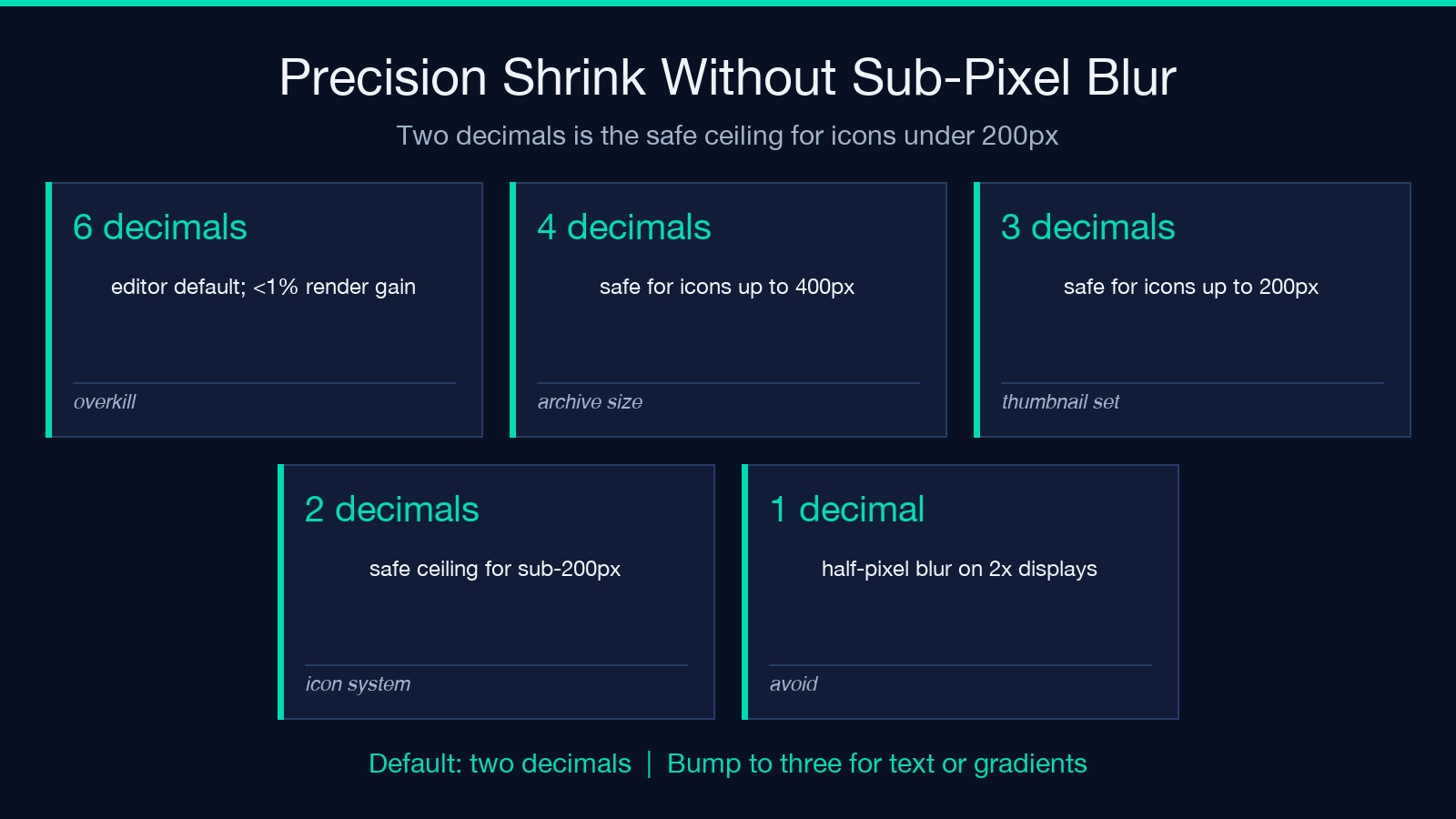
The aggressive shrink to one decimal (or to integer rounding) is tempting because the byte saving is largest. Don’t. A coordinate like 12.3 is on a half-pixel boundary at 1x render and on a sub-pixel boundary at 2x — modern high-DPI displays shift it by 0.5px, which is one full pixel of blur on a 12px icon. Two decimals puts the coordinate on a tenth-of-a-pixel boundary, which is well below the rasterizer’s quantization floor on every display shipping today.
How to Read the Analyzer’s Diff Panel Without Fooling Yourself
The side-by-side comparison shows two SVGs at the same render size with a pixel-diff overlay. The overlay is not a binary “match / no match” signal — it’s a heatmap. A clean minify shows a near-uniform low-opacity grey over the entire icon, meaning every pixel shifted by less than one unit. A visible red or bright spot means the diff crossed the rasterizer’s quantization floor and the icon will look different at production render size.
Three patterns produce false alarms. First, sub-pixel anti-aliasing on edges: the original may use 12.3456 and the minified uses 12.35, both rendering to the same pixel but the diff panel sees the 0.0044 difference as a one-channel shift. The shift is below human-perceivable threshold; the diff panel does not know that. Calibrate by ignoring differences under 3% opacity — those are always sub-pixel noise.
Second, font kerning: if the SVG contains <text> elements, the minifier’s whitespace collapse may shift a glyph by 0.5 units relative to its neighbor. The diff panel sees this as a per-glyph mismatch. The icon still renders correctly because the rasterizer handles 0.5-unit shifts inside text glyphs without visible artifacts. Spot-check the text in your browser at the target render size — if it’s readable, the diff is acceptable.
Third, gradient stops: a 16-stop gradient with precision shrunk from four decimals to two may shift a stop’s position by 0.01 unit, which redistributes color across the gradient by less than 1%. The diff panel shows a uniform color shift, not a localized artifact. This is acceptable for nearly every UI gradient — humans do not perceive 1% color shifts across a smooth gradient.
The diff panel that should stop your build is one with bright localized spots above 5% opacity, especially around text edges, gradient transitions, or stroke endpoints. Those are real visual regressions and the minify needs to back off to three decimals.
What to Do With Comments, <title>, and <desc>
Strip editor comments. They’re noise — design-tool versioning markers, layer-name snapshots, last-edited timestamps. They serve no purpose in production. Strip them with confidence.
Keep <title> and <desc>. These are accessibility primitives. Screen readers announce the <title> element when the SVG is the sole content of a button or link; the <desc> element provides a longer description for assistive tech. A 200-byte <desc> is the cheapest accessibility win in your entire codebase. SVGO’s default preset keeps these — don’t override it.
Strip the data-name attribute that editors attach to every layer. It’s editor metadata that no production code reads. The analyzer shows it in the structural breakdown; the cleanup transform removes it without side effects.
When to Ship the Minified File vs the Source
Ship the minified file when the SVG is referenced as a static asset (in an <img>, in CSS background-image, or in a static import statement). Ship the source when the SVG is inlined into a React/Vue/Angular component (the build tool will minify it inline). Ship the source when designers are still iterating on the asset — version control on a minified file is unreadable and the diff is meaningless.
The cost of the wrong choice is small but real: shipping minified SVG source files inflates your repo by 20-30% over a year. Shipping source SVGs as static assets means every page-load pays the unminified byte cost. The right answer per asset depends on how often it changes and how often it’s loaded, and that’s a decision your bundler can make for you if you set it up correctly.
A Reference Workflow You Can Paste Into a Build Script
The repeatable pipeline is: pull original from design source → run the analyzer on a copy → review the diff panel at the target render size → if clean, run the minify with the per-asset config (which transforms to keep, which to drop) → output to a dist/icons/ directory with a content-hash filename → import the file in your code and let the bundler pick the right one. The full round trip is 2-3 seconds per icon, which is fast enough to run on every commit and slow enough to not need a watch mode.
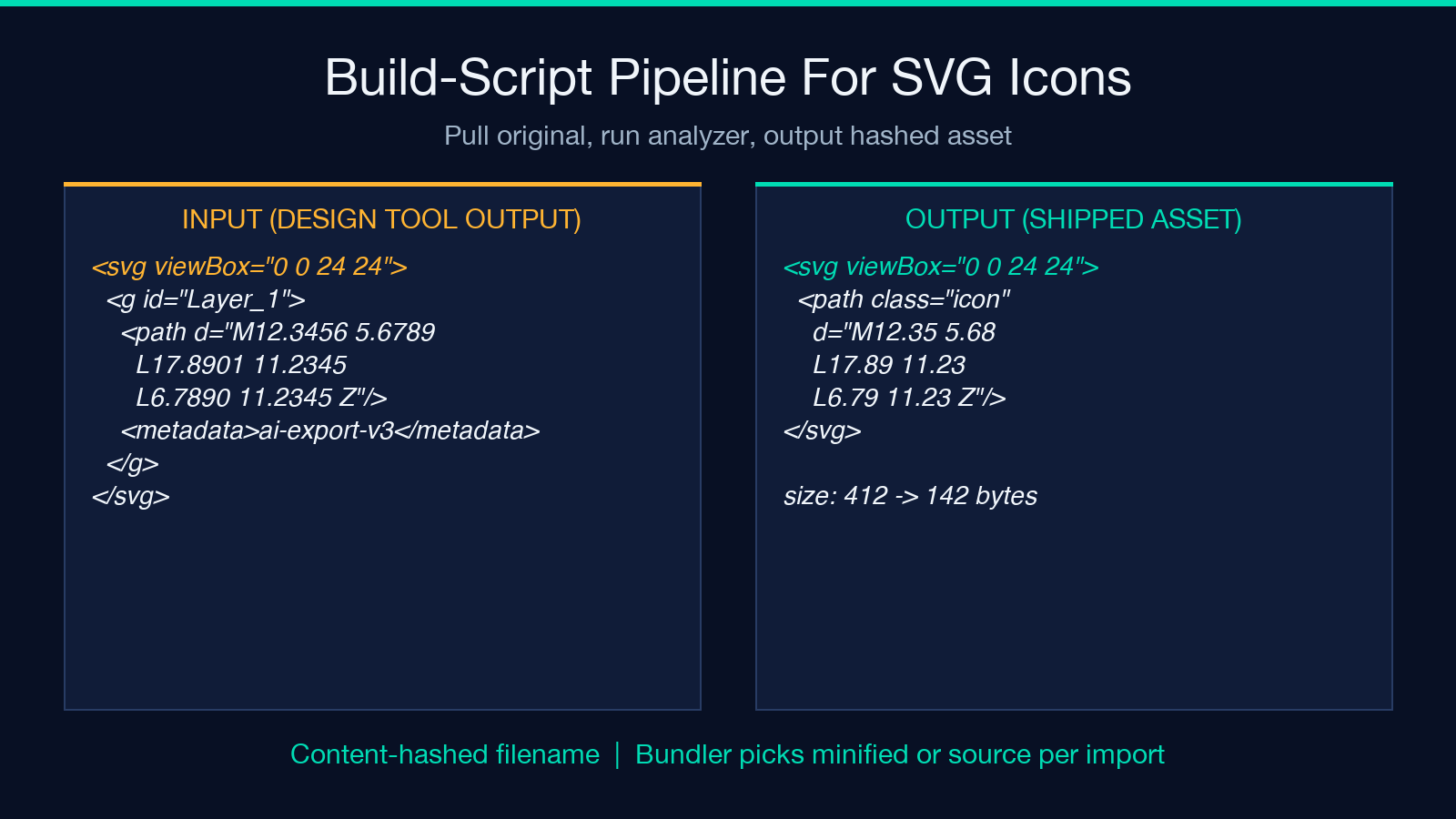
If you want the analyzer to handle the precision decision automatically, use the per-asset config that the tool persists: a first-pass analysis on a small icon set teaches the analyzer the team’s default policy (keep IDs, strip editor metadata, shrink to two decimals). On subsequent runs the analyzer applies the policy without re-asking, and surfaces only the icons where the policy produces a non-clean diff. The SVG Minifier & Analyzer supports this mode and it’s worth the 10 minutes of setup for any team that ships more than ten SVG assets.
Explore more tools at elysiatools.com.
