
Depth Map Generator Field Guide: When Four Pseudo-3D Heuristics Beat a Default Brightness Pass
Four algorithms, four very different depth maps. The same portrait becomes a soft gradient with Combined mode, a sharp silhouette with Brightness, a flat wash with Saturation, and a thermal-style map with Hue — and the only way to learn which one your image actually needs is to run all four side by side. That is what this guide walks through, using the Depth Map Generator at Elysia Tools.
If you have ever tried to fake a 3D parallax effect from a single JPG, or wanted to send a depth mask to a Stable Diffusion ControlNet pipeline, or just want to know whether the back of a scene is closer than the front, you have probably already hit the wall that every “automatic depth estimator” eventually runs into: there is no ground truth. The Depth Map Generator does not pretend otherwise. It gives you four well-defined heuristics — Combined, Brightness, Saturation, Hue — that you can dial in yourself, plus a set of post-processing toggles (Invert, Edge Enhancement, Smooth Blur, Brightness Weight) that determine whether the output is a clean gradient or a noisy artefact.
This field guide covers the four algorithms and what each one is actually good at, the four post-processing knobs that change the output far more than people expect, the output formats and how to pick one, the failure modes the heuristic approach cannot avoid, and how to wire the result into downstream tools without losing the subtle gradients that make a depth map useful.
Four Algorithms, Four Very Different Maps
The Depth Map Generator’s “Method” dropdown is the single most important control. Switching between the four options on the same source image produces four visually distinct outputs, and “best” depends entirely on what you plan to do with the result. The four algorithms are not stacked on top of each other — they are independent ways of asking the question “which pixels are closer to the camera?”
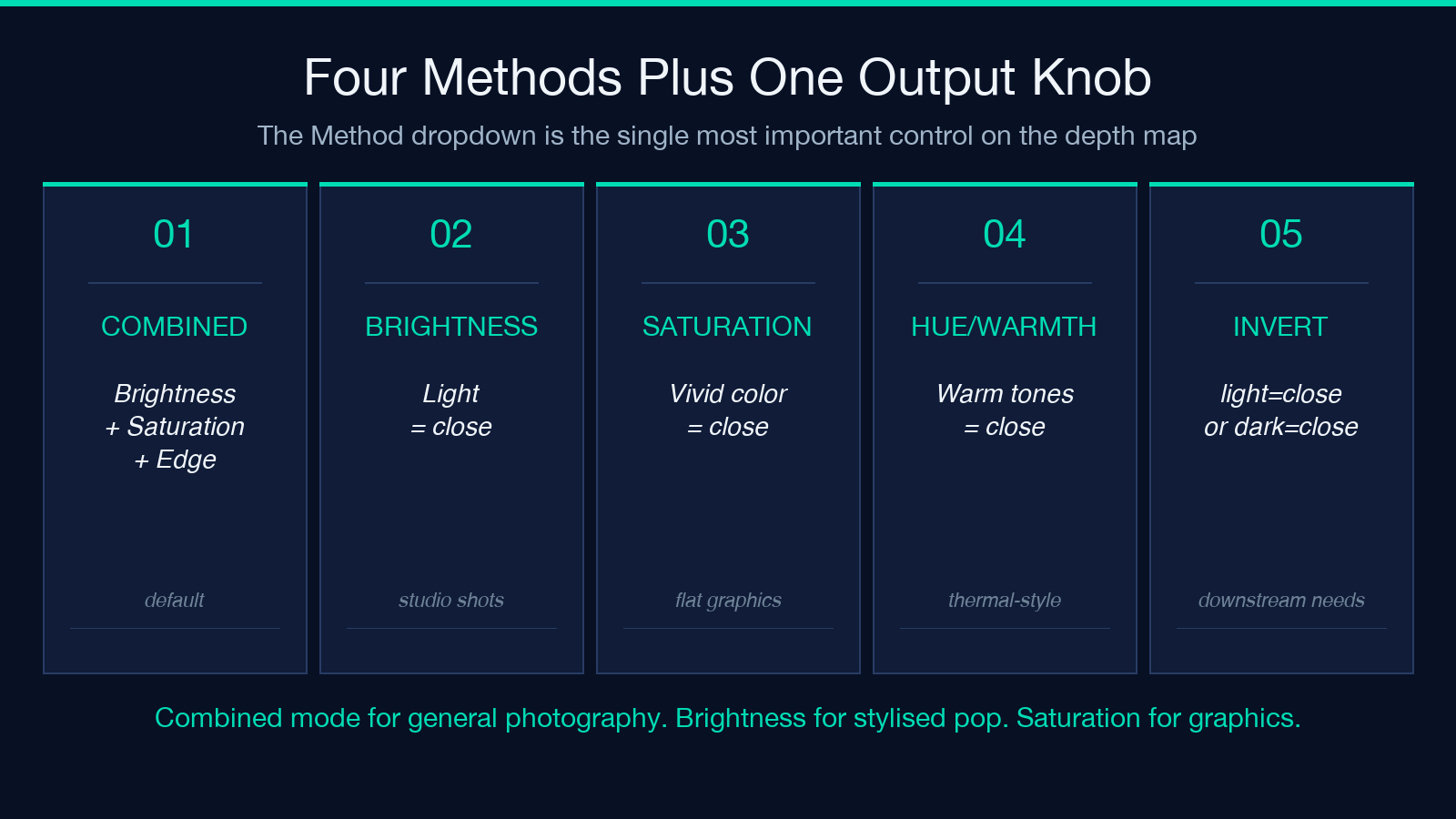
Combined is the default and the only one that uses all three signals at once. Brightness, Saturation, and Edge contributions are blended according to the three weight sliders (Brightness Weight, Saturation Weight, Edge Weight). For most natural photographs, Combined produces the cleanest gradient because real scenes tend to have a slight atmospheric perspective — distant objects are slightly hazier, slightly less saturated, and slightly lower contrast than close ones. Combined mode amplifies that trend without making any single signal do all the work.
Brightness Based treats brighter pixels as closer. It is the simplest heuristic and the one most people reach for first, but it has a sharp failure mode: any bright object in the background (a sky, a window, a lamp) gets pulled to the foreground. For a studio portrait where the subject is well-lit against a darker backdrop, Brightness Based often gives a usable silhouette. For a landscape with sky, it gives a sky-shaped foreground.
Saturation Based treats more saturated pixels as closer. It is the best heuristic for flat-looking graphics, illustrations, and screenshots where colour intensity tends to drop with distance in painted scenes. It struggles with monochrome or low-saturation photography, where every pixel has roughly the same saturation.
Hue/Warmth Based treats warmer hues (reds, oranges, yellows) as closer and cooler hues (blues, greens) as farther. It is the most stylised of the four and is rarely the right choice for a photorealistic source, but it is excellent for thermal-style artistic renders or for scenes where atmospheric perspective is dominated by warm/cool contrast (sunset photography, for example). Run the same input through all four and you will see what I mean — the Depth Map Generator lets you keep the previous render open while you switch methods.
Post-Processing Knobs That Change Everything
Once you have picked a method, the four sliders and toggles below the Method dropdown have an outsized effect on the final output. Beginners tend to leave them at defaults; experienced users treat them as the difference between a usable map and a noisy one.
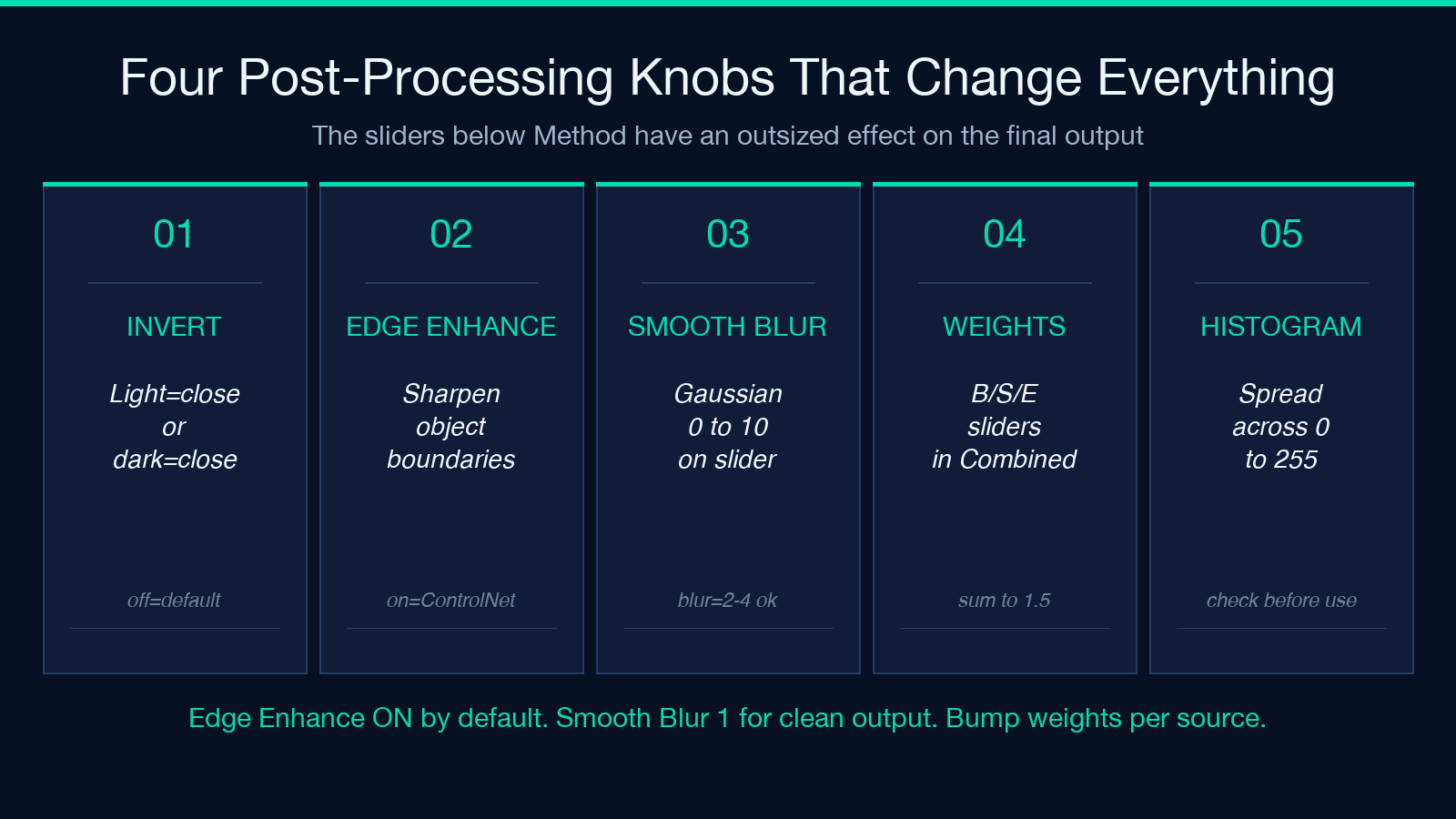
Invert Depth Map flips the entire output: dark becomes close, light becomes far. This sounds trivial, but it matters enormously for downstream pipelines. ControlNet, MiDaS, and most stereo-matching algorithms expect light = close. Some older renderers expect dark = close. The Depth Map Generator’s default is light = close, so leave Invert off unless your downstream tool specifically documents the opposite.
Enhance Edges applies edge detection to push object boundaries toward sharper transitions in the depth map. With it off, the map is a smooth gradient even where the original image has crisp edges — useful for soft parallax effects. With it on, the map gains visible outlines around the major objects, which is what most ControlNet pipelines actually want. The default (on) is correct for the majority of cases.
Smooth Blur is a Gaussian blur applied after the depth computation, with a range of 0 to 10. Values of 0 to 1 give a clean, sharp map. Values of 2 to 4 smooth out single-pixel artefacts without losing major object boundaries. Values above 5 start to merge adjacent objects — useful if you want a posterised, low-band depth map, harmful if you want fine detail. The default of 1 is a sensible starting point; bump it up only if you see speckle noise in flat areas.
Brightness Weight, Saturation Weight, Edge Weight (only active in Combined mode) control the relative contribution of the three signals. The defaults — 0.5, 0.5, 0.5 — are a balanced starting point. If your image has strong atmospheric perspective, push Brightness Weight up. If your image is a graphic with bold colour contrast, push Saturation Weight up. If you want crisp object boundaries, push Edge Weight up at the cost of gradient smoothness.
Output Formats: PNG, JPEG, WebP, TIFF
The Depth Map Generator supports four output formats, and the choice matters more than it does for a normal photograph because depth maps have a wider dynamic range than a typical 8-bit image.
PNG (lossless, default) is the right choice for almost every downstream use case. Depth maps are gradients; lossy compression artefacts show up as visible banding in smooth regions, especially in the sky or in flat backgrounds. PNG avoids this entirely. The file size penalty is real — a PNG depth map is often 2-4× larger than the equivalent JPEG — but the quality difference is also real.
JPEG is acceptable for previewing and for thumbnails but should not be the final output for any pipeline that does further processing. The Quality slider (default 90) controls how aggressively the JPEG compressor throws away detail; at 90 you get a usable preview, at 70 you start to see banding, at 50 you see it strongly. Use JPEG only if you need a small file for embedding in a slide deck or email.
WebP sits between PNG and JPEG: better compression than JPEG at equivalent quality, lossless mode available. For web display of the depth map itself (e.g. as a preview in a blog post or documentation page), WebP is a good compromise.
TIFF is the format of last resort — useful only if your downstream pipeline requires 16-bit depth data and refuses to accept PNG. The Depth Map Generator exports 8-bit depth maps, so TIFF offers no real advantage over PNG unless you need the metadata tags that TIFF supports and PNG does not.
The default is PNG for a reason. Override it only when you have a specific reason.
Where Heuristics Fail and What to Do About It
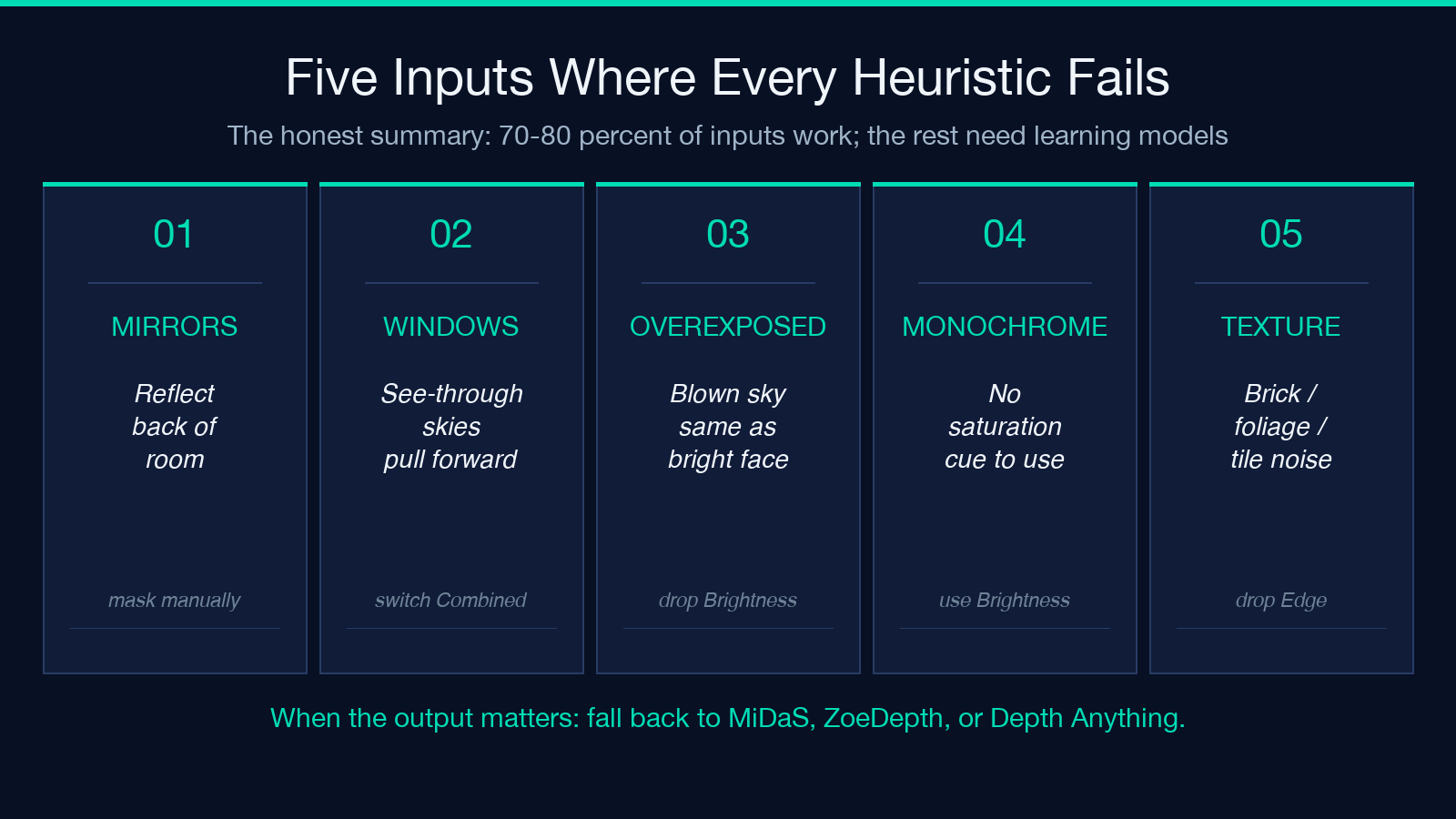
The four algorithms are heuristics, not magic. There are several categories of input where no single method will produce a believable depth map, and the right response is to recognise the failure rather than try to dial around it.
Mirrors, windows, and reflective surfaces confuse every heuristic. A mirror reflects the room behind the camera, so its surface is suddenly “far away” by the heuristic’s own logic — and the Depth Map Generator will dutifully produce that result. If your scene contains a mirror, the map will be wrong in that region. There is no slider for this; the workaround is to mask the reflective area and fill it manually in a downstream tool.
Overexposed highlights and pure white backgrounds defeat Brightness Based. A blown-out sky is the same brightness as a brightly lit face, so Brightness Based maps them to the same depth. Combined mode mitigates this because the Saturation and Edge signals still differ between sky and face, but if you have a very high-key portrait, switch to Combined with reduced Brightness Weight.
Monochrome input defeats Saturation Based and partly defeats Hue/Warmth Based. If you feed a black-and-white photograph in, Saturation Based produces a near-uniform map. Use Brightness Based or Combined mode for monochrome sources.
Repetitive textures (brick walls, tiled floors, dense foliage) confuse edge detection. Edge Weight amplifies this in Combined mode; if your image is mostly texture, drop Edge Weight to 0.3 or lower and let the brightness/saturation signals carry the work.
The honest summary: heuristic depth estimation works for 70-80% of natural photographs and almost none of the tricky cases. When the output matters, run the image through a learning-based depth estimator (MiDaS, ZoeDepth, Depth Anything) instead. The Depth Map Generator is the right tool when you want predictable, parameter-controlled output and you understand that “predictable” does not mean “correct in every case.”
Wiring the Output Into Downstream Pipelines
A depth map is rarely the final artefact. Most uses send it somewhere else — a 3D renderer, a parallax generator, a ControlNet pipeline, a custom shader. The Depth Map Generator’s output is a clean grayscale image that drops into any of these without conversion.
ControlNet depth models expect light pixels to be close and dark pixels to be far, with the values normalised to roughly the 0-1 range. The Depth Map Generator’s default (light = close, no inversion) is exactly this. Drop the PNG straight into your ControlNet input and it will work without preprocessing.
Stereo parallax and 2.5D effects (Ken Burns effect, Facebook 3D photo, photo parallax in slideshow apps) need a smooth, low-bandwidth depth map. Push Smooth Blur up to 4-6 and disable Enhance Edges — this gives the renderer enough depth information to interpolate a believable parallax without flickering on object edges.
3D photo and NeRF-style reconstruction need as much detail as possible. Disable Smooth Blur, keep Enhance Edges on, and use PNG to avoid compression artefacts. The output will be noisy at the pixel level, but the noise is what the reconstruction algorithm needs to triangulate depth correctly.
Print and presentation output (a poster, a slide deck) cares about visual smoothness more than fidelity. Push Smooth Blur up, disable Enhance Edges, and use WebP for the file size. Nobody viewing a slide deck cares whether the depth map preserves the difference between two leaves three pixels apart.
A Worked Example: Portrait in Three Methods
To make the abstract comparisons concrete, take a single well-lit portrait and run it through three of the four methods. The source is a head-and-shoulders photo with a slightly out-of-focus background.
Combined mode (default weights) produces a smooth gradient: face slightly lighter than shoulders, background softly darker, hair catching a faint highlight that the Edge Weight registers as a brighter contour. The output looks like a slightly stylised render — recognisably the same person, recognisably a depth interpretation, useful for any downstream pipeline that expects a believable gradient.
Brightness Based pulls the face forward hard — the brightest region in the image becomes the closest region, full stop. The hair (which has bright highlights from rim lighting) ends up closer than the forehead. For a stylised “pop the subject” effect, this works. For a believable parallax, it produces a person-shaped bump on a flat background, which looks uncanny.
Hue/Warmth Based produces something close to Combined but with the warm skin tones pushed aggressively forward and the cooler background pushed back. For a portrait with neutral lighting it is similar to Combined. For a portrait lit with cool fill and warm key, the contrast between face and background is exaggerated — useful for stylised renders, less useful for believable parallax.
The takeaway: pick the method that matches the use case, not the one that “looks best” in isolation. Combined for general use, Brightness for stylised pop, Saturation for flat graphics, Hue for thermal-style artistic work. You can see all four side by side by toggling Method on the Depth Map Generator without re-uploading the image.
Verification: Three Checks Before You Trust the Output
Before sending the depth map anywhere downstream, three quick checks catch most of the failure modes that show up in production.
Check the histogram. Open the PNG in any image viewer that shows a histogram and confirm the values are spread across the 0-255 range, not bunched into a narrow band. A histogram concentrated in the 80-120 range means the depth map has very little contrast and your downstream pipeline will not be able to distinguish foreground from background. The fix: lower Smooth Blur, or switch from Brightness Based to Combined.
Check the edges. Zoom in on a known foreground/background boundary (a person against a wall, a tree against sky) and confirm the transition is sharp but not aliased. A soft transition means Smooth Blur is too high. A jagged aliased transition means Smooth Blur is too low and Enhance Edges is amplifying noise.
Check the extremes. Zoom into a known near object (the corner of a table, a hand close to the camera) and a known far object (a wall, the horizon). The near object should be near-white (255 ± 10), the far object should be near-black (0 ± 10). If the near object is at 180, the Smooth Blur is dragging everything toward the middle. If the far object is at 60, the Invert toggle is in the wrong position or the source image has unusually bright distant regions.
These three checks take under a minute and they catch the failure modes that the algorithm itself cannot warn you about.
Closing: A Predictable Tool for Unpredictable Inputs
The Depth Map Generator is the right tool when you want a depth map that is parameter-controlled, deterministic, and inspectable. It is the wrong tool when you need a learning-based depth estimator that handles mirrors, monochrome input, and reflective surfaces gracefully. The two use cases do not overlap much — most of the time you know which one you need.
The four algorithms, the four post-processing knobs, and the four output formats give you enough control to handle the 70-80% of inputs where heuristic methods work. For the rest, fall back to MiDaS or Depth Anything. The Depth Map Generator at Elysia Tools is fast, free, and runs entirely in the browser — explore more tools at elysiatools.com.
