
Markdown tables break the moment your delimiter, header style, or column width drifts. The Markdown Table Generator at Elysia Tools handles all three, but the way you drive it decides whether the output reads like documentation or like a CSV paste that nobody trusts. This field guide walks through the four inputs that actually matter, the seven rendering decisions the tool can make for you, and the one setting you should almost always leave alone.
Why a markdown table generator beats a hand-typed pipe wall
A markdown table looks simple on paper: pipe, hyphen, pipe. Then you try to type one with three columns of mixed widths, two of them holding right-aligned currency values, and you discover that:
– The pipe count has to match on every row, including the header divider. – The dashes under each column decide the minimum width; if you forget, the renderer auto-shrinks and your alignment disappears. – Right-aligned numeric columns demand at least one trailing space on every row, or the renderer folds the row into the previous one. – An empty cell is not the same as a missing column; if you forget the pipes around an empty value, the parser merges the adjacent columns.
A small input that works fine in a one-column README example becomes tedious the moment you have a header, a separator, and ten rows of real data. The Markdown Table Generator absorbs the bookkeeping so you can stay focused on the data. Paste the data, pick the format, choose the alignment, and the tool handles the divider row, the column widths, and the optional merge hints. For sample inputs you can experiment with, the Markdown samples and JSON samples feeds hold ready-paste rows.
How the four input modes decide what gets parsed
The tool exposes one textarea for input plus three selectors that drive parsing: Input Format, Delimiter, and First Row Is Header. Every downstream decision the tool makes rides on whether you set these correctly.
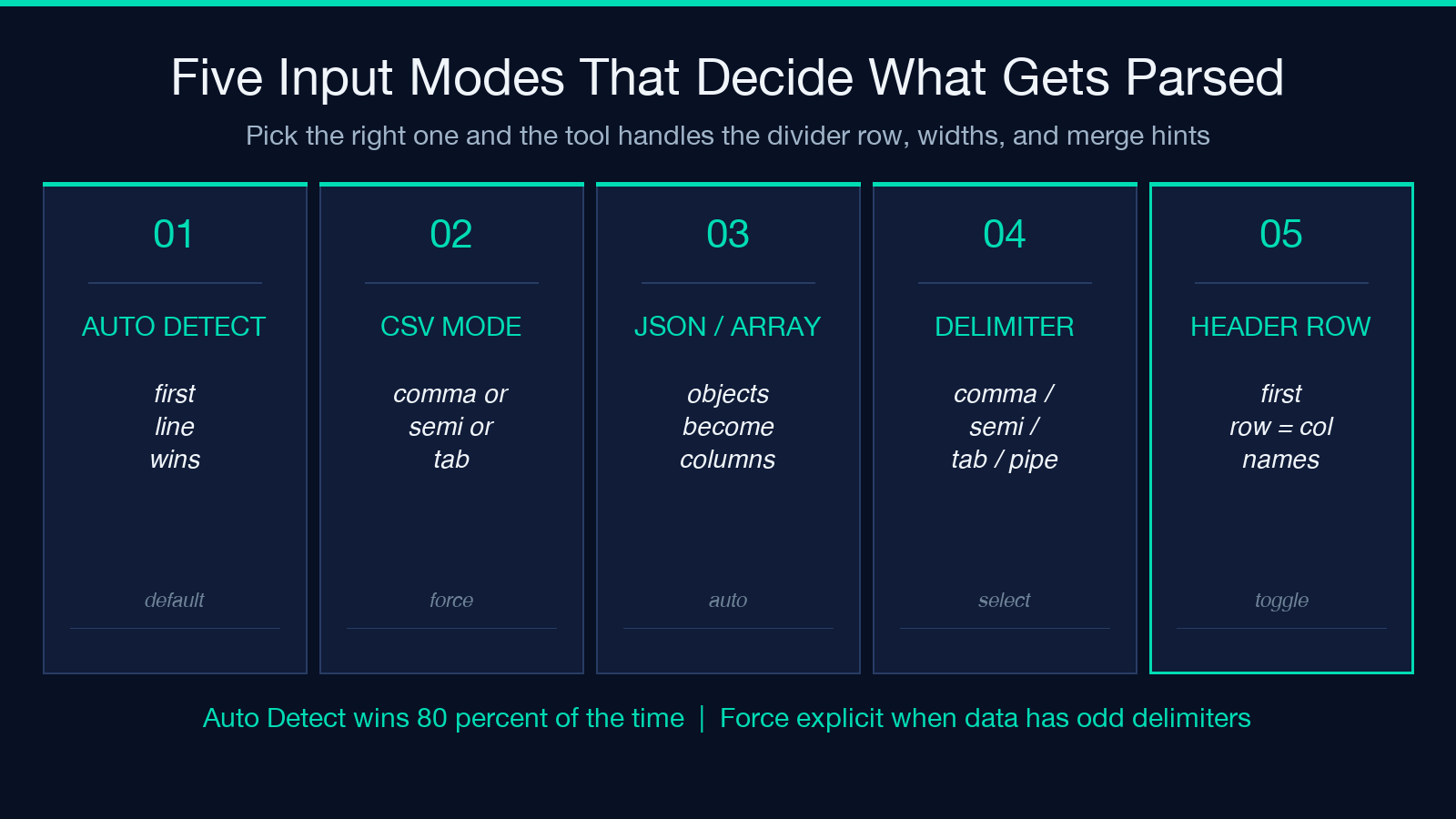
Auto Detect is the right starting point for ad-hoc pastes. It probes the first non-empty line for a tab, a semicolon, or a comma, and falls back to the JSON path if the first character is { or [. If your data is genuinely CSV with no surprises — comma-separated, no embedded quotes, header row present — auto-detect will produce the same output as the explicit CSV mode. If your paste came from a spreadsheet that exported with a tab delimiter, auto-detect still picks it up; the leading header row ProducttPricetQty has more tabs than commas, so the tool counts and chooses.
CSV mode is the explicit choice when your data has a delimiter the auto-detector might misread. A common trap is the leading column being all integers: 100,200,300,400 is unambiguously comma-separated, but 100;200;300;400 looks like three fields at first glance because the tool sees 100;200 and 200;300 as valid two-field guesses. Forcing the delimiter selector to Semicolon (;) short-circuits the heuristic and locks in the right parse.
JSON / Array mode accepts three JSON shapes:
– A bare array of arrays: [["a","b","c"],["1","2","3"]] – A bare array of objects with identical keys: [{"x":1,"y":2},{"x":3,"y":4}] – A top-level object holding an array property: {"rows":[["a","b"],["1","2"]]}
When the input is an array of objects, the tool uses the keys from the first object as column headers (override with the First Row Is Header selector off if you want positional columns). Numeric strings stay as strings — the tool does not coerce "01" to 1. If you want zero-padded codes preserved in the output, leave the input as strings.
Delimiter supports auto, comma, semicolon, tab, and pipe. Pipe is a deliberate trap: if your data is itself pipe-separated, the markdown output has to escape every pipe inside cell values, which the tool handles by wrapping the cell in backticks. You will rarely want pipe as the input delimiter — pick comma, semicolon, or tab and avoid the double-escape.
What the alignment mode actually controls
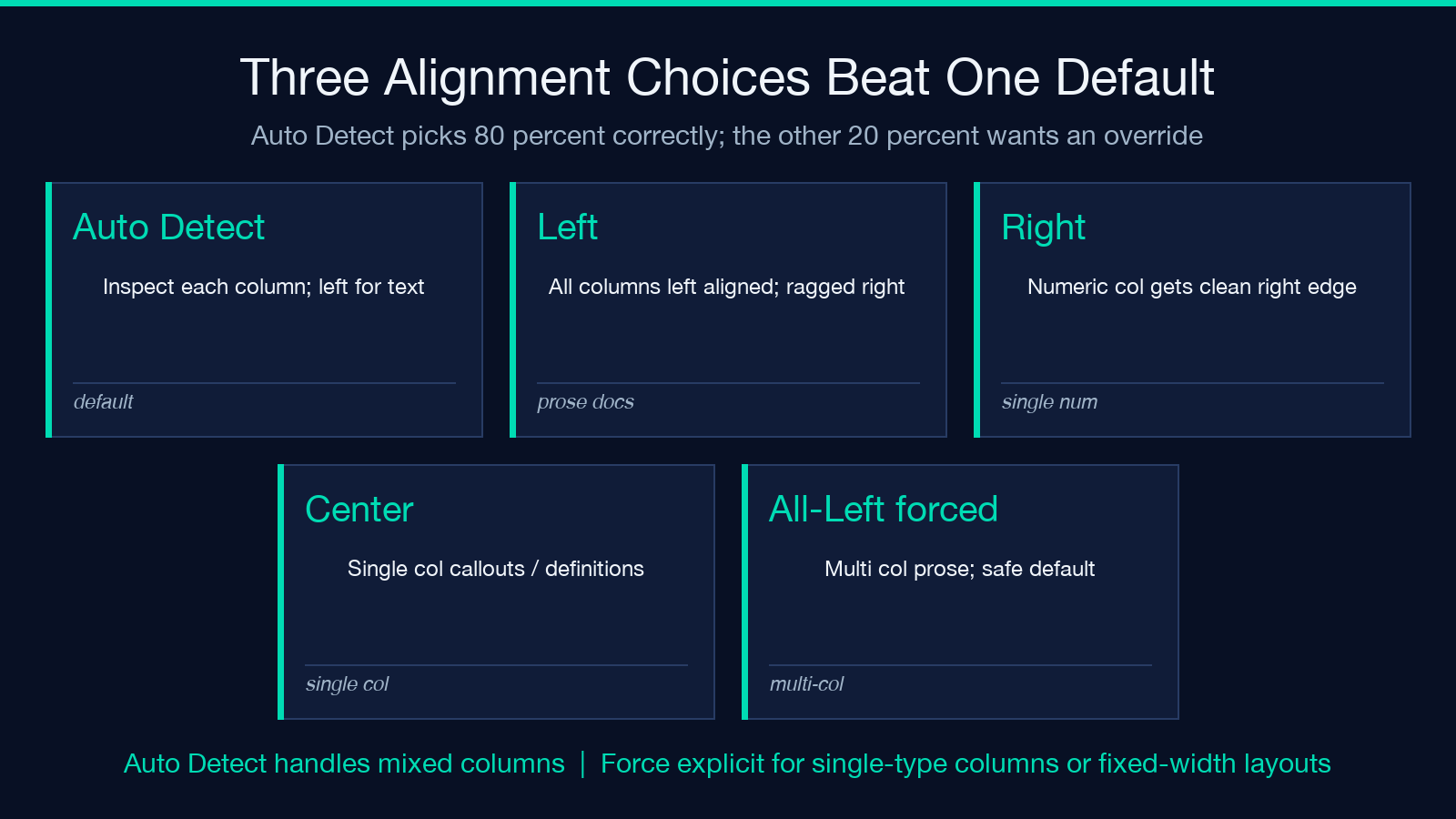
The Column Alignment selector has four options: Auto Detect, Left, Center, Right. Auto Detect inspects each column and applies left to text, right to numbers, and center to headers. The other three lock the entire table to one alignment. Auto Detect is the right call 80 percent of the time, but there are three situations where an explicit choice pays off:
- Numeric columns mixed with text columns. A product table with a description column and a price column: Auto Detect gives you left text + right prices, which is what you want. But a price column with a single currency suffix (
$1.00,$10.00,$100.00) is detected as text and left-aligned. Switching the whole table to Right gives the prices a clean edge and pushes the description to a left-aligned ragged right, which actually reads better than mixed alignment when the column count is low. - Single-column tables. Auto Detect falls back to Left for one-column data, which is correct but unstyled. Switch to Center for a single-column callout box (like a definition list) or Right for a one-column numeric summary.
- Markdown that will be rendered inside a fixed-width layout. If the table will sit inside a sidebar or a 300-pixel card, forced Left alignment keeps the columns from drifting when the renderer auto-shrinks. Auto Detect may switch alignments mid-table if the column types vary, which renders as a jagged edge in tight layouts.
For pure text tables where every column holds narrative copy (status updates, changelog entries, prose summaries), forcing all-Left is the safer default than Auto Detect — it prevents the heuristic from misclassifying an all-caps header as a Center candidate.
How the header style changes what readers see
Header Style has four options: Plain, Bold, Code, Uppercase. The first two are visual; the last two are semantic.
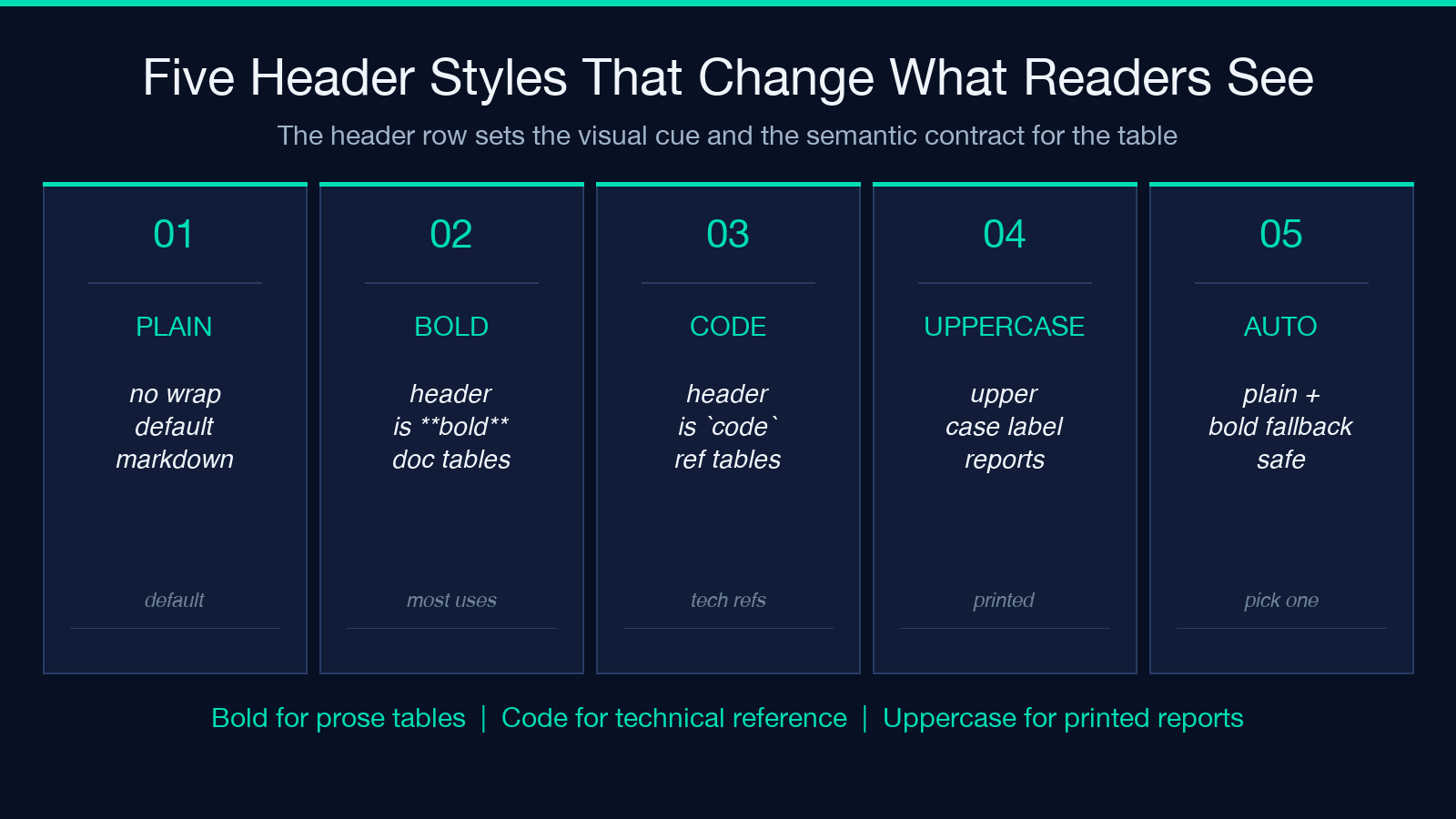
Plain leaves the header as a normal markdown row: | Status | Count |. Most renderers bold this automatically, so Plain is rarely the literal output you want — but it is the right choice when the markdown will be embedded inside a heading or a callout that already has bold styling and a second pass would clash.
Bold wraps the header text in ...: | Status | Count |. This is the right default for documentation tables, README changelogs, and any table whose header is also acting as a section label. Bold headers survive across every markdown renderer including the stripped-down ones used in static site generators.
Code wraps each header in backticks: ` | Status | Count | . The visual cue is the monospaced font, which is right for tables where the column names are themselves short identifiers or technical keys (column names that look like variable names, like user_id or created_at). It is the wrong call for prose tables where the column names read as English.
<strong>Uppercase</strong> uppercases the header text but does not wrap it: | STATUS | COUNT |. This is the style for printed reports and traditional data tables where uppercase signals a category label. It does not change alignment, so if you also pick Auto alignment the numeric columns stay right-aligned. Pair Uppercase with Auto Detect alignment and you get a clean traditional look.
For most documentation tables, Bold is the safest default. For technical reference tables (API field lists, configuration keys, JSON schema summaries), Code is better because the monospaced treatment reinforces that the column names are identifiers, not prose.
How column widths and merge hints shape complex layouts
Two optional text fields handle the visual styling beyond alignment: <strong>Column Widths (Optional)</strong> and <strong>Merge Cell Ranges (Optional)</strong>. Both default to empty, and most tables do not need them. They earn their place when you are building a layout that has to look the same in every renderer.
<strong>Column Widths</strong> takes a comma-separated list of integers — one per column. The tool pads every cell to that minimum width with spaces. A 3-column table with widths 20,8,8 will produce columns whose widths match that 20/8/8 ratio in the rendered output. This is the only way to force a markdown renderer to honor a specific column width; without an explicit width, the renderer auto-fits to the widest cell.
The widths are minimums, not maximums. If a single cell exceeds the width, the column widens to accommodate it. Do not use widths to truncate content — that produces broken output where the longest values spill past the divider and the table becomes unreadable. Use widths to give a multi-column table a consistent shape when the values are roughly the same length per column.
<strong>Merge Cell Ranges</strong> takes a list of cell ranges, one per line, in the form row:col-row:col (inclusive). The tool emits a merge hint comment above the table that markdown renderers can use to produce a true merged cell. The hint looks like followed by the table itself, with three cells where the second and third are blank: | Header A | | | and | — | — | — |. The render hint syntax is renderer-specific (GitHub-flavoured markdown supports it; standard CommonMark does not), so the merge is a hint, not a guarantee. If your table is consumed by a strict CommonMark renderer, the merge hints are ignored and the row just shows three cells where the second and third are blank. Use merge hints when you know the consumer is GitHub or a renderer that supports comments. Do not use them when the markdown is going to a stripped pipeline.
When to let the tool auto-pad vs. force plain rows
The <strong>Pad Columns</strong> checkbox defaults to true. With padding on, every cell is padded with trailing spaces so the column divider pipes line up exactly in the source markdown — useful when the file is read in a monospaced editor and you want the table to look right without rendering. With padding off, every cell is emitted at its exact width and the divider pipes only line up after the renderer inserts its own spacing. Off is the right call when:
<ul><li>The markdown will be embedded inside a JSON string or a YAML literal — trailing spaces get stripped or break the embedding.</li> <li>The table is going through a minifier that normalizes whitespace — pad spaces collapse anyway.</li> <li>You want the smallest possible source for a diff-friendly table.</li></ul>
Pad on is the right call when:
<ul><li>The file will be read in a text editor or terminal where aligned pipes matter for human review.</li> <li>The markdown will be inlined in an email or chat message where the recipient will read the source.</li> <li>You are committing the file to version control and want the diff to show column changes rather than whitespace changes.</li></ul>
A repeatable workflow for the next 20 tables
For routine table work, the following 30-second workflow produces a consistent output every time:
<ul><li>Paste the data into the textarea.</li> <li>Leave <strong>Input Format</strong> on Auto Detect unless you know it will misparse.</li> <li>Pick the explicit delimiter if the auto-detect would be wrong (semicolons for European CSV, tabs for spreadsheet exports).</li> <li>Leave <strong>First Row Is Header</strong> on unless the first row is a unit-of-measure annotation rather than a label.</li> <li>Leave <strong>Column Alignment</strong> on Auto Detect unless the table has a single numeric column or a single text column.</li> <li>Pick <strong>Header Style</strong>: Bold for prose tables, Code for technical reference tables, Uppercase for printed reports.</li> <li>Set <strong>Column Widths</strong> only when the table will be embedded in a fixed-width layout.</li> <li>Set <strong>Merge Cell Ranges</strong> only when the consumer renderer supports ` comments.
The tool does not store input, does not log it, and runs entirely in the browser — you can paste sensitive data without a privacy concern. For more on the underlying markdown spec that the generator targets, the Markdown samples feed holds rendered examples across common dialect variants.
Where the tool stops being the right answer
The Markdown Table Generator handles the common case: a small-to-medium data table rendered as standard markdown. There are three situations where it is the wrong tool, and recognising them saves a debugging round-trip:
- Tables larger than ~50 rows. Above that size, markdown tables become unwieldy — the source becomes hard to diff, the renderer slows down, and a CSV file or an HTML table is a better format. Switch to a tool that emits HTML or CSV directly.
- Tables with complex cell content. Markdown tables do not support nested lists, images, or code blocks inside cells. The generator escapes pipes with backticks, but anything more complex than inline text needs HTML.
- Tables that need real data binding. If the table has to update from a database or a live API, you are looking at a templating layer, not a paste tool.
For everything else — the README changelog, the API reference table, the pricing summary, the test matrix — the generator handles the boilerplate and lets you focus on the data. Explore more at elysiatools.com.
