
PDF merge cover with doc is the narrowest PDF utility in most pipelines, and that narrowness is the point. You give it two files: a cover PDF and a body PDF. It puts the cover at the front, leaves every body page untouched, and returns a single document whose first page is your cover and whose remaining pages are the original body, in order, with no rotation, no redaction, and no font reflow. There is no second mode, no upsell, no detection of page sizes that do not match. The tool does exactly one thing, and that single-purpose behavior is why it shows up in compliance batches, legal review packets, and branded report runs where the same cover must be prepended to dozens of different bodies.
The cover-page problem most PDFs share
Most teams that produce PDFs at scale hit the same wall within a few months. The body content is generated automatically: an invoice run, a quarterly report, a regulatory filing. The cover page is a separate concern: it carries branding, the recipient’s name, a confidentiality notice, the document version. Teams usually handle this in one of three ways. Some bake the cover into the body generator, which couples two concerns that change on different cadences and produces a maintenance trap. Others append or prepend pages with a CLI tool like pdftk, qpdf, or a Python script using PyPDF2, which works until the cover PDF is generated by a different team and the page sizes do not match. Still others rely on the recipient’s PDF viewer to merge at open time, which never happens consistently and is invisible to QA.
A single-purpose cover-prepend utility solves the third class of problem by removing the merge from the recipient’s machine and putting it inside the controlled pipeline. Once the merge is in your pipeline, every branded document can be assumed to start with the same cover, and any deviation shows up as a defect rather than as a styling quirk that disappears when the file is forwarded.
What the merge actually does
The operation is page concatenation, not document re-authoring. The cover file’s pages, in their original order, become pages one through N of the output, where N equals the cover file’s page count. The body file’s pages, in their original order, become pages N+1 through N+M, where M equals the body file’s page count. The output preserves the cover file’s metadata (title, author, subject, producer, creator) where the underlying library exposes those fields, and the body file’s pages keep their internal links, form fields, and annotations.
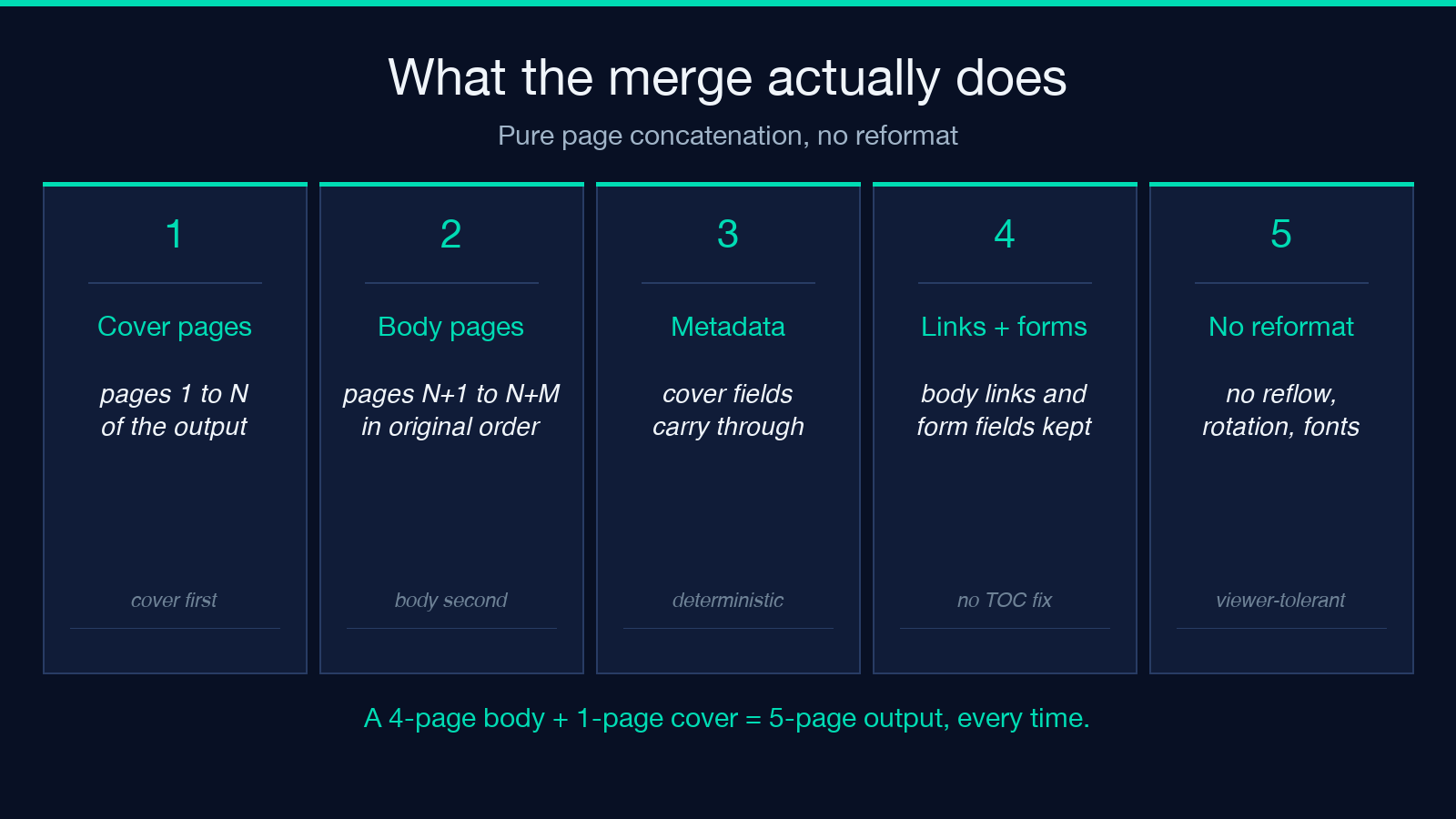
What it does not do: it does not reformat the cover to match the body’s page size. A letter-size cover prepended to an A4 body produces an output where the first page is letter-sized and the remaining pages are A4. Most viewers handle this without complaint, but print pipelines that expect a uniform page size will reject the file. It does not flatten form fields, normalize fonts, or recompress images. It does not add a page break, header, or footer. It does not embed the cover as a stamp or watermark. If any of those are required, you are looking at a different tool.
The two input contracts
The two files you supply are both PDFs, both readable, and both treated as opaque page sequences by the merge. The cover file can be one page or many; the canonical example is a single-page letterhead with the company logo, the document title, and a “Confidential” stamp at the bottom. The body file is whatever the producing system emitted: a four-page invoice packet, a forty-page due-diligence report, a hundred-and-fifty-page regulatory filing.
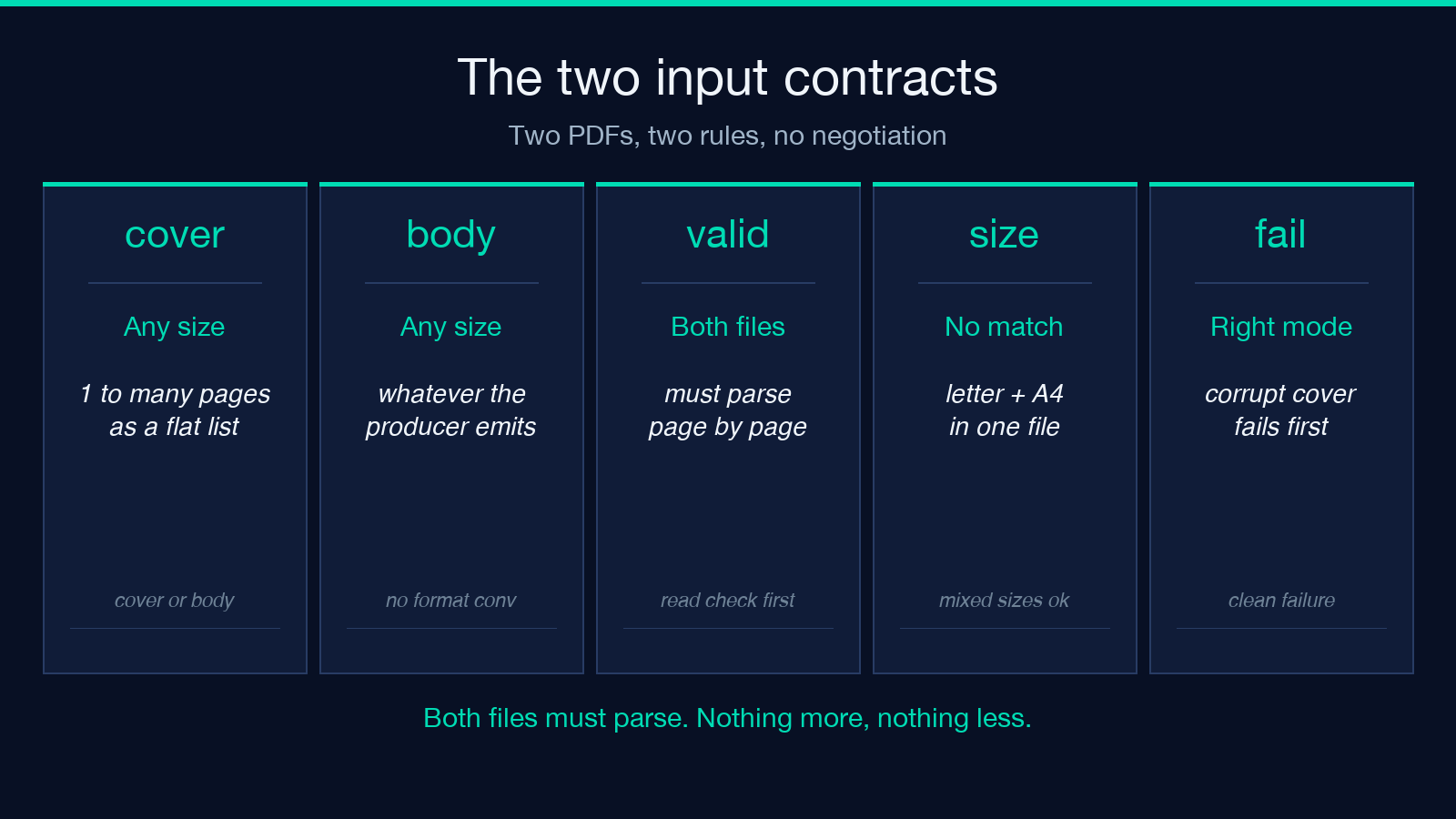
There is no requirement that the cover and body share a page size, a producer, or a creation date. The only requirement is that both files are valid PDFs that a parser can read page-by-page. Corrupt cover files fail before any body work happens. Corrupt body files fail mid-merge and leave the cover alone, which is the right failure mode: you know exactly which file to repair.
Output naming and page-count behavior
The output filename follows whatever convention your wrapper sets. Most implementations write the body file’s basename plus a -with-cover suffix, or write the cover file’s basename plus the body file’s basename, joined with an underscore. The page count of the output equals the cover page count plus the body page count, exactly. There is no blank-page insertion, no separator, and no index page. If you started with a four-page body and a one-page cover, the output is a five-page PDF whose first page is the cover and whose pages two through five are the original body in original order.
This determinism is why the tool is useful in audit pipelines. A reviewer can predict the output page count from the input page counts, and any deviation is a defect rather than an artifact.
When the cover moves your TOC off by one
Here is the most common silent failure. If the body PDF starts with a table of contents that references “page 1” through “page 4,” and you prepend a one-page cover, the table of contents is now wrong. The body content has not moved; the page numbers in the TOC have. Two ways to defuse this: either the body generator produces a TOC that does not include the cover (some PDF generators offer this flag, often called “exclude first page from TOC” or “start numbering on page 2”), or the merge happens after the body is paginated and the TOC is generated as a post-merge artifact rather than a pre-merge one.
The tool does not handle this for you, and it should not. Cover insertion and TOC regeneration are two separate concerns, and conflating them inside one utility produces a tool that does two things badly instead of one thing well.
Branding workflows that benefit
Three workflows benefit more than the others. The first is the legal review packet, where every external-facing document needs a “Privileged and Confidential” cover and the recipient name printed at the top of the cover. The second is the quarterly investor update, where the same branded cover is prepended to the same body file for every investor in the cap table, with only the cover PDF varying per recipient. The third is the regulatory filing, where the cover carries the filing type, the docket number, and the certification language required by the regulator, and the body is the substantive filing.
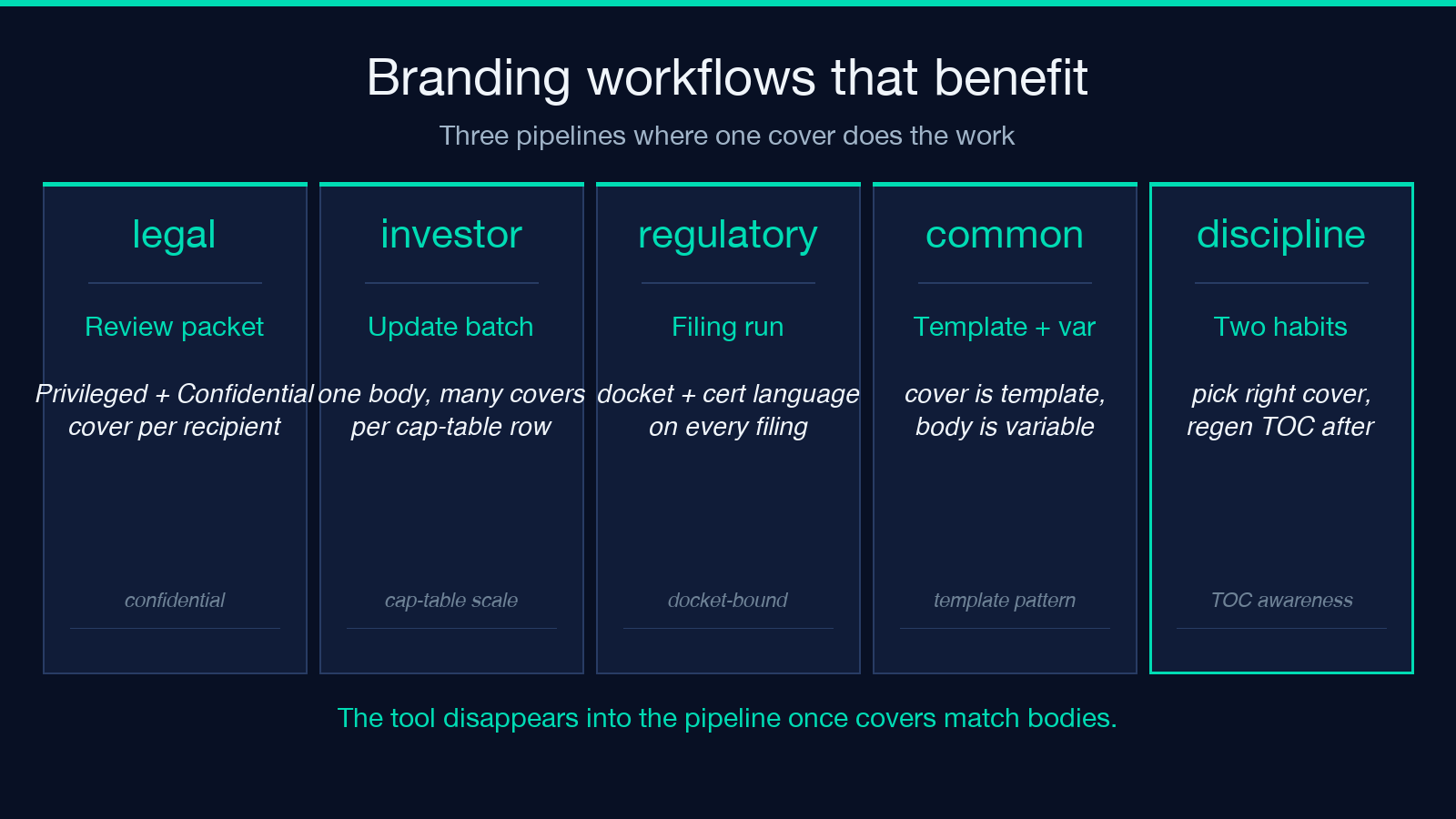
In all three, the cover PDF is a template, the body PDF is variable, and the merge is the operation that turns a template-plus-variable pair into a single deliverable. This is the workflow the tool is designed for.
Limits and edge cases
Encrypted cover PDFs and encrypted body PDFs both fail unless the wrapper handles decryption. Scanned body PDFs that are image-only work fine, because the merge operates at the page level, not the text level. Body PDFs with embedded attachments carry those attachments into the output unchanged. Body PDFs with form fields carry the form fields into the output unchanged, including any field that references a page number. If the form references “page 4” and the cover pushed page 4 to page 5, the form’s page reference is now wrong in the same way the TOC was wrong.
The single sharpest limit is page size mismatch. A cover and a body that differ in page size produce an output that mixes page sizes. Most PDF viewers render this without complaint; most print pipelines reject it. If your downstream consumer is a print pipeline, normalize page sizes upstream.
Picking the right cover template
Pick a cover template whose page size matches the body page size, and whose visual language matches the body’s intended reader. Do not reuse the cover across document families; a “Confidential” cover on a public marketing PDF undermines both. Do not embed recipient-specific data in the cover template; generate a per-recipient cover PDF upstream and let the merge handle the per-recipient variation.
A clean cover prepended to a clean body is the entire output. The discipline is in choosing the right cover for the right body and in regenerating the TOC after the merge. Once those two habits are in place, the tool disappears into the pipeline and the team stops thinking about covers as a separate workstream.
Try it on a sample at Elysia Tools, or browse the full catalog at Elysia Tools.
